Electronic Team uses cookies to personalize your experience on our website. By continuing to use this site, you agree to our cookie policy. Click here to learn more.

Uzaktan Yazılım Kurulumu HelpWire ile

HelpWire hizmeti, fiziksel müdahaleye gerek kalmadan yazılım uygulamalarını sorunsuz bir şekilde kurmanıza, dağıtmanıza ve sorunlarını gidermenize yardımcı olan kullanışlı bir uzaktan yazılım kurulum aracıdır.
 G2 logo
G2
5.0
 capterra logo
Capterra
5.0
 SourceForge logo
SourceForge
5.0
 TrustRadius logo
TrustRadius
5.0

Uzak Masaüstü Yazılımı - Uzaktan Yazılım Kurmak İçin En İyi Seçenek

Sorun: Dijital ve uzaktan çalışma kültürüne sahip modern kurumsal yapılarda, yazılım sistemlerini uzaktan ve kolayca kurabilmeniz gerekir. Bu, kurulum süresini azaltmaya ve verimliliği artırmaya yardımcı olurken, maliyetli yerinde ziyaretleri ortadan kaldırır. Ancak süreç göründüğü kadar kolay değildir. Uyumluluk sorunları, yapılandırma problemleri ve güvenlik endişeleri gibi zorluklar hâlâ devam etmektedir.

Çözüm: Uzaktan yazılım kurulumu sorunlarının üstesinden gelmek için HelpWire’ın platformlar arası, kullanıcı dostu uzaktan erişim ve kontrol çözümünü kullanın. Bu çözüm, teknisyenlerin sanki fiziksel olarak oradaymış gibi kolayca ve güvenli bir şekilde bağlantı kurmasını ve uzak cihazlara erişmesini sağlar. Araç, hem müşterilere hem de çalışanlara ait bilgisayarlara uzaktan yazılım yükleme sürecinin tamamını basitleştirir. HelpWire, kullanıcıların yazılım kurulumlarını minimum hatayla kolayca yönetmelerine olanak tanıyan ideal bir araçtır.

En iyisi: Küçük ölçekli kurulumlar, tek seferlik kurulumlar veya bireysel cihazlardaki sorunları giderme.

HelpWire ile Uzaktan Yazılım Nasıl Kurulur

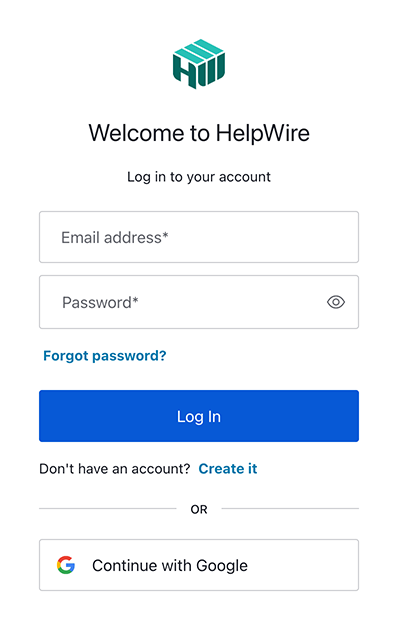
1. Yeni bir HelpWire hesabı kaydedin veya giriş yapın:
Sayfanın sağ üst köşesindeki "Giriş yap" düğmesine tıklayarak kimlik bilgilerinizle oturum açın. HelpWire'da yeniyseniz, Google profilinizi veya e-posta adresinizi kullanarak bir hesap oluşturabilirsiniz.
Register new HelpWire account
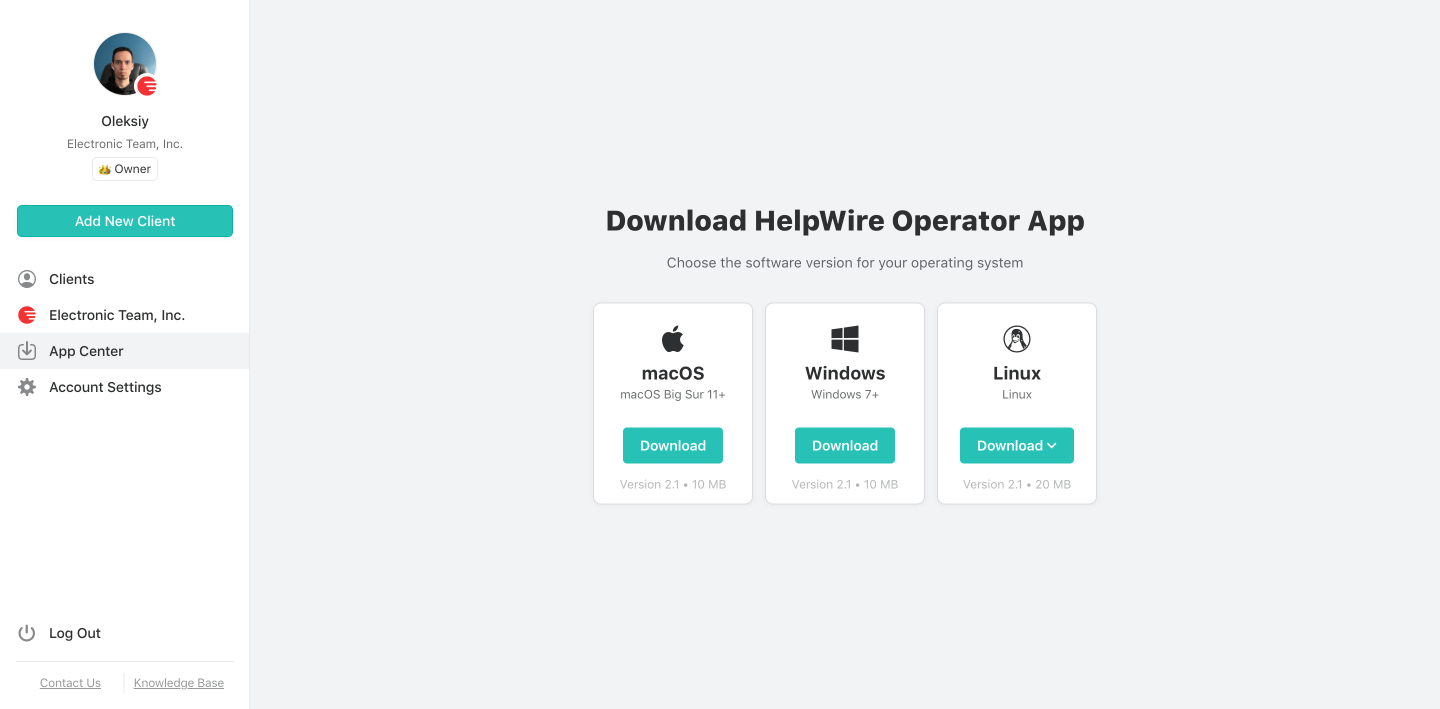
2. HelpWire'ı İndirin:
HelpWire'ı “App Center” üzerinden indirin:
Download HelpWire for remote software installation
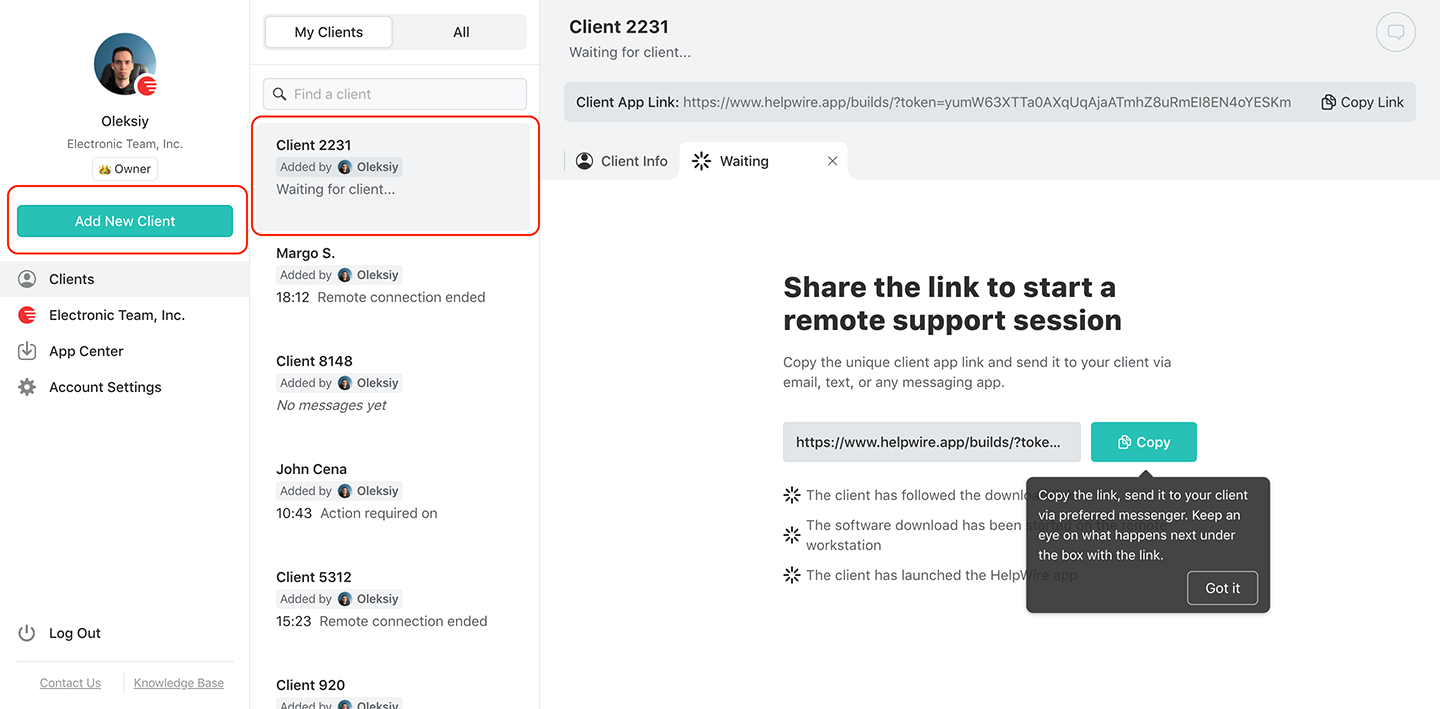
3. Yeni bir istemci oluşturun veya mevcut olanı seçin:
İstemciler listenizden mevcut bir istemciyi seçin veya araç çubuğundaki düğmeyi kullanarak yeni bir tane oluşturun.
Create a new client
4. İstemciye bağlantı linki gönderin:
Uygulamayı başlatın, bağlantı linkini kopyalayın ve mesajlaşma, e-posta veya yardım masası aracılığıyla istemcinize gönderin.
Send a connection link to install software remotely
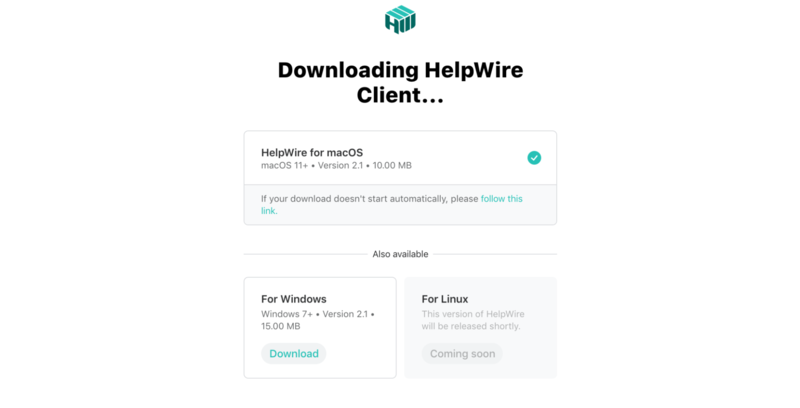
5. İstemci uygulamayı indirir:
İstemcinin bağlantıyı takip ettiğinden, istemci uygulamasını cihazına indirip başlattığından emin olun.
Downloading the client app
6. Uzaktan Erişim Talebi:
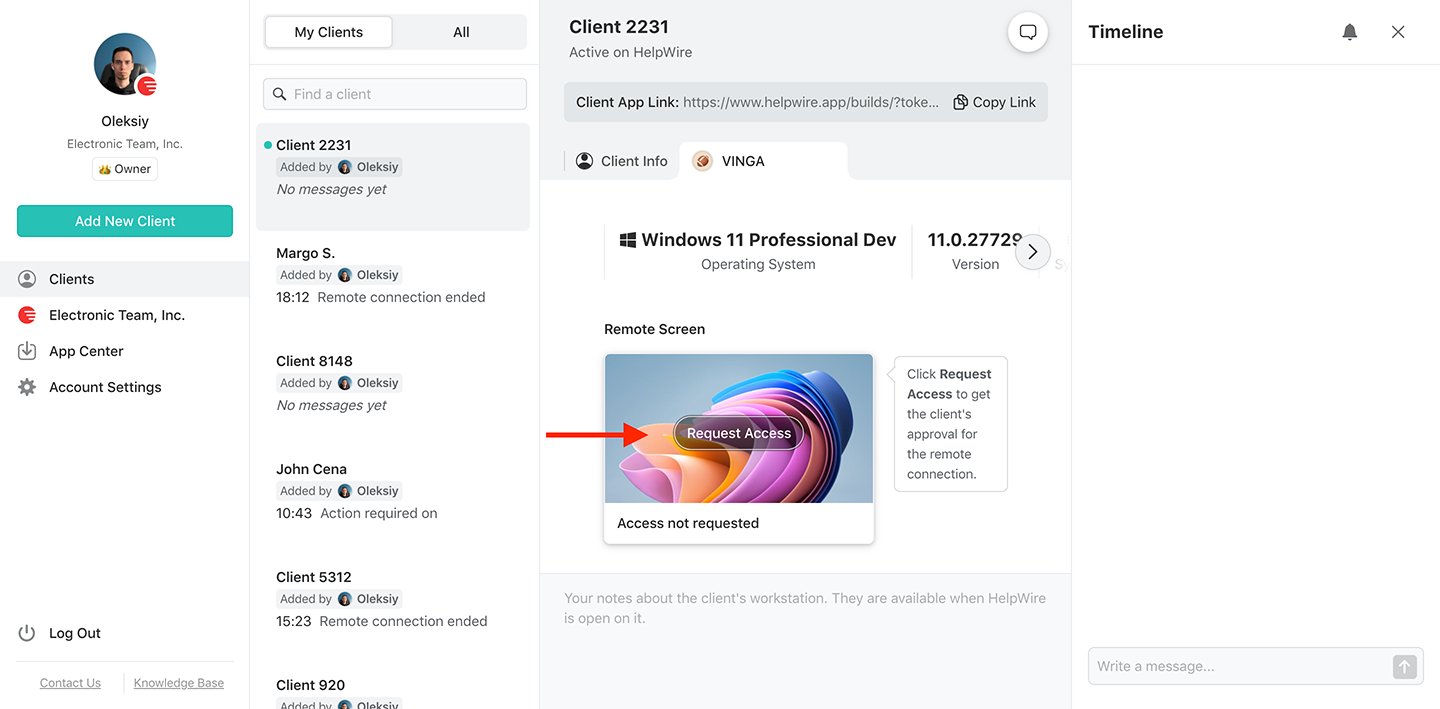
İstemcinizin HelpWire İstemci uygulamasını kurmasını ve başlatmasını bekleyin. Ardından, "Erişim Talep Et" seçeneğine tıklayın ve onayını bekleyin.
Request access to multiple monitors
7. Uzak istemciden erişim alın:
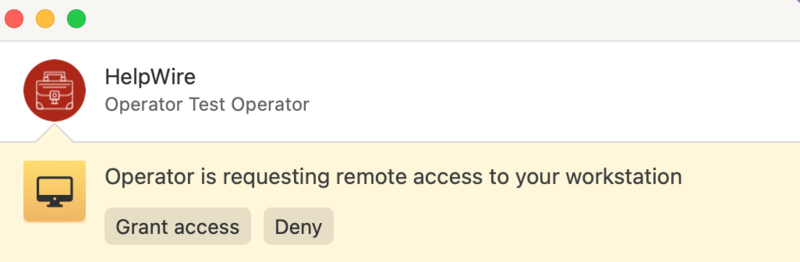
İstemci, uzaktan bağlantıya izin vermek için Erişim Ver seçeneğine tıklar. İstemci macOS kullanıyorsa ek izinler gerekebilir.
Grant access
8. Uzak istemciye bağlanın:
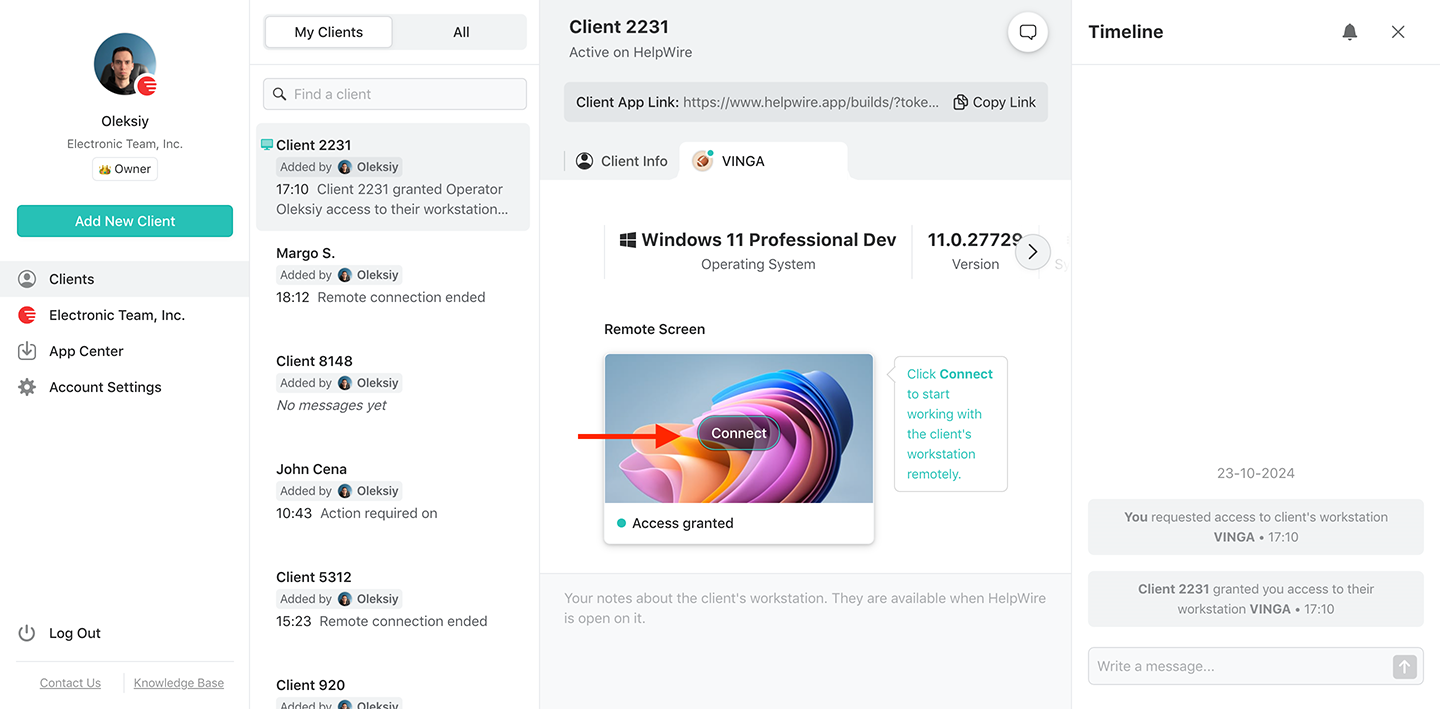
İş istasyonunuzdaki 'Bağlan' düğmesine tıklayarak bir uzak masaüstü oturumu başlatın. Düğme, seçtiğiniz istemci profili sekmesinde bulunmalıdır.
How to connect to the remote client with multiple monitors
9. Uzaktan kurulum:
Bağlantı kurulduktan sonra, kurulum dosyalarını aktarmak için HelpWire'ın dosya paylaşım özelliğini kullanın. Kurulum dosyalarını uzak oturum penceresine sürükleyip bırakmanız yeterlidir. Ardından, kurulumu sanki fiziksel olarak oradaymışsınız gibi tamamlayabilirsiniz.
10. Oturumu Sonlandır:
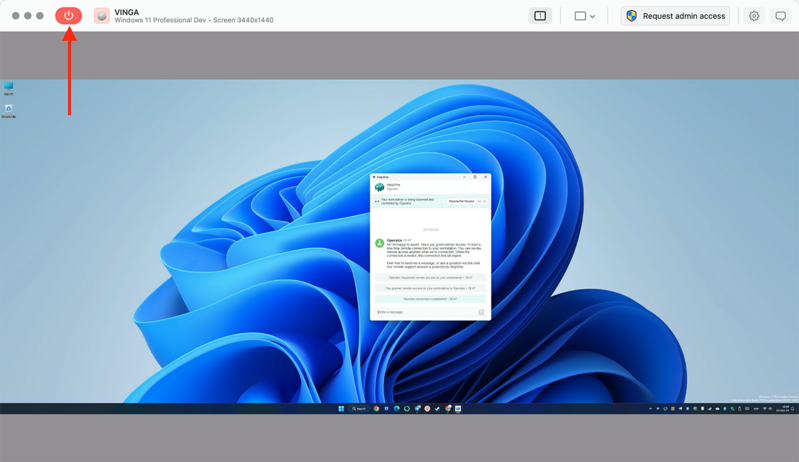
Uzak oturumu durdurmak için Bağlantıyı Kes düğmesine tıklayın.
End session with multiple monitors
Not: İstemci erişimi istediği zaman iptal edebilir, ancak iletişim yerleşik sohbet aracılığıyla devam edebilir.

Neden Uzaktan Yazılım Kurulumu İçin En İyi Seçiminiz HelpWire?

Simple and Fast Remote Control

Basit ve Hızlı Uzaktan Kontrol

Her istemci için oluşturulan benzersiz bir bağlantı linki ile istemci iş istasyonlarına sorunsuz bir bağlantı kurun.
Intuitive File Sharing

Sezgisel Dosya Paylaşımı

Kurulum dosyalarını uzak bir iş istasyonuna kopyalayıp yapıştırmak için kullanışlı yerleşik dosya aktarma özelliklerini kullanın.
Admin Privileges

Yönetici Ayrıcalıkları

İstemcinin onayıyla, uzak Windows iş istasyonlarında uygulamaları yönetici ayrıcalıklarıyla dağıtın ve çalıştırın.
Cross-Platform Remote Control

Platformlar Arası Uzaktan Kontrol

HelpWire ile Windows ve Linux'tan macOS'a veya tam tersi şekilde bağlanın ve tercih ettikleri platformda yerel uygulamaların uzaktan yazılım kurulumunu gerçekleştirin.
Control Multiple Workstations

Birden Fazla İş İstasyonunu Kontrol Edin

Aynı istemcinin birden fazla uzak iş istasyonuna eş zamanlı bağlantılar kurarak hepsine yazılım yükleyin.
Workstation Details

İş İstasyonu Ayrıntıları

Sorunsuz uzaktan kurulum için uzak iş istasyonunun adını, türünü ve işletim sistemi sürümünü görüntüleyin.

HelpWire'ın Ek Uzaktan Yazılım Kurulum Yönetimi Yetenekleri

Uzaktan Yazılım Dağıtımı

Birden fazla iş istasyonuna uzaktan yazılım dağıtmak isteyen bir işletme temsilcisiyseniz HelpWire doğru seçimdir. HelpWire hesabınızdaki tüm istemcilerinizin kullanışlı bir listesini tutun ve ihtiyaç duyduğunuzda onlara kolayca bağlanın.

Uzaktan Yazılım Kaldırma

HelpWire’ın uzaktan kontrol bağlantısı, farklı iş istasyonlarından veya tek bir uzak bilgisayardan yazılımları uzaktan kaldırmayı kolaylaştırır.

Uzaktan Yazılım Yönetimi

Yönetmeniz gereken uzak iş istasyonlarına her zaman, her yerden erişin. Tek ihtiyacınız olan bir internet bağlantısı, bilgisayar ve ücretsiz bir HelpWire hesabı.

Seçenek 2: Windows Grup İlkesi ile Yazılımı Uzaktan Kurun

Windows Grup İlkesi (GPO), Windows bilgisayarınıza .msi dosyaları gibi yazılımları yüklemenize yardımcı olan yerleşik bir özelliktir. Ayrıca verimli çalışmak için herhangi bir ek yazılım gerektirmez; ancak HelpWire gibi daha basit uzaktan destek araçlarına kıyasla kullanımı genellikle daha tekniktir.

GPO, Active Directory kullanan kuruluşlara uygundur, ancak hem Active Directory hem de GPO kurulumunda teknik uzmanlığa ihtiyacınız vardır. Windows kullanmayan işletmeler, yalnızca Windows işletim sistemlerinde çalıştığı için GPO'ya erişmekte zorlanacaktır.

En iyisi: Merkezi yazılım yönetimi için aktif dizine ve özel olarak Windows işletim sistemine sahip büyük kuruluşlar.

Yazılımı uzaktan yüklemek için Windows Grup İlkesi'ni (GPO) kullanmaya yönelik basit, adım adım kılavuz aşağıdadır:
  • Create a Shared Folder: Save the software’s .msi package in a network-shared folder.
  • Open Group Policy Management: On the domain computer, open Group Policy Management (GPMC).
  • Edit or Create a GPO: Right-click on your organizational unit (OU) or domain, then create or edit a GPO.
  • Configure Your Software Installation: From your GPO editor, go to Computer Configuration, click on Policies, then click Software Installation and add the .msi package from the shared folder.
  • Deploy the GPO: Apply the GPO to the necessary machines. Finally, reboot the computer or perform a policy update (gpupdate /force) to confirm the software has been installed.

Seçenek 3: Komut Satırı Aracılığıyla Uzaktan Yazılım Kurulumu

Bir diğer uzaktan yazılım kurulumu yönetimi seçeneği de Komut satırı araçlarıdır. Linux ve Mac için SSH, Windows için ise PowerShell gibi komut satırı araçları, BT yöneticilerinin bunlar üzerinde uzaktan kurulum betikleri çalıştırmasına olanak tanır.

Bu, onlara özel kurulumlar üzerinde kontrol sağlar. Ancak, bu komut satırı yöntemlerini kullanmak oldukça zorlayıcı olabilir. Betik oluşturma ve komut yazma konusunda teknik anlayış gerektirirler. Ek olarak, ölçeklendirmenin tek yolu otomasyondur, bu da büyük ölçekli dağıtımlar için süreci daha da karmaşık hale getirir.

En iyisi: Bu uzaktan yazılım kurulum yöntemi, Mac, Linux veya Windows ortamlarında esnek ve özel kurulumlara ihtiyaç duyan, iyi betik yazma becerilerine sahip BT yöneticileri için uygundur.

Yazılımı uzaktan yüklemek için cmd kullanarak yazılım yükleme yönteminin nasıl kullanılacağına dair kısa ve adım adım bir kılavuz aşağıdadır:

SSH için (Linux/Mac):

  • Enable SSH: Make sure SSH is turned on the device you choose to use. If you use Linux, run this instead, “sudo systemctl start ssh.”
  • Open Terminal: On your computer, open a terminal.
  • Connect to theRemote Device: Use the command “ssh user@remote_ip_address” to remotely connect to your preferred device.
  • Install the Software: Once you’re connected, run the command to install the software. For Ubuntu run this “sudo apt install package_name”.
  • Exit SSH: After the installation is complete, simply type exit to close the SSH session.

PowerShell için (Windows):

  • Enable PowerShell Remoting: Run Enable-PSRemoting to remotely connect to your preferred device.
  • Open PowerShell: On the computer, open PowerShell as an administrator.
  • Connect to the Remote Device: Use this command “Enter-PSSession -ComputerName remote_computer_name”to connect to your remote computer.
  • Run Installation Script: Once connected, run this command “Start-Process msiexec.exe -ArgumentList '/i software.msi /quiet'”
  • Exit PowerShell Session: Type “Exit-PSSession” to disconnect after your installation.

Uzaktan Yazılım Kurulumu vs Dağıtımı (Deployment)

Birbiriyle ilişkili olmalarına rağmen, uzaktan yazılım kurulumu ve dağıtımı (deployment), yazılım yönetiminde iki farklı süreçtir. Gelin bunların farklarını inceleyelim:

  • Uzaktan yazılım kurulumu, bir yazılım programının ağ üzerinden bir cihaza uzaktan kurulması sürecidir. Yazılımın yapılandırılmasını ve kullanıcılar için hazır hale getirilmesini içerir; yazılımı çalışır duruma getirme şeklindeki tekil göreve odaklanır. Bu hayati, tek seferlik görev, genel yazılım dağıtım sürecinin kilit bir parçasıdır.

  • Uzaktan yazılım dağıtımı (deployment); yazılımın birden fazla cihaz ve ortamda paketlenmesi, yapılandırılması, yönetilmesi ve dağıtılması dahil olmak üzere daha geniş bir faaliyet yelpazesini kapsar. Bu süreç; yapılandırmaların, güvenlik ayarlarının ve güncellemelerin yönetilmesi gibi görevlerin otomasyonuna olanak tanıyarak etkili dağıtım ve çalışma sağlar. Kurulumun aksine, dağıtım süreklidir ve yazılım işlevselliği ile ölçeklenebilirliğini korumak için sürekli yönetim gerektirir.

Kullanıcılar HelpWire Deneyimini Anlatıyor title icon

5.0 209 müşterinin deneyimine göre
version icon
Sürüm
2.3, 28/01/2026
compatibility icon
Uyumluluk
macOS, Windows, Linux
price icon
Fiyat
Ücretsiz
İşte müşterilerimizin farklı kaynaklardan paylaştığı bazı halka açık HelpWire yorumları:
Thea M.
Office admin
Thea M.
I got a gatvol of teamviewer and its issues and moved over to HelpWire and I'm blown away. Fast, effective and doesn't drain my computer's resources. It works really well props to the devs.
Molly
Production worker
Molly
My experience with HelpWire has been fantastic! The remote control process is incredibly smooth.
Daniel Domingues
Founder, Lusha
Daniel Domingues
I appreciate HelpWire for its ease of use and comprehensive remote support tools all in one place.
Rabeea Sarfraz
Associate Software Engineer, Coeus Solutions GmbH
Rabeea Sarfraz
HelpWire streamlines the remote support, allowing me to manage multiple clients efficiently, which improved overall service quality and client satisfaction.
Mark V.
Remote Technical Support
Mark V.
The fact that I can easily segregate my clients and have a full history of my connection to them is amazing. I like the fact that I can send a link to them and then talk them through what to do when they receive it (many are elderly and techo-illiterate). The emails and link are professional and give them reassurance. I like unattended access for those clients that need that extra layer of help. Love this app.
Kyle Paterson
CEO, Enspire
Kyle Paterson
The swift setup process and zero- configuration requirement for starting remote support sessions are what I appreciate most about HelpWire. It's remarkable how quickly I can connect with clients and start troubleshooting without any hassle.
Yaroslav H.
Owner
Yaroslav H.
Very good and free alternative to TV. Easy to use and nice concept. No annoying disconnections and forcing to buy premiumbussiness subscription or smth like that.
Muhammad Ammar Z.
Senior Lecturer at Shifa College of Pharmaceutical Sciences
Muhammad Ammar Z.
As a long-time TeamViewer user for personal projects and helping family, I grew increasingly frustrated with its frequent disconnections and persistent "commercial use" warnings. I decided to search for an alternative and found Helpwire. I am incredibly impressed. Helpwire provides a stable, reliable connection without any of the interruptions I faced before. The setup is simple, and it just works.
Jonathan B.
IT Director
Jonathan B.
Its a great tool for remote support. It doesn't have the bells and whistles of its commercial rivals, but ask yourself how often do you need that stuff ? If you want to help someone out on a PC issue, or connect to a server for some admin this is perfect.
Nilay N.
Senior Education Management, Self-employed
Nilay N.
HelpWire software has been an invaluable asset for streamlining our customer support processes.
Darko V.
SEO specialist
Darko V.
Probably the best free remote access app. I like seamless remote desktop experience and copy/paste functionality, reliability, and the fact it is free to use.
Samit B.
Senior Communication Executive, Dairy
Samit B.
The experience is fantastic with a very smooth remote session experience. The optimised performance and smart connectivity feature ensures a seamless remote session with zero-lag.
Ben T
Admin Assistant
Ben T
It was handy for the odd occasion that someone needs a hand with their computer while I am not nearby. It was very reliable and able to see the other's screen to provide directions.
Jean K.
Engineer
Jean K.
Absolutely Brilliant. Having worked on a whole bunch of other remote support software, from solarwinds dameware to anydesk and teamviewer, vnc viewer and the like, I have never had the joy I am having with Helpwire.
Govind P.
Content Writer, Marketing and Advertising
Govind P.
I've never been more satisfied with the service quality of a remote desktop application in my entire freelancing career. Considering the fact that it's a free remote desktop support solution, HelpWire is really worth a shot!
The interface is straightforward, so I can quickly connect to clients' devices and start troubleshooting without jumping through hoops. Plus, the performance is rock solid-no lag or sudden disconnections, which is crucial when I'm in the middle of solving a client's issue.
Adyrosan B.
Business Leader or Manager
Adyrosan B.
I appreciate Helpwire for its user-friendly interface and efficient problem-solving capabilities. It's designed to streamline the troubleshooting process, making it easier for people to find solutions to their technical issues quickly.
Anna K.
Sales Marketing
Anna K.
HelpWire really stands out for me because it's free and works seamlessly on both Mac and PC. I love how easy it is to get started. Basically, I can send a dedicated link to my colleague or client to initiate a remote session right away. The software is super fast and easy to use.
EJ S.
Business Leader or Manager
EJ S.
The Operator Dashboard is easy to use and you can start up a support session in seconds. The fact that it keeps the chat with the customer as well as logs of connections is a nice touch.
For nearly ten years I relied on another tool that recently became unusable, and HelpWire has stepped in as the perfect replacement.
How could I not like HelpWire! It ticks all the boxes for a great remote desktop/support service, and best of all, it's free. Real good, and worth more than a try.
Martin Lentz
Email İnceleme
Martin Lentz
Your software worked just as well as Teamviewer. One thing works better and that is on the client side where they simply just have to grant me access. They don't have to provide me a one use password in order for me to connect.
Luca Albanese
Email İnceleme
Luca Albanese
Simplicity of use, in particular on the client side that simply require to click on a link and give the required permissions. But the best feature, IMHO, is the ability to share the clients with other team members... and all of this for free! THANK YOU for this amazing app!!
Wilkin Miguel Julio Mercado
Email İnceleme
Wilkin Miguel Julio Mercado
It's easy to use and I didn't expect there to be a software as good as this one.
Michael Guggenbichler
Email İnceleme
Michael Guggenbichler
Absolutely Amazing Product for attended Access for individual operators or small teams! And you do not even have to pay!! There are so much remote access solutions, you have to pay tons of money and don't even provide the bare minimum. HelpWire Team, you're doing great! Looking forward to what you will bring in the future.
Sıkça Sorulan Sorular