Electronic Team uses cookies to personalize your experience on our website. By continuing to use this site, you agree to our cookie policy. Click here to learn more.
Free remote desktop software
for Windows
Connect to any Windows, Mac, or Linux machine in seconds: no VPN, no network config, no account registration on the client side.
Find out the pros and cons of HelpWire over the built-in remote desktop on Windows.
Pros:
HelpWire is cross-platform. It supports Windows, Linux, and macOS.
Multiple operators can connect to the same client.
HelpWire includes a support chat feature.
It offers multilingual support for more accessibility.
It offers an option to save client details in a client directory for greater convenience.
Cons:
Native Windows RDP delivers faster performance.
How to set up a remote desktop connection on Windows using HelpWire
Here’s the step-by-step process to use HelpWire to initiate a remote desktop connection on Windows:
1. Register for your HelpWire account.
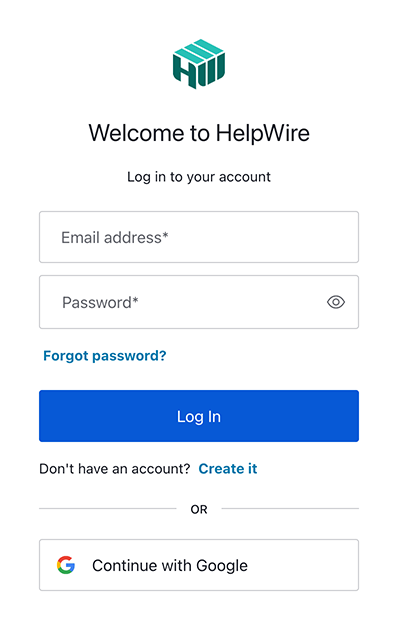
If you don’t have a HelpWire account, register and create a new account by providing your email address or using your Google profile.
2. Download HelpWire’s Operator application.
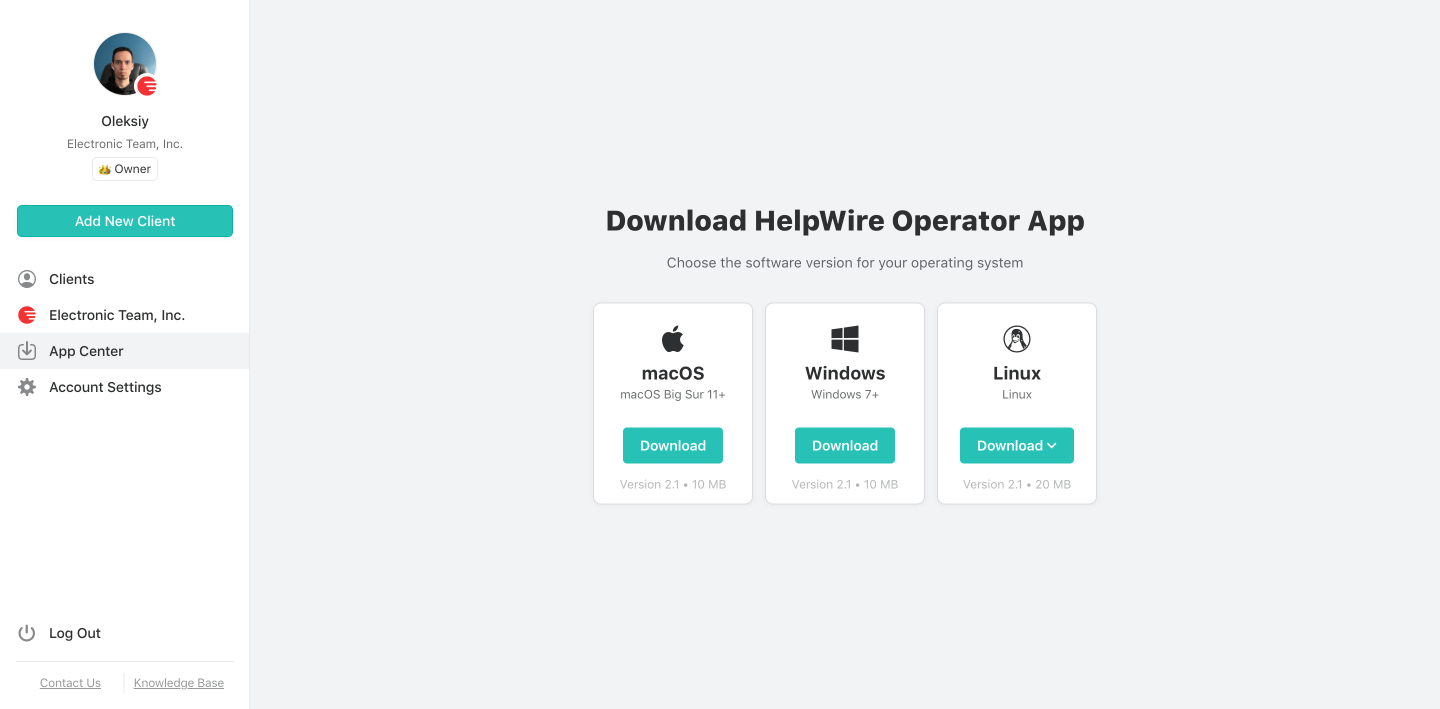
Go to the “App Center” and find the HelpWire Operator application. Download the Windows installer on your system.
3. Create a new one or choose an existing client.
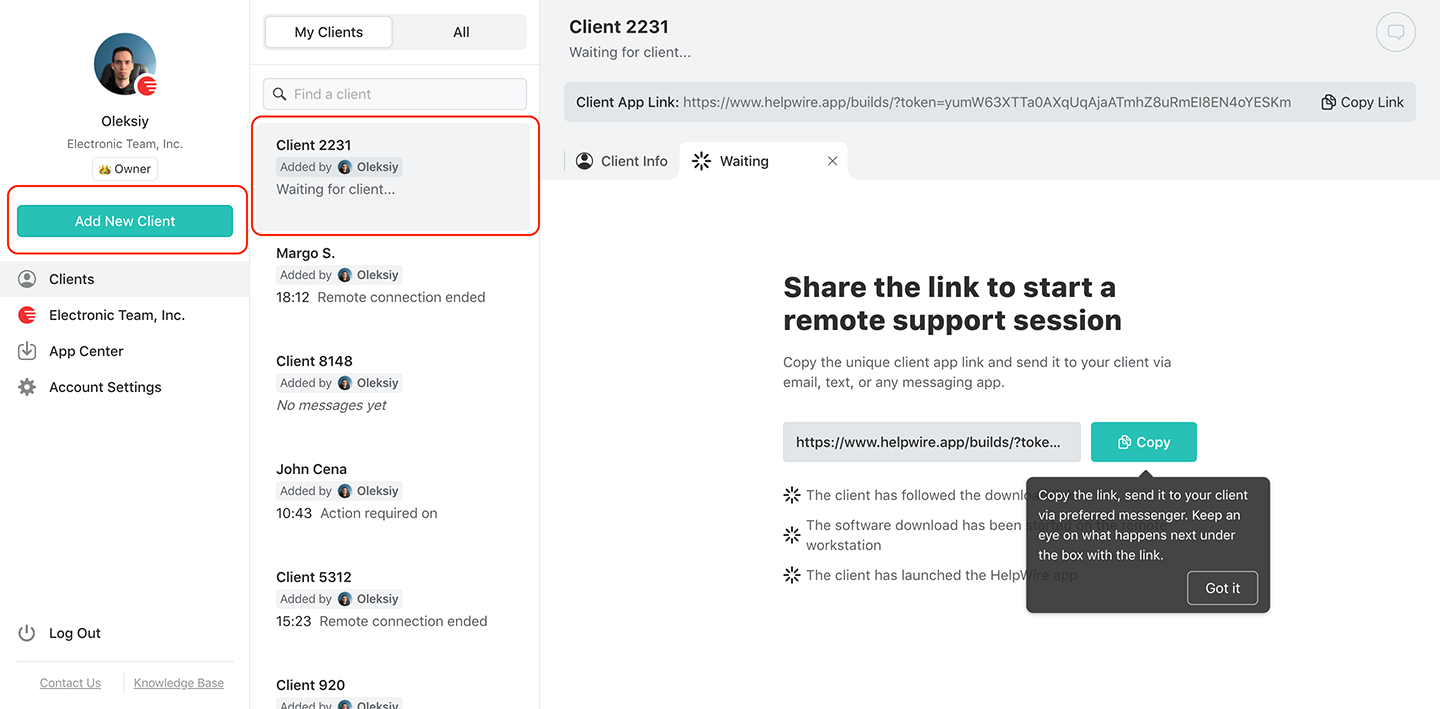
If no client has been added before, create a new client, or if you’ve already created one, choose it from the “Clients” list. In the main toolbar, you will find a button next to each option.
4. Share the link with your client.
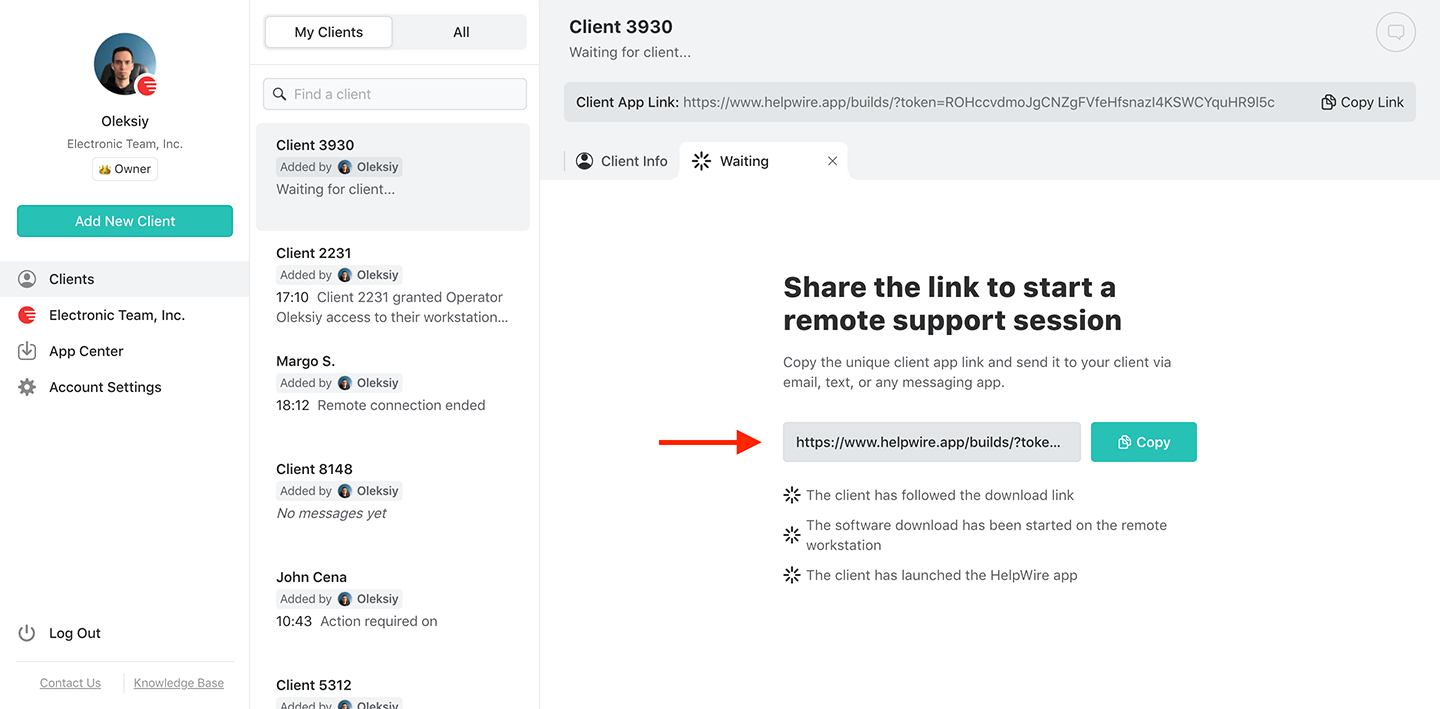
Find the Client app link from the client profile. It should be in the upper toolbar. Share this link with your client via email, instant messenger, SMS, or any other channel you and the client find convenient.
5. Get access permission.
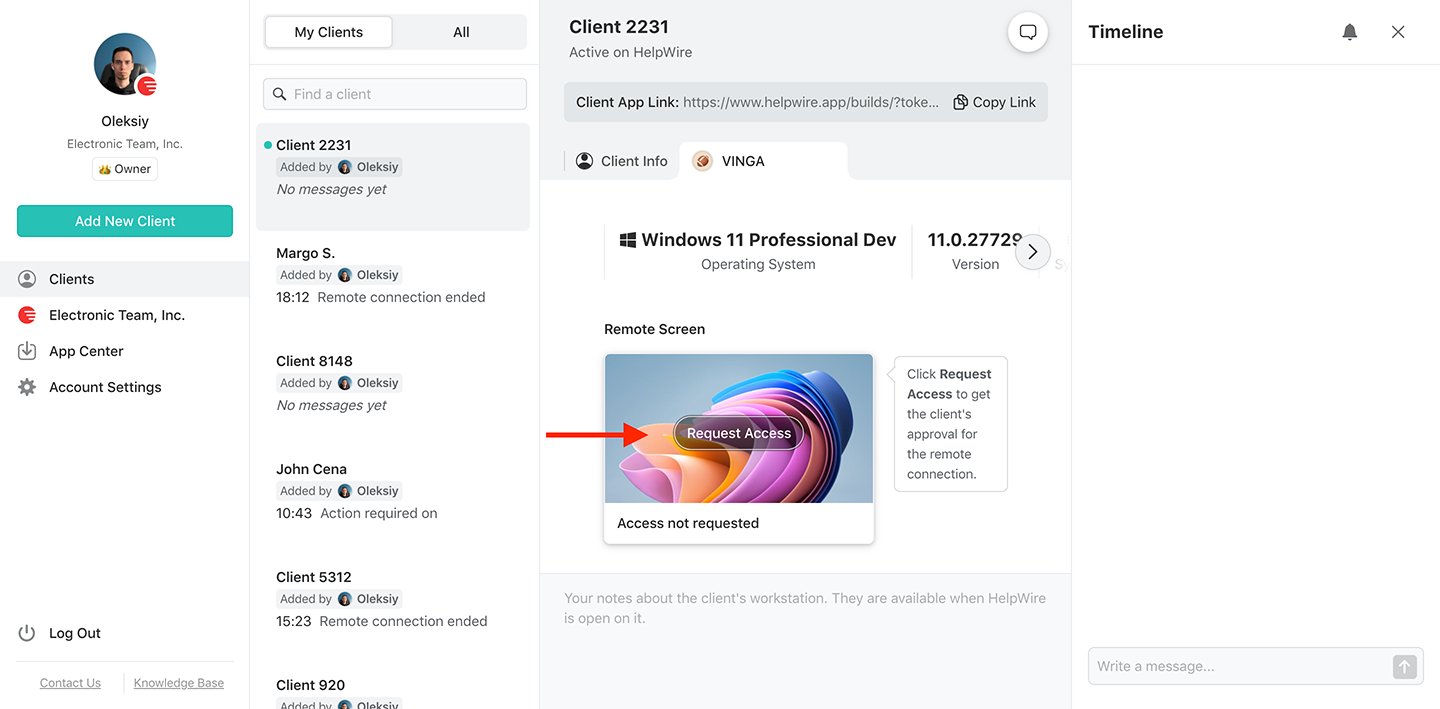
After the client receives the link, wait for them to install and launch the HelpWire Client application on their systems. Once done, click on the button “Request Access” and wait for the client to approve your request.
6. Connect to the remote client.
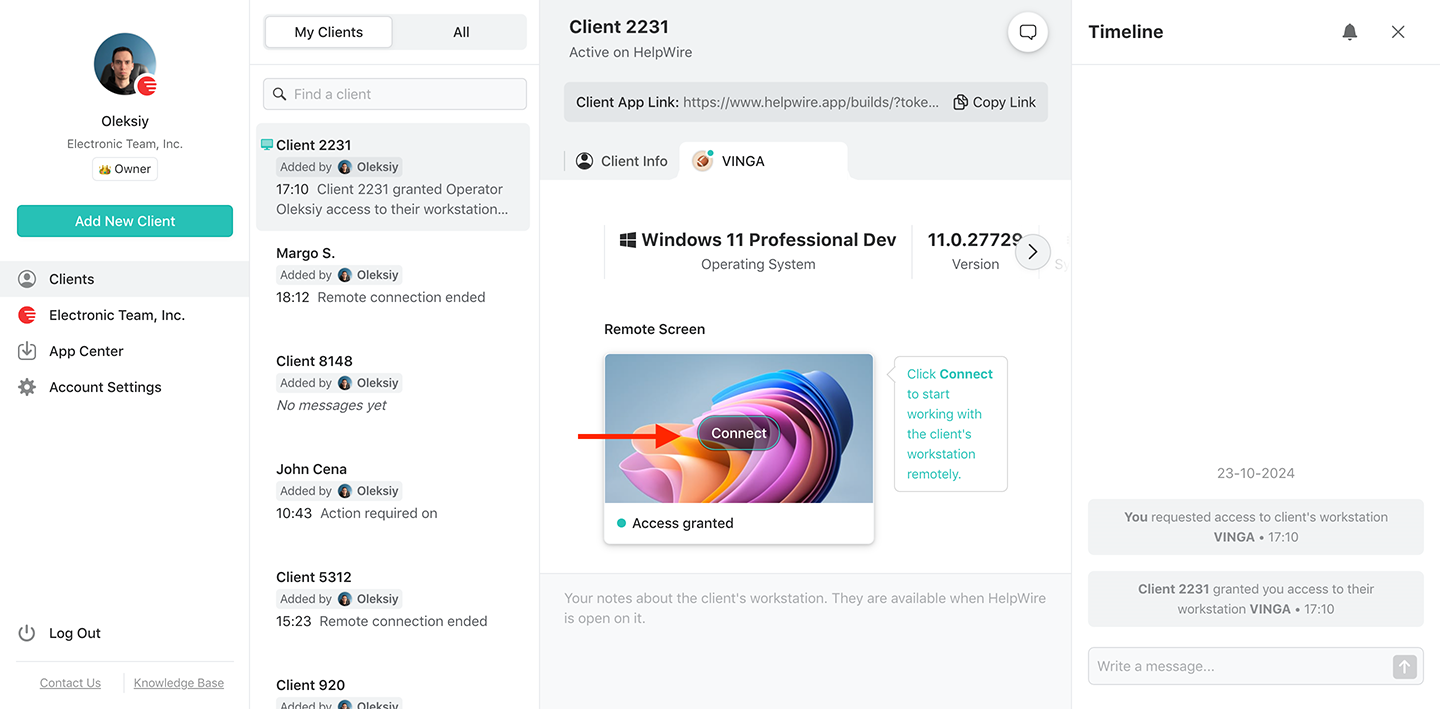
Initiate a remote desktop control session to a remote client from your Windows workstation by pressing the “Connect” button. The button should be in your chosen client profile tab.
7. End the remote session.
Once you’re done with your remote control task, end the remote session. There are three ways to do that:
Close the Windows HelpWire Operator application on your computer with the standard system windows closed.
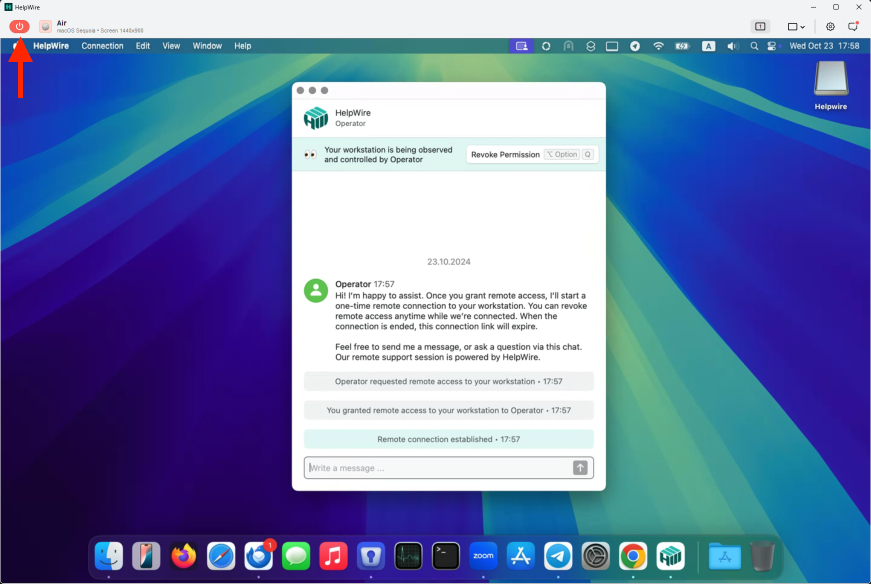
In the Operator toolbar, locate the red button and press it.
On the remote computer, close the HelpWire Client application.
Capabilities of our remote desktop software for Windows
Cross-platform support
HelpWire is a cross-platform solution, supporting Windows, macOS, and Linux. So, you can connect from your Windows computer to any Windows 7+, Linux, or macOS systems and vice versa.
Link-based session start
Connect your computer to client workstations and computers effortlessly in real-time via uniquely generated links with the help of HelpWire.
Control multiple workstations
Deliver concurrent remote support to your client’s various remote desktops, workstations, and devices, irrespective of the operating system they run on.
File transfer
Copy and paste or drag and drop files into HelpWire’s remote control window to send them to your clients securely. Rest assured, no one can intercept your files as HelpWire secures your remote connections with advanced technologies.
Multi-monitor view
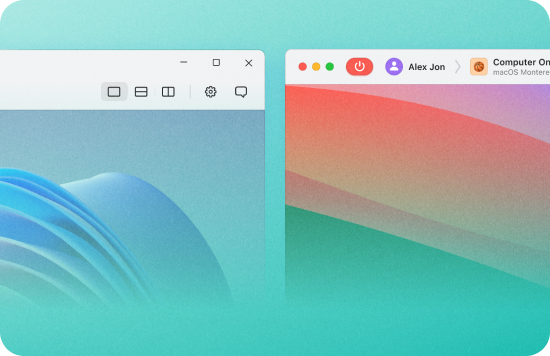
View and manage multiple remote screens at once or switch between them during a session. This saves you time spent managing separate screens on different computers.
In-session chat
Built-in chat lets operators communicate with clients during a session without switching to a separate tool.
Client management
HelpWire provides essential tools such as detailed client lists and support session history. It can also collect details of your client’s devices and workstations and consolidate them under a single client profile.
Team management
Add or remove team members whenever you want and manage your support team based on current needs.
Windows remote desktop for sysadmins, helpdesks, and freelancers
System administrators
Managing Windows machines across a distributed office means either VPN overhead or per-device RDP configuration. HelpWire gives sysadmins cross-platform access from a single operator app. Connect to Windows, Mac, or Linux machines without changing your client’s network settings. Learn more
Help & service desks
Windows is the dominant platform in most corporate environments, but setting up RDP for every support call requires VPN access and network admin rights. HelpWire removes that overhead – share a link, get access, resolve the issue, all without needing to configure network settings on either side.
Most freelance IT clients are on Windows. HelpWire lets you connect to any Windows 7+ machine with a shareable link – no remote admin credentials, no pre-installed software from the client side. Manage all your clients from one account.
What our users say
4.6Based on 209 customers' reviews
Version
2.2, 4 Feb, 2026
Compatibility
macOS, Windows, Linux
Price
Free
Public reviews from the IT teams and technicians using HelpWire.
I got a gatvol of teamviewer and its issues and moved over to HelpWire and I'm blown away.
Fast, effective and doesn't drain my computer's resources.
It works really well props to the devs.
HelpWire streamlines the remote support, allowing me to manage multiple clients efficiently, which improved overall service quality and client satisfaction.
The fact that I can easily segregate my clients and have a full history of my connection to them is amazing. I like the fact that I can send a link to them and then talk them through what to do when they receive it (many are elderly and techo-illiterate). The emails and link are professional and give them reassurance. I like unattended access for those clients that need that extra layer of help. Love this app.
The swift setup process and zero- configuration requirement for starting remote support sessions are what I appreciate most about HelpWire. It's remarkable how quickly I can connect with clients and start troubleshooting without any hassle.
Very good and free alternative to TV. Easy to use and nice concept. No annoying disconnections and forcing to buy premiumbussiness subscription or smth like that.
Muhammad Ammar Z.
Senior Lecturer at Shifa College of Pharmaceutical Sciences
As a long-time TeamViewer user for personal projects and helping family, I grew increasingly frustrated with its frequent disconnections and persistent "commercial use" warnings. I decided to search for an alternative and found Helpwire. I am incredibly impressed. Helpwire provides a stable, reliable connection without any of the interruptions I faced before. The setup is simple, and it just works.
Its a great tool for remote support. It doesn't have the bells and whistles of its commercial rivals, but ask yourself how often do you need that stuff ? If you want to help someone out on a PC issue, or connect to a server for some admin this is perfect.
Probably the best free remote access app. I like seamless remote desktop experience and copy/paste functionality, reliability, and the fact it is free to use.
The experience is fantastic with a very smooth remote session experience. The optimised performance and smart connectivity feature ensures a seamless remote session with zero-lag.
It was handy for the odd occasion that someone needs a hand with their computer while I am not nearby. It was very reliable and able to see the other's screen to provide directions.
Absolutely Brilliant. Having worked on a whole bunch of other remote support software, from solarwinds dameware to anydesk and teamviewer, vnc viewer and the like, I have never had the joy I am having with Helpwire.
I've never been more satisfied with the service quality of a remote desktop application in my entire freelancing career. Considering the fact that it's a free remote desktop support solution, HelpWire is really worth a shot!
The interface is straightforward, so I can quickly connect to clients' devices and start troubleshooting without jumping through hoops. Plus, the performance is rock solid-no lag or sudden disconnections, which is crucial when I'm in the middle of solving a client's issue.
I appreciate Helpwire for its user-friendly interface and efficient problem-solving capabilities. It's designed to streamline the troubleshooting process, making it easier for people to find solutions to their technical issues quickly.
HelpWire really stands out for me because it's free and works seamlessly on both Mac and PC. I love how easy it is to get started. Basically, I can send a dedicated link to my colleague or client to initiate a remote session right away. The software is super fast and easy to use.
The Operator Dashboard is easy to use and you can start up a support session in seconds. The fact that it keeps the chat with the customer as well as logs of connections is a nice touch.
How could I not like HelpWire! It ticks all the boxes for a great remote desktop/support service, and best of all, it's free. Real good, and worth more than a try.
Martin Lentz
Email Review
Your software worked just as well as Teamviewer. One thing works better and that is on the client side where they simply just have to grant me access. They don't have to provide me a one use password in order for me to connect.
Luca Albanese
Email Review
Simplicity of use, in particular on the client side that simply require to click on a link and give the required permissions. But the best feature, IMHO, is the ability to share the clients with other team members... and all of this for free! THANK YOU for this amazing app!!
Wilkin Miguel Julio Mercado
Email Review
It's easy to use and I didn't expect there to be a software as good as this one.
Michael Guggenbichler
Email Review
Absolutely Amazing Product for attended Access for individual operators or small teams! And you do not even have to pay!! There are so much remote access solutions, you have to pay tons of money and don't even provide the bare minimum. HelpWire Team, you're doing great! Looking forward to what you will bring in the future.