Electronic Team uses cookies to personalize your experience on our website. By continuing to use this site, you agree to our cookie policy. Click here to learn more.

Instalação Remota de Software com HelpWire

O serviço HelpWire é uma ferramenta prática de instalação remota de software que ajuda a configurar, implantar e solucionar problemas de aplicativos de forma simples, sem a necessidade de presença física.
 G2 logo
G2
5.0
 capterra logo
Capterra
5.0
 SourceForge logo
SourceForge
5.0
 TrustRadius logo
TrustRadius
5.0

Software de Área de Trabalho Remota - Melhor Opção para Instalar Software Remotamente

Problema: Em estruturas organizacionais modernas com culturas de trabalho digital e remoto, é necessário poder instalar sistemas de software de forma remota e fácil. Isso ajuda a reduzir o tempo de implantação e aumentar a eficiência, eliminando visitas presenciais caras. Mas o processo não é tão simples quanto parece. Desafios como problemas de compatibilidade, configurações e preocupações com segurança ainda persistem.

Solução: Para superar os problemas de instalação remota de software, use a solução de acesso e controle remoto multiplataforma e fácil de usar do HelpWire. Ela permite que os técnicos estabeleçam conexões e acessem dispositivos remotos de forma simples e segura, como se estivessem fisicamente presentes. A ferramenta simplifica todo o processo de instalação de software remotamente em computadores de clientes e funcionários. O HelpWire funciona como uma ferramenta ideal para permitir que os usuários gerenciem instalações de software facilmente, com erros mínimos.

Ideal para: Instalações de menor escala, configurações únicas ou solução de problemas em dispositivos individuais.

Como Instalar Software Remotamente com o HelpWire

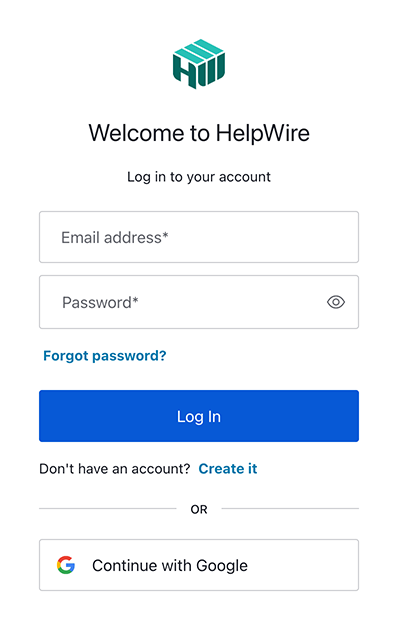
1. Registre-se ou faça login na conta HelpWire:
Clique no botão "Entrar" no canto superior direito da página para acessar com suas credenciais. Se você for novo no HelpWire, pode criar uma conta usando seu perfil do Google ou endereço de e-mail.
Register new HelpWire account
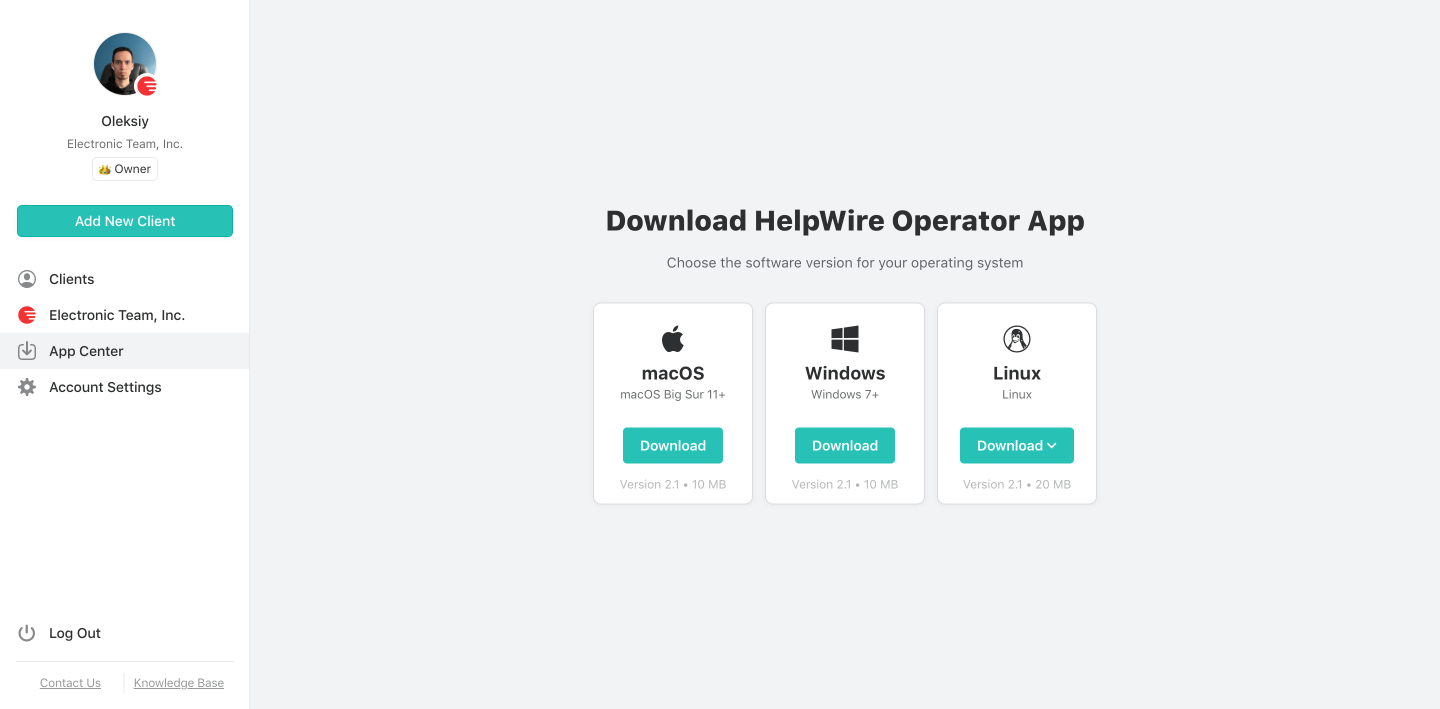
2. Baixe o HelpWire:
Baixe o HelpWire no “App Center”:
Download HelpWire for remote software installation
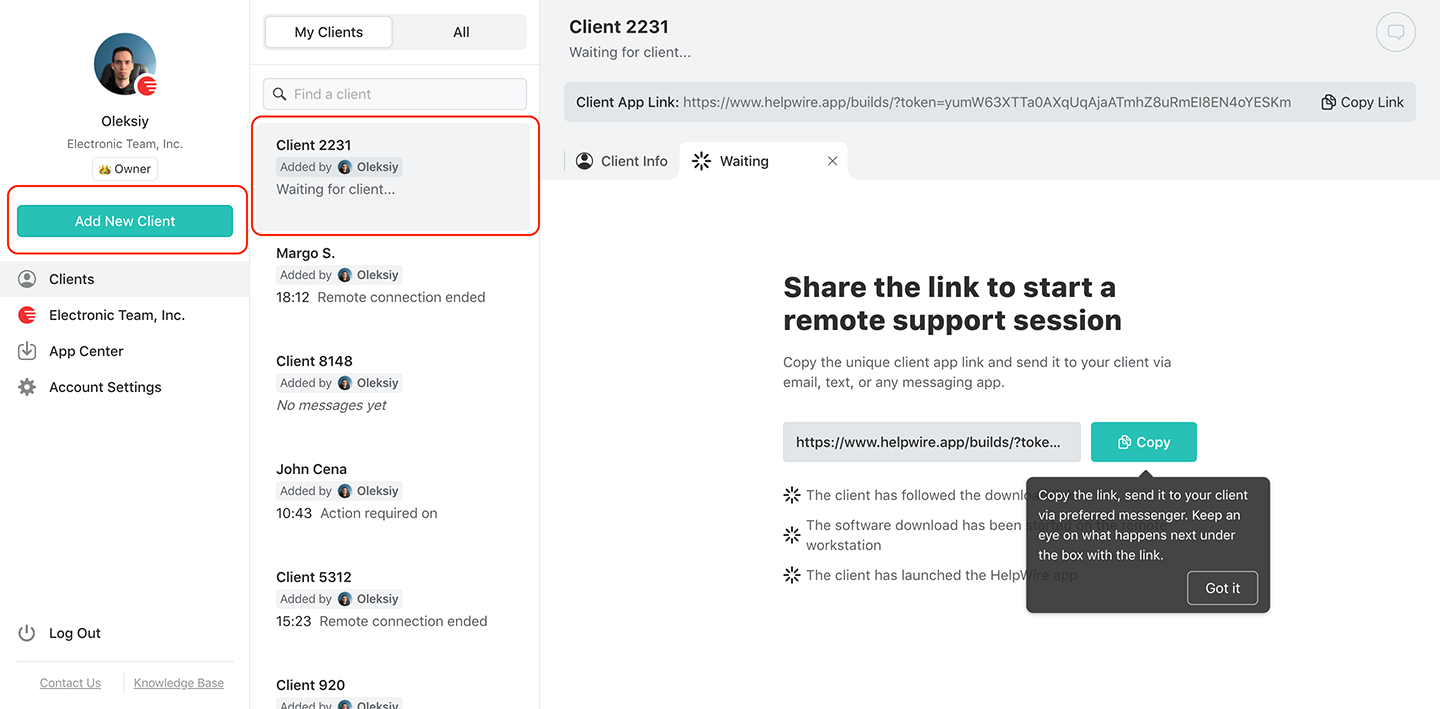
3. Crie um novo cliente ou selecione um existente:
Selecione um cliente existente da sua lista de Clientes ou crie um novo usando o botão na barra de ferramentas.
Create a new client
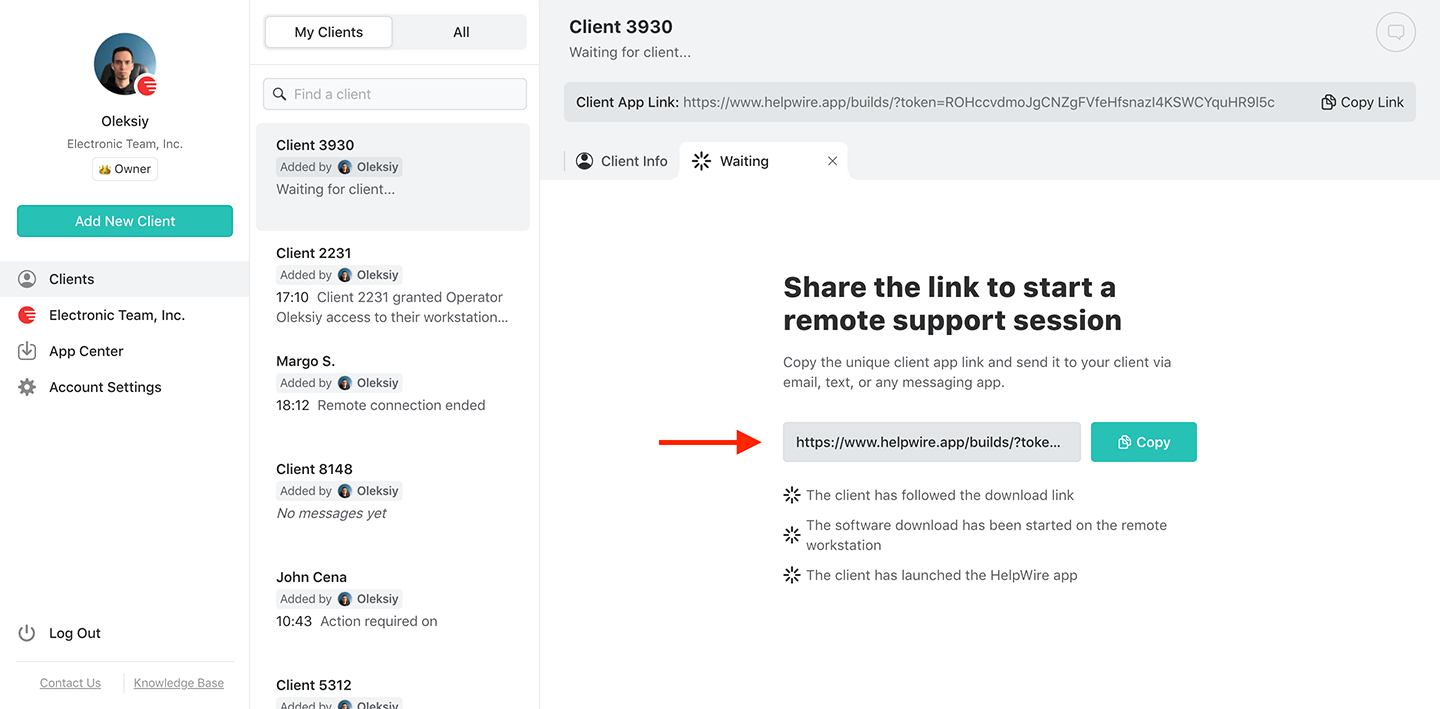
4. Envie um link de conexão para o cliente:
Inicie o aplicativo, copie o link de conexão e envie-o ao seu cliente por mensagem, e-mail ou helpdesk.
Send a connection link to install software remotely
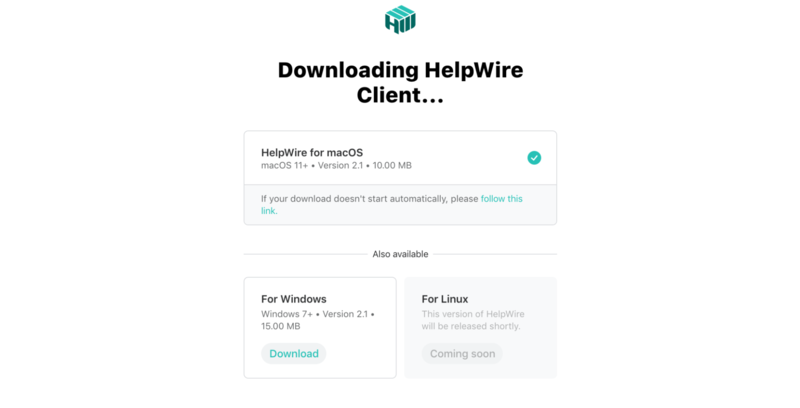
5. Cliente baixa o aplicativo:
Certifique-se de que o cliente siga o link, baixe e inicie o aplicativo HelpWire Client em seu dispositivo.
Downloading the client app
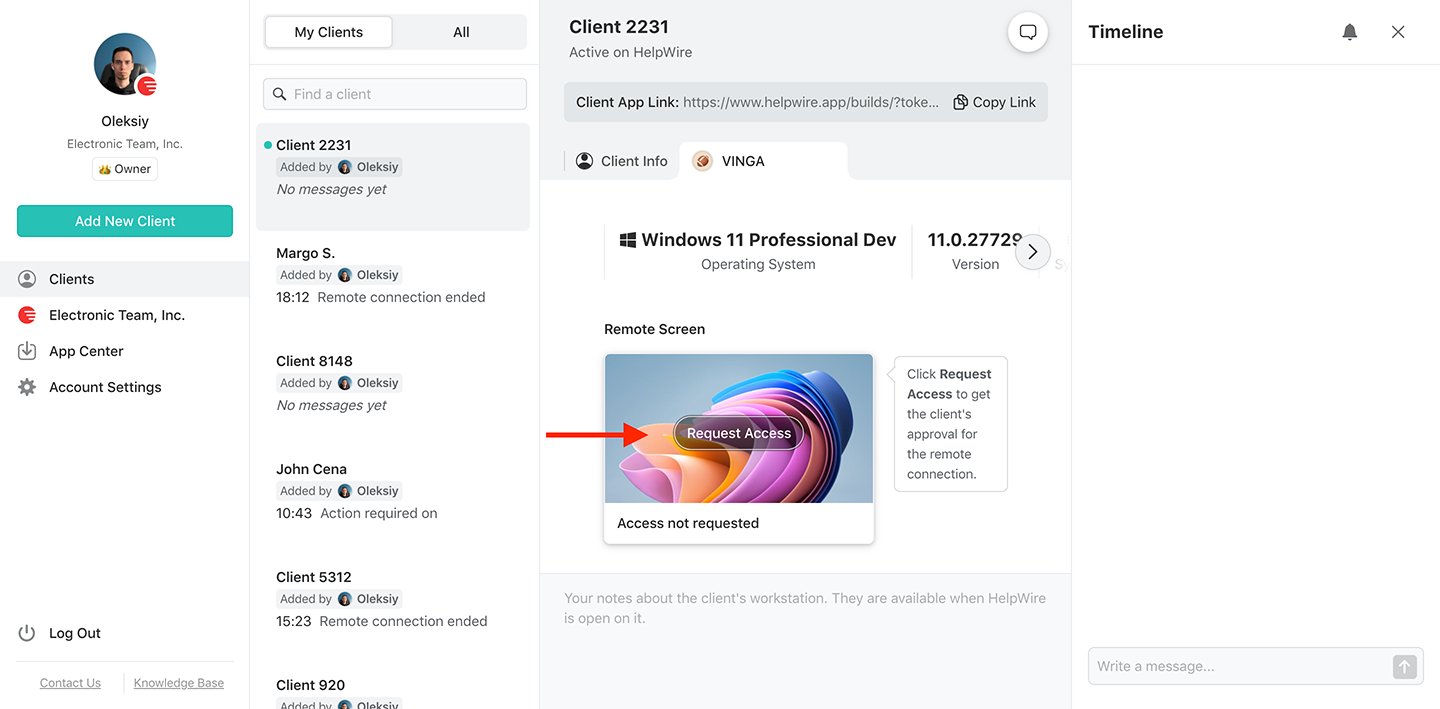
6. Solicitação de Acesso Remoto:
Aguarde o cliente instalar e abrir o aplicativo HelpWire Client. Em seguida, clique em "Solicitar Acesso" e aguarde a aprovação dele.
Request access to multiple monitors
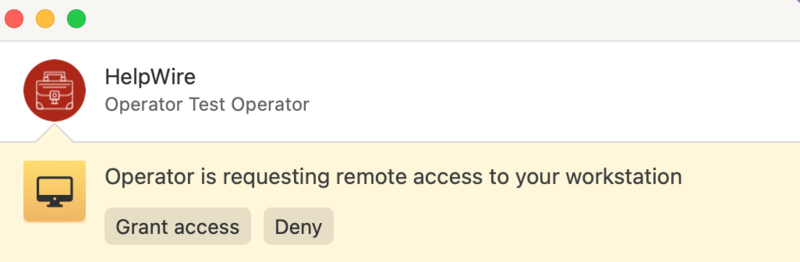
7. Obtenha acesso ao cliente remoto:
O cliente clica em Conceder Acesso para permitir a conexão remota. Se o cliente estiver usando macOS, permissões adicionais podem ser necessárias.
Grant access
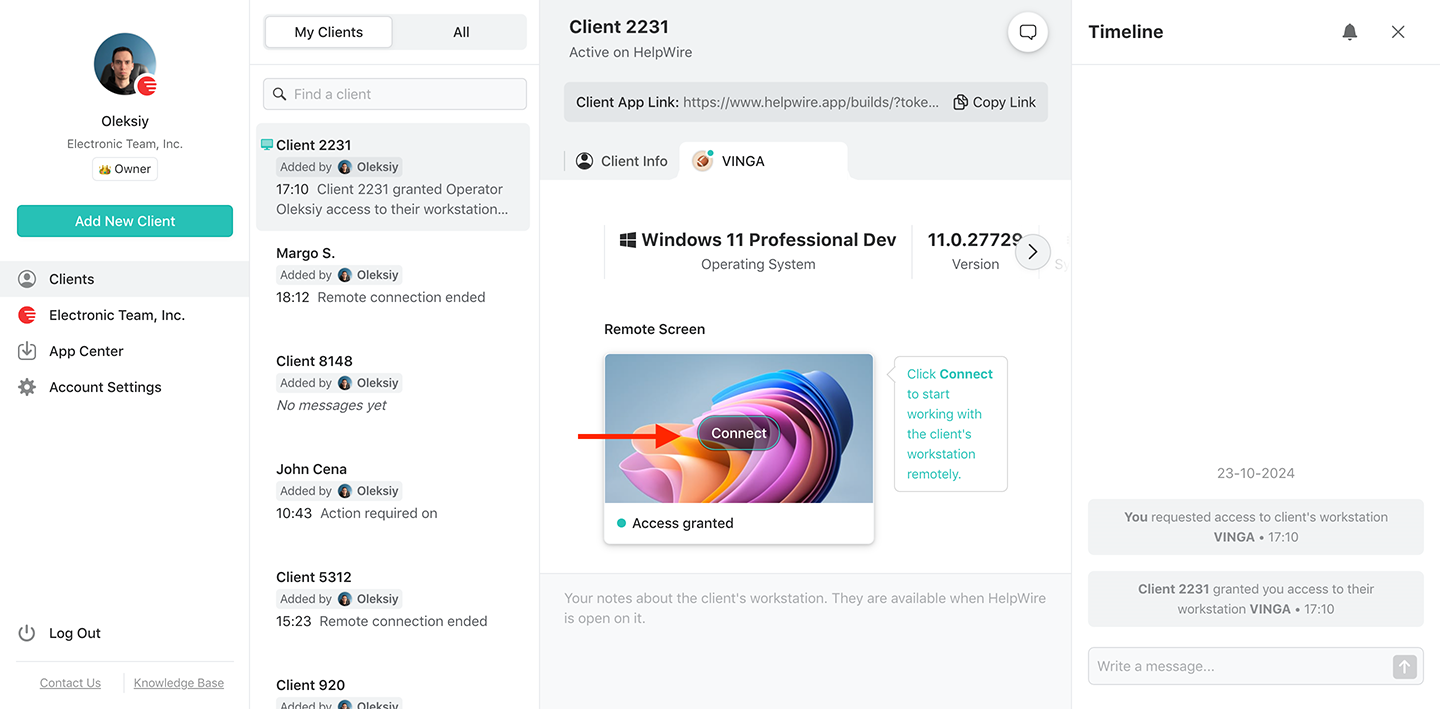
8. Conecte-se ao cliente remoto:
Inicie uma sessão de área de trabalho remota clicando no botão 'Conectar' da sua estação de trabalho. O botão deve estar localizado na aba do perfil do cliente que você selecionou.
How to connect to the remote client with multiple monitors
9. Instalação remota:
Após estabelecer a conexão, use o recurso de compartilhamento de arquivos do HelpWire para transferir os arquivos de instalação. Basta arrastar e soltar os arquivos na janela da sessão remota. Você poderá então concluir a instalação como se estivesse presente fisicamente.
10. Encerrar Sessão:
Clique em Desconectar para encerrar a sessão remota.
End session with multiple monitors
Observação: O cliente pode cancelar o acesso a qualquer momento, mas a comunicação ainda pode ocorrer pelo chat integrado.

Por Que o HelpWire é Sua Melhor Escolha para Instalação Remota de Software

Simple and Fast Remote Control

Controle Remoto Simples e Rápido

Estabeleça uma conexão contínua com as estações de trabalho dos clientes usando um link exclusivo gerado para cada cliente.
Intuitive File Sharing

Compartilhamento de Arquivos Intuitivo

Use recursos integrados de transferência de arquivos para copiar e colar arquivos de instalação em uma estação de trabalho remota.
Admin Privileges

Privilégios de Administrador

Com a aprovação do cliente, implante e execute aplicativos com privilégios de administrador em estações de trabalho Windows remotas.
Cross-Platform Remote Control

Controle Remoto Multiplataforma

Conecte-se de Windows e Linux para macOS e vice-versa com o HelpWire e realize a instalação remota de aplicativos nativos na plataforma preferida.
Control Multiple Workstations

Controle de Múltiplas Estações de Trabalho

Estabeleça conexões simultâneas com múltiplas estações de trabalho remotas do mesmo cliente para instalar software em todas elas.
Workstation Details

Detalhes da Estação de Trabalho

Visualize o nome, tipo e a versão do sistema operacional da estação de trabalho remota para uma instalação remota perfeita.

Recursos Adicionais de Gerenciamento de Instalação Remota de Software do HelpWire

Implantação Remota de Software

O HelpWire é a escolha certa se você é um representante de negócios que deseja implantar software remotamente em múltiplas estações de trabalho. Mantenha uma lista conveniente de todos os seus clientes na conta HelpWire e conecte-se a eles facilmente quando necessário.

Desinstalação Remota de Software

A conectividade de controle remoto do HelpWire facilita desinstalar software remotamente de diferentes estações de trabalho ou de um único computador remoto.

Gerenciamento Remoto de Software

Acesse as estações de trabalho remotas que você precisa gerenciar a qualquer momento e de qualquer lugar. Tudo o que é necessário é uma conexão com a internet, um computador e uma conta HelpWire gratuita.

Opção 2: Instalar Software Remotamente com a Política de Grupo do Windows

Política de Grupo do Windows (GPO) é um recurso integrado que ajuda a instalar software, como arquivos .msi, em seu computador Windows. Também não requer software adicional para funcionar de forma eficiente, no entanto, geralmente é mais técnico de usar em comparação com ferramentas de suporte remoto mais simples, como o HelpWire.

O GPO é adequado para organizações que utilizam Active Directory, mas é necessário conhecimento técnico para configurar tanto o Active Directory quanto o GPO. Empresas que não usam Windows teriam dificuldade em acessar o GPO, já que ele funciona apenas em sistemas operacionais Windows.

Ideal para: Grandes organizações com sistema operacional exclusivamente Windows e um Active Directory para gerenciamento centralizado de software.

Aqui está um guia passo a passo simples para usar a Política de Grupo do Windows (GPO) para instalar software remotamente:
  • Create a Shared Folder: Save the software’s .msi package in a network-shared folder.
  • Open Group Policy Management: On the domain computer, open Group Policy Management (GPMC).
  • Edit or Create a GPO: Right-click on your organizational unit (OU) or domain, then create or edit a GPO.
  • Configure Your Software Installation: From your GPO editor, go to Computer Configuration, click on Policies, then click Software Installation and add the .msi package from the shared folder.
  • Deploy the GPO: Apply the GPO to the necessary machines. Finally, reboot the computer or perform a policy update (gpupdate /force) to confirm the software has been installed.

Opção 3: Instalação Remota de Software via Ferramentas de Linha de Comando

Outra opção de gerenciamento de instalação remota de software são as ferramentas de linha de comando. Ferramentas como SSH para Linux e Mac, e PowerShell para Windows, permitem que administradores de TI executem scripts de instalação remotamente.

Isso oferece controle sobre instalações personalizadas. No entanto, usar esses métodos de linha de comando pode ser bastante desafiador. Eles exigem conhecimento técnico em scripts e escrita de comandos. Além disso, a única forma de escalar é por meio da automação, tornando o processo ainda mais complexo para implantações maiores.

Ideal para: Esta instalação remota de software é adequada para administradores de TI com boas habilidades em scripts que precisam de instalações flexíveis e personalizadas em ambientes Mac, Linux ou Windows.

Aqui está um breve guia passo a passo sobre como usar instalar software usando cmd para instalação remota de software:

Para SSH (Linux/Mac):

  • Enable SSH: Make sure SSH is turned on the device you choose to use. If you use Linux, run this instead, “sudo systemctl start ssh.”
  • Open Terminal: On your computer, open a terminal.
  • Connect to theRemote Device: Use the command “ssh user@remote_ip_address” to remotely connect to your preferred device.
  • Install the Software: Once you’re connected, run the command to install the software. For Ubuntu run this “sudo apt install package_name”.
  • Exit SSH: After the installation is complete, simply type exit to close the SSH session.

Para PowerShell (Windows):

  • Enable PowerShell Remoting: Run Enable-PSRemoting to remotely connect to your preferred device.
  • Open PowerShell: On the computer, open PowerShell as an administrator.
  • Connect to the Remote Device: Use this command “Enter-PSSession -ComputerName remote_computer_name”to connect to your remote computer.
  • Run Installation Script: Once connected, run this command “Start-Process msiexec.exe -ArgumentList '/i software.msi /quiet'”
  • Exit PowerShell Session: Type “Exit-PSSession” to disconnect after your installation.

Instalação Remota de Software vs Implantação

Embora estejam relacionados, instalação remota de software e implantação são dois processos diferentes no gerenciamento de software. Vamos entender como:

  • Instalação remota de software é o processo de instalar remotamente um programa de software em um dispositivo através de uma rede. Envolve configurar o software e prepará-lo para os usuários, focando na tarefa singular de colocar o software em funcionamento. Esta tarefa única e vital é uma parte importante do processo geral de implantação de software.

  • Implantação remota de software engloba uma gama mais ampla de atividades, incluindo instalação, empacotamento, configuração, gerenciamento e distribuição de software em múltiplos dispositivos e ambientes. Esse processo permite a automação de tarefas, como gerenciamento de configurações, definições de segurança e atualizações, garantindo distribuição e operação eficazes. Diferentemente da instalação, a implantação é contínua e requer gerenciamento constante para manter a funcionalidade e a escalabilidade do software.

O que os Usuários Dizem sobre sua Experiência com o HelpWire title icon

5.0 Com base em 209 avaliações de clientes
version icon
Versão
2.3, 28/01/2026
compatibility icon
Compatibilidade
macOS, Windows, Linux
price icon
Preço
Grátis
Aqui estão algumas das opiniões públicas sobre o HelpWire de nossos clientes, de várias fontes:
Thea M.
Office admin
Thea M.
I got a gatvol of teamviewer and its issues and moved over to HelpWire and I'm blown away. Fast, effective and doesn't drain my computer's resources. It works really well props to the devs.
Molly
Production worker
Molly
My experience with HelpWire has been fantastic! The remote control process is incredibly smooth.
Daniel Domingues
Founder, Lusha
Daniel Domingues
I appreciate HelpWire for its ease of use and comprehensive remote support tools all in one place.
Rabeea Sarfraz
Associate Software Engineer, Coeus Solutions GmbH
Rabeea Sarfraz
HelpWire streamlines the remote support, allowing me to manage multiple clients efficiently, which improved overall service quality and client satisfaction.
Mark V.
Remote Technical Support
Mark V.
The fact that I can easily segregate my clients and have a full history of my connection to them is amazing. I like the fact that I can send a link to them and then talk them through what to do when they receive it (many are elderly and techo-illiterate). The emails and link are professional and give them reassurance. I like unattended access for those clients that need that extra layer of help. Love this app.
Kyle Paterson
CEO, Enspire
Kyle Paterson
The swift setup process and zero- configuration requirement for starting remote support sessions are what I appreciate most about HelpWire. It's remarkable how quickly I can connect with clients and start troubleshooting without any hassle.
Yaroslav H.
Owner
Yaroslav H.
Very good and free alternative to TV. Easy to use and nice concept. No annoying disconnections and forcing to buy premiumbussiness subscription or smth like that.
Muhammad Ammar Z.
Senior Lecturer at Shifa College of Pharmaceutical Sciences
Muhammad Ammar Z.
As a long-time TeamViewer user for personal projects and helping family, I grew increasingly frustrated with its frequent disconnections and persistent "commercial use" warnings. I decided to search for an alternative and found Helpwire. I am incredibly impressed. Helpwire provides a stable, reliable connection without any of the interruptions I faced before. The setup is simple, and it just works.
Jonathan B.
IT Director
Jonathan B.
Its a great tool for remote support. It doesn't have the bells and whistles of its commercial rivals, but ask yourself how often do you need that stuff ? If you want to help someone out on a PC issue, or connect to a server for some admin this is perfect.
Nilay N.
Senior Education Management, Self-employed
Nilay N.
HelpWire software has been an invaluable asset for streamlining our customer support processes.
Darko V.
SEO specialist
Darko V.
Probably the best free remote access app. I like seamless remote desktop experience and copy/paste functionality, reliability, and the fact it is free to use.
Samit B.
Senior Communication Executive, Dairy
Samit B.
The experience is fantastic with a very smooth remote session experience. The optimised performance and smart connectivity feature ensures a seamless remote session with zero-lag.
Ben T
Admin Assistant
Ben T
It was handy for the odd occasion that someone needs a hand with their computer while I am not nearby. It was very reliable and able to see the other's screen to provide directions.
Jean K.
Engineer
Jean K.
Absolutely Brilliant. Having worked on a whole bunch of other remote support software, from solarwinds dameware to anydesk and teamviewer, vnc viewer and the like, I have never had the joy I am having with Helpwire.
Govind P.
Content Writer, Marketing and Advertising
Govind P.
I've never been more satisfied with the service quality of a remote desktop application in my entire freelancing career. Considering the fact that it's a free remote desktop support solution, HelpWire is really worth a shot!
The interface is straightforward, so I can quickly connect to clients' devices and start troubleshooting without jumping through hoops. Plus, the performance is rock solid-no lag or sudden disconnections, which is crucial when I'm in the middle of solving a client's issue.
Adyrosan B.
Business Leader or Manager
Adyrosan B.
I appreciate Helpwire for its user-friendly interface and efficient problem-solving capabilities. It's designed to streamline the troubleshooting process, making it easier for people to find solutions to their technical issues quickly.
Anna K.
Sales Marketing
Anna K.
HelpWire really stands out for me because it's free and works seamlessly on both Mac and PC. I love how easy it is to get started. Basically, I can send a dedicated link to my colleague or client to initiate a remote session right away. The software is super fast and easy to use.
EJ S.
Business Leader or Manager
EJ S.
The Operator Dashboard is easy to use and you can start up a support session in seconds. The fact that it keeps the chat with the customer as well as logs of connections is a nice touch.
For nearly ten years I relied on another tool that recently became unusable, and HelpWire has stepped in as the perfect replacement.
How could I not like HelpWire! It ticks all the boxes for a great remote desktop/support service, and best of all, it's free. Real good, and worth more than a try.
Martin Lentz
Email Review
Martin Lentz
Your software worked just as well as Teamviewer. One thing works better and that is on the client side where they simply just have to grant me access. They don't have to provide me a one use password in order for me to connect.
Luca Albanese
Email Review
Luca Albanese
Simplicity of use, in particular on the client side that simply require to click on a link and give the required permissions. But the best feature, IMHO, is the ability to share the clients with other team members... and all of this for free! THANK YOU for this amazing app!!
Wilkin Miguel Julio Mercado
Email Review
Wilkin Miguel Julio Mercado
It's easy to use and I didn't expect there to be a software as good as this one.
Michael Guggenbichler
Email Review
Michael Guggenbichler
Absolutely Amazing Product for attended Access for individual operators or small teams! And you do not even have to pay!! There are so much remote access solutions, you have to pay tons of money and don't even provide the bare minimum. HelpWire Team, you're doing great! Looking forward to what you will bring in the future.
Perguntas Frequentes