Electronic Team uses cookies to personalize your experience on our website. By continuing to use this site, you agree to our cookie policy. Click here to learn more.

Remote-Software-Installation mit HelpWire

Der HelpWire-Dienst ist ein praktisches Tool zur Ferninstallation von Software, das Ihnen ermöglicht, Softwareanwendungen nahtlos einzurichten, bereitzustellen und zu warten, ohne physisch vor Ort sein zu müssen.
 G2 logo
G2
5.0
 capterra logo
Capterra
5.0
 SourceForge logo
SourceForge
5.0
 TrustRadius logo
TrustRadius
5.0

Remote-Desktop-Software – die beste Option, um Software aus der Ferne zu installieren

Problem: In modernen Organisationsstrukturen mit digitalen und Remote-Arbeitskulturen muss Software einfach und aus der Ferne installiert werden können. Dies hilft, die Bereitstellungszeit zu verkürzen und die Effizienz zu steigern, während teure Vor-Ort-Besuche entfallen. Doch der Prozess ist nicht so einfach, wie es scheint. Herausforderungen wie Kompatibilitätsprobleme, Konfigurationsfehler und Sicherheitsbedenken bestehen weiterhin.

Lösung: Um Probleme bei der Ferninstallation von Software zu überwinden, verwenden Sie HelpWire’s plattformübergreifende, benutzerfreundliche Remote-Access- und Steuerungslösung. Sie ermöglicht Technikern, einfach und sicher Verbindungen herzustellen und auf entfernte Geräte zuzugreifen, als wären sie physisch vor Ort. Das Tool vereinfacht den gesamten Prozess der Ferninstallation von Software auf Computern von Kunden sowie Mitarbeitern. HelpWire ist das ideale Werkzeug, um Softwareinstallationen einfach und mit minimalen Fehlern zu verwalten.

Am besten geeignet für: Installationen im kleineren Umfang, einmalige Setups oder die Fehlerbehebung einzelner Geräte.

So installieren Sie Software aus der Ferne mit HelpWire

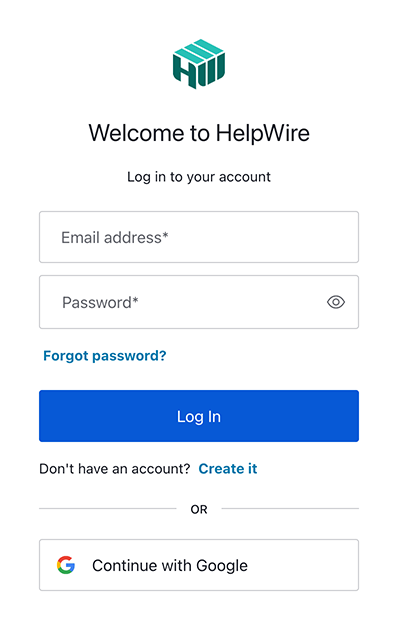
1. Registrieren Sie ein neues Konto oder melden Sie sich bei Ihrem HelpWire-Konto an:
Klicken Sie oben rechts auf der Seite auf die Schaltfläche „Anmelden“, um sich mit Ihren Zugangsdaten einzuloggen. Wenn Sie neu bei HelpWire sind, können Sie ein Konto über Ihr Google-Profil oder Ihre E-Mail-Adresse erstellen.
Register new HelpWire account
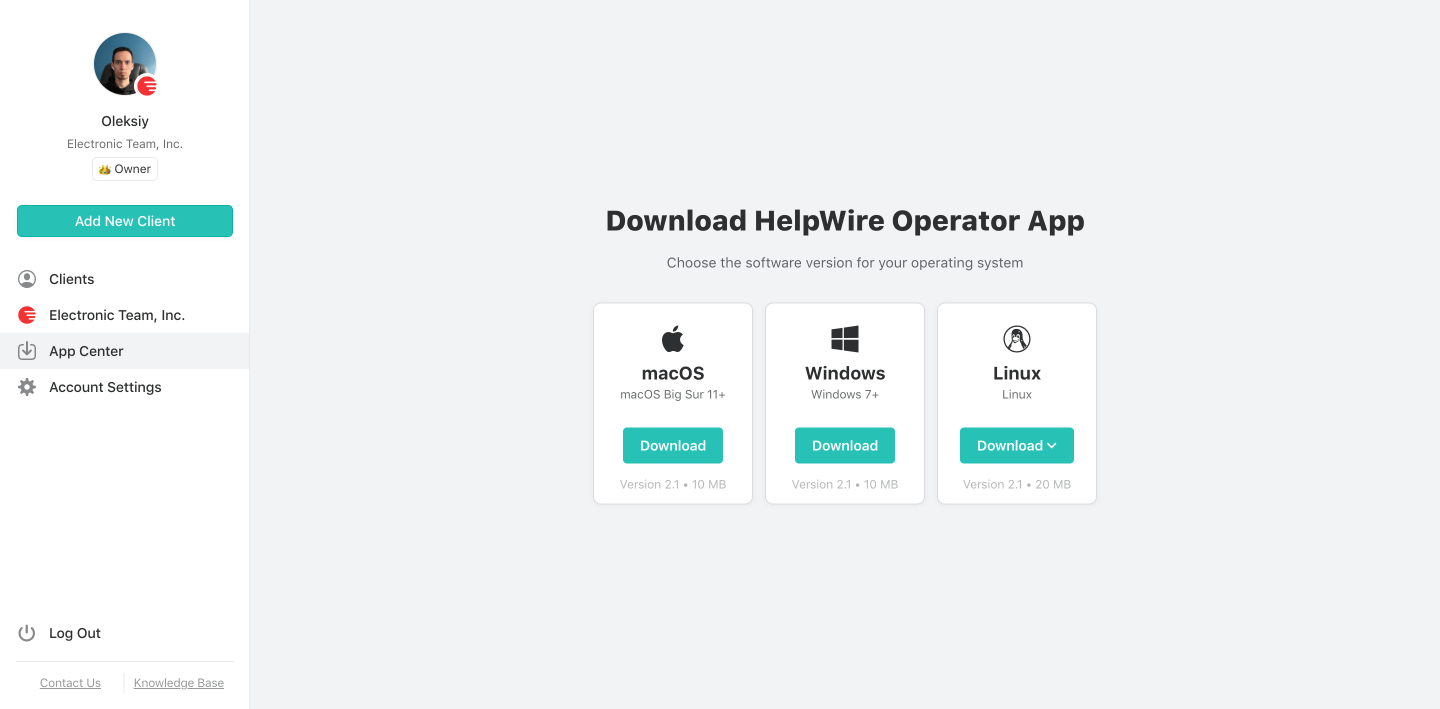
2. HelpWire herunterladen:
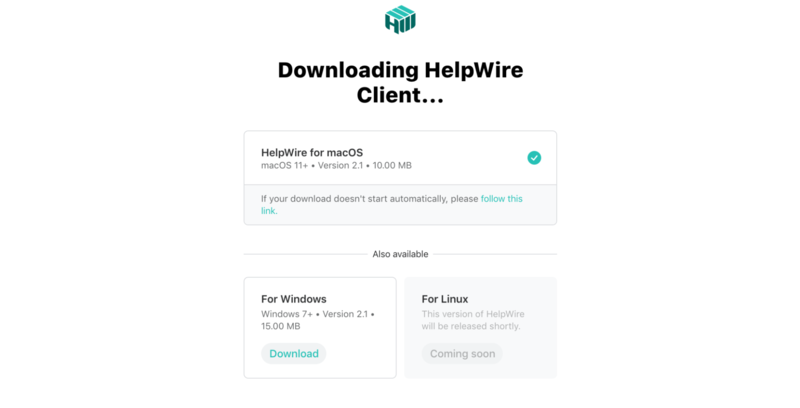
Laden Sie HelpWire aus dem „App Center“ herunter.
Download HelpWire for remote software installation
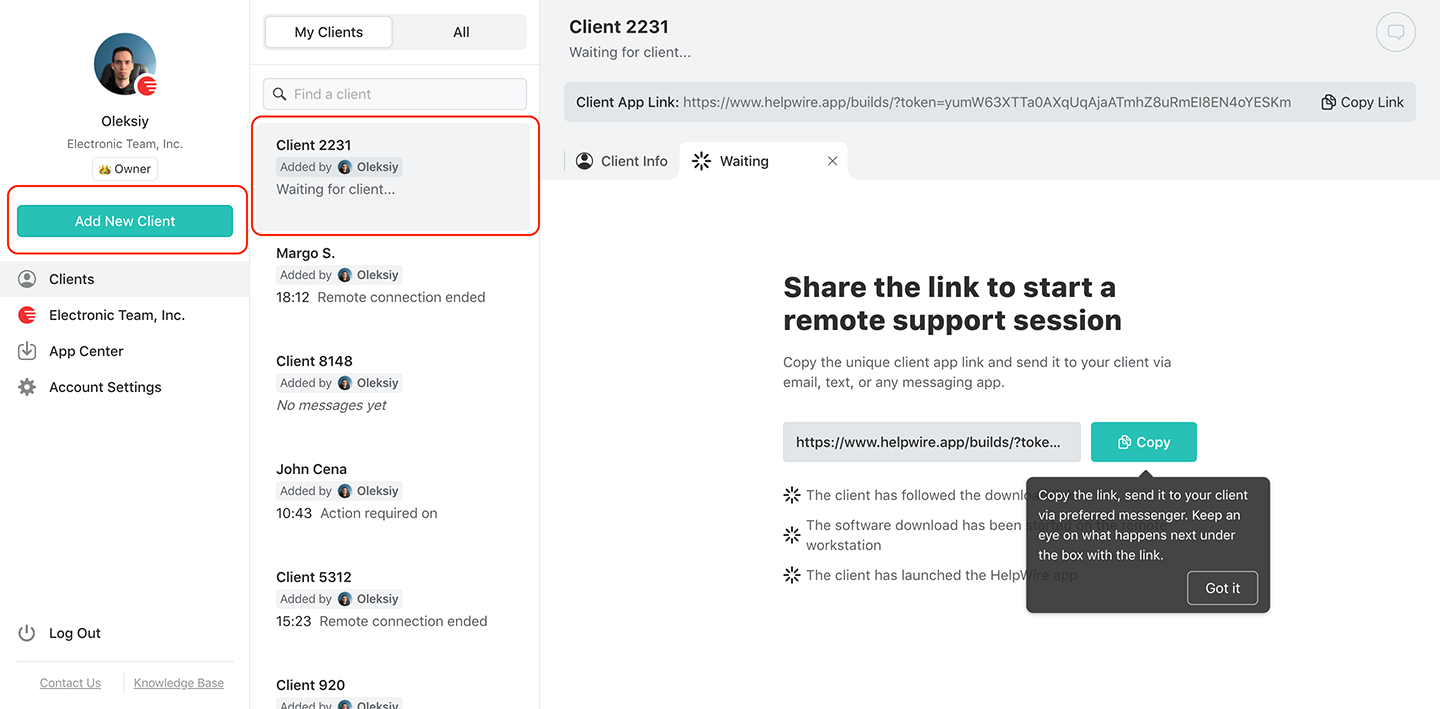
3. Einen neuen Client erstellen oder einen bestehenden auswählen:
Wählen Sie einen bestehenden Client aus Ihrer Kundenliste aus oder erstellen Sie einen neuen über die Schaltfläche in der Symbolleiste.
Create a new client
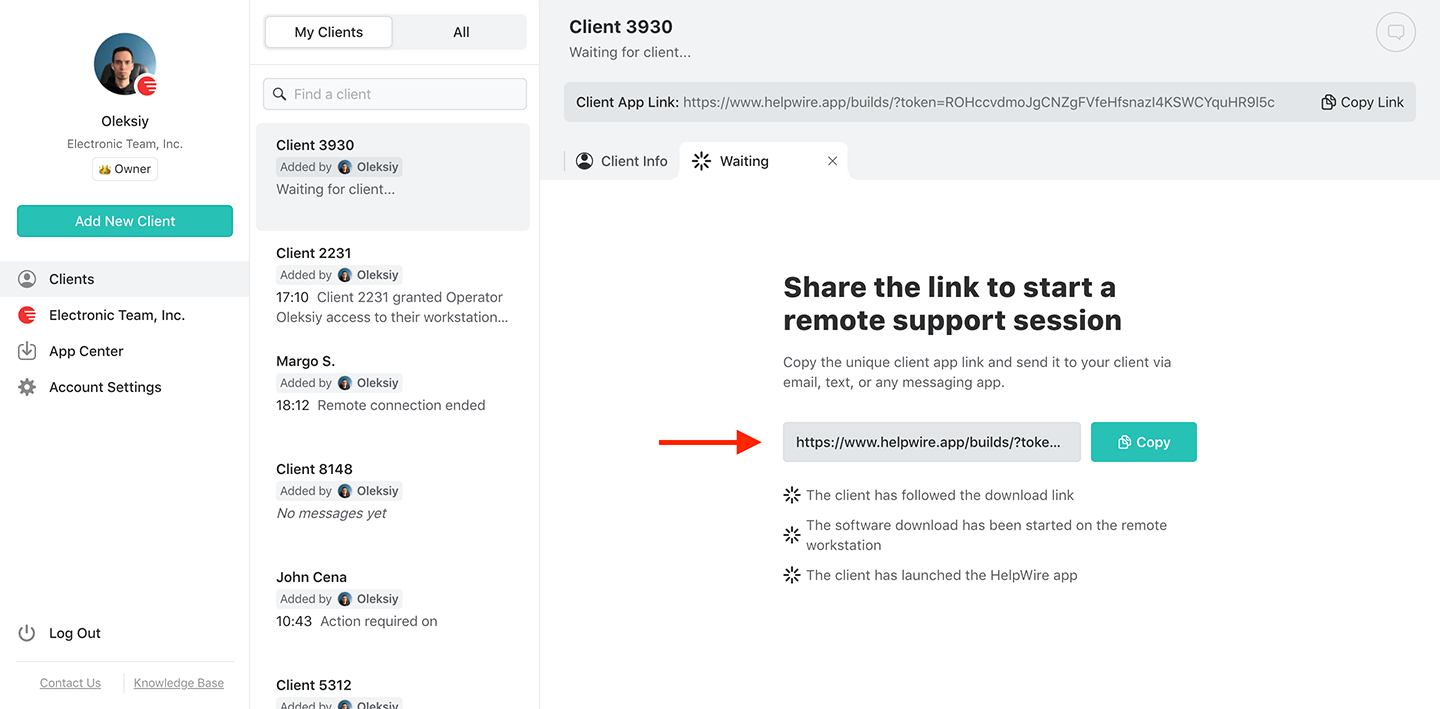
4. Verbindungslink an den Client senden:
Starten Sie die App, kopieren Sie den Verbindungslink und senden Sie ihn an Ihren Client per Nachricht, E-Mail oder Helpdesk.
Send a connection link to install software remotely
5. Client lädt die App herunter:
Stellen Sie sicher, dass der Client dem Link folgt, die Client-App herunterlädt und auf seinem Gerät startet.
Downloading the client app
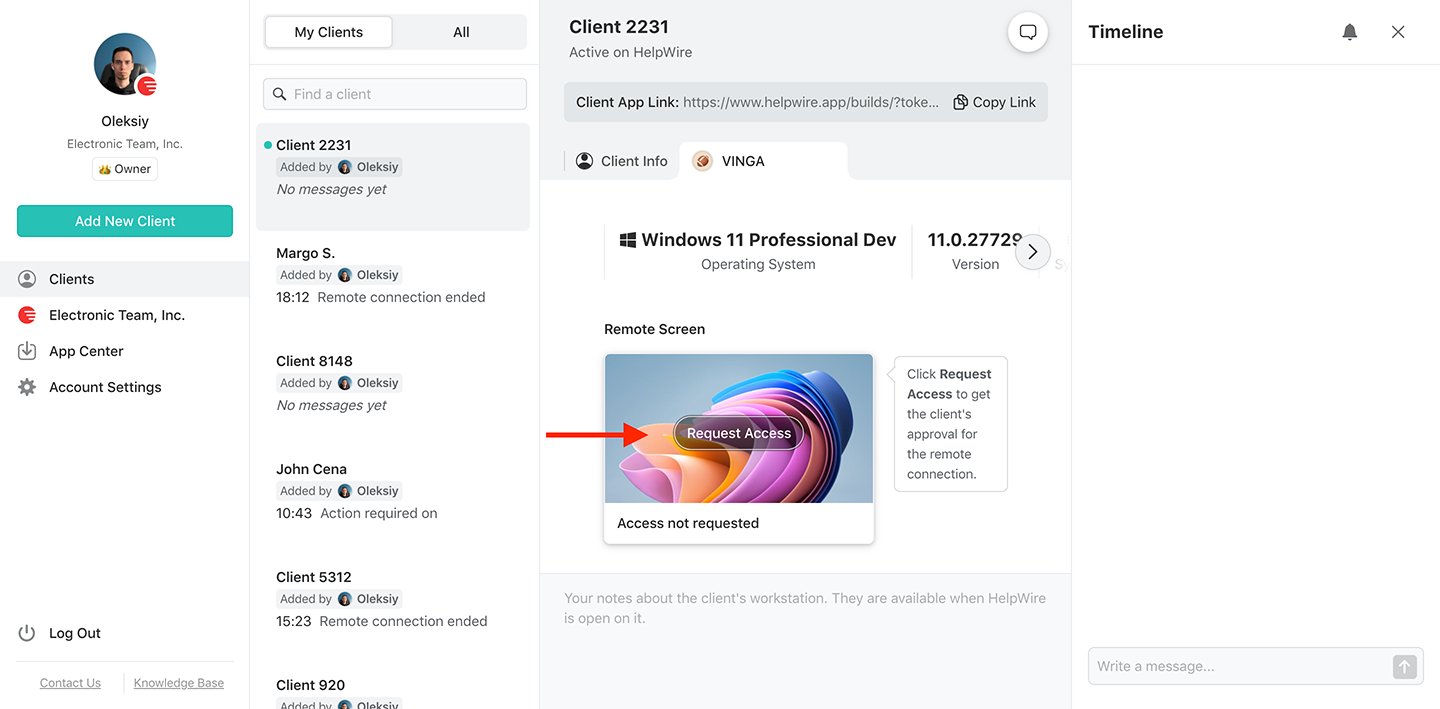
6. Fernzugriffsanfrage:
Warten Sie, bis Ihr Client die HelpWire-Client-App installiert und gestartet hat. Klicken Sie dann auf „Zugriff anfordern“ und warten Sie auf deren Genehmigung.
Request access to multiple monitors
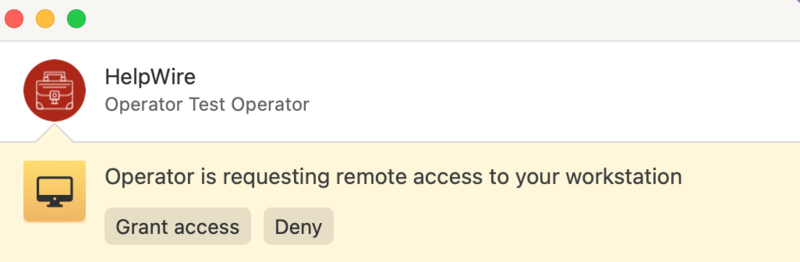
7. Zugriff vom Remote-Client erhalten:
Der Client klickt auf Zugriff gewähren, um die Remote-Verbindung zu ermöglichen. Wenn der Client macOS verwendet, sind möglicherweise zusätzliche Berechtigungen erforderlich.
Grant access
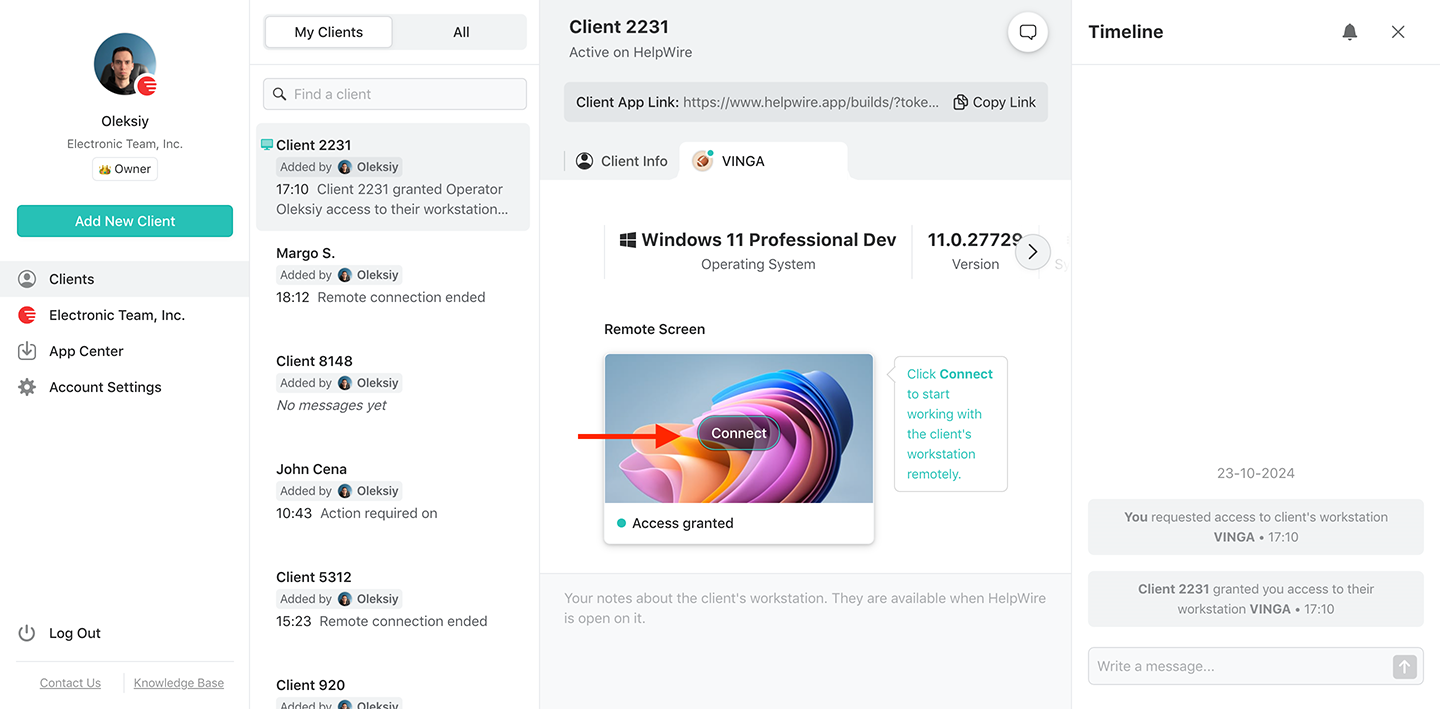
8. Verbindung zum Remote-Client herstellen:
Desktop-Sitzung, indem Sie auf die Schaltfläche „Verbinden“ von Ihrer Arbeitsstation aus klicken. Die Schaltfläche befindet sich im ausgewählten Client-Profil-Tab.
How to connect to the remote client with multiple monitors
9. Remote-Installation:
Nach dem Herstellen der Verbindung verwenden Sie die Dateifreigabefunktion von HelpWire, um die Installationsdateien zu übertragen. Ziehen Sie die Installationsdateien einfach in das Remote-Sitzungsfenster. Sie können die Installation dann so abschließen, als wären Sie physisch vor Ort.
10. Sitzung beenden:
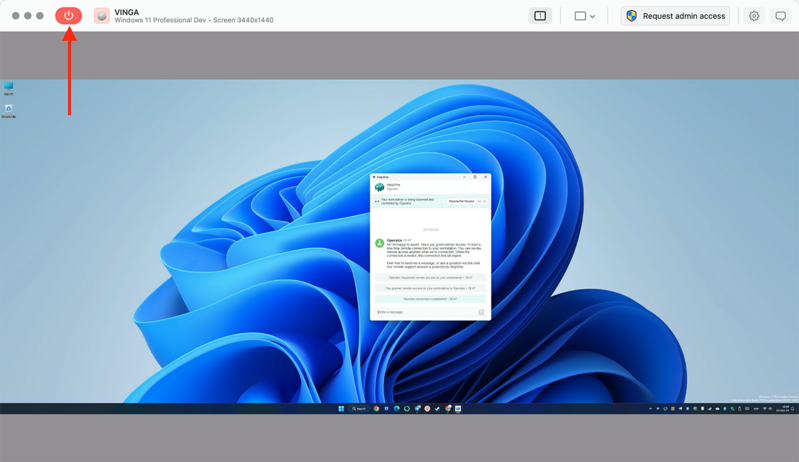
Klicken Sie auf Trennen, um die Remote-Sitzung zu beenden.
End session with multiple monitors
Hinweis: Der Client kann den Zugriff jederzeit abbrechen, die Kommunikation kann jedoch weiterhin über den integrierten Chat erfolgen.

Simple and Fast Remote Control

Stellen Sie eine nahtlose Verbindung zu den Arbeitsstationen der Kunden mit einem einzigartig generierten Link für jeden Client her.

Warum HelpWire Ihre beste Wahl für die Ferninstallation von Software ist
Intuitive File Sharing

Verwenden Sie die praktischen integrierten Dateitransferfunktionen, um Installationsdateien auf eine Remote-Arbeitsstation zu kopieren und einzufügen.

Einfache und schnelle Fernsteuerung
Admin Privileges

Nach Genehmigung durch den Client Anwendungen mit Administratorrechten auf entfernten Windows-Arbeitsstationen bereitstellen und ausführen.

Intuitive Dateifreigabe
Cross-Platform Remote Control

Verbinden Sie sich von Windows und Linux mit macOS und umgekehrt mit HelpWire und führen Sie die Ferninstallation nativer Anwendungen auf der bevorzugten Plattform des Clients durch.

Administratorrechte
Control Multiple Workstations

Mehrere Arbeitsstationen steuern

Stellen Sie gleichzeitige Verbindungen zu mehreren Remote-Arbeitsstationen desselben Clients her, um auf allen Software zu installieren.
Workstation Details

Details zur Arbeitsstation

Sehen Sie Name, Typ und Betriebssystemversion der Remote-Arbeitsstation für eine nahtlose Ferninstallation.

Weitere Funktionen zur Verwaltung der Ferninstallation von Software mit HelpWire

Remote-Software-Bereitstellung

HelpWire ist die richtige Wahl, wenn Sie als Unternehmensvertreter Software remote bereitstellen möchten, auf mehreren Arbeitsstationen. Pflegen Sie eine praktische Liste aller Ihrer Kunden im HelpWire-Konto und verbinden Sie sich bei Bedarf einfach mit ihnen.

Ferninstallation von Software deinstallieren

Die Remote-Control-Konnektivität von HelpWire erleichtert die Fern-Deinstallation von Software auf verschiedenen Arbeitsstationen oder einem einzelnen Remote-Computer.

Fernverwaltung von Software

Greifen Sie jederzeit und von überall auf die Remote-Arbeitsstationen zu, die Sie verwalten müssen. Alles, was benötigt wird, ist eine Internetverbindung, ein Computer und ein kostenloses HelpWire-Konto.

Option 2: Software remote über die Windows-Gruppenrichtlinie installieren

Windows-Gruppenrichtlinie (GPO) ist eine integrierte Funktion, die Ihnen hilft, Software wie .msi-Dateien auf Ihrem Windows-Computer zu installieren. Sie erfordert keine zusätzliche Software, um effizient zu arbeiten, ist jedoch im Vergleich zu einfacheren Remote-Support-Tools wie HelpWire meist technisch anspruchsvoller. GPO eignet sich für Organisationen, die Active Directory verwenden, erfordert jedoch technisches Fachwissen sowohl für die Einrichtung von Active Directory als auch für GPO. Unternehmen, die Windows nicht nutzen, haben Schwierigkeiten, auf GPO zuzugreifen, da es nur auf Windows-Betriebssystemen funktioniert. Am besten geeignet für: Große Organisationen mit ausschließlich Windows-Betriebssystemen und einem Active Directory für zentralisiertes Softwaremanagement. Hier ist eine einfache Schritt-für-Schritt-Anleitung zur Verwendung der Windows-Gruppenrichtlinie (GPO), um Software remote zu installieren:
  • Create a Shared Folder: Save the software’s .msi package in a network-shared folder.
  • Open Group Policy Management: On the domain computer, open Group Policy Management (GPMC).
  • Edit or Create a GPO: Right-click on your organizational unit (OU) or domain, then create or edit a GPO.
  • Configure Your Software Installation: From your GPO editor, go to Computer Configuration, click on Policies, then click Software Installation and add the .msi package from the shared folder.
  • Deploy the GPO: Apply the GPO to the necessary machines. Finally, reboot the computer or perform a policy update (gpupdate /force) to confirm the software has been installed.

Option 3: Ferninstallation von Software über Befehlszeilentools

Eine weitere Option zur Verwaltung der Ferninstallation von Software sind Befehlszeilentools. Befehlszeilentools wie SSH für Linux und Mac sowie PowerShell für Windows ermöglichen IT-Administratoren, Installationsskripte aus der Ferne auszuführen. Dies gibt ihnen die Kontrolle über individuelle Installationen. Die Verwendung dieser Befehlszeilenmethoden kann jedoch recht herausfordernd sein. Sie erfordert technisches Verständnis für Skripterstellung und das Schreiben von Befehlen. Darüber hinaus ist der einzige Weg zur Skalierung die Automatisierung, was bei größeren Bereitstellungen noch komplizierter wird. Am besten geeignet für: Diese Ferninstallationssoftware eignet sich für IT-Administratoren mit guten Skriptkenntnissen, die flexible und individuelle Installationen in Mac-, Linux- oder Windows-Umgebungen benötigen. Hier ist eine kurze Schritt-für-Schritt-Anleitung zur Verwendung von Softwareinstallation über CMD für die Ferninstallation von Software:

Für SSH (Linux/Mac):

  • Enable SSH: Make sure SSH is turned on the device you choose to use. If you use Linux, run this instead, “sudo systemctl start ssh.”
  • Open Terminal: On your computer, open a terminal.
  • Connect to theRemote Device: Use the command “ssh user@remote_ip_address” to remotely connect to your preferred device.
  • Install the Software: Once you’re connected, run the command to install the software. For Ubuntu run this “sudo apt install package_name”.
  • Exit SSH: After the installation is complete, simply type exit to close the SSH session.

For PowerShell (Windows):

  • Enable PowerShell Remoting: Run Enable-PSRemoting to remotely connect to your preferred device.
  • Open PowerShell: On the computer, open PowerShell as an administrator.
  • Connect to the Remote Device: Use this command “Enter-PSSession -ComputerName remote_computer_name”to connect to your remote computer.
  • Run Installation Script: Once connected, run this command “Start-Process msiexec.exe -ArgumentList '/i software.msi /quiet'”
  • Exit PowerShell Session: Type “Exit-PSSession” to disconnect after your installation.

Ferninstallation von Software vs. Bereitstellung

Obwohl sie zusammenhängen, sind Ferninstallation und Bereitstellung von Software zwei verschiedene Prozesse im Softwaremanagement. So unterscheiden sie sich:
  • Ferninstallation von Software ist der Prozess, ein Softwareprogramm aus der Ferne über ein Netzwerk auf einem Gerät zu installieren. Dabei wird die Software konfiguriert und für die Nutzer vorbereitet, wobei der Fokus auf der einmaligen Aufgabe liegt, die Software zum Laufen zu bringen. Diese wichtige einmalige Aufgabe ist ein zentraler Bestandteil des gesamten Softwarebereitstellungsprozesses.

  • Fernbereitstellung von Software umfasst ein breiteres Spektrum an Aktivitäten, einschließlich Installation, Paketierung, Konfiguration, Verwaltung und Verteilung von Software über mehrere Geräte und Umgebungen hinweg. Dieser Prozess ermöglicht die Automatisierung von Aufgaben wie Verwaltung von Konfigurationen, Sicherheitseinstellungen und Updates, wodurch eine effektive Verteilung und Funktion gewährleistet wird. Im Gegensatz zur Installation ist die Bereitstellung fortlaufend und erfordert kontinuierliches Management, um die Funktionalität und Skalierbarkeit der Software zu erhalten.

Nutzer sprechen über HelpWire Erfahrungen title icon

5.0 Basierend auf 209 Kundenrezensionen
version icon
Version
2.3, der 28. Jan, 2026
compatibility icon
Kompatibilität
macOS, Windows, Linux
price icon
Preis
Kostenlos
Hier sind einige der öffentlichen HelpWire-Bewertungen von unseren Kunden, aus verschiedenen Quellen:
Thea M.
Office admin
Thea M.
I got a gatvol of teamviewer and its issues and moved over to HelpWire and I'm blown away. Fast, effective and doesn't drain my computer's resources. It works really well props to the devs.
Molly
Production worker
Molly
My experience with HelpWire has been fantastic! The remote control process is incredibly smooth.
Daniel Domingues
Founder, Lusha
Daniel Domingues
I appreciate HelpWire for its ease of use and comprehensive remote support tools all in one place.
Rabeea Sarfraz
Associate Software Engineer, Coeus Solutions GmbH
Rabeea Sarfraz
HelpWire streamlines the remote support, allowing me to manage multiple clients efficiently, which improved overall service quality and client satisfaction.
Mark V.
Remote Technical Support
Mark V.
The fact that I can easily segregate my clients and have a full history of my connection to them is amazing. I like the fact that I can send a link to them and then talk them through what to do when they receive it (many are elderly and techo-illiterate). The emails and link are professional and give them reassurance. I like unattended access for those clients that need that extra layer of help. Love this app.
Kyle Paterson
CEO, Enspire
Kyle Paterson
The swift setup process and zero- configuration requirement for starting remote support sessions are what I appreciate most about HelpWire. It's remarkable how quickly I can connect with clients and start troubleshooting without any hassle.
Yaroslav H.
Owner
Yaroslav H.
Very good and free alternative to TV. Easy to use and nice concept. No annoying disconnections and forcing to buy premiumbussiness subscription or smth like that.
Muhammad Ammar Z.
Senior Lecturer at Shifa College of Pharmaceutical Sciences
Muhammad Ammar Z.
As a long-time TeamViewer user for personal projects and helping family, I grew increasingly frustrated with its frequent disconnections and persistent "commercial use" warnings. I decided to search for an alternative and found Helpwire. I am incredibly impressed. Helpwire provides a stable, reliable connection without any of the interruptions I faced before. The setup is simple, and it just works.
Jonathan B.
IT Director
Jonathan B.
Its a great tool for remote support. It doesn't have the bells and whistles of its commercial rivals, but ask yourself how often do you need that stuff ? If you want to help someone out on a PC issue, or connect to a server for some admin this is perfect.
Nilay N.
Senior Education Management, Self-employed
Nilay N.
HelpWire software has been an invaluable asset for streamlining our customer support processes.
Darko V.
SEO specialist
Darko V.
Probably the best free remote access app. I like seamless remote desktop experience and copy/paste functionality, reliability, and the fact it is free to use.
Samit B.
Senior Communication Executive, Dairy
Samit B.
The experience is fantastic with a very smooth remote session experience. The optimised performance and smart connectivity feature ensures a seamless remote session with zero-lag.
Ben T
Admin Assistant
Ben T
It was handy for the odd occasion that someone needs a hand with their computer while I am not nearby. It was very reliable and able to see the other's screen to provide directions.
Jean K.
Engineer
Jean K.
Absolutely Brilliant. Having worked on a whole bunch of other remote support software, from solarwinds dameware to anydesk and teamviewer, vnc viewer and the like, I have never had the joy I am having with Helpwire.
Govind P.
Content Writer, Marketing and Advertising
Govind P.
I've never been more satisfied with the service quality of a remote desktop application in my entire freelancing career. Considering the fact that it's a free remote desktop support solution, HelpWire is really worth a shot!
The interface is straightforward, so I can quickly connect to clients' devices and start troubleshooting without jumping through hoops. Plus, the performance is rock solid-no lag or sudden disconnections, which is crucial when I'm in the middle of solving a client's issue.
Adyrosan B.
Business Leader or Manager
Adyrosan B.
I appreciate Helpwire for its user-friendly interface and efficient problem-solving capabilities. It's designed to streamline the troubleshooting process, making it easier for people to find solutions to their technical issues quickly.
Anna K.
Sales Marketing
Anna K.
HelpWire really stands out for me because it's free and works seamlessly on both Mac and PC. I love how easy it is to get started. Basically, I can send a dedicated link to my colleague or client to initiate a remote session right away. The software is super fast and easy to use.
EJ S.
Business Leader or Manager
EJ S.
The Operator Dashboard is easy to use and you can start up a support session in seconds. The fact that it keeps the chat with the customer as well as logs of connections is a nice touch.
For nearly ten years I relied on another tool that recently became unusable, and HelpWire has stepped in as the perfect replacement.
How could I not like HelpWire! It ticks all the boxes for a great remote desktop/support service, and best of all, it's free. Real good, and worth more than a try.
Martin Lentz
Email Review
Martin Lentz
Your software worked just as well as Teamviewer. One thing works better and that is on the client side where they simply just have to grant me access. They don't have to provide me a one use password in order for me to connect.
Luca Albanese
Email Review
Luca Albanese
Simplicity of use, in particular on the client side that simply require to click on a link and give the required permissions. But the best feature, IMHO, is the ability to share the clients with other team members... and all of this for free! THANK YOU for this amazing app!!
Wilkin Miguel Julio Mercado
Email Review
Wilkin Miguel Julio Mercado
It's easy to use and I didn't expect there to be a software as good as this one.
Michael Guggenbichler
Email Review
Michael Guggenbichler
Absolutely Amazing Product for attended Access for individual operators or small teams! And you do not even have to pay!! There are so much remote access solutions, you have to pay tons of money and don't even provide the bare minimum. HelpWire Team, you're doing great! Looking forward to what you will bring in the future.
Häufig gestellte Fragen