
categories
Updated on Published on in

How to Enable Chrome Remote Desktop Unattended Access

Author: Robert Agar
Robert Agar Article author
  • HelpWire
  • Blog
  • Chrome Remote Desktop Unattended Access

If you need to access an unattended computer, you can use Chrome Remote Desktop’s Remote Access mode. This mode maintains a persistent connection, allowing you to access a remote machine at any time. To set up Chrome Remote Desktop unattended access, the remote computer must be turned on, and both devices must be signed in to the same Google account.

Setting up unattended access with Chrome Remote Desktop is easy, following these steps.

Chrome Remote Desktop Unattended Access Setup

Note:  Chrome Remote Desktop unattended access can only be used when the target computer is powered on, connected to the network, and is signed in to the same Google account as the local machine.
  1. Step 1. On the computer where you want to set up unattended access, open Chrome and go to Chrome Remote Desktop.
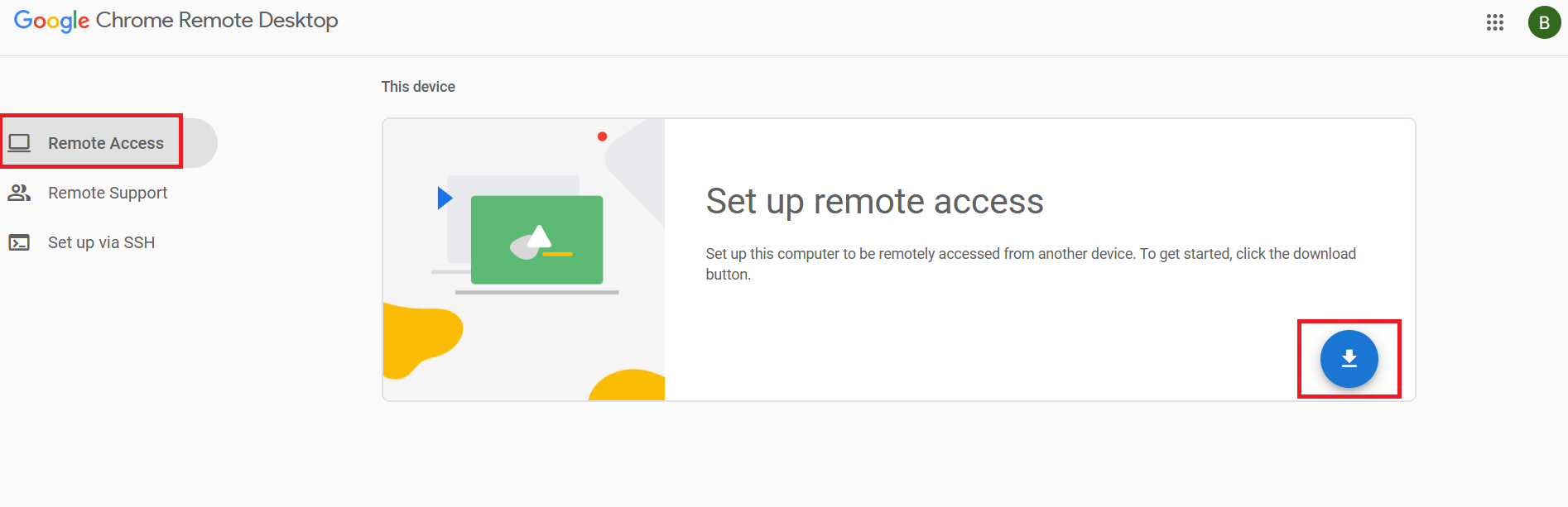
    Download Chrome Remote Desktop
  2. Step 2. Select Remote Access and click download. Follow the prompts and install the Chrome Remote Desktop extension and host component.
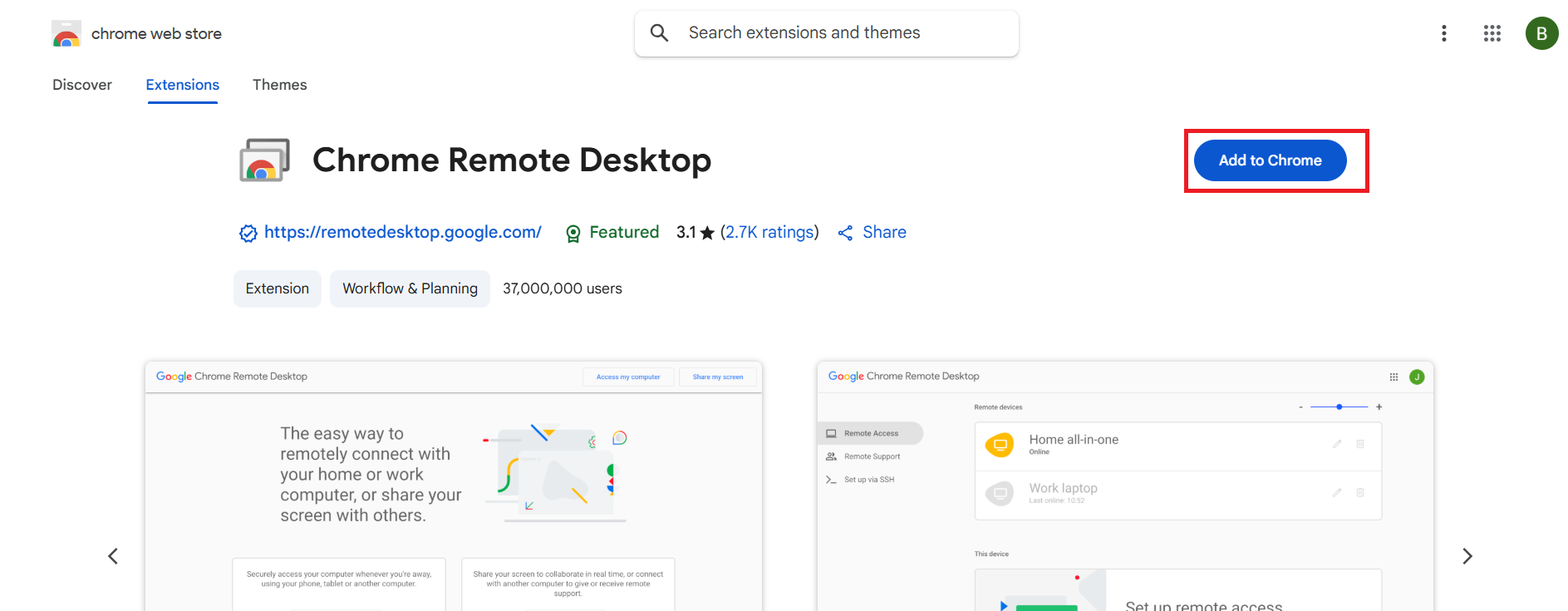
    Add CRD to Chrome
  3. Step 3. Return to the Remote Access screen. Click the Turn button, enter a name for the computer, and then click Next.
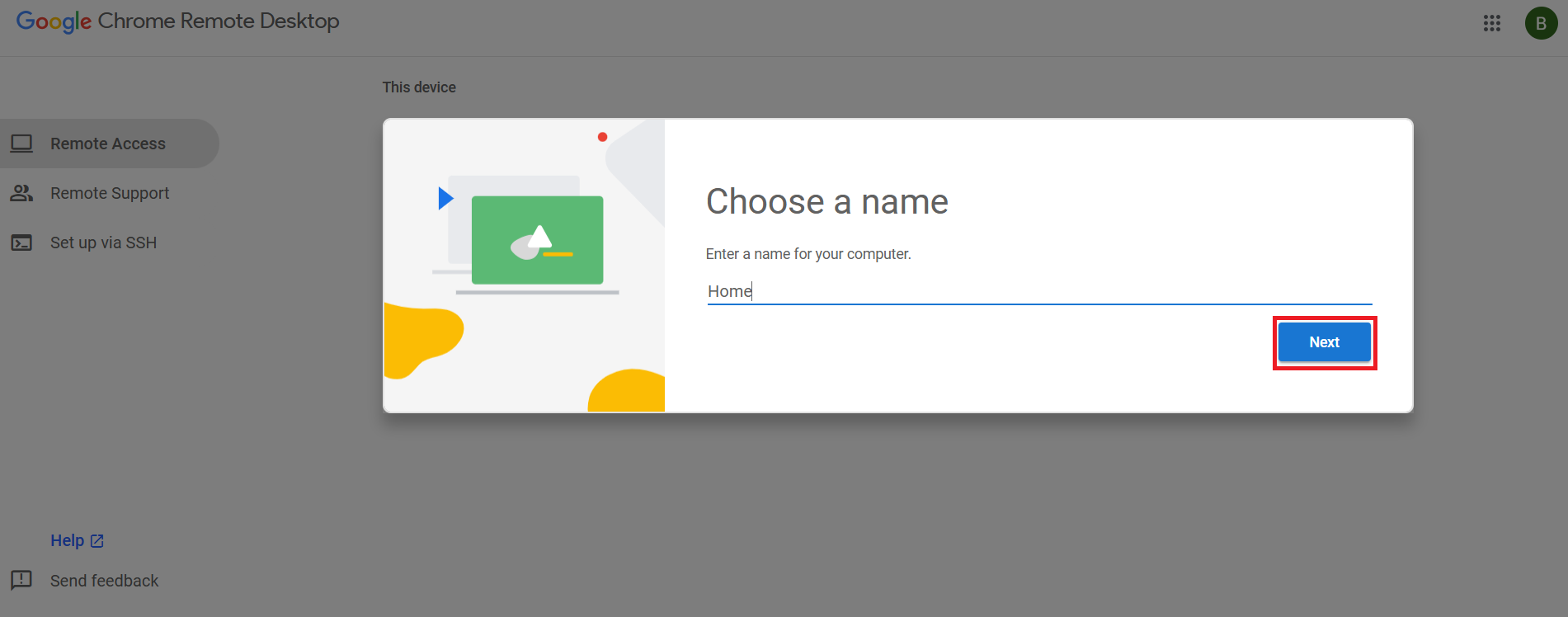
    Name remote Chrome Remote connection
  4. Step 4. Create a strong PIN to protect your connection. Confirm the PIN and click Start. You have completed the Chrome Remote Desktop unattended access setup on the remote computer. You should consider modifying the computer’s sleep settings so it stays awake and can be accessed remotely.
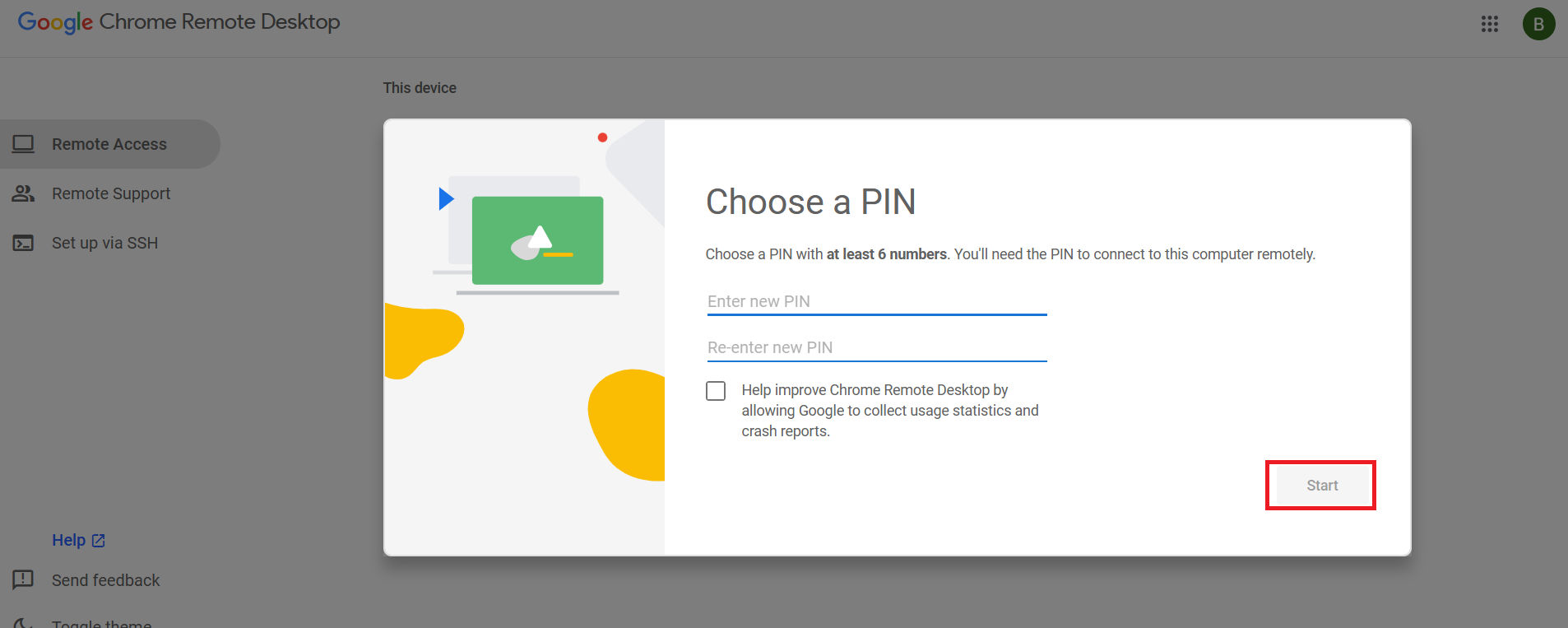
    Chrome Remote connection PIN code
  5. Step 5. Open Chrome Remote Desktop on the computer you will connect from, and select Access my computer. Verify you have signed in with the same Google account used on the remote machine.
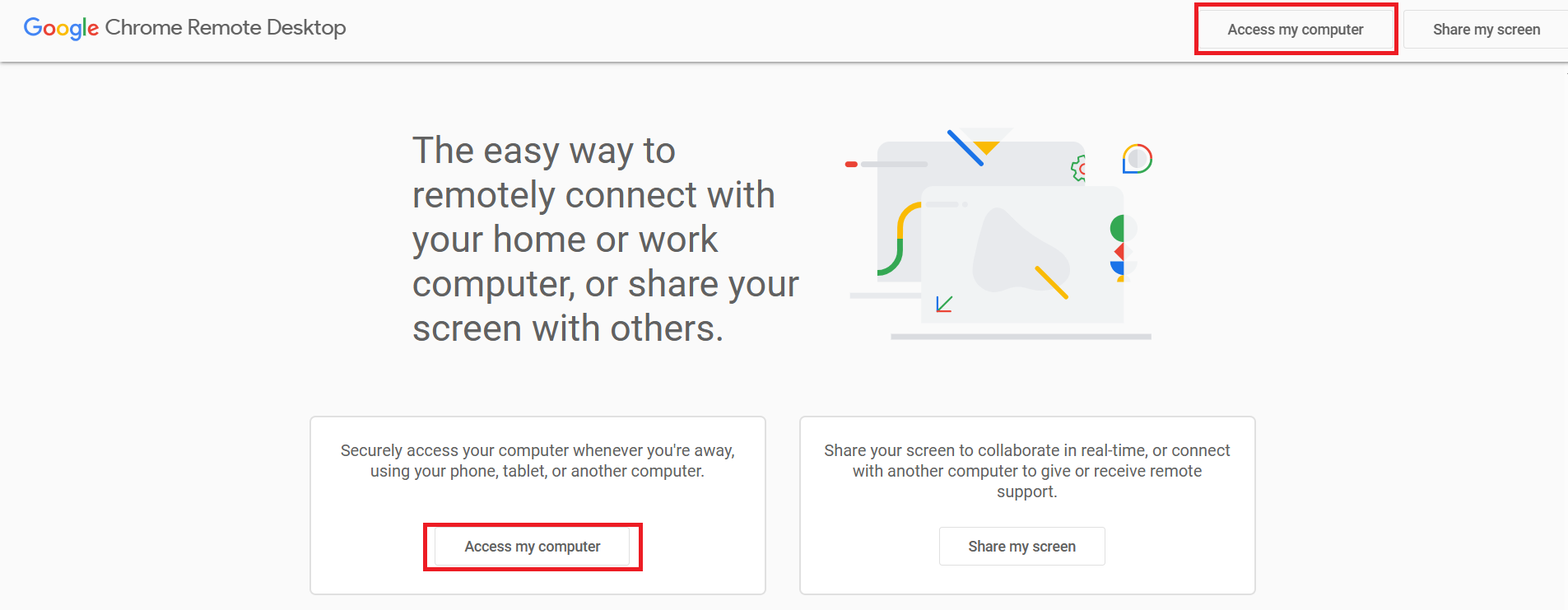
    Chrome Remote Desktop setup unattended access
  6. Step 6. Navigate to Remote Access and select the named computer previously set up for unattended access. Make sure the computer is powered on and connected to the network.

    Choose remote desktop in CRD
  7. Step 7. When prompted, enter the PIN you created. You will shortly be connected to the unattended computer and will be able to control it remotely. 
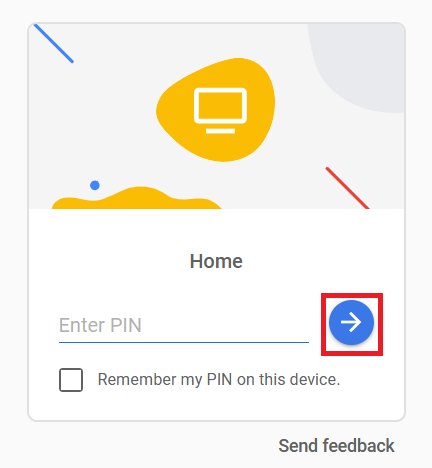
    Enter PIN to enable CRD Unattended Access

Why HelpWire Is Proper Unattended Access – Not Just a Same-Account Workaround

The setup above works fine if both machines are yours and share a Google account – but the moment you need to support a client device, a colleague’s laptop, or anything outside your own Google account, Chrome Remote Desktop’s unattended access stops working entirely. HelpWire has no same-account requirement: set it up on any device, connect from anywhere, and manage everything from one operator interface. It’s free for both personal and business use, and it takes just minutes to configure.

HelpWire vs. Chrome Remote Desktop: What You Actually Get

Feature HelpWire Chrome Remote Desktop
Same Google account required ✅ Not required ⚠️ Both machines must share one Google account
PIN required per session ✅ Persistent access, no PIN each time ⚠️ Per-device PIN or trusted-device setup, same Google account required
Device management ✅ Add, organise, and review client devices ⚠️ Basic list only
Multi-screen support ✅ Built in ⚠️ Limited
On-demand sessions ✅ Supported alongside unattended ⚠️ Separate mode, no unified workflow

Learn more about how the advantages of HelpWire make it an excellent alternative to Chrome Remote Desktop.

You may not be satisfied with the limitations of Chrome Remote Desktop. In that case, you should examine HelpWire as an alternative. HelpWire is a cross-platform remote access solution that supports Windows, Linux, and macOS systems. The software is free for personal and business use, features an intuitive interface, and provides on-demand sessions as well as unattended access.

HelpWire’s feature set includes:

Conclusion

Chrome Remote Desktop provides basic remote access functionality by following the steps outlined above.

If you want more control over your remote connectivity and want the flexibility of cross-platform support, HelpWire is a free solution that offers advanced functionality for unattended access.