
categories
Updated on Published on in

TeamViewer Copy and Paste Not Working

Author: Natalie Paraskeva
Natalie Paraskeva Article author

TeamViewer copy-paste not working is often caused by compatibility issues introduced in updates. In many cases, there’s not much to do other than waiting for the next patch. However, there are several fixes and workarounds you should try beforehand.

Enabling Clipboard Synchronization

Clipboard synchronization needs to be enabled as a setting in order for it to work. While this setting is on by default, it’s worth checking, in case it got switched off by an update, or was temporarily disabled and forgotten about.

The following instructions are for the new TeamViewer interface. In Classic, clipboard synchronization is located under the Advanced tab.

  1. Open a drop-down menu from the “More” icon (three dots). Select “Settings”.
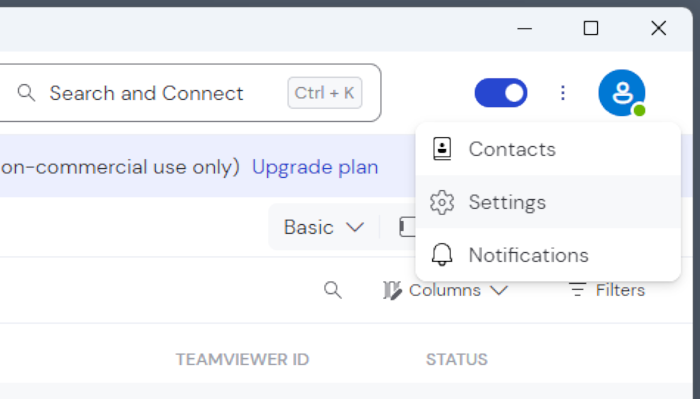
    The triple dot menu at the top of the TeamViewer window
  2. Hover over the tab panel on the left to expand it. Go to “Remote control”.
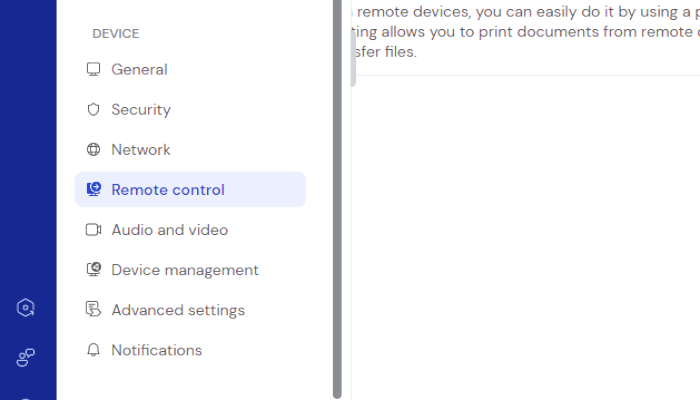
    The Remote control tab
  3. Choose “Session settings”, then “Common settings”.
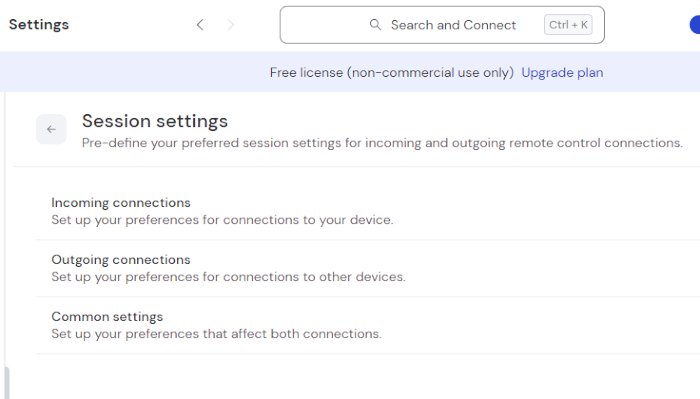
    The Session settings dialogue
  4. “Clipboard synchronization” needs to be enabled.
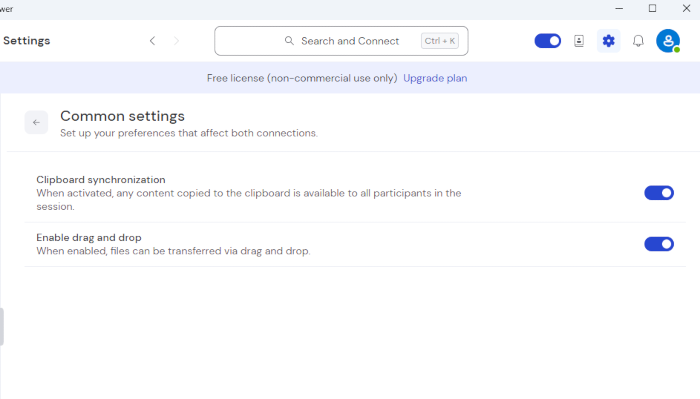
    The Clipboard synchronization option is enabled
Note:  If you experience other most common TeamViewer issues, check the article that covers problems like connection errors, black screens, and permission mismatches, along with troubleshooting steps such as restarting networks, updating the app, enabling full access, and adjusting firewall settings.

Trying a Full Reinstall

You may have tried uninstalling and reinstalling TeamViewer before, but did you know that it can leave old configs behind? Removing all config files and registry keys is the only way to make sure that the app will install cleanly and won’t inherit any broken behavior from the previous installation. Check out our article on TeamViewer uninstallation to find out the proper way to do it.

Working Around TeamViewer Copy-paste Not Working

There are two alternatives to using keyboard synchronization. First off, you can save any text you want to copy into a file, and send it as a file instead. This won’t work if you want to copy and paste often, but as a one-off solution, it might be enough. Follow this link and the article will teach you how to perform a TeamViewer file transfer. Sending the content as a file is a reliable workaround, just make sure you’re not also running into TeamViewer file transfer not working issues, which can stem from the same permission and network restrictions.

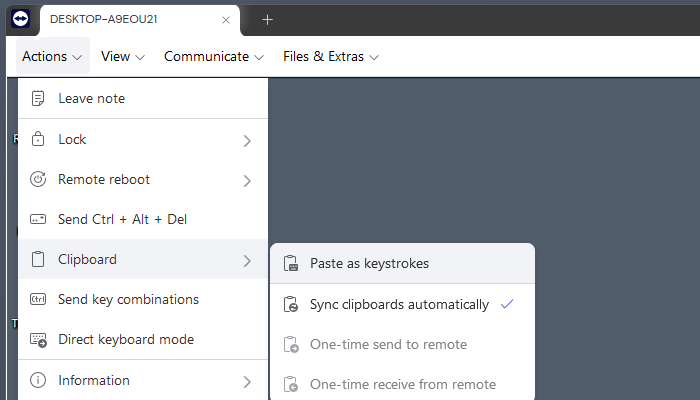
There’s also another method – pasting as keystrokes.
Selecting

During a remote session, if copy-paste TeamViewer not working, open the Actions menu on the menu bar, select “Clipboard”, and then “Paste as keystrokes”. This is a more direct method that doesn’t require clipboard sync to be working. In fact, it’s more secure, since the remote computer won’t have access to anything you may have copied unintentionally, like your own passwords. However, this obviously limits the use of the clipboard to text only.

If paste-as-keystrokes fails, the issue may be a broader input problem. Check our guide on TeamViewer keyboard not working for causes affecting the entire keyboard layer.

Why HelpWire Has Working Clipboard Sync – Not a “Paste as Keystrokes” Workaround

Waiting for a patch and pasting text into a file to send it across are not solutions – they’re signs that a core feature has been broken by an update and hasn’t been fixed. HelpWire’s clipboard sync works across Windows, macOS, and Linux without cleaning up stale config files, and Ctrl+C/Ctrl+V behaves the same way it does on your local machine. It’s free, no account required to start, and takes a few minutes to set up.

HelpWire vs. TeamViewer Free: What You Actually Get

Feature HelpWire TeamViewer Free
Clipboard sync across platforms ✅ Works on Windows, macOS, Linux ⚠️ Frequently breaks after updates
Ctrl+C / Ctrl+V in remote session ✅ Works as expected ⚠️ May require “Paste as keystrokes” workaround
Config leftovers breaking features ✅ Clean install, no stale configs ⚠️ Requires full registry/file cleanup to fix
Commercial use on the free plan ✅ Allowed ⚠️ Detected and restricted
Session time limits ✅ None ⚠️ Enforced on free tier