Electronic Team uses cookies to personalize your experience on our website. By continuing to use this site, you agree to our cookie policy. Click here to learn more.

Installazione Remota del Software con HelpWire

Il servizio HelpWire è un comodo strumento per l'installazione remota del software che ti aiuta a configurare, distribuire e risolvere i problemi delle applicazioni software senza la necessità di essere fisicamente presente.
 G2 logo
G2
5.0
 capterra logo
Capterra
5.0
 SourceForge logo
SourceForge
5.0
 TrustRadius logo
TrustRadius
5.0

Software per Desktop Remoto - La Migliore Opzione per Installare Software da Remoto

Problema: Nelle strutture organizzative moderne con culture digitali e lavoro remoto, è necessario poter installare sistemi software in modo remoto e semplice. Questo aiuta a ridurre i tempi di distribuzione e aumentare l'efficienza, eliminando al contempo costose visite in presenza. Ma il processo non è così facile come sembra. Sfide come problemi di compatibilità, configurazione e sicurezza sono ancora presenti.

Soluzione: Per superare i problemi dell’installazione remota del software, utilizza la soluzione di accesso e controllo remoto multipiattaforma e intuitiva di HelpWire. Permette ai tecnici di stabilire connessioni e accedere ai dispositivi remoti facilmente e in sicurezza, come se fossero fisicamente presenti. Lo strumento semplifica l’intero processo di installazione remota del software sui computer di clienti e dipendenti. HelpWire funziona come uno strumento ideale per consentire agli utenti di gestire facilmente le installazioni software con errori minimi.

Ideale per: Installazioni su piccola scala, configurazioni una tantum o risoluzione di problemi su singoli dispositivi.

Come Installare Software da Remoto con HelpWire

1. Registrati o accedi al tuo account HelpWire:
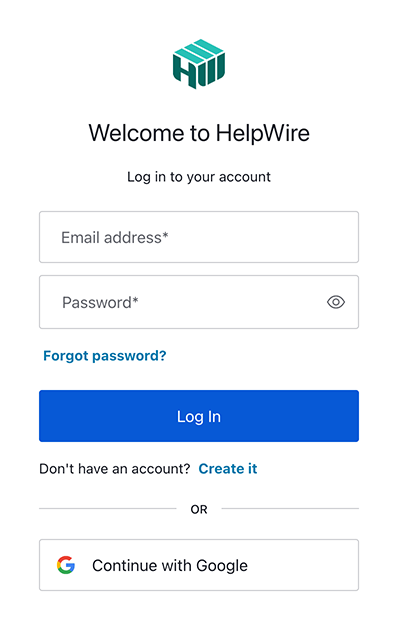
Clicca sul pulsante "Accedi" in alto a destra nella pagina per entrare con le tue credenziali. Se sei nuovo su HelpWire, puoi creare un account utilizzando il tuo profilo Google o il tuo indirizzo email.
Register new HelpWire account
2. Scarica HelpWire:
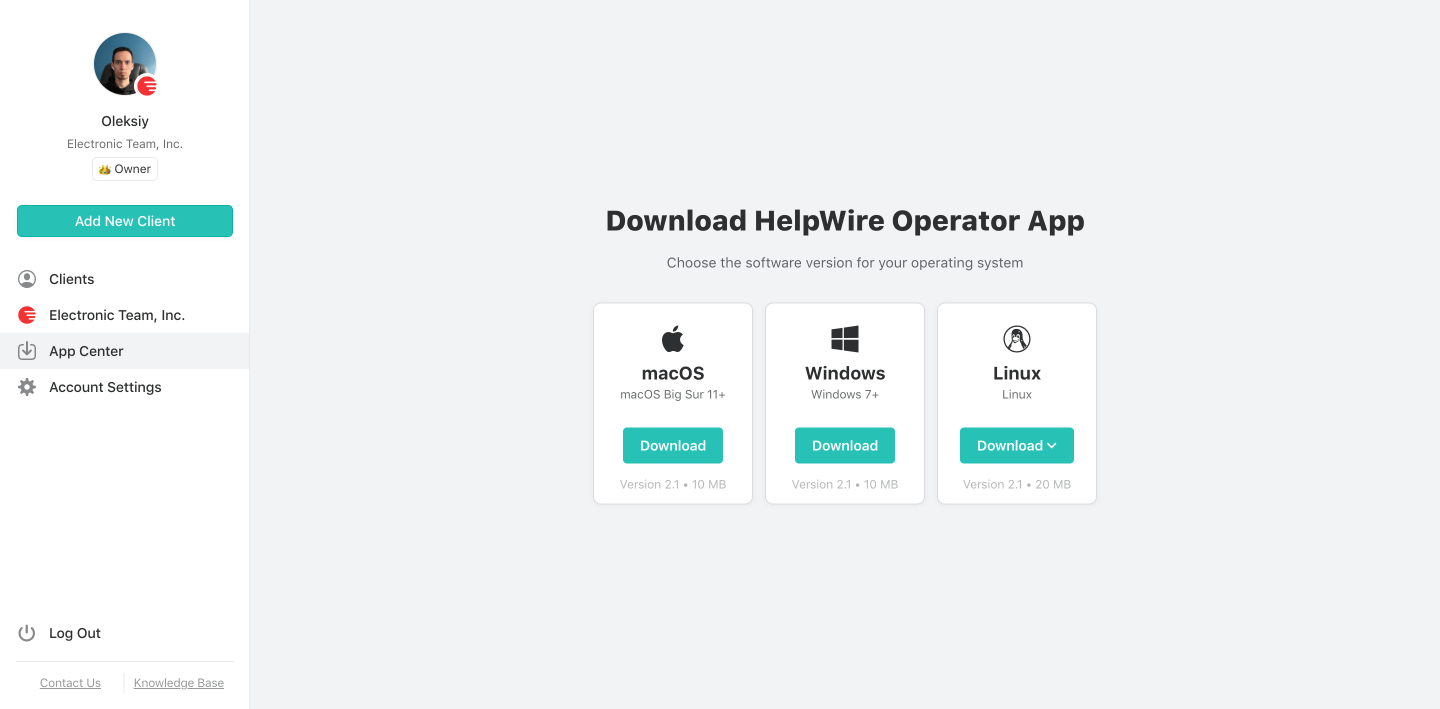
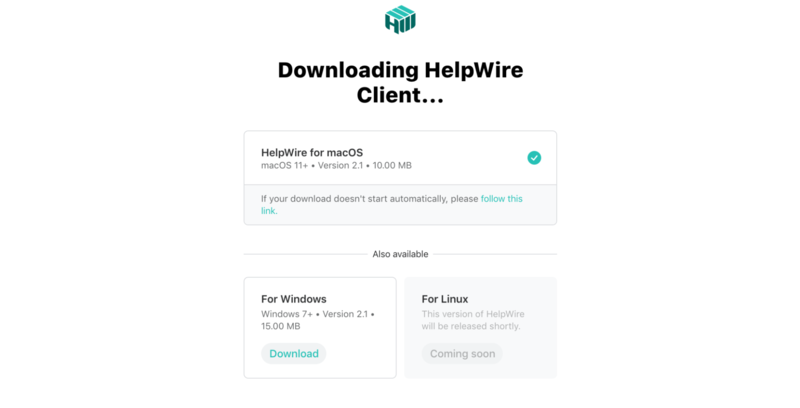
Scarica HelpWire dal “App Center”:
Download HelpWire for remote software installation
3. Crea un nuovo cliente o seleziona uno esistente:
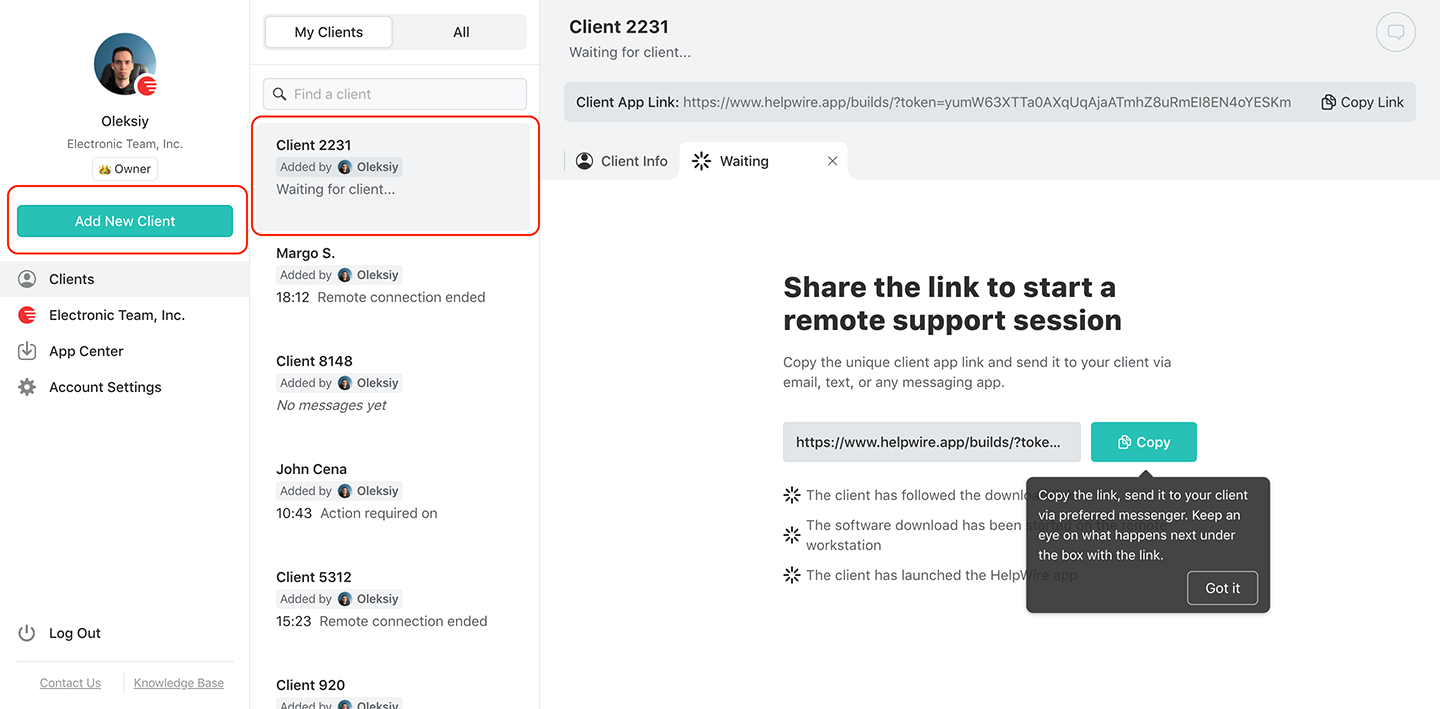
Seleziona un cliente esistente dalla tua lista Clienti o creane uno nuovo usando il pulsante nella barra degli strumenti.
Create a new client
4. Invia un link di connessione al cliente:
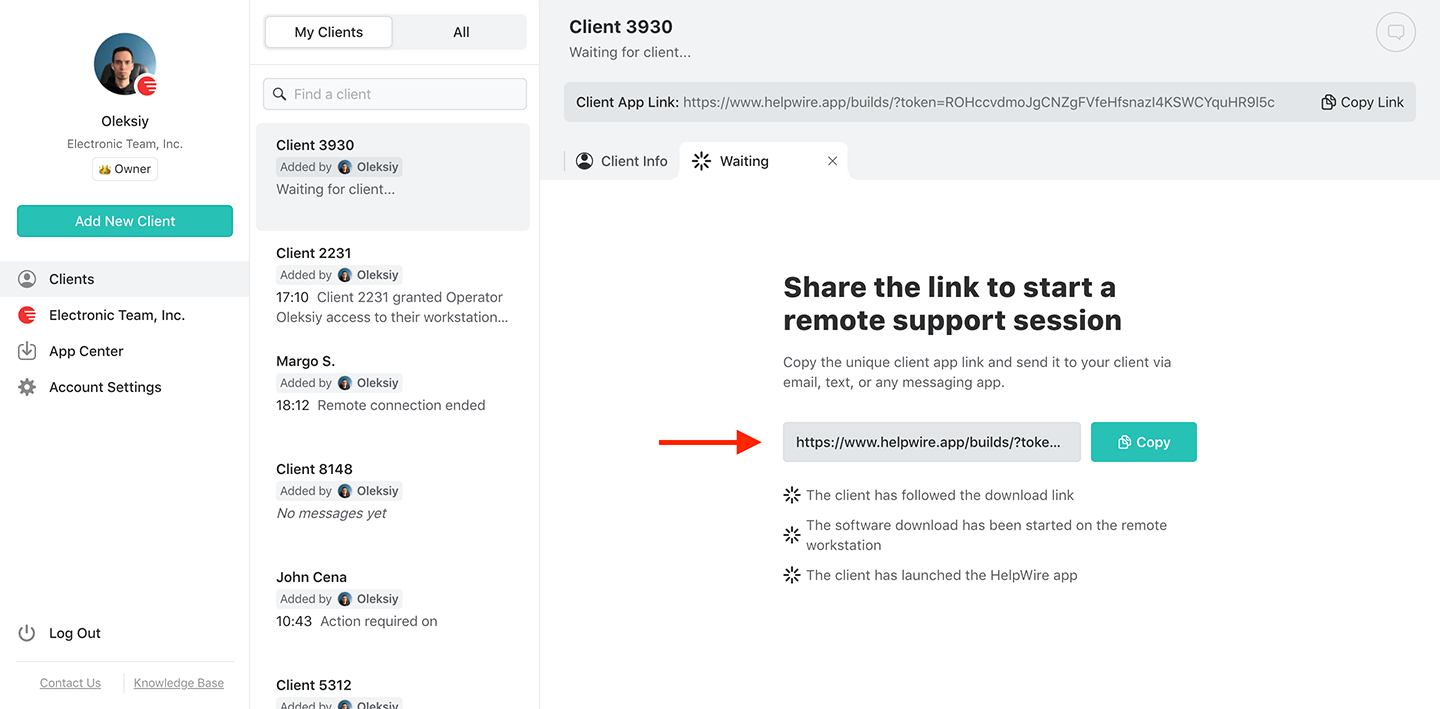
Avvia l’app, copia il link di connessione e invialo al tuo cliente tramite messaggistica, email o helpdesk.
Send a connection link to install software remotely
5. Il cliente scarica l’App:
Assicurati che il cliente segua il link, scarichi e avvii l’app client sul suo dispositivo.
Downloading the client app
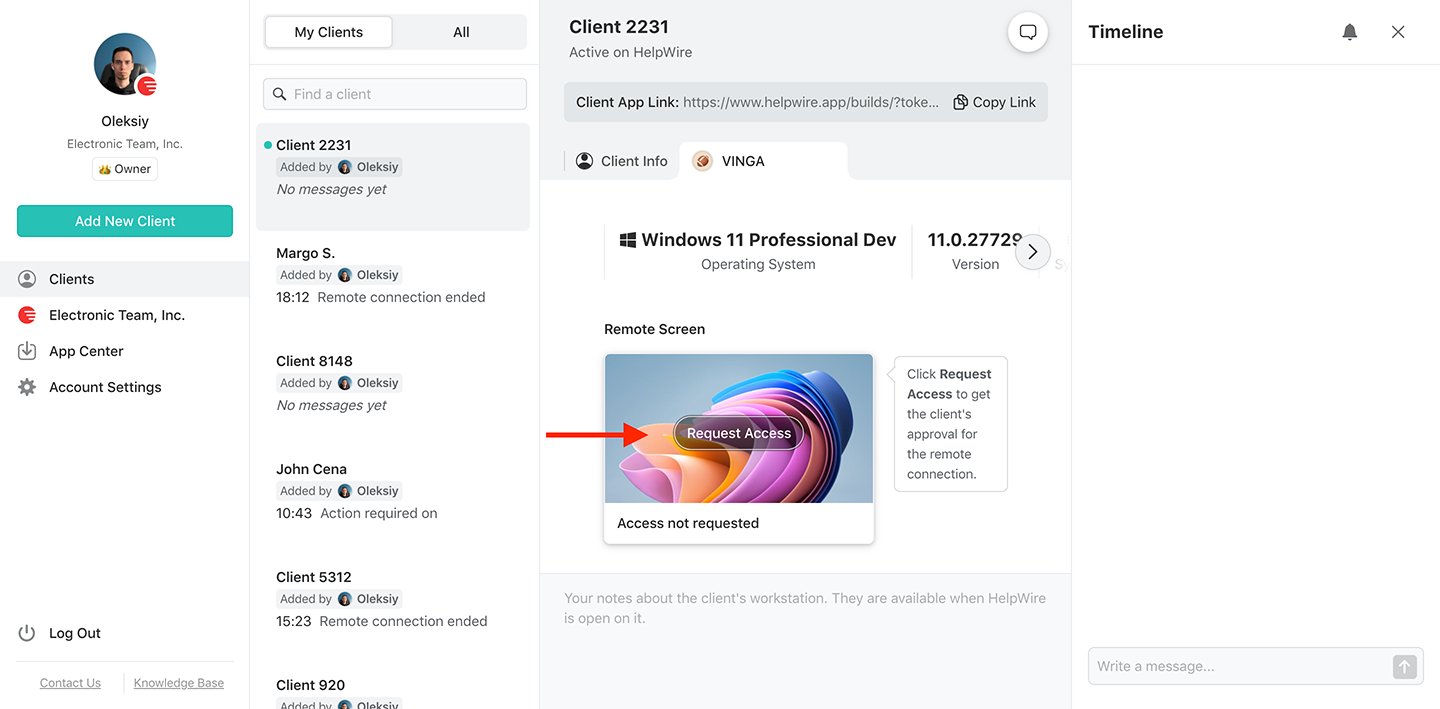
6. Richiesta di accesso remoto:
Attendi che il cliente installi e avvii l’app HelpWire Client. Poi clicca su "Richiedi Accesso" e attendi la loro approvazione.
Request access to multiple monitors
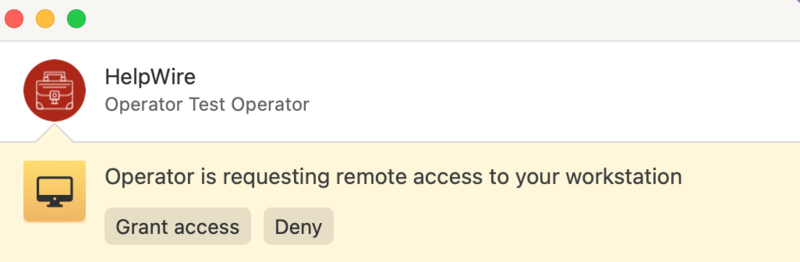
7. Ottieni l’accesso dal tuo cliente remoto:
Il cliente clicca su Grant Access per consentire la connessione remota. Se il cliente usa macOS, potrebbero essere necessarie autorizzazioni aggiuntive.
Grant access
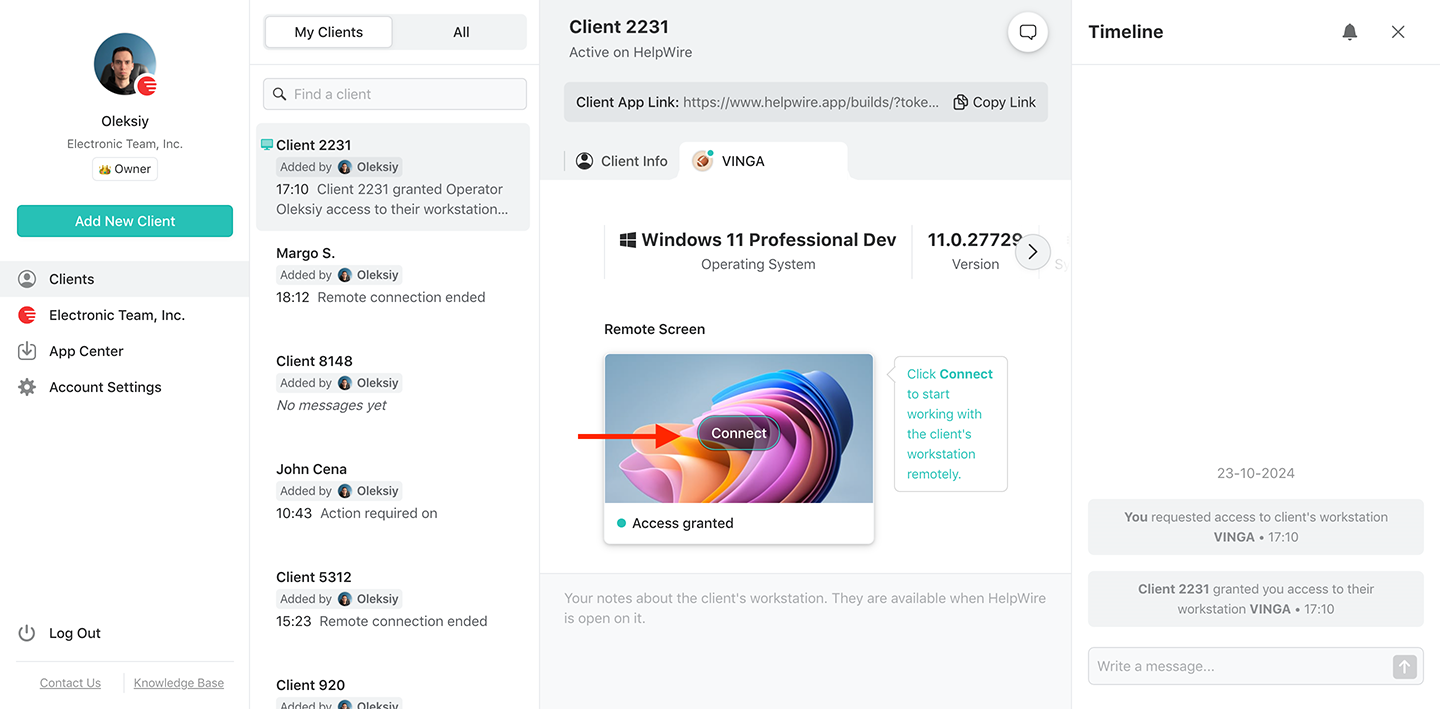
8. Connettiti al cliente remoto:
Avvia una sessione desktop remota cliccando sul pulsante Connect dalla tua postazione di lavoro. Il pulsante si trova nella scheda del profilo cliente che hai selezionato.
How to connect to the remote client with multiple monitors
9. Installazione remota:
Dopo aver stabilito la connessione, usa la funzione di condivisione file di HelpWire per trasferire i file di installazione. Trascina semplicemente i file di installazione nella finestra della sessione remota. Puoi quindi completare l’installazione come se fossi fisicamente presente.
10. Termina la sessione:
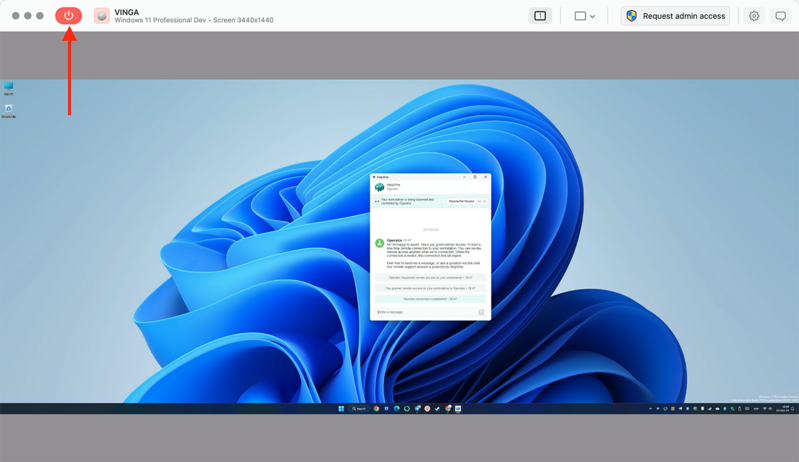
Clicca su Disconnect per terminare la sessione remota.
End session with multiple monitors
Nota: Il cliente può revocare l’accesso in qualsiasi momento, ma la comunicazione può continuare tramite la chat integrata.

Perché HelpWire è la tua migliore scelta per l’installazione remota del software

Simple and Fast Remote Control

Controllo remoto semplice e veloce

Stabilisci una connessione senza interruzioni alle postazioni dei clienti con un link unico generato per ciascun cliente.
Intuitive File Sharing

Condivisione file intuitiva

Usa le comode funzionalità integrate di trasferimento file per copiare e incollare i file di installazione su una postazione remota.
Admin Privileges

Privilegi amministrativi

Dopo l’approvazione del cliente, distribuisci ed esegui le applicazioni con privilegi amministrativi sulle postazioni Windows remote.
Cross-Platform Remote Control

Controllo remoto multipiattaforma

Connettiti da Windows e Linux a macOS e viceversa con HelpWire ed esegui l’installazione remota di applicazioni native sulla piattaforma preferita.
Control Multiple Workstations

Controllo di più postazioni

Stabilisci connessioni simultanee a più postazioni remote dello stesso cliente per installare il software su tutte.
Workstation Details

Dettagli della postazione

Visualizza nome, tipo e versione del sistema operativo della postazione remota per un’installazione remota senza problemi.

Ulteriori funzionalità di gestione dell’installazione remota del software di HelpWire

Distribuzione remota del software

HelpWire è la scelta giusta se sei un rappresentante aziendale e desideri distribuire software da remoto su più postazioni. Mantieni un elenco conveniente di tutti i tuoi clienti nell’account HelpWire e connettiti facilmente a loro quando necessario.

Disinstallazione remota del software

La connettività di controllo remoto di HelpWire rende facile disinstallare software da remoto su diverse postazioni o su un singolo computer remoto.

Gestione remota del software

Accedi alle postazioni remote che devi gestire in qualsiasi momento e da qualsiasi luogo. Tutto ciò che serve è una connessione a Internet, un computer e un account HelpWire gratuito.

Opzione 2: Installare software da remoto con Windows Group Policy

Windows Group Policy (GPO) è una funzione integrata che ti aiuta a installare software, come i file .msi, sul tuo computer Windows. Non richiede alcun software aggiuntivo per funzionare in modo efficiente, tuttavia, di solito è più tecnico da usare rispetto a strumenti di supporto remoto più semplici come HelpWire.

GPO è adatto alle organizzazioni che utilizzano Active Directory, ma è necessaria competenza tecnica per configurare sia Active Directory sia GPO. Le aziende che non usano Windows avrebbero difficoltà ad accedere a GPO, poiché funziona solo sui sistemi operativi Windows.

Ideale per: Grandi organizzazioni con un sistema operativo esclusivamente Windows e un Active Directory per la gestione centralizzata del software.

Ecco una semplice guida passo passo per utilizzare Windows Group Policy (GPO) per installare software da remoto:
  • Create a Shared Folder: Save the software’s .msi package in a network-shared folder.
  • Open Group Policy Management: On the domain computer, open Group Policy Management (GPMC).
  • Edit or Create a GPO: Right-click on your organizational unit (OU) or domain, then create or edit a GPO.
  • Configure Your Software Installation: From your GPO editor, go to Computer Configuration, click on Policies, then click Software Installation and add the .msi package from the shared folder.
  • Deploy the GPO: Apply the GPO to the necessary machines. Finally, reboot the computer or perform a policy update (gpupdate /force) to confirm the software has been installed.

Opzione 3: Installazione remota del software tramite strumenti da riga di comando

Un’altra opzione per la gestione dell’installazione remota del software è rappresentata dagli strumenti da riga di comando. Strumenti come SSH per Linux e Mac, e PowerShell per Windows, consentono agli amministratori IT di eseguire script di installazione da remoto.

Questo offre loro il controllo su installazioni personalizzate. Tuttavia, l’uso di questi metodi da riga di comando può risultare piuttosto complesso. Richiedono competenze tecniche nella scrittura di script e comandi. Inoltre, l’unico modo per scalare è tramite l’automazione, rendendo il processo ancora più complicato per distribuzioni su larga scala.

Ideale per: Questa modalità di installazione remota è adatta agli amministratori IT con buone capacità di scripting che necessitano di installazioni flessibili e personalizzate su ambienti Mac, Linux o Windows.

Ecco una breve guida passo passo su come utilizzare l’installazione del software tramite cmd per l’installazione remota del software:

Per SSH (Linux/Mac):

  • Enable SSH: Make sure SSH is turned on the device you choose to use. If you use Linux, run this instead, “sudo systemctl start ssh.”
  • Open Terminal: On your computer, open a terminal.
  • Connect to theRemote Device: Use the command “ssh user@remote_ip_address” to remotely connect to your preferred device.
  • Install the Software: Once you’re connected, run the command to install the software. For Ubuntu run this “sudo apt install package_name”.
  • Exit SSH: After the installation is complete, simply type exit to close the SSH session.

Per PowerShell (Windows):

  • Enable PowerShell Remoting: Run Enable-PSRemoting to remotely connect to your preferred device.
  • Open PowerShell: On the computer, open PowerShell as an administrator.
  • Connect to the Remote Device: Use this command “Enter-PSSession -ComputerName remote_computer_name”to connect to your remote computer.
  • Run Installation Script: Once connected, run this command “Start-Process msiexec.exe -ArgumentList '/i software.msi /quiet'”
  • Exit PowerShell Session: Type “Exit-PSSession” to disconnect after your installation.

Installazione remota del software vs Distribuzione

Nonostante siano correlati, l’installazione remota del software e la distribuzione sono due processi differenti nella gestione del software. Vediamo come:

  • Installazione remota del software è il processo di installazione di un programma software su un dispositivo da remoto tramite una rete. Comporta la configurazione del software e la preparazione per gli utenti, concentrandosi sul compito singolo di far funzionare il software. Questa attività una tantum è una parte fondamentale dell’intero processo di distribuzione del software.

  • Distribuzione remota del software comprende un’ampia gamma di attività, inclusi installazione, pacchettizzazione, configurazione, gestione e distribuzione del software su più dispositivi e ambienti. Questo processo consente l’automazione di attività come la gestione delle configurazioni, delle impostazioni di sicurezza e degli aggiornamenti, garantendo una distribuzione e un funzionamento efficaci. A differenza dell’installazione, la distribuzione è continua e richiede una gestione costante per mantenere la funzionalità e la scalabilità del software.

Gli utenti che parlano della loro esperienza su HelpWire title icon

5.0 Basato sulle recensioni di piu’ di 209 clienti
version icon
Versione
2.3, 28 Genn, 2026
compatibility icon
Compatibilità
macOS, Windows, Linux
price icon
Prezzo
Gratis
Ecco alcune delle recensioni pubbliche riguardo HelpWire, da parte dei nostri clienti e da varie fonti:
Thea M.
Office admin
Thea M.
I got a gatvol of teamviewer and its issues and moved over to HelpWire and I'm blown away. Fast, effective and doesn't drain my computer's resources. It works really well props to the devs.
Molly
Production worker
Molly
My experience with HelpWire has been fantastic! The remote control process is incredibly smooth.
Daniel Domingues
Founder, Lusha
Daniel Domingues
I appreciate HelpWire for its ease of use and comprehensive remote support tools all in one place.
Rabeea Sarfraz
Associate Software Engineer, Coeus Solutions GmbH
Rabeea Sarfraz
HelpWire streamlines the remote support, allowing me to manage multiple clients efficiently, which improved overall service quality and client satisfaction.
Mark V.
Remote Technical Support
Mark V.
The fact that I can easily segregate my clients and have a full history of my connection to them is amazing. I like the fact that I can send a link to them and then talk them through what to do when they receive it (many are elderly and techo-illiterate). The emails and link are professional and give them reassurance. I like unattended access for those clients that need that extra layer of help. Love this app.
Kyle Paterson
CEO, Enspire
Kyle Paterson
The swift setup process and zero- configuration requirement for starting remote support sessions are what I appreciate most about HelpWire. It's remarkable how quickly I can connect with clients and start troubleshooting without any hassle.
Yaroslav H.
Owner
Yaroslav H.
Very good and free alternative to TV. Easy to use and nice concept. No annoying disconnections and forcing to buy premiumbussiness subscription or smth like that.
Muhammad Ammar Z.
Senior Lecturer at Shifa College of Pharmaceutical Sciences
Muhammad Ammar Z.
As a long-time TeamViewer user for personal projects and helping family, I grew increasingly frustrated with its frequent disconnections and persistent "commercial use" warnings. I decided to search for an alternative and found Helpwire. I am incredibly impressed. Helpwire provides a stable, reliable connection without any of the interruptions I faced before. The setup is simple, and it just works.
Jonathan B.
IT Director
Jonathan B.
Its a great tool for remote support. It doesn't have the bells and whistles of its commercial rivals, but ask yourself how often do you need that stuff ? If you want to help someone out on a PC issue, or connect to a server for some admin this is perfect.
Nilay N.
Senior Education Management, Self-employed
Nilay N.
HelpWire software has been an invaluable asset for streamlining our customer support processes.
Darko V.
SEO specialist
Darko V.
Probably the best free remote access app. I like seamless remote desktop experience and copy/paste functionality, reliability, and the fact it is free to use.
Samit B.
Senior Communication Executive, Dairy
Samit B.
The experience is fantastic with a very smooth remote session experience. The optimised performance and smart connectivity feature ensures a seamless remote session with zero-lag.
Ben T
Admin Assistant
Ben T
It was handy for the odd occasion that someone needs a hand with their computer while I am not nearby. It was very reliable and able to see the other's screen to provide directions.
Jean K.
Engineer
Jean K.
Absolutely Brilliant. Having worked on a whole bunch of other remote support software, from solarwinds dameware to anydesk and teamviewer, vnc viewer and the like, I have never had the joy I am having with Helpwire.
Govind P.
Content Writer, Marketing and Advertising
Govind P.
I've never been more satisfied with the service quality of a remote desktop application in my entire freelancing career. Considering the fact that it's a free remote desktop support solution, HelpWire is really worth a shot!
The interface is straightforward, so I can quickly connect to clients' devices and start troubleshooting without jumping through hoops. Plus, the performance is rock solid-no lag or sudden disconnections, which is crucial when I'm in the middle of solving a client's issue.
Adyrosan B.
Business Leader or Manager
Adyrosan B.
I appreciate Helpwire for its user-friendly interface and efficient problem-solving capabilities. It's designed to streamline the troubleshooting process, making it easier for people to find solutions to their technical issues quickly.
Anna K.
Sales Marketing
Anna K.
HelpWire really stands out for me because it's free and works seamlessly on both Mac and PC. I love how easy it is to get started. Basically, I can send a dedicated link to my colleague or client to initiate a remote session right away. The software is super fast and easy to use.
EJ S.
Business Leader or Manager
EJ S.
The Operator Dashboard is easy to use and you can start up a support session in seconds. The fact that it keeps the chat with the customer as well as logs of connections is a nice touch.
For nearly ten years I relied on another tool that recently became unusable, and HelpWire has stepped in as the perfect replacement.
How could I not like HelpWire! It ticks all the boxes for a great remote desktop/support service, and best of all, it's free. Real good, and worth more than a try.
Martin Lentz
Email Review
Martin Lentz
Your software worked just as well as Teamviewer. One thing works better and that is on the client side where they simply just have to grant me access. They don't have to provide me a one use password in order for me to connect.
Luca Albanese
Email Review
Luca Albanese
Simplicity of use, in particular on the client side that simply require to click on a link and give the required permissions. But the best feature, IMHO, is the ability to share the clients with other team members... and all of this for free! THANK YOU for this amazing app!!
Wilkin Miguel Julio Mercado
Email Review
Wilkin Miguel Julio Mercado
It's easy to use and I didn't expect there to be a software as good as this one.
Michael Guggenbichler
Email Review
Michael Guggenbichler
Absolutely Amazing Product for attended Access for individual operators or small teams! And you do not even have to pay!! There are so much remote access solutions, you have to pay tons of money and don't even provide the bare minimum. HelpWire Team, you're doing great! Looking forward to what you will bring in the future.
Domande Frequenti