Electronic Team uses cookies to personalize your experience on our website. By continuing to use this site, you agree to our cookie policy. Click here to learn more.

Remote Desktop on Multiple Monitors

HelpWire is your top choice remote desktop app for multiple monitors. Get flawless remote support for any number of workstations and displays.
 G2 logo
G2
5.0
 capterra logo
Capterra
5.0
 SourceForge logo
SourceForge
5.0
 TrustRadius logo
TrustRadius
5.0

Overcoming Challenges in Multi-Monitor Remote Access

Problem: Accessing a remote desktop with multiple monitors can be challenging, as default settings often don’t support multi-monitor setups. Additionally, connecting different types of machines or computers with varying operating system versions adds further complexity. As a result, adjusting configurations or providing effective remote support becomes increasingly difficult and time-consuming.

Solution: HelpWire is an intuitive, easy-to-use remote desktop solution that enables you to effortlessly use a remote desktop with multiple monitors. It streamlines the complete remote desktop access and control process with improved functionality. This provides a more efficient and productive workflow, unlike traditional methods with manual configurations, complicated setups, and limited features.

How to Use Multiple Monitors with HelpWire’s Remote Desktop Solution

Here's how to use multiple monitors with remote desktop solution by HelpWire:
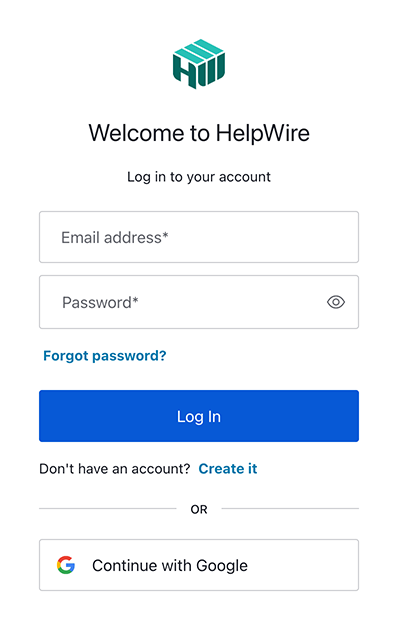
1. Register new or login into HelpWire account:
Click "Log in" at the top right to sign in. If you're new to HelpWire, create an account with your Google profile or email.
Register new HelpWire account
2. Download HelpWire:
Download and install HelpWire's remote desktop solution on your computer via the “App Center”. It's available for Windows, macOS, and Linux.
Download HelpWire
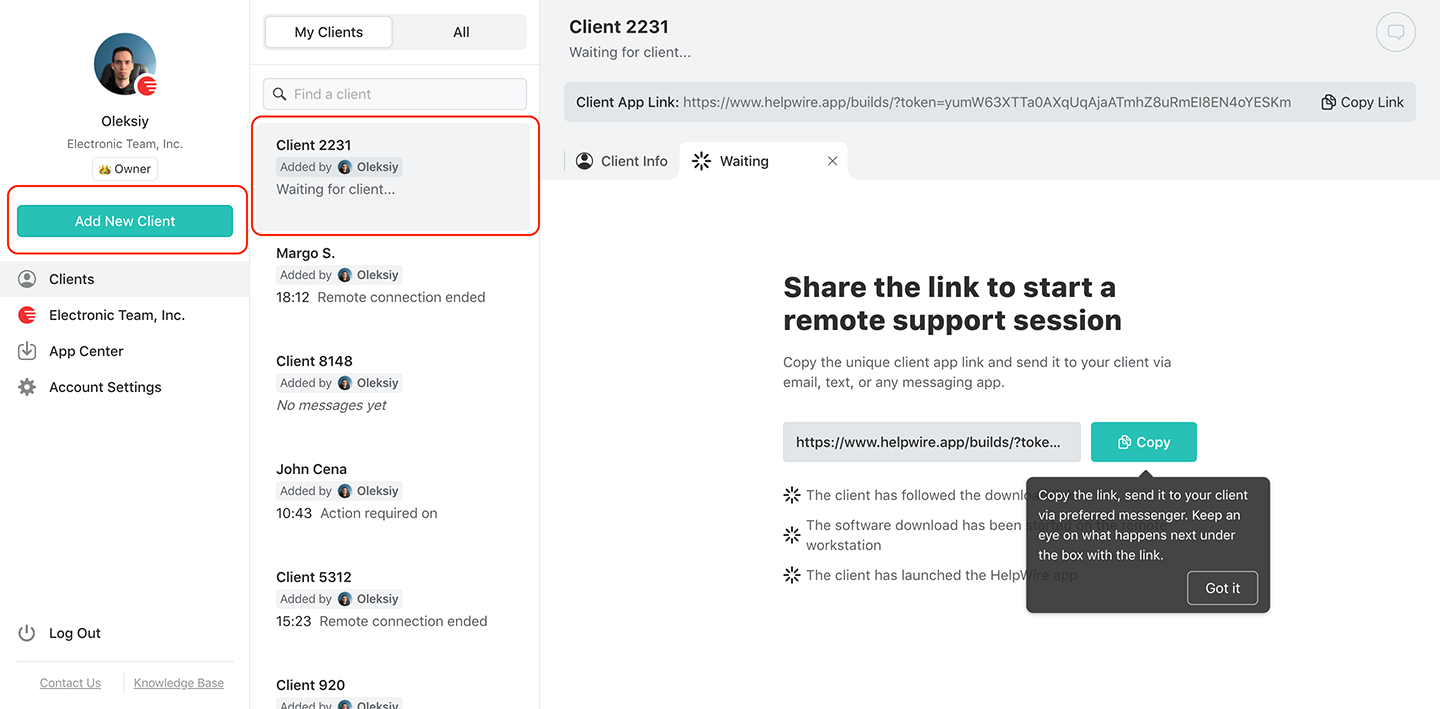
3. Create a new client or select an existing one:
Select an existing client from your Clients list or create a new one using the button in the toolbar.
Create a new client
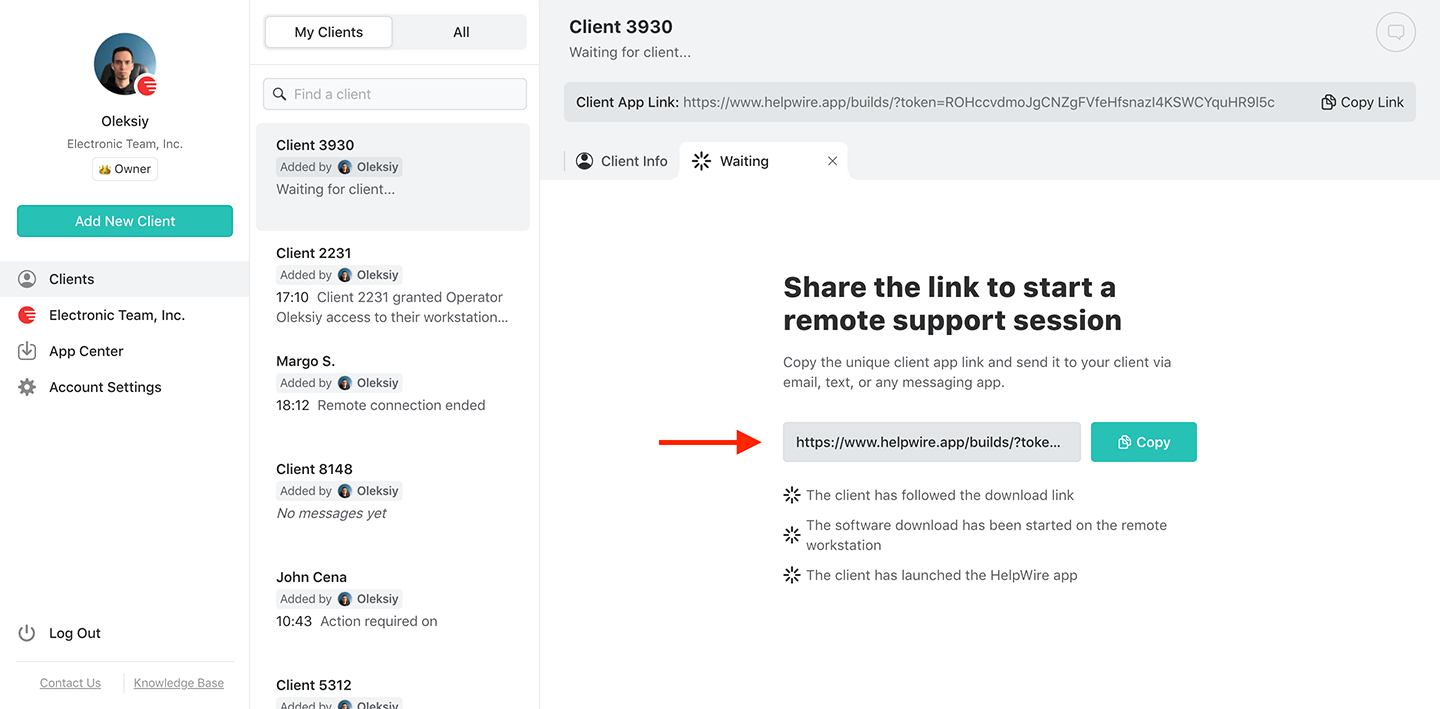
4. Send a connection link:
Copy the connection link displaying on your screen, and share it with your client via helpdesk, SMS, or email.
Send a connection link to access multiple monitors
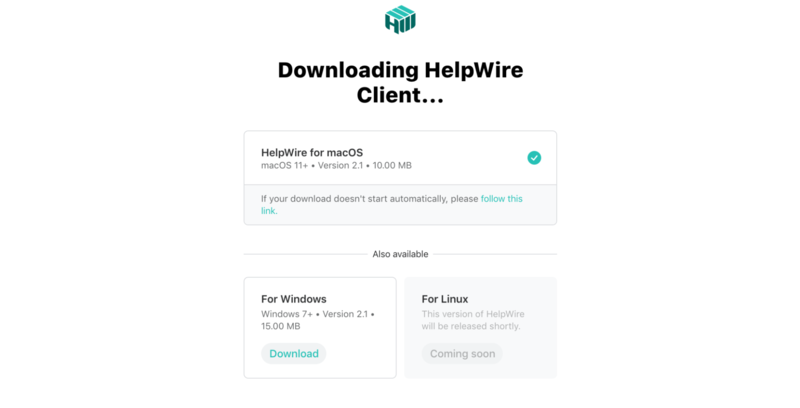
5. Let the client download the app:
After sending the connection link, wait for the client to download the application on their system by following the link. Let them start the app on their device.
Downloading the client app
6. Remote access request:
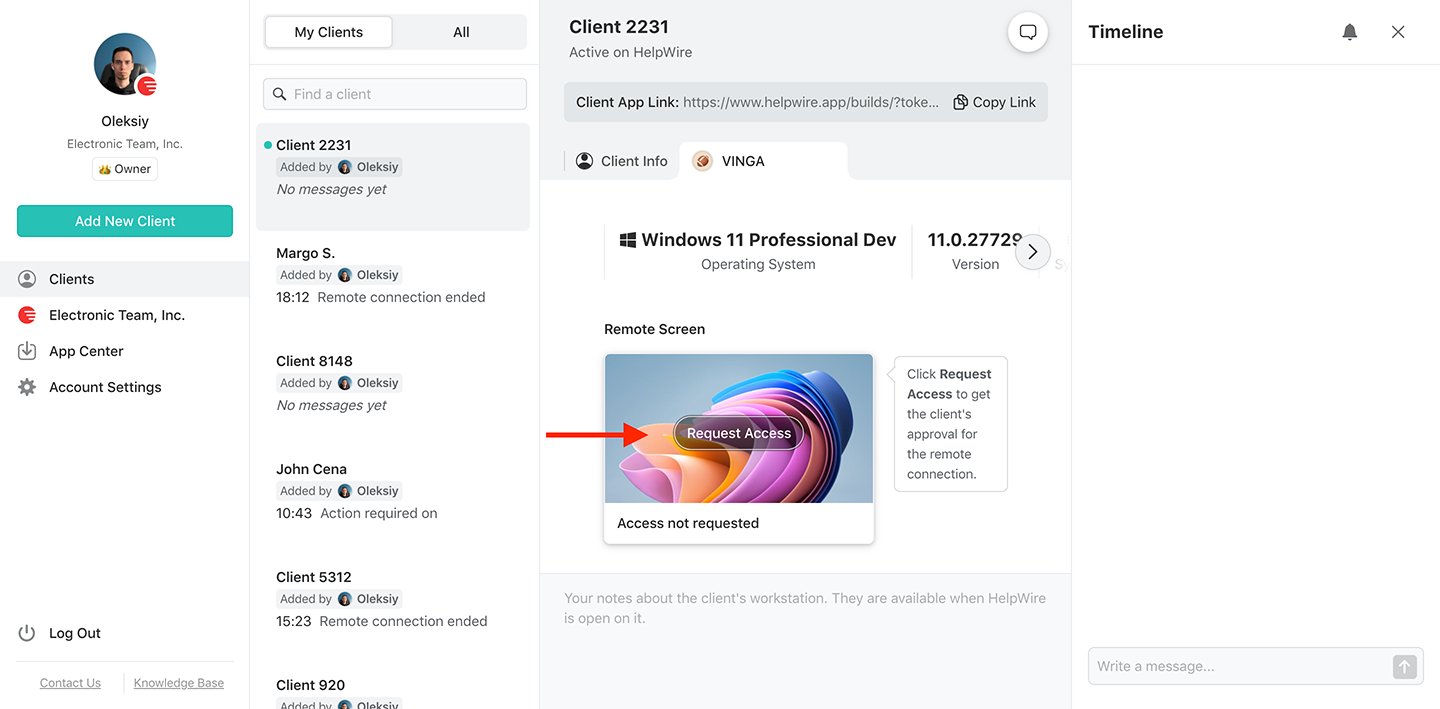
Wait for your client to install and open the HelpWire Client app. After that, click "Request Access" and wait for their approval.
Request access to multiple monitors
7. The access for remote connection should be granted:
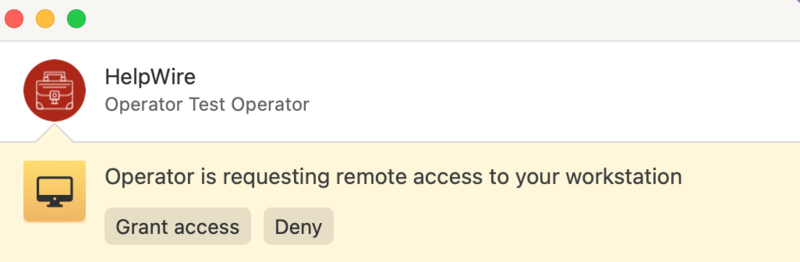
To allow the remote connection, the client must click on the option "Grant Access". (Note: In macOS devices, the client will need to provide some more permissions to enable remote access).
Grant access
8. Connect to the remote client:
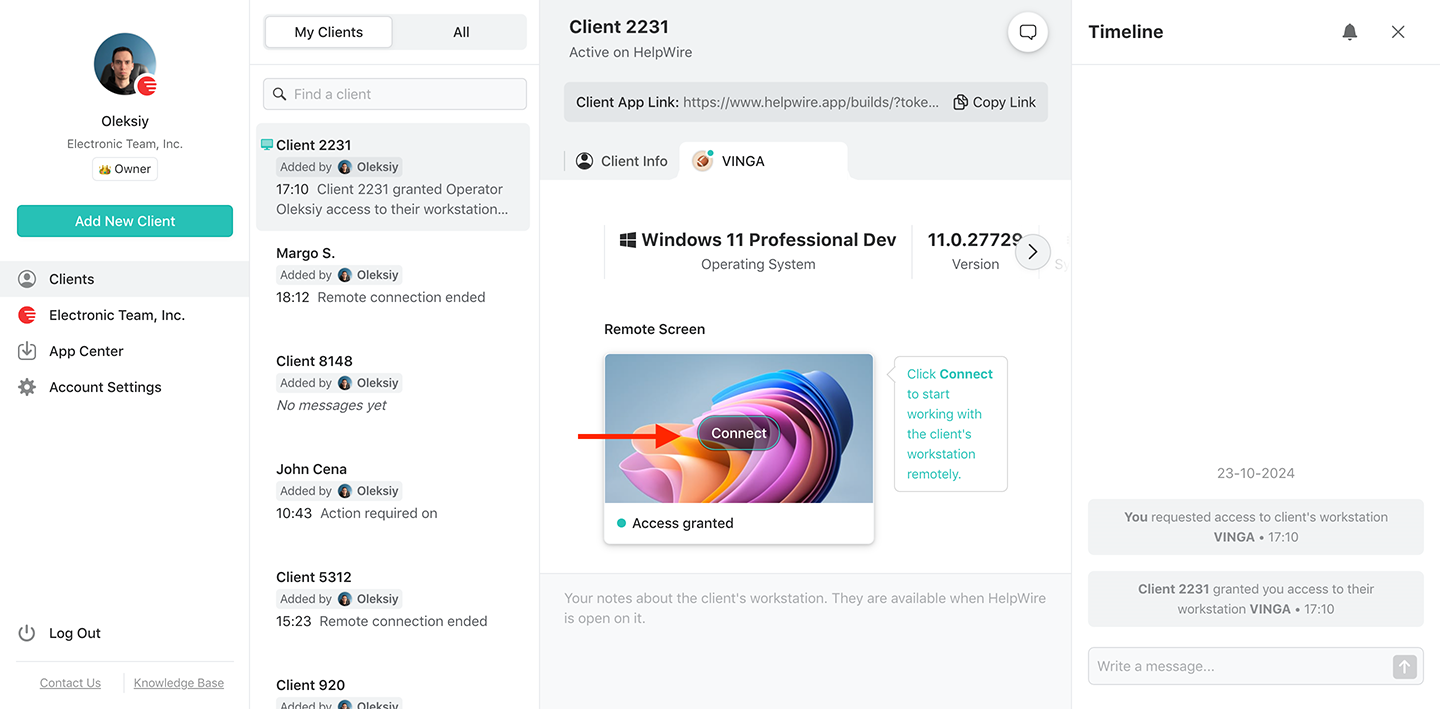
Start a remote desktop session by clicking the 'Connect' button from your workstation.
How to connect to the remote client with multiple monitors
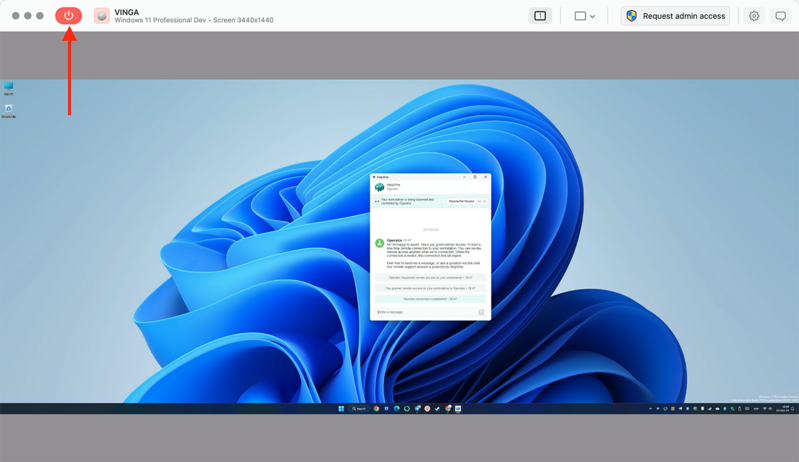
9. Remote Control:
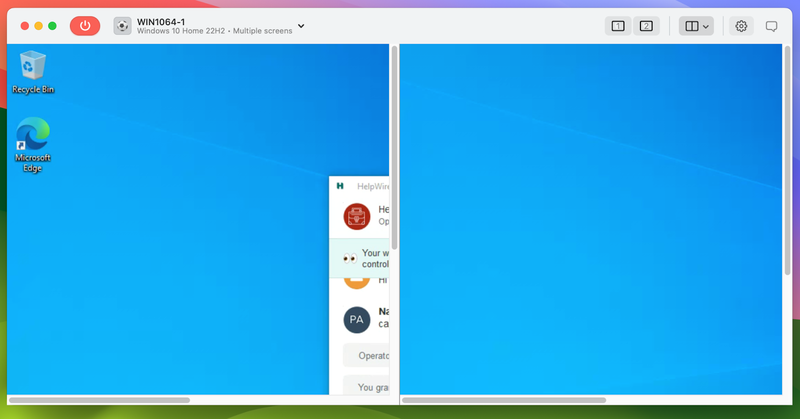
Now you will be able to control the remote device remotely through HelpWire's user interface. If it detects multiple monitors, it will display the multi-monitor icon.

View multiple monitors in remote desktop
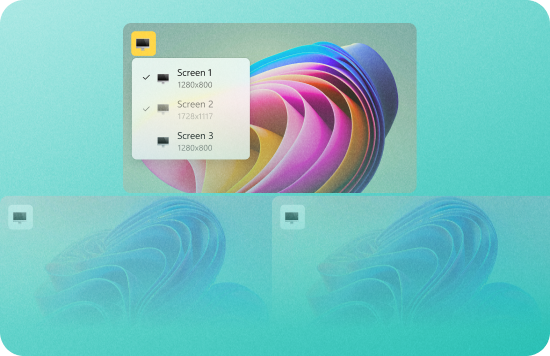
To view multiple monitors in remote desktop, adjust the viewing position of these monitors, either side by side or one above the other.

icon1 – only one screen is available for the chosen client’s workstation

icon2 or icon3 – multiple screens are available for the client workstation.

icon4 – to display only a single screen of the remote client's device.

icon5 – to split the operator screen horizontally, displaying the client’s screens are positioned one above the other.

icon6 – to split the operator screen vertically, displaying the client’s screens are positioned side by side.

10. End Session:
If you want to end an ongoing remote access session, locate the option "Disconnect" and click on it.
End session with multiple monitors

Benefits of Using HelpWire’s Remote Desktop Solution

Let's now look at the various benefits of using HelpWire's remote desktop solution to enable access for remote desktop with multiple monitors:
Seamless Remote Control

Seamless Remote Control

Generate a unique link each time for a client and connect to their workstations quickly and effortlessly.
Multiple Concurrent Connections

Multiple Concurrent Connections

Set up multiple remote concurrent connections to client workstations and assist them effectively on their systems.
Multi-Screen View

Multi-Screen View

Simultaneously view and manage multiple computer screens using the multi-screen feature.
Cross-Platform Compatibility

Cross-Platform Compatibility

HelpWire lets you connect with any number of monitors remotely from macOS, Windows, and Linux systems.
Grouped Workstation

Grouped Workstation

Discover all your client workstations under a single client profile and manage everything swiftly.
Fast File Transfer

Fast File Transfer

Copy and paste files into HelpWire’s remote control window and transfer them in no time.

Alternative Method to Access Multiple Monitors Remotely

The Windows operating system's native feature - Remote Desktop Protocol (RDP) enables users to easily access and control computers remotely. But it's difficult to set up this tool to enable multiple monitor support, especially if you can't access the remote computer directly.

This requires you to gain remote or physical assistance from a user who can access the computer directly.

Let's find out how to use remote desktops on multiple monitors via RDP step-by-step.

Method 1: Adjust RDP Display Settings

  • Launch the application by entering ‘remote connection’ into the computer's search box.
  • Type your authentication credentials.
  • Locate ‘Show Options’, it must be at the screen’s bottom-right corner.
  • Open the ‘Display’ tab.
  • Check the box that says ‘Use all my monitors for the remote session’.
  • Click on the connect button.

Method 2: Execute RDP Command Line for Multi-Monitor

Here's the second method to use multiple monitors with remote desktop via RDP:

  • Open the window ‘Run’ by pressing the keys Press Win + R.
  • Type this: mstsc.exe /multimon.
Once you do this, the system will automatically check the box that says “Use all my monitors for the remote session”, only for this time. However, it won't save your credentials or connection properties on this computer.

Limitations of Windows RDP

For multi-monitor connections, Windows RDP has some limitations:
  • OS support: Windows RDP’s multi-monitor support is only available for Windows 7 Enterprise or Ultimate versions.
  • Difficult to set up: Many users find it difficult to set up and enable multi-monitor support across operating system versions.
  • Limited features: The tool offers limited features and lacks advanced functionalities compared to other providers.
  • Needs high bandwidth: Windows RDP consumes high bandwidth for enabling access for remote desktop on multiple monitors, increasing costs.
  • Performance degradation: Multi-monitor remote access with Windows RDP involves performance issues, such as high latency, frequent screen freezing, and slow performance.
  • Poor IT support: Many users have experienced troubleshooting delays, rendering customers unsatisfied with IT support and lowering their workflow efficiency and team productivity.
Note: Microsoft has recently announced that it's introducing a new Windows application to replace the Remote Desktop Connection (RDC) app. The new app supports easier remote multi-monitor setups and connections.

But it also has some limitations, as it works only on Windows computers and it is designed for school and work accounts only, no personal accounts.

Users Talk about HelpWire Experience title icon

5.0 Based on 49 customers' reviews
version icon
Version
2.2, 4 Jul, 2025
compatibility icon
Compatibility
macOS, Windows, Linux
price icon
Price
Free
Here are some of the public HelpWire reviews by our customers, from different sources:
Thea M.
Office admin
Thea M.
I got a gatvol of teamviewer and its issues and moved over to HelpWire and I'm blown away. Fast, effective and doesn't drain my computer's resources. It works really well props to the devs.
Molly
Production worker
Molly
My experience with HelpWire has been fantastic! The remote control process is incredibly smooth.
Daniel Domingues
Founder, Lusha
Daniel Domingues
I appreciate HelpWire for its ease of use and comprehensive remote support tools all in one place.
Rabeea Sarfraz
Associate Software Engineer, Coeus Solutions GmbH
Rabeea Sarfraz
HelpWire streamlines the remote support, allowing me to manage multiple clients efficiently, which improved overall service quality and client satisfaction.
Mark V.
Remote Technical Support
Mark V.
The fact that I can easily segregate my clients and have a full history of my connection to them is amazing. I like the fact that I can send a link to them and then talk them through what to do when they receive it (many are elderly and techo-illiterate). The emails and link are professional and give them reassurance. I like unattended access for those clients that need that extra layer of help. Love this app.
Kyle Paterson
CEO, Enspire
Kyle Paterson
The swift setup process and zero- configuration requirement for starting remote support sessions are what I appreciate most about HelpWire. It's remarkable how quickly I can connect with clients and start troubleshooting without any hassle.
Yaroslav H.
Owner
Yaroslav H.
Very good and free alternative to TV. Easy to use and nice concept. No annoying disconnections and forcing to buy premiumbussiness subscription or smth like that.
Muhammad Ammar Z.
Senior Lecturer at Shifa College of Pharmaceutical Sciences
Muhammad Ammar Z.
As a long-time TeamViewer user for personal projects and helping family, I grew increasingly frustrated with its frequent disconnections and persistent "commercial use" warnings. I decided to search for an alternative and found Helpwire. I am incredibly impressed. Helpwire provides a stable, reliable connection without any of the interruptions I faced before. The setup is simple, and it just works.
Jonathan B.
IT Director
Jonathan B.
Its a great tool for remote support. It doesn't have the bells and whistles of its commercial rivals, but ask yourself how often do you need that stuff ? If you want to help someone out on a PC issue, or connect to a server for some admin this is perfect.
Nilay N.
Senior Education Management, Self-employed
Nilay N.
HelpWire software has been an invaluable asset for streamlining our customer support processes.
Darko V.
SEO specialist
Darko V.
Probably the best free remote access app. I like seamless remote desktop experience and copy/paste functionality, reliability, and the fact it is free to use.
Samit B.
Senior Communication Executive, Dairy
Samit B.
The experience is fantastic with a very smooth remote session experience. The optimised performance and smart connectivity feature ensures a seamless remote session with zero-lag.
Ben T
Admin Assistant
Ben T
It was handy for the odd occasion that someone needs a hand with their computer while I am not nearby. It was very reliable and able to see the other's screen to provide directions.
Jean K.
Engineer
Jean K.
Absolutely Brilliant. Having worked on a whole bunch of other remote support software, from solarwinds dameware to anydesk and teamviewer, vnc viewer and the like, I have never had the joy I am having with Helpwire.
Govind P.
Content Writer, Marketing and Advertising
Govind P.
I've never been more satisfied with the service quality of a remote desktop application in my entire freelancing career. Considering the fact that it's a free remote desktop support solution, HelpWire is really worth a shot!
The interface is straightforward, so I can quickly connect to clients' devices and start troubleshooting without jumping through hoops. Plus, the performance is rock solid-no lag or sudden disconnections, which is crucial when I'm in the middle of solving a client's issue.
Adyrosan B.
Business Leader or Manager
Adyrosan B.
I appreciate Helpwire for its user-friendly interface and efficient problem-solving capabilities. It's designed to streamline the troubleshooting process, making it easier for people to find solutions to their technical issues quickly.
Anna K.
Sales Marketing
Anna K.
HelpWire really stands out for me because it's free and works seamlessly on both Mac and PC. I love how easy it is to get started. Basically, I can send a dedicated link to my colleague or client to initiate a remote session right away. The software is super fast and easy to use.
EJ S.
Business Leader or Manager
EJ S.
The Operator Dashboard is easy to use and you can start up a support session in seconds. The fact that it keeps the chat with the customer as well as logs of connections is a nice touch.
For nearly ten years I relied on another tool that recently became unusable, and HelpWire has stepped in as the perfect replacement.
How could I not like HelpWire! It ticks all the boxes for a great remote desktop/support service, and best of all, it's free. Real good, and worth more than a try.
Martin Lentz
Email Review
Martin Lentz
Your software worked just as well as Teamviewer. One thing works better and that is on the client side where they simply just have to grant me access. They don't have to provide me a one use password in order for me to connect.
Luca Albanese
Email Review
Luca Albanese
Simplicity of use, in particular on the client side that simply require to click on a link and give the required permissions. But the best feature, IMHO, is the ability to share the clients with other team members... and all of this for free! THANK YOU for this amazing app!!
Wilkin Miguel Julio Mercado
Email Review
Wilkin Miguel Julio Mercado
It's easy to use and I didn't expect there to be a software as good as this one.
Michael Guggenbichler
Email Review
Michael Guggenbichler
Absolutely Amazing Product for attended Access for individual operators or small teams! And you do not even have to pay!! There are so much remote access solutions, you have to pay tons of money and don't even provide the bare minimum. HelpWire Team, you're doing great! Looking forward to what you will bring in the future.
Frequently Asked Questions (FAQs)