

Choosing the right remote desktop solution is important whether you’re an individual user, an IT infrastructure manager, or a professional in a remote support team. It affects your remote connections’ security, efficiency, and cost.
• Understand the RealVNC and TeamViewer differences in functionality, use cases, and licensing.
• Shortlist the best remote desktop software that suits your technical and business needs.
• Slice and dice pricing tiers and what holds the maximum value for your hard-earned money.
• Make an informed decision confidently on choosing a remote access solution.
Overview
Before we compare RealVNC Connect vs TeamViewer, let’s understand how they work.
Both RealVNC and TeamViewer are widely used and popular remote desktop solutions. They allow you to access, troubleshoot, and manage devices remotely with connection security and speed.
These remote desktop solutions have the capabilities to connect to remote devices and stay productive. This is useful if you want to offer support to remote employees, manage your IT infrastructure from a distance, or simply want to access your home or office computer from a mobile device.
RealVNC
Ideal for: RealVNC is ideal for professionals and businesses looking for secure and encrypted remote access solutions, flexible with cloud and direct connectivity. It offers enterprise-grade controls and a modular pricing plan. Organizations that want deeper customizations and controls may find it particularly useful.

RealVNC delivers reliable and secure remote desktop access for teams, IT administrators, and personal use.
RealVNC is a remote access solution that offers encrypted, secure connections between devices over direct (peer-to-peer) networks or the cloud. It offers features such as session recording, granular access controls, and cross-platform access. If you need enterprise-grade security and flexible deployment, RealVNC is a great option. Your IT teams and technicians can use it to remotely support employees and users, carry out admin tasks, and manage devices.
TeamViewer
Ideal for: TeamViewer is ideal for individuals as well as teams looking for all-in-one remote access and support software with multiple OS support and built-in collaboration tools. Its plans are suitable for both unattended access across systems and technical support.

TeamViewer enables fast, secure remote access for support, meetings, and collaboration.
TeamViewer is a versatile remote desktop solution that allows users to access, troubleshoot, and manage devices remotely. It offers features such as file transfer, unattended access, and real-time remote support. It also supports multiple OSes and collaboration tools, such as chat and screen sharing. TeamViewer is mostly used in remote work and help desk environments for personal and business purposes.
Features
To help you make an informed choice, let’s discuss the essential and advanced features of RealVNC and TeamViewer. Both platforms have plan-specific features and core remote access functionality for enterprise, team, and personal use.
1. Remote Access & Session Management
RealVNC
RealVNC Essentials: It comes with core features for remote access. It allows you to access your remote devices securely across macOS, Linux, Windows, and Raspberry Pi (PiOS). The features also include remote printing, file transfers during an ongoing session, and remote audio.
RealVNC Plus: It includes everything in the Essentials plan, and additional ways to control and structure sessions in a team context. You get:
- • Session recording for review, audit trails, and training
- • Device and user groups to organize endpoints
- • Role-based access (RBAC) and permissions to control users’ activities in an ongoing session
- • An option to establish connections with the help of native Windows/Mac/Linux logins, allowing technicians to authenticate using their current operating system credentials
TeamViewer
TeamViewer Business: It offers many session-level controls for unattended and attended work. It includes key remote-access features, such as TeamViewer VPN for a stable and secure network access, remote sound, unattended remote support, and remote printing. It also has privacy or support tools, such as a black screen with remote input blocking.
TeamViewer Business allows you to initiate sessions on powered-off systems using Wake-on-LAN. You can also route the sessions through constrained networks through proxy support. You can even handle these sessions comfortably across setups with a remote terminal or command-line option and multiple-monitor support.
To handle sessions perfectly, Business offers:
- • Terminal-server and UAC support for admin/elevated tasks on your Windows systems
- • SOS/QuickSupport for quick attended support, and
- • Remote session playback/recording option
TeamViewer Premium: It offers the same remote-access and session tools as in TeamViewer Business. Additionally, it improves live session workflows by allowing more participants to join a session and hand over control. Premium also provides expanded in-session scripting/automation, QuickSteps (repeatable, guided support actions), and richer session oversight functionalities, including connection billing and user access reporting.
2. Collaboration & File Sharing
RealVNC
RealVNC Essentials: It provides day-to-day collaboration tools for users, such as remote printing, remote audio, and file transfer.
RealVNC Connect: It includes a standard collaboration tool across subscriptions: in-session chat, to guide end users while allowing them to access chats. Additionally, it adds session recording as a key team-oriented upgrade, which is useful for knowledge transfers, training, and audits.
TeamViewer
The core part of TeamViewer Remote is file exchange functionality.
TeamViewer Business: It allows file transfer during an ongoing support session.
TeamViewer Premium: It also has the same file transfer functionality. But it extends this feature with file transfer queuing so that you can perform repeated or larger transfers easily. It also offers features like recording and playback of remote sessions, similar to RealVNC Plus’ recording. This is useful for compliance and training purposes.
3. Customization & Branding
RealVNC
RealVNC’s customization affects core functions, performance, and efficiency rather than focusing on altering appearance.
RealVNC Essentials: It stays simple and provides single-user access and primary device management.
RealVNC Plus: It includes role-based permissions and grouping, which allows your teams to tailor access based on their level of permissions.
RealVNC Essentials and Plus don’t include helpdesk-style or white-label custom branding. It only offers the branding option in its Enterprise-level offerings.
TeamViewer
TeamViewer offers robust customization options for accounts and access structures to support your various organizational needs.
TeamViewer Business: It allows a single, specific expert to make decisions.
TeamViewer Premium: It supports a shared profile for every user that allows admins to distribute system access to multiple licensed users. It also supports richer administrative controls, such as user access management functionalities. This helps standardize the process of how technicians operate.
However, deep organization-wide policy tooling and enterprise-grade branding are more prominent in higher-level offerings.
4. Performance & Ease of Use
RealVNC
RealVNC Connect places a solid focus on responsiveness. You will get a high-speed streaming experience from the Essentials and Plus tiers. This helps you refresh your remote screen continuously and enhances real-time control for graphics or video tasks. Sessions help maintain serviceable quality on high-latency or slower links.
Both Essentials and Plus are easy to establish and use for small setups using native clients through a familiar VNC workflow and desktop platforms.
TeamViewer
TeamViewer is built for low friction, as it allows quick connections for users through a password/ID model. It also routes sessions via TeamViewer’s infrastructure automatically. Both Business and Premium tiers are meant for “connect from anywhere” uses. The Premium tier adds team concurrency in expanded managed-device scope and workflow tabs, which further enables smoother multi-technician operations.
5. Team & Device Management
RealVNC
RealVNC Essentials: It is ideal for a small device set and personal remote work by supporting up to 1 user / 3 devices, making it lightweight and transparent.
RealVNC Plus: It is ideal for team-ready situations where RealVNC brings together user and device groups. This helps assign roles and permissions, which enables admins to establish structured access for different users without choosing the higher plans. Due to this, the Plus tier is an ideal option for small organizations that manage plenty of endpoints.
TeamViewer
TeamViewer Business: Its Management Console supports administrative oversight that includes up to 200 managed devices. However, it stays like a single-user license while in use.
TeamViewer Premium: It is the higher version of TeamViewer than the Business tier, which extends its offerings to a collaborative model. This includes 15 licensed users, 300 managed devices, and a shared company environment. You’ll also get user access tooling and added reporting for small IT teams.
With respect to the security and management side, these tiers support device access controls securely and take over TeamViewer’s encrypted transport (RSA key exchange + AES-256 session encryption).
| Feature | RealVNC | TeamViewer |
|---|---|---|
| Mobile Access | ||
| File Transfer | (clipboard & file manager) | |
| Concurrent Sessions | Essentials: 1 / Plus: Multiple (with roles) | Business: 1 / Premium: up to 3 |
| Session Transfer | ||
| Session Recording | (Plus and above) | |
| Real-time Chat | ||
| Remote Printing | ||
| Audio Support | ||
| File Transfer | ||
| Device & User Management | Plus only | Premium and above |
| USB Sharing | ||
| Custom Branding | Plus only | Premium only |
| Contact Management | ||
| Multi-Factor Authentication |
Interface Comparison
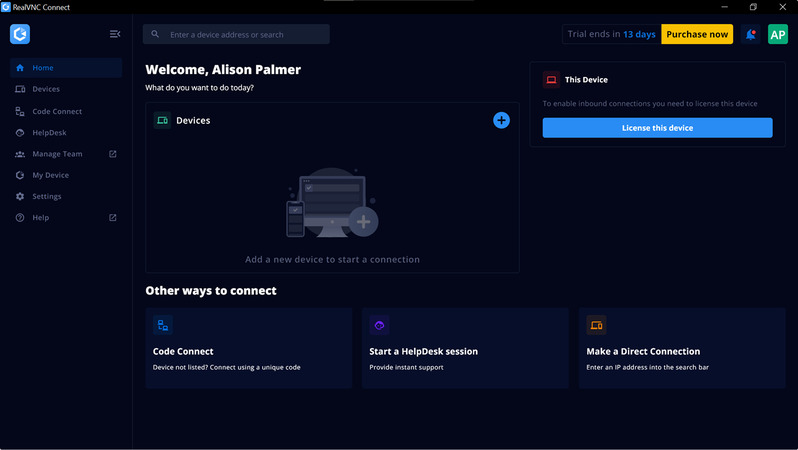
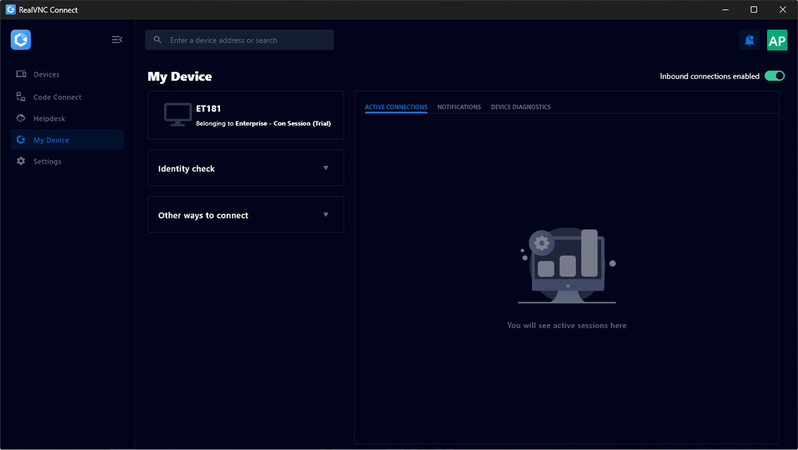
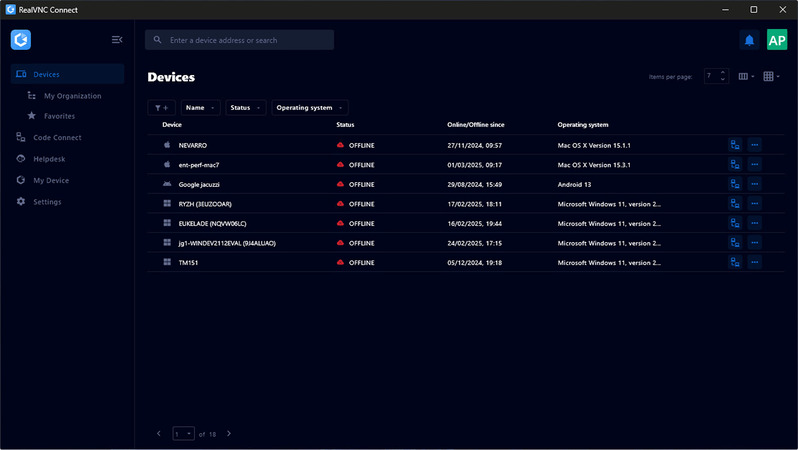
RealVNC’s user interface (UI) is clean and minimalistic, focusing on ease of use and simplicity for users. The updated version v8.1 combines the Viewer and Server to make it one unified solution that reduces user complexity.
The UI has a modern layout and easily accessible side navigation to manage remote connections and devices. It’s handy for both IT admins and non-technical users despite focusing on essential functionality.
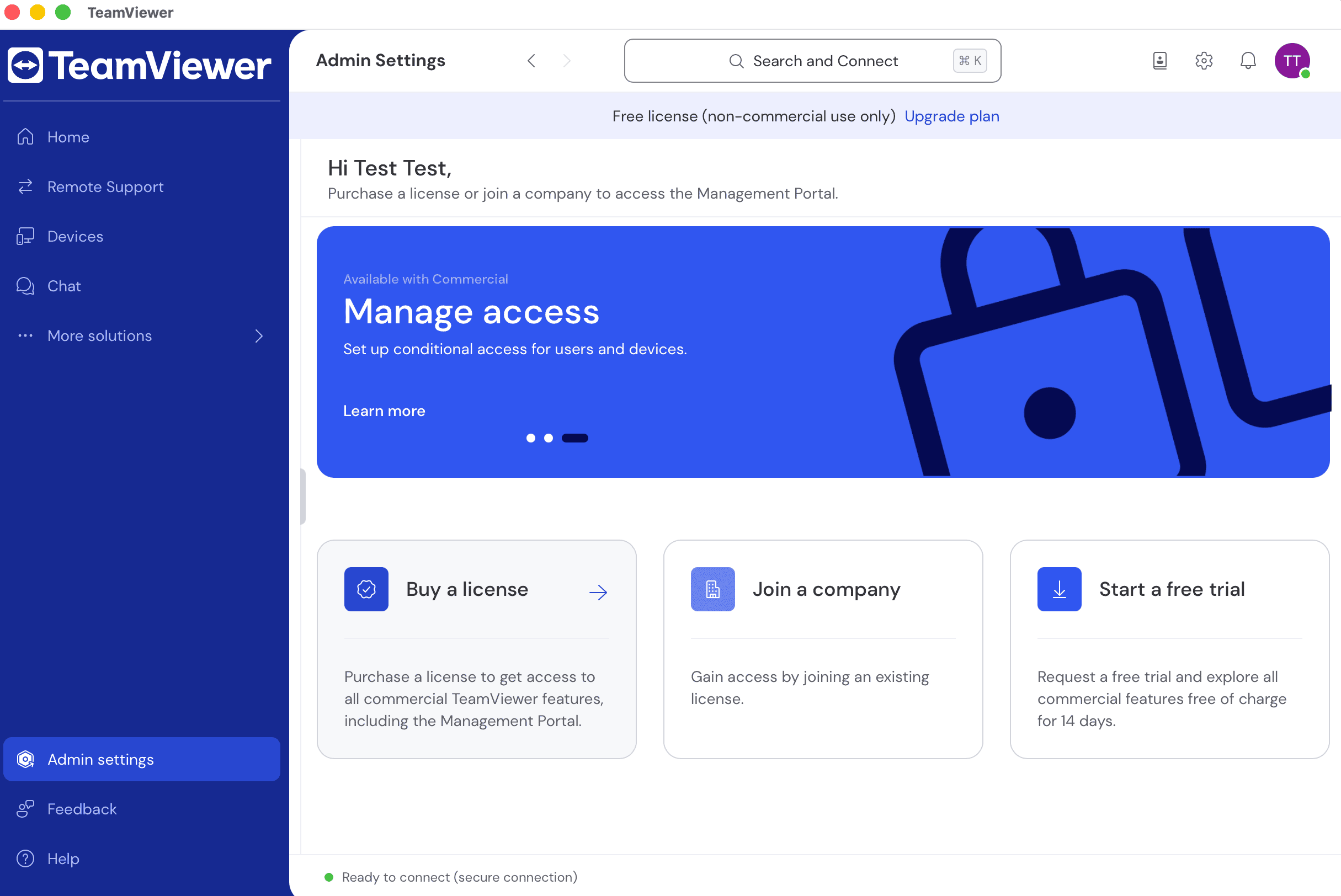
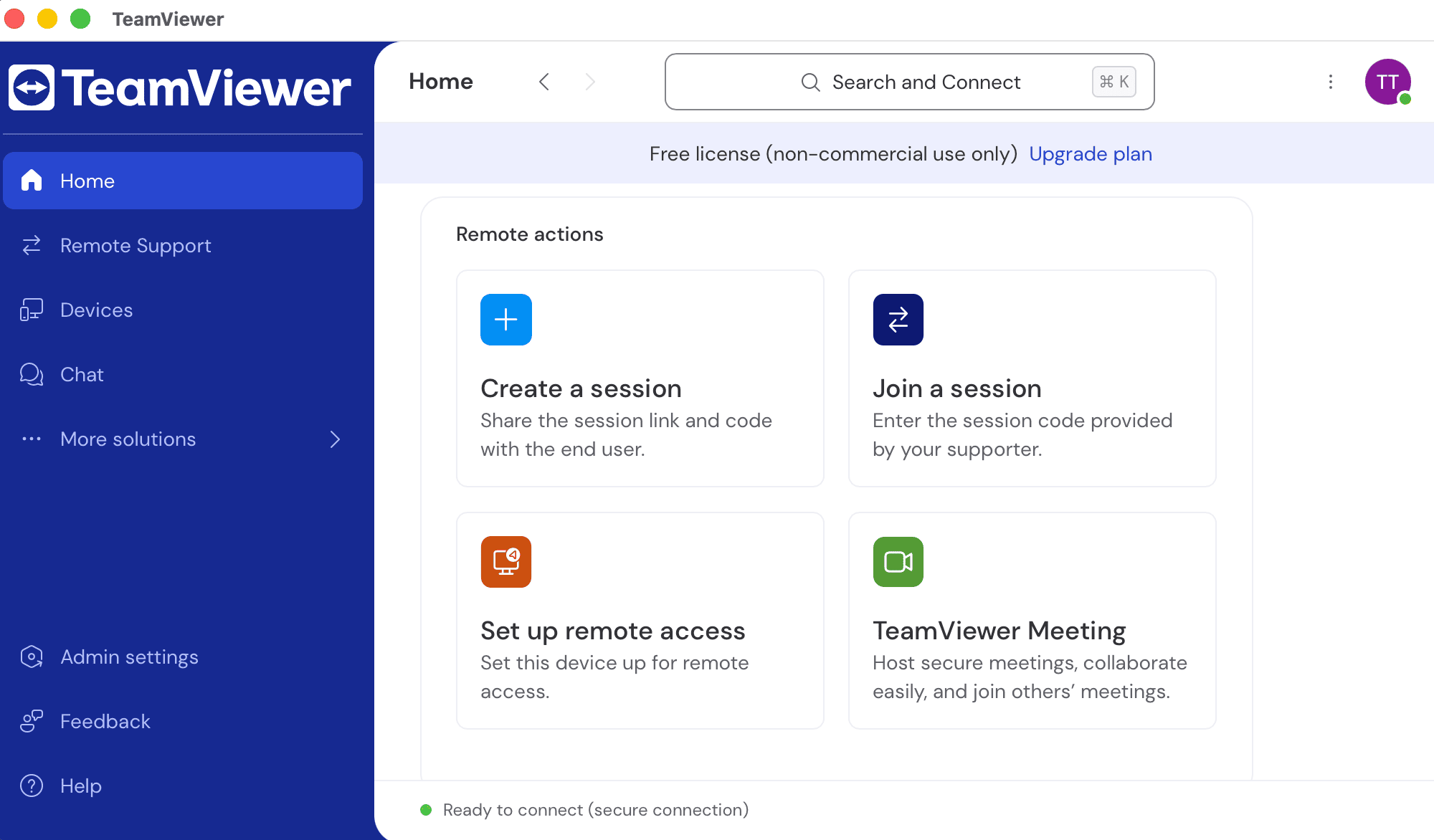
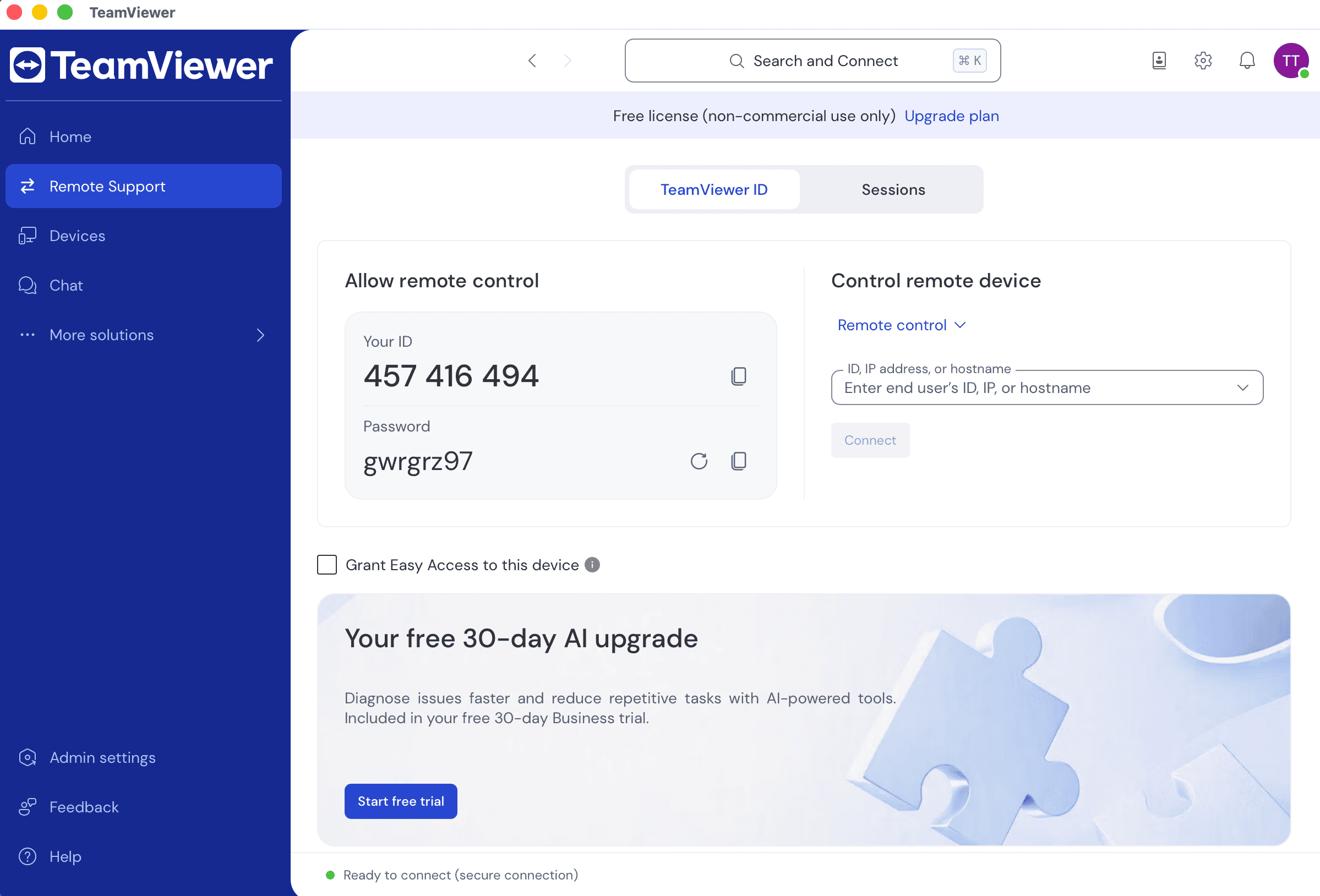
TeamViewer’s UI, on the other hand, is professional and feature-rich, designed for enterprise use and advanced IT support in mind. This is why you can find multiple modules, such as device management, remote monitoring, etc., in its dashboard.
While this is useful for advanced users, casual users may find it overwhelming. That said, the tool offers deeper controls for user permissions, remote sessions, and devices. The UI offers quick access panels for efficient multitasking. All these attributes make TeamViewer ideal for advanced users and technical support teams.
Operating System Support
Before making a decision, you need to verify whether your chosen remote desktop solution is ideal for your device environment.
RealVNC Connect and TeamViewer are both compatible with multiple operating systems, including macOS, Linux, and Windows. Nevertheless, they both vary according to their specialized ecosystems, such as FreeBSD or Raspberry Pi. Now, let’s compare RealVNC Essentials and Plus, and TeamViewer Business and Premium plans with respect to their OS compatibility.
| Operating System | RealVNC Essentials & Plus | TeamViewer Premium & Business |
|---|---|---|
| Windows | ||
| macOS | ||
| Linux | ||
| Android | ||
| iOS/iPadOS | ||
| Chrome OS | Limited (no native app; Viewer via Linux/Beta on Chromebook) | (app/web) |
| FreeBSD | ||
| RaspberryPi | VNC Server available (ARM support) |
Security
When choosing a remote desktop solution, security is one of the top concerns since file transfers and system access are involved.
Fortunately, both RealVNC and TeamViewer come with industry-grade security features to secure your connections, credentials, devices, and files.
Let’s compare RealVNC vs TeamViewer based on their security capabilities so you can choose a more secure remote desktop solution for your needs.
RealVNC Security (RealVNC Essentials & Plus)
RealVNC Connect utilizes modern encryption and authorization to safeguard your remote connections:
To secure your remote connections, RealVNC Connect uses access controls and modern encryption:
- • End-to-end Encryption: RealVNC Connect offers 128/256-bit end-to-end encryption with AES-GCM. So, device-to-device encryption is possible in sessions. Also, it doesn’t decrypt during transit.
- • Forward Secrecy: RealVNC provides short-term keys for every session so that your last sessions stay protected.
- • TLS 1.2+ for Cloud Traffic: RealVNC Connect protects API and portal communications using advanced TLS 1.2+.
- • Two-Factor or Multi-Factor Authentication: You need to add an extra step of verification process, such as two-factor or multi-factor authentication, for users with accounts to secure the login process.
- • Remote Session Authentication: When users access remote sessions or devices, they require a device password for system login on their remote device.
- • Brute-Force Security: RealVNC Connect offers built-in defence mechanisms for multiple login attempts.
- • Role-based Access Control: Filter out who can access remote devices and decide what they’re authorized to do. You can find this feature in the Plus tier.
- • MFA for Device Connections: RealVNC requires additional factors to access sessions, such as RSA / Duo / RADIUS SecurID and smartcards. This is also available in the Plus tier.
- • Session Activity Logging and Audit Records: For cloud sessions, you’ll get records for local logs and centralized audit trails.
- • Code Signing with Independent Security Audits: RealVNC Connect allows you to perform regular pen tests and verify the integrity and authenticity of the files.
TeamViewer Security (Business & Premium)
- • Two-Factor Authentication (2FA): It improves security by prompting users to complete an extra step before granting access. It’s enforced for company administrators while optional for users.
- • 256-bit AES Encryption: With an end-to-end AES-256 encryption, your remote sessions are secure, avoiding interception.
- • Session Recording: Using this feature, you can record and save session videos to create audit trails.
- • Brute Force Protection: This feature blocks repeated failed login attempts automatically to prevent attacks.
- • RSA 2048 Public/Private Key Exchange: This feature aims to keep your session authentication untampered.
- • Compliance: TeamViewer helps you meet strict data privacy and regulatory requirements, such as SOC2, HIPAA, GDPR, and ISO 27001.
- • Device Management: Using this feature, you can set up manual approval when someone logs in from an unrecognized device.
- • Custom Access Controls: You can create custom rules for access controls at the user and device levels.
Usage Scenarios
Users of remote desktop software can be businesses, IT support agents, enterprise admins, or home users. Each of them has different goals and requirements. So, when you choose a remote desktop solution, think about your specific use case and scale.
Let’s discuss what level of RealVNC and TeamViewer licenses works best for different use cases.
RealVNC Usage by Plan
- • Free: This plan is ideal for individuals who need basic remote access to their personal devices. It includes features, such as basic control over the internet and screen sharing.
- • Essentials: It’s suitable for small businesses. It includes security features, remote deployment, and connections across a limited number of devices.
- • Professional: Suitable for growing teams, it includes session auditing, support for up to 10 users, and centralized user management.
- • Enterprise: It’s ideal for large service teams and IT departments. The plan includes mass deployment, AD integration, full cloud/on-prem support, and advanced session permissions.
TeamViewer Usage by Plan
- • Remote Access: It better suits freelancers or individuals who need remote access to office/home systems occasionally. The plan supports 1 user and 3 assigned devices.
- • Business: It’s suitable for small teams. It includes support tools, basic management, and support for 1 user running 1 session.
- • Premium & Corporate: Suitable for medium to large organizations, it includes user and device management, mass deployment, and multiple concurrent sessions.
- • Tensor Plan: It’s ideal for enterprise-grade needs. The features included in this plan are advanced logging, remote endpoint control, scalable infrastructure, and secure integrations with ITSM tools.
Integration
The remote desktop solution you chose must integrate easily with your existing IT ecosystems. Here’s a TeamViewer vs RealVNC Connect comparison based on integration features in their standard and advanced plans.
RealVNC Integration
- • Essentials & Plus: In basic plans, RealVNC provides a few integrations, making it useful for single access. Here, you’ll not get any support for the API or third-party solutions.
- • Professional & Enterprise: These higher plans offer RESTful API access, integration with custom services, automation, and scripting support. The Enterprise plan also provides identity providers (IdPs), including Azure AD or Okta. It also contains advanced integrations for security and provisioning.
TeamViewer Integration
- • Business: TeamViewer’s Basic plan includes a basic API for third-party connections and limited access to single users. It’s perfect for small help desk teams and simple IT environments.
- • Premium and above: These plans include full ITSM integrations (eg, ServiceNow, Jira), mobile SDKs, advanced API, SSO, device management integrations, Conditional Access, and support for enterprise software ecosystems.
| Integration Feature | RealVNC Essentials | RealVNC Plus | TeamViewer Business | TeamViewer Premium |
|---|---|---|---|---|
| API Access | (API Access is in higher tiers) | Basic API for integrations | Advanced API with extended functions | |
| ITSM Integration | (only basic ticketing link) | Full ITSM integrations (e.g., ServiceNow) | ||
| CRM Integration | Salesforce and others | |||
| Workflow Automation | (requires API in higher tiers) | via scripts, APIs, and third-party apps | ||
| Third-Party App Compatibility | (VNC protocol; use Classic Viewer v7 when needed) | (VNC protocol; use Classic Viewer v7 when needed) | Moderate (via Marketplace) | Extensive (Marketplace + API support) |
| White-labeling | Custom UI and branding options | |||
| User Management | (user & device groups; roles/permissions) | Basic user/computer management | Advanced role-based user management | |
| Ticketing System Integration | Zendesk, Freshdesk, etc. | |||
| SDKs / Developer Tools | SDKs available for app integration | |||
| Custom Reporting Tools | Limited (basic logs) | Detailed session reports & analytics | ||
| Cloud App Integrations (e.g., Azure AD) | Limited | Integration with Microsoft Azure, Okta, etc. |
Pricing
Pricing is a major criterion when choosing a remote desktop solution, no matter who the user is, whether business or individual. So, it’s important to compare RealVNC and TeamViewer based on pricing to find the tool that offers better value for money.
Both of these tools have multiple pricing tiers with varying feature lists. Let’s explore their pricing and find you a cost-effective solution for your specific needs.
RealVNC Pricing Plans
- • Multi-platform (Windows/macOS/Linux) and Raspberry Pi supported.
- • End-to-end encryption + 2FA
- • 1 user; supports connecting to 3 devices, one at a time
- • Suits more for individuals
- • Remote access to personal devices only
- • 1 concurrent session
- • No free version; free trial available
- • Suitable for small teams
- • Smaller device support
- • 1 concurrent session (per session billing)
- • Suits larger teams that need advanced security
- • Remote support with full device access
- • 1 concurrent session (per session billing)
- • Ideal for global and larger enterprises
- • Security controls, integrations, and full device support
- • Requires a custom quote
- • Scales beyond 1 session
TeamViewer Pricing Plans
- Free (Only for Personal Use)
- • Completely free
- • Only for non-commercial use
- • 1 session only, limited device support
- • Clipboard synchronization
- • multi-monitor views or switch
- • 1 user, 1 channel (1 concurrent connection)
- • 3 managed devices
- • Device and user management
- • 1 license = 1 user, 1 session at a time
- • 200 managed devices, connection initiation from 3 devices
- • Device monitoring and reporting
- • Multi-user license
- • 15 users, 1 channel; add-on channels available;
- • 300 managed devices (per current US spec)
- • Suitable for large teams
- • Service case management, advanced tools, and reporting
- • 30 users, 3 channels (3 concurrent connections)
- • 500 managed devices
- • Suitable for enterprises
- • Global access, advanced security, and integrations
- • Custom licensing and deployment
RealVNC vs TeamViewer Pricing Comparison
| Pricing plans | RealVNC | TeamViewer |
|---|---|---|
| Free personal |
|
|
| Free trial | 14-day trial | 14-day trial (request) |
| Level 1 | $8.75/conn/mo – Essentials | $24.90/mo – Remote Access |
| Level 2 | $18.25/conn/mo – Plus | $50.90/mo – Business |
| Level 3 | $29.75/conn/mo – Premium | $102.90/mo – Premium |
| Level 4 | Custom – Enterprise | $206.90/mo – Corporate |
| Level 5 | N\A | Custom – Tensor/Enterprise |
Possible Errors and Restrictions
Although reliable, the issue with TeamViewer and RealVNC Connect in the real world is due to their plan limits, network or security policies, and version mismatches. Let’s talk about some of the errors and limitations with both tools and their fixes.
RealVNC Connect: Common Errors & Limits
- • Lite (free) limits: It’s limited to personal (non-commercial) use only. It’s for a single user, 3 devices, and allows connecting to one at a time. If you try parallel work, it may lead to an error code “session already in use”.
- • Per-session licensing: RealVNC’s Essentials, Plus, and Premium tiers are billed per concurrent session (v8 plan cards). 1 license = 1 active session. This means parallel work needs more sessions.
- • Performance on high latency: RealVNC’s pixel streaming may cause latency or performance errors in low-bandwidth environments. It requires mitigation through scaling, adaptive encoding, and reduced color depth.
- • Version mismatch: If there’s a mismatch in Viewer or Server versions (v7↔v8), you may not be able to initiate connections. Updated them to the same version to fix this.
- • Direct or cloud: Direct (peer-to-peer) connectivity in RealVNC requires NAT/port-forwarding (TCP 5900) or VPN. If not, you can use a cloud broker (HTTPS 443). Misconfigured routing can cause the error – “can’t connect”. See VNC Viewer not connecting.
TeamViewer: Common Errors & Limits
- • Short timeouts when detecting commercial use: Since TeamViewer is free for personal use only, if it detects commercial use, it may flag your account. Until verified/upgraded, flagged accounts get minute-level session limits. Here’s how to fix it: TeamViewer timeout issue.
- • Unless allow-listed, certain network controls, SSL interception, strict firewalls, or captive portals may break file transfer or signaling.
- • Easy Access not working: Untrusted devices, policies, or license scopes may result in Easy Access not working. It needs you to re-approve the device and check the assignment: Easy Access troubleshooting.
- • “Connection failed: no route” or “Not connecting to partner”: Usually, DNS/route/firewall rules or IDS may block:
- • WaitForConnectFailed: Sometimes, you may see WaitForConnectFailed (often ports/proxy/SSL inspection). It requires outbound 5938, 443, 80 open and deep-packet inspection exceptions: Error code: waitforconnectfailed
- • License limitations:
- Business: 1 named user, 1 concurrent session, 3 devices
- Premium: multi-user, 1 concurrent session
- Corporate: up to 3 concurrent sessions
If you exceed this trigger, you may receive this error: “maximum sessions reached.”
TeamViewer vs RealVNC Pros & Cons
Let’s now understand some strengths and trade-offs for both RealVNC Connect and TeamViewer. This will help you understand remote desktop solutions better and make an informed choice.
RealVNC Connect
Pros
- Lightweight, simple, and reliable platform
- Clean UI and stable on good networks
- Strong security with 2FA, E2E encryption, and SSO/audit on higher tiers
- Supports multiple operating systems: Windows, macOS, Linux, and Raspberry Pi
- Free Lite plan for personal use only; limited to 1 user and 3 devices
- Cost-efficient licensing based on per-concurrent-session; good for shared use
Cons
- Versions mismatch (v7/v8) may cause issues
- Limited collaboration tools
- Parallel costing: each simultaneous session needs a license
- Bandwidth sensitive (eg, pixel streaming on slow links needs tuning)
- File transfer is pretty basic; limited drag-and-drop and dialog-based
TeamViewer
"Lifesaver for fast remote support"— Read full review
Pros
- Cleaner and user-friendly UI
- Includes remote access plus meetings/collab features
- Rich features, such as drag-and-drop and multi-monitor
- Deep integrations for APIs, SDKs, and ITSM/CRM (e.g., ServiceNow, Jira, Salesforce, Azure AD/Okta)
- Supports remote printing, queues, mobile-to-mobile, and session recording
- AR add-ons available (Pilot for guided field support)
Cons
- High total cost as users and channels scale; the Business plan is limited to 1 user, 1 session, and 3 devices only
- Free plan timeouts on detecting commercial use
- Frequent updates cause operational overhead and require ports 5938/443/80
- A feature-heavy UI can overwhelm users with simple remote access needs
- Lags on slow networks
HelpWire: Free Concurrent Connections and Commercial Use
Are you a free user that simply wants to avoid TeamViewer’s session interruptions? Or a support technician that doesn’t want to pay for every additional connection with RealVNC? HelpWire is a good choice in either case.
HelpWire is a remote support application with cross-platform support for Windows, Linux, and macOS. Quality-of-life features, such as in-app chat, file transfers, and on-demand sessions are available for free, and commercial use is allowed. Concurrent connections are available immediately to free users. Billing information is not needed to sign up.
HelpWire, a free, user-friendly remote desktop service for Mac, Windows, and Linux workstations, is a standout alternative to RealVNC and TeamViewer. It is an ideal choice for independent professionals and small to medium-sized businesses. Its simplicity and user-friendly interface starkly contrast with the often complex designs of other remote desktop services.
HelpWire offers a comprehensive suite of remote control tools, ensuring an exceptional customer support experience at any time and place. With HelpWire, you can swiftly start and connect to remote support sessions with clients, bypassing extensive setup procedures or complicated settings adjustments.
Top Features:
- • Cross-Platform Support: Offer assistance across Windows and Mac platforms with native applications.
- • Real-Time Support Chat: Enhance remote support efficiency through real-time chat capabilities.
- • Effortless File Transfer: Easily transfer files to remote sessions using a simple copy-paste method.
- • Simple Session Initiation: Quickly start remote sessions with uniquely generated client apps, bypassing the need for complex IDs and passwords.
- • Multi-Desktop Control: Manage and switch between multiple desktops of a single client simultaneously.
| Feature | HelpWire | TeamViewer | RealVNC |
|---|---|---|---|
| Free commercial use | |||
| Session recording | |||
| No forced session cutoffs | Due to aggressive commercial use detection | ||
| On-demand sessions | With Quick Support |
Pros
- Intuitive and straightforward interface;
- Quick connection;
- Effective client management;
- Budget-friendly, suitable for various financial situations.
Cons
- No support for mobile devices;
- Lack of session recording capabilities.
Conclusion
This was a comparison of TeamViewer vs RealVNC performance, cost, features, UI, interface, and use cases. RealVNC Connect and TeamViewer are both reliable and performant remote access solutions, but their priorities differ.
RealVNC focuses on cost control, simplicity, and security. You get a clean UI, flexible cloud or direct connectivity, support for Raspberry Pi, and per-concurrent-session licensing. TeamViewer, on the other hand, focuses on delivering an all-in-one remote access software rich with features. You get session recording, remote printing, service queues, AR, mobile-to-mobile, and deep integrations, but at a higher total cost as your users and sessions grow.
RealVNC Connect is ideal in these scenarios:
- • A team with many users but fewer concurrent usage (per-session licensing to save cost)
- • Need for Raspberry Pi or mixed OS coverage
- • Need for cloud or direct (LAN/VPN) connections
- • Preference for a simple UI but robust built-in security
- • Easy platform testing with a Lite personal plan and free trial
TeamViewer is ideal in these scenarios:
- • Need for an all-in-one remote desktop solution with many features and a collaboration stack, and have the budget to accommodate the cost
- • Need for session queues, recording, and printing or running a workflow with helpdesk or multi-agent support
- • Demand for APIs, SDKs, ITSM, CRM, or IDP integrations (e.g., ServiceNow, Jira, Salesforce, Azure AD/Okta)
Bottom line: Before you choose a remote desktop solution, figure out the number of sessions you usually run in parallel, your budget model (per session or per user), and your integration depth.
RealVNC’s licensing is better suited for widespread usage, while TeamViewer is a safer option for enterprise-grade workflows and deep integration needs.