An RDP session streams the remote screen to your computer, so it depends on the bandwidth and latency of the network between the two machines. This article shows how to find where the slowdown comes from and which Remote Desktop settings reduce it.
If you’d rather skip the diagnostics and settings tweaks below, try HelpWire. It uses a direct connection when possible, with relay as a fallback.
Quick Comparison: Remote Desktop vs HelpWire
Remote Desktop (RDP) | HelpWire | |
|---|---|---|
Connection path | Performance depends on the bandwidth and latency of the network between the two machines | Uses a direct connection when possible, with relay as a fallback |
Reaching a device behind NAT or on another network | Needs port forwarding or a VPN | Connects over the internet, using relay when a direct connection isn’t possible |
Speed vs. image quality | Adjusted manually via Show Options → Display/Experience (see below) | Same trade-off, via a speed/quality priority setting |
Starting a session | Requires enabling Remote Desktop and network access if the machines aren’t on the same network | Share a link; the other side opens it |
If you’d rather try to fix the RDP connection itself first, start by finding out where the slowdown is actually coming from.
Diagnose the RDP Performance Problem
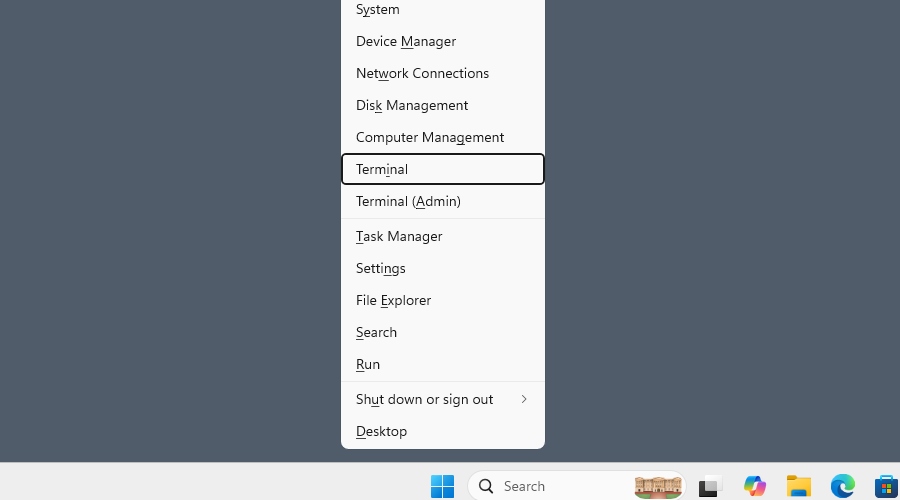
It’s important to know the source of your lag, and whether you can affect the situation in the first place. This can be done with the help of the Windows Terminal, and the ping command. As an example, open the terminal by pressing Win+X and selecting it from the menu.
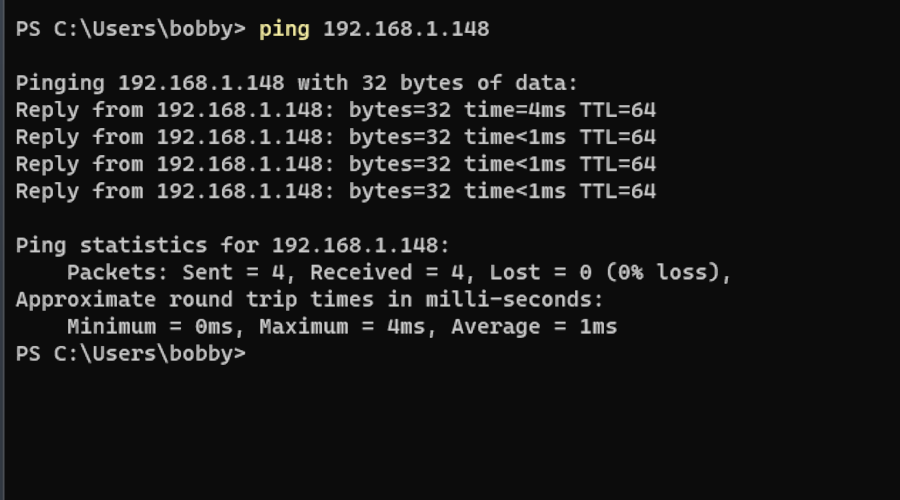
From the terminal window, you can ping the IP address of the computer you’re trying to connect to, and see if there is any lag.
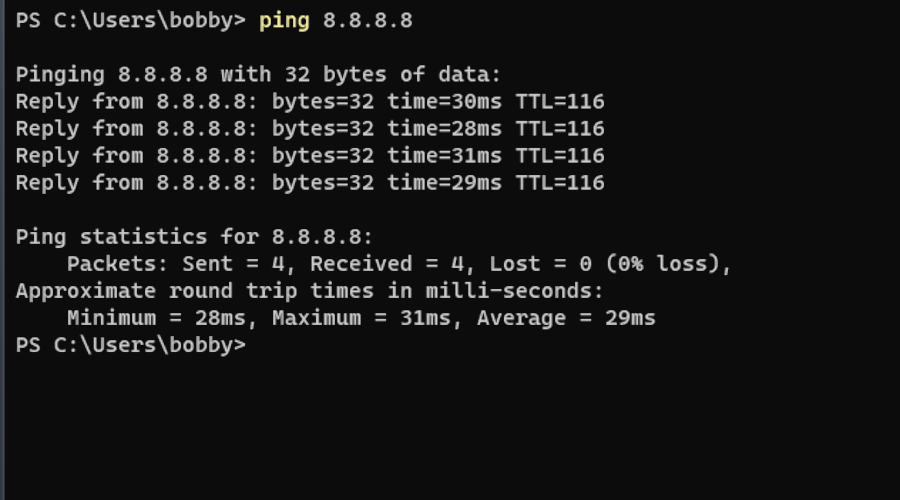
It’s also useful to ping 8.8.8.8, which is a common way to check your internet connection. If the local address of the other computer shows a large ping, but your connection to 8.8.8.8 is fine, then the problem is not with your computer.
How to Reduce Remote Desktop Lag with Settings
-
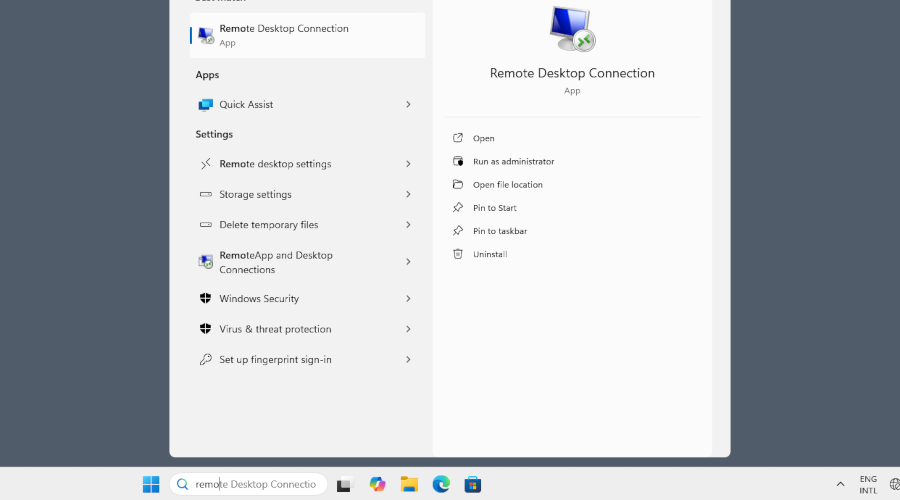
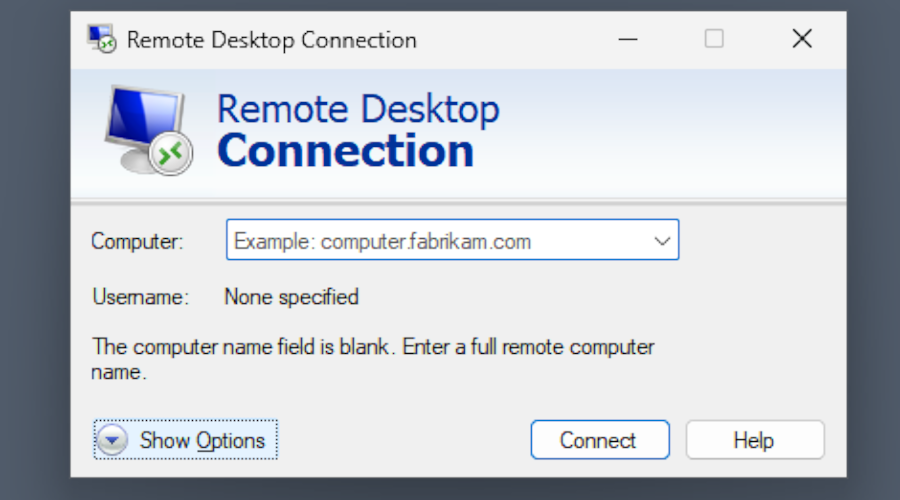
Open the Remote Desktop Connection client by searching for it on the Windows menu bar.
-
Open “Show Options”.
-
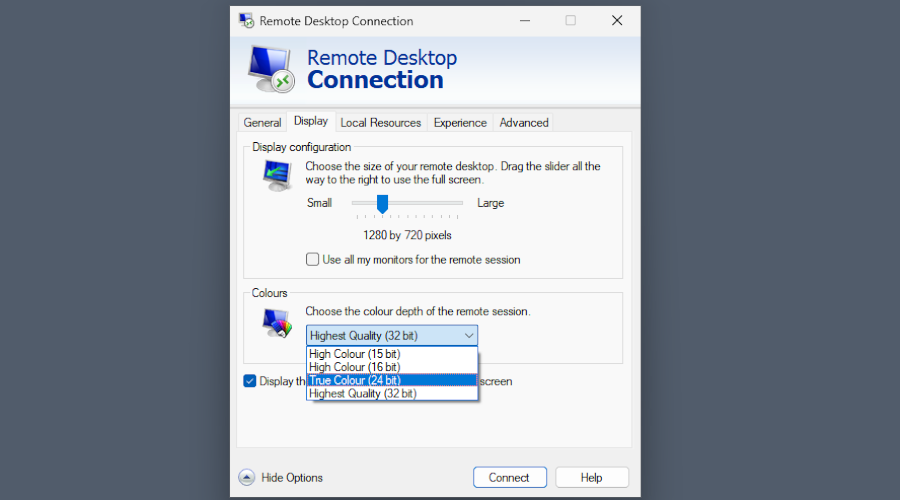
Open the Display tab. Here, you can reduce the stream resolution and color depth to reduce the required bandwidth.
-
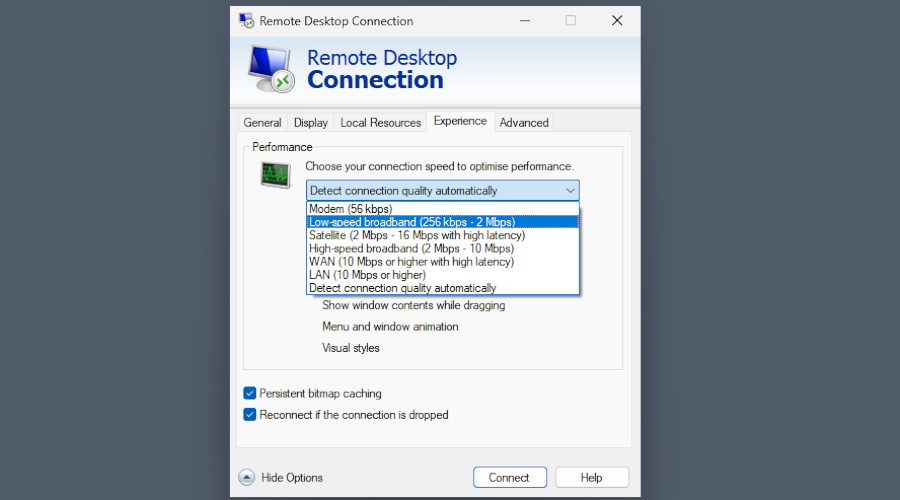
Under the Experience tab, you can also select a mode that will potentially reduce lag.
-
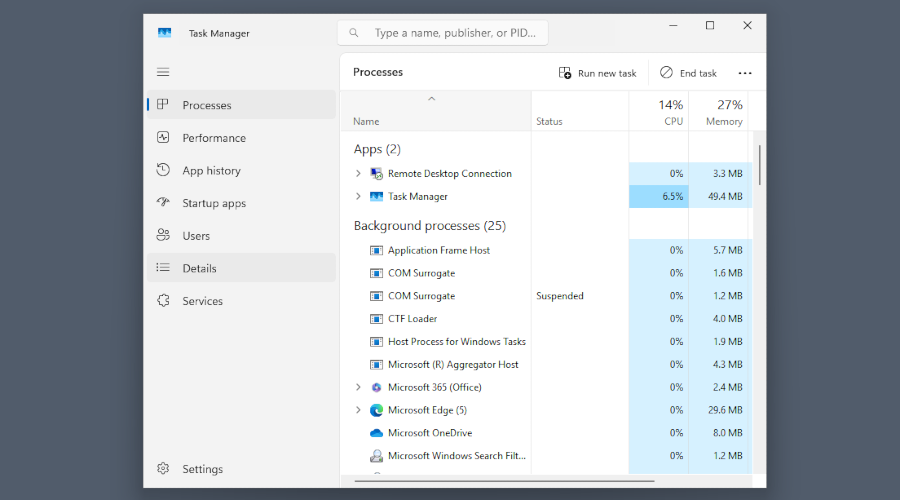
Finally, open the Task Manager by pressing Ctrl+Shift+Esc and select the Details tab.
-
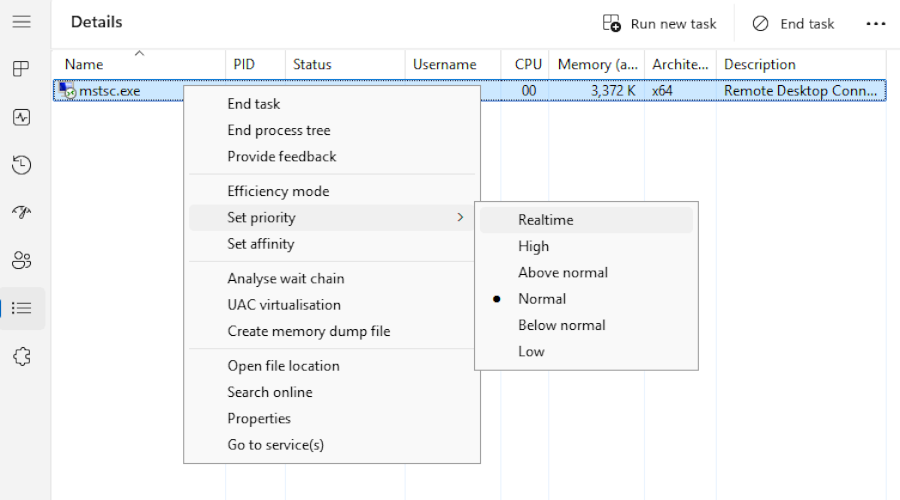
Search for “mstsc”, right-click the process, and set the priority higher.
HelpWire: Internet-Based Alternative to RDP
If RDP stays slow after these fixes, or you need to reach a computer on another network, try HelpWire, a remote support app for Windows, Linux, and macOS. It uses a direct connection when possible and falls back to a relay when a direct path isn’t available.
HelpWire is remote support software for IT teams and technicians. You can also use it when a friend or relative needs help with their computer.
HelpWire supports multi-monitor setups — you can view up to two screens at a time — and lets you prioritize speed over image quality on slower connections. And if you have a HelpWire account, you can also save session history and manage your team’s access.
How to Start Using HelpWire
-
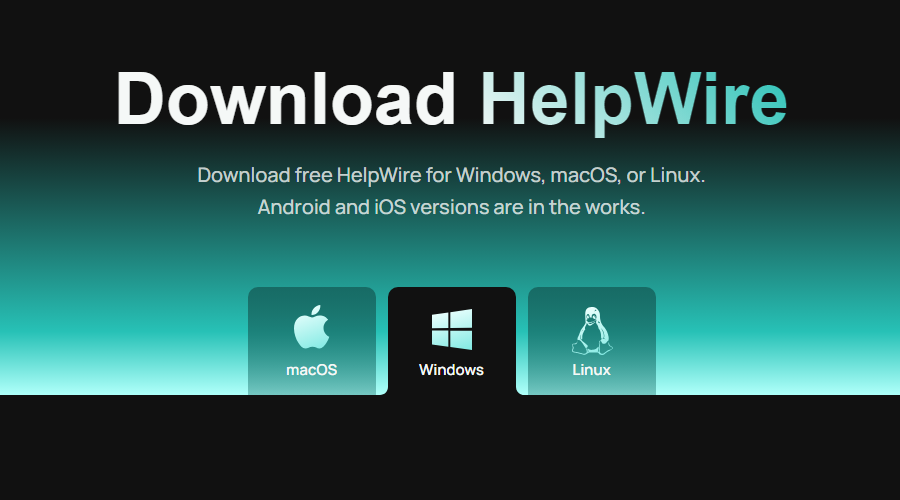
Install the HelpWire operator app on your own computer – the other person’s computer doesn’t need anything installed yet.
-
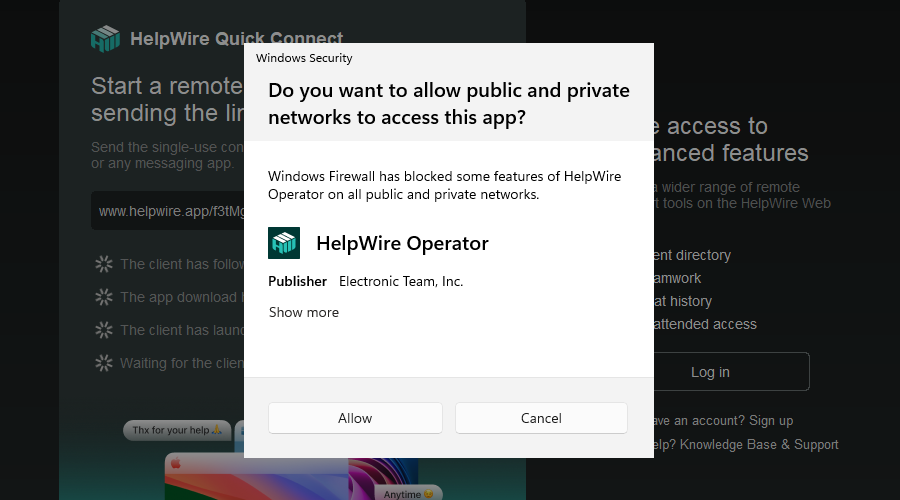
HelpWire needs firewall access, so allow it when prompted.
-
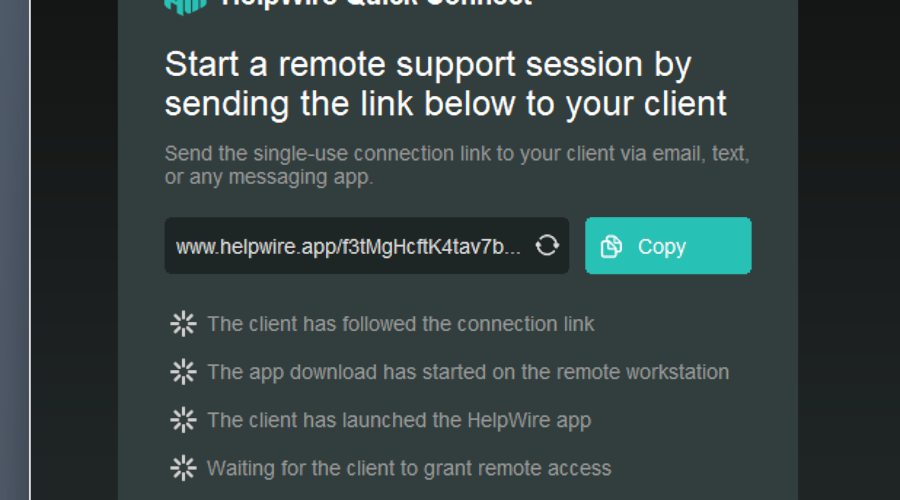
Copy the link that you get when launching HelpWire and use email or a messenger to give it to the other person.
-
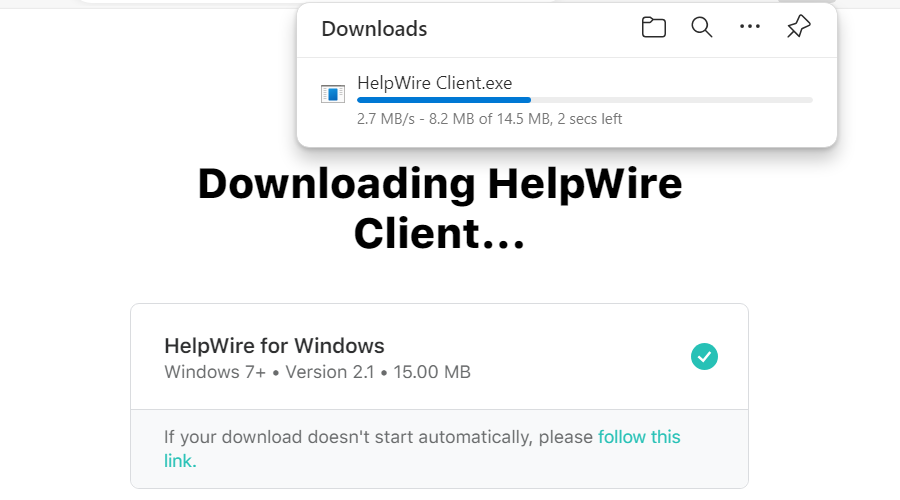
The link leads to a temporary HelpWire client app. The other person should download and launch it on their computer.
-
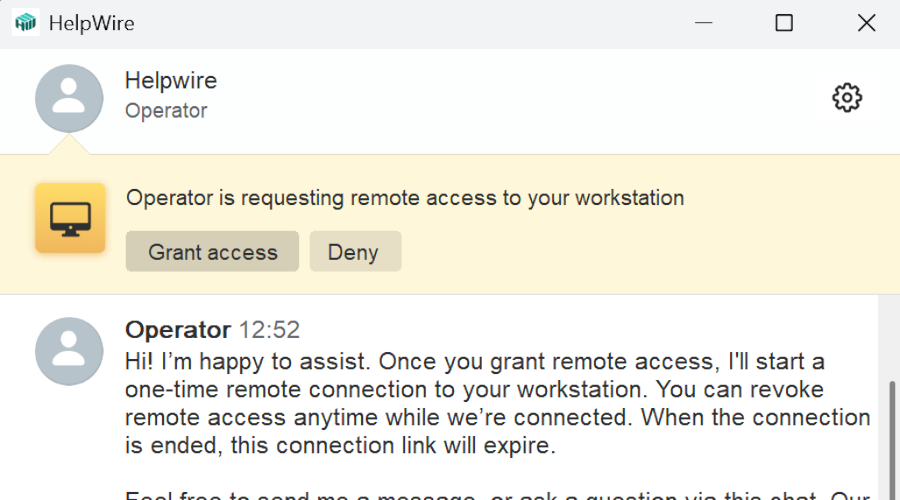
Finally, the session should be approved by clicking “Grant access”.
Frequently Asked Questions
Remote computer access is usually very taxing, since it’s basically a video of the host’s screen being recorded and streamed to your machine. In addition, the source of the problem could simply be bad network connection, and not necessarily yours.