
7 Best Remote Desktops Without Installing Software

No one wants a lengthy setup, particularly when quick remote desktop access is needed. Because every minute counts, this list highlights tools that allow you to easily set up connections in just a few steps. These solutions are chosen for their speed and simplicity in providing fast access without complex configurations.
And don’t need to worry about additional costs, as all these solutions are free. This guide highlights portable and built-in remote desktop tools for Windows, macOS, and Linux to make remote access efficient.
Comparing the Top Remote Desktop Solutions
While choosing the right remote desktop without installing software, we prioritized ease of use, speed, and user concerns. These tools are lightweight but provide useful features, and don’t need you to install any extra software.
Although all the solutions save time and effort, it’s important to note that these tools often come with certain limitations. Below, you can see a comparison table that highlights the key features and brief descriptions of every tool.
| HelpWire | Microsoft Quick Assist | Apple Screen Sharing | RustDesk | AnyDesk | Chrome Remote Desktop | DWService | ||
|---|---|---|---|---|---|---|---|---|
| 1. | Type | Portable version | Built-in | Built-in | Portable version | Portable version | Browser-first | Browser-first |
| 2. | Pricing | Free | Free | Free | Free | Free Plan | Free | Free (6 Mbit/s max) |
| 3. | Access all features for free | |||||||
| 4. | Unlimited computers to connect from | |||||||
| 5. | Unlimited computers to connect to | |||||||
| 6. | Mobile remote access | |||||||
| 7. | Cross–Platform Support | Windows, macOS, Linux | Windows | macOS | Windows, macOS, Linux, Android, iOS | Windows, macOS, Linux, Android, iOS | Windows, macOS, Linux, ChromeOS, iOS, Android | Windows, macOS, Linux |
| 8. | File Transfer | |||||||
| 9. | Two-factor authentication (2FA) | Apple ID | ||||||
| 10. | Built-in Chat |
Best Run-Only Remote Desktop Solutions
1. HelpWire Quick Connect
Best for fast troubleshooting and remote support
HelpWire Quick Connect is a free, lightweight remote access solution designed for quick support sessions. It allows you to deploy a complete remote desktop without installing anything. Clients can join the session without hassles. They just need to open a unique link and launch a simple and portable remote desktop software. Once the session concludes, the app goes inactive. This is excellent for troubleshooting. For technicians, Quick Connect also offers a portable operator app that runs without installation for single-use sessions.
HelpWire Quick Connect is compatible with Windows, macOS, and Linux. It allows unlimited file transfers, works without complex firewall setup in most cases, and offers rapid on-demand connections.
Pros
- Quick session start using a dedicated link
- Offers a useful support toolkit, such as file transfer, multi-monitor, and built-in chat
- Reliable day-to-day performance for everyday interactive support
- Compatible with Windows, Linux, and macOS
- Available at zero cost for personal and business purposes
Cons
- Mobile device support is not currently available
- The Quick Connect version doesn’t support unattended access
- Doesn’t include advanced features, such as session recording and remote printing
2. AnyDesk Portable
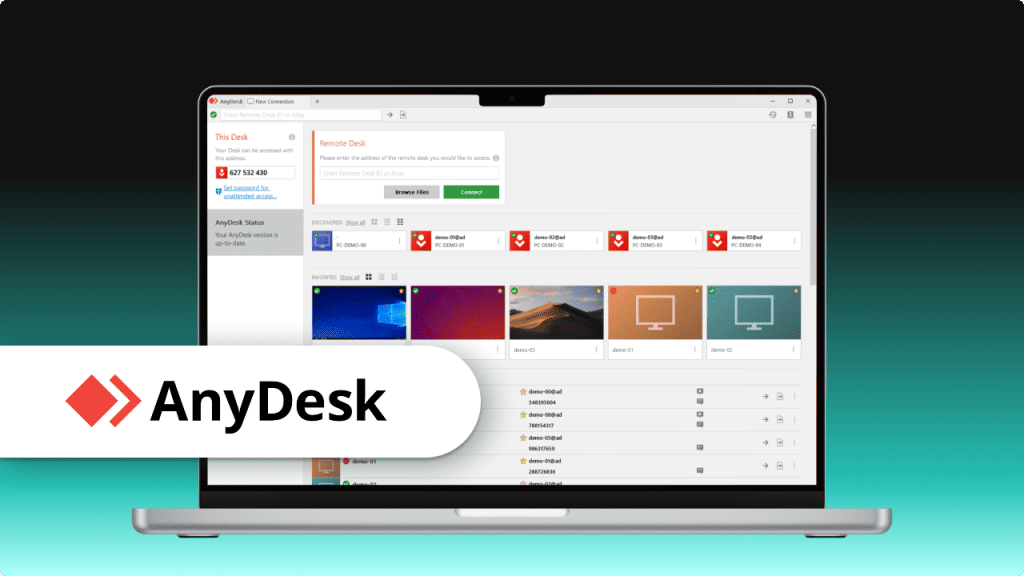
AnyDesk Portable is a streamlined, no-install version of the popular remote desktop software that lets users access and manage computers remotely without requiring any software installation. It runs directly from a USB stick or external drive. Due to this, it is considered the convenient solution for on-the-go support and troubleshooting.
The portable remote desktop version offers high-quality and secure remote sessions across Windows, Linux, Android, and macOS. While the no-install version is ideal for limited-time use, it doesn’t offer the full range of the advanced features that you may find in the fully installed version. AnyDesk provides you with a hybrid file, which is portable by default. But you can install the full version if needed from the same hybrid file.
Pros
- The solution runs directly using a USB stick or an external drive
- Compatible with different platforms, but requires deep system permissions while using macOS
- The solution is streamlined and doesn’t require any notable system resources
- Secures remote sessions with end-to-end encryption for maximum privacy
Cons
- The no-install version offers limited features compared to the installed one
- Configurations or settings may not persist after the application is closed or deleted
- There may be minor performance impacts since the application runs using an external USB drive
3. RustDesk Portable
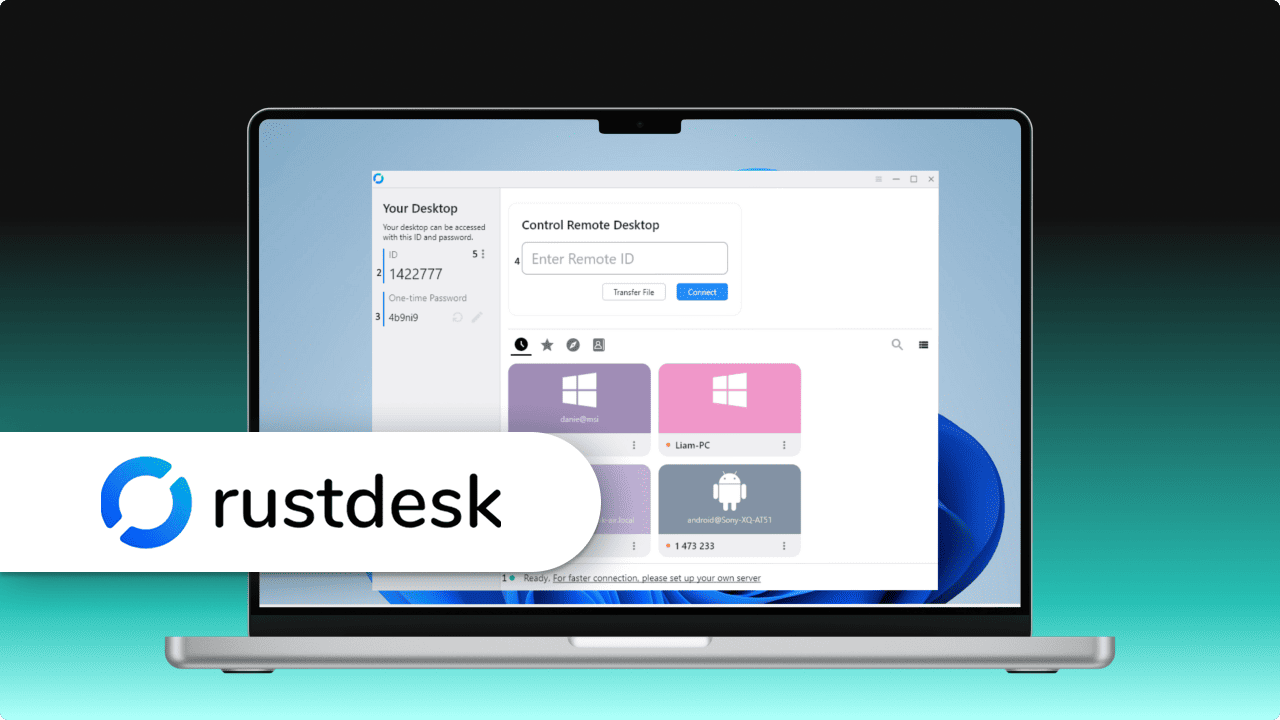
RustDesk Portable is a free, open-source remote desktop platform that allows users to access and manage computers remotely without installing any software. You can run it directly from an external device or USB drive, making it ideal for portable use.
RustDesk is compatible with various platforms, including Windows, Linux, and macOS. It provides encrypted and secure remote sessions. On Windows, the standard RustDesk .exe file functions as a portable application by default. On macOS, you can run the .dmg file directly without dragging it into the Applications folder.
Although no-install software is convenient and easy to use, it may come with certain limitations, such as a less intuitive user interface or the absence of some advanced features.
Pros
- Operates from a USB stick or external drive
- Because it’s open-source, users can use it freely and modify it as they want
- Compatible with Windows, Linux, and macOS
- When self-hosted, connections are almost near-instant
Cons
- The portable edition lacks unattended remote access functionality
- It may not be as polished or intuitive as some commercial alternatives
- The application saves configuration data, such as settings and ID, in the host folder
- Access to System Settings and Task Manager is restricted unless you enable “Run as Administrator”.
Top Built-in Remote Desktop Solutions
4. Microsoft Quick Assist
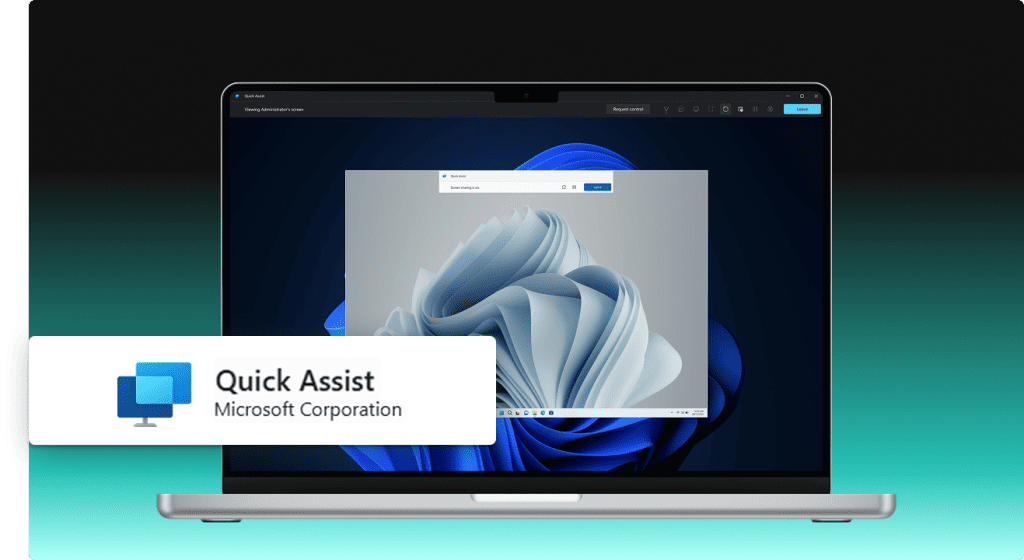
Microsoft Quick Assist is a free Windows built-in remote desktop designed for quick remote assistance. Users can easily provide tech support by simply logging in with a Microsoft account. It offers screen sharing and remote control of a computer, making the solution ideal for one-time assistance and quick troubleshooting.
While convenient, Quick Assist is not meant for continuous or long-term access and lacks advanced features that are common in full-featured remote desktop solutions. It is only compatible with Windows, which restricts it from cross-platform use.
Pros
- Runs entirely online without requiring additional software installation
- Fast setup, which is well-suited for quick troubleshooting sessions
- Available at no cost for all Windows 10 and 11 users
- The operator can start a support session simply by signing in with a Microsoft account
Cons
- Doesn’t come with advanced features as compared to full remote access tools
- Designed for quick, one-time tech support, not for long-term access
- Compatible with only Windows 10 and 11 and doesn’t support other OS
5. Apple Screen Sharing
Best for quick, one-time remote assistance on macOS
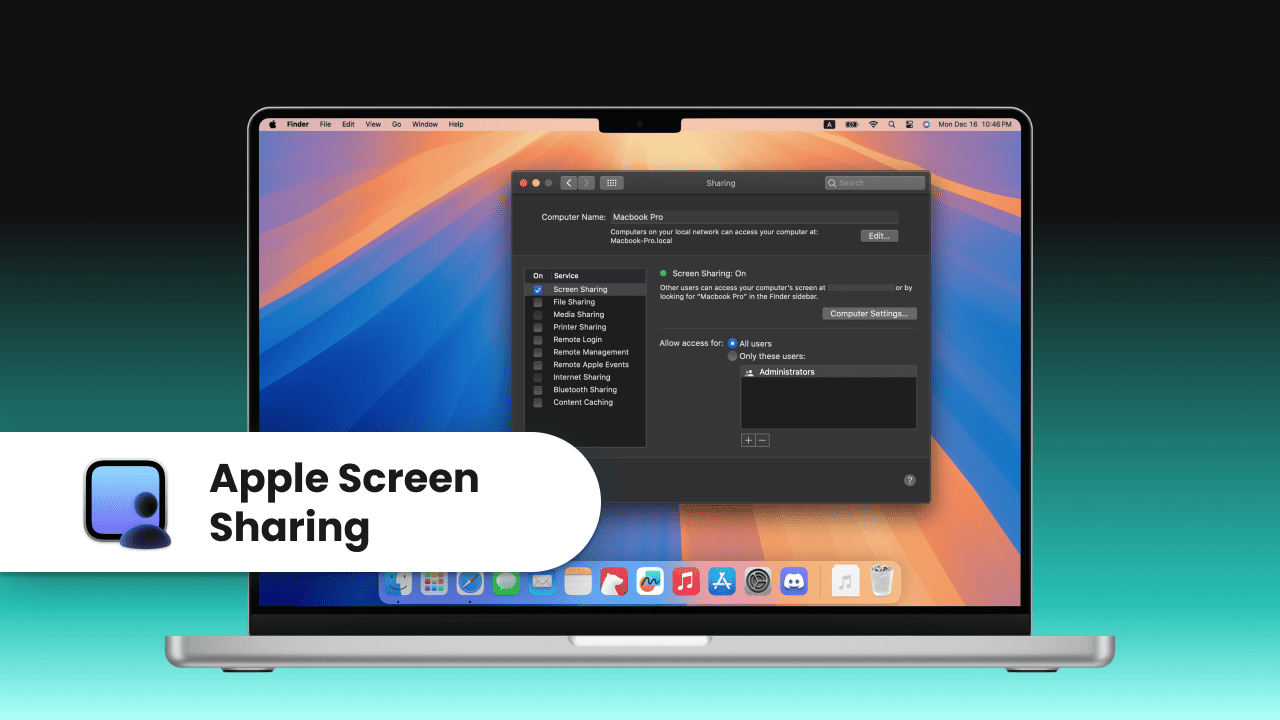
Apple Screen Sharing is a built-in feature in macOS that allows you to view and manage another Mac remotely with ease. This feature enables you to fix issues with another person’s system as if you were sitting right in front of the system, simply by using your local network access or Apple ID.
Apple Screen Sharing is a lightweight and secure way to handle quick support sessions, collaborations, or guide less experienced users. While it works best within Apple-only environments, it’s suitable for basic remote assistance, not advanced cross-platform use cases.
Pros
- Pre-installed as a part of the macOS operating system
- Accessible directly through macOS’s Screen Sharing feature or Finder
- Works best with macOS devices to offer smooth performance and reliability
- Supports HDR and 4K/60fps by using advanced hardware codecs
Cons
- Connects to Windows or Linux systems through VNC, but the experience is not smooth
- Doesn’t offer advanced features, such as session recording and multi-monitor functionality
- Setup can be more complex if you’re not on the same Wi-Fi network
Best Browser-Based Remote Desktop Software
6. Chrome Remote Desktop
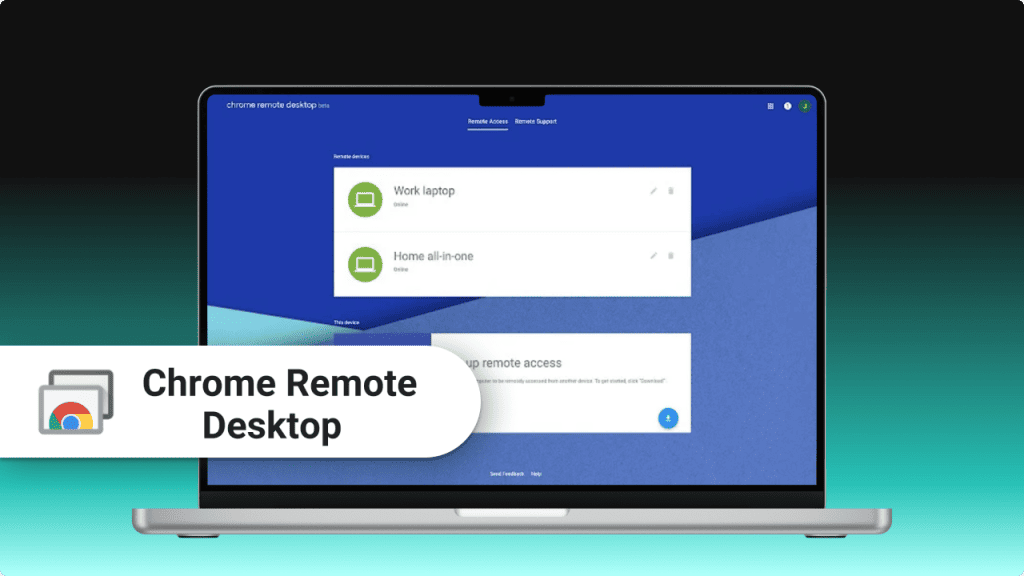
Chrome Remote Desktop is a free and easy-to-use tool that allows you to securely access and control other computers from anywhere. To begin using it, the computer you want to access remotely (the host machine) needs to install the Chrome Remote Desktop Host application. After the setup is complete, you can access and control the remote computer directly from a browser tab without installing additional software.
Chrome Remote Desktop without installing additional software, is an ideal solution for quick tech support or remote access to devices running Windows, macOS, or mobile platforms. While it’s perfect for everyday use, it does have its limits, lacking features like session recording and remote printing that more advanced tools offer.
Pros
- It is simple and works directly from a web browser
- Works on all platforms, such as Windows, Linux, Android, iOS, and macOS
- Google’s encryption and authentication system provides a secure connection
- Delivers stable and responsive performance that makes remote access smooth and reliable
Cons
- Doesn’t include advanced features, such as live chat and session recording
- May not suit users looking for anonymity, as it requires a Google account
- Users may experience intermittent slowdowns during remote sessions
- Responsiveness issues with the mobile application sometimes occur
7. DWService
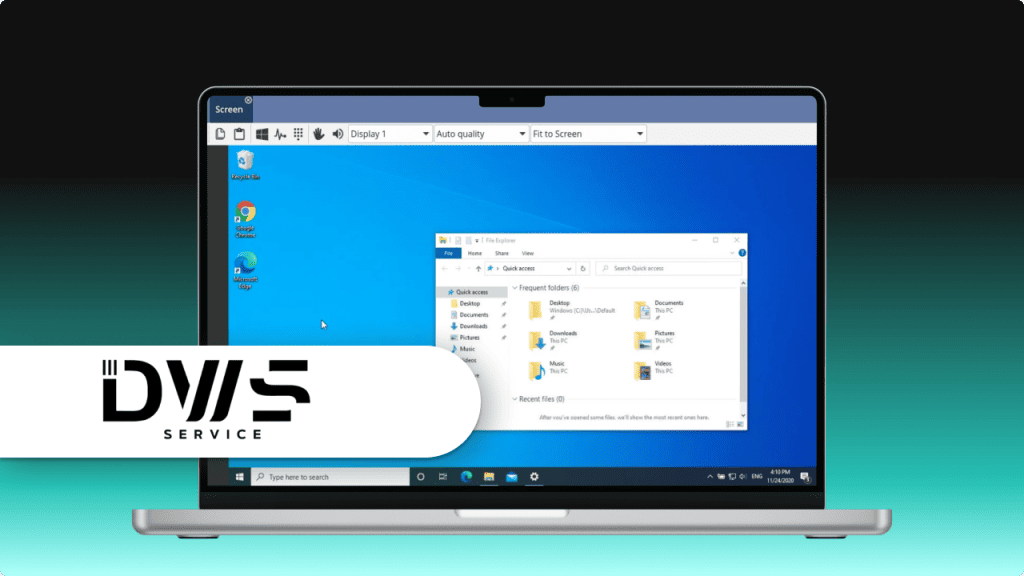
DWService is a lightweight and browser-first remote desktop tool that enables users to access and control remote computers easily. Only the host machine requires installation, while the operator can connect directly through a web browser without installation.
After the agent is installed and running on the host computer, you can access and control it from most modern web browsers, including those on tablets and smart TVs. This makes it a practical choice for providing remote emergency support. DWService supports Windows, Linux, and macOS and includes necessary admin features, such as a file manager and terminal, at zero cost. The main limitation of the free tier is the 6 Mbps bandwidth cap.
Pros
- Allows control of a computer from almost any device that has a web browser, including smart TVs
- Lightweight and uses minimal system resources
- Simple user interface that allows users to navigate easily
- Only the host side requires installation, and not the client side
Cons
- Limited to 6 Mbps
- Touch control can be complex, as there are no built-in Android or iOS applications available
- Users may face connection issues while using slower networks
- Initial setup may be a bit difficult for some users
Frequently Asked Questions (FAQ)