Electronic Team uses cookies to personalize your experience on our website. By continuing to use this site, you agree to our cookie policy. Click here to learn more.

Free remote desktop app for Mac

Connect from your Mac to any Windows, Linux, or macOS machine – no same-network requirement, no Apple ID needed. A free plan is available without nag screens or session cutoffs.
 G2 logo
G2
5.0
 capterra logo
Capterra
5.0
 SourceForge logo
SourceForge
5.0
 TrustRadius logo
TrustRadius
5.0

HelpWire remote access for Mac vs Apple Remote Desktop

Mac users are no strangers to macOS’s screen-sharing limitations. This feature is restricted to devices on the same network (or using the same Apple ID). One way to “bypass” this limitation is to use the Apple Remote Desktop. Unfortunately, this tool is incompatible with other operating systems.

There is a better alternative for expanding Mac’s screen sharing capabilities: HelpWire. This tool is one of the remote desktop for Mac options as it offers stable, secure, and fast remote connections between Mac, Windows, and Linux devices. Unlike most third-party software, core HelpWire’s functionalities are free and accessible.

Compared to Apple Remote Desktop, HelpWire has the following upsides and downsides as a Mac remote access software:
Pros:
  • Cross-platform capability across Windows, Linux, and MacOS systems;
  • Intra-network connection isn’t required to work;
  • Convenient client directory for saving client details;
  • Operators can collaborate with the same client;
  • Team management, including operator invitations and permissions.
Cons:
  • Lack of advanced automation via AppleScript;
  • Lack of deep integration for Mac-specific management.

How to set up a remote desktop connection on macOS

Here’s how to set up a remote desktop connection from Mac to Linux or Windows using HelpWire:
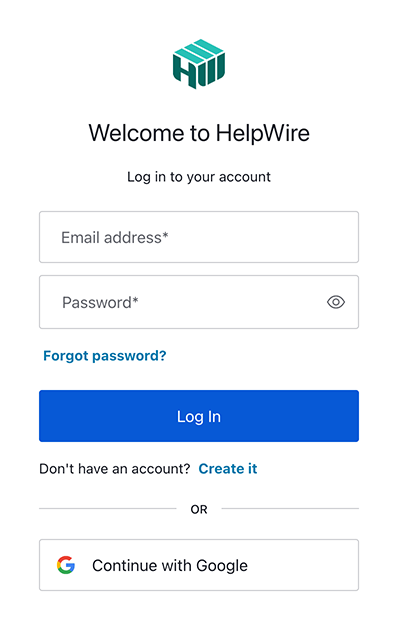
Step 1: Register or log in to your HelpWire account
Sign in to the HelpWire account or create a new one using your Google account or email address. Just click the “Login” button in the upper right corner of the page and choose the suitable option.
Register or log in to your HelpWire account
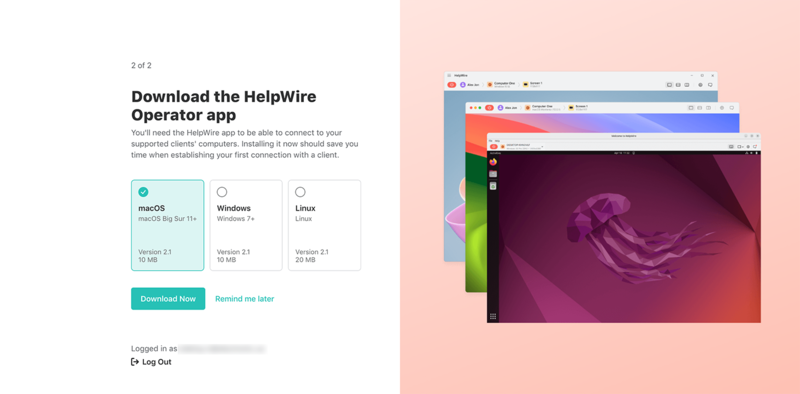
Step 2: Download and install the HelpWire Operator app
Upon account setup, select your OS and click “Download Now” to download and install the Client app on your device. Follow the on-screen instructions for installation.
Download and install the HelpWire Operator app
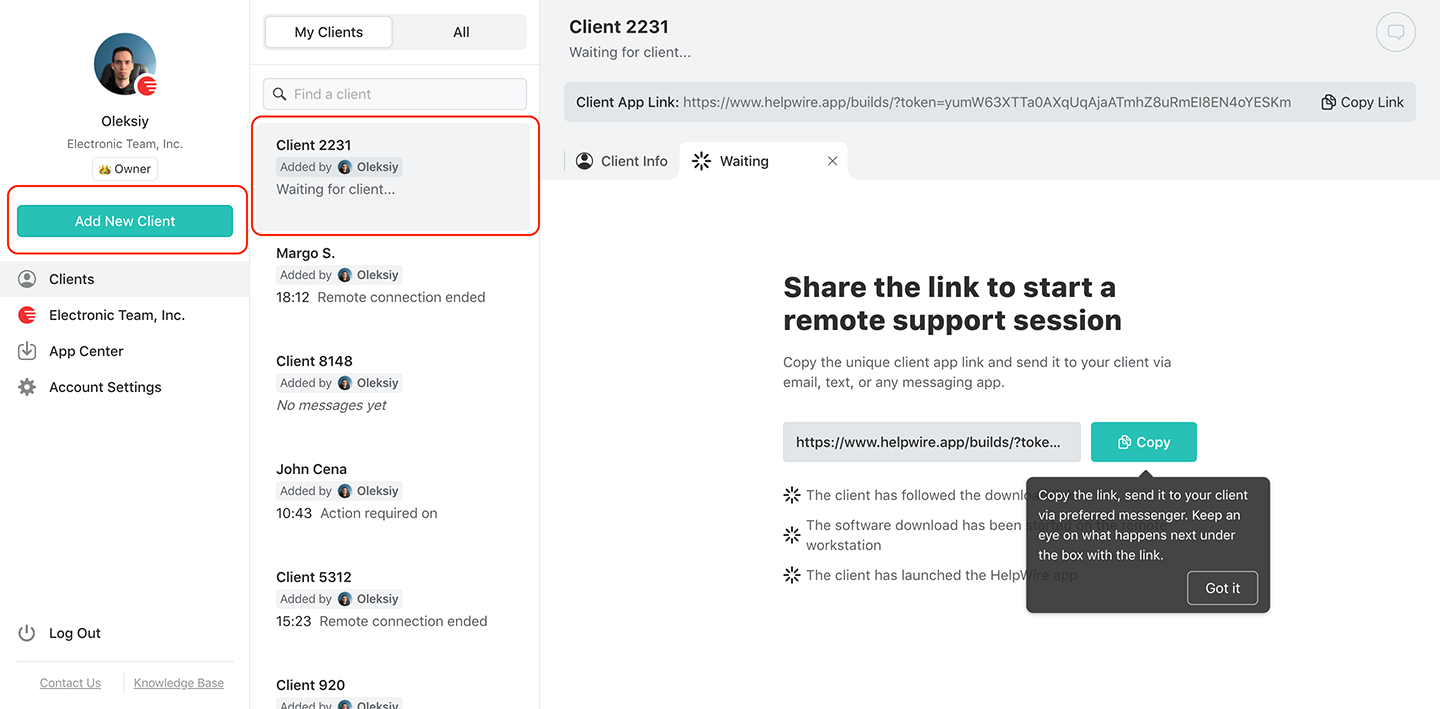
Step 3: Add a new client or select an existing one
After account setup completion, click “Add a New Client” on the main toolbar or select an existing one from your Clients list.
Add a new client or select an existing one
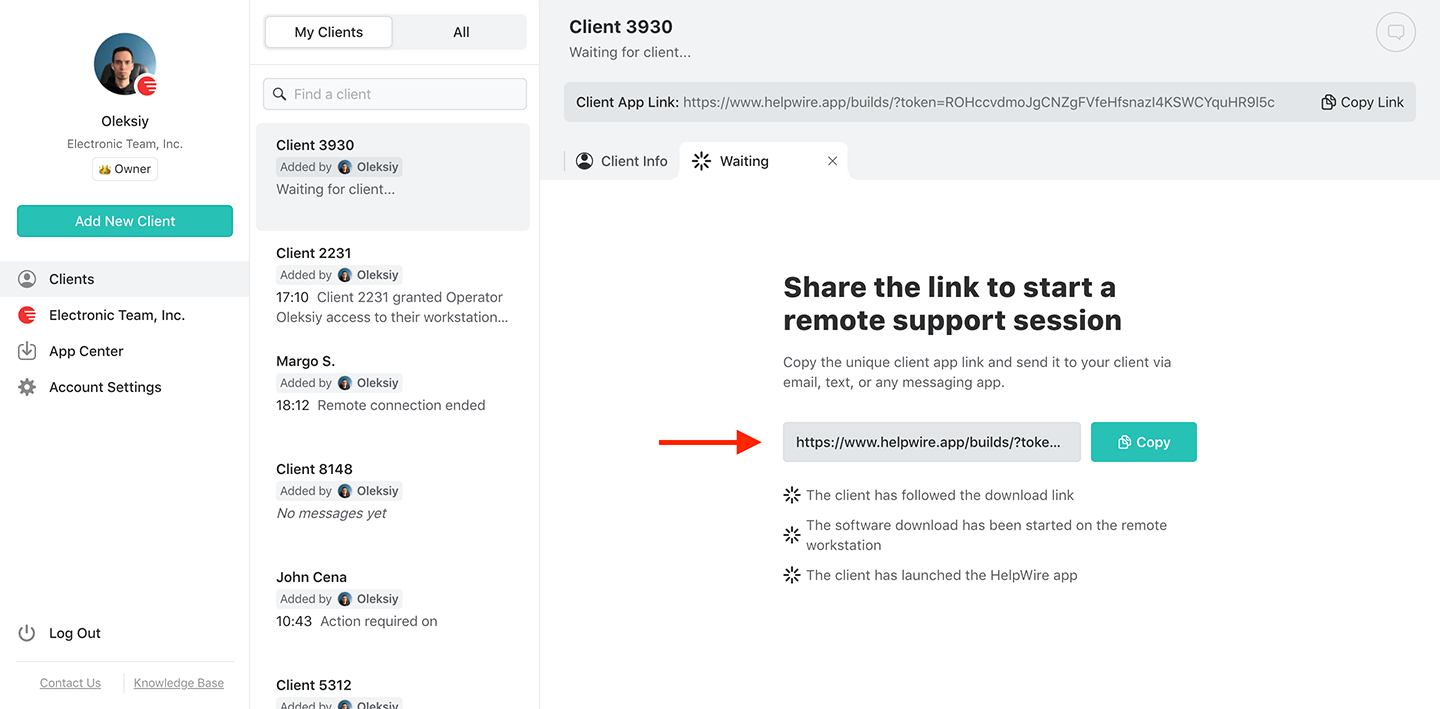
Step 4: Share the link with your client
To connect with your client, copy the unique Client app link and send it to your client via your preferred platform (email, SMS, or instant messaging app).
Share the link with your client
Step 5: Get access permissions from the remote client
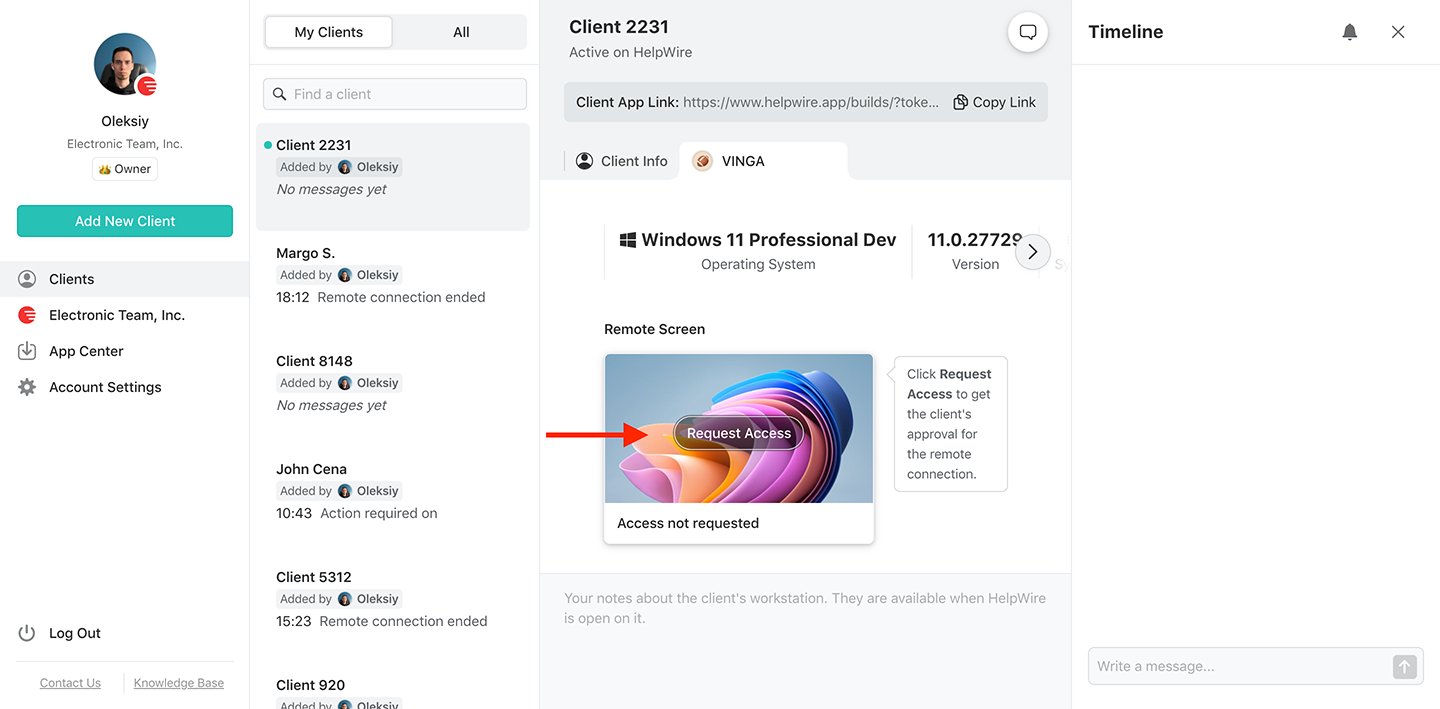
Press the “Request Access” button after your client installs and opens the HelpWire Client app. Wait until your client grants permission for system access.
Get access permissions from the remote client
Step 6: Connect to your remote client from your Mac
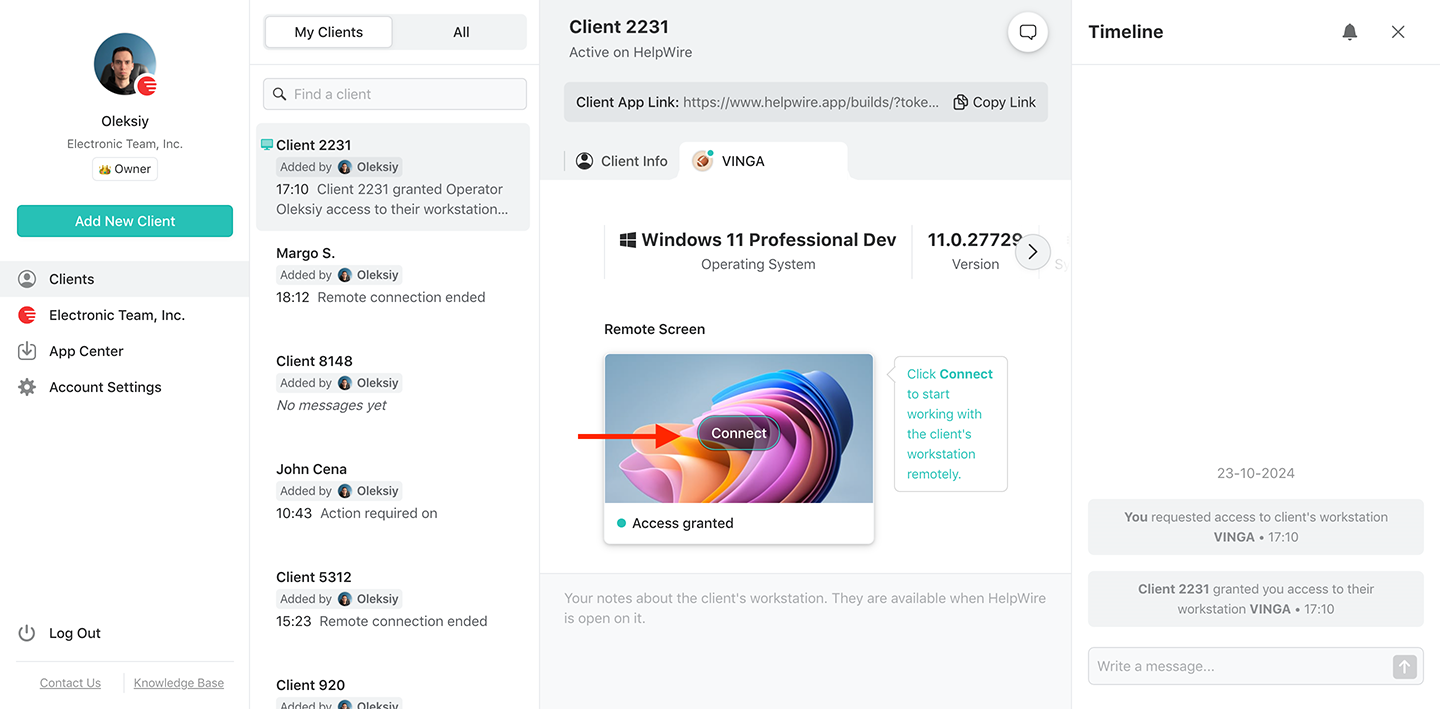
Press the “Connect” button in the client’s profile tab to start a remote desktop session from your Mac to the client’s device.
Connect to your remote client from your Mac
Step 7: End the session
When the session is done, you can close the connection in two ways:

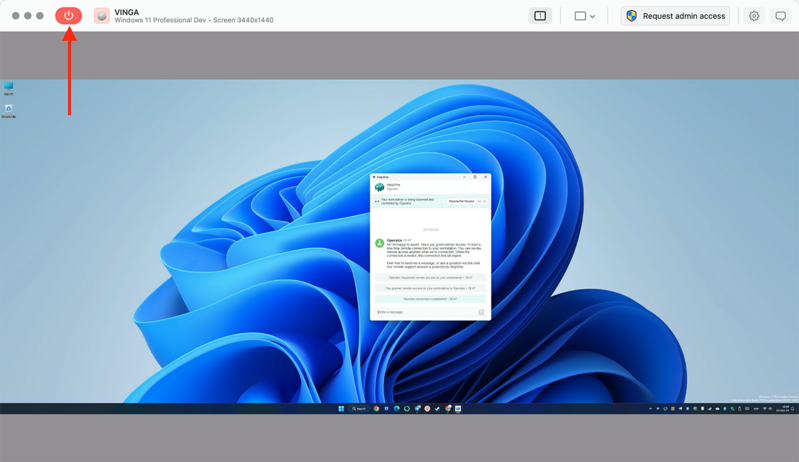
  • Close the HelpWire Operator app on your Mac by pressing the red button red button in the HelpWire toolbar.
  • Alternatively, have the client close the HelpWire Client app on their end.
End the session

HelpWire features for Mac remote desktop control

Link-based remote control

Link-based remote control

Establish a connection to clients’ workstations with a unique link generated for each client.
Control multiple workstations

Control multiple workstations

Establish concurrent connections to multiple remote workstations of the same client to perform software installations on all devices.
Cross-platform support

Cross-platform support

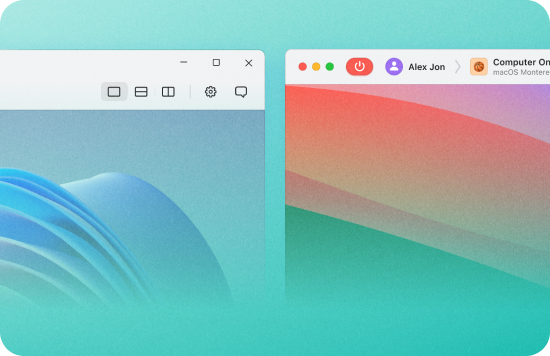
Using HelpWire, you can connect from Windows and Linux to macOS and vice versa with any number of monitors.
File transfer

File transfer

Drag files into the session window or use the clipboard to copy them between systems.
Multi-monitor view

Multi-monitor view

View and manage two or more screens when the remote device has multiple monitors connected. Switch between displays or view up to two at a time during troubleshooting.
Workstation details

Workstation details

HelpWire automatically recognizes and displays the name, type, and version of your remote client’s operating system.
Workstation grouping

Workstation grouping

No matter how many workstations your client has, they can all be discovered under one client profile.
Client directory

Client directory

Rapidly access client details via your team’s web portal with a well-organized list of client contacts.
Client profiles and notes

Client profiles and notes

Create client profiles with device details and private session notes stored in your HelpWire web account.
Centralized contacts

Centralized contacts

Ensure a consistent support even if your primary operator is unavailable, as other operators of your company can also share and manage client contacts.
Multi-organization access

Multi-organization access

Work as an operator in multiple organizations while owning your own.
P2P connections with relay fallback

P2P connections with relay fallback

Get responsive remote sessions by default via direct peer-to-peer connections. If a direct connection isn’t possible, fall back on relay servers automatically.

Secure remote desktop for Mac

HelpWire protects every session with end-to-end encryption using TLS and AES-256 and AWS-hosted infrastructure.
shield

Trusted authentication mechanism

HelpWire uses a safe user authentication service to authorize users and protect login information.
lock

Encrypted connections

Data transfers are secured with industry-standard end-to-end TLS and AES-256 encryption, which ensures the privacy of all data transferred.
settings

Secure data centers

HelpWire ensures security with its cloud infrastructure built on AWS services.
shield-1

Firewall-friendly connectivity

Stable remote connections can be established without the need for any configuration changes or port openings on the client’s firewall, thus maintaining network security.

Mac remote desktop control app for helpdesks, tech support, and MSPs

Customer service desks

Customer service desks

Help desks supporting Mac users can connect to client devices without VPN configuration or shared-network requirements – send a link, connect, resolve.
Remote tech support

Remote tech support

Connect to any client Mac from Windows or Linux – and vice versa – using a shared link to deliver remote tech support. No credentials, no Apple ID, no network configuration.
MSP services

MSP services

MSPs supporting mixed Windows/Mac/Linux environments can use HelpWire to connect across platforms from a single operator app. Manage any client devices from one account.