

In Splashtop, multiple monitors can be used in a variety of modes. These modes can sometimes work in unclear ways, making it look like something went wrong. In addition, you need both the app and operating system to be set up to use multiple monitors.
Sometimes, the problem is caused by incompatibility, and can only be resolved in future patches. However, you can check if any of the following advice works before resorting to customer support.
Check System Settings
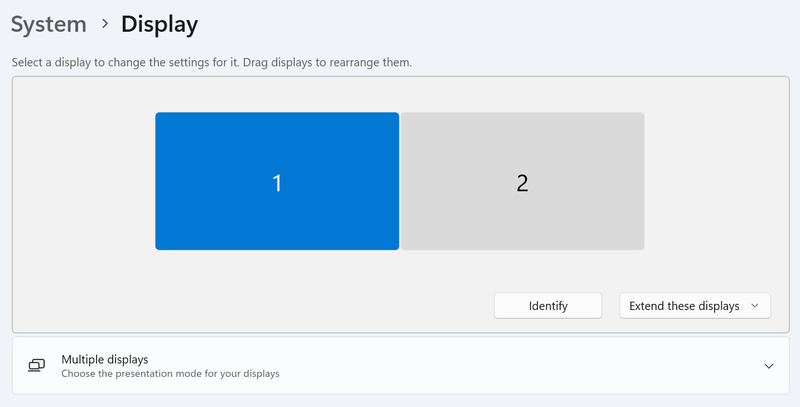
Often, when connecting a second monitor, the OS will select the “Duplicate” mode for it by default. The ways to check your display mode for multiple monitors varies by OS, but most commonly, it’s located in the system settings.
For instance, on Windows you can access them by opening Settings from the Start menu, then going to System > Display, and selecting “Extend” as the display mode.
Look for the Hidden Window
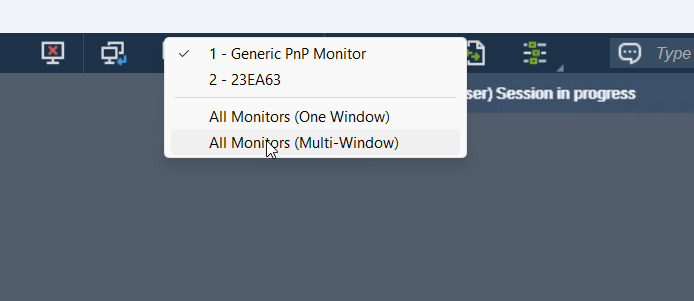
When selecting the Multi-window mode for multiple monitors, the separate windows will show up under a single icon on the Windows toolbar. This makes it harder to select separate windows, and can create the impression that the window didn’t open. Alt-tabbing to it won’t work, as well.
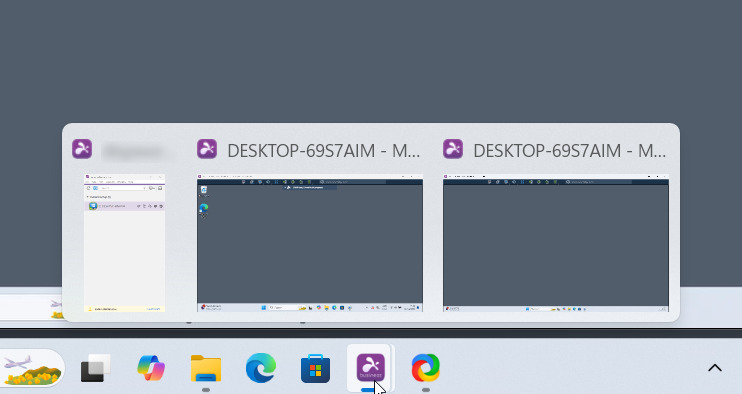
Instead, hover over the Splashtop icon and wait for the different windows to show up. You can then select the window that was hidden in the background.
Exclude Sleep as a Factor
Sometimes, sleep mode can affect secondary monitors, even when the primary monitor is working. When this happens, it’s really hard to tell what’s wrong with the Splashtop session host, and why the secondary display doesn’t work properly. To avoid this problem, disable sleep altogether.
- Open Windows Settings.
- Go to System > Power & Battery > Screen & Sleep.
- Change the delay on Sleep to Never.
Why HelpWire Is Multi-Monitor Support That Makes Sense – Not a Window Hunt
All the fixes above are workarounds for a display setup that should be straightforward. HelpWire handles multiple monitors without requiring you to reconcile physical monitor layout against software display order or dig through toolbar stacks. It’s free on Windows, Mac, and Linux, and getting started takes a few minutes.
HelpWire vs Splashtop: What You Actually Get
| Feature | HelpWire | Splashtop |
|---|---|---|
| Multi-monitor support | ✅ Included, no mode juggling | ⚠️ Requires selecting the correct display mode |
| Hidden window confusion | ✅ No stacked toolbar windows | ⚠️ Multi-window mode hides windows under one icon |
| Display orientation mismatches | ✅ No physical/software layout conflicts | ⚠️ Extended mode may not match physical layout |
| Free for commercial use | ✅ Yes | ⚠️ Free tier restricted |
| Windows + Mac + Linux | ✅ All three | ⚠️ Linux support is limited |
Other Tips
If accessing the second display is vital, but the multi-window and single-window modes aren’t cooperating, you may have to switch to the single-window mode and manually select the current window.
You don’t have to use the mouse to switch between windows. Splashtop provides hotkeys for this by default – Ctrl+Alt+Left and Ctrl+Alt+Right.
Finally, it may also help you to know that the orientation of displays in extended mode may not match their physical layout. As a result, if you’re using the multi-window mode in Splashtop, and trying to drag one of the windows onto the second workspace, this may fail. Simply try dragging the other way – or changing which display is the main one in system settings.
Fix Other Problems with Splashtop
Even when you fix multi-monitor issues, there’s plenty that could go with a Splashtop session, especially since both Windows and Splashtop updates can break things that used to work. We have a general troubleshooting page for Splashtop not working, which you can use to troubleshoot your issue right now, or bookmark it for later.