
AnyDesk Send Ctrl+Alt+Del: Why It Fails and How to Fix It

- HelpWire
- →
- Blog
- →
- Anydesk not working
- →
- AnyDesk Send Ctrl+Alt+Del
If Ctrl+Alt+Del is not working in AnyDesk, the reason comes down to how Windows handles that key combination. The local OS captures Ctrl+Alt+Del before any application can intercept it, so AnyDesk cannot forward it as a raw keyboard event. Instead, AnyDesk sends it through a dedicated session command, and for that command to reach the Windows login or lock screen, two conditions must be met: AnyDesk has to be installed on the remote machine with sufficient system privileges, and the active session profile has to permit the action. The three fixes below cover every scenario where one or both of those conditions are not met.
Two Things to Try Right Now
Press Ctrl+Alt+Shift+Del during the active session. AnyDesk forwards this to the remote device as Ctrl+Alt+Del because the local OS does not capture it. From a Mac, use the Actions menu instead as this shortcut is Windows-only.
If you prefer the mouse, click Actions in the session toolbar and select Send Ctrl+Alt+Del.
Both methods are subject to permission profile restrictions and will not work if the active profile blocks the action. If that is the case, keep reading.
Requirement: AnyDesk Must Be Installed on the Remote Windows PC
This is the step most troubleshooting guides bury at the end. AnyDesk’s own documentation states that the Send Ctrl+Alt+Del action is only available when AnyDesk is installed on the remote Windows machine. Portable mode, where you are just running the executable without installing it, does not give AnyDesk the system-level access needed to send the Secure Attention Sequence to Windows.
If the person on the other end downloaded the AnyDesk executable and ran it without installing, that is your problem.
Steps to fix it:
-
On the remote machine, run the AnyDesk installer and complete a full installation.
-
During setup, enable the option to start AnyDesk with Windows.
-
Reconnect the session.
-
Try Actions > Send Ctrl+Alt+Del again.
This single change resolves the issue for a large share of users who never get as far as checking permission profiles.
Fix Permission Profile If the Option Is Still Disabled
After AnyDesk 7, Ctrl+Alt+Del depends on the active permission profile, particularly in custom or managed deployments. The SAS permission is included in the Full Access profile by default. Other profiles may ship with it off depending on how they were configured.
The settings path varies slightly by version: go to Settings, then Access or Settings, then Permissions, depending on your build. Open Permission Profiles and edit the profile used for incoming or unattended sessions. Enable the Ctrl+Alt+Del option, then disconnect and reconnect.
Steps:
-
On the remote PC, open AnyDesk.
-
Go to Settings, then Access or Settings, then Permissions.
-
Open Permission Profiles and select the active profile.
-
Enable Ctrl+Alt+Del.
-
Disconnect and reconnect the session.
Note that permissions must be granted on the remote side. The local (connecting) user cannot enable this for themselves.
Fix Custom Client and Managed Deployment Configurations
If AnyDesk is deployed through a custom installer, the GUI toggle may have no effect. Custom clients use key-value configuration pairs, and the SAS permission must be declared explicitly. Without it, the permission is excluded regardless of what shows in the interface.
Add this to your profile configuration:
ad.security.permission_profiles.profile1.permissions.sas=1
For a global permission setting rather than profile-specific, use:
ad.security.permission_profiles.permissions.sas=1
A fuller profile block that includes Ctrl+Alt+Del looks like this:
ad.security.permission_profiles.enable_previous_session=1 ad.security.permission_profiles.define.profile1=YourProfileName ad.security.permission_profiles.profile1.pwd=<hash> ad.security.permission_profiles.profile1.salt=<salt> ad.security.permission_profiles.profile1.permissions.sas=1 ad.security.permission_profiles.profile1.permissions.input=1 ad.security.permission_profiles.profile1.permissions.clipboard=1
AnyDesk provides a generator for the hash and salt values in its advanced options documentation. If you are managing multiple machines and built your custom installer before AnyDesk 7 shipped, this is the most likely gap in your config.
Consider HelpWire as a Free AnyDesk Alternative
If AnyDesk is not working after the fixes above, HelpWire is a free AnyDesk alternative that works for both personal and business use.
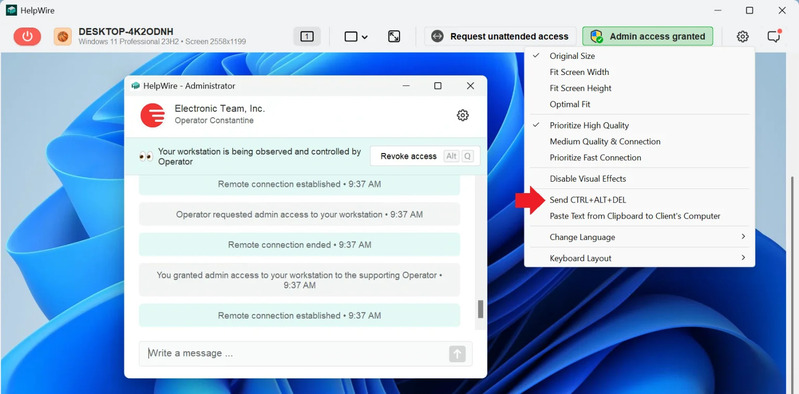
HelpWire handles Ctrl+Alt+Del differently from AnyDesk. During an active session, a wheelchair icon appears in the remote session interface. Clicking it sends the Ctrl+Alt+Del command directly to the remote machine, opening the Windows Security screen. From there you get access to Task Manager, lock screen, user switching, and sign-out options depending on the OS version on the remote end. The option is available when admin access has been granted on the remote machine.
-
Sessions are easy to initiate.
Share a unique client app link to start a remote support session without extra setup steps.
-
Built-in chat.
Communicate with the person on the remote machine during the session. Conversation histories are saved for future reference.
-
File transfer.
Drag and drop files directly into the remote session window without needing intermediate storage or file hosting.
-
Client management.
Track past support sessions, maintain client records, and manage multiple clients from a single interface.
FAQ
The most common reason is that AnyDesk is not installed on the remote Windows machine. The Send Ctrl+Alt+Del action requires installed mode with system-level privileges. If AnyDesk is installed, the next thing to check is the active permission profile. The SAS permission may be disabled for the profile handling that session.
Use Ctrl+Alt+Shift+Del on your keyboard during an active session, or click Actions in the session toolbar and select Send Ctrl+Alt+Del. Both methods are documented by AnyDesk for Windows clients. If neither is available, AnyDesk is likely running in portable mode on the remote machine.
Yes, on the remote Windows machine. AnyDesk states that the Send Ctrl+Alt+Del action is only available when AnyDesk is installed on the remote Windows PC. Running the portable executable does not provide the required system access.
Add ad.security.permission_profiles.profile1.permissions.sas=1 to your configuration. The in-app settings toggle does not apply to custom client deployments. For a global permission rather than profile-specific, use ad.security.permission_profiles.permissions.sas=1 instead.