
categories
Updated on in

Remote Desktop Multiple Monitors: Setting up With Microsoft RDP

Author: Helga York
Helga York Article author

Getting a remote desktop dual monitor setup working isn’t always straightforward. Multiple monitors are initially turned off for remote sessions, and your local computer must also have the required hardware.

This guide will discuss three ways to configure Windows Remote Desktop multiple monitors. And that includes turning on multi-monitor support in the RDC interface, launching RDP with the /multimon option, and modifying the RDP file directly. It also highlights which RDP Multimon approach is usually the best choice and how to use mstsc multiple monitors for a full-screen setup.

Note:   Before trying the methods below, consider using HelpWire — a free and simpler remote desktop tool. It supports both on-demand and unattended access and offers a smoother experience when working with multiple monitors. You can head to the Best Alternative section for more details or keep following the steps outlined below.
 Windows Remote DesktopHelpWire
OS Host SupportWindows Pro, Enterprise, and ServerNo specific limitations
SetupSetup can be trickySimple setup
FeaturesBasic features only, missing advanced optionsMore advanced features
BandwidthNeeds a lot of bandwidthWorks well with lower bandwidth
PerformanceCan experience lag and screen freezesMore stable performance
IT SupportLimited support, slow to resolve issuesBetter customer support

Method 1: Adjusting Multi-Monitor Settings in RВC UI

  1. Search for ‘remote desktop connection’ in your system and open the app.

  2. Enter your login details in the pop-up window. Then, in the bottom-right corner, click the Show Options button.
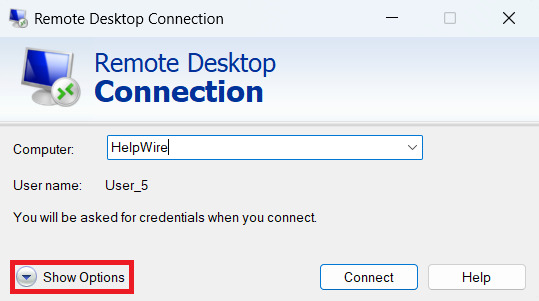
    Remote Desktop Connection Options
  3. After that, go to the Display tab where you need to tick the ‘Use all my monitors for the remote session’ checkbox (DO NOT click the Connect button yet; there are a few more settings to adjust). You’ll now be able to use a remote desktop dual monitor setup for your session.:
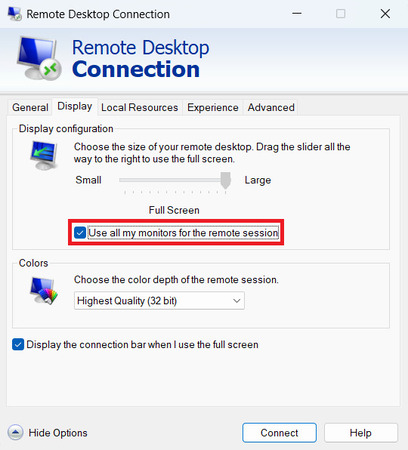
    Multi monitors in Windows Remote Desktop
  4. Return to the General tab and click the ‘Save as’ button so you won’t have to redo these steps each time you connect from another PC.
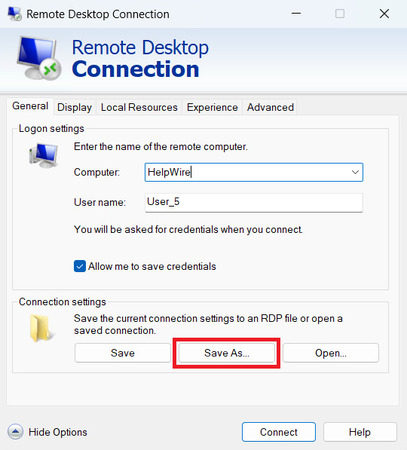
    Remote Desktop Connection general tab
  5. And another thing, take note or remember the folder where you saved the RDP file, since you might need to tweak it in the future (for example, to hide one monitor from the remote session).

Method 2: Running RDP Multiple Monitors via Command Line

You can run Windows Remote Desktop multiple monitors using the built-in Remote Desktop tool, but the feature isn’t enabled automatically. Follow the steps below to turn it on:

  1. First, press the Win + R buttons and type cmd in the text field. Then, hit Enter.
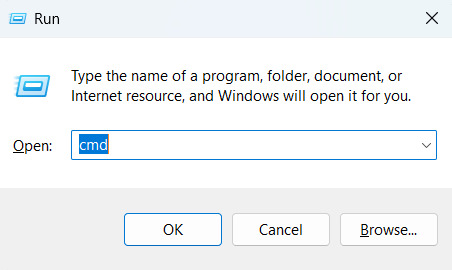
    Cmd line
  2. You will notice a command prompt after that. There, type mstsc.exe-multimon and press Enter. Doing this will pre-enable the multi-monitor option.
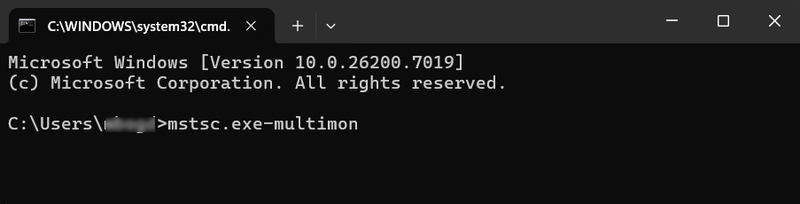
    Multimon command prompt
  3. The RDP multiple monitors are now enabled. So, the next thing to do is press Win + R again to open the Run window. In the box that will appear, type: mstsc.exe /multimon.
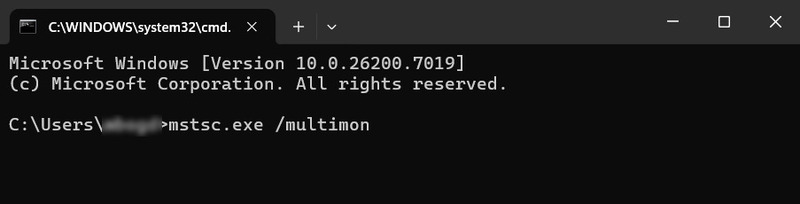
    RDP multimon with run command

Windows will automatically check the “Use all my monitors for the remote session” box, but it applies only to that session. The system won’t save your connection settings or login info. So, one of the other two methods is the better choice if you plan to run multiple remote desktop sessions on this computer or use it as an RDP server.

Another benefit of using the command line is that you can personalize your session. For one thing, you can begin in full-screen mode by adding /f, or adjust the height and width using the /h and /w parameters. Sometimes, it’s the little adjustments that make your sessions with RDP Multimon run much smoother.

For more details or to explore additional parameter options, you can find the complete list in Microsoft’s reference doc.

Method 3: Manually Editing an RDP File

  1.  First, go to your Documents folder and make sure Show hidden items is turned on (Start Menu → Search → File Explorer Options).
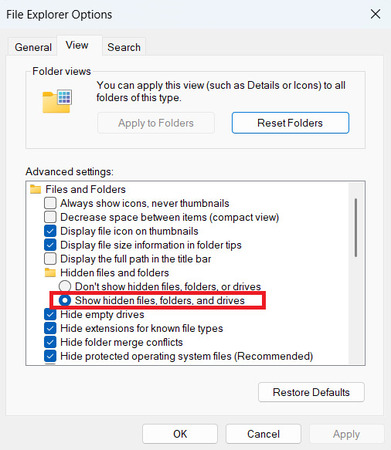
    Show hidden items in Windows
  2. Next step is to open your RDP file (by default, it’s stored in the Documents folder and marked as hidden) with Notepad or drag-and-drop it to the browser window. Whichever method you choose, add the following line:

    use multimon:i:1
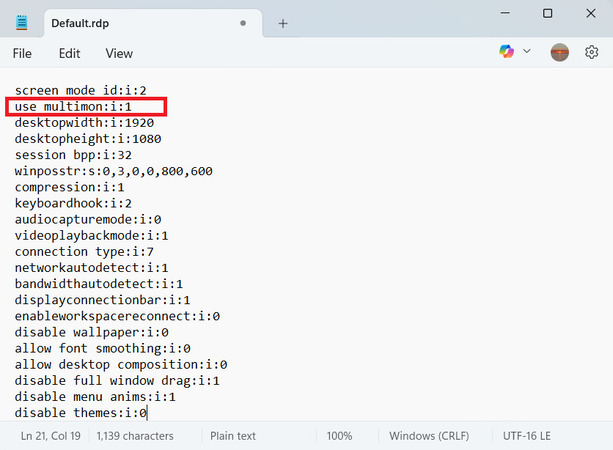
    RDP file correction
  3. If you like, you can also add another line to hide specific monitors so they won’t show up over TCP from remote machines.

    selectedmonitors:s:x1,x2,x16
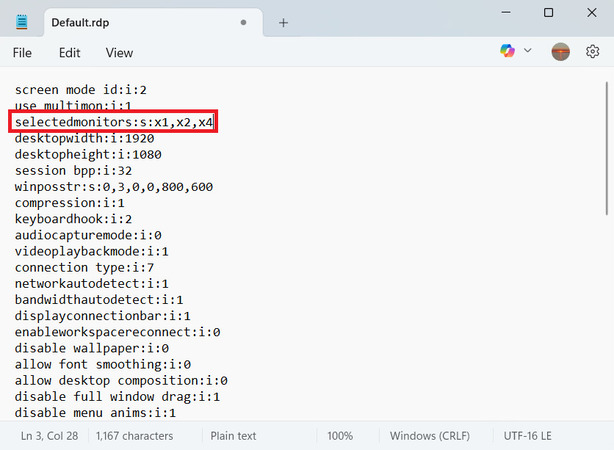
Note:  Replace x1…16 with the actual numbers of the monitors you have. The first number indicates the primary monitor.

The display’s number is not necessarily the same one you’ll see in your system monitor properties. To obtain the correct ones, use the mstsc/l command.
Adding and removing monitors in RDP file
  1. Remember to ‘Save’ the file before closing it.

Each method I’ve discussed also works on Linux and iOS machines, but only if you have the right Remote Desktop versions installed. Just remember, though, that these three options only apply to the standard RDP app. The newer version from the Microsoft Store, with its black interface, doesn’t support remote desktop multiple monitors at all.

HelpWire: Multi-Monitor Remote Connection Made Easy

For a smoother and free alternative, try third-party remote desktop software like HelpWire. It makes managing RDP multiple monitors during sessions much easier and more flexible than the standard Windows app.

Below you will find some multiple-monitor features of the HelpWire:

  • • Access more than one screen from the connected client’s workstation.
  • Split the operator’s screen horizontally to stack several remote clients’ screens.
  • • Or split it vertically to view several remote clients’ screens side by side.

With HelpWire, working across multiple screens feels as natural as if you were sitting right in front of the remote computer. Once the session starts, the app automatically spots all the monitors on the remote device. You can move between screens or show several at once.

Clicking the Multi-Monitor icon in the toolbar opens all the available options. From there, you can choose the viewing mode that fits your workflow. For full setup instructions, head over to HelpWire Remote Desktop on Multiple Monitors.

FAQ:

If you’re using the standard Windows Remote Desktop app, launched via mstsc multiple monitors, you can’t adjust connection settings while a session is running. You’ll need to close any active RDP multimon connections before changes take effect. 

Lots of people ask how to use it, so we’ve put together a guide that shows how to set up and work with Windows Remote Desktop multiple monitors on Windows 10 and Windows 11, with clear, step-by-step instructions. Check it out.