Copy-and-pasting issues in Splashtop can be caused by a number of issues – often, it’s just a matter of settings, or an error during installation. Pasting as keystrokes can also be a useful workaround if the other steps didn’t work.
The following troubleshooting steps can help you resolve the problem:
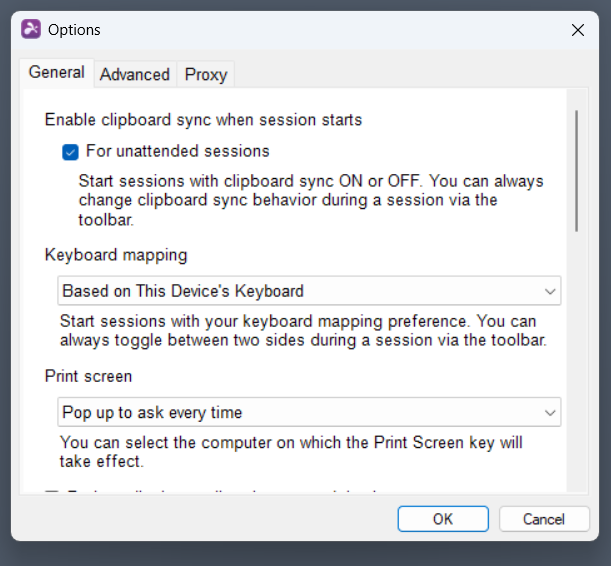
When starting an unattended session with a registered Splashtop streamer, the default behavior for copying-and-pasting is defined in the client options, accessed from “File” > “Options”.
Use the “Enable clipboard sync” option to have it on by default. Even though keyboard mapping can be changed in-session, you may also want to change it to “based on this device’s keyboard”, which is less likely to cause issues than basing the mapping on the remote device.
Use in-session settings
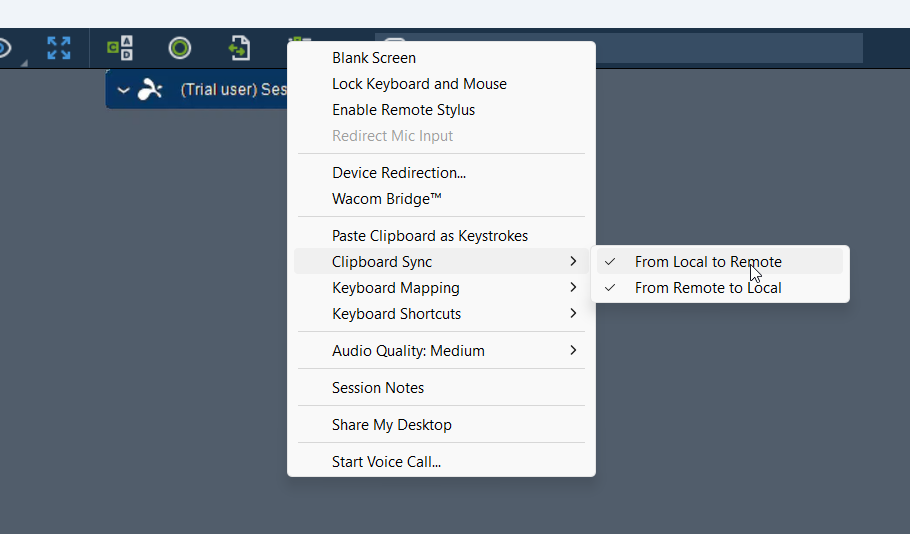
There are multiple in-session settings that you can change to try and resolve any pasting difficulties. First off, you want to see if clipboard sync is enabled at all, from the session setting menu.
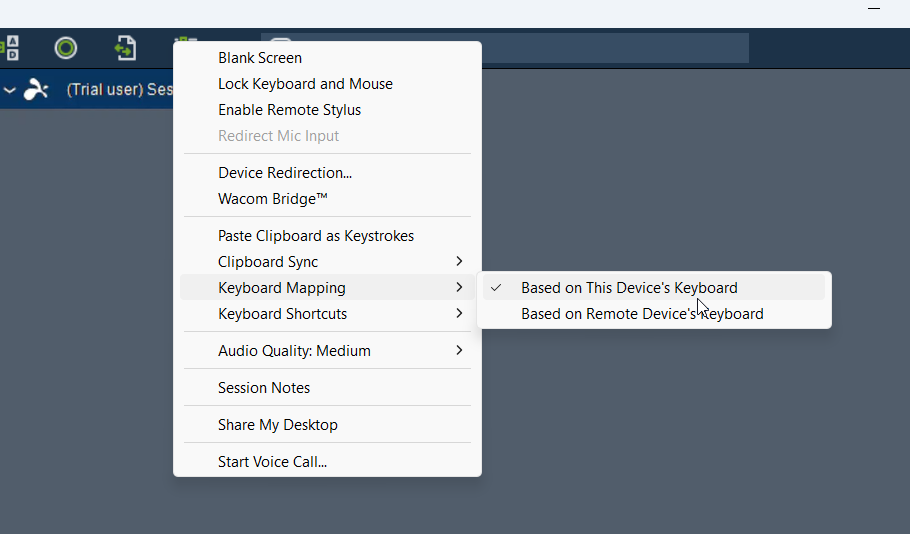
Second, switch “Keyboard mapping” to being dependent on the local device. On the other hand, if it’s already local, try switching it to remote, or toggling it back and forth.
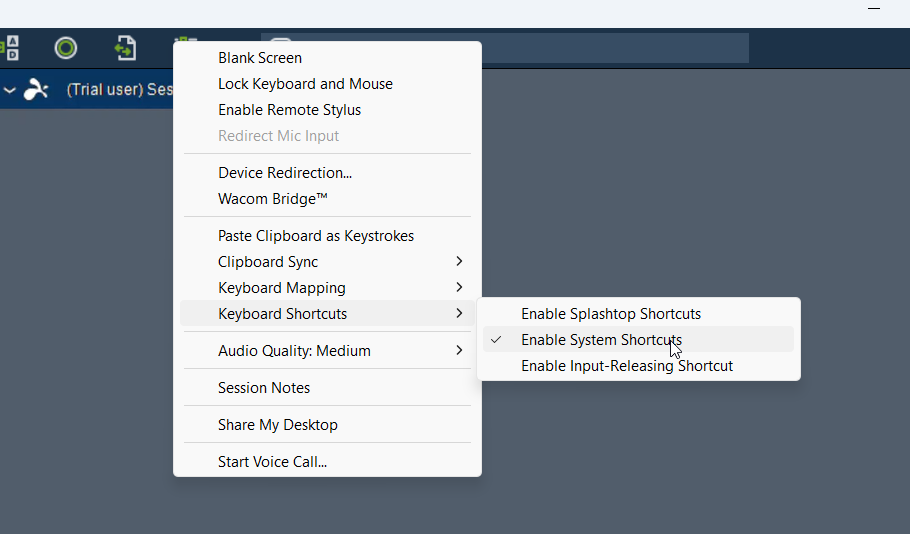
Trying different combinations of shortcut settings under “Keyboard shortcuts” can also help. Splashtop shortcuts are also necessary for the “Paste as keystrokes” workaround.
Reinstall Splashtop
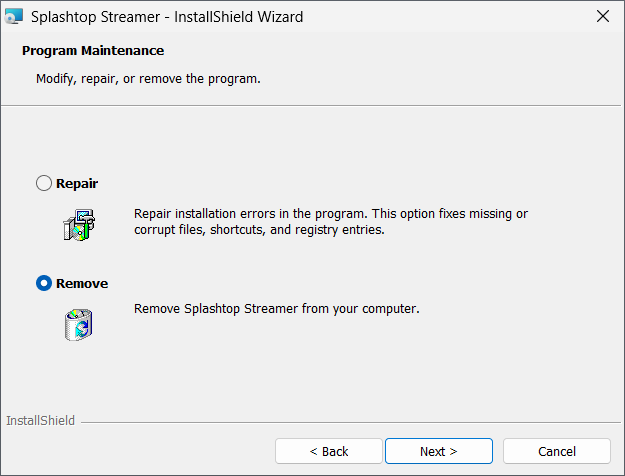
You may want to exclude any errors that occurred during the installation of Splashtop and that may be the cause of Splashtop copy and paste not working. The installer can also be used to delete the app by choosing the relevant option. Thus, you only need to download the installer to perform a full reinstall.
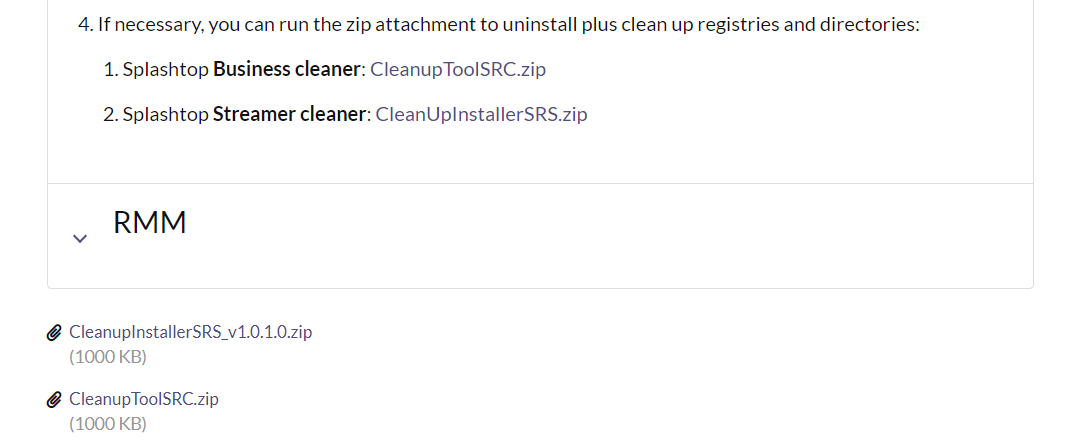
If you still aren’t sure that Splashtop is not being removed correctly, and suspect that some unnecessary configs or registry values are being left behind, the official Splashtop website provides a cleanup script.
Use “Paste as keystrokes”
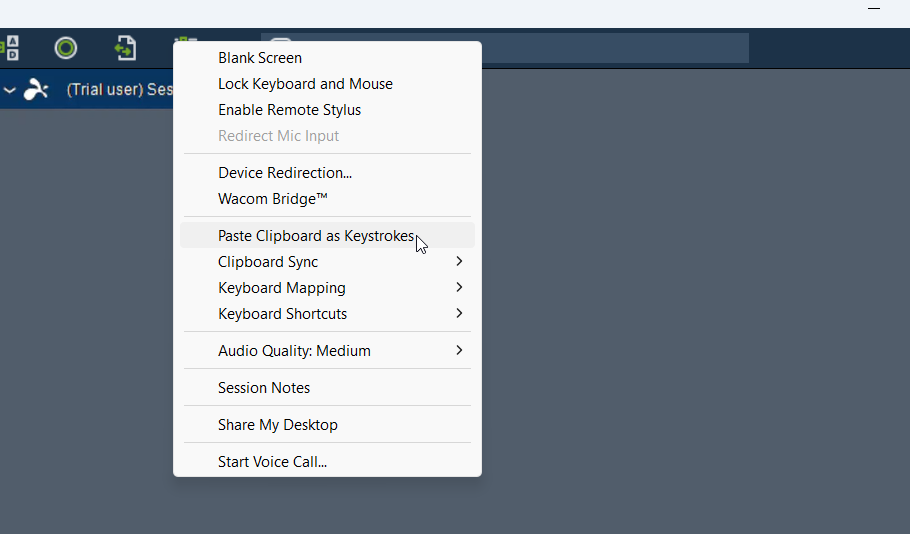
The in-session options dialogue (the rightmost icon on the bar) also allows you to paste the clipboard contents as keystrokes. This limits you to plain text, but it’s uncommon that you’d need formatting or images in pasted text during a remote session.
Pasting from a dialogue like this may seem clunky, but that’s where Splashtop hotkeys come in handy. Pasting as keystrokes can be accomplished by pressing Ctrl+Alt+V.