How to Troubleshoot the “Unknown Session” Error in TeamViewer?
- HelpWire
- →
- Blog
- →
- TeamViewer Issues How to Solve Them
- →
- TeamViewer Unknown Session
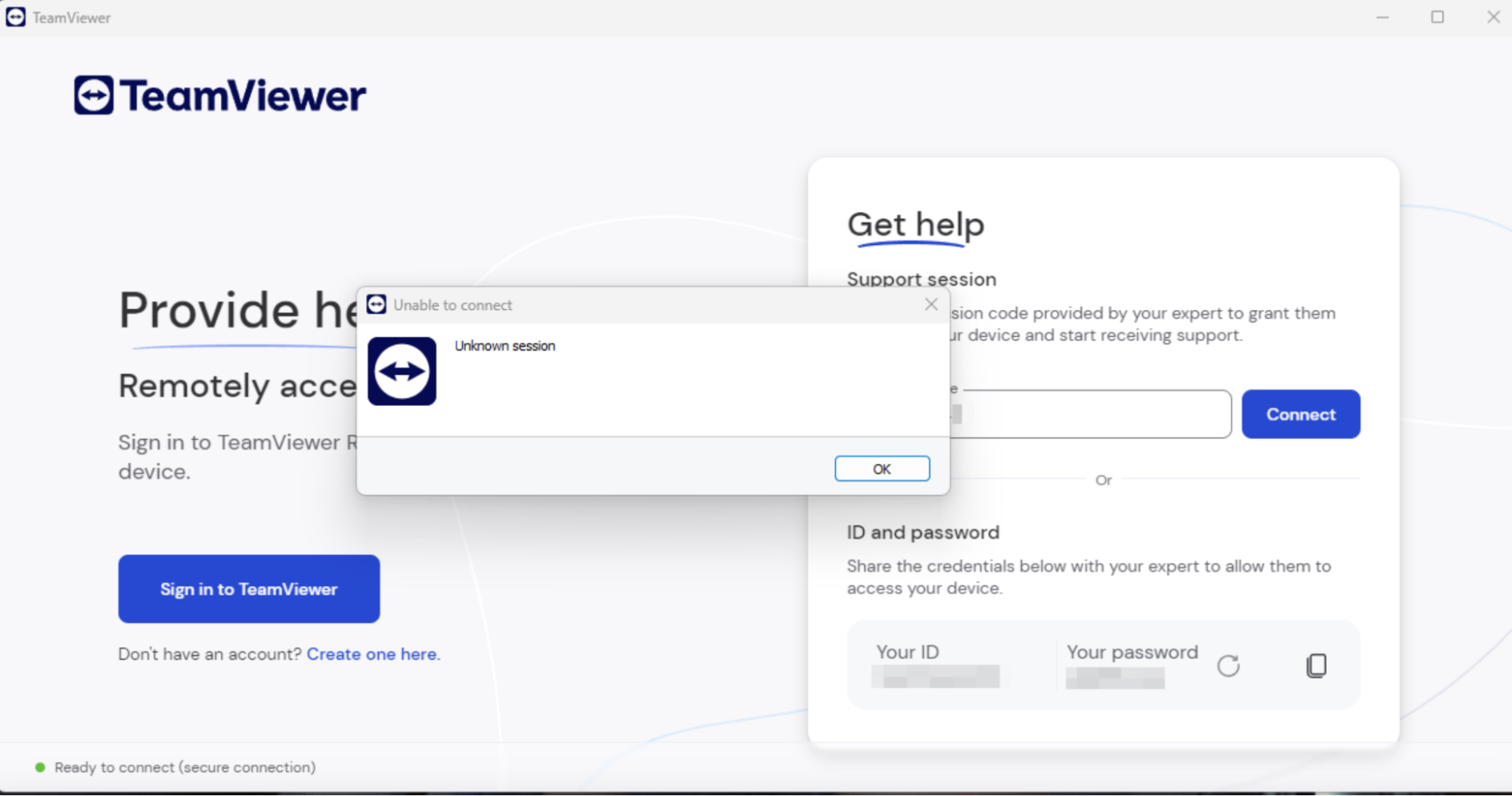
Experiencing the “Unknown Session” error in TeamViewer can be frustrating, especially when both devices are updated and seemingly configured correctly. This issue has been reported across various platforms and devices, indicating that it’s not limited to a specific operating system or device type.
Based on extensive research from community forums and support threads, we’ve compiled a detailed guide to help you resolve this error.
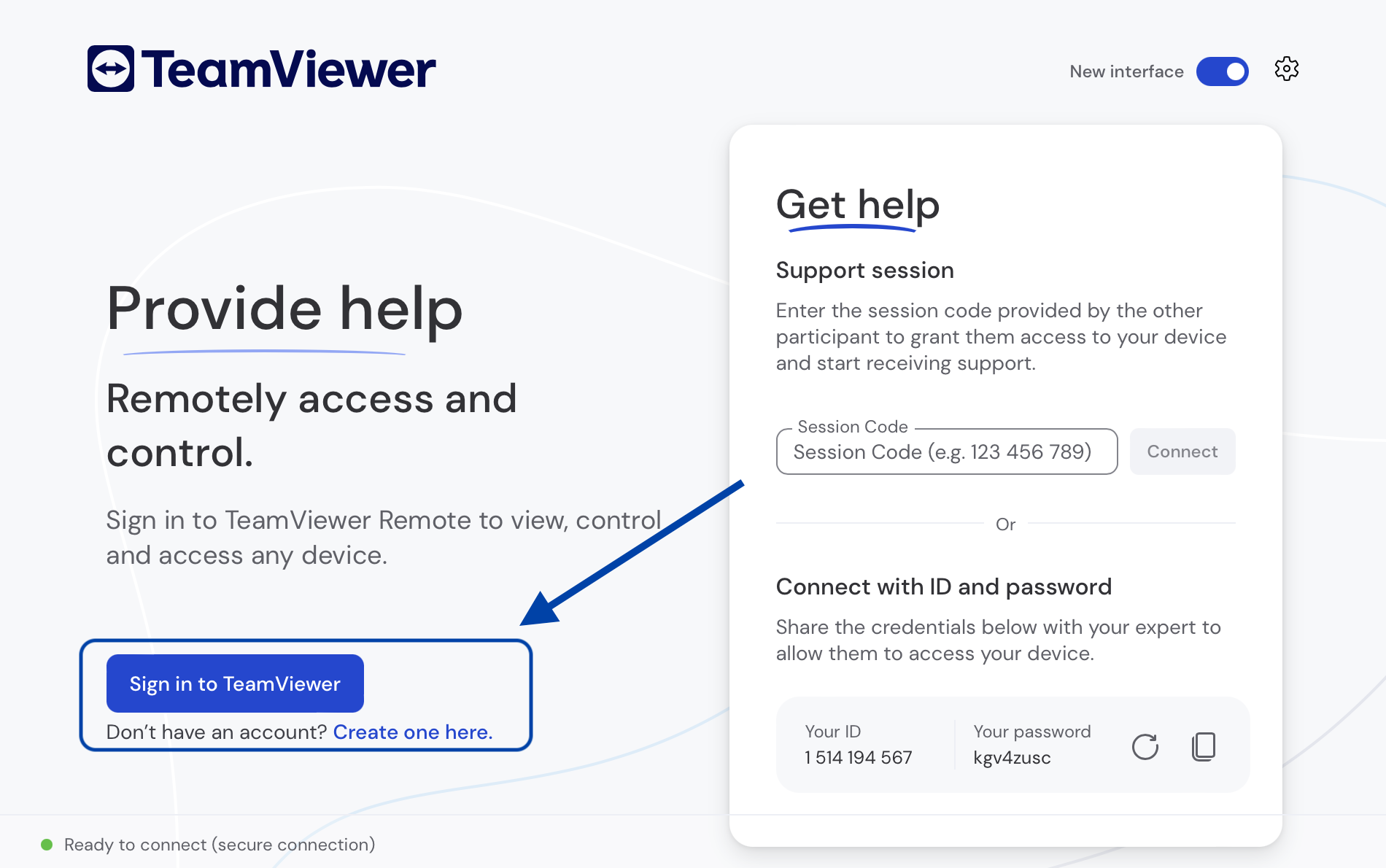
Fix #1. Ensure You Are Logged Into Your Teamviewer Account
For enhanced security and session management, the latest TeamViewer updates require users to log into their account before initiating a remote session. So, if you forget to log into your account, the TeamViewer unknown session might occur.
Here is how to log into TeamViewer:
-
Open TeamViewer on the initiating device.
-
Press the “Sign In” button, and input your TeamViewer credentials.
-
Upon logging in, try to launch the remote session again.
Fix #2. Switch to the Classic Interface
Sometimes, when TeamViewer is unable to connect due to an “unknown session”, the error message or prompt is not visible. This happens when using the new TeamViewer interface.
You can use TeamViewer’s classic interface, which provides better information about the application’s errors.
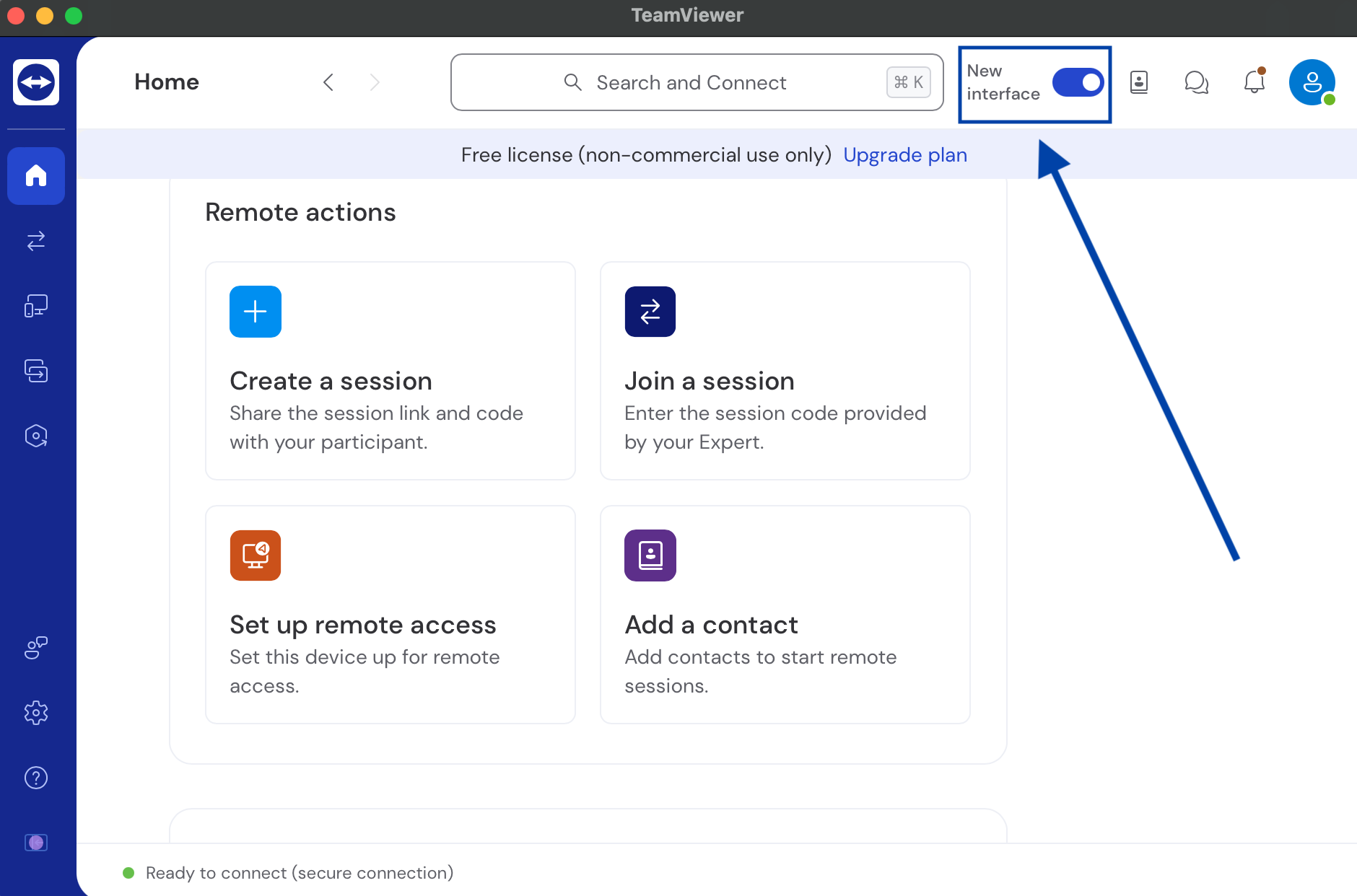
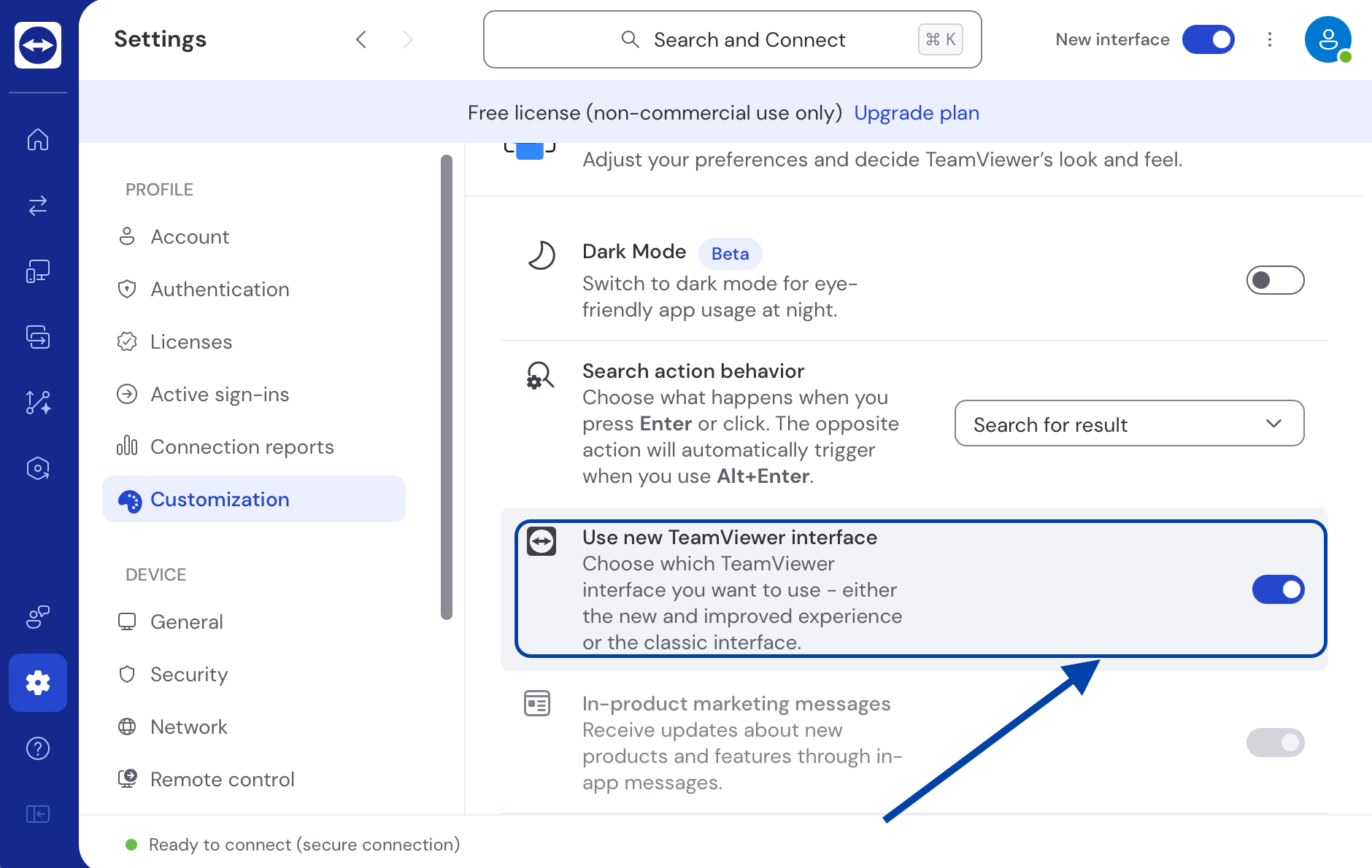
To switch to the classic TeamViewer interface, click on the toggle in the main menu labeled “Use new TeamViewer interface” to disable it. Afterward, restart TeamViewer to apply the changes.
If you’re unable to switch to the new interface using the menu toggle, there could be an alternative method. First, click the gear icon (⚙) to open the settings, then navigate to the “General” tab and uncheck the option labeled “Use new TeamViewer interface.”
Most users found this solution to be the most effective. But if your device is unable to switch back into the classic interface (even after performing the steps above), visit TeamViewer Support.
Fix #3. Update TeamViewer on All Devices
The unknown session error usually happens due to app compatibility issues or when the devices are using mismatched or outdated TeamViewer versions.
Steps:
-
On each device, open TeamViewer. Note: For mobile devices, visit the respective app store to check for updates.
-
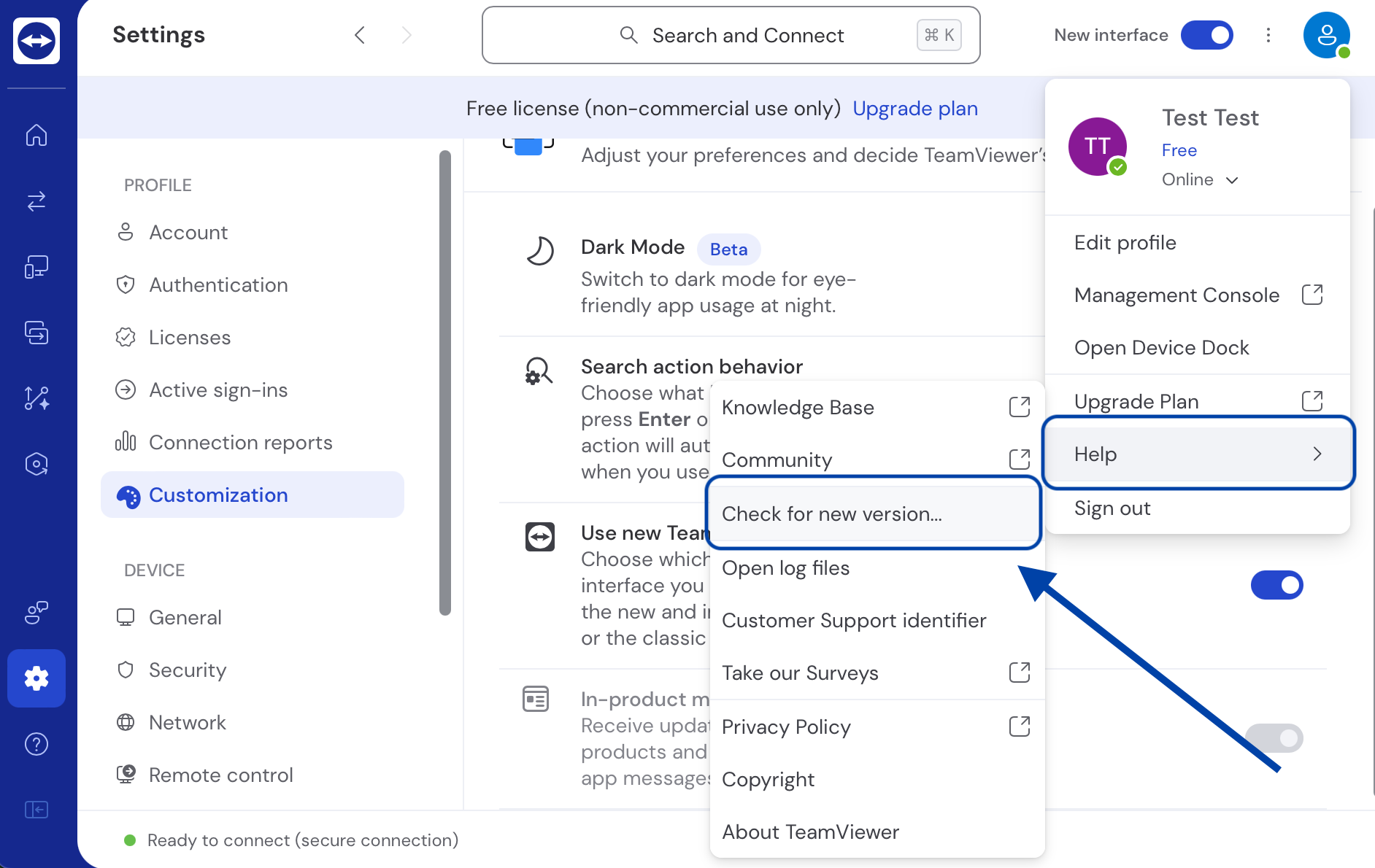
Click on “Help” in the menu bar.
-
Select “Check for new version.”
-
If an update is available, follow the prompts to install it.
Fix #4. Perform Clean Reinstallation of TeamViewer
-
Back up the configurations you are using in TeamViewer before you reinstall the app.
-
Uninstall TeamViewer from your computer or mobile device.
-
Restart your device.
-
Download the latest version of TeamViewer from the official website.
-
Install TeamViewer and attempt to start the remote session again.
Fix #5. Why HelpWire Is a Permanent Fix – Not Just Another Workaround
The fixes described are valid, but they treat symptoms: toggling interfaces, reinstalling, and re-authenticating. HelpWire, however, is built for stable remote sessions with no interface switching, no reinstallation loops, and no account authentication friction to untangle. And it’s completely free to get started.
HelpWire vs TeamViewer Free: What You Actually Get
| Feature | HelpWire | TeamViewer Free |
|---|---|---|
| Setup complexity | ✅ Connect in minutes | ⚠️ Requires account login to avoid session errors |
| Interface consistency | ✅ Single, stable UI | ⚠️ New/classic interface switching required as a fix |
| Reinstallation is needed to fix errors | ✅ Not required | ⚠️ Clean reinstall is a documented fix step |
| Cost | ✅ Free | ⚠️ Free tier has commercial use restrictions |
Be sure to check out the dedicated page for a detailed comparison between HelpWire and TeamViewer.
Conclusion
TeamViewer’s “unknown session” error may seem like a simple app issue, but if left unresolved, it can seriously disrupt your productivity.
To resolve this common problem, you can switch back to the classic interface, update the software, or reinstall it. But if this issue persists, do not hesitate to try an alternative solution like HelpWire, which is equipped with advanced functionalities to avoid this error, or try other TeamViewer troubleshooting steps.