categories
Published on in

VNC on Raspberry Pi

Author: Helga York
Helga York Article author

Raspberry Pi OS supports VNC by default, but it needs to be enabled from a settings menu or, for Raspberry Pi headless VNC, you can use raspi-config over SSH. In addition to enabling VNC on a Raspberry, this article will show you how to connect to a VNC server from a similar, Debian-based OS.

How to Enable VNC on Raspberry Pi

Turning an RPi into a VNC server can be as easy as toggling a setting, but you still need to find your IP address to make any use of it.

  1. To enable VNC server functionality, go to Preferences > Raspberry Pi Configuration.
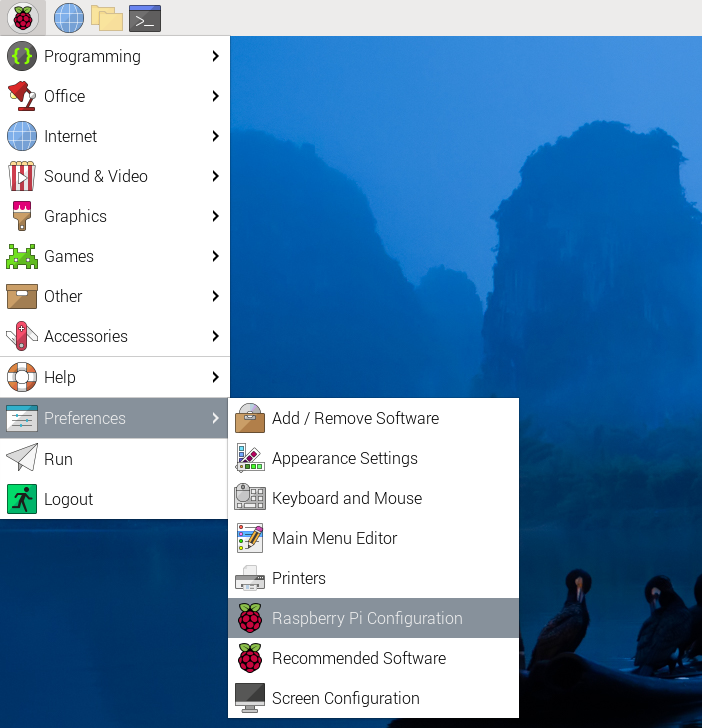
    The RPi OS system menu
  2. Go to the Interfaces tab and enable VNC.
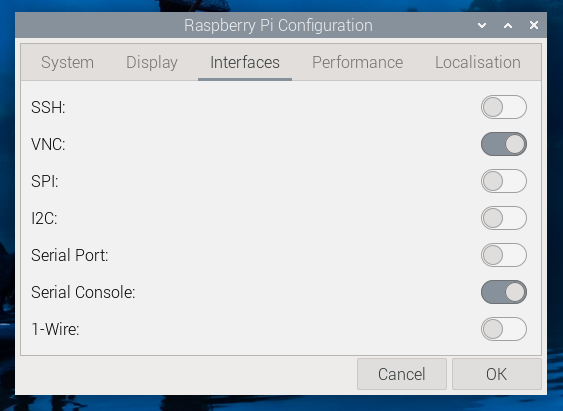
    Enabling and disabling protocols from the GUI
  3. Important: set your user’s password from the System tab. If your user has no password, some VNC clients may fail to connect.
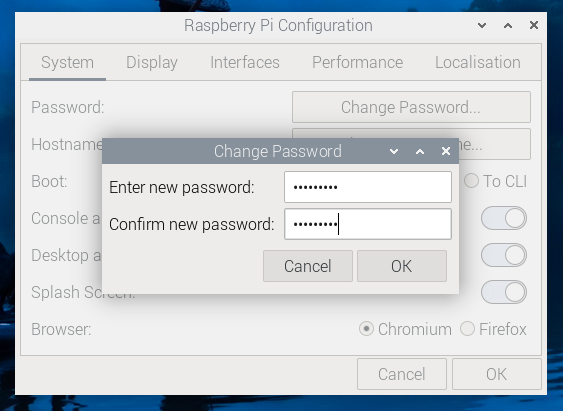
    Setting a VNC password
  4. Find out your local IP by running the “ifconfig” command.
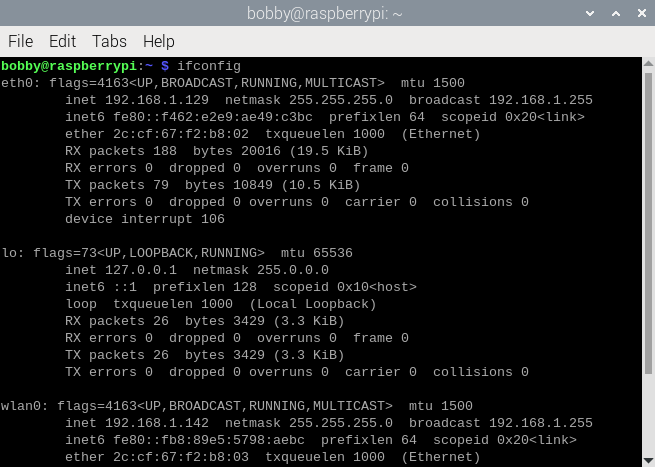
    IP address and other data from ifconfig
Note:  Raspberry Pi uses the 5900 port by default, meaning that there is no need to specify it when connecting.

How to Install Raspberry Pi VNC in Terminal

This alternative method of enabling VNC can be useful if you’re running a headless RPi setup, or a Raspberry Pi IoT VNC server that can only be accessed over SSH.

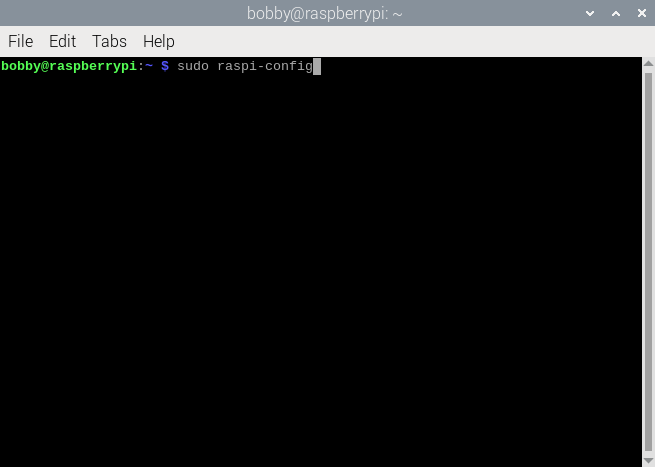
  1. Run raspi-config with sudo rights.

    Opening raspi-config from the command line
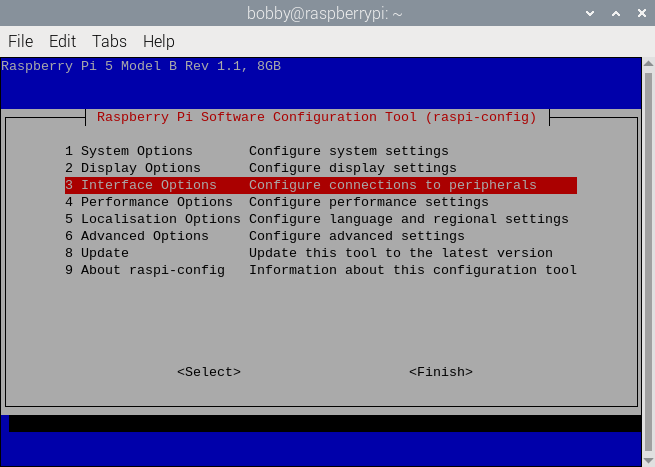
  2. Go to Interface Options.

    The text-based raspi-config menu
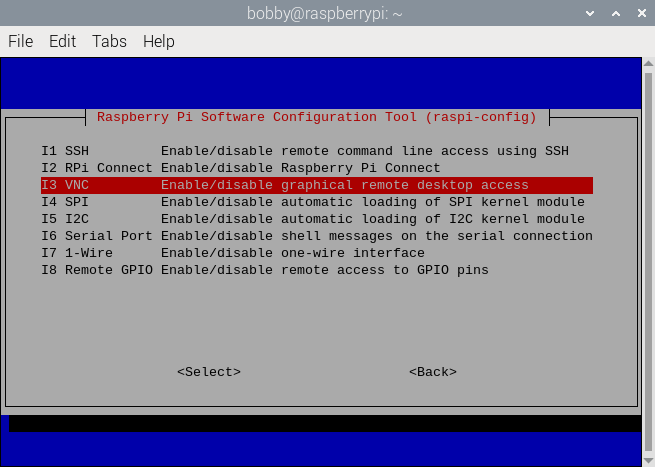
  3. Enable VNC from the menu.

    Remote access protocols and other interfaces in raspi-config
  4. Use the passwd command instead of setting the user password from the configuration menu.

How to Connect to VNC on Raspberry Pi

This example was tested on Debian. However, tigervnc-viewer is also available on Raspberry Pi OS.

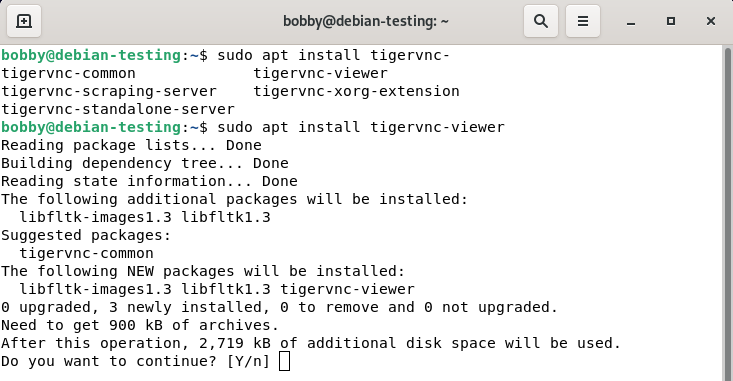
  1. Install tigervnc-viewer.

    Installing tigervnc with the apt package manager
  2. Run xtigervnc-viewer with the host IP as the argument.
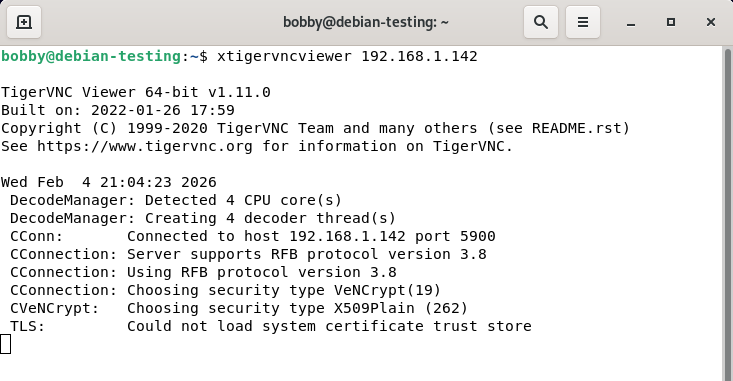
    Connecting to a VNC server from the command line
  3. Accept any mismatches with the certificate.

  4. Authenticate with the host.

  5. You now have a working VNC session.

    A Raspberry Pi desktop in TigerVNC