
Diagnose Splashtop Connection Issues

Splashtop Connection Lost - Mid-session Disconnections
The first thing to do when Splashtop keeps disconnecting mid-session disconnections is to check the stability of your Internet connection. This can be done by opening the Terminal (press Win+X, then select Terminal – no need for admin rights) and typing in the following command:
ping -t 8.8.8.8
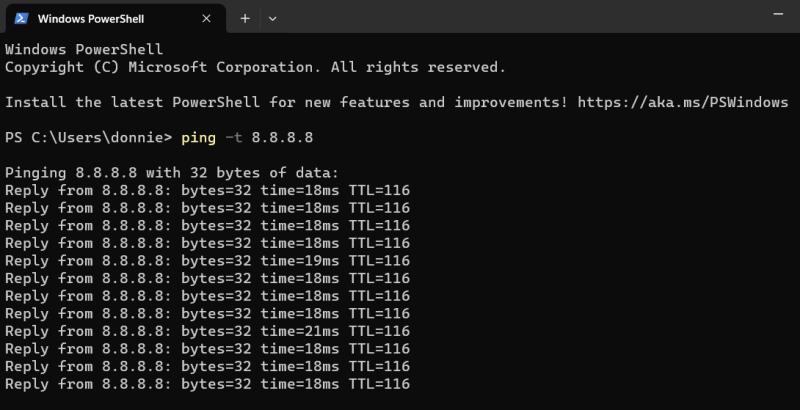
This will cause your PC to repeatedly send a test signal to a Google server, which, at the time of writing, is stable enough to be used as a connection test. If any packets are dropped while the ping command runs, it will display a different message from the usual packet responses.
Dropped packets can have a wide range of causes:
- • A damaged cable somewhere between the PC and the Internet provider
- • Router configuration
- • Unstable network in the region
If the network is completely stable, but Splashtop keeps losing connection, you can try using the built-in Diagnostic Tool of the Splashtop Business app.
How to Enable the Splashtop Diagnostic Tool
-
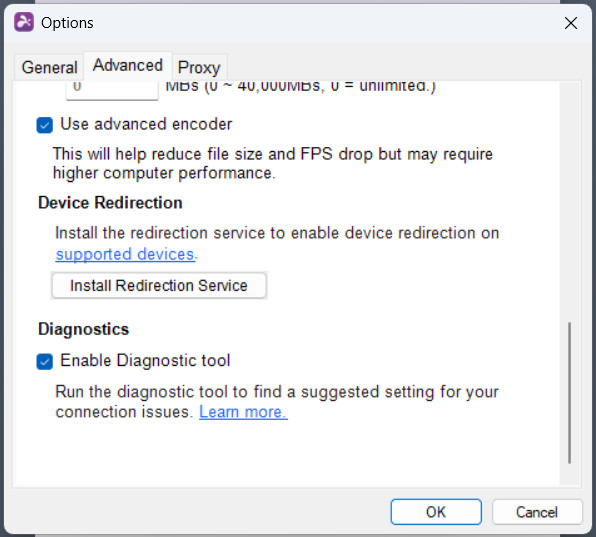
Open File > Options > Advanced on the Splashtop Business menu bar. Check the “Enable Diagnostic Tool” setting.
-
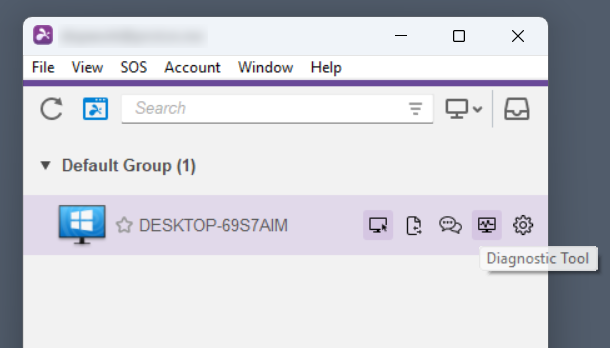
Use the Diagnostic Tool button next to the problematic machine to open it.
-
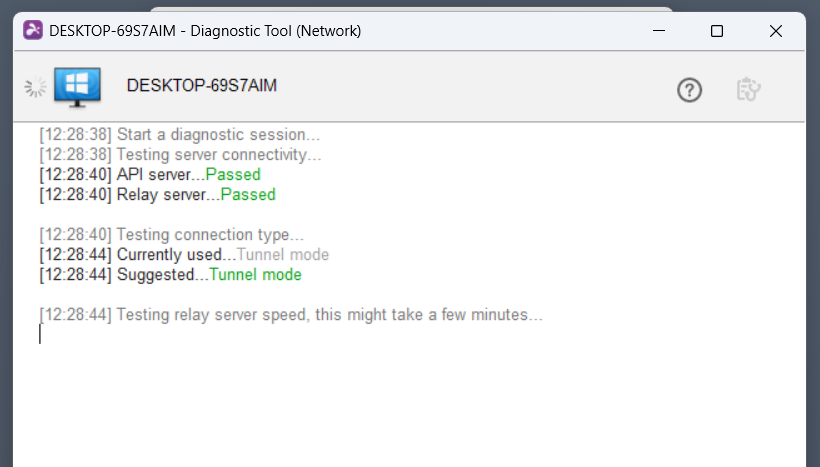
If the tool discovers any kind of error, it will be reported in the provided text log.
Cannot Connect to Splashtop for Unattended Access
In some cases, a Splashtop Streamer that has been left to run for a day or longer will stop working. Splashtop not connecting to a computer that you can’t reach physically can be unpleasant. On headless machines that require unattended access, it’s best to restart the Splashtop service every 24 hours. On Windows, this can be done with the Task Scheduler.
-
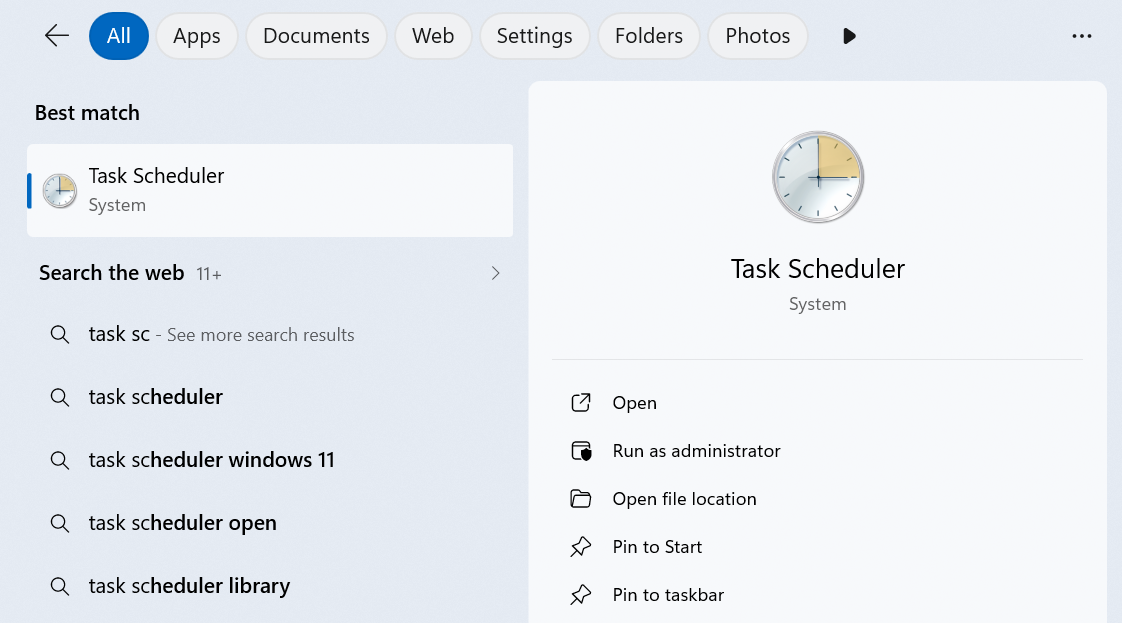
Open the Task Scheduler.
-
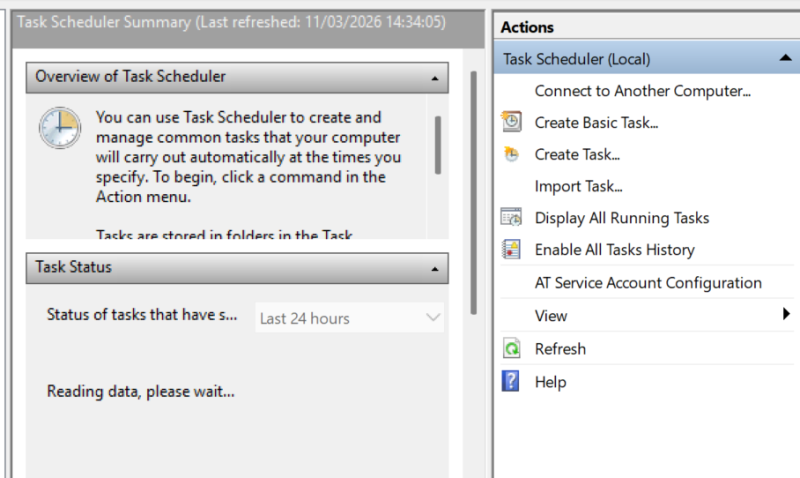
Create a task.
-
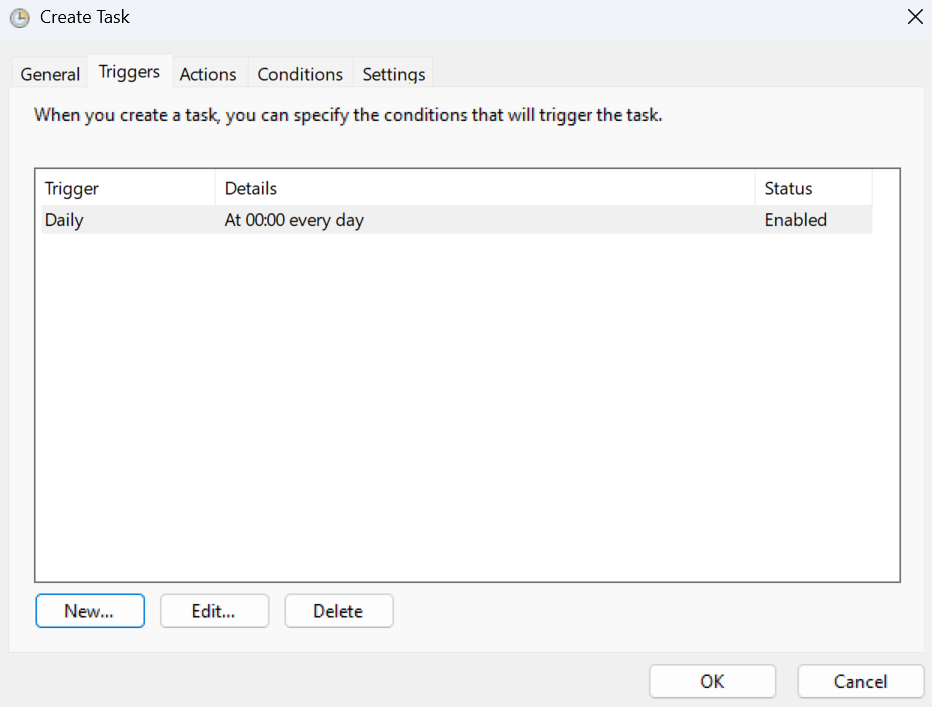
Set the trigger to “Daily”, and specify the actions to close and re-open the Splashtop Streamer executable.
Splashtop Poor Network Connection
Splashtop will often simply lag on a poor network, but it can also display an explicit error message. If Splashtop is slow, this can often be resolved by configuring the following settings:
The Splashtop Business app provides performance options under File > Options > Advanced. Set the FPS setting to a value that is easier on your system and the connection, since it can be turned up during the session anyway.
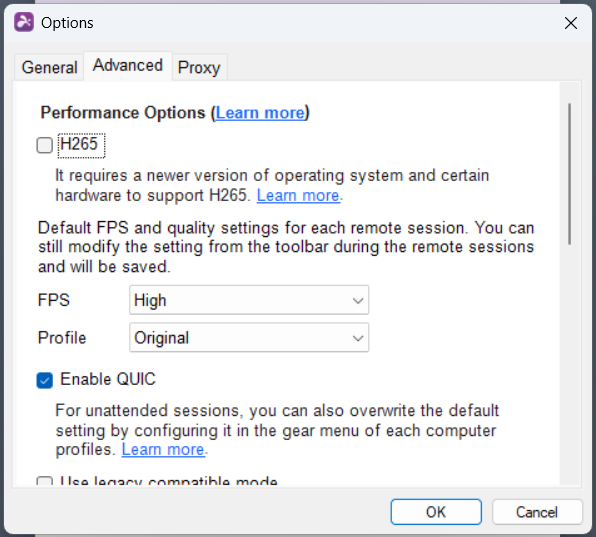
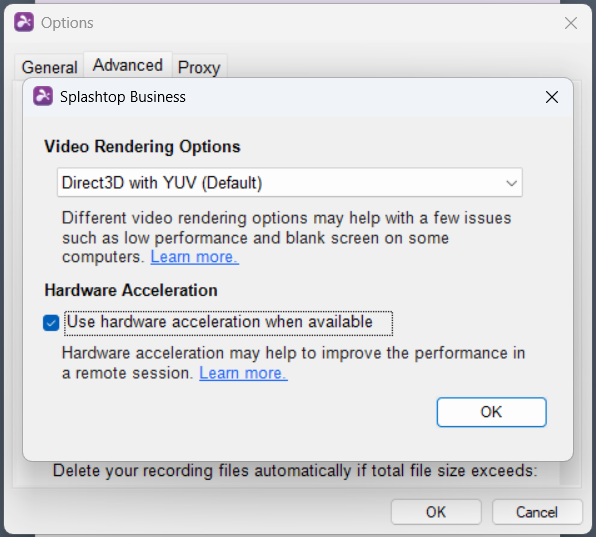
You can also use the same dialogue to change the renderer and enable or disable hardware acceleration. It’s worth experimenting with these options, whether the sessions crash or lag.
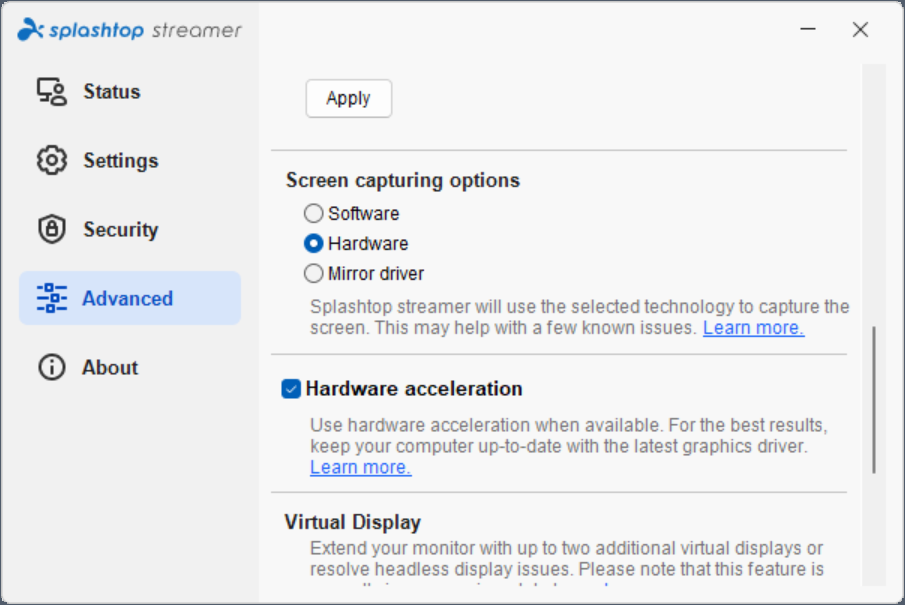
It’s also worth checking the Advanced tab of the Splashtop Streamer options, since they include both the screen capturing method (hardware or software), and also hardware acceleration on the host side.
Unable to Reach Splashtop Servers
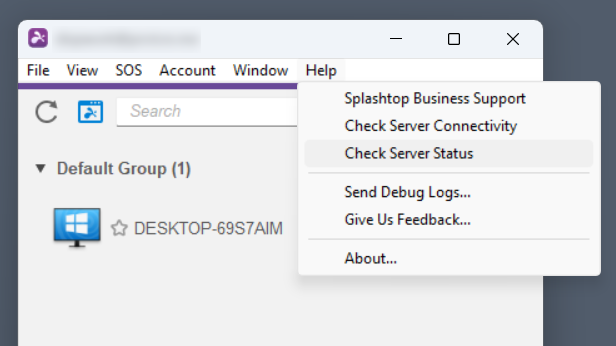
If you suspect that the Splashtop connection issues are related to a server malfunction, you can use an option in Splashtop Business under Help > Check Server Status.
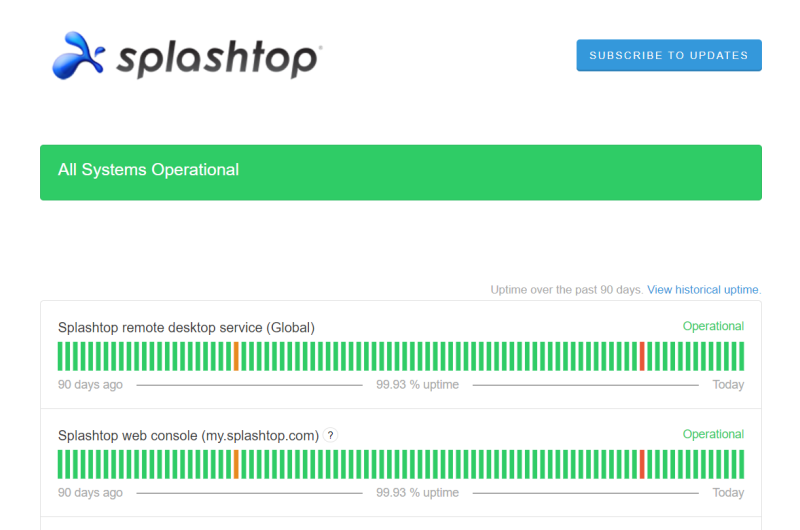
It simply opens a status tracking website that will provide you with the data on Splashtop server outages, with separate data for various services.
If you’re still getting server-related errors, but the status check is fine, it’s probably the Windows Defender Firewall causing this issue. You may need to create exceptions for the executables SRManager and SRFeature, which are found in the Splashtop Business folder.