
RDP vs SSH

- HelpWire
- →
- Blog
- →
- Remote Desktop Protocol
- →
- SSH vs Remote Desktop
In the world of information technology (IT), connecting to remotely located computer systems is a fairly routine task. The recent increase in the number of remote workers has forced system administrators to provide secure access using the available communication protocols. Two popular solutions for providing authenticated remote access to infrastructure elements are the Secure Shell (SSH) protocol and the Windows Remote Desktop Protocol (RDP).
• Explains the fundamental differences between RDP and SSH, including their access models, interfaces, and core use cases
• Breaks down how security, performance, automation, and operating system support differ between SSH and Remote Desktop
• Clarifies deployment and licensing implications, helping you understand cost, scalability, and compliance considerations
• Helps you determine which option fits your technical requirements, infrastructure size, and daily workflows
• Provides practical insights to help you choose the right remote access approach with confidence
Overview
RDP (Remote Desktop Protocol) and SSH (Secure Shell) are both widely used technologies for remote access, but they serve fundamentally different purposes. Before comparing their capabilities and security models, it is important to understand how each protocol works and which use cases it is best suited for.
RDP
Best for: Remote desktop access with a graphical interface, end-user support, system administration on Windows machines, and scenarios requiring full visual control of a remote system.
RDP is a Microsoft-developed protocol that enables users to connect to a remote computer and interact with its full graphical desktop environment. It is commonly used for remote administration, help desk support, and accessing workstations or servers as if sitting in front of them.
RDP supports features such as multi-monitor sessions, clipboard sharing, file transfer, printer redirection, and audio forwarding. While modern versions include encryption and Network Level Authentication (NLA), RDP is more resource-intensive than command-line-based solutions and typically requires careful security configuration when exposed to external networks.
SSH
Best for: Secure remote server administration, automation, DevOps workflows, and managing Linux or Unix-based systems via command line.
SSH is a cryptographic network protocol designed for secure, text-based remote access to systems. Instead of providing a graphical desktop, SSH allows administrators to execute commands, manage files, configure services, and automate tasks through scripts.
SSH is lightweight, fast, and highly secure by default, using strong encryption and key-based authentication. It is the standard tool for remote server management and is widely used in cloud environments, CI/CD pipelines, and infrastructure administration. While SSH can be extended to support port forwarding and tunneling, it is not intended for interactive desktop usage or visual remote support.
Features
You need to consider what each tool offers to understand RDP vs SSH differences. The main distinction has something to do with their interfaces: graphical (GUI) for RDP and text-based (CLI) for SSH.
1. Automation and Scripting
- • RDP: Offers very little automation. GUI-based workflows aren’t easy to handle via scripts. It’s mainly intended for hands-on use and often needs dedicated GUI automation tools.
- • SSH: A great choice for automated tasks. It easily connects to a script, a cron job, or a CI/CD pipeline—whatever fits. People use it all the time for setting up servers and doing DevOps stuff.
2. Performance
- • RDP: Bandwidth usage is higher because it sends graphical data. It can lag on slower connections, and factors like bitmap compression, resolution, and FPS can affect how it works.
- • SSH: Very lightweight. Performs smoothly even though your connections are slow or spotty and doesn’t use much bandwidth.
3. File Transfer Capabilities
- • RDP: You can copy and paste with the clipboard and access files on your local drives. It’s slower than SSH, so handling large or sensitive files can be tricky.
- • SSH: Reliable file transfer with SFTP and SCP. Moves data quickly, so it’s great for backups, migrations, and large files. All transfers are fully encrypted end-to-end.
4. Collaboration and Multi-User Sessions
- • RDP: Allows several users to connect at the same time on Windows Server. There are options for switching users and having separate desktops. Perfect for helpdesks or team support, as long as the right licensing (RDS CALs) is available. This highlights primary points in RDP vs SSH.
- • SSH: SSH supports multiple parallel sessions; however, it doesn’t provide built-in graphical screen-sharing.
5. Device Management
- • RDP: Used for adjusting workstation settings and configuring GUI applications. Moreover, it’s meant for giving remote tech support and visually monitoring systems.
- • SSH: Used for server setup and managing services (systemctl/service). It’s also designed for checking logs, handling packages, and running commands remotely (PowerShell or Windows Invoke-Command).
Feature Comparison
| Category | SSH | RDP |
|---|---|---|
| Speed | Very fast | Moderate |
| Bandwidth usage | Very low | High |
| Best for | Servers, DevOps workflows | Workstations, GUI applications |
| Automation | Excellent | Poor |
| Security | Very high | Medium–High |
| Collaboration | No | Yes |
| File Transfer | SFTP/SCP | Clipboard, drive sharing |
| Ideal network conditions | Works even on slow links | Requires a stable connection |
| Learning curve | Steep | Simple |
Interface Comparison
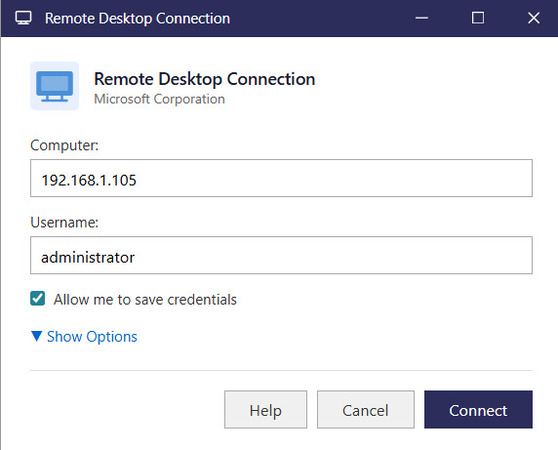
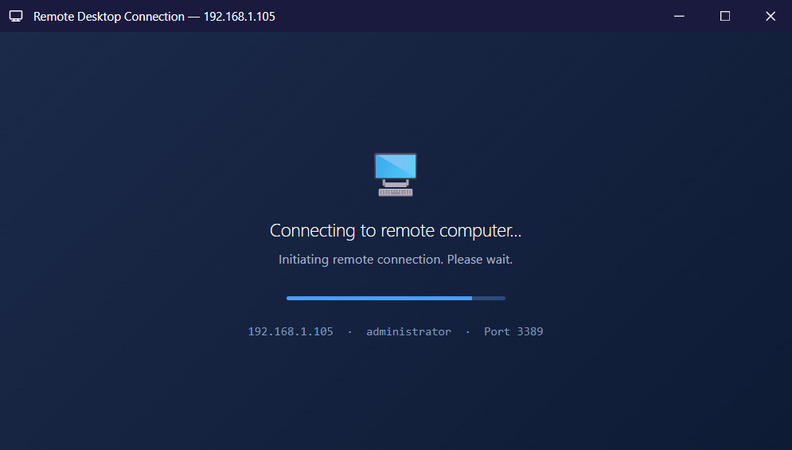
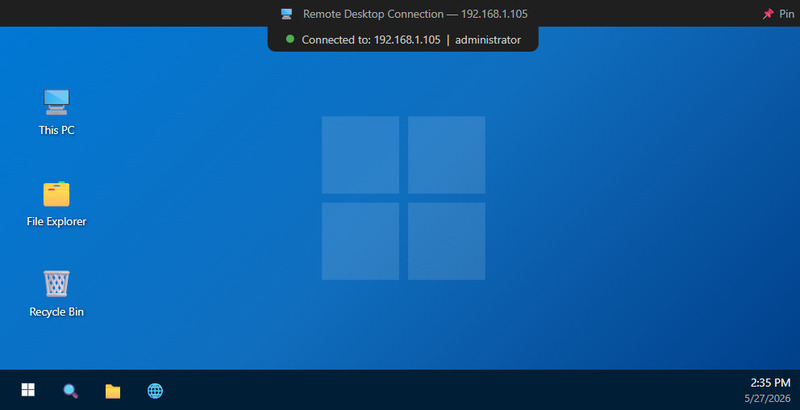
RDP provides a full graphical desktop interface that closely replicates working on a local computer. Users can open windows, move the mouse, launch applications, and manage files visually, making navigation intuitive and comfortable even for non-technical users. This GUI-based experience is ideal for everyday tasks that require direct interaction with software and the operating system.
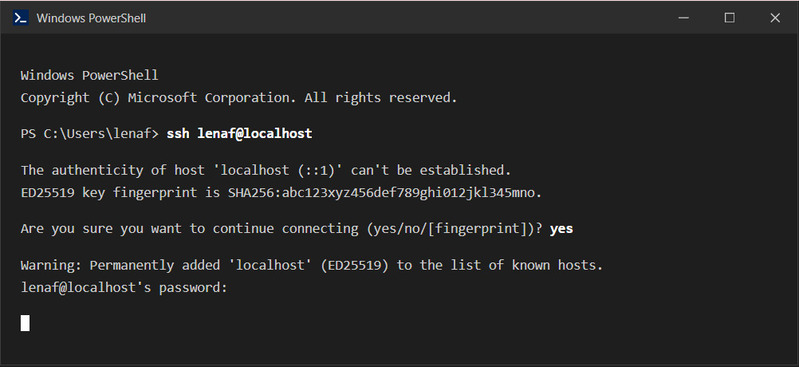
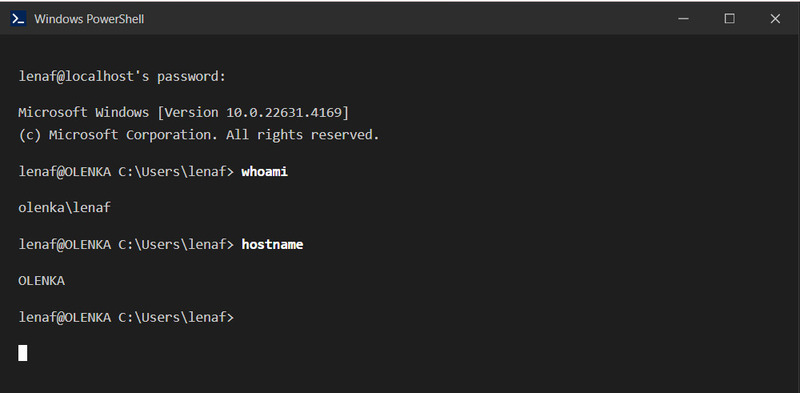
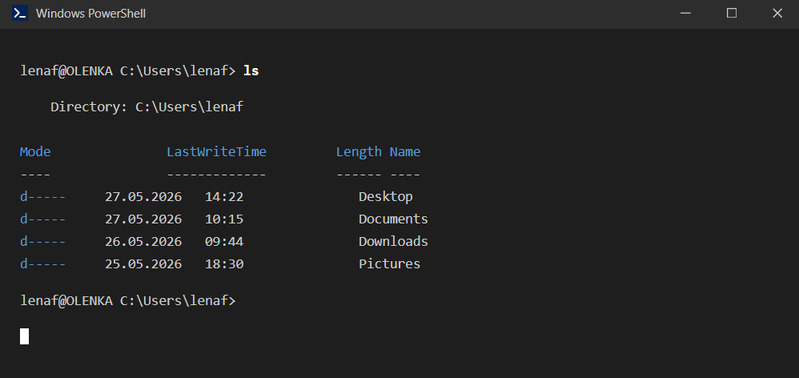
Meanwhile, SSH relies on a text-based command-line interface designed for speed and efficiency. All actions are performed through typed commands in a terminal, which keeps the connection lightweight but less beginner-friendly. While it lacks graphical elements and mouse interaction, SSH is well suited for administrators who prefer precise, keyboard-driven control.
Operating System Support
OS compatibility plays a key role when picking a remote access protocol.
RDP and SSH vary a lot in the operating systems they work on directly and the environments where they run best. The two also differ in platforms that need third-party tools to work properly. The table below shows their compatibility with various operating systems to help you decide when to use RDP vs SSH in your setup.
| Operating System | RDP | SSH |
|---|---|---|
| Windows | Client + full RDP server | Client + optional OpenSSH server |
| macOS | Official Microsoft RDP client | Built-in SSH |
| Linux | xRDP or other third-party servers | Built-in SSH |
| iOS | Microsoft Remote Desktop | Third-party SSH apps |
| Android | Microsoft Remote Desktop | SSH clients available |
| ChromeOS | Microsoft RDP client | Termux/SSH apps |
Security
Security is a top concern when using SSH or RDP for remote access. If a protocol is set up incorrectly, it can put the whole network at serious risk, so knowing how to secure RDP connection is crucial — and SSH as well.
RDP
To safeguard remote sessions, RDP relies on a range of built-in and configurable security measures such as:
- • Self-Signed Certificates: RDP authenticates servers using self-signed certificates, with the option to set up an enterprise CA for stronger trust.
- • TLS Encryption: Sessions are encrypted using TLS to protect data in transit.
- • Network Level Authentication (NLA): Requires users to log in before starting a full RDP session, preventing unauthorized access to system resources.
- • Group Policies: Configurable policies enforce access rules and help harden the setup.
- • Active Directory Integration: Connects to AD to centrally manage and apply security policies.
- • IP Allowlists and Firewalls: Restrict which addresses can initiate connections.
- • Audit Logs: A range of logs support activity tracking, auditing, and incident response.
RDP can be secure if configured correctly, but it requires careful setup and keeping port 3389 off the public internet.
SSH
- • AES and ChaCha20 Encryption: Modern algorithms protect all data transmitted during sessions.
- • Public/Private Key Authentication: Strongly recommended over passwords, with server key pairs used to verify identity.
- • Multi-Factor Authentication (MFA): Built-in support adds an extra layer of account security.
- • Host Verification: Public key fingerprints confirm the server is genuine and trusted.
- • Traffic Monitoring: SSH traffic is easy to identify and filter, helping network tools flag unauthorized access attempts quickly.
- • Certificate-Based Authentication: Supports certificates alongside key-based methods for flexible access control.
- • IP Restrictions and Role-Based Access: Connections can be limited to specific addresses, and forced commands can enforce role-based permissions through configuration.
Usage Scenarios
Choosing between RDP and SSH often comes down to what you actually need to do. The nature of your tasks — whether they involve a graphical interface or command-line operations — plays a key role in determining which protocol fits your workflow better.
RDP
RDP is the right choice when tasks require a visual interface to work with applications and interact directly with the system.
- • need full access to a Windows desktop from another location
- • support users who depend on GUI applications
- • offer remote helpdesk or technical support
- • use Office, accounting, or design tools that need a visual interface
- • connect to work PCs with all their installed software
- • run Windows Server with multi-user setups through Remote Desktop Services (RDS)
- • need to watch and interact with remote desktops in real time
- • control devices using the mouse and on-screen windows
SSH
SSH is handy for safe tasks you do by typing commands, like setting up servers or updating software. It’s widely used for managing infrastructure.
- • manage Linux, Unix, or macOS servers
- • work with cloud platforms like AWS, Azure, or GCP and use infrastructure as code (IaC)
- • roll out apps and run automation scripts
- • handle CI/CD pipelines
- • set up and manage services such as nginx, Apache, Docker, Kubernetes, or systemd
- • move files or backups using SFTP or SCP
- • want fast access without having to use heavy bandwidth
- • need fast, low-bandwidth connectivity
- • maintain VPS hosting or live production servers
Integration
Commercial remote desktop tools usually provide everything you need, including links to helpdesk software, ticketing, and automation systems. SSH and RDP work differently — they serve as base technologies, not full-featured applications. Even so, teams can still plug the RDP and SSH protocol into larger IT setups in their own ways. The next section shows how each one works within modern infrastructure, management tools, and DevOps environments.
| Integration Feature | RDP | SSH |
|---|---|---|
| Active Directory / Group Policy | Native integration | Not applicable |
| MDM / Endpoint Management | Works with Intune, MECM | Not applicable |
| Helpdesk & Ticketing Tools | Common in support workflows | Limited |
| VPN / Zero Trust Platforms | Frequently used together | ⚠️ Possible but manual |
| CI/CD Pipelines | Not supported | GitHub Actions, GitLab CI, Jenkins |
| Configuration Management | Not supported | Ansible, Chef, SaltStack |
| Container Orchestration | Not supported | Kubernetes, Docker |
| File Transfer Tools | ⚠️ Limited | rsync, SCP, SFTP |
| Version Control / Git | Not supported | Git over SSH |
| Automation / Scripting | Weak | Fully scriptable |
Automation isn’t RDP’s strong suit. However, it integrates easily with Windows infrastructure and the enterprise tools that large organizations use. And so, many IT teams pick it when deciding between RDP vs SSH.
SSH works closely with infrastructure tools because it’s open, scriptable, and widely supported. It forms the backbone of automated server management.
Deployment & Licensing
Both SSH and RDP are free at the protocol level, but how they’re set up and licensed can be very different. These differences matter for individuals and businesses. This section covers how each option is deployed, what specific platforms they support, and what licensing rules may apply. You can stay compliant and pick the most practical solution between SSH vs Remote Desktop with this information.
RDP
RDP is free to use for connections, while running an RDP server depends on having the right Windows license. And more than one user needing access at the same time makes things more complicated.
For Windows Home
- • Remote Desktop hosting isn’t available
- • There is only the RDP client
For Windows Pro / Enterprise
- • Remote Desktop hosting is included
- • You don’t need an extra license for a single administrative session, but IT staff must use it only for management tasks, not everyday work.
For multiple simultaneous users (Windows Server)
You need:
- • Windows Server license
- • RDS Client Access Licenses (CALs) for each user or device that connects to the server
Many organizations get confused about RDP here. Legal multi-user access requires RDS CALs, and skipping to buy them can easily lead to licensing problems. This is one of the key RDP vs SSH differences businesses should understand early on.
SSH
- • free
- • open source
- • included by default on Linux, Unix, and macOS
- • an optional OpenSSH server in Windows 10 and 11 that you can install through Windows Features or PowerShell.
SSH has no licensing costs. And that’s what makes it a budget-friendly option for big server setups and automated tasks.
Pros and Cons
RDP
Pros
- Provides a complete Windows graphical interface
- Very beginner-friendly and easy for end-users
- Enables live troubleshooting and remote helpdesk tasks
- Works well with multiple monitors
- Ideal for office and productivity apps
- Let's multiple users connect simultaneously on Windows Server with RDS CALs
- Integrates seamlessly with Microsoft tools and services
Cons
- Uses more bandwidth than lightweight protocols
- Performance can drop on slow or weak connections
- Historically had more security vulnerabilities (e.g., BlueKeep)
- Needs careful setup to stay secure, especially with NLA
- Exposing port 3389 can be risky
- The GUI adds extra attack surface
- Multi-user licensing with RDS CALs can get expensive
SSH
Pros
- Highly secure right out of the box
- Very lightweight and uses minimal bandwidth
- Perfect for automation and scripting tasks
- Great for managing servers remotely
- Included by default on most operating systems
- Simple to secure
- Fast file transfers with SFTP or SCP
- Allows multi-factor and key-based authentication
- Performs reliably even on slow or unstable networks
Cons
- No graphical interface
- Challenging to get started with for beginners
- Limited options for collaboration
- Needs familiarity with the command line
- Security risk if keys are exposed or compromised
HelpWire: Secure and Easy-to-Use Alternative
Beyond RDP and SSH, HelpWire offers a user-friendly alternative for secure remote access. It supports both on-demand and unattended access, making it ideal for real-time support and continuous system management. With built-in AES-256 encryption and a simple graphical interface HelpWire suits modern IT workflows that demand flexibility and security.
Key Features:
-
Encrypted connections, secure authentication, and protected sessions by default.
-
Cross-platform
-
No extra licenses
Free remote access without added costs.
-
Easy setup
o complex server configuration required.
-
Connect securely anytime.
If RDP requires additional licensing, complex infrastructure setup, and ongoing security hardening, and SSH feels too technical for everyday use or GUI-based workflows, HelpWire provides a practical middle ground. It combines the convenience of a graphical remote desktop with modern built-in security and minimal configuration, making it a straightforward choice for daily remote support, unattended access, and small-to-mid-size IT teams.