
AnyDesk Keyboard Not Working Quick Fixes

- HelpWire
- →
- Blog
- →
- Anydesk not working
- →
- AnyDesk Keyboard Not Working
AnyDesk is a great remote tool, but it can sometimes have lapses when accessing computer peripherals like remote keyboards. When such lapses occur, either certain shortcuts don’t work or the remote keyboard becomes entirely unresponsive. In this article, we’ll show you how to fix the AnyDesk keyboard not working using a few simple methods.
AnyDesk Keyboard Shortcuts Not Working
Keyboard shortcuts are among the most common casualties of AnyDesk remote sessions. The issue can stem from layout mismatches between local and remote keyboards, restricted clipboard access, or Mac-specific settings that block shortcut transmission.
Solution 1: Restart AnyDesk
This will fix any minor glitches that might be the reason behind AnyDesk keyboard shortcuts not working.
Solution 2: Switch from AUTO to 1:1 Keyboard Layout
If only your keyboard shortcuts don’t push through, such as AnyDesk copy-paste not working, there might be translation issues between the local and remote keyboards. For example, pressing A on a local QWERTY keyboard will output a Q on a remote AZERTY keyboard.
To ensure direct input, click the keyboard button at the top and choose 1:1. This will use your physical keyboard’s layout.
Solution 3: Enable access to the computer’s clipboard
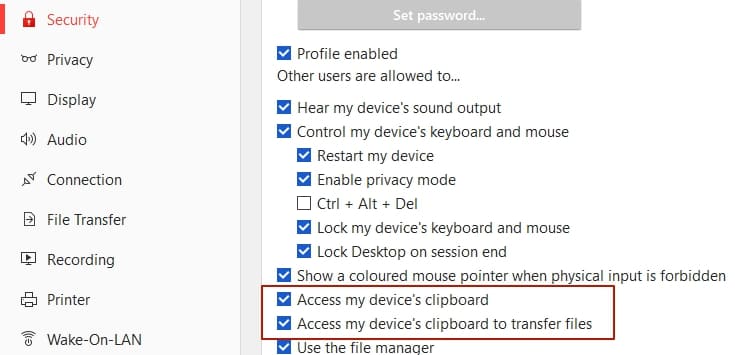
If you encounter that the Ctrl+C, Ctrl+V hotkeys do not work, enable the following options: “Control my computer’s keyboard and mouse”, “Access my computer’s clipboard”, “Access my computer’s clipboard to transfer files” in the Security tab.
Solution 4: Enable “Transmit Keyboard Shortcuts” in AnyDesk for Mac
In AnyDesk for Mac, go to Settings > User Interface. Then, enable Transmit keyboard shortcuts.
This will ensure that all standard shortcuts on Mac will be transmitted and applied to the remote Mac.
Solution 5: Enable “Accept All Remote Keyboard Shortcuts” in AnyDesk for Mac
If you want to use the custom shortcuts on your local Mac, go to Settings > User Interface and enable Accept all remote keyboard shortcuts.
Some permissions might be asked, depending on what these shortcuts do.
Cross-Platform Shortcuts
During cross-platform sessions, note that the remote computer only accepts the shortcuts defined on its operating system. Remember the following OS-specific shortcuts.
| Windows (and Linux) | macOS |
|---|---|
| Ctrl | Control |
| Alt | Option |
| Windows (Super for Linux) | Command |
Copying and Pasting from Windows (or Linux) to macOS
-
Press Ctrl + C on Windows or Linux.
-
Press Windows (or Super) + V on macOS.
Copying and Pasting from macOS to Windows (or Linux)
-
Press Command + C on macOS.
-
Press Control + V to paste.
Opening macOS Spotlight from Windows (or Linux)
-
Press Windows (or Super) + Space.
AnyDesk Keyboard Completely Unresponsive
Solution 1: Enable Remote Keyboard Access
You might have no access to the remote keyboard at all. Ask the owner to perform these steps on the remote computer.
-
In AnyDesk, go to Settings > Privacy.
-
Enable the Control my device’s keyboard and mouse option.
Solution 2: Request Elevation
Windows User Account Control settings might prevent changes without approval from an administrator account. Request for elevated access with these steps.
-
On your local machine, open the Actions drop-down.
-
Select Request elevation.
-
On the remote computer, the user should accept the UAC prompt for elevation.
-
Once allowed, you’ll see a new remote session invitation.
-
Accept the invite.
Solution 3: Allow Unattended Access
Unattended access allows you to operate the computer even without someone manning the remote device. Enabling this might bypass any restrictions on keyboard access.
-
In AnyDesk, go to Settings > Security.
-
Under Permission Profile, open the drop-down and select Unattended Access.
-
Click Set Password.
-
Enter your preferred key and click Apply.
Solution 4: Request for Full Access When Sending an Invite
When sending a session request, change the access profile from Default to Full Access. This will give you complete access to the computer’s features, including its keyboard.
-
Go to New Session and click Invite.
-
Open the Profile drop-down and choose Full Access.
-
Click Invite.
Solution 5: Update AnyDesk
Your AnyDesk desktop app might have encountered some bugs causing issues with keyboard access. Install updates, which contain important improvements and security patches, to fix the issue.
Solution 6: Reinstall AnyDesk
If updating doesn’t work, reinstall the app. This way, you can use a fresh copy of AnyDesk and lower the chances of encountering unresponsive keyboards.
Why HelpWire Is the Go-To Choice for Keyboard Control, Not a Temporary Fix
You’ve already restarted the app, toggled layouts, chased down permissions, and the keyboard still breaks mid-session? That’s the issue with patching AnyDesk problems: the fixes don’t stick. HelpWire, as one of the best alternatives to AnyDesk, avoids these input glitches and gives you consistent keyboard control across sessions. It’s free and takes just a minute to start.
HelpWire vs AnyDesk Free: What You Actually Get
| Feature | HelpWire | AnyDesk Free |
|---|---|---|
| Keyboard input stability | ✅ Consistent across sessions | ⚠️ Random dropouts, unresponsive input |
| Cross-platform shortcuts | ✅ Reliable mapping (Win/macOS/Linux) | ⚠️ Can misfire or need manual fixes |
| Copy/paste functionality | ✅ Works without reconfiguration | ⚠️ Requires enabling settings, can fail |
| Session reliability | ✅ Stable control, fewer interruptions | ⚠️ Glitches after reconnects or updates |
| Setup effort | ✅ Minimal setup | ⚠️ Requires tweaking multiple settings |
Fix AnyDesk Keyboard Not Working on Mobile (iPhone & Android)
You may run into issues related to the keyboard while you use a desktop app on your phone. The common reason being the keyboard access is not turned on. This happens quite often in apps like AnyDesk and other similar tools.
To resolve the AnyDesk keyboard not working Android issue, you’ll need to manually switch on the keyboard during your remote session. You can do this on an iPhone or an Android to get the keyboard working.
-
Open the remote desktop app on your mobile device.
-
Begin a new session. Then, connect to the remote computer you want to control.
-
Once the remote screen loads, tap the app’s logo or toolbar. There, choose the Keyboard icon.
-
The on-screen keyboard should appear after that. You can now type and use the remote computer as expected.
Fix for iPhone Users
If the AnyDesk iPhone keyboard not showing issue happens to you, try this iOS gesture:
- • While a session is active in AnyDesk, swipe from the right edge of the screen toward the middle and just tap the Keyboard icon to make the problem disappear.