
Having trouble with RDP error code 0x4? Windows App (formerly Microsoft Remote Desktop) doesn’t always work perfectly. This error can stop your session, interrupt your work, and keep you from accessing important files or tasks. In this guide, we’ll explore what is causing this error and share practical, time-saving fixes to restore your remote connection quickly.
RDP Error Code 0x4 Explained
Remote Desktop error code 0x4 is an access error that suggests the remote desktop client either failed to establish a connection with the server or had an active session interrupted. This usually occurs because of network issues, outdated software, misconfigured settings, or firewall blocks. The following sections cover each cause and how to address it.
This error can also appear alongside extended error code 0x0, which means the server returned no additional information about why the connection failed. Typically, this combination points to a security or authentication mismatch between the client and server. You’ll find the fix for this specific combination later in this guide as well.
Common Causes of Error Code 0x4
RDP error 0x4 often arises from various issues, making it hard to maintain a stable connection. Here are the most common causes and practical steps to resolve them:
- Poor network connection. A weak or unstable network is one of the most frequent triggers for RDP error code 0x4. Problems like lost data packets or high delays between your server and the RDP client can affect the connection.
Solution: Check your network path and ensure your ping responses are steady to troubleshoot. - Outdated RDP software. An obsolete RDP client or server software can cause compatibility issues, leading to RDP error code 0x4. Missing updates or patches for known bugs might also block your stable connection.
Solution: Make sure the client and server software are up to date. - Misconfigured system settings. Incorrect RDP system configurations or settings on either the server or client side can result in connection failures, too. Problems like misconfigured domain policies or inadequate user permissions may block RDP access.
Solution: Review and adjust your configuration to fix these issues. - Firewall blocking RDP traffic. While protecting your network, firewalls sometimes block RDP connections. If TCP port 3389, the default port for RDP, is misconfigured, it may trigger RDP error code 0x4.
Solution: Go through and update your firewall settings to allow RDP traffic.
6 Ways to Resolve Remote Desktop Error Code 0x4
1. Verify That RDP Services are Running
-
Open Services
Press Windows + R, typeservices.msc, and hit Enter. -
Locate Remote Desktop Services
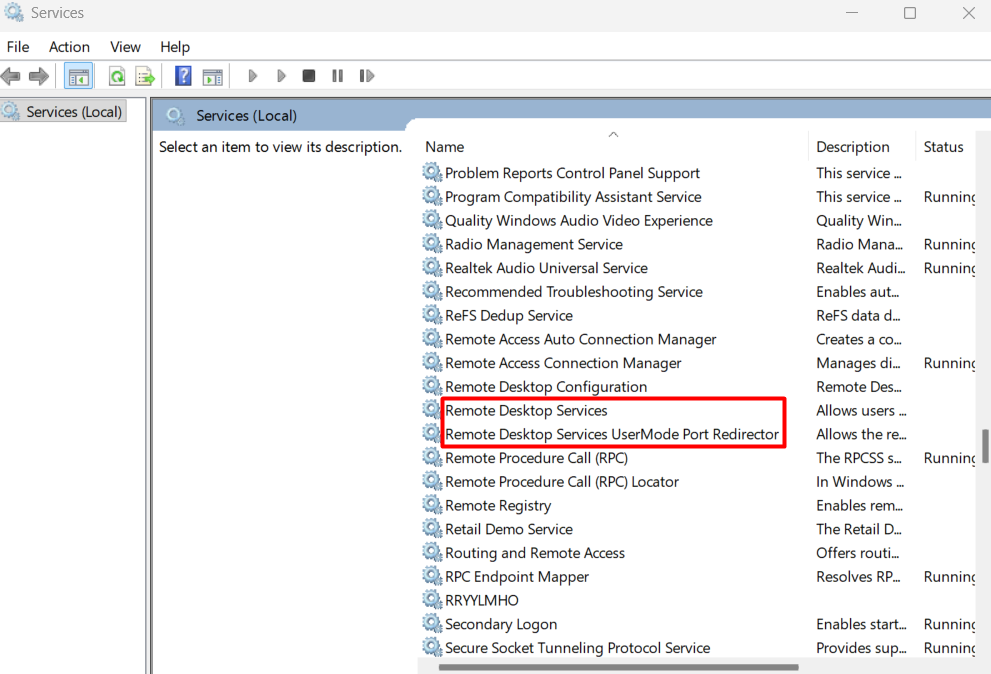
Scroll down and find Remote Desktop Services and Remote Desktop Services UserMode Port Redirector.
-
Start or restart Remote Desktop Services
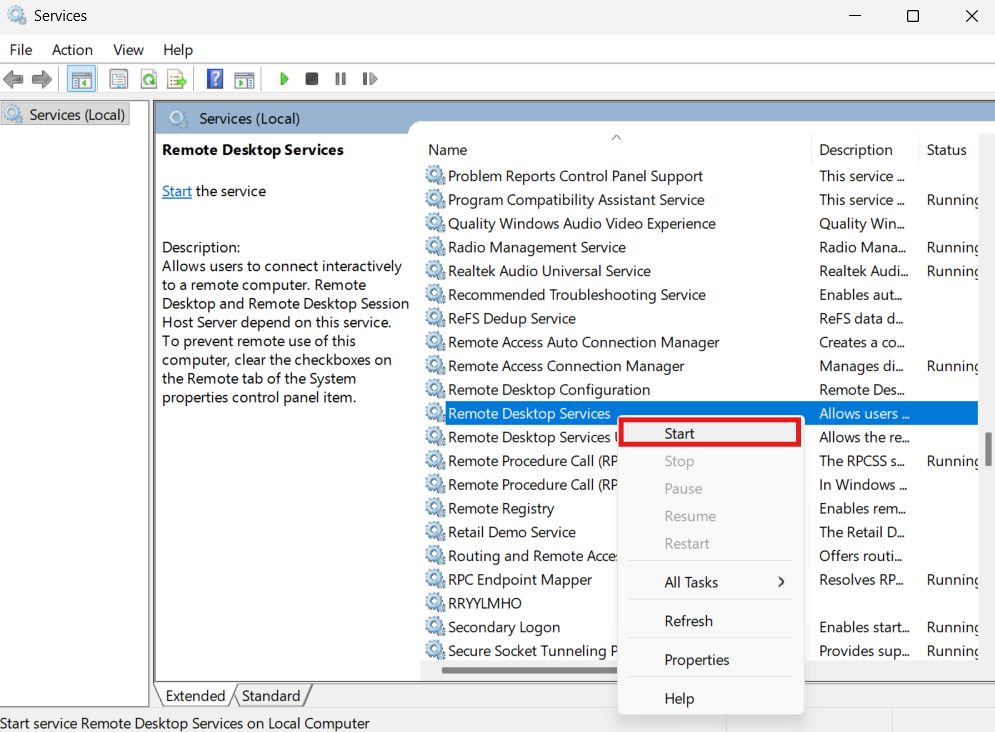
Remote Desktop Services should show Running. If it’s stopped, right-click it and select Start. If it’s already running, right-click and choose Restart to clear any transient fault.
-
Check UserMode Port Redirector
Note that Remote Desktop Services UserMode Port Redirector runs on manual startup by default and may appear stopped. Only start it if you need device or drive redirection features. Once done, try your RDP connection again.
2. Ensure Your Network Connection is Stable
-
Use the Run box
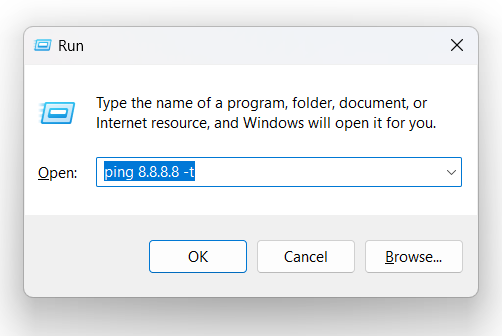
Press your Windows and R buttons simultaneously, then type
ping 8.8.8.8 -tand press Enter.
-
Check pin results
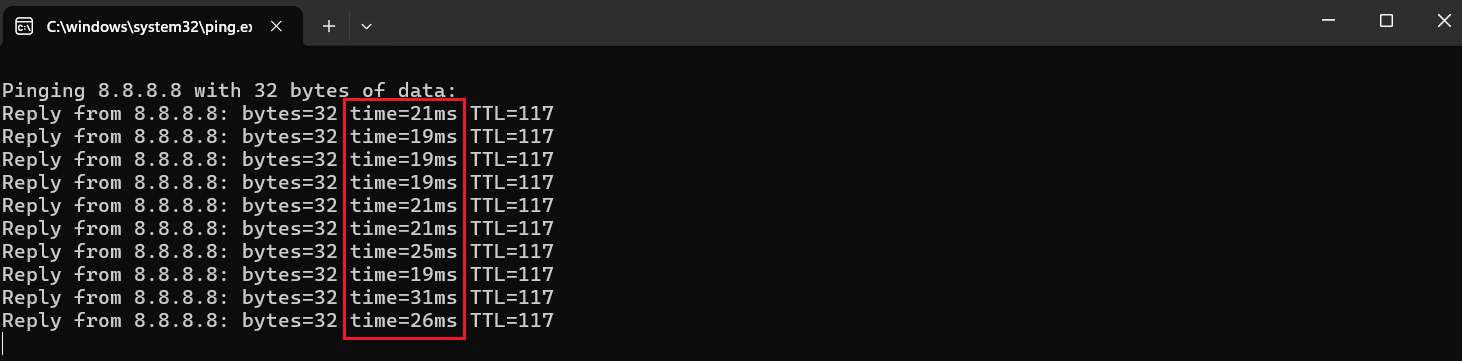
Your ping results reveal the state of your network. Small variations of consistent time values indicate a stable connection, while large fluctuations could mean your network is struggling.
3. Confirm Your Software is Up to Date
Check Windows updates
Go to your Settings, type in Update and Security, and click Windows Update. You can then check and install any available updates and restart your computer.
4. Enable Remote Desktop and Ensure User Permissions
Check that the user permissions are properly set on both the server and client systems, then confirm that the Remote Desktop is enabled. Here’s how to do it:
-
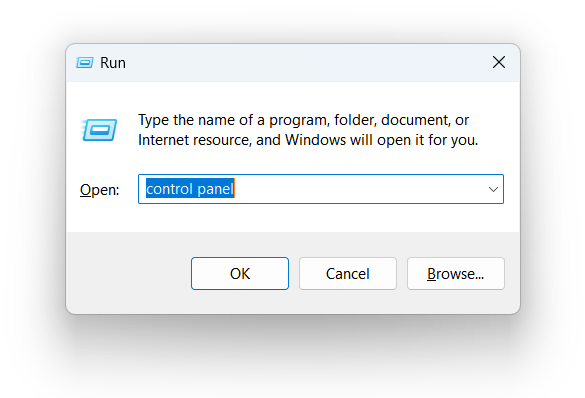
Open Control Panel
Press your Windows and the R buttons simultaneously, then type
control paneland press Enter.
-
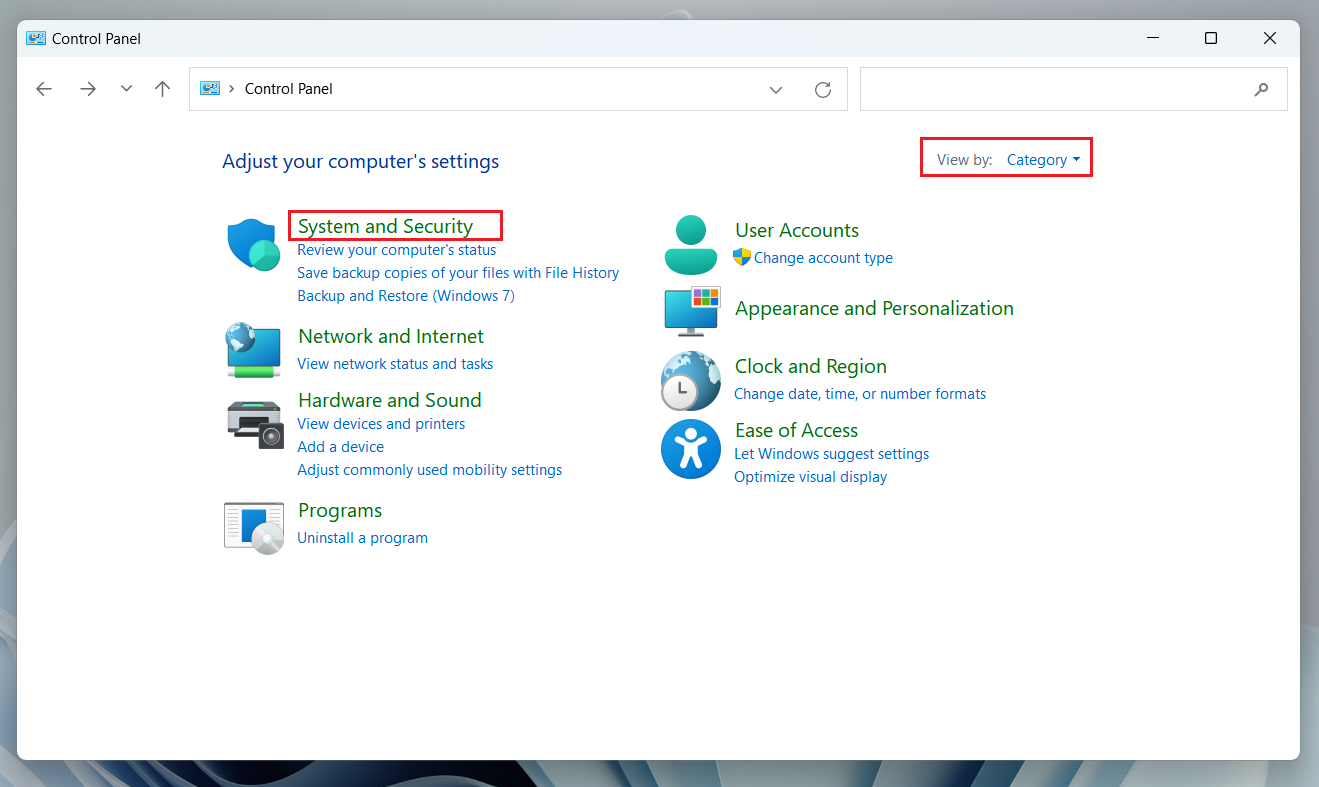
Go to System and Security
Open your Control Panel, choose View by Category, and then click on System and Security.
-
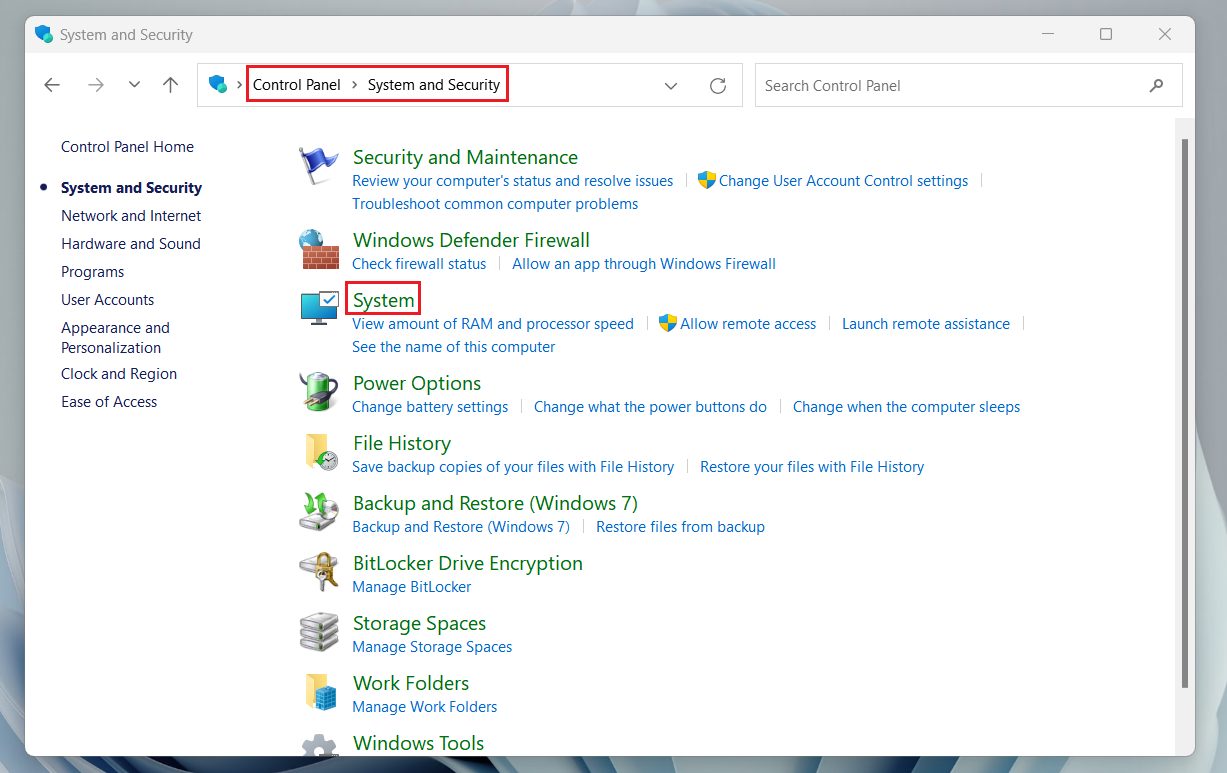
Open Remote Desktop
In System and Security, click on System and then Remote Desktop settings.
-
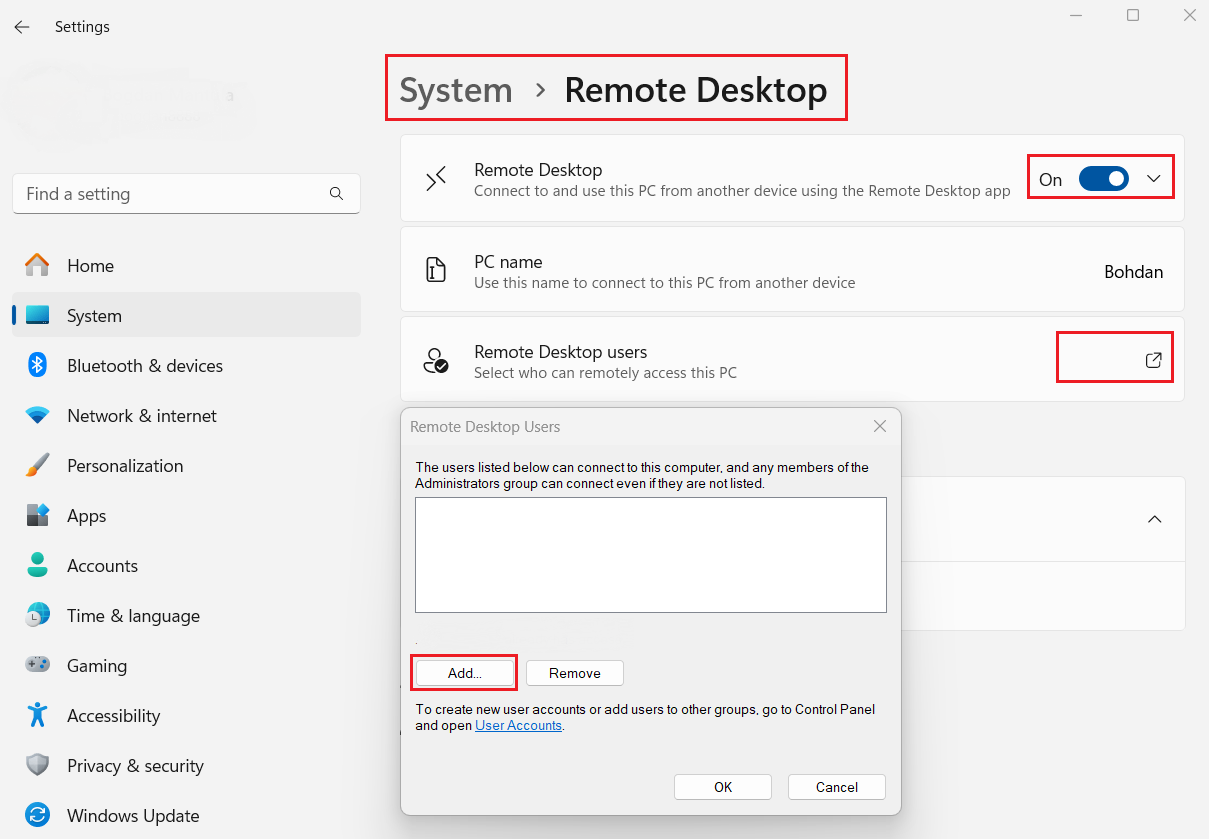
Enable Remote Desktop and verify remote access permissions
Ensure the Remote Desktop toggle is turned on. If it’s off, switch it on and follow any prompts to confirm the change.
Next, in the Remote Desktop tab, click Remote Desktop Users to check if your account has remote access permissions. If needed, add a new user.
5. Allow remote access on the target PC
-
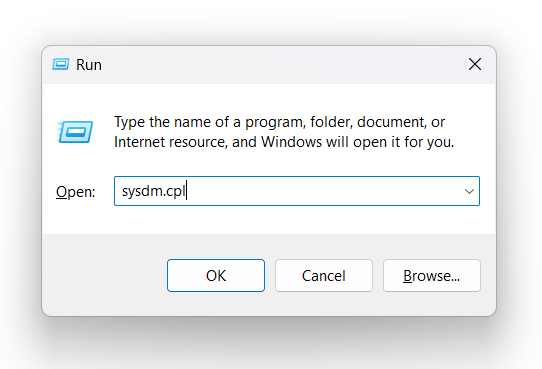
Use the Run box
Press your Windows and R buttons simultaneously, type
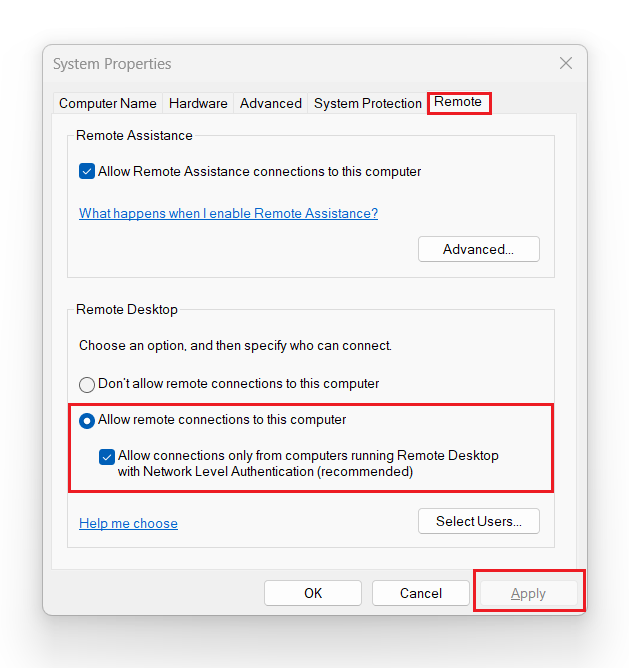
sysdm.cpl, and hit Enter. This will open the System Properties window. Next, go to the Remote tab.
-
Review the remote connection permission
Select the option Allow remote connections to this computer and make sure only connections from RDP clients with Network-Level Authentication are allowed. This confirms that the user account attempting the RDP connection has the correct permissions without any access issues.
6. Check Firewall and Security Settings
Look at the firewall settings on both the client and server sides and ensure they are configured to allow RDP connections:
-
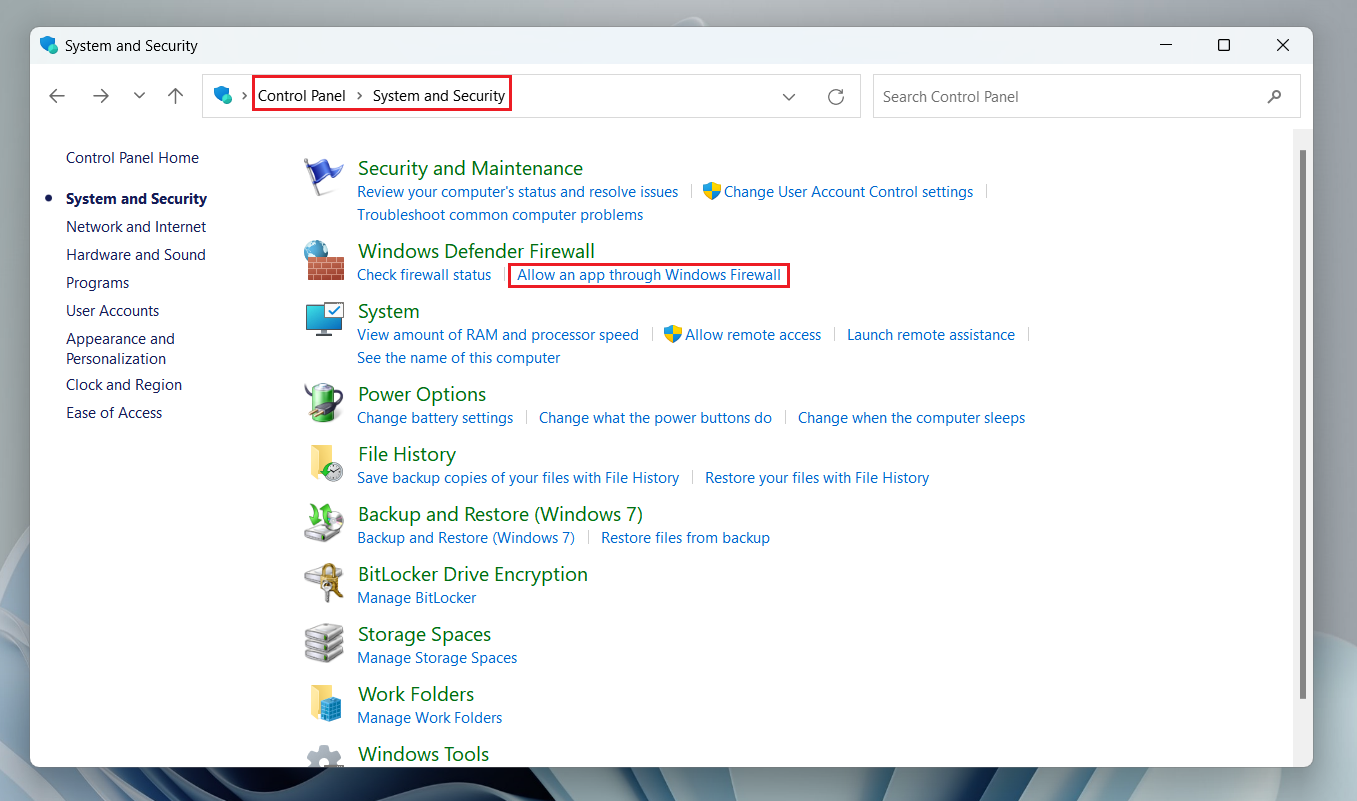
Allow apps through Windows Firewall
Go to your Control Panel and click on System and Security, then navigate to Windows Defender Firewall. Select Allow an app through Windows Firewall.
-
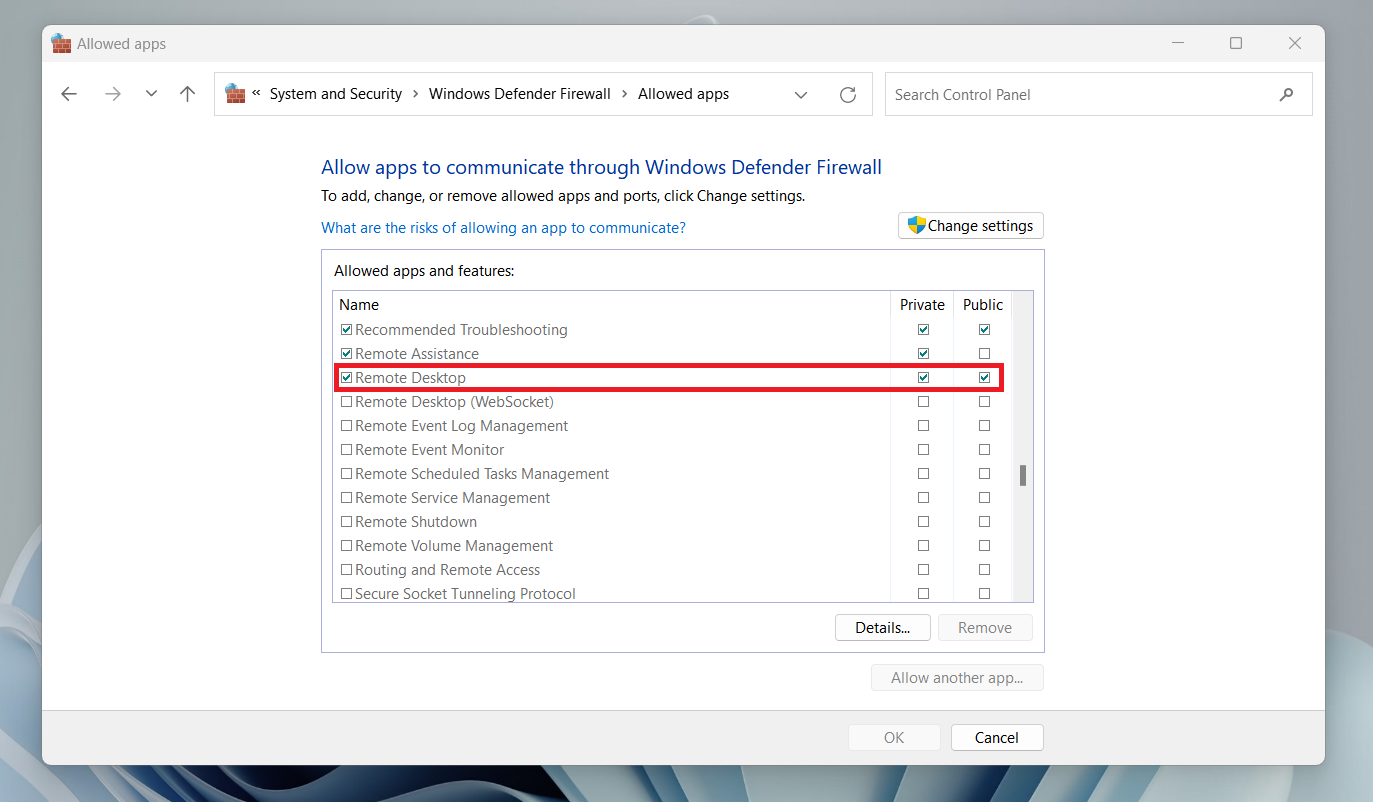
Enable Remote Desktop in firewall settings
Find and check the Remote Desktop box, then click OK to save the changes. This will enable RDP connections through the firewall and may help resolve the Remote Desktop error code 0x4.
-
Troubleshoot security and firewall settings
If the issue continues, try temporarily disabling or adjusting your antivirus software. You may also need to disable or tweak your firewall settings. If your security software or network devices filter your connection, disable them temporarily to troubleshoot and resolve the RDP failure. If, instead of a dropped session, your Remote Desktop shows
we couldn’t connect because the PC can’t be found, you’re likely dealing with a different but related error. See this guide to Remote Desktop error 0x104, which covers DNS failures, network discovery, and firewall blocks that prevent the client from reaching the host at all.
Fixing Edge Cases of Error Code 0x4
1. Resolve MTU Size Issues
- • You’re connecting over a VPN
- • There’s packet fragmentation
- • The network path has lower MTU limits
-
Open Command Prompt as administrator
Press Windows + R, type
cmd, and press Ctrl + Shift + Enter to open it with administrator rights. If a User Account Control prompt appears asking for permission, click Yes to proceed. -
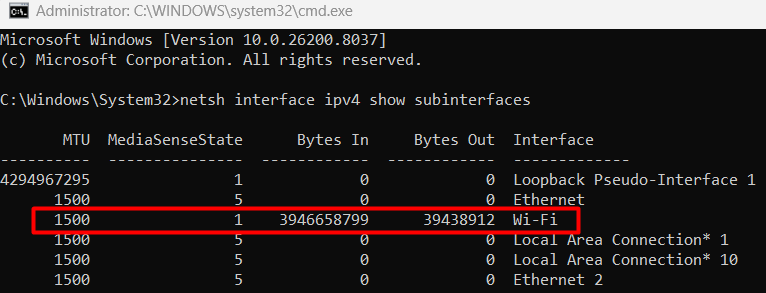
Check your current MTU value
Type the following command and press Enter:
netsh interface ipv4 show subinterfaces. Note the MTU value for your active network interface.
-
Lower the MTU value
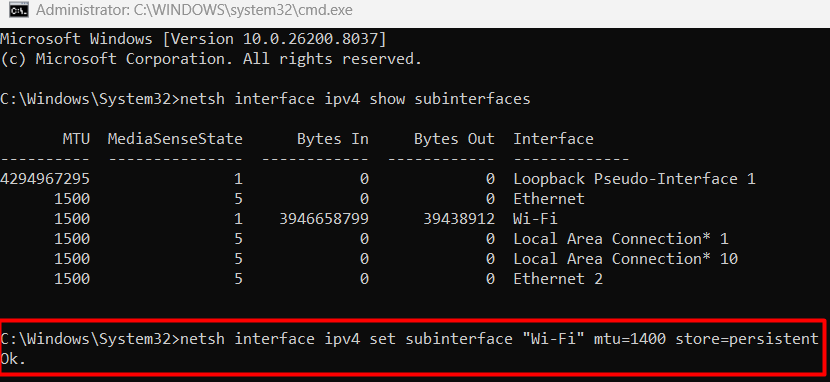
If the value is at 1500 (the default), try lowering it to 1400 as a starting point by running:
netsh interface ipv4 set subinterface “Your Interface Name” mtu=1400 store=persistent.Replace
“Your Interface Name”with the name shown in the previous step, such asEthernetorWi-Fi.
-
Test the connection and adjust if needed
Restart your network adapter and attempt the RDP connection again. If the connection still fails, adjust the value further in increments of 10. Some network environments (especially over VPN) may require values as low as 1350.
2. Increase MaxOutstandingConnections
- • You have many simultaneous users
- • The server is under heavy load
-
Open Registry Editor
Press Windows + R, type
regedit, and hit Enter. Click Yes if prompted by User Account Control. -
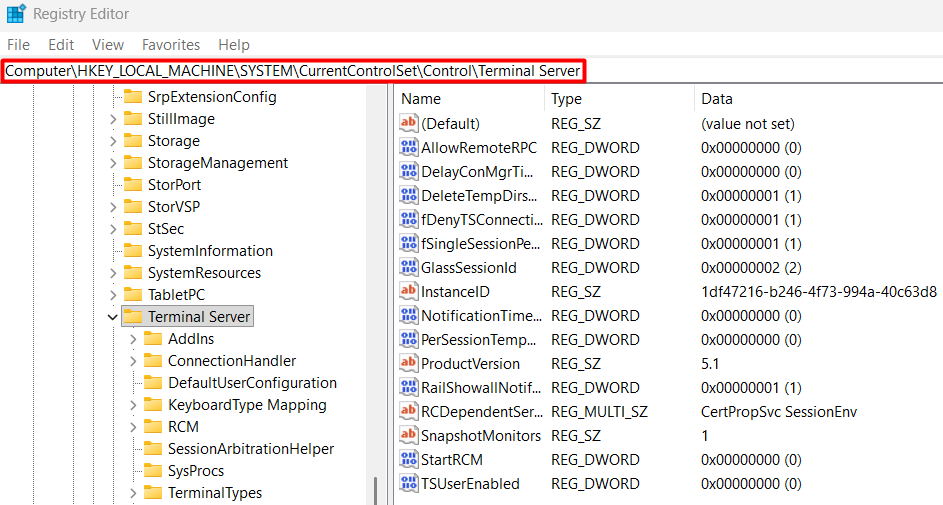
Navigate to the Terminal Server key
Paste the following path into the Registry Editor address bar and press Enter:
Computer\HKEY_LOCAL_MACHINE\SYSTEM\CurrentControlSet\Control\Terminal Server.
-
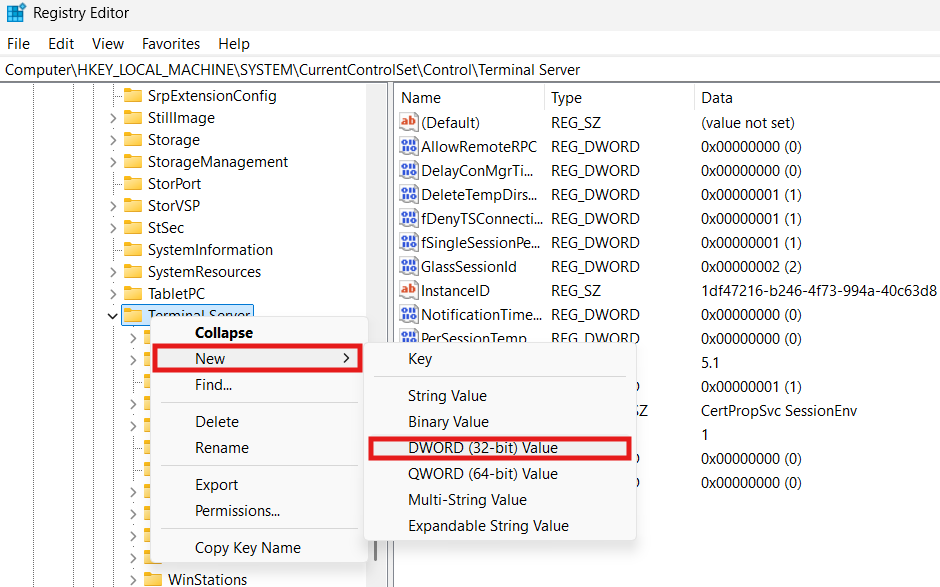
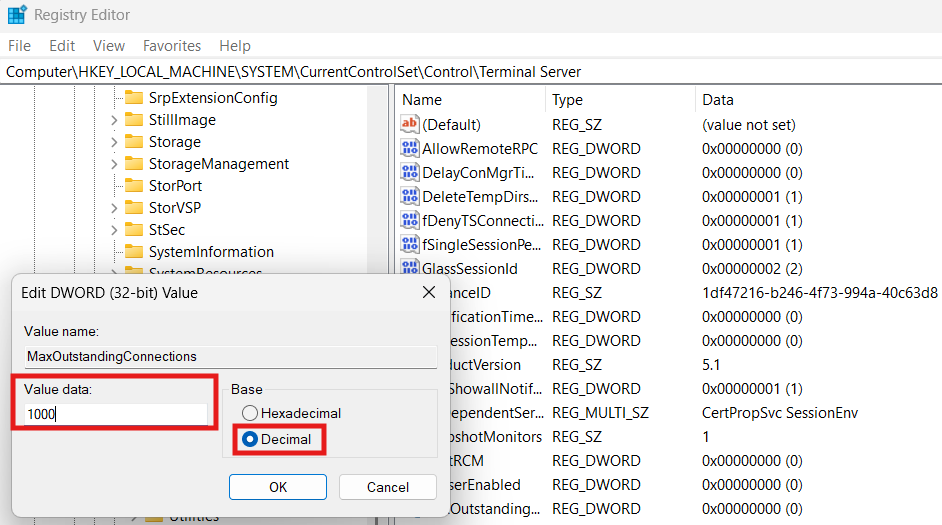
Find or create MaxOutstandingConnections
Look for MaxOutstandingConnections. If it doesn’t exist, right-click the Terminal Server folder, select New → DWORD (32-bit) Value.
-
Set the value
Name it
MaxOutstandingConnections. Right-click, select Modify, and set its value to 1000, Decimal.
Resolving RDP Error Code 0x4 Extended Error Code: 0x0
-
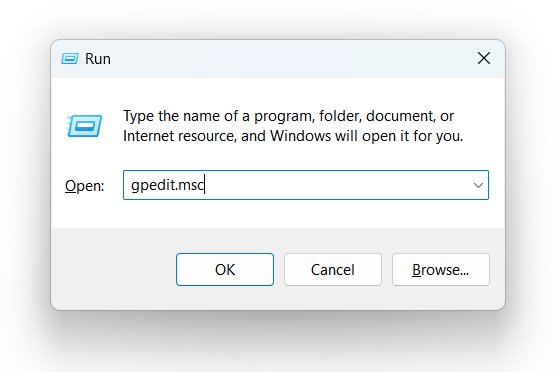
Open Group Policy Editor
Type
gpedit.mscto open the Group Policy Editor in the Run dialog (press Win + R).
-
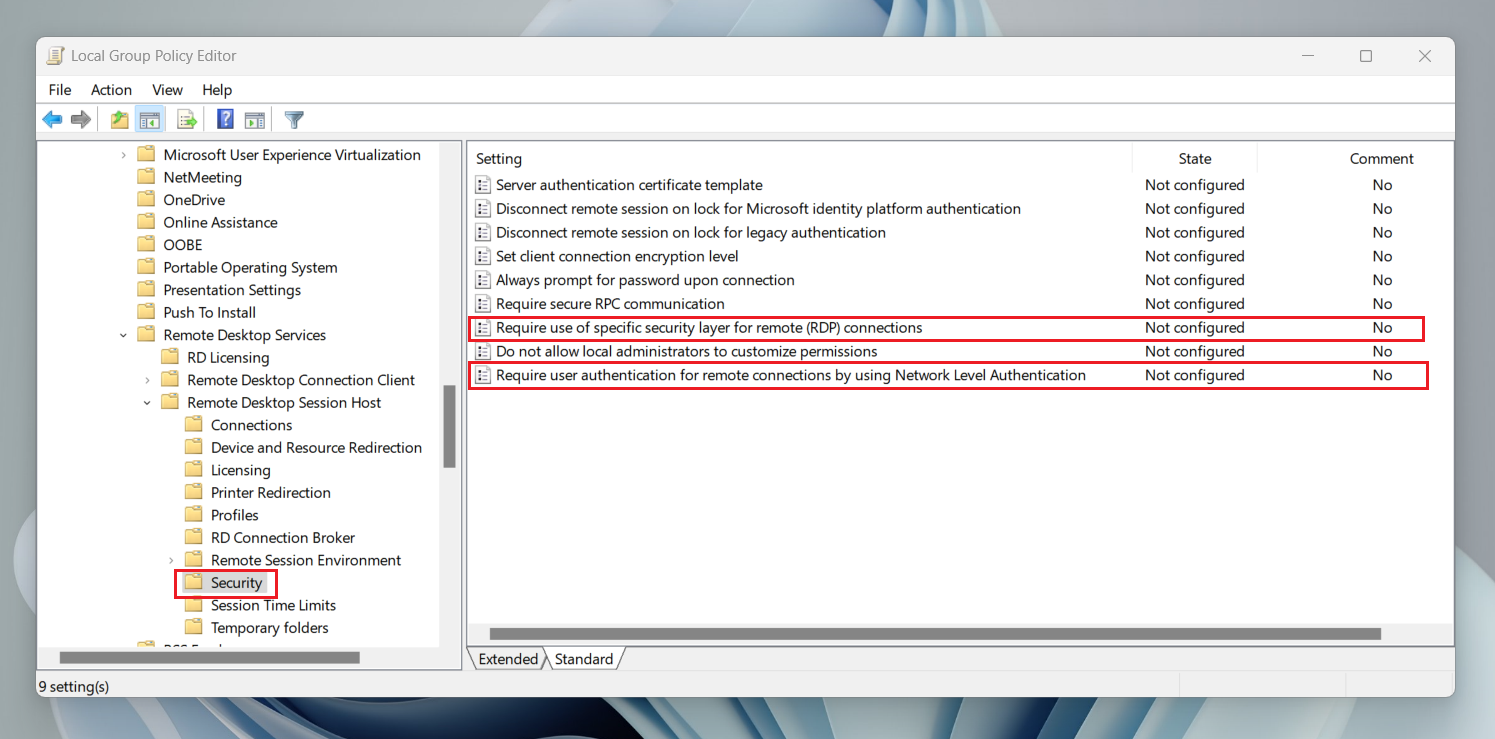
Go to the RDP Security settings
Navigate to your Computer Configuration and click Administrative Templates. Select Windows Components, then Remote Desktop Services, and Remote Desktop Session Host. Finally, click on Security.
-
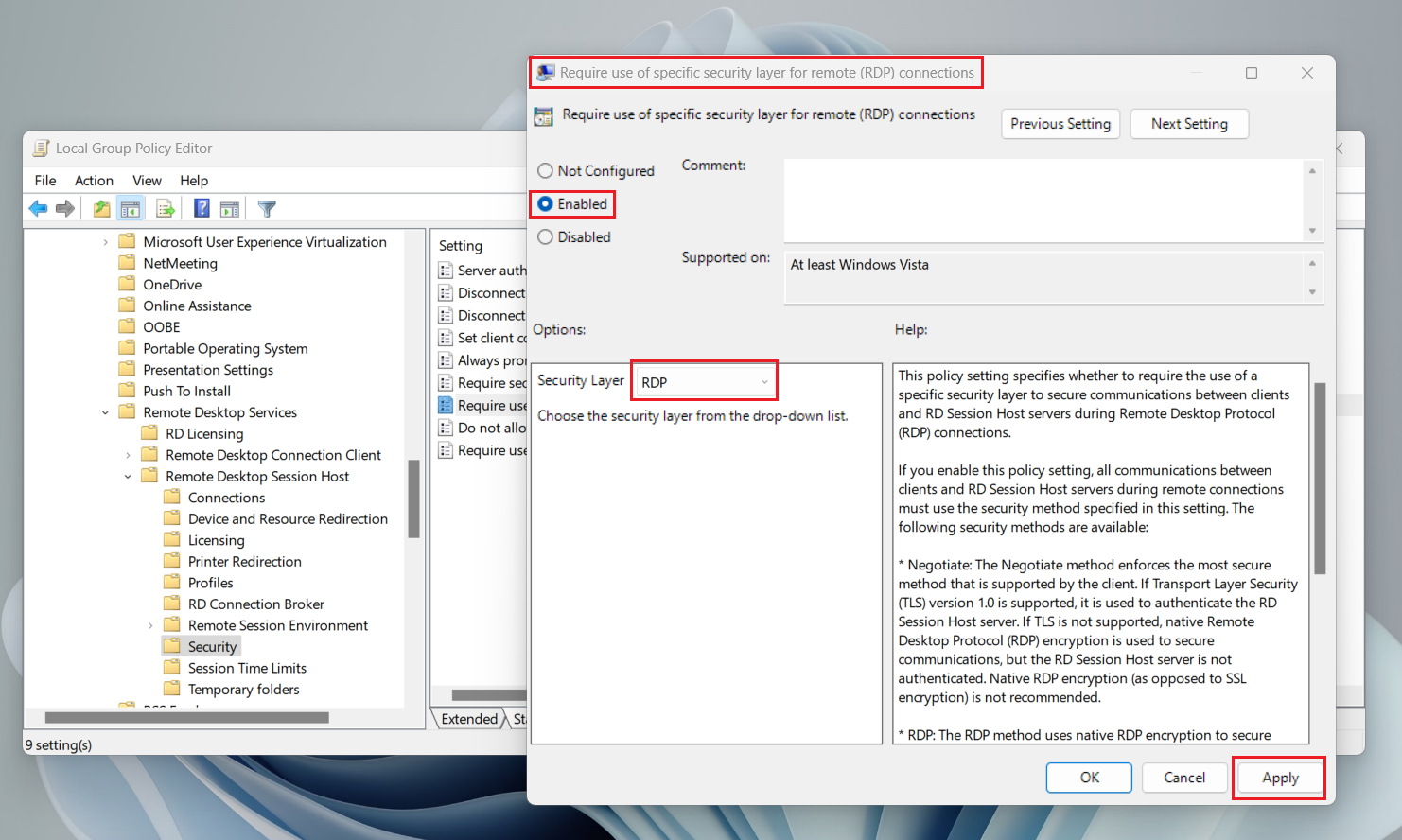
Set the Security Layer to RDP
Ensure the policy Require use of specific security layer for remote (RDP) connections is enabled with the RDP Security Layer.
-
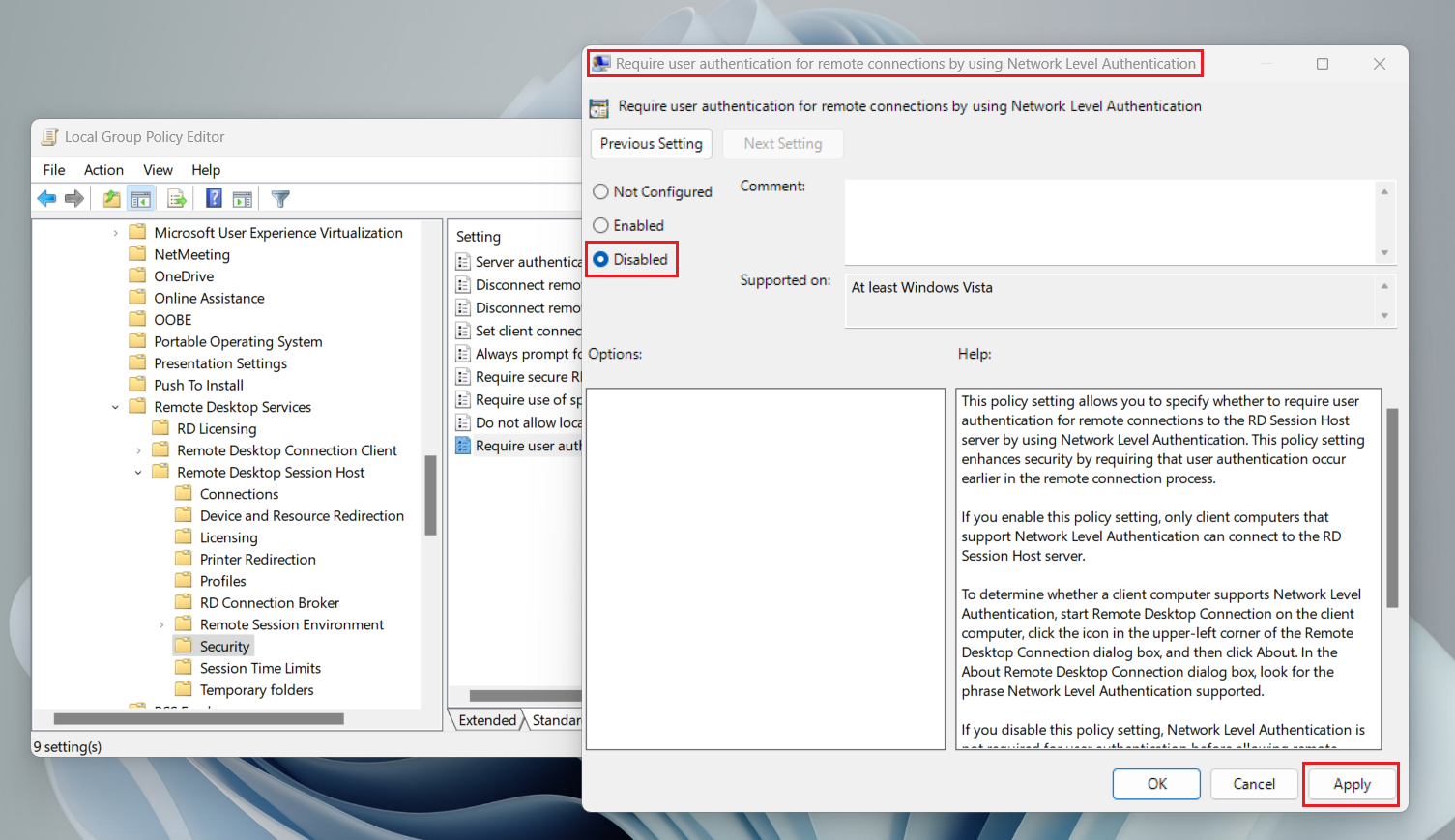
Disable Network Level Authentication
Also, ensure the policy Require user authentication for remote connections by using Network Level Authentication is disabled.
How to Prevent Remote Desktop Connection Error Code 0x4
- • Keep your software up to date automatically
- • Monitor your network proactively
- • Audit user permissions regularly
- • Enforce multi-factor authentication for RDP access
- • Brief your end users
- • Streamline remote access with HelpWire
Keep Your Software Up to Date Automatically
Outdated software is one of the most frequent triggers for RDP errors, and manually checking updates across multiple machines is easy to forget. A common solution to this is Windows Update for Business. It lets you manage and schedule update deployments on your devices with no heavy infrastructure. This keeps your RDP clients and host machines patched against known bugs and compatibility issues that could cause connection failures.
Before rolling updates out broadly, test them on one machine first. A problematic update on a production system can lead to more disruption than the issue it was meant to fix.
Monitor Your Network Proactively
Network instability is the other leading cause of Remote Desktop connection error code 0x4, and catching it early saves you a lot of troubleshooting time. For this, PRTG Network Monitor and ManageEngine OpManager are practical options. They give you real-time visibility into latency, packet loss, and throughput. Both can alert you to network degradation before it starts affecting your RDP sessions.
For deeper traffic analysis, Wireshark lets you inspect exactly where packets are failing at the protocol level. And when RDP errors do occur, Windows Event Viewer is worth checking. It logs RDP connection attempts and failures with error details that can point you directly to the cause.
Audit User Permissions Regularly
Permissions drift quietly over time, especially when you are juggling multiple clients or systems. Users change roles, accounts get forgotten, and remote access rights stop reflecting who actually needs them.
To stay on top of this, set a recurring reminder. Quarterly works well for most environments to review your Remote Desktop Users group. Remove accounts that no longer need access, and verify that active users still have the correct permissions assigned. This small habit prevents both connection errors caused by misconfigured access rights and the security gaps that come with unnecessary open access.
Enforce Multi-Factor Authentication for RDP Access
- • For Microsoft-centric environments with RD Gateway and NPS already in place: Use Microsoft Entra ID combined with the NPS Extension. It adds cloud-based MFA without extra server infrastructure, though Entra ID P1 or P2 licensing is required.
- • For direct RDP connections or non-Azure environments: Try Duo Security, which installs directly on the Windows machine and requires no dedicated server. Alongside MFA, set automatic session timeouts for idle RDP sessions to reduce exposure and free up server resources.
Brief Your End Users
- • Always disconnect properly, not just close the window
- • Never share RDP credentials and use strong, unique passwords
- • Report connection issues, not attempt their own workarounds
Streamline Remote Access with HelpWire
Windows App is a strong tool, but it comes with its own set of challenges. Users often encounter configuration errors, connection instability, or software incompatibilities.
Specifically, Microsoft Remote Desktop error code 0x4 can be frustrating, blocking remote access when you need it most. HelpWire is a practical alternative in such cases. It is a secure remote desktop software built for IT support teams, internal IT at SMBs, and solo technicians who need a more reliable path to the session.
Sessions start through a simple link-based flow, with minimal preparation on the remote side. HelpWire is designed to maintain continuity during active sessions, and it uses direct connections wherever possible to prevent lag and keep remote control responsive. Unattended access is also among Helpwire’s features, so you can reconnect to a managed device later without additional setup.
Conclusion
Now you know the main causes of Microsoft Remote Desktop error code 0x4 and simple methods to fix them. Solutions such as checking your network, updating software, and adjusting permissions or firewall settings should resolve the issue in most cases.
However, if the error persists, there may be other underlying factors at play. As an alternative, you could try HelpWire. It is a reliable, user-friendly tool for stable remote access without the common roadblocks.