Windows Remote Desktop File Transfer: Detailed How-to Guide
- HelpWire
- →
- Blog
- →
- Definitive Guide to using Microsoft Remote Desktop
- →
- Windows Remote Desktop File Transfer
Remote desktop file transfer is the process of moving files between a local computer and a remote machine using Remote Desktop Protocol (RDP) or third-party software. This functionality is crucial for accessing, sharing, or managing files stored on another computer.
Additionally, remote file transfer simplifies collaboration, streamlines workflows, and ensures secure data sharing. It is vital for IT support, work-from-home environments, and individuals needing to manage files across different systems without physical access.
So, if you are asking, “Can I transfer files through Remote Desktop?” – Absolutely! In this article, I cover various methods for doing so, including compatibility, step-by-step guides, best use cases, and the advantages/disadvantages of each.
Choosing How to Transfer Files with Remote Desktop
| Parameter | Copy-Paste (RDP) | Drag & Drop (RDP) | Drive Sharing (RDP) | FTP/SFTP/ SMB | HelpWire |
|---|---|---|---|---|---|
| Best for | Quick small file transfers | Quick visual transfers | Bulk or large file transfers | Secure or automated network transfers | IT support sessions and secure file transfers to both technical and non-technical users |
| Ease of setup | Very easy | Easy | Moderate (pre-session config required) | Complex (server install required) | Very easy (link-based session start) |
| File size limit | Up to ~2 GB | No hard limit – unreliable on larger files | Virtually unlimited | Virtually unlimited | Virtually unlimited |
| Large file support | Limited | Limited | |||
| Transfer direction | Bidirectional | Bidirectional | Bidirectional | Bidirectional | Bidirectional |
| Cross-platform support | Windows only | Windows 10/11 only | Windows only | All platforms | Windows, macOS & Linux |
| Remote user account needed | (Windows login) | (Windows login) | (Windows login) | (server credentials) | |
| Compatibility with Windows Home | |||||
| Security level | Moderate | Moderate | Moderate (misconfiguration risk) | Varies (FTP is unencrypted and insecure, while SFTP and SMB3+ are high security) | High (direct connections, operator-authenticated) |
| Technical skill required | Low | Low | Medium | High | Low |
| Cost | Free (built-in) | Free (built-in) | Free (built-in) | Free tools available | Free |
- • The remote machine runs Windows 10/11 Home
- • The user on the other end shouldn’t need to configure anything
- • You want a smoother, lower-friction workflow
How to Transfer Files Using HelpWire Remote Desktop Software
HelpWire is remote access software designed around reducing friction. Sessions start through a simple link, the user on the other end clicks it, and connects immediately, with no account creation or credential management.
Direct connections are used wherever possible to maintain responsive remote control, with relay fallback only when necessary. File transfers are equally straightforward: drag files into the session window or use the clipboard, no drive redirection or intermediate storage required. Additionally, unattended access lets you reconnect to a device without the user being present.
If you handle frequent remote sessions, that minimal setup saves you time, especially when supporting non-technical users.
For remote desktop file transfer, HelpWire lets you send files through right-click, drag-and-drop, and keyboard shortcuts:
Right-click:
- Right-click the file you wish to transfer and select Copy.
- Right-click on the desired location on the client’s computer and select Paste.
- Monitor transfer progress on the client’s computer.
Drag-and-drop:
- Select one or multiple files on your computer.
- Drag the items into the open HelpWire app window.
- Drop the files to transfer them to the client’s machine.
- Right-click in the destination folder and choose Paste to complete the process.
Keyboard shortcuts:
Ctrl+C and Ctrl+V (Windows/Linux) or Cmd+C and Cmd+V (macOS) to copy and paste files.
Built-in Features of Windows OS for Remote Desktop File Transfer
Before diving into file transfer methods, ensure you have a smooth Remote Desktop setup with these key preparations for accessing files on another computer.
To efficiently manage files between local and remote systems, establish a stable connection, and configure file access settings below.
Access files on the remote computer:
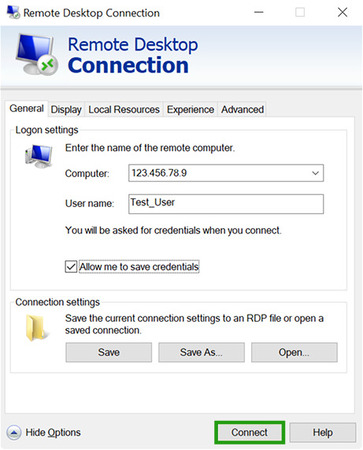
- Launch Remote Desktop Connection (RDC) on your local PC.
- Enter the IP address or hostname and connect.
- Navigate to File Explorer on the remote desktop to open and manage files as needed.
Enable local file access from a remote desktop:
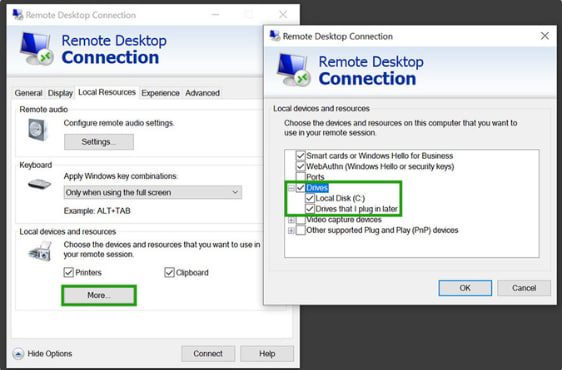
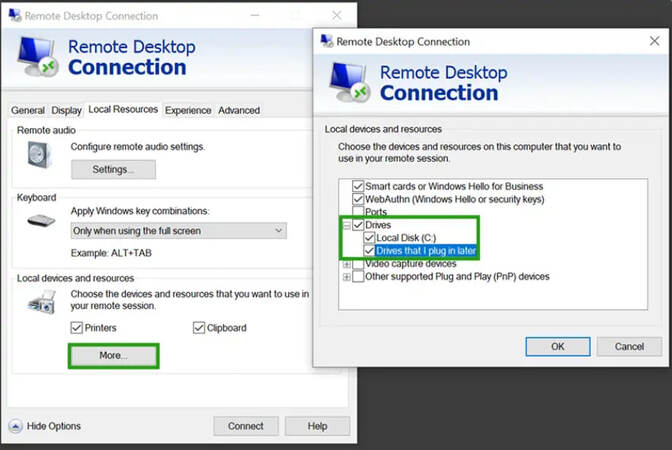
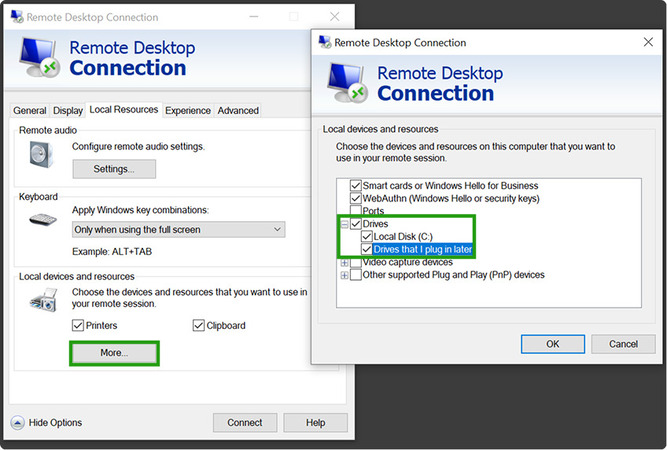
- Open RDC > Show Options > Local Resources > More before connecting.
- Under Drives, select the local drives you want to share.
- Once connected, open File Explorer on the remote desktop, where the local drives will appear under This PC.
Now let’s walk through each method in detail: copy-paste, drag-and-drop, drive sharing, and file transfer via FTP, SFTP, or SMB.
1. Copy-Paste
Compatibility: Windows 7/8/10/11, Windows Server (various versions)
Best use case: Transferring small files quickly without additional configuration
This method allows you to copy files using Remote Desktop on one machine and paste them into another.
Advantages:
- Simple and quick to use
- No additional setup required
- Works with basic file types like text, images, and small files
Limitations:
- May not support large file transfers
- Can fail due to clipboard restrictions
- Requires clipboard sharing to be enabled in the Remote Desktop settings
Steps:
-
Open Remote Desktop Connection (RDC) on your local machine.
-
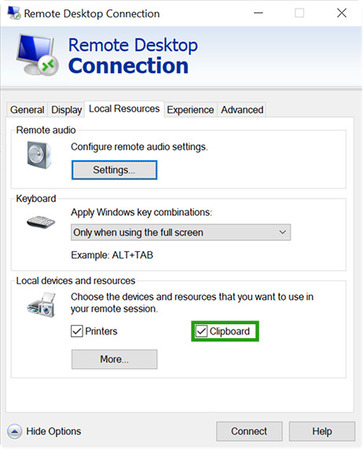
Before connecting, go to Show Options > Local Resources > Clipboard and ensure clipboard sharing is enabled.
-
Connect to the remote system.
-
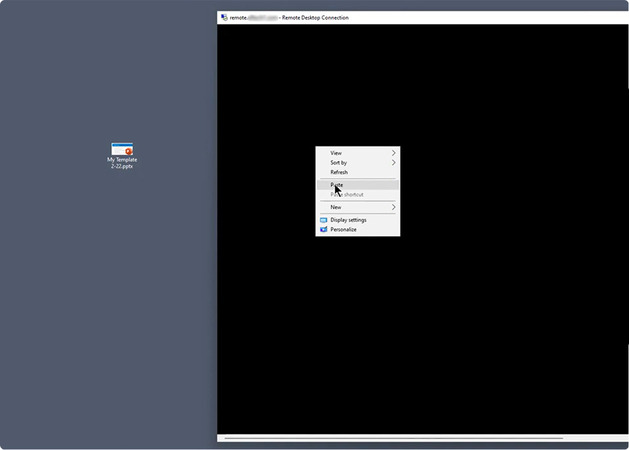
Select the file(s) you want to transfer, then Copy (Ctrl + C) on the remote system.
-
On the local machine, Paste (Ctrl + V) the file.
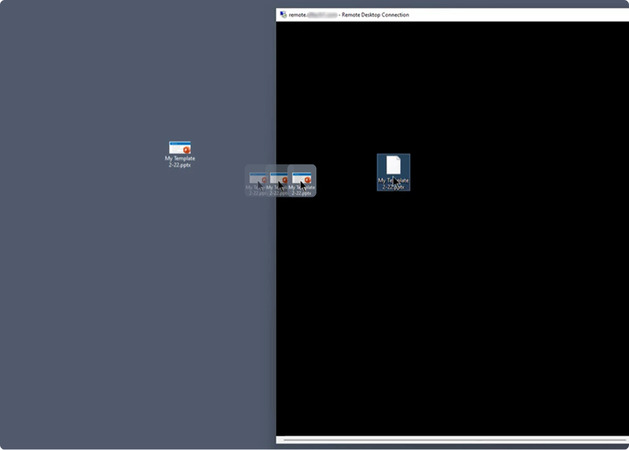
2. Drag-and-Drop
Compatibility: Windows 10/11
Best Use Case: For quick transfers of small files between the remote and local machines.
It’s a more visual method where users can drag files from the remote desktop and drop them onto their local machine (and vice versa).
Advantages:
- Intuitive and easy for users
- Works for various file types
Limitations:
- May not be available in all RDP clients
- Some files might not transfer due to permissions
Steps:
-
Enable clipboard and drive sharing in the RDC settings before connecting.
-
Open a Remote Desktop session.
-
Select a file from the remote or local system.
-
Drag it to the opposite machine.
3. Drive Sharing
Compatibility: Windows 7/8/10/11, Windows Server
Best Use Case: Transferring large files or bulk data securely.
This enables you to share entire drives between local and remote computers.
Advantages:
- Supports large file transfers
- Provides access to multiple files and folders
Limitations:
- Requires manual setup before connecting
- Can expose sensitive data if not secured properly
Steps:
-
Open Remote Desktop Connection on your local machine.
-
Click Show Options > Local Resources > More.
-
Under Drives, select the drive(s) you want to share.
-
Connect to the remote system.
-
Open File Explorer on the remote system, where shared drives will appear.
-
Copy and paste files between the shared drive and remote/local storage.
Watch the detailed video guide:
4. File Transfer via FTP, SFTP, or SMB
Compatibility: All Windows versions with FTP/SFTP client support and other platforms
Best Use Case: Secure file transfers over networks.
These network-based file transfer methods allow for structured file sharing using File Transfer Protocol (FTP), Secure File Transfer Protocol (SFTP), or Server Message Block (SMB).
Advantages
- Supports large file transfers
- More secure than basic RDP transfer methods
Limitations
- Requires additional configuration
- Needs an FTP or SMB server setup
Steps (Example: SFTP)
-
Install an SFTP server (e.g., OpenSSH) on the remote system.
-
Use an SFTP client (e.g., CloudMounter, WinSCP, FileZilla) on the local machine.
-
Establish a connection using the IP address, username, and password.
-
Drag and drop files between the two systems.
Troubleshooting Issues
Slow File Transfer Speeds
When file transfers over Remote Desktop are slow, common causes include network issues, high system resource usage, or incorrect RDP settings.
Solutions:
-
Ensure a stable network connection (prefer wired over Wi-Fi).
-
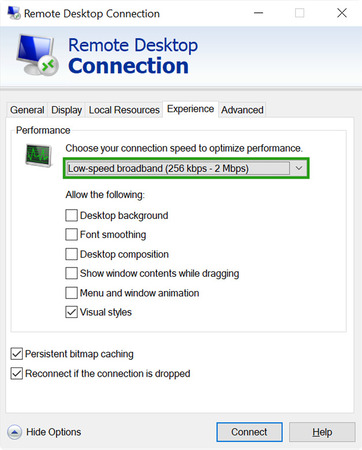
Adjust Remote Desktop settings to optimize bandwidth:
• Disable unnecessary visual effects: RDC > Show Options > Experience > Set to Low-Speed Broadband.
• Enable compression in Group Policy settings. -
Use SFTP or FTP if file transfer speeds remain slow.
Remote Drives Not Showing
Sometimes, even after enabling drive sharing, the local drives may not appear in the File Explorer of the remote desktop.
Fixes:
-
Check if drive sharing is enabled in RDC > Local Resources > More > Drives.
-
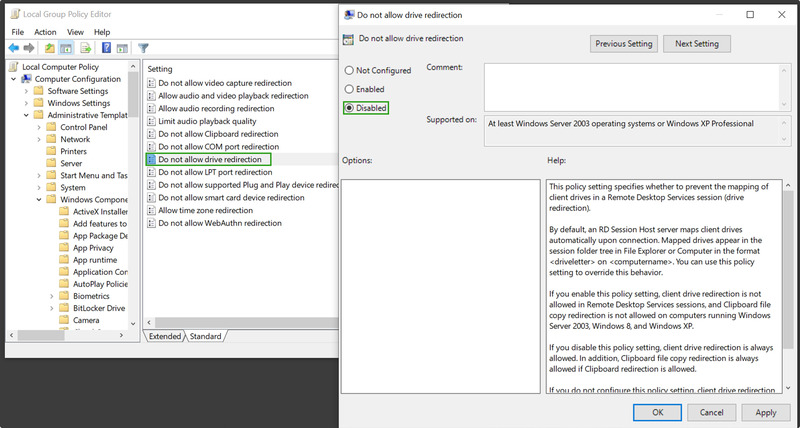
Verify that the RDP session policy allows drive redirection:
• Open gpedit.msc > navigate to Computer Configuration > Administrative Templates > Windows Components > Remote Desktop Services > Remote Desktop Session Host > Device and Resource Redirection.
• Ensure that Do not allow drive redirection is set to Disabled.
-
Restart the RDP session after making changes.
Clipboard Issues
Users often encounter copy-paste failures when trying to transfer text or files via clipboard redirection.
Fixes:
-
Ensure Clipboard is enabled in RDC > Local Resources > Clipboard.
-
Restart the Remote Desktop Clipboard process:
• Open Task Manager (Ctrl + Shift + Esc).
• Find
rdpclip.exe, end the process, and restart it via Run > rdpclip. -
Check if a group policy restriction is preventing clipboard access.
Connection and Network Issues
RDP file transfers may fail due to firewall settings, latency, or VPN restrictions.
Fixes:
-
Disable third-party firewall software temporarily and test.
-
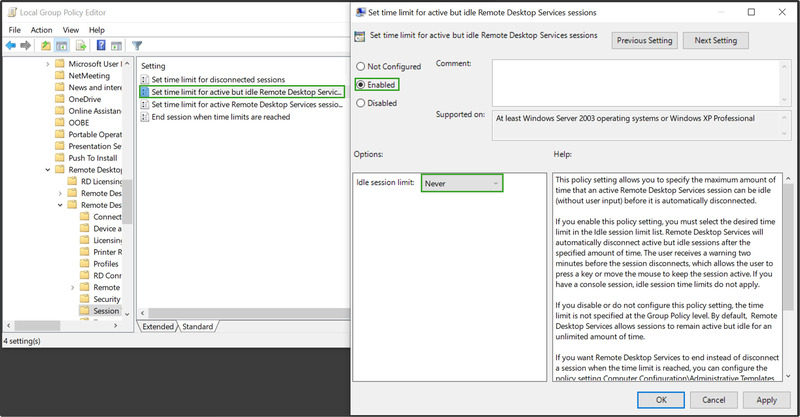
Adjust RDP timeout settings via Local Group Policy.
-
Use an alternative method like SFTP if network issues persist.
Remote Desktop Not Working on Windows Home
Windows 10 and 11 Home editions don’t support incoming RDP connections. The RDP listener is disabled at the OS level and cannot be enabled through standard settings. In that case, if you attempt to connect to another machine, you may receive an error like Remote Desktop can’t connect to the remote computer. Alternatively, the option to enable Remote Desktop might be missing from the machine’s settings.
Fixes:
-
Upgrade the remote machine’s Windows edition to Pro, Enterprise, or Education – this is the only way to enable native RDP receiving.
-
If upgrading is not an option, use a method that doesn’t depend on RDP, for example, HelpWire, which works on Windows Home.
Security Best Practices for Remote Desktop File Transfers
Remote Desktop gives you real access to another machine’s file system. That access needs to be protected properly, especially when transferring sensitive data or working over public networks:
-
Use a VPN or an encrypted tunnel when connecting over public or untrusted networks. RDP has built-in encryption, but adding a VPN reduces the attack surface. This is especially important for connections that cross the internet rather than staying on a local network.
-
Scope your drive sharing carefully. When using drive redirection, share only the specific drive or folder needed for the session, not your entire system. Sharing
C:\by default on a production machine exposes far more than necessary. -
Enable multi-factor authentication (MFA) on the remote machine. MFA ensures that even if credentials are compromised, an attacker cannot initiate a remote session and access files. This applies to both RDP accounts and any third-party tool accounts.
-
Verify file integrity after large transfers. For critical files, compare checksums (e.g., MD5 or SHA-256) before and after transfer to confirm the file was not corrupted in transit. Tools like CertUtil (built into Windows) or HashCheck can do this quickly.
-
Close shared drive access after each session. Leaving full drives persistently accessible is a common entry point for unauthorized access. After a session ends, shared drives should be disabled.
FAQ
No. While RDP is primarily designed for Windows-to-Windows transfers, third-party tools like HelpWire support cross-platform file sharing.
- • Built-in RDP drive redirection
- • FTP/SFTP for secure transfers
- • SMB file sharing
- Optimize RDP settings (disable visual effects).
- Use compression before transferring.
- Try alternative protocols like SFTP/FTP.
Yes, though not through the built-in RDP interface. For recurring or scheduled transfers, the most practical options are:
- • WinSCP with a script or Task Scheduler – WinSCP supports command-line scripting, which can be combined with Windows Task Scheduler to run file transfers on a set schedule without manual input.
- • PowerShell with SFTP modules – PowerShell scripts using modules like Posh-SSH can automate SFTP-based transfers and integrate with broader IT workflows.
- • Robocopy – for transfers between machines on the same network, Robocopy handles bulk and incremental file sync with detailed logging, and can be scheduled via Task Scheduler.
These approaches are best suited for IT administrators managing recurring transfers across multiple systems.