
How to Enable Remote Desktop on Windows 10/11 Home
- HelpWire
- →
- Blog
- →
- Definitive Guide to using Microsoft Remote Desktop
- →
- Remote Desktop for Windows 10/11 Home
Windows 10/11 Pro, Enterprise, and Education support Remote Desktop Protocol (RDP) as both a client and host. But Windows 10/11 Home can only act as a client to connect to remote desktops on other machines, not a host for incoming RDP connections.
One workaround is RDP Wrapper, an open-source tool that unlocks incoming remote desktop connections. However, it requires manual setup, breaks after Windows updates, and sits in a gray area when it comes to Microsoft’s licensing terms. If you want to understand how it works and whether the risks are worth it, I’ll walk you through it in this article.
If you’d rather skip the workaround entirely, there’s a free alternative: HelpWire. It gives you secure remote access to Windows Home machines without Microsoft policy violations or maintenance headaches.
Windows 10/11 Home RDP: Limitations
Remote Desktop Protocol (RDP) works as a client and server:
- • RDP server, also known as the host: The computer that one can access remotely. The RDP server runs applications and provides a desktop interface for operations.
- • RDP client: The computer that starts the remote connection and tries to access the host computer. The RDP client controls the host.
By default, RDP server functionality is disabled in Windows 10/11 Home. This prevents you from connecting to these systems through Microsoft’s built-in Remote Desktop. Individuals, such as home lab users or those working off-site, who seek remote access to Windows Home may find this limitation annoying.
That said, the core RDP elements are still not completely gone from Windows Home. Microsoft has kept the RDP service termsrv.dll, but it can’t accept incoming remote connections. This means the system can act as a client but not a host.
How to Configure Remote Desktop on Windows Home
To set up Remote Desktop, Windows 10 Home and Windows 11 Home users can take one of two distinct approaches. RDP Wrapper unlocks the existing but officially restricted RDP functionality already built into Windows Home. HelpWire bypasses that infrastructure entirely, using its own cloud-based connection layer. That difference drives most of the disparities between the two approaches in the table below.
| Parameter | RDP Wrapper | HelpWire |
|---|---|---|
| Setup complexity | High – manual install, config file editing, GitHub troubleshooting | Low – link-based flow, no system configuration needed |
| Works after Windows updates | Frequently breaks and requires manual patching after major updates | Unaffected by Windows updates |
| Microsoft licensing | Violates Windows Home EULA (End User License Agreement) | Compliant – does not modify or bypass Windows licensing |
| Security model | Exposes RDP port and may be flagged as riskware by many antivirus tools | Encrypted sessions, no RDP ports exposed, and a controlled access model |
| System file modifications | None (uses DLL injection into RDP stack) | None |
| Suitable for non-technical users | No – errors are cryptic, and maintenance is ongoing | Yes – remote user only needs to open a link |
| Unattended access | Possible with additional configuration | Built-in |
| Cost | Free | Free |
| Officially supported | No – community-maintained, no vendor backing | Yes – maintained product with regular updates |
HelpWire: Easy and Secure Remote Desktop for Windows Home
HelpWire is free remote access software that runs on Windows 10/11 Home without modifying system files, without licensing workarounds, and without breaking after updates. While built with IT helpdesk scenarios in mind, its remote support features suit personal use just as well.
How HelpWire Solves the Windows Home RDP Problem
The core issue with Windows Home is that it can’t accept incoming RDP connections through Microsoft’s built-in protocol. But HelpWire doesn’t rely on RDP at all. Instead, it establishes its own remote connection through a link-based flow. There’s nothing to configure at the system level and nothing that stops working when Windows updates roll out.
Here’s what makes HelpWire appropriate for this use case:
- • Connections with enterprise-level encryption – access is controlled through authenticated sessions with predictable, auditable behavior
- • No installation on the host required – the remote user just runs the client app from the shared link
- • Zero firewall modifications – no ports to open or network rules to configure
- • Cross-platform – works across Windows, macOS, and Linux
For IT teams or solo technicians supporting Windows Home machines, HelpWire also provides unattended access. You can reconnect to a device later without needing someone present to approve the session each time.
Enable Remote Desktop on Windows 10/11 Home Using HelpWire
-
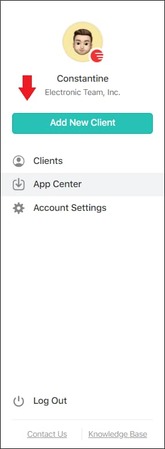
From your HelpWire account, choose Add New Client.
-
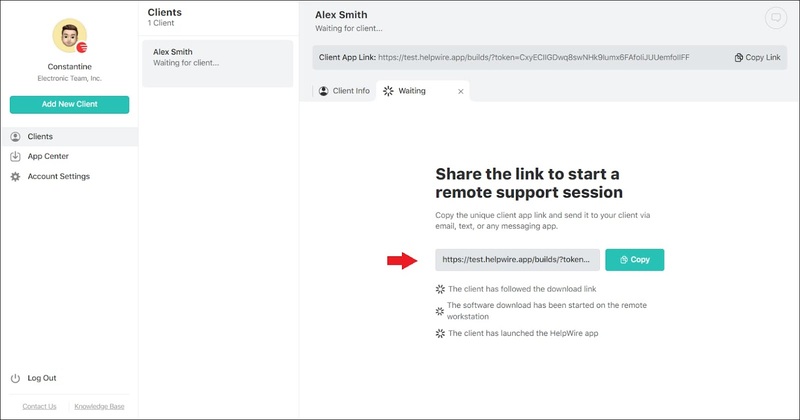
It will automatically generate a remote connection link. Share it with the user at the client side. They will need it to download the HelpWire Client application on their computer.
-
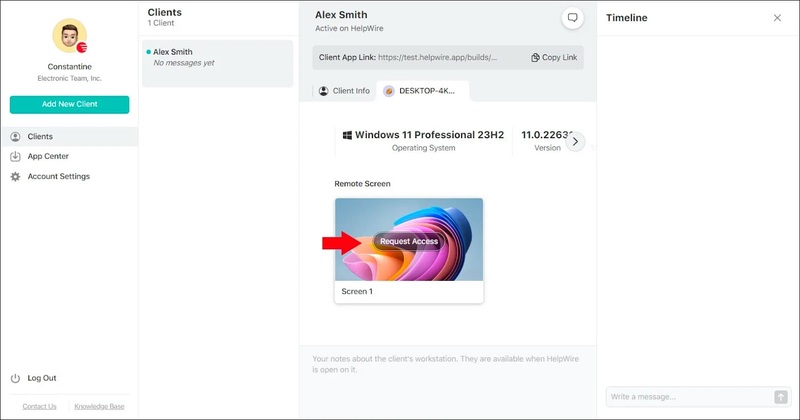
Wait for them to download and install HelpWire Client. Once done, they can open the application, while you can send a remote connection request to access the client computer.
-
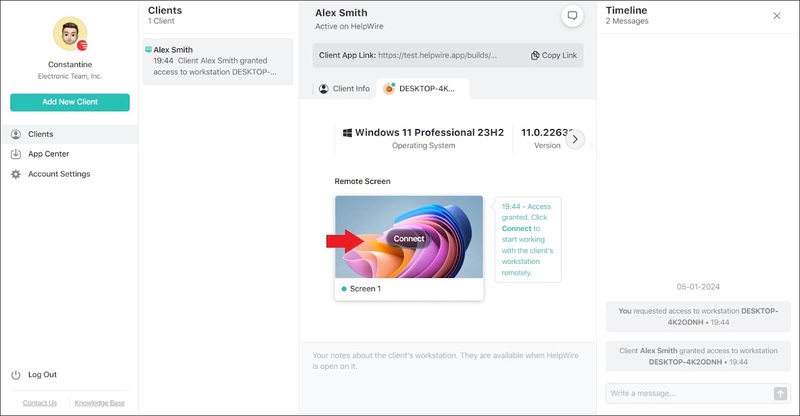
Once you’ve gained the client’s permission, initiate a direct connection to their system by clicking on Connect.
RDP Wrapper: Known, yet Risky Shortcut
“I just set it up today on Win10 2004…I just ran that and it worked.”— Reddit /r/selfhosted
Risks and Limitations for Remote Desktop Access
This goes without saying: no technology is perfect. RDP Wrapper has its pitfalls in terms of security and functionality. It is maintained by the developer community and is not officially recognized by Microsoft. Users report that it often breaks after updates and triggers antivirus alerts. Its use (particularly in heavily regulated business environments) could introduce security issues or compliance concerns.
Let’s understand some risks and limitations of using RDP Wrapper below:
1. Hidden Backdoor
RDP Wrapper uses a custom rdpwrap.dll file to inject itself into the RDP stack of Windows, instead of modifying system files. This way, the tool bypasses Microsoft’s licensing restrictions so users can receive incoming remote desktop connections on Windows Home.
But during an RDP Windows 11 Home connection, your computer could be exposed to new vulnerabilities if the RDP Wrapper is not configured properly or not updated regularly. If hackers can detect these vulnerabilities before you do, they can exploit them to access your systems and files.
“RDP Wrapper adds a weakness to the system…opens a gateway for potential hackers to attack… leaving Windows OS in a more vulnerable state is an invitation for threat actors to attack.”— NComputing
“I am installing RDP Wrapper on my machine, and the antivirus is deleting it…added it to scan exclusions…keeps deleting it.”— ESET Forums
Security concerns with using RDP Wrapper are real for so many users. This is frequently discussed in many online forums and communities, such as Security Stack Exchange.
2. Instability After Updates
Because RDP Wrapper relies on system memory addresses and calls, Windows updates often break it. Users report frequent malfunctions:
“RDPWrapper not yet working with Creators Update.”— Reddit /r/Windows10
“RDP Wrapper not working, with error 126.”— Reddit /r/BeeSwarmSimulator
“I can’t get RDP Wrapper to work.”— Reddit /r/WindowsHelp
This forces users to hunt GitHub for fixes and apply constant troubleshooting. It’s unreliable for production environments and unsuitable for a non-technical audience.
3. Microsoft’s Terms Violation
RDP Wrapper enables host connections on Windows Home, which Microsoft restricts. This violates its licensing terms and could create compliance issues, especially for businesses.
“RDP Wrapper is both illegal and unsafe to use.”— ESET Forum
Microsoft hasn’t cracked down yet, but enterprise users risk penalties and reputational harm if enforcement begins.
4. Need for Technical Expertise
RDP Wrapper isn’t plug-and-play. Non-tech users may face cryptic errors like Listener state: not supported. Even experienced ones must dig through GitHub threads, wikis, and config files to keep it running. Maintenance is ongoing, especially after Windows updates.
“Frustrated with Remote Desktop on Windows 10 Home…use on your own risk.”— Reddit /r/Windows10
5. Dangerous for Inexperienced/Non-Tech Users
Without proper configuration, exposed RDP ports or weak authentication can give attackers easy entry. Some malware even installs RDP Wrapper silently, providing attackers with backdoor access.
“Dangerous if it appears on your system without your knowledge or consent.”— Reddit /r/antivirus
The fact that both legitimate users and hackers use it underscores the risk.
How to Enable RDP Wrapper on Windows Home
-
Download RDP Wrapper
• Visit the RDP Wrapper project on GitHub:
🔗https://github.com/stascorp/rdpwrap/releases• Under Releases, locate the latest .zip file and download it.
• Once downloaded on your computer, extract the archive to a folder.
-
Install the RDP Wrapper Tool
• Right-click
install.bat. Select the Run as Administrator option.• It will initiate the installation process. Once it completes, the core DLL (
rdpwrap.dll) along with the necessary files will be placed on your system. -
Update
rdpwrap.iniYou will now need to update the configuration file (
rdpwrap.dll) to support the latest version of Windows. Follow these steps:• Open the updated
.inirepository on GitHub:
🔗https://github.com/sebaxakerhtc/rdpwrap.ini• Click
rdpwrap.ini> Raw. Save this file.• From your RDP Wrapper installation folder, replace the previous
rdpwrap.ini:
pgsql
CopyEditC:\Program Files\RDP Wrapper\(or
C:\Program Files (x86)\RDP Wrapper\depending on your system) -
Verify RDP Wrapper Installation
• From the same folder, run
RDPConf.exe.• All statuses should be in green:
◦ Wrapper: Installed
◦ Service: Running
◦ Listener: Listening
◦ Supported: YesIn case you see RDP Wrapper not supported showing
No, reload the updated .ini. Alternatively, check your Windows build in GitHub issues. -
Try Connecting from Another Computer
• Press Win + R. Type
mstsc. Press Enter. Do this on another Windows computer.• Input the Home PC’s IP address or name.
• On the remote machine, log in with your username and password.
Windows 10/11 may still display RDP as unavailable even after you install RDP Wrapper. But you can still accept remote connections from your Windows Home Edition with this method. Our tests confirm this.
Final words
RDP Wrapper is a popular tool to enable remote desktop connections on Windows Home. However, it comes with many limitations, such as functional instability after Windows updates, security risks, and Microsoft licensing violations.
If you’re searching for a more secure and stable solution without breaching Microsoft’s terms, HelpWire is the best option. This free, cloud-based software provides consistent remote access and automatic updates without the hassles of manual installation or maintenance.