
How to Share Your Screen in Microsoft Teams

- First, join a meeting and click on the Share button that appears at the top or bottom of your window.
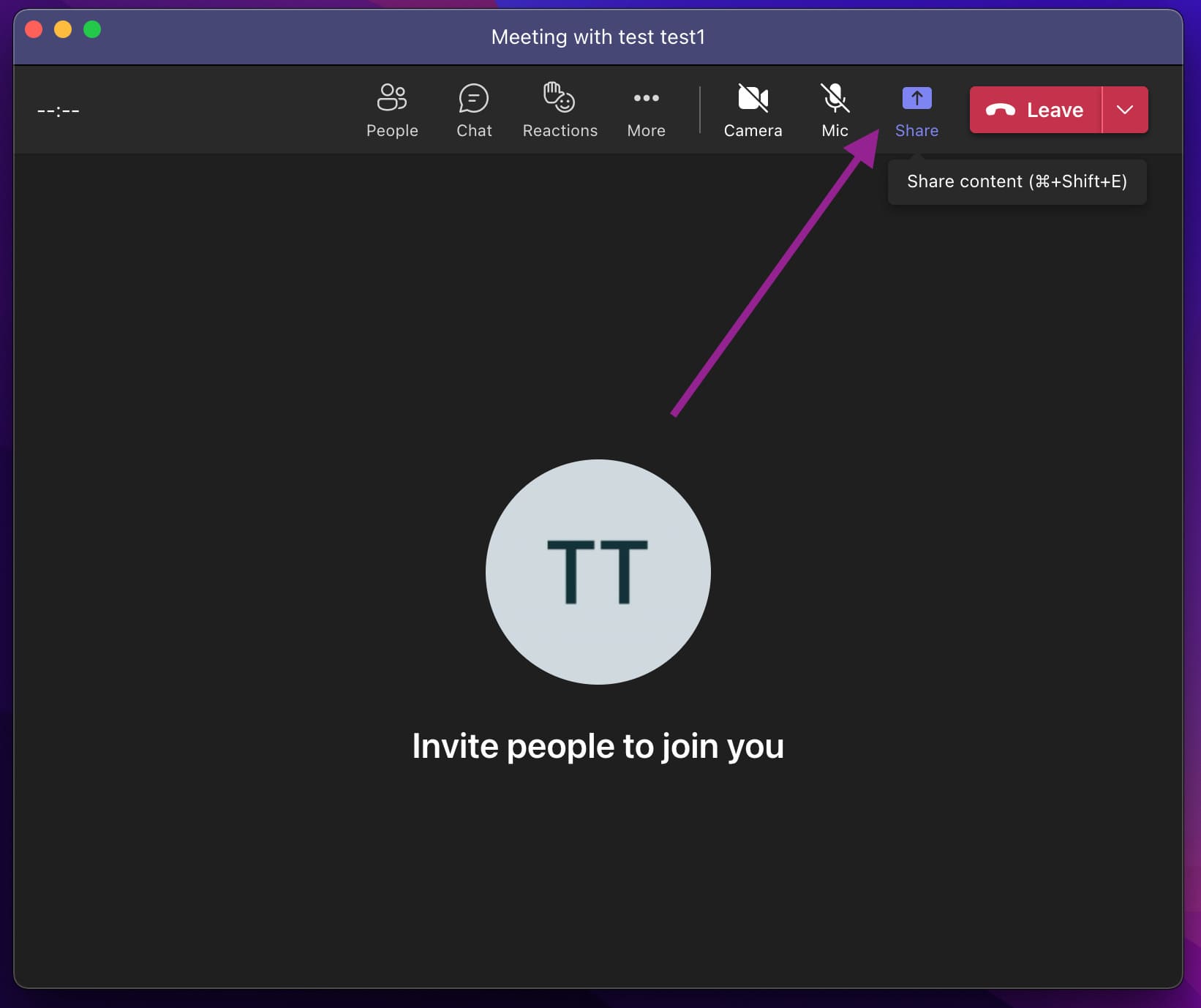
- Select a workspace you want to share on MS Teams.
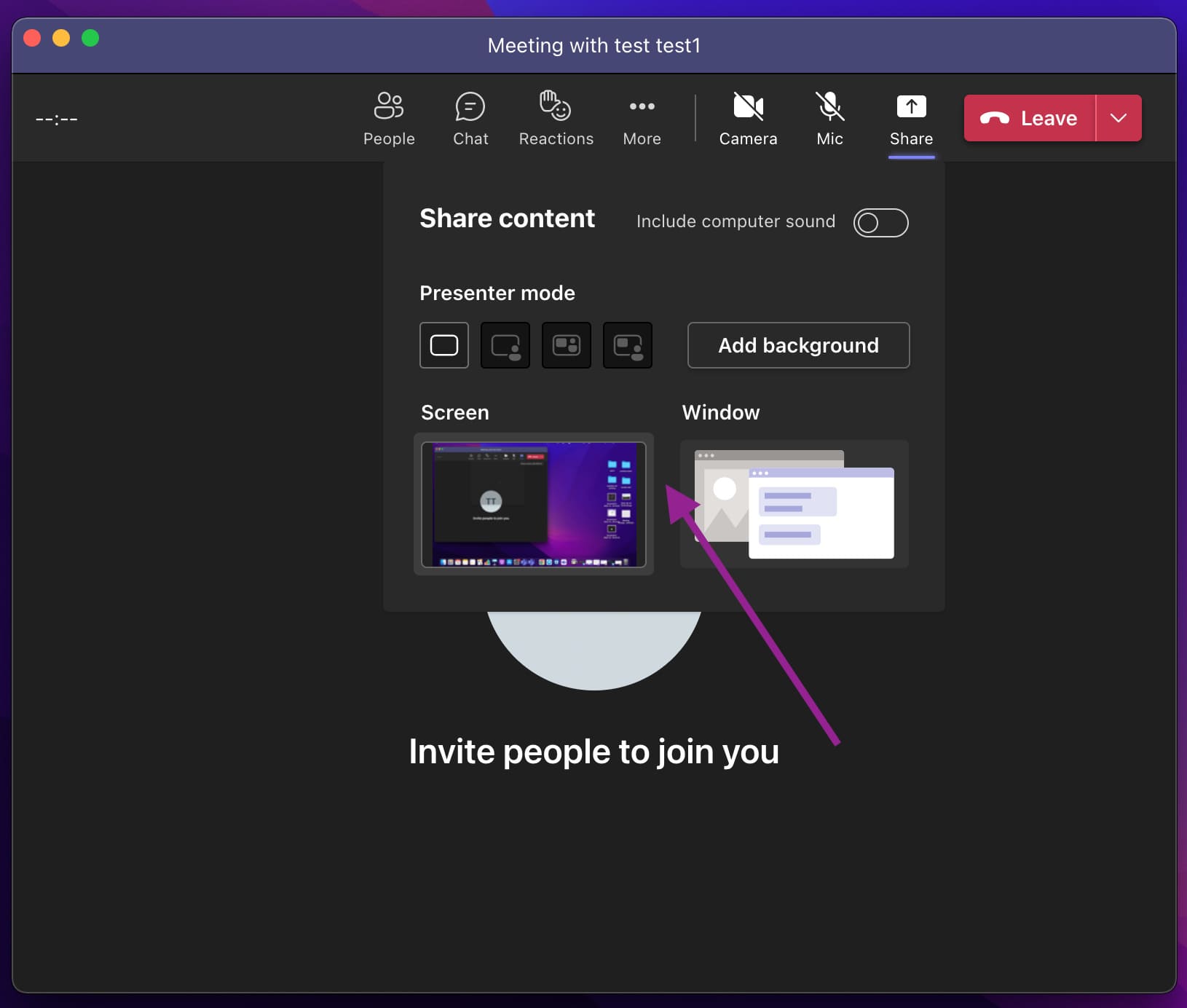
You can choose to share a browser tab, an application window, or your entire screen. Plus, if you have more than one monitor, you can also share a second screen. Advanced features also include sharing a PowerPoint presentation, a Whiteboard, and shared notes.
- After choosing an action, your screen automatically begins to share with other participants.
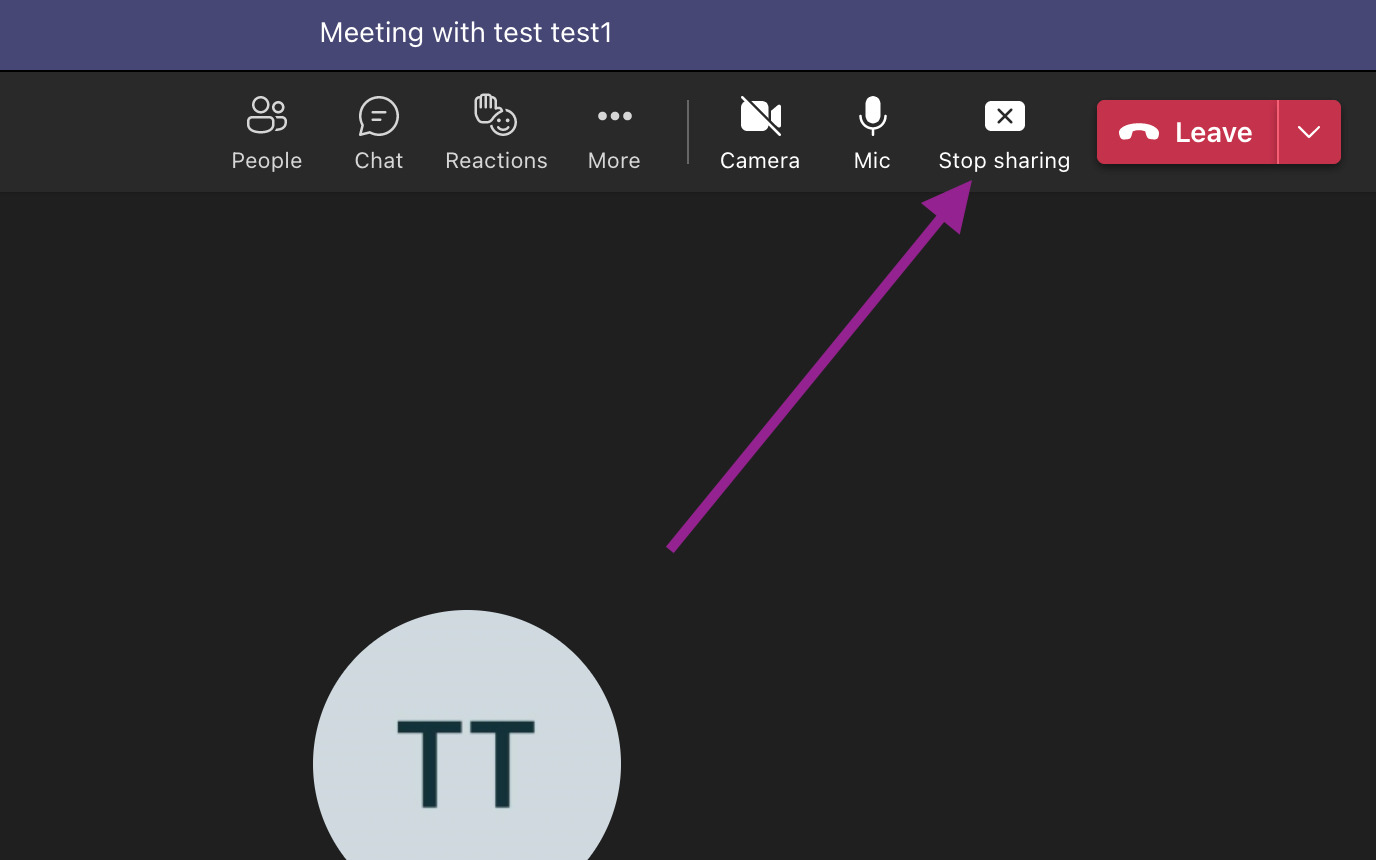
- Once you are done, click ‘stop sharing’ at the bottom tab on the call.
Sharing Screen in Teams on macOS: Additional Tips
If you want to share screens in Teams on Mac with another user, the process can be a little bit more complicated. The reason is that you’ll need to permit Microsoft Teams to record your device’s screen. You can always address permissions anytime. Before the Teams call:
- Click on the “Apple” logo from the window’s top-left corner and then select the option “System Preferences”.
- A new window will pop up on your screen. Click on the option “Security & Privacy”.
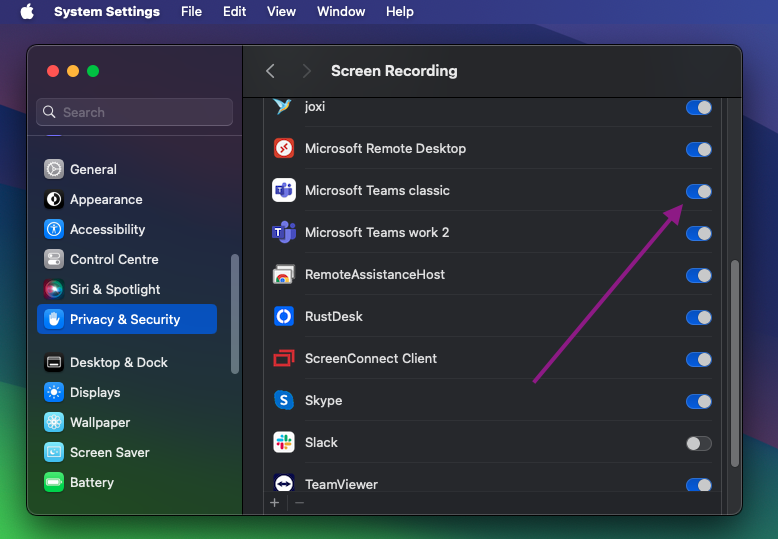
- Go to screen recording and make sure Microsoft Teams is selected. If you’re using the Teams application on the web, you’ll need to grant your browser permission to screen record.
Other Screen Sharing Options in Microsoft Teams
1. How to Share Screen on Teams Via a Web Browser
Here’s the quick process on how to share a screen on Teams via browsers:
To enable Teams web browser share screen, ensure to grant the necessary permissions, especially screen recording.
The Teams version and web browser you are using could be the reason you might get slightly different screen sharing layouts and options. Let’s understand how to enable these permissions in the browsers.
For Google Chrome:
- • In the address bar, to the left, locate the Tune icon on the website of Microsoft Teams.
- • Click it to see a summary of active permissions.
- • Select “Site settings” from the menu to reach the full list of toggles for Camera, Microphone, and other permissions.
- • Allow Permissions: Ensure “Camera” and “Microphone” are set to Allow.
Note: Screen sharing permissions are usually prompted by the browser when you first click the Share button in Teams, rather than being a permanent toggle in this menu.
Note: Mac users must also allow Chrome to record their screen in their computer’s System Settings under Privacy & Security > Screen Recording for screen sharing to work.
For Microsoft Edge:
- • In the address bar, to the left, locate the lock icon and click on it. You may alternatively click on “i” appearing inside a circle.
- • Select “Permissions for this site”.
- • It will open a menu, enable “Allow” for “Camera” and “Microphone”. Ensure to allow permissions for “Screen sharing” or “Screen recording”.
Here’s the process on how to share your screen in Microsoft Teams using a web browser:
- Join a meeting on Teams: Open the Microsoft Teams application in a web browser like Google Chrome or Microsoft Edge. Join your meeting.
- Start sharing screen: In the meeting controls, locate the icon “Share”. It will be like a square with an arrow. Click on it.
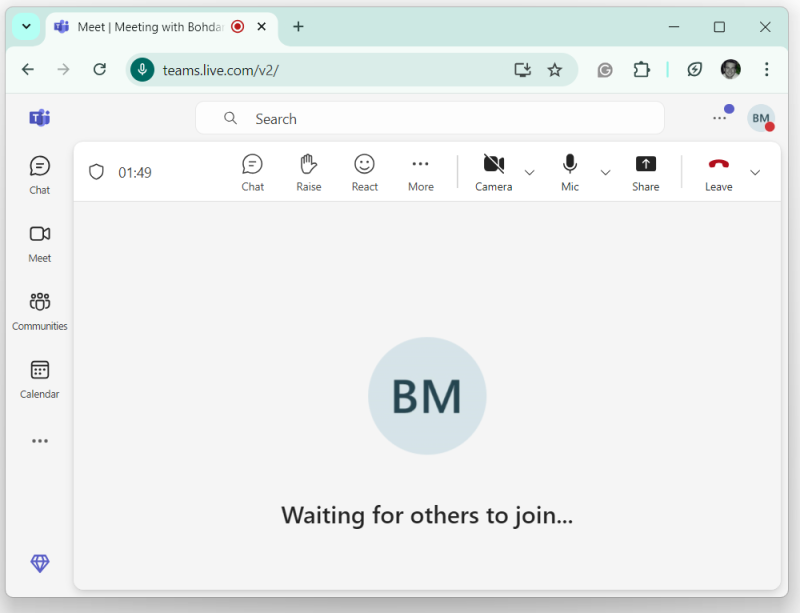
- Select items to share: You can now choose the item you want to share with another user. You will get three options to choose from – “Your entire screen”, “A tab”, or “A window”.
- Start sharing: Confirm the selected items. Once done, click on “Share.”
- End Screen Sharing: Once you have finished sharing the items, click on “Stop sharing” from the meeting controls. It will finish the process of sharing the screen.
2. How to Share Screen on Microsoft Teams on Mobile
Although this guide covers iOS, the steps are the same for Android devices. Here’s what you need to know.
- On the call, tap the three dots at the bottom of your screen.
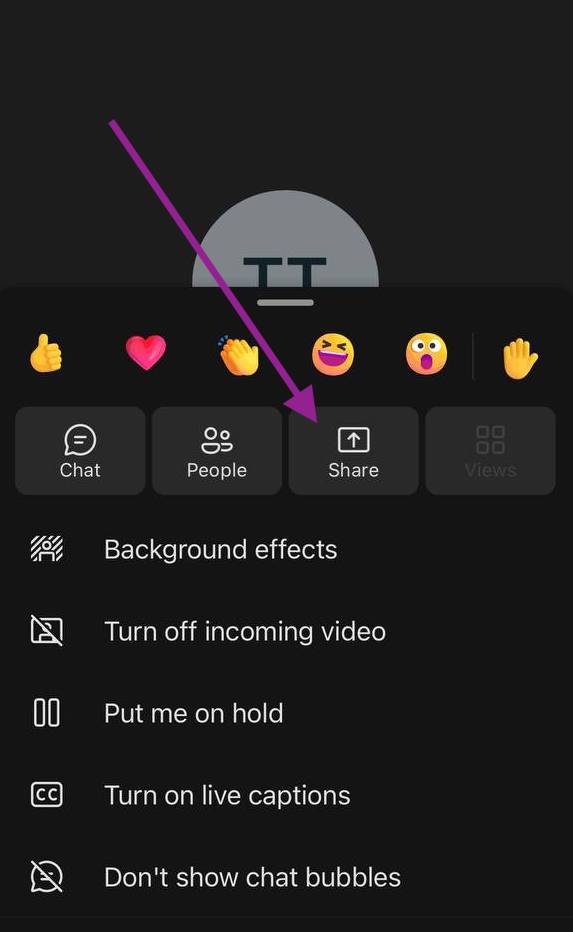
- Select the ‘Share’ option. Your device may request that you allow Teams to record your screen, so grant this permission.
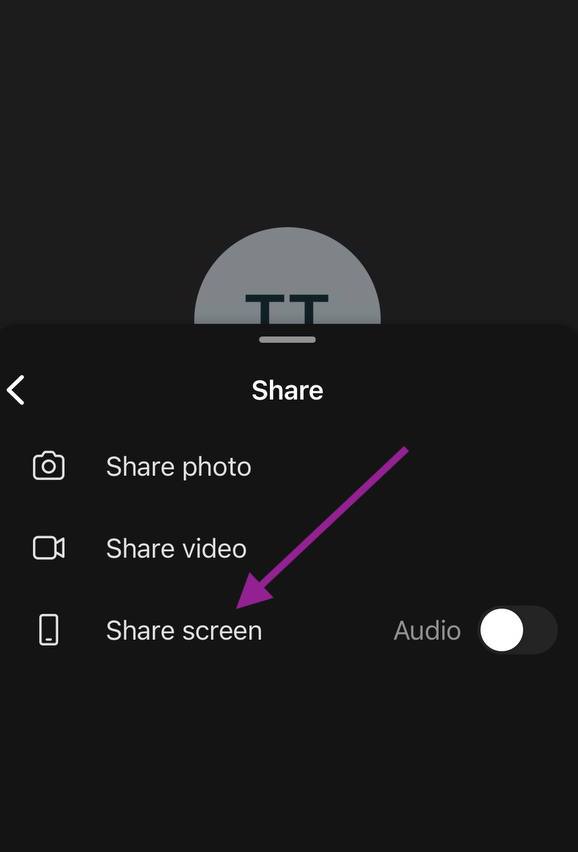
- Select start broadcast. Call members will only see the Teams app until you switch to the screen you want to present.
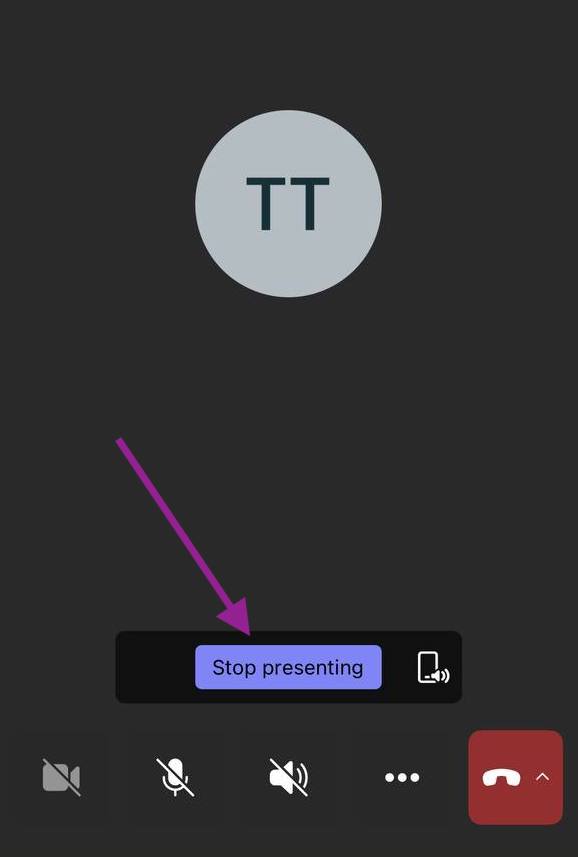
- Once you’re done, return to the Teams app and click ‘Stop broadcasting’ to end screen share.
3. How to Share Your Screen in Microsoft Teams Chat
Sometimes, you want to share your screen from the Teams chat. This option is available on the Windows and macOS apps. For mobile devices, you’ll need to begin a video call before you can access the share button.
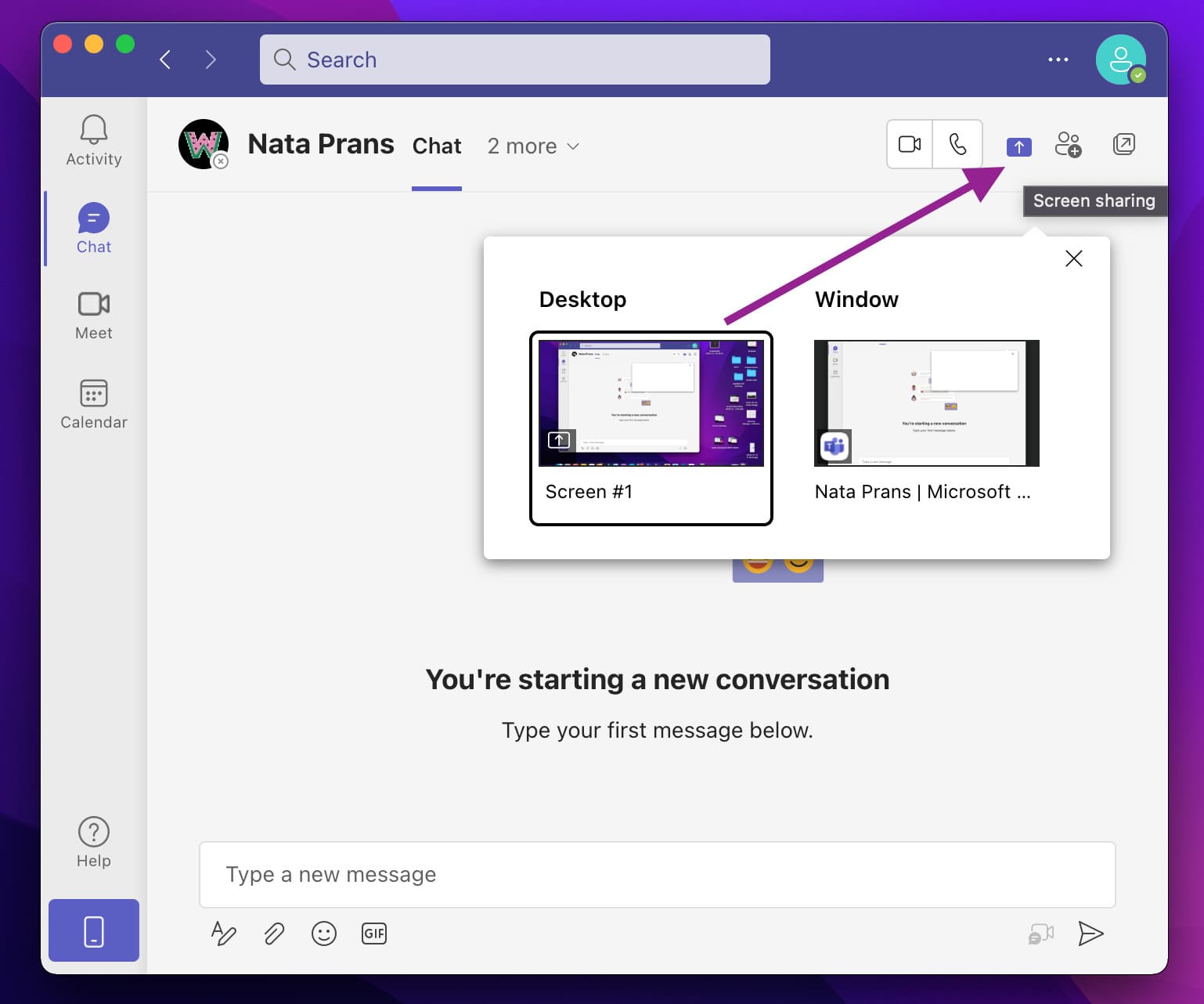
- Click on the Screen sharing icon at the bottom or top of your window.
- Select ‘Screen 1’ or any of the apps listed under ‘Window’, depending on the screen you need.
- After selecting your preferred option, screen sharing will begin immediately.
- To stop sharing your screen, click the ‘stop presenting’ button at the top bar.