
TeamViewer Copy and Paste Not Working
- Home
- →
- Blog
- →
- TeamViewer Issues How to Solve Them
- →
- TeamViewer Copy and Paste Not Working
TeamViewer copy-paste not working is often caused by compatibility issues introduced in updates. In many cases, there’s not much to do other than waiting for the next patch. However, there are several fixes and workarounds you should try beforehand.
Enabling Clipboard Synchronization
Clipboard synchronization needs to be enabled as a setting in order for it to work. While this setting is on by default, it’s worth checking, in case it got switched off by an update, or was temporarily disabled and forgotten about.
The following instructions are for the new TeamViewer interface. In Classic, clipboard synchronization is located under the Advanced tab.
-
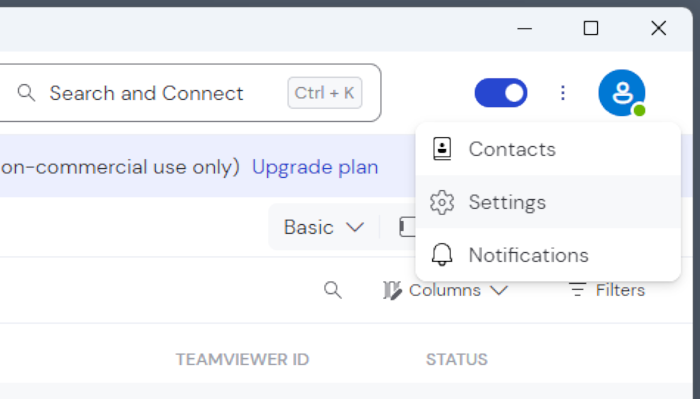
Open a drop-down menu from the “More” icon (three dots). Select “Settings”.
-
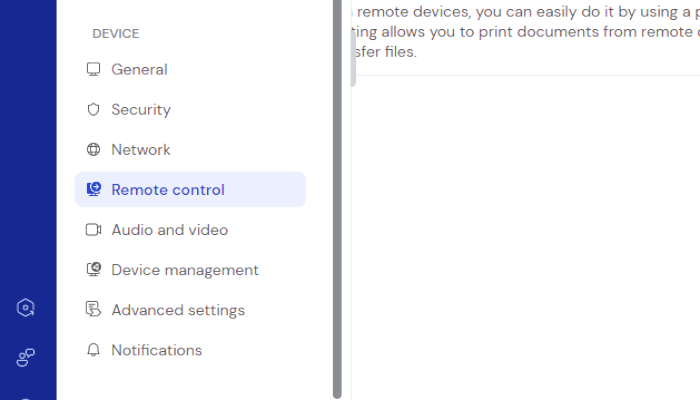
Hover over the tab panel on the left to expand it. Go to “Remote control”.
-
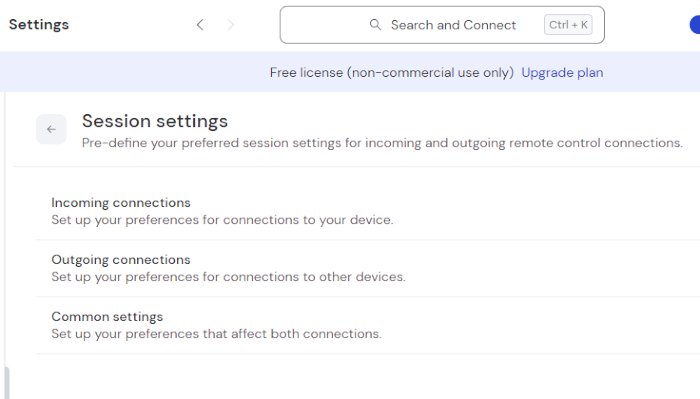
Choose “Session settings”, then “Common settings”.
-
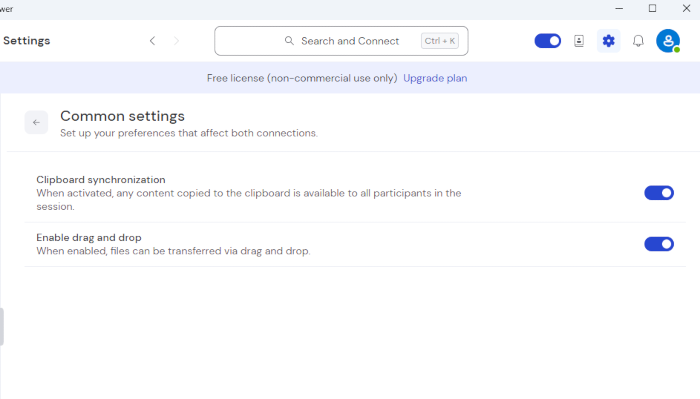
“Clipboard synchronization” needs to be enabled.
Trying a Full Reinstall
You may have tried uninstalling and reinstalling TeamViewer before, but did you know that it can leave old configs behind? Removing all config files and registry keys is the only way to make sure that the app will install cleanly and won’t inherit any broken behavior from the previous installation. Check out our article on TeamViewer uninstallation to find out the proper way to do it.
Working Around TeamViewer Copy-paste Not Working
There are two alternatives to using keyboard synchronization. First off, you can save any text you want to copy into a file, and send it as a file instead. This won’t work if you want to copy and paste often, but as a one-off solution, it might be enough. Follow this link and the article will teach you how to perform a TeamViewer file transfer.
There’s also another method – pasting as keystrokes.
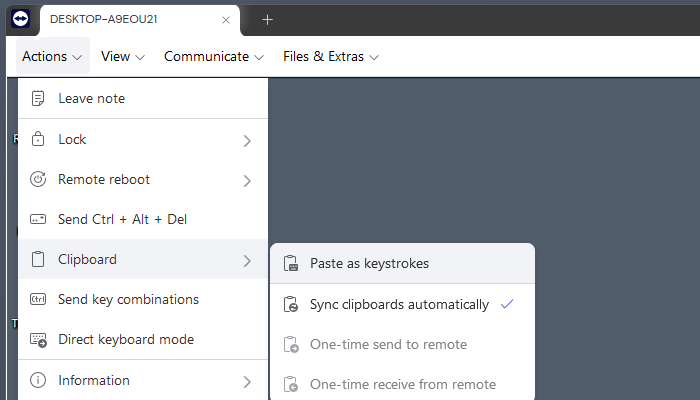
During a remote session, if copy-paste TeamViewer not working, open the Actions menu on the menu bar, select “Clipboard”, and then “Paste as keystrokes”. This is a more direct method that doesn’t require clipboard sync to be working. In fact, it’s more secure, since the remote computer won’t have access to anything you may have copied unintentionally, like your own passwords. However, this obviously limits the use of the clipboard to text only.
Switching to an Alternative Remote Access Tool
HelpWire is an actively updated remote access app with clients on Windows, macOS, and Linux, and full cross-platform support. Its features include clipboard sync and file transfers via Ctrl+C/Ctrl+V on any operating system. HelpWire is free and doesn’t require an account to use, but if you sign up, it has plenty of additional useful functionality – storing session info, team management, and more.
HelpWire is simple, reliable, feature-rich, and, most importantly, the clipboard works as intended. Try it out today!