categories
Published on in

How to Fix Mouse Not Working on TeamViewer

Author: Natalie Paraskeva
Natalie Paraskeva Article author

Users may experience TeamViewer mouse failures in which the cursor moves correctly, but clicks don’t register. Another problem is that the local mouse works but doesn’t replicate movement on the remote machine. The cause of these issues is typically faulty access settings, software glitches, or permission conflicts. 

These issues can usually be corrected quickly. This guide provides proven solutions for your TeamViewer mouse not working, such as:

We will also explore how switching to HelpWire gives you reliable, remote mouse control.

Solution 1: Enable Full Access on Remote Machine

TeamViewer’s granular access controls determine user functionality. The cursor may move correctly, but mouse clicks will not register if “Full Access” is not enabled on the remote computer. Without this access, the connection is established, but you cannot interact with the remote client. 

Some reddit users  indicate that an initial software configuration issue often causes this problem. 

Step-by-Step Fix:

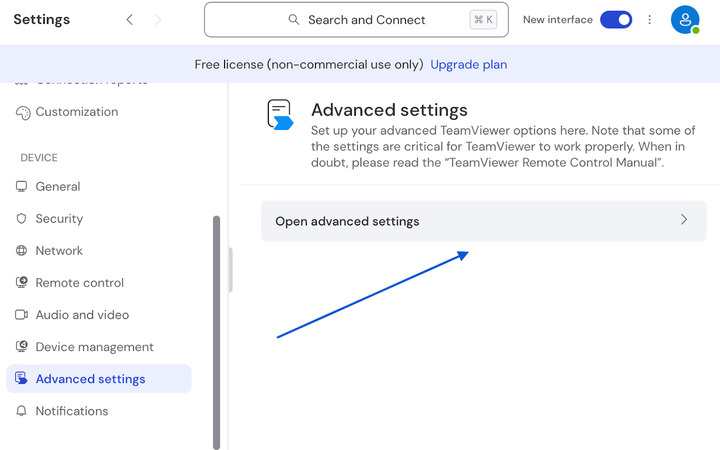
  1. Open TeamViewer on the remote computer and go to SettingsAdvanced Settings.

    Enable Full Access on
  2. Under Advanced settings for connections to this computer, set Access control to Full access.
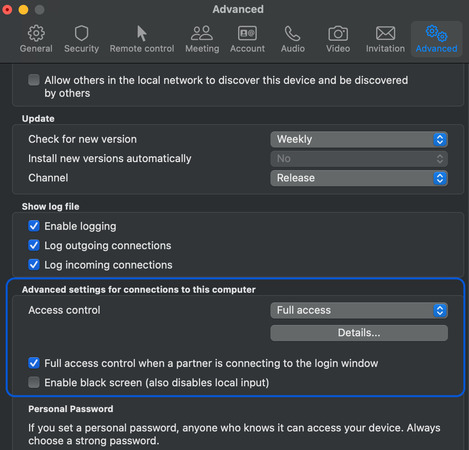
    set Access control to Full access
  3. Check the box labeled Full access control when a partner is connecting to the Windows login screen.

  4. Click OK and re-establish the connection from the local to the remote machine.

Users can implement Unattended Access by navigating to the Security tab and verifying that the access level is set to full control under Rules for connections to this computer.

Solution 2: Check that Disable Remote Input is Unchecked

Users can disable all remote input via a toggle switch in TeamViewer. Your cursor will move, but clicks don’t register if input is disabled. It’s easy to mistakenly toggle this functionality with an incorrect keyboard shortcut or a wrong click. This error is one of the most common reasons TeamViewer mouse clicks are not working. Checking this setting often resolves problems with right or left clicks not registering on the remote machine. 

Step-by-Step Fix:

  1. Click Actions in the TeamViewer menu bar.

  2. Ensure the Disable remote input option is unchecked.

  3. If the box is checked, click once to remove it.

  4. Verify that your mouse works. These steps should resolve the issue immediately.

Important:  If the Disable remote input option is grayed out on a Mac, you may have a permission issue, which we address in the next solution.

Solution 3: Verify Permissions on Mac

The strict privacy controls enforced by macOS can restrict TeamViewer from controlling the mouse and keyboard. The OS may block all input, even when TeamViewer appears to be connected to the remote computer. Permission issues are the most common reason your TeamViewer mouse is not working on a Mac.

TeamViewer’s official support documentation indicates users must explicitly set permissions to ensure functional remote control.

Step-by-Step Fix for Mac:

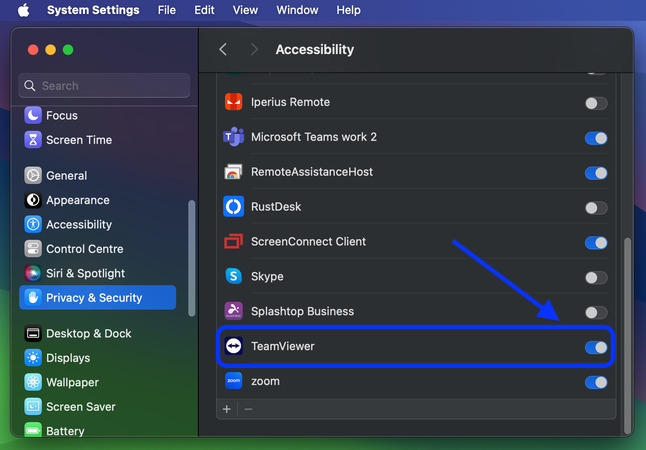
  1. On the remote Mac, open System SettingsPrivacy & SecurityAccessibility.

    Verify Full Access Permissions macOS
  2. Find TeamViewer in the list, or add it if it is missing. Verify that it is checked.

  3. Select Screen Recording and ensure TeamViewer is also checked.

  4. Quit and restart TeamViewer on the Mac, then reconnect to the remote machine.

Pro Tip:  You can see the missing permissions by opening TeamViewer on the Mac and going to Help → Check system access.

Solution 4: Restart Windows Explorer

Windows’ input handling system can enter a confused state after updates, when the computer wakes up, or at random times. This confusion can cause the OS to ignore TeamViewer mouse clicks. This issue can typically be resolved by opening Task Manager from within TeamViewer via the Ctrl+Alt+Del menu, or by restarting Windows Explorer. 

Method A: Ctrl+Alt+Del Reset

  1. In TeamViewer, select ActionsSend Ctrl+Alt+Del.

  2. Navigate with the arrow keys to Task Manager and press Enter.

  3. Try clicking the mouse in Task Manager to see if it works.

  4. If it does, close Task Manager and test the mouse on the desktop.

Method B: Restart Windows Explorer

  1. Open Task Manager and locate Windows Explorer in the Processes tab.

  2. Select Windows Explorer, then click Restart, or press Alt+R.

  3. Explorer will restart, indicated by a flickering screen.

  4. Verify that your mouse clicks are now working.

This solution works because the Ctrl+Alt+Del screen runs at a higher privilege level and forces the operating system to reinitialize input handling. Restarting Explorer refreshes the Windows shell without rebooting the computer.

Solution 5: Add Your Account to TeamViewer Allowlist

TeamViewer includes an allowlist that controls which accounts can connect to a computer. If an account is not on the list, or if the list is misconfigured, the remote connection may be established, but internal security blocks mouse control.

Step-by-Step Fix:

  1. Open TeamViewer on the remote machine and navigate to Settings→ Advanced SettingsSecurity.

  2. Click Configure in the Block and allowlist.
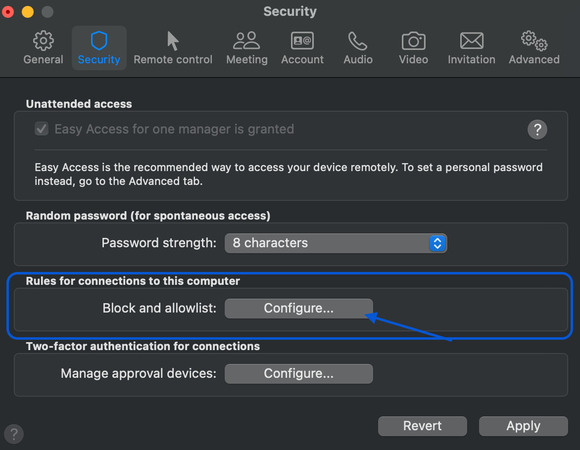
    Add Your Account to TeamViewer Allowlist
  3. Check Allow access only for the following partners.

  4. Click AddI already have a TeamViewer account.

  5. Enter your TeamViewer account email and password and click OK.

  6. Verify that the account appears in the allowlist, then click OK twice to save the list.

  7. Reconnect to the remote computer and test your mouse.

Important:  You must have a paid or free TeamViewer account for this to work. You’ll get the best results if both computers are logged in to TeamViewer accounts.

Solution 6: Fix TeamViewer Mouse Scroll Not Working

Your mouse moves, and clicks are working, but you can’t scroll web pages or documents. This problem occurs when the remote computer fails to receive scroll wheel events. Scrolling problems often accompany mouse click issues. You can use the Page Up/Down or Arrow keys to scroll without mouse functionality.

Step-by-Step Fix:

  1. Click ViewShow remote cursor, and toggle it off or on.

  2. Test scrolling, as this action may immediately resolve the issue.

  3. If scrolling still does not work, go to ViewQuality → select Optimize speed.

  4. Try scrolling again.

Pro Tip:  Two-finger scroll gestures on a laptop touchpad may not be transmitted properly to the remote machine. Try using a physical mouse to get around this problem.

Solution 7: Fix TeamViewer Mouse Click Not Working

At times, specific mouse buttons stop working. This issue typically affects the left or right clicks. Your cursor moves, but the OS does not register the clicks. The problem is usually caused by operating system input conflicts or issues with TeamViewer mouse mapping and is often seen after application updates.

Step-by-Step Fix:

  1. Go to ViewScale and switch between Original, Scaled, and Fullscreen modes.

  2. Test clicks in each mode to determine which one works

  3. If that doesn’t work, disconnect and restart TeamViewer on the remote computer.

  4. Reconnect and test clicks again.

Quick Alternative:  Go to Actions → Send Ctrl+Alt+Del→ open Task Manager, click inside to restart click detection, then return to the desktop.

Solution 8: Implement HelpWire as an Alternative to TeamViewer

Some of your TeamViewer mouse issues may be due to compatibility problems with specific operating system versions or network configurations. Users who consistently experience the same difficulties may want to switch to a more reliable alternative, especially when IT professionals use it, where downtime is not acceptable. Learn why HelpWire is a top alternative to TeamViewer and take a look at a full breakdown of how the two compare!

HelpWire is a remote desktop solution focused on reliably establishing functional remote connections. This modern software eliminates many of the compatibility issues affecting TeamViewer and is an appropriate tool for IT support teams or individual users.

Why Choose HelpWire?

  • Simple Setup

    Easy installation supported by a user-friendly interface.

  • Cross-Platform Compatibility

    Connect across Windows, macOS, and Linux systems.

  • Unattended Access

    Securely manage remote devices with no on-site assistance.

  • Streamlined File Transfer

    Drag and drop files between devices.

Quick Fixes for Persistent Issues

If the above solutions do not resolve the TeamViewer mouse not working on a remote computer problem, try these additional fixes.
  • • Install any available TeamViewer updates on both computers.
  • • Restart both machines to reinitialize the operating systems.
  • • Try different display modes to see if one works more consistently. 
  • • Temporarily disable antivirus or other software that may conflict with TeamViewer.
  • • Use keyboard navigation when necessary, with Tab to navigate and Enter or Spacebar to activate buttons.
Mouse and click issues affecting remote desktop functionality are typically temporary. The right solution can quickly restore full control, allowing you to get back to work.

Conclusion

Productivity can be degraded by TeamViewer input control problems, many of which can be resolved with simple methods. It’s important to start troubleshooting with the quickest methods, such as checking remote input settings. Users may find that adjusting viewing and scaling parameters fixes the issue. Mac users must verify the correct permissions, as this is often the cause of mouse control issues on macOS systems. 

Teams that keep running into the same problems should consider changing tools. HelpWire provides reliable input handling, eliminating many of the glitches that affect legacy remote desktop software. You can avoid mouse control problems with HelpWire, rather than searching for ways to correct them.