
TeamViewer “The Screen Cannot be Captured at the Moment” – Causes & Fixes

- HelpWire
- →
- Blog
- →
- TeamViewer Issues How to Solve Them
- →
- How to fix the TeamViewer error “The screen cannot be captured at the moment”
Imagine you’re helping someone on their computer, and suddenly, TeamViewer shows “The screen cannot be captured at the moment. This is probably due to fast user switching or a disconnected/minimized Remote Desktop session.” And now, you can’t see their screen, and the session is harder to continue.
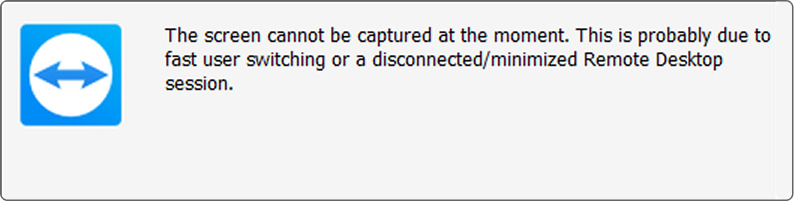
This problem may occur for different reasons, including the effects of fast user switching on TeamViewer. The good news is there’s a way to fix it on Windows 10 and 11. There are also other methods you can try to prevent the TeamViewer “screen cannot be captured” issue.
Main Causes of the “Screen Cannot be Captured at the Moment” Error
Looking through TeamViewer forums, Spiceworks discussions, and older blogs, this technical error tends to happen when you use Remote Desktop (RDP), Fast User Switching, and TeamViewer together on Windows computers or servers.
TeamViewer depends on Windows graphics systems (like Desktop Duplication / DXGI or its older mirror driver) to display the active desktop. Sometimes Windows doesn’t display the session’s desktop, and this can happen when:
- • An RDP session is minimized or disconnected
- • Another user is logged in via Fast User Switching
- • The console session has no active display (lid closed, monitor off)
…then there’s nothing for TeamViewer to show, so the error pops up.
On Windows servers, TeamViewer points out that Fast User Switching can trigger the “The screen cannot be captured – fast user switching” issue. They suggest that we turn on multi-user support and also avoid sessions that overlap. According to information found in official guides and community discussions, these issues generally fall into several categories:
Fast User Switching / multiple sessions
- • Multiple users are signed in at the same time (console + RDP, or multiple RDP sessions).
- • TeamViewer connects to one session, but Windows might be showing a different session instead.
Disconnected or minimized RDP session
- • The host is accessed via RDP and TeamViewer simultaneously.
- • When the RDP window goes offline or is minimized, Windows may stop showing the session, so the TeamViewer screen capture issue occurs.
TeamViewer not running as a Windows service
- • TeamViewer runs only inside a user or RDP session.
- • TeamViewer can’t see the screen if the session is locked, logged off, or switched. Using it as a service often resolves the problem.
Windows 10/11 graphics stack conflicts (Desktop Duplication API)
- • TeamViewer’s default Desktop Duplication API capture feature doesn’t work well with some GPU drivers and specific Windows versions.
- • You might see flickering, a blank screen, or the “screen cannot be captured” message repeating nonstop. Changing the DisableDuplicationAPI registry setting makes TeamViewer use its older capture method, and doing this usually solves the issue.
No active display / power-saving behaviour
- • TeamViewer is also unable to capture a screen when a laptop lid is closed, the monitor is off, or a “headless” GPU/VM doesn’t have any screen attached.
- • Some hardware stops sending frames when the screen is off, leaving nothing for TeamViewer to see. The error usually goes away if you open the lid or attach a dummy HDMI plug.
Bugs in specific TeamViewer builds or UI modes
- • Some users found themselves stuck in a loop of TeamViewer “screen cannot be captured.” But changing back to the classic UI resolved it.
General display issues
- • There are times when the error shows up alongside other TeamViewer display issues, like weird scaling, partially drawn desktops, or occasional black frames.
Spot the main TeamViewer screen capture not working situations.
Learn how Fast User Switching and RDP can affect TeamViewer’s screen display.
Apply practical solutions for Windows 10 and 11, from making changes in the settings to editing the registry.
Stop the error from happening again by running TeamViewer as a service and adjusting Windows session settings.
Know when it’s better to switch to an alternative like HelpWire instead of spending time resolving the TeamViewer screen capture error repeatedly.
If the screen capture error is fixed but the image quality remains pixelated, the rendering pipeline may still have issues. For troubleshooting DPI, scaling, and quality settings, check the TeamViewer blurry screen guide. And if the screen is completely black, our checklist for black screens in TeamViewer remote sessions will be more helpful.
Fixes for “TeamViewer: the Screen Cannot be Captured at the Moment”
When TeamViewer shows “the screen cannot be captured at the moment,” it usually means Windows isn’t showing a desktop that TeamViewer can access. In most cases, you can resolve the issue without needing to reinstall anything.
Here’s a step-by-step checklist of practical solutions. Start at the top and follow each step. They include quick fixes, like RDP and session clean-ups, as well as more advanced tweaks, such as turning off the Desktop Duplication API. These solutions are based on official advice from TeamViewer and on the real experience of admins and can help clear TeamViewer “screen cannot be captured” issues on Windows 10 and 11.
1. Close or cleanly disconnect RDP sessions
User Assessment: This is usually the first TeamViewer screen capture fix to test. This error usually pops up when a Remote Desktop session has been minimized or disconnected — a lot of users notice it right after that happens. Closing extra RDP sessions or keeping the RDP window active often clears the error quickly. It’s generally safe and pretty quick to test. The recommendations come from user experience as well as TeamViewer’s guidance.
Here are the steps if the remote computer is also accessed via RDP:
-
Log in directly on the host machine (using the console or just a single RDP session).
-
Sign out of other user sessions instead of only switching users.
-
If you need the RDP session open, keep the window visible instead of minimizing it while using TeamViewer.
We might not realize it, but minimizing or disconnecting the RDP session is actually the reason the error happens.
Go to TeamViewer → Options → Advanced and turn on Enhanced multi-user support on server systems. This ensures every user session gets a unique ID and that TeamViewer can track each session properly.
2. Install and run TeamViewer as a service
User Assessment: Running TeamViewer as a Windows service can make remote access more reliable. Many users say the “screen cannot be captured” message happens much less when TeamViewer runs as a service instead of just in a user or RDP session. There’s no guarantee, though, but it has worked for some people in real life. Plus, you can easily set it up.
The software, once run as a service, connects to the system instead of a single user. That usually keeps it stable, even when switching users or locking sessions.
Steps to do on the remote machine:
-
Open TeamViewer.
-
Go to Extras → Options → General.
-
Turn on “Start TeamViewer with Windows” to install and get the service running.
-
In the Security section, set a strong personal password (or use account-based access for better security).
-
Click OK after that, and then either restart the computer or manually restart the TeamViewer service via Services.msc.
For many admins, these steps can help address the TeamViewer screen cannot be captured on Windows 11, used as an always-on remote endpoint. But it also works on Windows 10. Running TeamViewer as a Windows service is the most reliable way to prevent screen capture failures on unattended machines, the same setup is required for stable TeamViewer unattended access, making it a worthwhile investment for any always-on remote system.
3. Disable Fast User Switching (where appropriate)
User Assessment: This useful mid-level method can help fix the TeamViewer screen capture issue on PCs that multiple people share, but not simultaneously. If you need to turn off Fast User Switching, there are a couple of ways to do it, for example, using Group Policy or tweaking the registry by editing the HideFastUserSwitching setting.
Either way, the software won’t get confused by the several desktops that are active at the same time. Still, it won’t solve every situation where there are multiple sessions happening, like servers with several RDP logins. What this does is help reduce one major risk factor. But it’s not an instant fix, so don’t expect everything to be solved right away.
If your setup only requires one user logged in at a time, it’s a good idea to disable Fast User Switching. That way, you can completely avoid any issues with “multiple sessions.”
Windows 10/11 Pro, Enterprise, Education – via Group Policy
-
Press Win + R, type gpedit.msc, and then hit Enter.
-
Go to: Computer Configuration → Administrative Templates → System → Logon.
-
Click “Hide entry points for Fast User Switching” twice.
-
Set it to Enabled, click OK, and restart your machine.
This will remove the Switch User options and turn off Fast User Switching on the computer.
Windows 10/11 Home – via Registry
-
Press Win + R, type regedit, and hit Enter.
-
Go to: HKEY_LOCAL_MACHINE\SOFTWARE\Microsoft\Windows\CurrentVersion\Policies\System
-
If you don’t have one, create a new DWORD (32-bit) value named HideFastUserSwitching.
-
Set its value to 1 to switch off Fast User Switching.
-
Restart Windows.
After logging back in, make sure TeamViewer is running as a service and test your connection again.
4. Turn off Desktop Duplication API for problematic GPUs (Windows 10/11)
User Assessment: This method is more advanced and is ideal for those dealing with issues, which can be a screen flickering, a blank screen, or the TeamViewer “screen cannot be captured” error on Windows 10 or 11. In forums, admins often talk about a specific registry key, and this key is believed to have a direct impact on how the software captures the screen. It’s advisable to try this approach if you’ve used the simpler solutions, like RDP clearing or FUS tweaking, but none of them are working. Go with this if you think the issues are related to the GPU or its drivers. It’s a little more technical, but it’s easy to reverse and has worked for plenty of other admins.
If you notice:
- • The host desktop flickers or flashes
- • The view switches back and forth between normal and the “screen cannot be captured” message
- • Problems mostly appear on modern GPUs or laptops with hybrid graphics
…the issue is often related to the Desktop Duplication API. One effective workaround is to have TeamViewer use the older way of capturing the screen.
On the host:
-
Open Command Prompt as Administrator.
-
Run this command: reg add “HKLM\SOFTWARE\Wow6432Node\TeamViewer” /v DisableDuplicationAPI /d 1 /t REG_DWORD /f
-
Either restart the TeamViewer service or your computer.
If you prefer using the GUI:
-
Open Registry Editor (regedit).
-
Navigate to HKEY_LOCAL_MACHINE\SOFTWARE\Wow6432Node\TeamViewer.
-
Make a DWORD named DisableDuplicationAPI and set its value to 1.
-
Close TeamViewer and open it again.
This method has worked for many admins on Windows 8.1, 10, and server versions, and it’s recommended in several 2024 troubleshooting guides.
If it causes more issues, you can undo it by setting the value back to 0 or deleting the key entirely.
5. Make sure there’s an active display
User Assessment: This is a simple TeamViewer screen capture fix, but people often overlook it. If you’re using a laptop with the lid closed or a “headless” machine, the GPU may stop drawing any desktop at all. Many users have found that simply interacting with the display can fix the error — for example, making sure the laptop lid is open, the monitor is on, or a dummy HDMI adapter is connected. It’s often worth trying this method if the host is a laptop or a small computer hidden away.
The error, when it happens on laptops and “headless’ machines, usually means that TeamViewer can’t find an active drawing surface:
- • Laptop lid closed with strict power-saving settings in Windows 10/11
- • Monitor turned off or unplugged
- • GPU stops drawing anything when no screens are connected
Reports from community members show that simply opening the lid of the laptop or switching the monitor back on re-establishes the TeamViewer connection.
For always-on hosts/servers:
- • In Power Options, set “When I close the lid” to Do nothing.
- • Consider plugging in a dummy HDMI adapter so Windows thinks that there’s a display connected.
- • Make sure sleep and display-off timers are set appropriately for a machine used for remote access.
In some cases, you will see a black desktop without an error message, and what this means is that it’s a standard black screen problem in a remote session. You’ll need to use a different troubleshooting method in this situation.
6. Update TeamViewer & GPU drivers, and restart the service
User Assessment: These are basic maintenance checks. They don’t directly resolve the TeamViewer error, “the screen cannot be captured at the moment,” but outdated software versions and old GPU drivers are the ones causing remote desktop problems in general. Rebooting the TeamViewer service and downloading the latest updates of both TeamViewer and your GPU drivers is simple and usually fixes odd glitches, like this error, following a buggy update. It’s a good idea to do this alongside the other steps.
Since the problem can sometimes come from TeamViewer itself or its video driver integration, basic maintenance is still important:
-
Install the latest stable version of TeamViewer on both local and remote machines.
-
Get the newest version of the GPU driver from the vendor (Intel, NVIDIA, AMD).
-
Reboot the TeamViewer software:
• Open services.msc
• Look for TeamViewer or TeamViewer_xx
• Right-click and choose Restart
In the past, some admins found that completely uninstalling and reinstalling TeamViewer correctly resolved the recurring TeamViewer screen capture issue, though the error sometimes returned until a later update fixed it.
7. Tweak TeamViewer session settings
User Assessment: Some of these fixes only help in certain cases, like turning off hardware acceleration, lowering image quality, or going back to the older TeamViewer interface, which has worked for a few users. Keep in mind, results aren’t always consistent. They don’t always fix the “screen cannot be captured” error, but you can try them if the main solutions don’t work. Still, don’t start with them first.
Extra settings to try when dealing with stubborn TeamViewer display issues include the following:
-
In Extras → Options → Advanced → Advanced settings for connections to this computer:
• Try turning off hardware acceleration for screen capture if the option is available. Some users have tried this to get rid of black or blank screens in certain builds.
• Lower the color quality or quality priority to check if the problem is related to bandwidth.
-
If the error started showing up after you switched to the new TeamViewer interface, try going back to the classic UI. Some official threads report that this can help.
Even though the main causes are the same, there are a few practical differences to consider:
Windows 11
• Fast User Switching and Remote Desktop generally operate the same as on Windows 10, but many admins now run Windows 11 on laptops with strict power-saving modes. Scenarios like closing the lid or using hybrid graphics commonly trigger the TeamViewer “screen cannot be captured” error on Windows 11.
• The Group Policy paths for turning off Fast User Switching haven’t changed, and community guides show that the same gpedit.msc settings and registry tweaks still work.
Windows 10
• The registry tweak for disabling the Desktop Duplication API first appeared on Windows 10 and Server 2012 R2 deployments. And it continues to help prevent the TeamViewer “screen cannot be captured” Windows 10 problem on newer builds.
Beyond TeamViewer: A Look at HelpWire
If you find yourself spending more time dealing with TeamViewer display issues than actually helping users, it might be worth exploring tools built for modern remote support.
HelpWire is one of those remote support platforms, and it provides:
- • On-demand remote support – use a simple client link to begin a session without needing a permanent installation.
- • Unattended remote access to Windows machines for maintenance and updates.
- • Compatibility with different platforms like Windows, macOS, and Linux.
- • Multi-monitor view, file transfer, and access to several devices at once.
- • Robust security like TLS/SSL, AES-256 encryption, Auth0-based authentication, and direct connections between devices when supported.
Because HelpWire is designed for modern operating systems and GPUs, many of the usual bugs that cause the TeamViewer “screen capture not working” error don’t happen in the same manner. If you’ve already tried troubleshooting all the TeamViewer issues and still run into problems, giving HelpWire a try can be a smart move.
Conclusion
The TeamViewer message “The screen cannot be captured at the moment” doesn’t appear randomly — it usually shows up because of how Windows manages sessions, graphics, or power settings:
- • Fast User Switching and multiple RDP sessions make it unclear which desktop TeamViewer should show.
- • Minimizing or disconnecting RDP windows can prevent Windows from sending the screen to TeamViewer.
- • Certain GPU driver issues, particularly involving the Desktop Duplication API, can lead to the TeamViewer screen capture issue.
- • If the screen is off or the machine has no active display, TeamViewer has nothing no screen to capture.
By:
- • Closing extra RDP sessions and turning on Enhanced multi-user support.
- • Running TeamViewer as a Windows service.
- • Switching off Fast User Switching where it isn’t needed
- • Using the DisableDuplicationAPI fix on hosts with problematic GPUs.
- • Making sure the display is active and updating TeamViewer and GPU drivers.
…you can usually fix the TeamViewer screen capture issue and keep your remote sessions stable.
Problems with remote desktops that involve scaling or DPI glitches are usually covered in guides on display resolution issues for remote tools. Meanwhile, completely black screens, rather than this error, require a different troubleshooting checklist. There are other ways the software can act up, and one of the best things to do is to use an alternative. One of them is HelpWire, which helps manage remote sessions more easily.