The remote desktop service you use influences data security, connection stability, and your team’s productivity. This is why choosing the right one is important for IT technicians, system administrators, or freelancers offering remote support.
The right remote desktop solution, be it Chrome Remote Desktop or TeamViewer, helps you efficiently access, manage, and troubleshoot remote devices.
• Compares Chrome Remote Desktop vs TeamViewer based on their features, security controls, and deployment
• helps you understand how licensing models and pricing affect costs in the long run
• helps you identify the better platform that suits your organization’s size, technical requirements, and workflow
• Gives you insights to choose the right remote support solution confidently
Overview
Chrome Remote Desktop and TeamViewer are both established remote access solutions that allow users to remotely connect to and access computers, manage them, and fix technical issues in them as if they’re physically accessing them.
Chrome Remote Desktop
Best for: Business, small teams, and individuals who require effortless and free remote access with minimal setup, security, and speed.

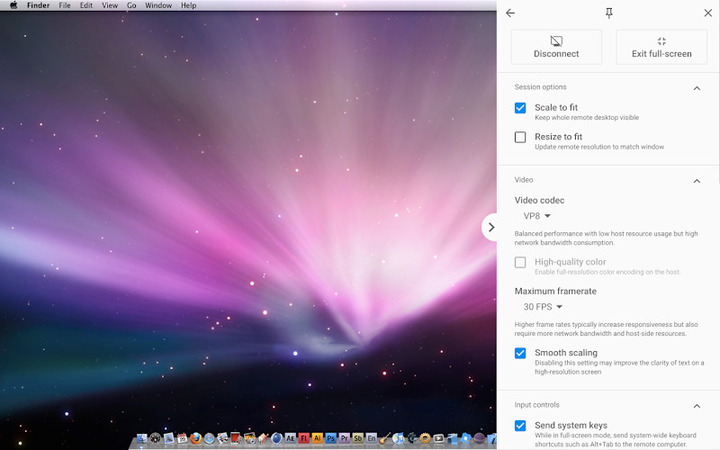
This secure, simple, and swift application lets you establish a remote connection between your iOS device and your home computer. For configuration, a simple PIN can be used to start the session.
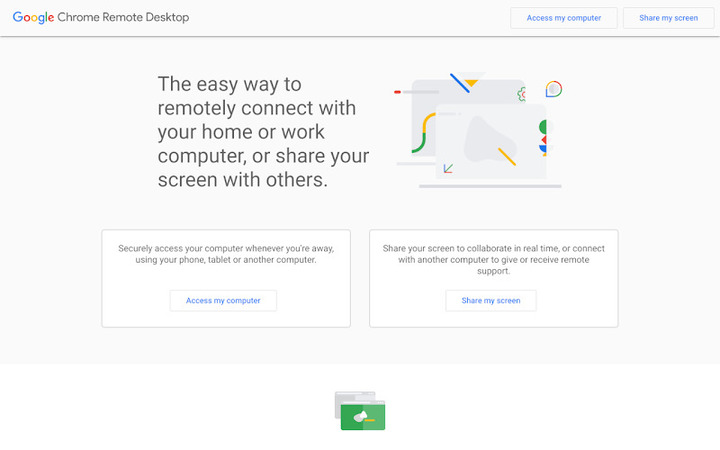
Google’s Chrome Remote Desktop (CRD) is a lightweight remote access software that comes with the Chrome web browser. Users can use it to connect one device to another device remotely and share their screen for support, troubleshooting, or accessing information. CRD connects to another device via secure PIN authentication and benefits from Google’s strong encryption and global infrastructure for higher stability.
With Chrome Remote Desktop, you don’t need to configure a firewall, static IPs, or VPNs since it’s a fully cloud-managed, browser-based platform. This is ideal for small support teams, educators, and individual users looking for reliability with no complexity.
TeamViewer
Best for: Enterprises and SMBs that require a complete SaaS platform to access remote device access and service-desk support in a large-scale business environment.

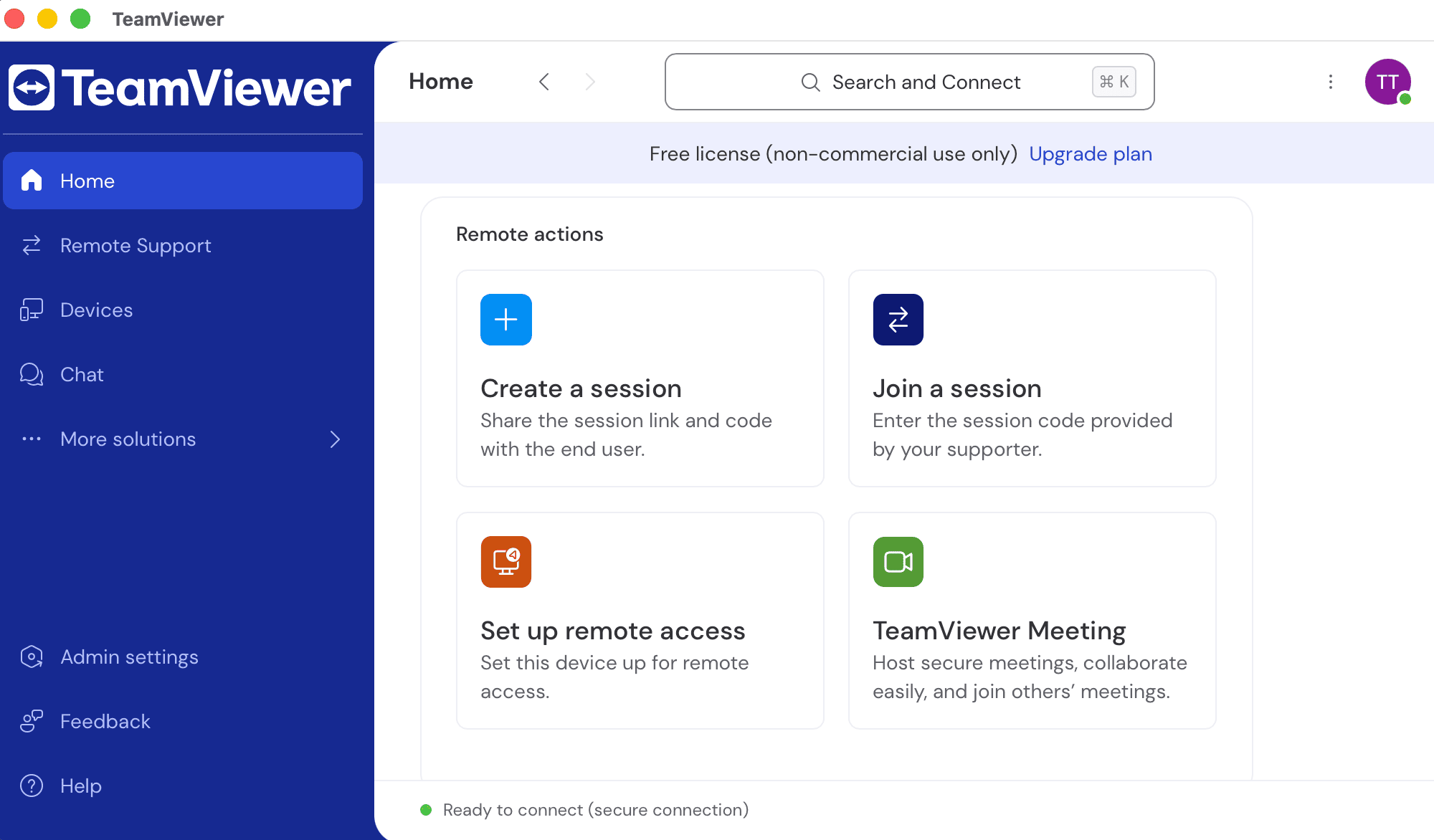
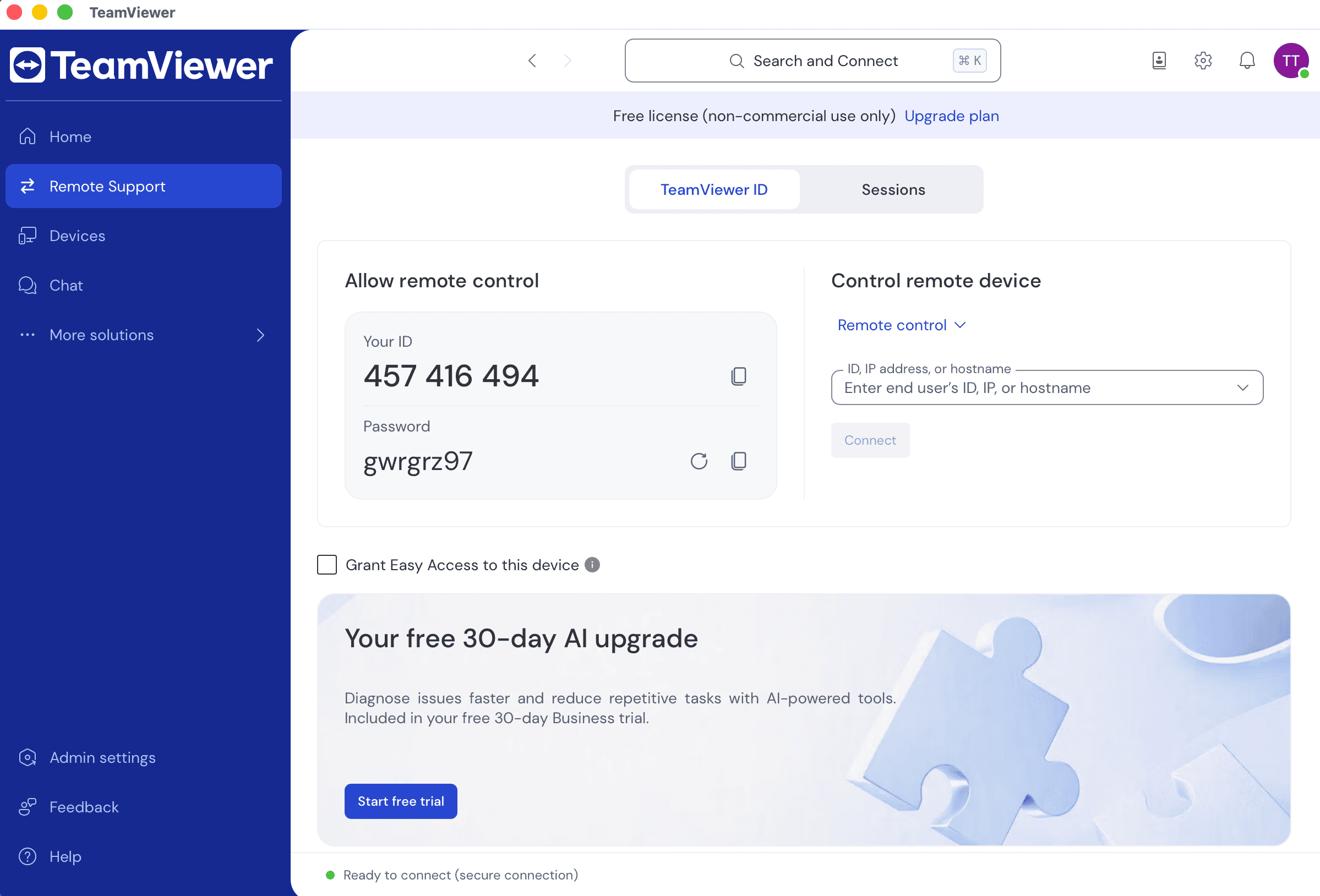
TeamViewer ermöglicht schnellen, sicheren Fernzugriff für Support, Meetings und Zusammenarbeit.
TeamViewer is also a cloud-based remote desktop solution that technicians can use to connect to devices remotely, manage systems globally, and troubleshoot issues globally, irrespective of their location. TeamViewer offers speed, collaboration capabilities, and cross-platform support with many devices and operating systems.
The ecosystem of TeamViewer includes integrations with CRM, ITSM, and identity management systems. This is suitable for distributed organizations and those in regulated sectors. TeamViewer’s licensing is flexible and scalable by named users and channels (concurrent connections). This means teams can easily adapt and expand with the growth of their support volumes.
Features
In this TeamViewer vs Chrome Remote Desktop comparison, we’ll now explore their differences in terms of features, value, usability, and flexibility.
Chrome Remote Desktop is free and offers unified features, while TeamViewer offers tiered plans (Business, Premium, Corporate) where capabilities differ.
1. Remote Access and Session Management
Chrome Remote Desktop
- • Users require Google Account authentication and explicit consent to establish a connection for a remote session.
- • Users can launch sessions from a web interface, without installing a client separately on the controlling machine.
- • Hosts and guests connect via encrypted WebRTC channels without configuring the network manually.
- • It offers unattended (persistent) access as well as attended (on-demand) access via secure PINs.
- • CRD supports basic file transfer, clipboard sharing, full-screen control, and multiple monitors.
TeamViewer
- • Users can set up connections quickly using unique IDs and passwords. Recurring sessions are further simplified with device lists.
- • Users can use session logs and optional recordings to create audit trails, which are useful for maintaining compliance and quality assurance (QA).
- • TeamViewer offers both unattended and attended access, with “Easy Access” for always-on endpoints.
- • It enables seamless user assistance and experience through multi-monitor support and remote printing.
- • For continuous support, users have a session hand-off between technicians.
2. File Sharing and Collaboration
Chrome Remote Desktop
- • Lightweight file transfer
- • Clipboard synchronization
- • Users can view files simultaneously
- • Control screen sharing modes
- • No built-in voice/video chat available; relies on third-party tools for communication
TeamViewer
- • Secure drag-and-drop file transfer
- • Clipboard synchronization
- • Session transfer and shared control for multi-technician collaboration
- Field service technicians can use augmented-reality (AR) support via TeamViewer Frontline
- • Integrated chat and video, and voice calling during sessions
3. Branding and Customization
Chrome Remote Desktop
- • No custom branding; uses the default interface by Google
- • To hide the host display during sessions, Chrome Enterprise administrators can enforce “Curtain Mode”.
- • Customization options are limited; not suitable for branded support portals, but ideal for secure environments
TeamViewer
- • Supports custom branding and company logos for client modules
- • Provides customizable connection policies
4. Ease of Use and Performance
Chrome Remote Desktop
- • Offers a straightforward interface for simple tasks – one session per window, and not for multitasking
- • Extremely lightweight; minimal system impact even on devices with lower specifications
- • Supports browser-based deployment for instant access without installing the client-side software
- • Ensures low-latency sessions using Google’s global infrastructure and WebRTC
TeamViewer
- • Remote installation and maintenance across fleets is simplified through cross-platform agents.
- • The desktop client is suitable for scheduled as well as quick ad-hoc connections
- • Users can easily control slower connections with adaptive compression
- • Allows managing multiple concurrent sessions through a multi-tab workspace
5. Device and Team Management
Chrome Remote Desktop
- • Users can use the Google Account dashboard for device management; no centralized console is available.
- • Defining connection permissions and restricting usage via policy is available for Chrome Enterprise admins.
- • Ideal for individuals or small teams that need no layered administration controls
TeamViewer
- • IT admins can view devices and sessions.
- • TeamViewer can scale easily with an increasing number of managed devices and channels.
- • Premium plan come with role-based user controls, team-level policy enforcement, and centralized device grouping.
Feature Comparison: Chrome Remote Desktop and TeamViewer
| Feature | Chrome Remote Desktop | TeamViewer (Business & Premium) |
| Attended & Unattended Access | ✔ | ✔ |
| Remote Control | ✔ | ✔ |
| File Transfer | ✔ (limited) | ✔ (full drag-and-drop) |
| Multi-Monitor Support | ✔ | ✔ |
| Remote Printing | ✘ | ✔ |
| Chat / Voice / Video | ✘ | ✔ |
| Session Recording | ✘ | ✔ |
| Session Transfer | ✘ | ✔ (Premium and above) |
| Multi-Factor Authentication | ✔ (Google 2-Step Verification) | ✔ |
| USB Sharing | ✘ | ✘ |
User Interface
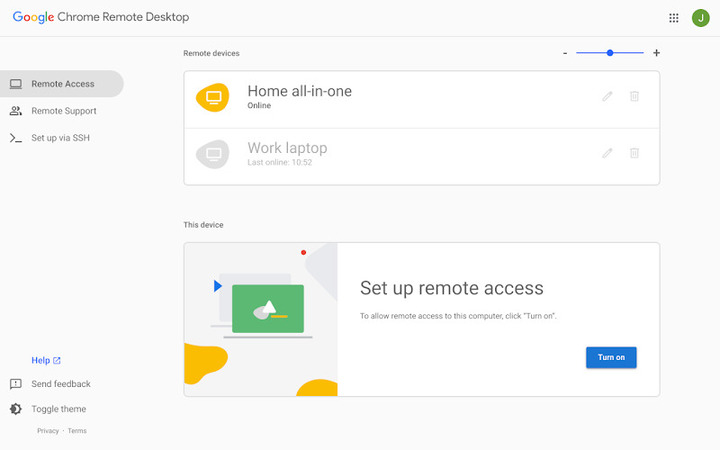
Chrome Remote Desktop: CRD comes with a simple, browser-based dashboard showing a list of devices and quick-connect options. It allows users to initiate or accept remote connections quickly with on-screen prompts to complete PIN authentication. Although this minimalistic interface is free of clutter, it lacks advanced controls for IT administrators.
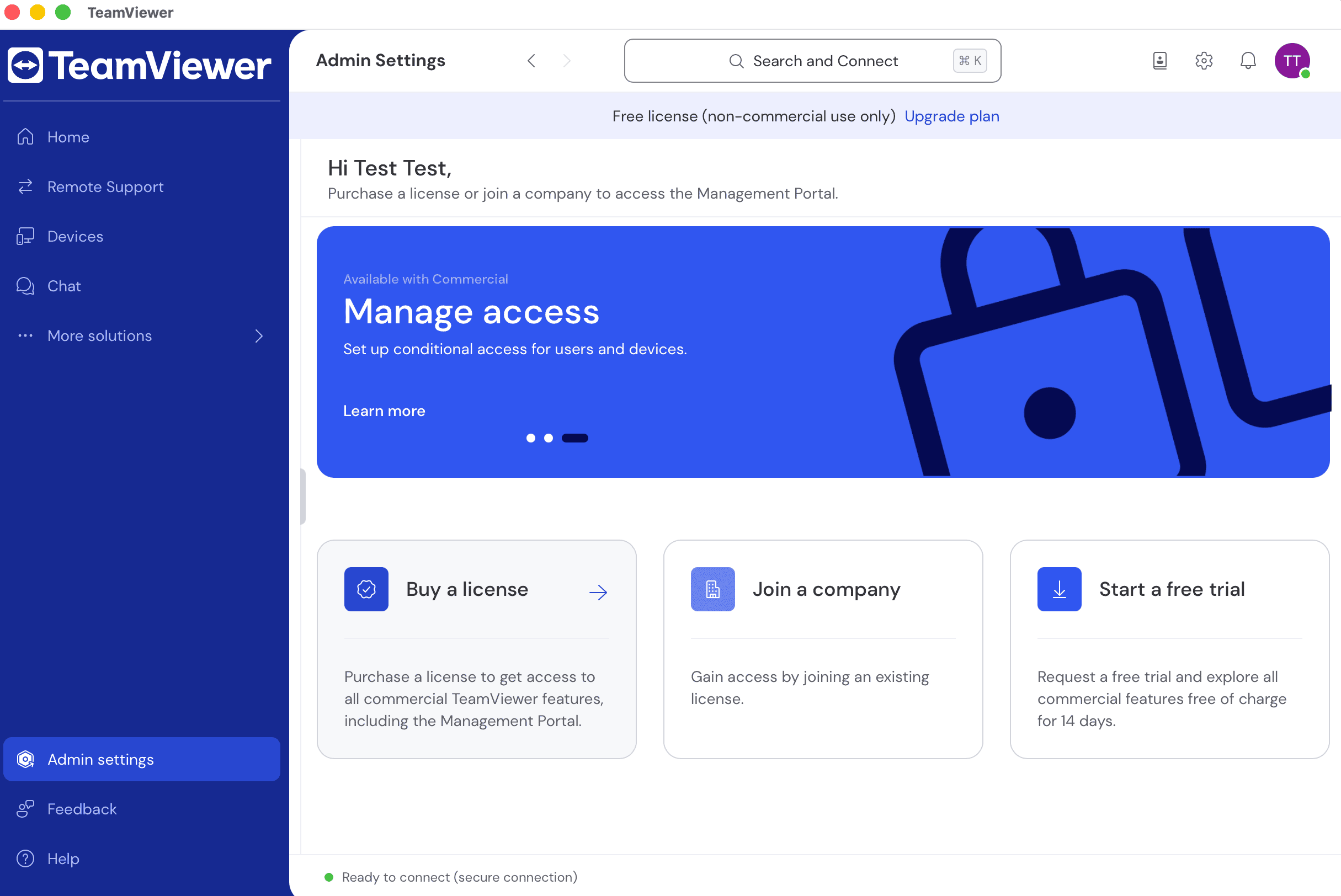
TeamViewer: Its interface is more powerful compared to that of CRD and is more suitable in environments where professional support is provided. It allows users to transfer files via drag-and-drop functionality, view multiple sessions in tabs, and use built-in chat and calls for communication.
TeamViewer’s console also facilitates features, such as reporting, logs, and device grouping. All these features enable audit-ready and predictable workflows for admins as well as help desk teams, but may increase complexity.
Operating System Support
Users in your team may be using different types of operating systems. So, knowing all the operating systems that a remote access solution supports is an important aspect to consider for better coverage.
Whether it’s Chrome Remote Desktop or TeamViewer (Business & Premium), both provide support for multiple operating systems, with small differences in terms of niche platforms and mobile device coverage.
| Operating System | Chrome Remote Desktop | TeamViewer (Business & Premium) |
| Windows | ✔ | ✔ |
| macOS | ✔ | ✔ |
| Linux | ✔ (major distros) | ✔ |
| ChromeOS | ✔ (Chromebook sessions; web client limited) | ✔ (app/web; screen-share only) |
| Android | ✔ | ✔ |
| iOS / iPadOS | ✔ (screen share / remote assist) | ✔ (screen share / remote assist) |
| FreeBSD | ✘ | ✘ |
| Raspberry Pi | ✘ | ✔ (full agent support) |
Security Capabilities
With increasing cyberattacks, it’s necessary to check the security capabilities of remote access solutions.
Chrome Remote Desktop and TeamViewer come with multi-factor authentication (MFA) and end-to-end encryption to protect connections. However, their compliance posture and governance depth may differ.
Chrome Remote Desktop
- • Authentication: CRD uses optional 2-Step Verification to allow users to sign in to their Google Account.
- • Access Control: Allows users to manage access controls through PIN-based connections, restricting anonymous or credential-less access.
- • Encryption: Protects sessions with TLS 1.2 and WebRTC and strong AES ciphers.
- • Privacy: Google assures it never stores or records session data or screen content.
- • Compliance: CRD inherits the ISO/IEC 27001, SOC 2, and GDPR compliance posture of Google Cloud, but doesn’t provide per-session audit exports.
- • Enterprise Policies: Chrome Enterprise admins have the option to disable PIN sharing, allow only certain accounts to initiate sessions (restricting others), and enforce the Curtain Mode.
TeamViewer (Business & Premium) Security
- • Account security: TeamViewer secures accounts with 2FA, allow/block lists, password-strength enforcement, and trusted-device approval.
- • Access Governance: Users can define who can connect, when, and from which network using Conditional Access rules.
- • Encryption: TeamViewer uses AES-256 session encryption along with RSA 4096-bit key exchange. It also routes traffic through TeamViewer’s secure global infrastructure.
- • Compliance and Auditing: TeamViewer is compliant with GDPR, certified with ISO 27001, and supports event logging for audits and optional video session recording.
- • Identity Management: To manage the identities of users and devices, TeamViewer offers SAML SSO and SCIM user provisioning (in higher plans).
Usage Scenarios
Your organizational environment, usage needs, and workflow are major things to take into account when choosing between Chrome Remote Desktop and TeamViewer.
Chrome Remote Desktop
- • Personal use: Being simple, free, and secure, CRD is best for accessing home PCs, remote learning, or extending family support.
- • IT professionals: Useful for IT professionals for ad-hoc access to their lab or personal, or systems, even without configuring a VPN.
- • Enterprise help desks: Teams in enterprises can use CRD for delivering simpler remote assistance. Advanced features, such as detailed reporting, compliance features, and centralized management, are not available.
TeamViewer
- • Enterprise help desks: TeamViewer is ideal for distributed teams that need remote printing, granular device governance, and concurrent sessions.
- • IT professionals: Allows IT professionals to access devices reliably across multiple operating systems, and benefit from multi-monitor workflows and optional AR add-ons.
- • Personal use: Users with simple remote access needs can also use it for free and benefit from its easy setup and basic functionality.
Integration
Modern teams with remote support needs want a solution that can integrate effortlessly with tools, such as identity-management services, ITSMs, and CRMs. Let’s find out how Chrome Remote Desktop vs TeamViewer compares based on supported integrations:
| Integration Feature | Chrome Remote Desktop | TeamViewer (Business & Premium) |
| REST API | ✘ | ✔ |
| ITSM ( ServiceNow, Jira ) | ✘ | ✔ (Higher tiers) |
| CRM ( Salesforce ) | ✘ | ✔ (Higher tiers) |
| Single Sign-On (SSO) | ✘ | ✔ (Higher tiers / Tensor) |
| Directory Integration | ✔ (via Google Workspace admin) | ✘ (basic tiers) |
| Custom Branding | ✘ | ✔ (Premium and above) |
| Embeddable Web Console | ✔ (through Chrome Web App) | ✘ |
Being a Google service, Chrome Remote Desktop integrates seamlessly with Google Workspace but lacks third-party API integrations.
On the other hand, TeamViewer’s integration ecosystem is extensive, especially in Premium, Corporate, and Tensor tiers.
Pricing
| Plan | Chrome Remote Desktop | TeamViewer |
| Free (Personal/Commercial) | Free for all users | Personal use only |
| Remote Access (Single User) | — | $24.90 / month |
| Business (Single User) | — | $50.90 / month – 200 managed devices |
| Premium (Teams) | — | $102.90 / month – 15 users / 1 channel |
| Corporate (Teams) | — | $206.90 / month – 30 users / 3 channels |
| Enterprise (Tensor) | — | Custom pricing with SSO, SCIM, and Conditional Access |
| Trial | Not required | 14-day business trial available |
Common Issues and Limitations
Chrome Remote Desktop
- • Limited features: CRD offers limited features. There are no session recordings, built-in chat, or remote printing.
- • Browser Restrictions: Some firewalls in organizations block WebRTC; allow remotedesktop.google.com.
- • Performance issues: Reduced display quality and visible lag are common with low-bandwidth networks.
- • Host Offline: CRD requires you to keep your remote computer connected to the Internet and powered on in order to work.
TeamViewer
- • Easy Access failures: It can happen due to stale assignments or if Full Access rights are missing.
- • “Commercial Use Suspected”: Many users frequently encounter these warnings, even if they are not using the free tool for commercial purposes. It also shortens the session length and causes inconvenience for users.
- • Proxy / SSL inspection: It can sometimes break handshakes. You may need to whitelist TeamViewer domains.
- • Version Mismatch: If different versions of TeamViewer are used in the host and remote system, you might get this triggered warning – “Unknown session”. It’s recommended to use the same version on both systems or update the older versions.
- • “WaitForConnectFailed” / “Not ready …”: This error can happen due to DNS or port 5938/443 blocks.
Pros and Cons
Now, let’s explore TeamViewer vs Chrome Remote Desktop pros and cons. We rely on feedback from users who have used these software.
Chrome Remote Desktop:
A user on G2 writes:
TeamViewer:
Pros
- Fast browser setup
- Lightweight
- Supports Google’s 2FA
- Requires no VPN
- Cross-platform support
- Free remote access software for all users, business or personal
Cons
- Limited file transfer
- Relies on the Google account
- No chat, multi-user dashboard, or session recording
TeamViewer
About TeamViewer, a user writes:
"Reliable and Easy-to-Use Remote Support Tool". Read full review
Pros
- Feature-rich platform
- Scalable licensing
- Offers multi-session tabs and remote printing
- Integrates with AR & ITSM tools
- Provides audit logs
Cons
- Restrictions in the free plan
- Complex licensing and high cost
- Frequent updates
- Heavier client
The Best Free Alternative to TeamViewer and Chrome Remote Desktop
HelpWire is a modern remote access tool designed for IT support teams, customer service, and remote user assistance. The solution focuses on fast connections, a low entry barrier, and enterprise-grade security.
Unlike Chrome Remote Desktop, HelpWire provides advanced session management capabilities. Compared to TeamViewer, it offers a simpler usage model without complex licensing restrictions.
HelpWire’s Key Features
Fast remote access: Stable, low-latency remote sessions even on slow or unstable internet connections.
Cross-platform support: Works on Windows, macOS, and Linux without being tied to the Google ecosystem or a specific operating system.
Session recording and reporting: Record remote sessions for training, quality assurance, or internal compliance purposes.
File transfer and chat: Secure file sharing and real-time communication during active remote sessions.
No client installation required: Users can join a remote session via a web link—no mandatory client installation to initiate the connection.
Unattended access: Set up persistent, secure access to devices without end-user involvement—a capability missing from Chrome Remote Desktop in business use cases.
Enhanced security: End-to-end encryption, two-factor authentication, and Auth0 integration.
Final World
In this TeamViewer vs Chrome Remote Desktop review, we found that both of these come with reliable and secure remote access capabilities. However, they differ in terms of their use cases or audiences.
Chrome Remote Desktop is a good pick for users who are looking for a free browser-based remote access solution that requires minimal settings. On the other hand, TeamViewer is more suitable for people who need advanced features, audit reports for governance, and multi-user collaboration.
- • Simplicity and speed: Personal and small-team users need simplicity and speed, where Chrome Remote Desktop shines.
- • Budget: If you’re looking for a free remote support solution, pick Chrome Remote Desktop, as it costs nothing. TeamViewer’s tier-based pricing scales with usage and features.
- • Compliance depth: TeamViewer is better for identity integration and enterprise-grade policies.
If you’re looking for an alternative to Chrome Remote Desktop and TeamViewer for remote access, HelpWire is a great option. It perfectly blends the cost-free aspect of CRD and advanced capabilities similar to TeamViewer.
HelpWire is a completely free remote desktop solution that allows you to quickly access and control remote computers with security and reliability. It comes with key capabilities and is suitable for both personal and business uses, without complexity or budget constraints.