
RustDesk “Connected, Waiting for Image” Error: Proven Solutions

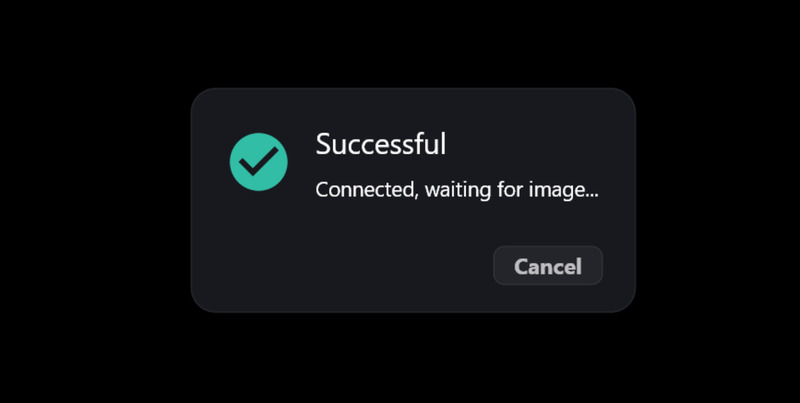
You may sometimes encounter the RustDesk message “Connected, waiting for image” when you’re trying to connect to a remote computer. What it indicates is that the connection has gone through, but the display hasn’t loaded yet. No need to stress, it happens a lot and can be resolved quickly.
Here are some quick tips to get your remote screen back.
What Does This Error Mean?
Seeing the “Connected, waiting for image” message basically means RustDesk managed to link your devices, but it can’t capture and show the other computer’s screen yet.
A few things can trigger this, including the following:
- • Settings that weren’t set up the right way
- • Screen-access permissions not turned on (macOS is especially strict about this)
- • The remote computer does not have a monitor or display device attached
- • Running an older RustDesk build or outdated graphics drivers
The nice thing is that all of these are straightforward to sort out.
Quick Fixes to Try First
Most people use these solutions to address this issue, and it would take you just a few minutes to try them out.
1. Change the video codec
RustDesk can send video using various methods. The default format doesn’t work properly from time to time, and changing it can make the screen appear.
Here’s how to do it:
-
Start connecting to the remote computer like you normally would.
-
Click the small downward arrow at the top of the window after the RustDesk “waiting for image” message appears.
-
Choose Display Settings or Video Settings.
-
Change the codec to VP9, which works on most machines
-
If VP9 doesn’t fix it, try other options like H264 or H265.
Why this works: RustDesk’s default method doesn’t play well with your setup sometimes, and switching video codecs can help. Users often report that choosing VP9 gets rid of the error. It’s a tip you’ll find floating around forums like Reddit and GitHub.
2. Update RustDesk to the latest version
Running an old version of RustDesk can cause the “connected, waiting for image” issue. But you can get all the recent fixes and improvements after making the software up to date.
Here’s how to do it:
-
Go to the RustDesk Releases Page.
-
Make sure to update both the device you’re controlling and the one you’re connecting from with the newest version.
-
Restart RustDesk and reconnect to the remote device.
Why this works: RustDesk updates often take care of bugs that can hide the remote screen. Try running the same version on both computers to keep everything running smoothly.
3. Check if the remote computer has a monitor attached
RustDesk won’t show the screen on a remote computer without a monitor attached. A “headless” machine, one that doesn’t have a monitor, often won’t display anything.
Quick check: See if the remote computer has a monitor plugged in. If it doesn’t, try this:
The fix: Get an HDMI dummy plug for around $10–20. This little device tricks the computer into thinking a monitor is there, so RustDesk can display the screen.
Why this works: Plugging in the HDMI dummy makes the computer think a display is connected to it, which allows RustDesk to pick up the screen. Many users have found this works, including people discussing it on GitHub.
4. Use HelpWire as RustDesk Alternative
If you find yourself repeatedly troubleshooting the same issues, especially in professional environments where uptime and reliability are paramount, it might be time to consider a more dependable remote desktop solution. Switching to an alternative can save you both time and frustration in the long run.
HelpWire offers a modern approach to remote access, designed with a focus on reliability and simplicity. Unlike RustDesk, HelpWire eliminates common quirks, providing smooth and secure connections every time. Whether you’re managing IT support or need remote access for personal use, HelpWire ensures a seamless experience.
Why Choose HelpWire?
- • Cross-Platform Compatibility: Seamlessly connect across Windows, macOS, and Linux.
- • Unattended Access: Securely manage remote devices anytime, anywhere.
- • Easy File Transfer: Drag and drop files effortlessly between devices.
- • Hassle-Free Setup: Quick installation with an intuitive, user-friendly interface.
Explore why HelpWire is the top alternative to RustDesk and see how it compares in terms of performance, security, and ease of use.
Solutions for macOS Users
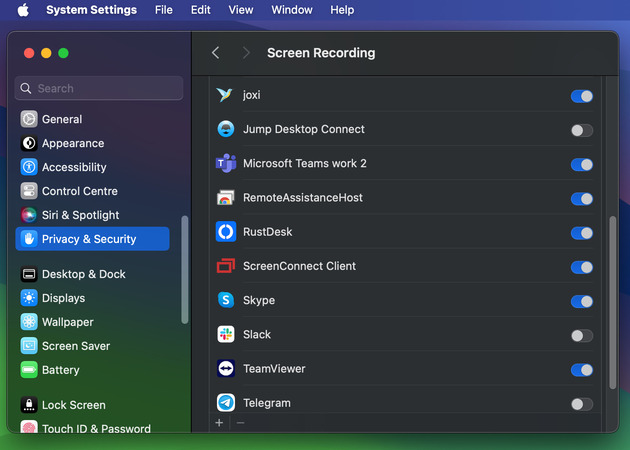
Mac users often run into this RustDesk “waiting for image” problem because the app doesn’t have the permissions it needs, especially for screen recording.
Fix Mac screen recording permissions
Why this works: macOS won’t let apps record the screen unless you give permission. RustDesk can’t display the remote screen without these permissions, so be sure to enable them.
Here’s how to do it:
-
On the Mac you want to access, open System Preferences.
-
Go to Privacy & Security.
-
Choose Screen Recording and tick the box beside RustDesk. If RustDesk isn’t appearing or isn’t working, remove it by clicking the minus (−) button, then add it back by clicking the plus (+) button.
-
Restart RustDesk.
Why this works: Allowing RustDesk to record the screen is essential for showing the remote desktop. Mac users often recommend trying this approach, which actually appears in discussions about RustDesk’s GitHub issues.
Solutions for Windows Users
1. Try the DirectX version of RustDesk
Switching codecs may not be a successful fix for the RustDesk “connected, waiting for image” issue for some Windows users. In that case, consider using the software’s DirectX version, which helps the operating system grab the screen more dependably.
Here’s how to do it:
-
Visit the RustDesk DirectX Releases Page.
-
Download and install the DirectX version on the remote computer.
-
Go to the RustDesk settings on the remote machine, and turn on Use DirectX capture.
-
Reconnect to the remote device.
Why this works: DirectX helps certain Windows systems capture the screen correctly. Many users have confirmed this method in GitHub discussions.
2. Update your graphics drivers
Old graphics drivers can stop the remote screen from appearing at times. Keeping your drivers current helps you avoid the RustDesk problem “connected, waiting for image.”
Here’s how to update your drivers:
-
Press Win + X and choose Device Manager.
-
Expand Display Adapters.
-
Right-click your graphics card and select Update Driver.
-
Reconnect to the remote device.
-
Just restart your PC after that.
Why this works: Updating your graphics drivers helps RustDesk pick up and display the remote screen properly. Several GitHub users have reported that this fix resolved their display problems.
Solutions for Linux Users
1. Enable headless mode
On Linux systems without a monitor connected, RustDesk needs headless mode to display the remote screen.
How to do it:
Open Terminal and run:
sudo rustdesk –option allow-linux-headless Y
Or use the GUI method:
-
Open RustDesk.
-
Go to Settings.
-
Turn on “Allow Linux Headless”.
Why this works: Headless mode is the official solution for Linux machines without a display. It allows RustDesk to show the remote desktop even when no monitor is connected. Many Linux users confirm this approach in RustDesk’s documentation.
2. Use a dummy display driver
Since headless mode isn’t reliable for everyone, one fix is to install a dummy display driver that makes the computer think a monitor is attached.
How to install it:
Open a terminal and get the necessary package installed:
sudo apt-get install xserver-xorg-video-dummy
-
Create a configuration file:
sudo nano /etc/X11/xorg.conf -
Add the following configuration, and adjust the resolution if needed:
Section “Device”Identifier “Dummy Device”
Driver “dummy”
VideoRam 256000
EndSection
Section “Monitor”
Identifier “Dummy Monitor”
HorizSync 28.0-80.0
VertRefresh 48.0-75.0
EndSection
Section “Screen”
Identifier “Dummy Screen”
Monitor “Dummy Monitor”
Device “Dummy Device”
EndSection
-
Restart the X server or reboot the computer.
Why this works: The dummy display driver makes the system behave as if a monitor is connected, letting the software capture and transmit the screen. Many Linux users have had a successful fix of the RustDesk “connected, waiting for image” problem using this approach, as discussed in GitHub threads.
Conclusion
- • Mac users: Confirm if the software has the permissions to record the screen of your computer.
- • Windows users: Switch the video codec to VP9 or try RustDesk’s DirectX version.
- • Linux users: Turn on your computer’s headless mode to fix the issue, or perhaps, add a dummy display.