
TeamViewer Black Screen After Connection: How to Fix It

- HelpWire
- →
- Blog
- →
- TeamViewer Issues How to Solve Them
- →
- TeamViewer Black Screen Issue
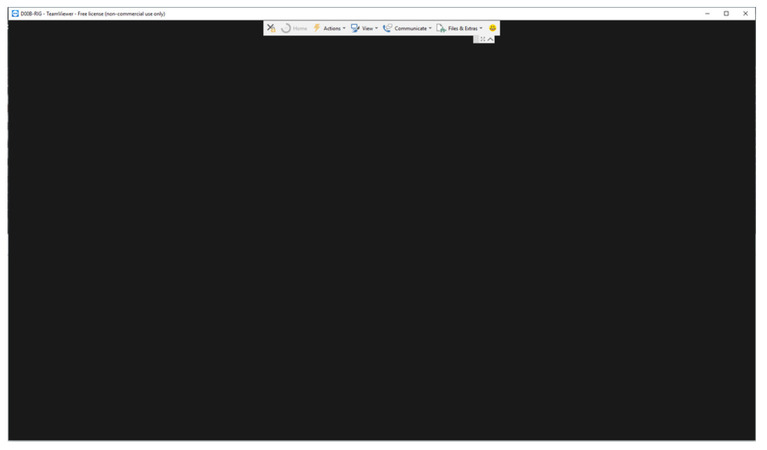
You’re attempting to control a computer through TeamViewer, but the moment the session starts, the display just shows a black screen. Your mouse is still responsive, yet the screen never loads. You will encounter this irritating glitch more often than you’d imagine. But it’s rarely a big problem. Most of the time, the problem has something to do with Windows settings or the software’s security options. It can also be about you setting up the display. The fix? Only takes a couple of things to try.
Let’s go through a few ways to fix this:
- Exit the minimized RDP session to bring back the desktop.
- Restart the TeamViewer service to clear minor background errors.
- Better turn the “Black Screen” option off in the settings in case it was turned on by mistake.
- Plug in a monitor, or use a dummy display, whatever works.
- Add TeamViewer to your security exceptions to keep antivirus software from interfering.
- Switch to a TeamViewer alternative if the issue keeps coming back.
These fixes don’t take long, and they usually do the trick. Let’s see what each one does.
Solution 1: Close that Minimized RDP Session
This is one of the most common reasons why TeamViewer shows a black screen, and it could be what’s happening at the moment.
Windows stops displaying the desktop after someone uses Remote Desktop Protocol to connect to a remote computer and then minimizes that RDP window. The official troubleshooting guide says TeamViewer can’t capture the screen of the remote computer until you bring back the RDP window.
Step-by-step fix:
-
If possible, ask the person at the remote computer to reopen the minimized RDP window to full view.
-
If the TeamViewer black screen remains, ask them to sign out or completely close the RDP session instead of just minimizing it.
-
If you can manage the session, open the Actions menu in the TeamViewer toolbar and choose Remote Reboot. You can clear any issues with the display.
One Reddit user who faced this problem summed it up well: “Note: don’t minimize the RDP session, or it stops generating an output.” It’s a practice best avoided if you’ll be using TeamViewer in the future. The same minimized RDP session that causes a black screen can simultaneously cause TeamViewer keyboard not working, since the remote desktop loses focus and stops processing input.
Solution 2: Restart the TeamViewer Service
Now and then, the TeamViewer service can freeze or break if it gets damaged. The official guide says that the black screen issues mostly happen because “the TeamViewer service is not running properly.” They come up more often than expected after a Windows update or if the remote computer hasn’t been rebooted.
Step-by-step fix:
-
On the remote computer, press Windows Key + R.
-
Type services.msc and press Enter.
-
Look for the service named “TeamViewer” or “TeamViewer Remote Control Service.”
-
Right-click the service and choose “Restart.”
No direct access? Give the remote computer a full restart, and that should fix it. As one user on Reddit noted, “Usually a reboot on the remote side fixes it.” I know “have you tried turning it off and on again” might seem like obvious advice, yet restarting works because it makes the service start cleanly.
Solution 3: Turn Off the Black Screen Feature
This one can surprise many users: TeamViewer has a feature that makes the remote screen go blank on purpose. Basically, it stops people around the remote machine from watching what you’re doing.
The annoying thing? It can turn on by itself sometimes. TeamViewer black screen then pops up, and you have no clue why.
Step-by-step fix:
-
Once connected, check the TeamViewer toolbar. It’s the one that commonly floats at the top of your local screen.
-
Open Actions, then find “Show Black Screen” or a similar feature like “Disable local black screen.”
-
Make sure the option is unchecked.
TeamViewer’s security documentation explains that this option is meant to “hide the remote screen in connections” to protect your privacy. You can turn it on from Actions in the remote toolbar by picking “Show Black Screen.” This feature can be really handy when you need it, yet a total pain if it switches on by mistake. The intentional Black Screen mode exists specifically to protect sensitive information on the remote machine, it is one of several TeamViewer security features designed to prevent bystanders from observing an active session.
Solution 4: Connect a Monitor (or Fake One)
A remote computer without a monitor, like a server tucked away somewhere or a laptop with the lid shut, can easily trigger the TeamViewer black screen problem. The software’s reference materials even list “the connection is to a computer with no monitor” as an established contributor to this problem.
When no screen is detected, the operating system and graphics card may stop drawing the desktop altogether. Since TeamViewer needs an active display to capture, you end up with a blank view on your end.
In some cases, instead of showing a completely black screen, TeamViewer will display an explicit error message stating TeamViewer screen cannot be captured at the moment, both symptoms stem from the same display detection failure, and the monitor/dummy plug fix resolves both.
Step-by-step fix:
-
Try opening the laptop lid or hook up a real monitor if you have access to the remote machine.
-
If that’s not possible, plug an HDMI or DisplayPort dummy adapter into the computer’s graphics port. This tricks the system into thinking a monitor is connected, which makes the GPU generate a desktop again.
One Reddit user shared from personal experience: “Black screens are almost always caused by funky-ness at the remote side. Laptop with the lid closed, PC with the screen off, etc.” They suggested using dummy plugs even though “these cost money,” because they fix the issue on headless machines. They also pointed out a software alternative called IDD (Indirect Display Driver), describing it as “basically a software version of a dummy plug.”
Once the black screen is resolved, some users notice that the remote display quality is degraded, this is a separate rendering issue covered in our TeamViewer blurry screen troubleshooting guide.
Solution 5: Add TeamViewer to Your Security Exceptions
Sometimes antivirus or firewall stuff gets overly careful and ends up blocking the screen part of the connection, even though your mouse and everything else still go through. TeamViewer even mentions that this can happen when something interferes with its communication. It’s a weird problem, but people run into it pretty often.
Step-by-step fix:
-
Start by temporarily turning off any third-party antivirus or security suite (like Kaspersky or McAfee) on the remote computer.
-
If the screen shows up again, you’ve found the cause. Add the TeamViewer executable (TeamViewer.exe) to the allow-list or exception list in that security program.
-
Also, check Windows Defender Firewall to confirm if “TeamViewer Remote Control Service” is allowed for your active network type (Private or Public).
It only takes a little bit to get the settings in place, and once you add those exceptions, the whole “TeamViewer show black screen” thing caused by security apps usually stops being a problem.
Solution 6: Use HelpWire as a TeamViewer Alternative
You might keep running into the same TeamViewer black screen problems, especially in workplaces where it’s important to have consistent access and smooth performance. So, it may be worth switching to a more reliable remote desktop tool. Choosing an alternative can save both time and headaches over time.
HelpWire, made to be simple and dependable, is a modern take on remote access. Compared to TeamViewer, it skips most glitches, so your connection stays secure and stable all the time. Using it is simple, whether you’re helping someone or just logging in from afar.
See why HelpWire is considered a great alternative to TeamViewer, and how it stacks up when it comes to speed, safety, and ease of use.
Why choose HelpWire?
Works on Any System
Connect easily on Windows, macOS, or Linux without any hassle.
Access Anytime
Manage remote devices safely whenever you need, even if no one is there.
Simple File Sharing
Drag and drop files between devices in seconds.
Easy Setup
Install quickly with a straightforward, beginner-friendly interface.
Other Solutions If Nothing Helps
- • Update or reinstall graphics drivers: Old or corrupted graphics drivers can be the reason why the display issues occur. Consider updating them, reinstalling, or temporarily switching to the basic Windows display driver.
- • Turn off hardware acceleration: The screen error can disappear if you switch off hardware acceleration or fancy graphics stuff on your PC.
- • Remove conflicting software: Some third-party display tools or virtual screen programs can prevent TeamViewer from running correctly. Remove them for the time being to check if it fixes the problem.
- • Check for no-monitor setups: Sometimes, the other computer has no monitor. You can use a little dummy display or a virtual driver to get the desktop to appear.
- • Reinstall TeamViewer: Can’t get it to work? Remove the software from your machine and the other one, then reinstall it.
The Takeaway
Dealing with a TeamViewer black screen can be annoying. In most cases, there’s an easy way to resolve it. The first thing you can try is to restart the app or turn off the black screen feature. You can also try taking care of display conflicts like minimized RDP sessions or security software blocking the connection.
These steps may not work at times, so switching to an alternative like HelpWire can make remote access simpler and more reliable. Keep an eye on your setup and use a tool you can trust to avoid the usual stress and get your work done.