categories
Updated on Published on in

Splashtop Wired XDisplay Troubleshooting Guide

Author: Emma Collins
Emma Collins Article author

Splashtop Wired XDisplay issues can come from various sources. Both devices used in the connection need to support XDisplay in the first place, they need to be properly set up, and all the necessary drivers need to be installed. If anything is wrong, the app will not launch, fail to connect, or will not allow you to use the extension mode.

In this article, you will learn how to fix some of the most common problems with Wired XDisplay. Choose a section based on your combination of devices and type of error.

Windows Issues

Flickering Mouse
App Not Opening

Android Issues
App Can Not Be Opened
Can’t Establish a Connection
Can’t Enable Extension Or Mirror Mode

iOS XDisplay Not Working or Unable to Switch Modes

Compatibility Issues with macOS

Windows Issues

Splashtop XDisplay issues on Windows are mostly caused by an improperly installed driver, a lack of updates, or the USB connection simply being unable to handle the connection.

Flickering Mouse

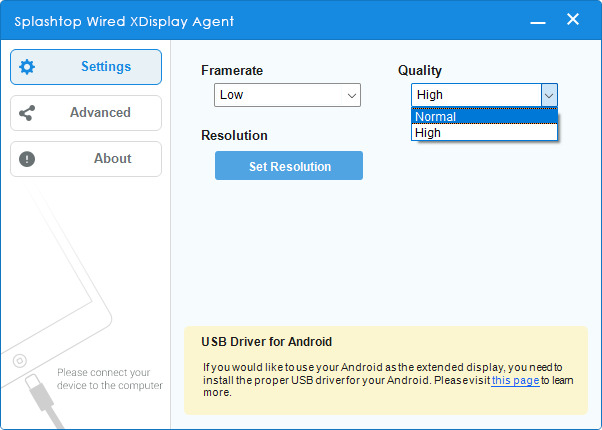
Changing the framerate and quality in the Wired XDisplay Agent

On the secondary display, your mouse may flicker if the speed of the connection is insufficient for the stream quality or resolution. You can approach this problem in multiple ways. Using USB 3.0 ports and cables over 2.0 can help.

However, if you’re stuck with your current hardware (or if it’s already the fastest it can get), do the opposite and reduce the required bandwidth. The framerate and quality of the stream can be reduced in the XDisplay Agent app, while resolution can be found in Windows Settings. If you’re using the app in the Extension mode, you can set a lower resolution individually for the second screen.

App Not Opening

App Not Opening

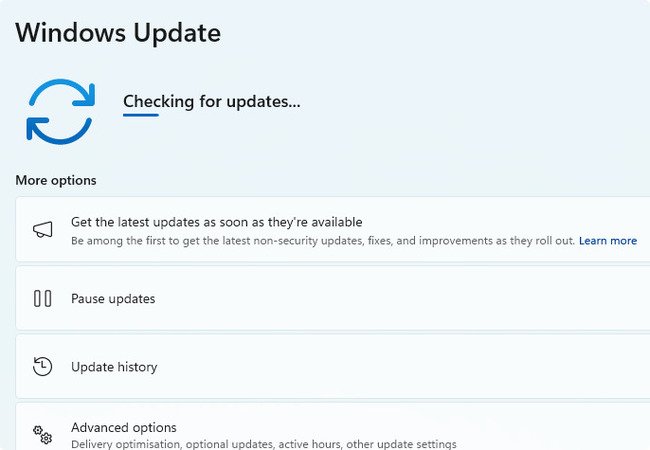
XDisplay Agent usually requires your system to be up-to-date. If you’ve been pausing updates, resume them and check for new ones. Additionally, you can try using the Agent installer to repair your installation.

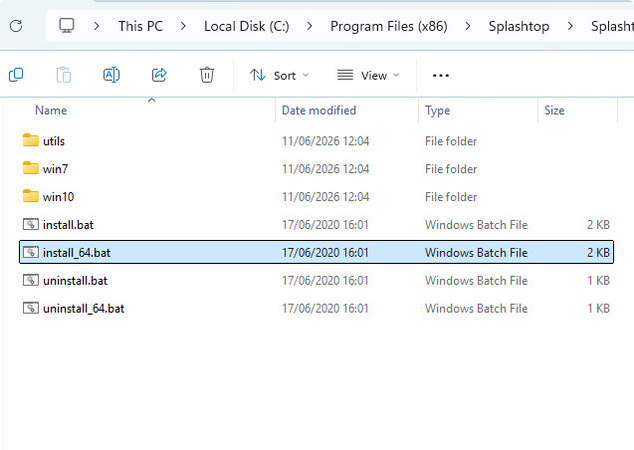
Splashtop display driver being located

This glitch can also sometimes be fixed by directly installing the drivers from “Program Files\Splashtop\Splashtop Wired XDisplay\Agent\Driver”. If you have installed USB drivers for similar software in the past, you may also want to remove them.

Android Issues

XDisplay on Android needs some setup in order to work, including enabling USB tethering and debugging. Most phones also need their corresponding USB driver to be installed on the PC (if using the Windows XDisplay Agent).

App Can Not Be Opened

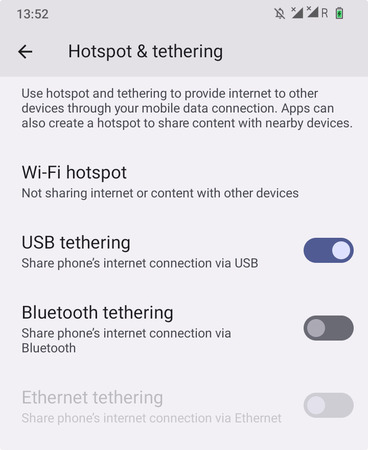
USB tethering enabled on an Android phone

Wired XDisplay requires USB Tethering to be enabled. You may have to do this every time the device is connected, since sometimes, a phone’s security settings automatically disable USB tethering whenever it’s disconnected.

Just go to Settings and search for “Tethering” using the search bar, or use the USB connection notification to enable it.

Can’t Establish a Connection

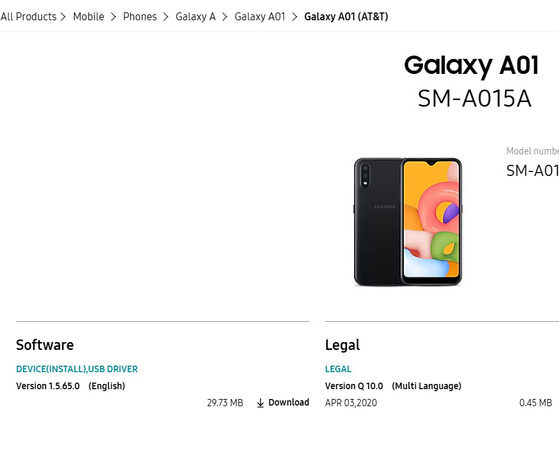
A vendor website with USB software for their phone

If you can’t start a Splashtop XDisplay session, one of the most common culprits is the lack of a USB driver. Different vendors and phone models have different drivers. Don’t install random software from the search results – go to the vendor’s official website and use their Support page to look for the installer.

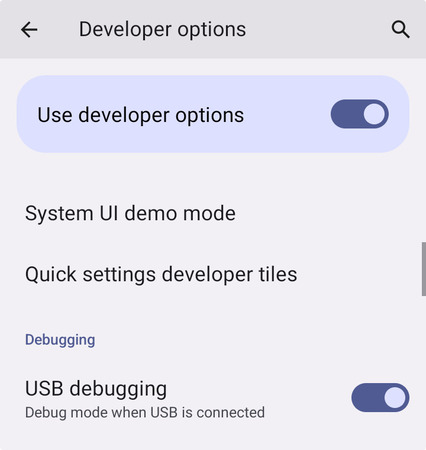
Developer options and debugging being enabled on an Android phone

USB debugging can sometimes also be necessary. This can be a bit tricky. Here’s how you can enable USB debugging on most phones:

  1. Go to “About phone” and press the build number 7 times.

  2. Agree to enable the Developer Mode.

  3. Go to System > Developer options.

  4. From here, you can enable USB debugging.

Can’t Enable Extension or Mirror Mode

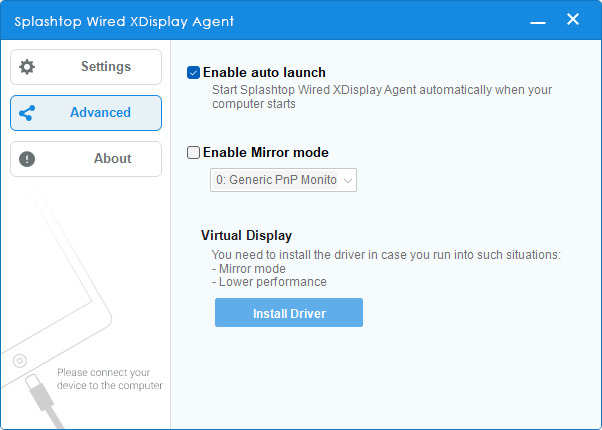
The Advanced setting screen in XDisplay Agent

If you’re having trouble enabling the mode you need, either Extension or Mirror, first you should go to the Advanced menu. Here, you can enable or disable Mirror mode and install the Virtual Display driver that’s also helpful for performance.

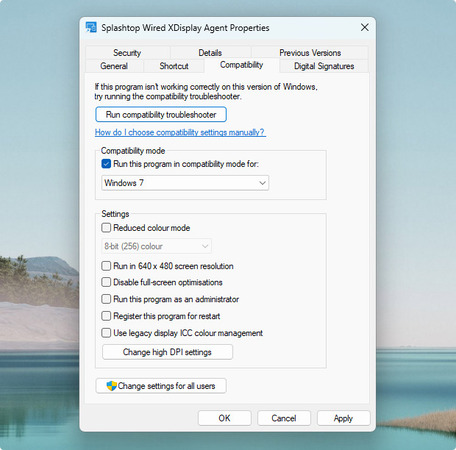
Compatibility settings for XDisplay Agent

Extension mode can sometimes start working after enabling Windows 7 compatibility. You can enable compatibility mode by doing the following:

  1. Right-click the Splashtop Wired XDisplay Agent executable.

  2. Click “Properties”.

  3. Go to Compatibility.

  4. Enable “Run this program in compatibility mode for:” and select Windows 7.

Switching display modes on Windows

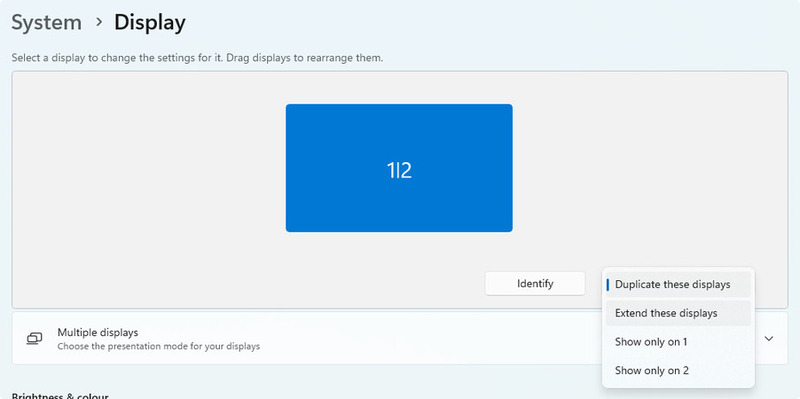
XDisplay Agent is only responsible for adding the second screen. The secondary screen’s mode is still controlled by Windows Settings. Go to Settings > System > Display, click the drop-down menu and select “Extend these displays” (or “Duplicate these displays” for Mirror mode, but it will likely be the default option).

iOS XDisplay Not Working or Unable to Switch Modes

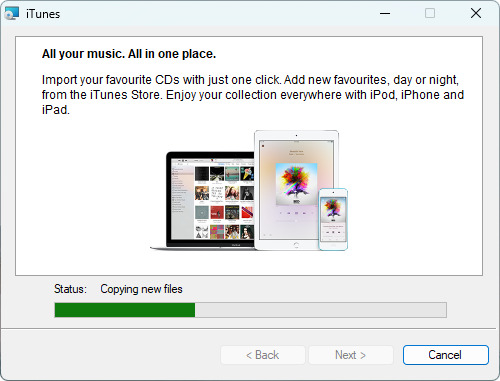
iTunes being installed

iOS devices require iTunes to be installed on Windows to properly interact with Splashtop XDisplay. You can find iTunes in the Microsoft Store or on the official iTunes website. Be aware that the Microsoft Store version is age-restricted, and thus requires a Microsoft account.

Compatibility with macOS

Splashtop Wired XDisplay is not compatible with macOS versions above 10.13.6 (High Sierra). Luckily, if you want to use an iOS device as a secondary display, there’s already a built-in feature for that – Apple Sidecar. It requires both devices to be signed into the same account. However, outside of that, it’s really easy to use – just use the green button context menu on any window to move it to the connected display.