
TeamViewer Keyboard Not Working? Proven Solutions
- HelpWire
- →
- Blog
- →
- TeamViewer Issues How to Solve Them
- →
- TeamViewer Keyboard Not Working
Your mouse moves just fine, but every key you press does nothing on the remote screen. It’s one of the most annoying TeamViewer issues,and thankfully, usually a quick one to fix.
I went through lots of user posts and tested different ways to solve the TeamViewer keyboard input not working. That includes cases where you’re stuck on a login screen, typing your password over and over, and nothing shows up.
The upside? It’s rarely a hardware issue. Most problems come down to a few simple things, like wrong input settings. Sometimes it’s just missing permissions, Macs are notorious for this, or TeamViewer simply doesn’t pass your keystrokes over to the other computer the way it should.
I’ll walk you through six common ways to fix this problem with the software, such as the following:
- • Just turning the “Send key combinations” setting off and on can clear the problem, according to about 40% of users
- • Making sure remote input wasn’t turned off by mistake
- • Disabling UDP to avoid input bugs that are related to the connection
- • Checking that both Mac and Windows have the right permissions enabled
- • Pressing the Ctrl+Alt+Del buttons to fix those annoying freezes while using the software
- • Trying to solve the issue using TeamViewer alternative instead, such as HelpWire
It won’t take long to try these steps. In no time, your keyboard should be working again.
Solution 1: Toggle "Send Key Combinations"
The Problem: There’s a TeamViewer setting that controls where your keyboard shortcuts go, be it to the remote computer or your own device. Now and then, it gets set incorrectly, and the remote keyboard won’t respond.
A lot of people on forums like SuperUser have run into the TeamViewer error “keyboard shortcuts not working,” and changing the setting usually seems to fix the keyboard shortcuts. Someone who couldn’t fix it at first shared that switching the setting actually “works for me too.”
Step-by-Step Fix:
-
Through the software, connect to the remote computer
-
Go to the left menu bar in the TeamViewer window
-
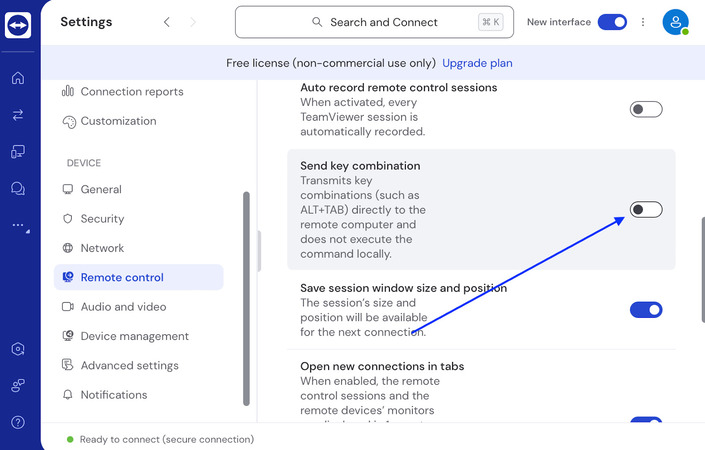
There, click on Remote Control – Session Settings – Outgoing connections
-
Look for the “Send key combinations” option. Once you find it, you can just uncheck that option so that it will turn off
-
Give your keyboard a quick test and see if it’s responding
-
If not, check the option again to turn it back on
-
Press Ctrl + Shift + Windows Key/Command at the same time to reset input mapping
-
Type a few keys again to see if everything’s back to normal
It only takes around 10 seconds to do this, and many users rely on it to fix the “TeamViewer keyboard shortcuts not working” issue. Start here before tackling the more complicated fixes.
Solution 2: Check "Disable Local Input" Is Unchecked
The Problem: TeamViewer includes a switch that can shut off all remote input, both your keyboard and your mouse. It’s easy to switch this on by accident with a shortcut or a quick click. The remote PC will then act like everything’s fine, but it won’t actually respond to your input.
Step-by-Step Fix:
-
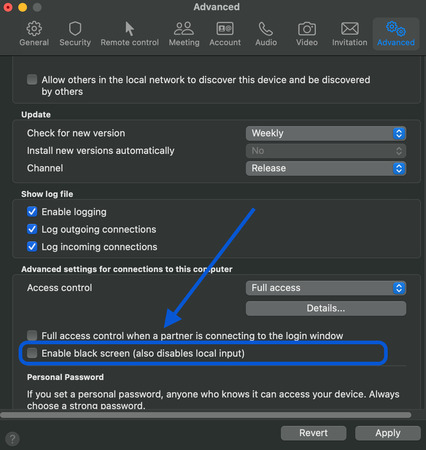
Go to Settings – Advanced tab.
-
Scroll down to the section: “Advanced settings for connections to this computer.”
-
Make sure this option is unchecked
-
Your keyboard should respond immediately after this
It’s a super simple workaround of the TeamViewer error “keyboard not working,” but it happens a lot. You can flip this setting without noticing while using other options.
Solution 3: Disable UDP Protocol
The Problem: TeamViewer sends data from one computer to another using both TCP and UDP. UDP can do the transmission faster, but it’s less stable. And in some networks, especially corporate ones with strict firewalls, UDP can block keyboard input from going to a remote device. There might be nothing wrong with your mouse, but keystrokes won’t get through.
Step-by-Step Fix:
-
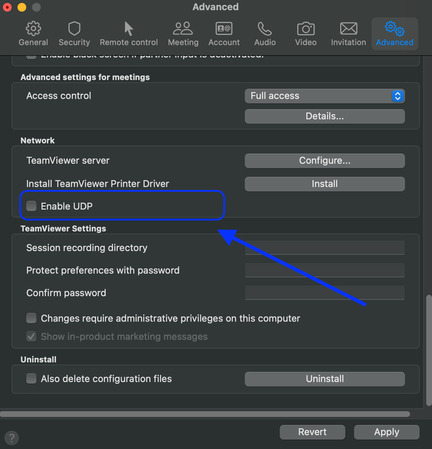
Go to Settings – Advanced Settings.
-
Scroll down until you see the “Network”
-
Uncheck the option “Enable UDP”
-
After that, just click “OK” to save the changes you made
-
End your current session and start a new connection to the remote computer
-
Try typing on the remote computer to see if the keys respond
Switching off UDP means TeamViewer will just use TCP. It might feel a tiny bit slower, but it’s usually more reliable. Most of the time, you probably won’t notice any slowdown during regular use. And it often solves the “TeamViewer keyboard input not working” glitch caused by shaky network connections.
Solution 4: Verify Full Access Permissions
The Problem: Sometimes macOS or the newest Windows versions prevent TeamViewer from accessing the keyboard or mouse due to security settings. That’s usually why the TeamViewer keyboard not working issue occurs on a Mac. Even when the connection looks fine and the remote screen displays correctly, privacy settings can prevent your keyboard from working without any warning.
For Mac users (most common issue)
Step-by-Step Fix:
-
On the remote Mac, go to System Settings.
-
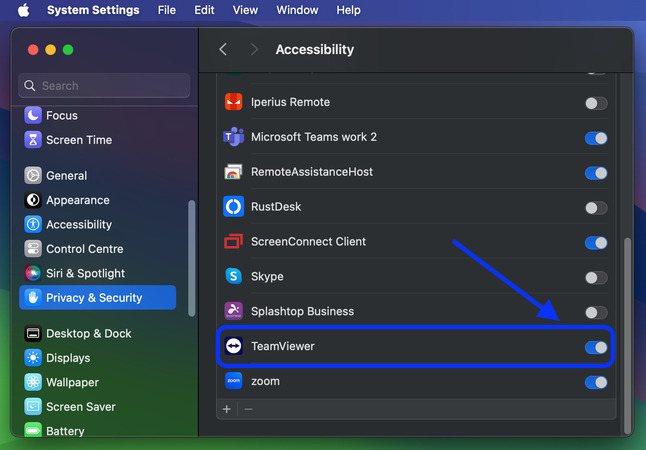
Click Privacy & Security.
-
Check Permissions:
• In the sidebar, click Accessibility. Ensure TeamViewer is checked.
• Still in the sidebar, click Screen Recording. Ensure TeamViewer is checked here too.
-
Restart TeamViewer: Close the System Settings, then Quit and Restart the TeamViewer application on the remote Mac.
macOS updates can sometimes turn off permissions you’d already allowed, so make sure they’re still enabled.
For Windows users
Step-by-Step Fix:
-
Launch TeamViewer on the remote Windows computer
-
Click “Extras” from the menu and then pick “Options”
-
After that, choose the “Advanced” tab
-
Search for “Advanced settings for connections to this computer”
-
Then, look for the “Access control” dropdown
-
Set the Access control option to “Full access” to allow full remote control
-
Click “OK” to make the changes take effect
-
Shut down and relaunch TeamViewer if the system requests it
-
Reconnect and make sure your keystrokes are registering on the remote PC
Solution 5: Send Ctrl+Alt+Del and Lock/Unlock Screen
The Problem: Windows runs into a glitch that leads to the TeamViewer keyboard shortcuts not working from time to time. Keyboard issues like this often appear after the remote PC wakes from sleep or following certain Windows updates. But sometimes, they happen for no clear reason. Using Ctrl+Alt+Del brings up the security screen, which works deeper in the system and can refresh how Windows processes keystrokes.
Many users on SuperUser say this method works really well. One person shared that their remote computer had stopped accepting any input locally, too. Opening the security screen restored full control of both the remote and local machines.
Step-by-Step Fix:
-
Open the menu bar in your active TeamViewer session
-
Choose “Actions” and then click “Send Ctrl + Alt + Del”
-
You’ll then see the Windows security screen appear on the remote PC
-
Use your mouse to click “Lock” or “Lock this computer”
-
Give it a few seconds (around 3–5) to process
-
The remote PC will display the lock screen
-
Click in the password field with your mouse
-
Enter your password to unlock the computer
-
After the PC unlocks, try typing to make sure your keyboard works
This quick 30-second trick often resolves stubborn keyboard issues that other solutions can’t.
Solution 6: TeamViewer Keyboard Still Not Working? Try HelpWire
The Problem: TeamViewer keyboard glitches sometimes come from system, network, or OS compatibility issues. Rather than spending ages trying to fix it, a reliable alternative can get you back to work quickly.
HelpWire is a modern remote desktop tool built for stable keyboard and mouse input. It offers a simpler, smoother approach to remote connections without the quirks that can sometimes affect TeamViewer. Also, it delivers secure and reliable remote access and serves as an excellent choice for both IT support and personal use. Learn why HelpWire is a top alternative to TeamViewer and take a look at a full breakdown of how the two compare!
Why choose HelpWire?
-
Cross-Platform Compatibility
Connect easily between Windows, macOS, and Linux.
-
Unattended Access
Access and manage remote devices securely, no matter where you are.
-
Easy File Transfer
Move files between devices with a simple drag and drop.
-
Hassle-Free Setup
Install it quickly and start using it right away with a clean, easy-to-use interface.
Additional Quick Fixes for Persistent Issues
That annoying TeamViewer keyboard input not working problem can still show up, even after trying everything above. You can try these additional steps:
Update TeamViewer: Some Reddit users said that specific versions sometimes mess with the keyboard. You can open the Help menu, choose “Check for updates,” and install anything that pops up on both PCs.
Restart Windows Explorer: Right-click the taskbar and open Task Manager. From there, look for Windows Explorer, right-click it, and select “Restart.” It’s a quick way to refresh the Windows shell without restarting the whole computer.
Update keyboard drivers: Open Device Manager, expand the Keyboards section. Right-click your keyboard and select “Update driver.” In case the update doesn’t solve the issue, uninstall the keyboard and restart, Windows will automatically reinstall it.
Use on-screen keyboard as workaround: Type ‘osk’ in the Start menu to bring up the
Final Thoughts
Remote desktop software is essential these days, but glitches can happen. The easiest way to fix them is to follow a clear step-by-step process, rather than making random changes in the settings.
Begin with the quickest solutions, sometimes flipping a single setting resolves the TeamViewer keyboard not working issue on a Mac or Windows almost instantly. Should that not help, try checking permissions and adjusting network configurations. In cases where the software keeps giving keyboard issues, consider switching to alternatives like HelpWire, which are built for reliable input from day one.
Keep in mind: keyboard problems in remote desktop apps usually don’t last. They’re typically short-term software glitches that you can fix with the right steps. Follow the solutions carefully, and you’ll be back to working efficiently from your remote setup in no time.