categories
Updated on Published on in

How to Manage Multiple Slack Workspaces

Author: Natalie Paraskeva
Natalie Paraskeva Article author
  • HelpWire
  • Blog
  • Multiple Accounts and Workspaces in Slack

Handling several Slack workspaces for different clients or teams at once can cause users to easily miss messages or drown in notifications. From solo projects to large groups, it helps to have a clean Slack setup on your computer and phone to get work done a lot more smoothly.

Some common reasons people use several workspaces are:

  • • Handling work for more than one client or outside agencies
  • • Keeping internal departments or personal projects separate
  • • Protecting privacy and managing certain admin settings
Pro Tip:  You can use a single email to join multiple workspaces. This is often the easiest way to switch between teams without juggling different logins.

We’ll explore how to handle your Slack accounts and workspaces smoothly and share tips to help you steer clear of mistakes that can hold you back.

Workspace vs. Account: Their difference in Slack

Slack Workspace: Basically, it’s like a virtual office. Using only one Slack email, you can hop between multiple workspaces easily.
Slack Account: This is your personal login linked to an email address. For example, you could have a work account (name@company.com) and a personal one (name@gmail.com).

How to Create a New Account in Slack

If you want to keep your accounts completely separate — for example, for different organizations that shouldn’t be linked — you’ll need a new Slack account:

  1. Go to Slack.com. Click “Try for free” or “Sign up.”

  2. Enter the new email address you want linked to this account.

  3. Check your email. Look for the 6-digit code you received. Then, type it in to confirm your identity.

  4. After setting up your account, you can create a new workspace or join one that’s already there.

How to Create a New Workspace in Slack

Let’s first take a look at how Slack works before we begin. Each workspace is separate by default:
  • • Messages and files stay within that workspace—they aren’t shared with others.
  • • An admin in one workspace can’t see activity in any of the other workspaces.
  • • Your employer doesn’t have access to any workspaces you’re part of outside of work.
  • • The only exceptions are Enterprise Grid accounts or shared channels, which you have to enable manually.
Follow these simple steps to create your new Slack workspace:
  1. Open the browser and log in there or sign in using your desktop application;

  2. Find your workspace located at the screen’s top left and click on it;

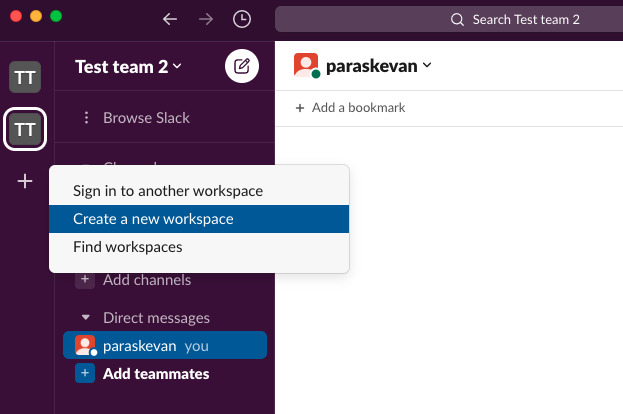
  3. Go to “Add Workspace” > Select “Create a new Workspace”.
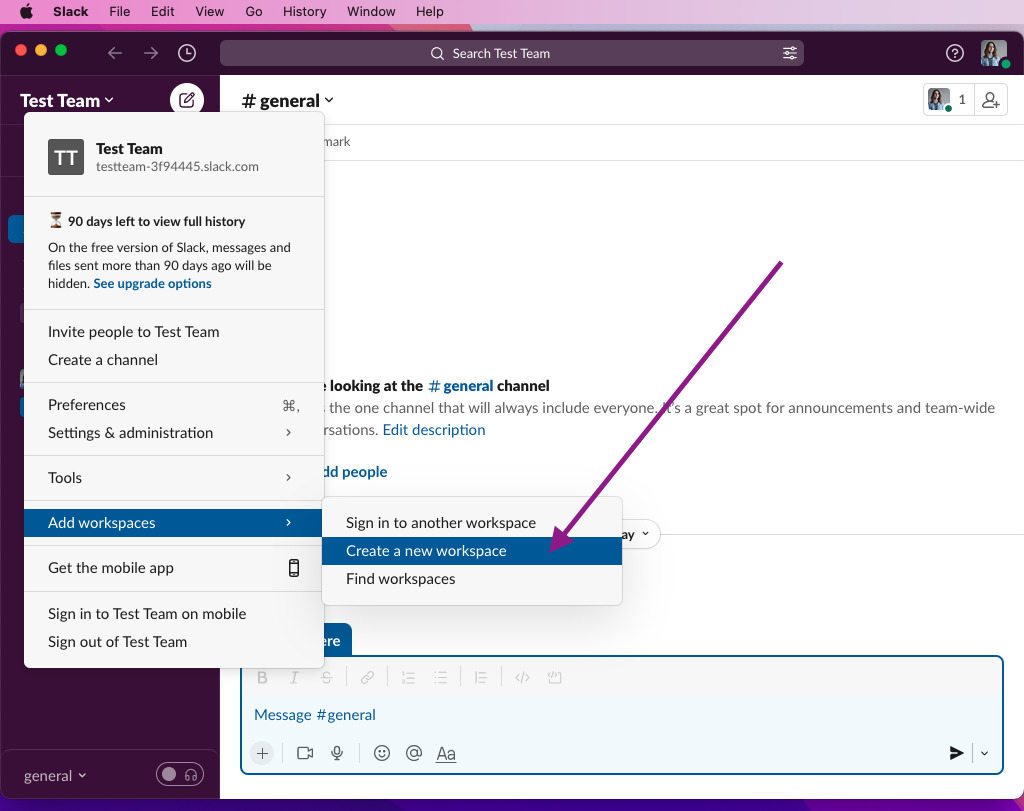
    Create a new Workspace
Note:  If you already have created Slack multiple workspaces, click on the “+” icon alternatively.
Create a new workspace in Slack
  1. Now in the browser window enter the email and password with which you have created the workspace(s).

    Create a new Slack workspace

After this, you must see a list of your workspaces you can use to perform desired actions.

Note:  Starting a new workspace isn’t always the answer. You might want to skip it if:

• You just need a few private channels
• Your team is small, and everyone already works closely together
• Managing another workspace would be more work than it’s worth
• Often, adjusting channels and permissions can handle the situation more smoothly than creating a whole new workspace.

How to Switch Between Multiple Slack Workspaces

Each Slack workspace is independent. That translates to opening multiple tabs if you want to chat with people in different workspaces at the same time using a browser.

Managing Workspaces on Desktop (Windows & Mac)

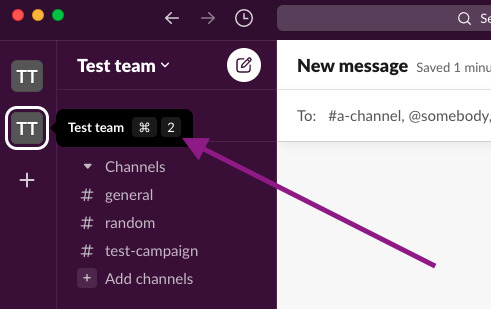
Each of your Slack workspaces will be assigned a number. So, go to the left-hand pane to see that number. Shortcuts will increase as the number of workspaces increases.

Switch multiple workspaces on Slack
  1. Click on the app’s left hand side to view profile preferences.
  2. Now, click on “Switch to” and then the workspace name to visit. Else, you can use the shortcut.
Note: 
For Windows, use the shortcut CTRL + 2 and for Mac, use cmd + 2 to switch workspaces.
• Use [CMD | ⊞CTRL] + [:arrow_up:SHIFT] + [ | ] to navigate back and forth without having to memorize the workspace index.

Use Multiple Slack Accounts on the Mobile Application

If you want to access multiple workspaces in Slack at any time using your mobile, you can add all your accounts and workspaces with ease. It’s available on both Android and iOS platforms.

Here are the steps to use Slack multiple accounts on mobile:

  1. Open the Slack application on your mobile and swipe right.

  2. You will now see a sidebar with the title – “Workspaces”. It will show all the workspaces currently signed in on your mobile.

  3. Find “Add a Workspace ” located at the sidebar’s bottom and click on it.

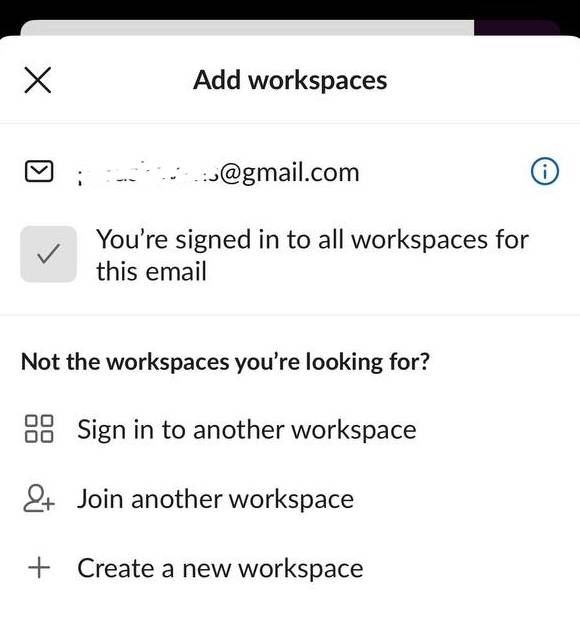
  4. This will give you three options to choose from:
    Use multiple Slack accounts on the Mobile
  • • Sign in to another workspace: You can choose this option to sign into Slack through your email, workspace URL, QR code, Apple account, or Google account.
  • • Join another workspace: Selecting this will prompt you to choose an email address. It could be a different email or your current one. Choosing the email address will show all the workspaces created with it.
  • • Create a new workspace: You can create a new workspace by entering an email address and going through the steps mentioned above.

Pro Tips for Managing Notifications Across Multiple Teams

  • Set these up once, and you’ll stay on top of messages without feeling buried in notifications.
    • • Customize notifications for each workspace
    • • Mute channels that aren’t important
    • • Check “All unreads” every day
    • • Pin only the workspaces you use most
    • • Use a desktop for regular work and a mobile for urgent alerts

How to Sign Out of a Slack Account

In case you wish to sign out of any account, you must remove all the associated workspaces. Below are the steps to sign out of a Slack account:

On desktop:
  1. Just right click on the Slack workspace you wish to sign out of. Choose the option “Sign out”.

  2. Repeat this step for all the Slack workspaces associated with the account.
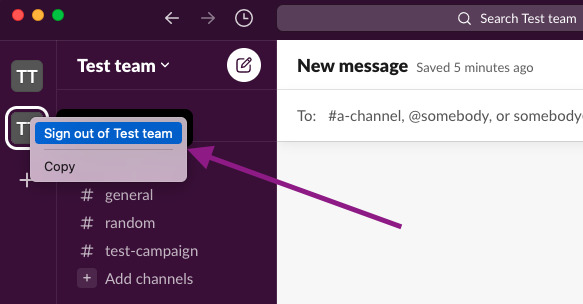
    How to sign out of a Slack account

Conclusion

Slack revolves around workspaces. It gives you the liberty to add multiple workspaces without manually switching between different accounts in order to access your workspaces. Just sign in to your Slack workspaces once and the app will work as a standalone hub no matter what account you use. This will help you continue communicating with your team members and clients with ease.

FAQ

Slack workspaces and channels are collaborative spaces where members are centered around different projects, teams, topics, units, and groups while serving similar purposes.

In a Slack channel, members can interact with each other over a given topic. It has a hashtag symbol (#) displayed in front of the channel’s name when it’s made public. If you make it private, the channel will be shown by the symbol padlock.

Slack workspaces include private and public channels where larger groups can collaborate.

If you create multiple workspaces in Slack, you can work together with people from across your organization, even from different departments. All can collaborate using the same channel from their individual workspaces.

Tip: Multi-workspace channels could be organization wide, which means they can be added to each workspace within your organization and even set as the default channel for all members.

Only one person can be the Slack workspace owner at a time. Therefore, ensure to give this role only to the right person. You can assign this role to a trusted member such as:

  • • A senior-level manager or an executive or senior-level manager
  • • A member from your IT department responsible for administering accounts or provisioning licenses.

Slack doesn’t put a hard limit on how many workspaces you can join, even with a free account.

There’s no way to merge or combine workspaces in Slack. Each one stays completely separate from the others.