categories
Published on in

Troubleshoot Splashtop File Transfer Not Working

Author: Helga York
Helga York Article author

Splashtop file transfer can be hindered by the app’s policies, malformed cache, or a difference in client and host versions. Use this article to diagnose your issue and resolve it. If none of the presented solutions work, you may have to contact support.

Enable file transfer in the endpoint policies

If you aren’t sure whether Splashtop policies are affecting the target PC and preventing file transfers, you can explicitly allow them by overriding policies in the web suite.

  1. Go to “Computers” in the Splashtop web suite, click “…” and go to Properties.
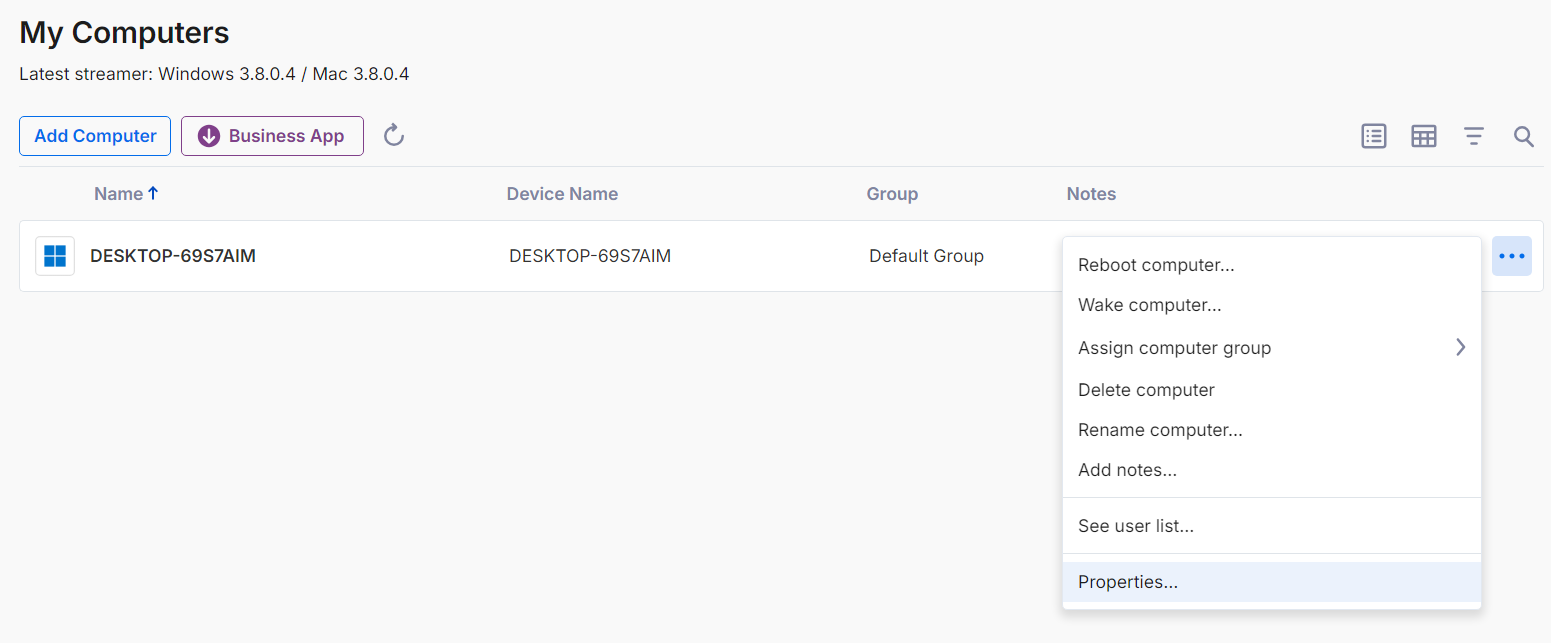
    Choosing device properties from the web suite
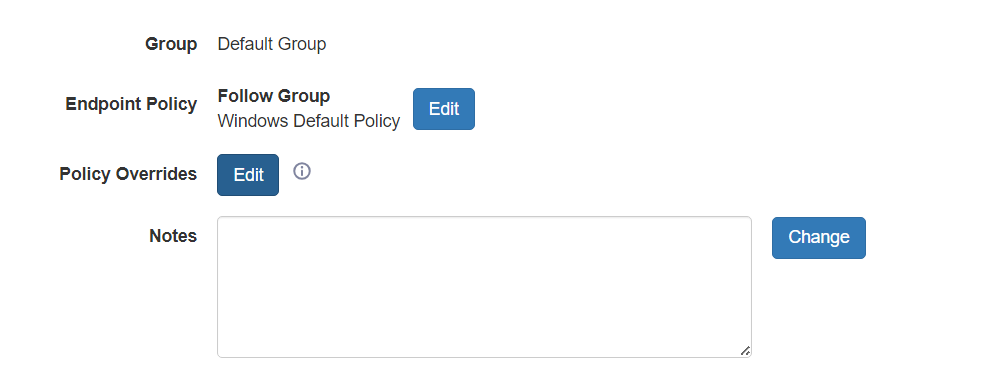
  2. Select “Policy Overrides”.

    Policy Override button in the properties
  3. Enable “Streamer Settings” to start overriding policies on the remote device.
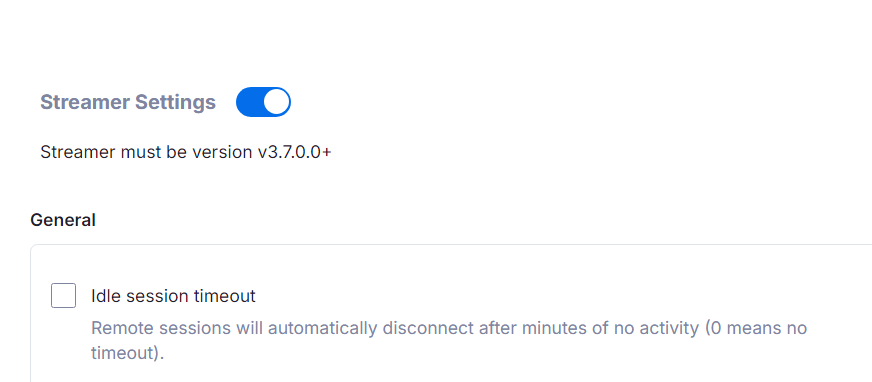
    Enabling the Streamer Settings override
  4. Force-enable file transfer in the policy list.
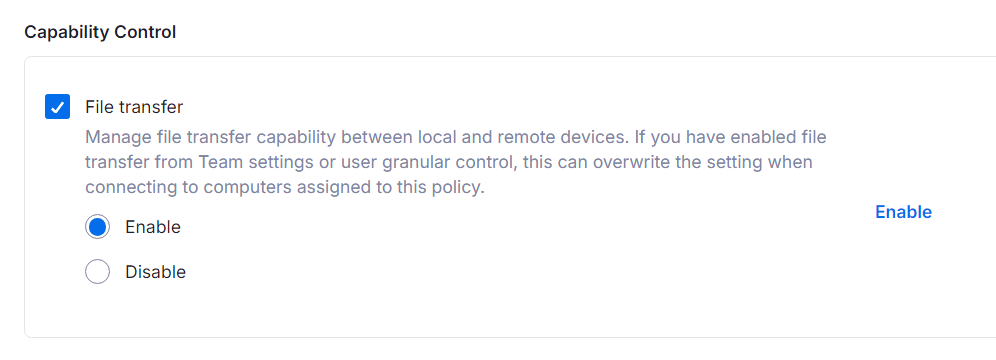
    The file transfer policy can be force-enabled or disabled for affected devices

Clear the cache and restart the service

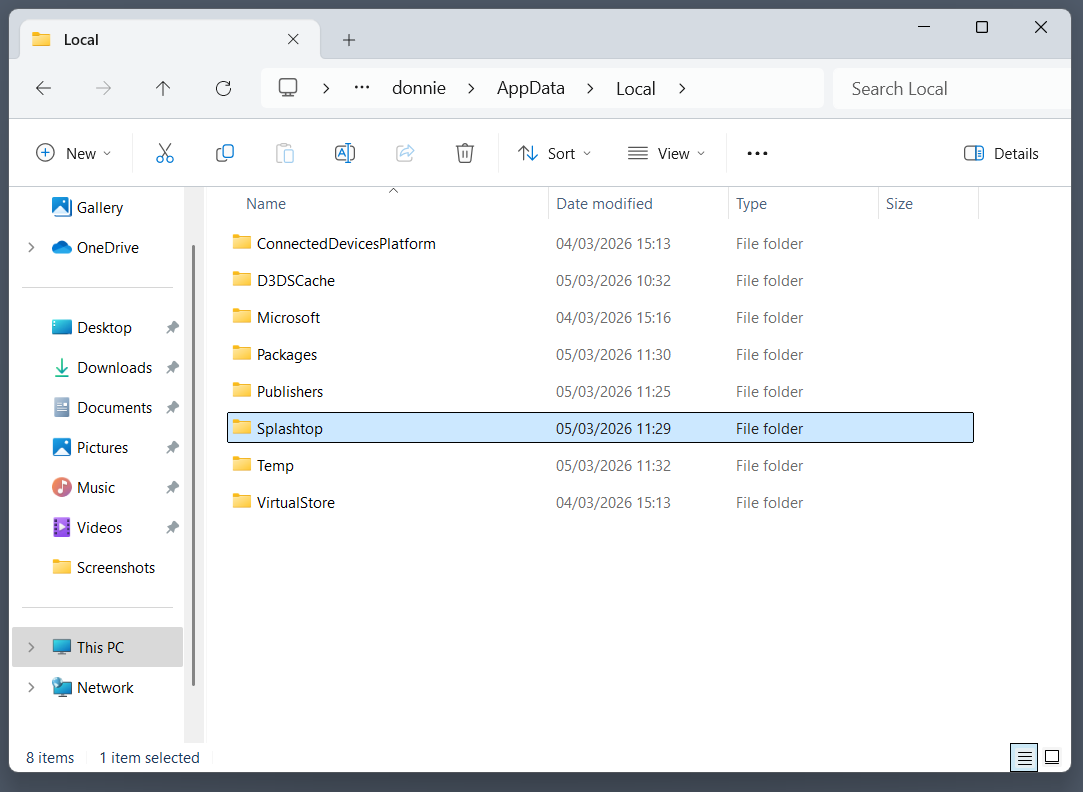
Locating the Splashtop folder
Splashtop folders can sometimes contain temporary files, settings, and other data that can sometimes get corrupted. This can be resolved by deleting or emptying Splashtop folders in OS-dependent locations:
  • – On Windows, they can be found in AppData\Local\Splashtop.
  • – On Linux, the location is ./config/Splashtop.
Don’t forget to enable “Show hidden items” under the View menu in the file browser.
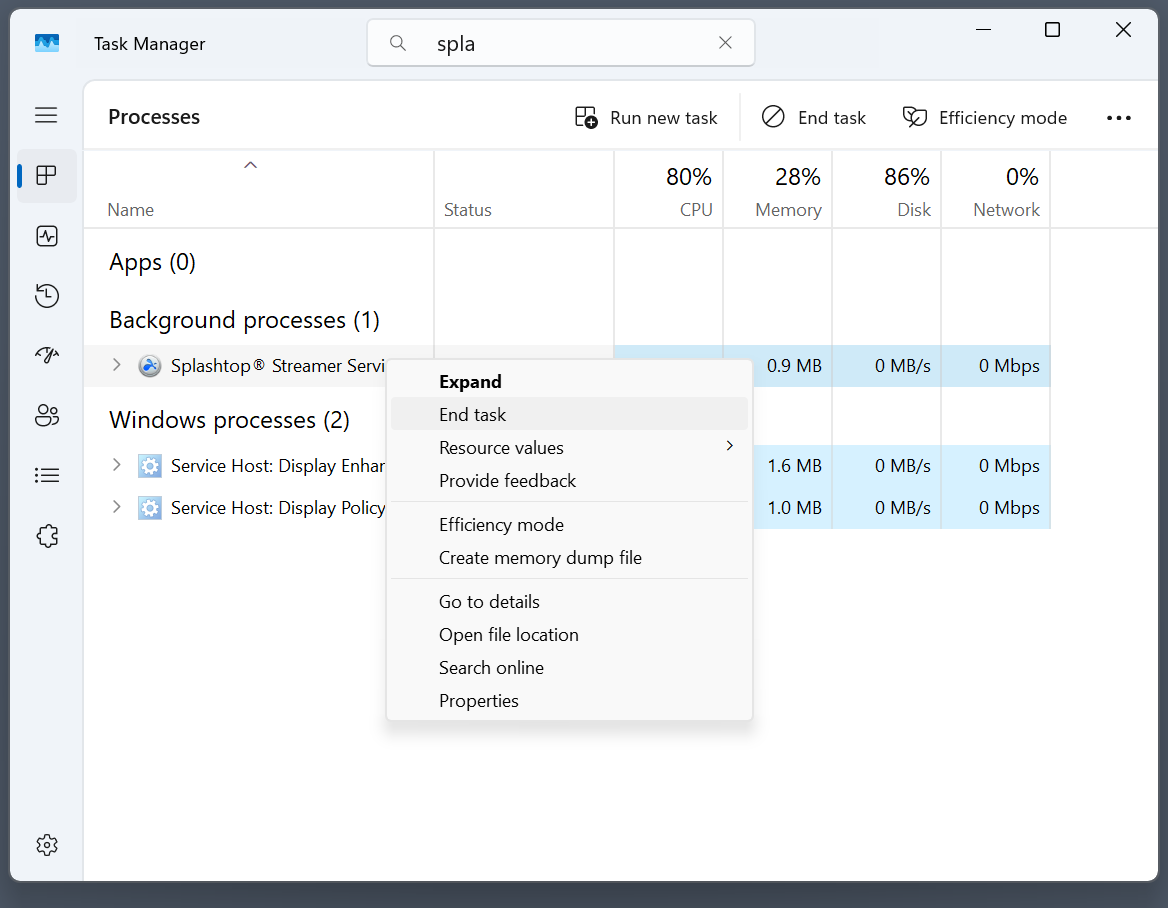
Terminating Splashtop Streamer

You may also need to restart both the Streamer and the Viewer apps. The service doesn’t fully close when you exit the dialogs, which means that it needs to be terminated from the Task Manager (Ctrl+Shift+Esc), after you find it in the task list (use Ctrl+F).

Check your version

Differences in version numbers can cause file transfer connections to fail. Verify the version of your Splashtop Business client by:

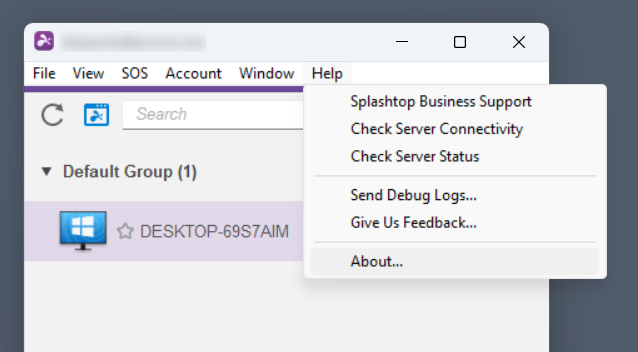
  1. Going to Help > About;

    Finding the version information in Splashtop Business
  2. Finding the version in the About dialog.
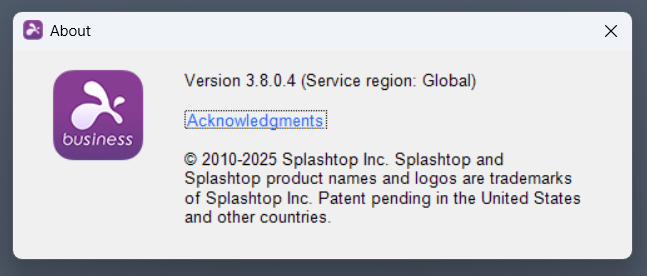
    The Splashtop Business "About" dialogue

The version of a remote Splashtop Streamer can be found in its Properties menu in the web suite. If the versions are different, update the Splashtop instance that has the earlier version.