categories
Updated on in

How to Fix TeamViewer Blurry Screen

Author: Helga York
Helga York Article author
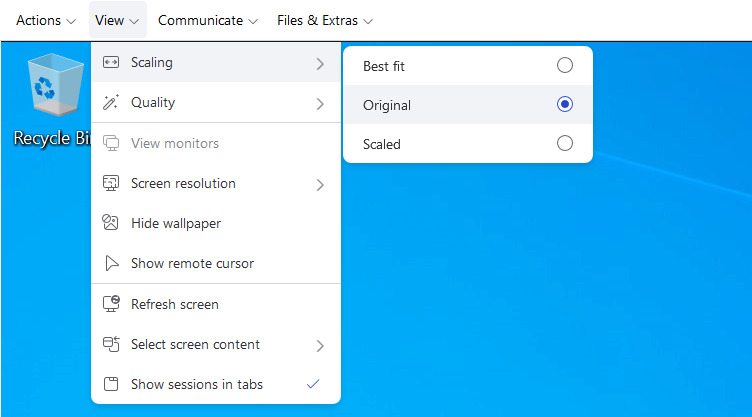
The 1:1 "Original" TeamViewer scaling option

TeamViewer blurry screen output can be inconvenient if you want high graphical fidelity or accurate screenshots. It’s especially undesirable if you’re using the “Original” scaling setting. This problem has a wide range of possible causes, including bugs introduced either in Windows or TeamViewer updates. However, the following fixes might just help.

TeamViewer In-app And In-session Settings

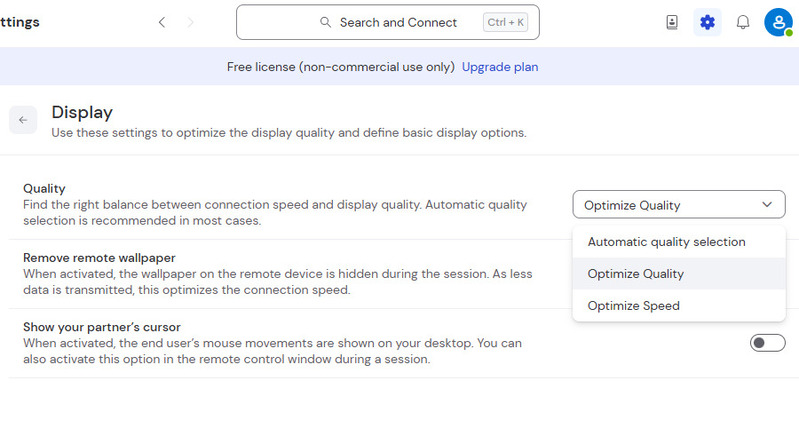
Display settings in the TeamViewer client

The first thing you should try is disabling TeamViewer’s speed optimizations. They could over-compress the video stream and cause blurring. To set it to “Optimize Quality” by default for future sessions, go to Settings (the gear icon) > Remote Control > Display.

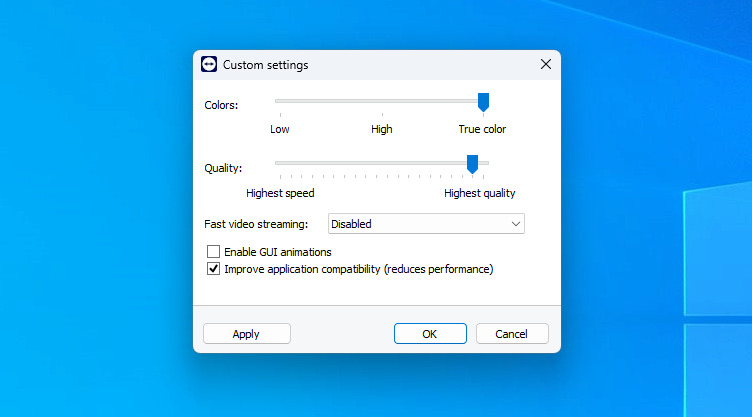
There are also some options you can change during a session. For starters, open View > Quality > Custom Settings.

Maximum fidelity in the in-session custom settings

You can use the quality slider to maximize it – even higher than the default for “Optimize Quality” – and check the application compatibility box.

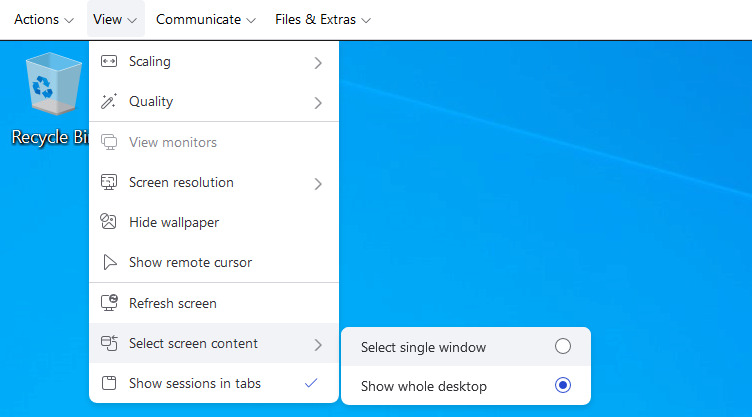
"Select single window" under the View menu

Finally, it could help if you only stream a single window. This option can be accessed from View > “Select screen content”. Highlight the window you need, and you’ll reduce the required stream bandwidth, making it less likely that TeamViewer will have to compress it.

Windows Scaling Settings

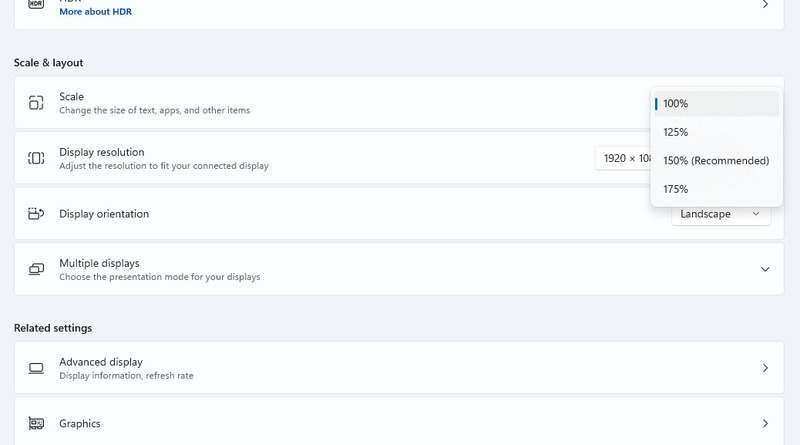
Scale & layout in Windows settings

Scaling is a UI setting in Windows, available from System > Display. If you have a small display, it could be scaled by default. Having it disabled (100%) is preferable to prevent TeamViewer blurry screen, but if you have to enable it, scale on the client, not the host.

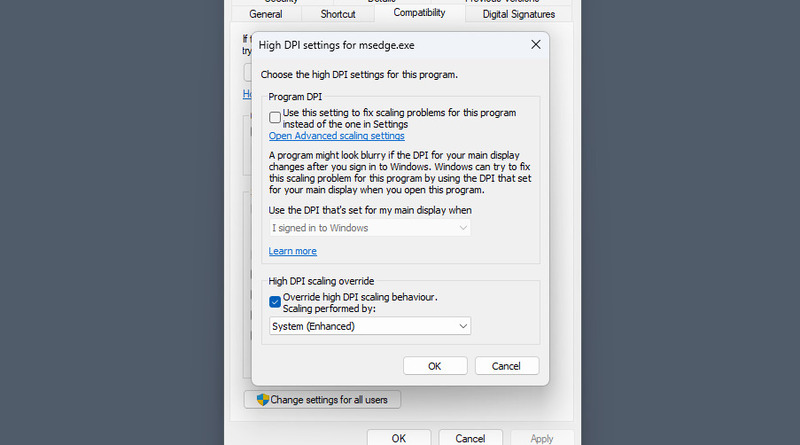
Windows may also do scaling on a per-app basis. This behavior can be disabled from the app’s properties. Here’s how you can do it:

  1. Right-click the app’s shortcut and select “Properties”.
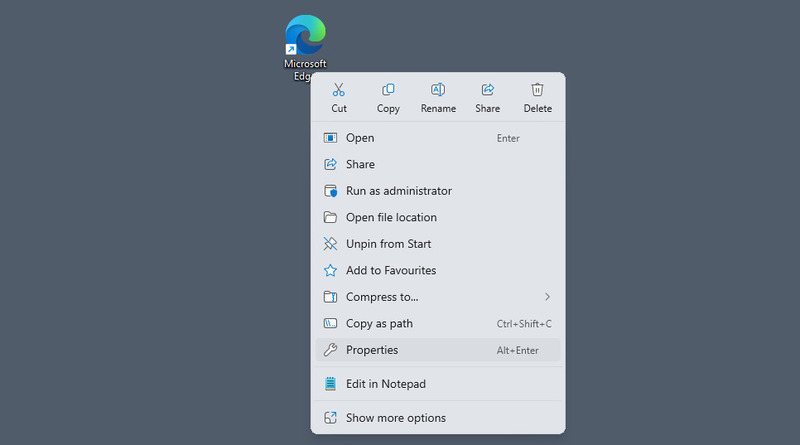
    Setting an app's properties on the Windows desktop
  2. Go to the Compatibility tab and select “Change high DPI settings”.
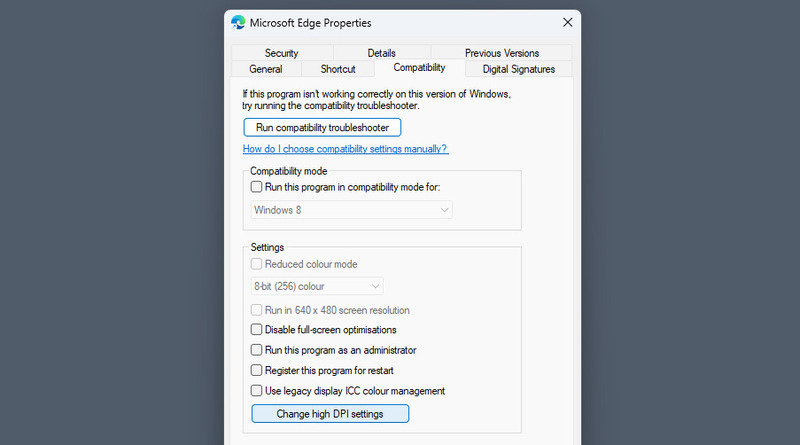
    Compatibility tab in Properties
  3. Enable “Override high DPI scaling behaviour” and select “System (Enhanced)”.
    High DPI scaling behavior

Graphics Driver Settings

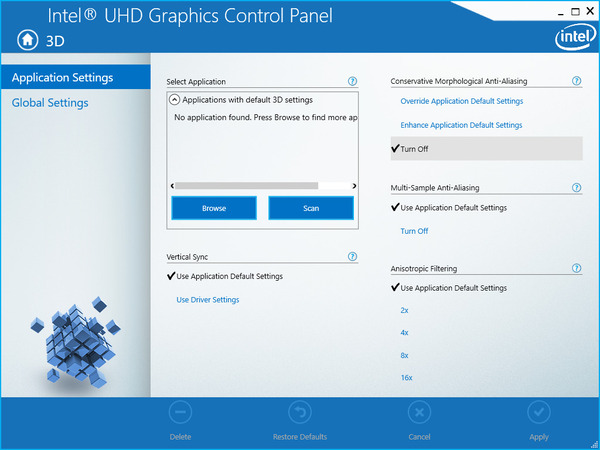
Intel UHD Graphics Control Panel

TeamViewer blurry screen can be caused by the settings of your graphics card. In particular, you should look for anti-aliasing settings, such as Conservative Morphological Anti-aliasing on Intel cards. Since different vendors have different configuration suites, the steps will also vary.

–  For Intel, you need to use the Intel HD Graphics Control Panel. It can be opened from the right-click menu on your desktop. From there, you should go to 3D settings and disable CMAA.

–  For AMD, you will need to tweak the Gaming > Graphics settings in the AMD Software tool.

Other Issues and Solutions

TeamViewer can be affected by a range of other issues, which you can solve with the help of our troubleshooting article. For example, blurring could be a symptom of poor connection, or simply a leftover config file during an improper update. If all else fails, try a complete reinstall of your installation, or wait for the next patch.