categories
Updated on Published on in

Is TeamViewer Safe? Everything about TeamViewer Security

Author: Helga York
Helga York Article author

Is TeamViewer safe for remote access? With the rise of mobile workforces, reliable and secure remote access solutions are essential. This article explores the security of TeamViewer, offering 10 steps to enhance TeamViewer safety and ensure secure remote access for your business.

Is TeamViewer Safe and Secure?

TeamViewer employs RSA-4096 key exchange and AES 256-bit encryption to protect data transmission. It also allows users to set up two-factor authentication so remote connectivity cannot be established with just a password. These are powerful security features, but addressing TeamViewer security risks requires the tool to be correctly configured and users to take proactive action.

We’re going to look into past TeamViewer security risks and the steps users can take to make the solution more secure. TeamViewer can be safe if configured correctly and if users take the steps necessary to protect their remote sessions. Yet according to security experts, it may be better suited for individual and private use rather than as the remote access solution for a large enterprise.

What Are the Main TeamViewer Security Risks?

The main TeamViewer security risks

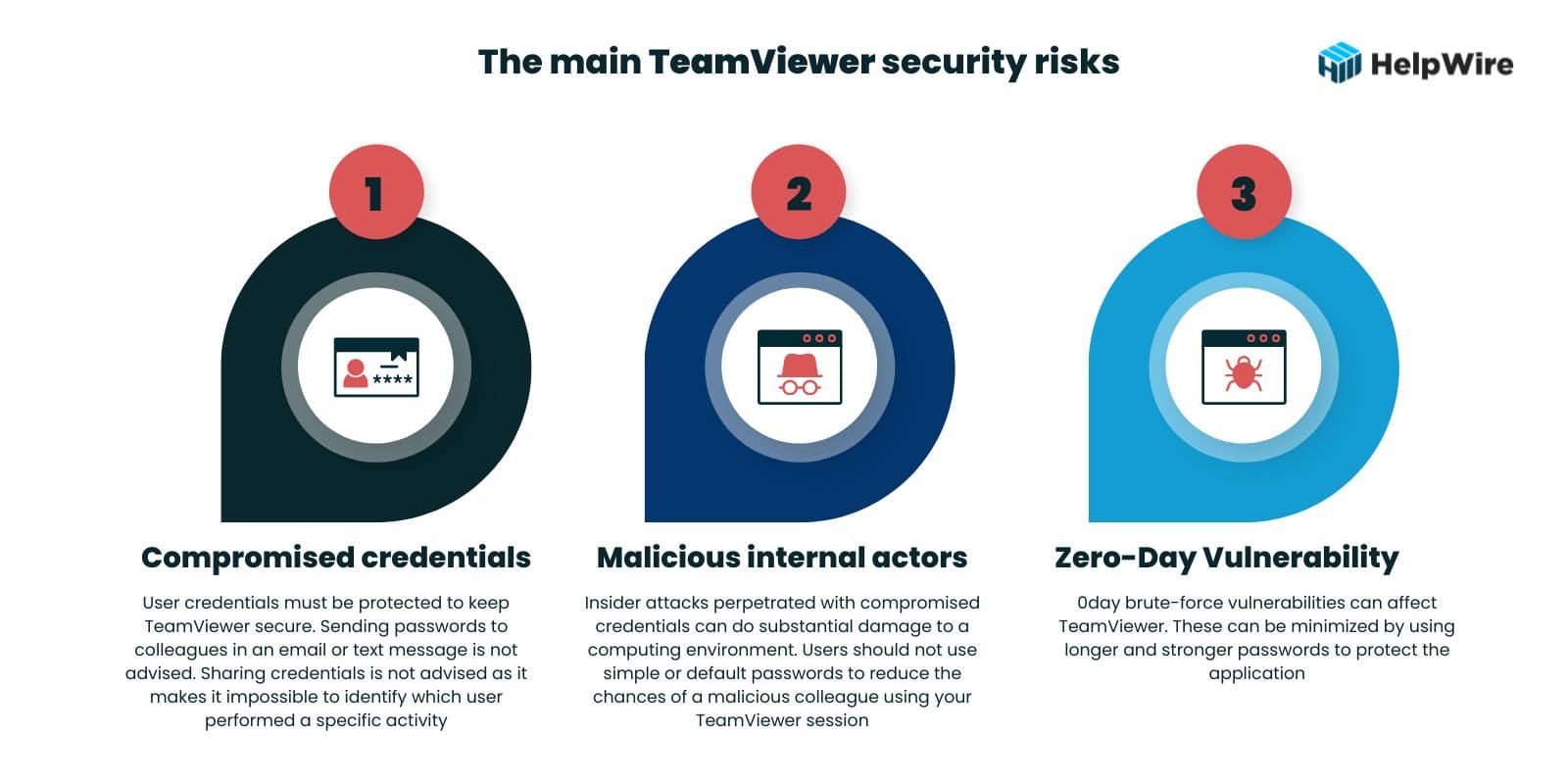
After looking at previous security issues, the question may be “Is TeamViewer safe now?” The majority of TeamViewer security issues fall into three categories.

  • • Compromised credentials – User credentials must be protected to keep TeamViewer secure. Sending passwords to colleagues in an email or text message is not advised. Sharing credentials is not advised as it makes it impossible to identify which user performed a specific activity.
  • • Malicious internal actors – Insider attacks perpetrated with compromised credentials can do substantial damage to a computing environment. Users should not use simple or default passwords to reduce the chances of a malicious colleague using your TeamViewer session.
  • • 0day vulnerabilities – 0day brute-force vulnerabilities can affect TeamViewer. These can be minimized by using longer and stronger passwords to protect the application.

Many TeamViewer security issues are related to weak passwords and the sharing or lax protection of user credentials. These problems can be addressed to a certain extent with user education and the enforcement of strong password policies. Limits on the length of TeamViewer passwords affect their strength and may lead to security vulnerabilities.

Known TeamViewer Security Trespasses

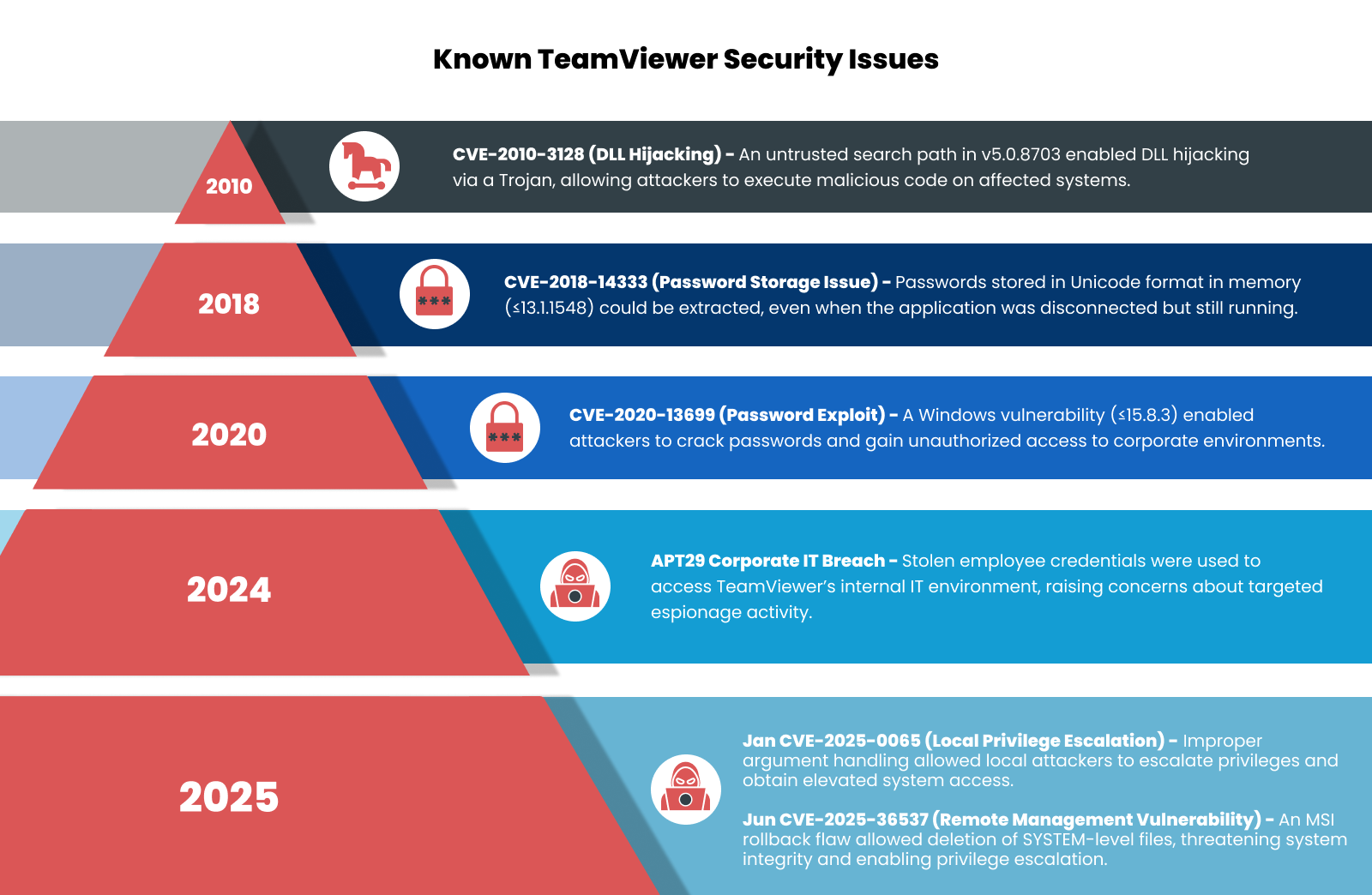
Known TeamViewer Security Issues

Let’s look at some of the past TeamViewer security issues to get a sense of what types of vulnerabilities the software presents. Several noteworthy security issues have plagued the tool over its lifetime.

  • • 2010 – TeamViewer had a vulnerability CVE-2010-3128 in version 5.0.8703 that allowed attackers to perform DLL attacks using a Trojan horse.
  • • 2016 – TeamViewer faced security breaches that allowed attackers to access user accounts and make unauthorized transactions. This incident reinforced the need for strong, unique passwords and secure account management.
  • • 2017 – A vulnerability let hackers control user’s devices during active sessions. TeamViewer quickly addressed this issue, highlighting the importance of enabling two-factor authentication and keeping software updated to protect against such threats.
  • • 2018 – A security flaw CVE-2018-14333 affected all versions up to 13.1.1548. This issue involved passwords being stored in Unicode format in process memory, which attackers could exploit if TeamViewer was disconnected but still running.
  • • 2020 – A significant vulnerability CVE-2020-13699 in the Windows version of TeamViewer potentially allowed hackers to crack passwords and access company systems. This affected versions up to 15.8.3.

The vulnerability identified in 2020 was present in all prior releases of the tool beginning with version 8. Once discovered, it was addressed with patches for the affected versions. This fact highlights the importance of updating TeamViewer with the latest patches for the version you are using and migrating to newer versions that may provide enhanced security. The best defense against TeamViewer security risks is to use version 15.8.3 or later releases of the software.

• 2024 – TeamViewer experienced a cyberattack attributed to APT29, a Russian state-sponsored hacking group also known as “Cozy Bear” or “Midnight Blizzard.” The attackers accessed TeamViewer’s internal corporate IT environment using an employee’s credentials. TeamViewer reported that there was no evidence of compromise to customer data or the product infrastructure.

• 2025 – TeamViewer experienced several security incidents, including multiple vulnerabilities with CVSS ratings of 7.0 or higher. These are:

CVE-2025-0065: Highly Severe Local Privilege Escalation Vulnerability (January 2025)
In January 2005, a high-risk local privilege escalation vulnerability was found in Windows client and host applications of TeamViewer. Due to this security issue, attackers having local access could gain elevated privileges through improper argument delimiter handling in the service executable. This security incident occurred because of argument inputs being improperly neuralized that allowed privilege escalation.

Impact: Attackers with local access could escalate system privileges.
Resolution: TeamViewer released a security patch in version 15.62 to address the security vulnerability. Users were strongly recommended to upgrade to version 15.62 or later to resolve the risk.

CVE-2025-36537: Remote Management Privilege Escalation Risk (June 2025)
In June 2025, a high-severity security vulnerability was discovered in TeamViewer that affects its Remote Management features. This vulnerability permitted local, unprivileged users to delete SYSTEM-level files using an MSI rollback method. This exploits improper permission assignments for crucial resources. The issue mainly impacted deployments utilizing Monitoring, Backup, or Patch Management modules.

Impact: The remote management vulnerability can delete SYSTEM-level files to compromise system integrity or cause privilege escalation.
Resolution: TeamViewer resolved the vulnerability with the release of version 15.67 and advised users of the Remote Management modules to update immediately.

In response to such incidents, it’s crucial for users to implement robust security measures when using remote access tools like TeamViewer. This includes enabling two-factor authentication, using strong, unique passwords, and regularly monitoring account activity for any unauthorized access. Staying informed about the latest security updates and patches provided by TeamViewer is also essential to mitigate potential risks.

10 Steps to Increase TeamViewer Security
10 Steps for Better TeamViewer Security

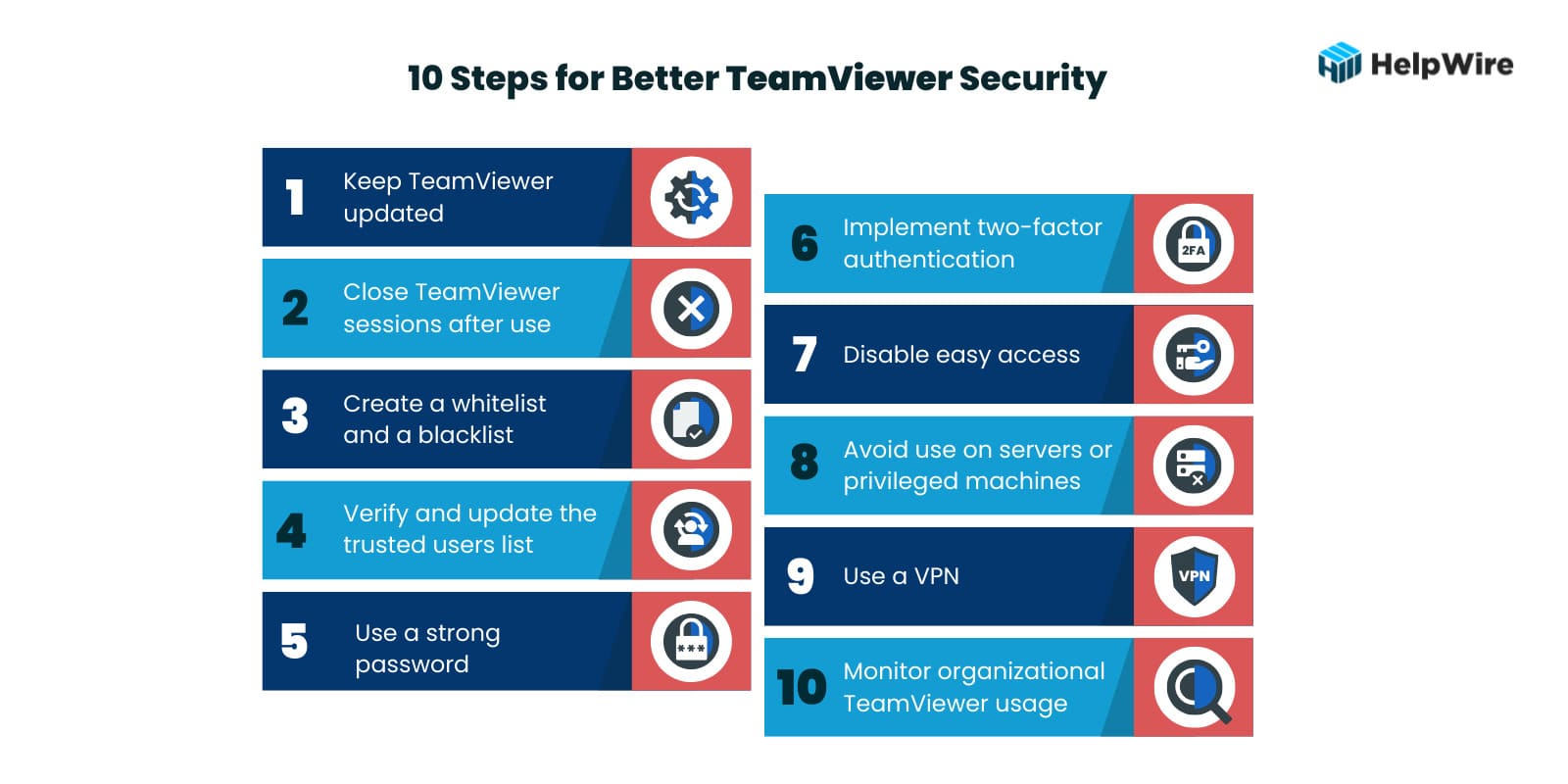
Is it safe to use TeamViewer? The way the tool is configured and used is a big factor in how safe TeamViewer is as a remote access solution. The following ten steps and tips offer a combination of configuration settings and user behaviors or actions that increase the security of TeamViewer.

  1. Keep TeamViewer updatedInstall the most recent updates and any new security patches that address vulnerabilities as soon as they are released. Many users install the program and never upgrade it as long as it still works. This is dangerous as using outdated code can provide hackers with access to your systems.

  2. Close TeamViewer sessions after use – Don’t run TeamViewer sessions in the background and switch to it when needed. Best practices involve closing a session when not in use and restarting it when necessary. Make sure TeamViewer doesn’t automatically start when you restart your machine. Leaving a TeamViewer session open may enable hackers to gain access to your machine and the wider company network.

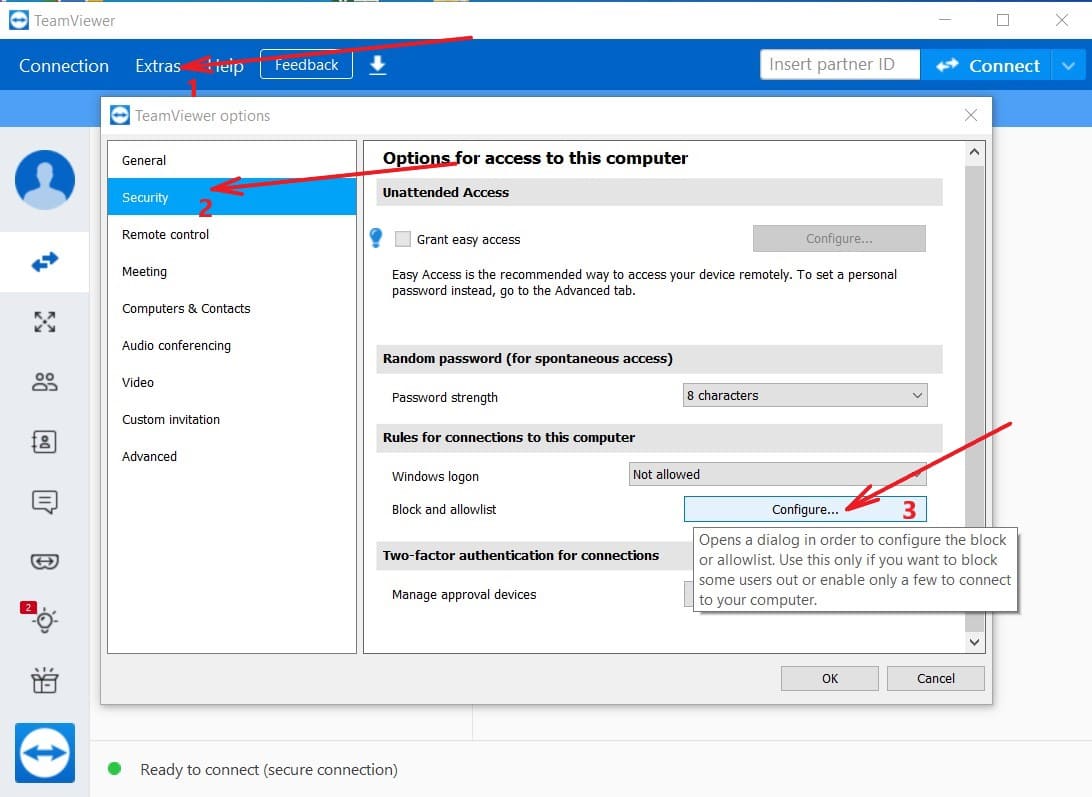
  3. Create a whitelist and a blacklist – TeamViewer allows you to create whitelists and blacklists to control access to a machine. A whitelist lets you limit access to specific users with a TeamViewer account who are added to the list. Creating a blacklist lets you refuse access to entities on the list and avoid potential TeamViewer security risks.

    To do this click:

    Extras > Options > Security > Configure
    TeamViewer Security Configuration

    Then choose “Deny access for the following partners” to make Black List  or “Allow access only for the following partners” to make White list.
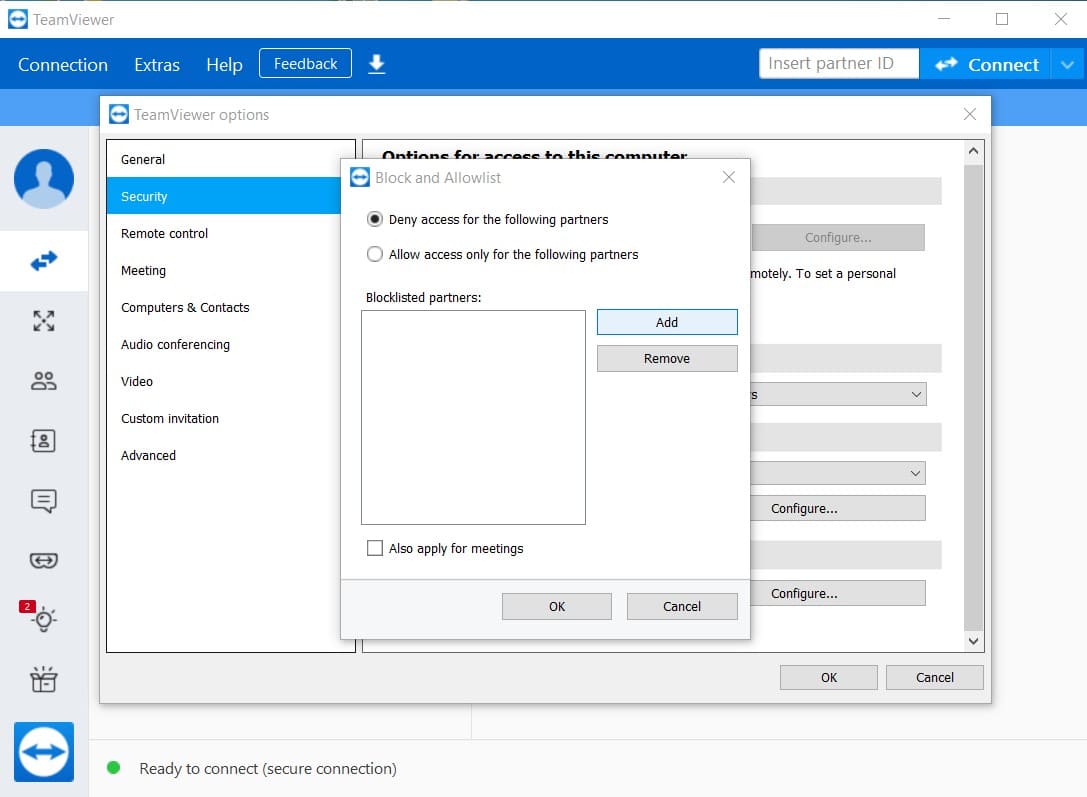
    TeamViewer's black and white list editing
  4. Verify and update the trusted users list – Verify that you recognize all trusted devices from your TeamViewer profile. Drilling down to Trusted Devices, remove any that you don’t recognize or that should not have access to the given machine

  5. Use a strong password – When accessing TeamViewer or any application, users need to use a strong password. Trivial or default passwords make it easy for hackers or malicious insiders to compromise your TeamViewer account.

  6. Implement two-factor authentication – TeamViewer can be configured to use two-factor authentication when establishing a connection. You will need to enter an additional security code when connecting with the application. Two-factor authentication is highly recommended as it eliminates many of the security risks associated with compromised credentials.

  7. Disable easy access – The easy access option lets devices connect to TeamViewer without a password. Uncheck this option in the Remote Control section to increase security. All TeamViewer connections should require a password.
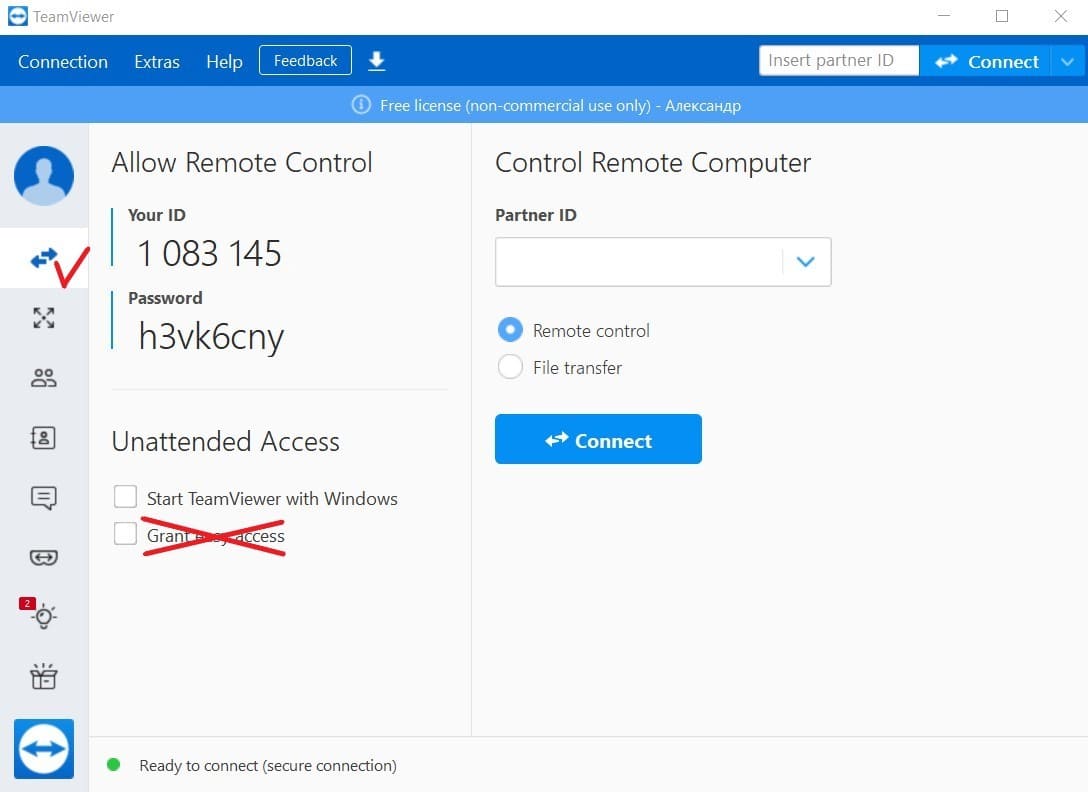
    Disable TeamViewer easy access
  8. Avoid use on servers or privileged machines – Potential TeamViewer security risks make it a poor choice for accessing business-critical servers or privileged computers. Use of TeamViewer on these types of machines should be restricted to experienced administrators who understand the tool’s security limitations and how to operate the software safely.

  9. Use a VPN – A virtual private network (VPN) encrypts data transmission, making it impossible for hackers to steal information or compromise credentials. VPNs protect your data for any type of remote access application.

  10. Monitor organizational TeamViewer usage – Maintaining security requires an organization to monitor how TeamViewer is used by its employees. This includes understanding what ports the application uses and how it affects other software tools. A company may allow individuals to use TeamViewer to access a subset of computing resources but restrict them from servers or computers that store sensitive data. Usage should be monitored to ensure these policies are followed by all employees.

If you have connecting problems with TeamViewer after these settings, find out what are the most common TeamViewer issues and how to solve them.

Security Center: TeamViewer’s Centralized Security Management

The centralized security management system becomes essential to maintain visibility, control, and risk reduction as organizations scale their TeamViewer usage acros teams, users, and devices.

TeamViewer responded to this challenge by introducing the Security Center in mid-2025 as a part of an update to the TeamViewer ONE administrative interface. Users could get this new feature in the TeamViewer new version 15.67.3, which was released in June 2025. This feature is developed to let administrators monitor, access, and impose security policies throughout their TeamViewer environment.

Understanding the TeamViewer Security Center

Security Center is a centralized security dashboard that allows IT administrators to get a complete view of an organization’s security posture. Through this, they can easily access recommended settings and security reports. This makes it easier for administrators to identify vulnerabilities, maintain consistent protection, and apply best practices for all devices and users across the organization.

Admins can use Security Center to simplify security management. They can access different tools to monitor compliance, manage security settings, and handle security risks in platforms and devices connected to TeamViewer.

Turning the 10 Security Steps into Action with the Security Center

Security Center complements the 10 security steps by extending their protections from individual TeamViewer accounts and devices to the organizational level. It reduces the burden of configuring security settings one-by-one for every device and user. IT administrators can easily:

  • Validate and apply required security configurations: IT administrators can view and enforce security settings across all users and devices.
  • Detect and neutralize security risks: The security dashboard provides immediate visibility into emerging security issues, and allows admins to neutralize them at the earliest.
  • Maintain uniform application of applications: The system automatically applies policies consistently across the organization to reduce the risk of inconsistent security practices.

Organizations gain a powerful, layered security approach by combining the 10 security steps with the Security Center. The 10 steps mentioned above play an important role in securing individual accounts, and the Security Center allows you to scale security for enterprises effectively.

The Security Center offers the greatest value to:

  • IT Administrators: The Security Center’s centralized management dashboard simplifies security monitoring and enforcement. This wy, it becomes easier to manage and secure large-scale environments.
  • Businesses: The Security Center helps businesses of all sizes maintain proper security standards across the organization.
  • Compliance-Driven Environments: Many industries follow strict compliance and security requirements for their users and devices. The Security Center helps industries meet those standards.
  • Managed Service Providers (MSPs): The Security Center enables MSPs to manage their security for different clients. This helps them improve security oversight and accelerate response times.
  • Enterprise and Individual Users: The Security Center, when integrated with your security framework, improves your overall security posture. This way, individual users and organizations can have a highly secure TeamViewer experience.

HelpWire - Free and Secure Alternative to TeamViewer

As concerns around the security of remote access software grow, HelpWire emerges as a high-performing, reliable, and free alternative to TeamViewer. Designed for personal, business, and professional use, HelpWire combines ease of access with robust security measures to ensure your data and devices remain safe.

Advanced Features Without Constraints

HelpWire enables remote access to Windows, Linux, and macOS machines. With a user-friendly interface, you can establish remote sessions quickly and effortlessly, eliminating the need for extensive or complicated configurations. It’s designed to provide seamless remote support and device connectivity for users of all skill levels.

Why Choose HelpWire Over TeamViewer?

TeamViewer has been a trusted name in remote access software for years, but its history of security incidents, including phishing scams, credential theft, and the 2024 cyberattack attributed to APT29, highlights the ongoing challenges in maintaining security for widely used platforms. In contrast, HelpWire leverages cutting-edge infrastructure and has no reported vulnerabilities, offering users a modern and secure solution for remote access needs. Read more about key security features of HelpWire.

By choosing HelpWire, you’re opting for a modern remote support tool that prioritizes security while delivering exceptional performance.

FAQ

Due to the history of TeamViewer security issues, experts do not recommend it for company networks that connect business-critical machines with sensitive data resources. It needs to be used with caution due to the ability of hackers to gain control of a machine and infiltrate a network from an unsecured TeamViewer session or account.

Companies can enhance security through the use of a corporate firewall that blocks unknown outbound connections. Collecting logs from the firewall will identify TeamViewer sessions that a company may want to restrict. Users can be notified that TeamViewer is not allowed in those situations.

The logs will also show all traffic attempting to access TeamViewer. This information can be used to create firewall rules to block IP addresses and restrict access to the network. All TeamViewer outbound connections go through the firewall. A strict firewall policy can be created that blocks all inbound traffic and only opens port 5938 for outgoing connections.

If used correctly, TeamViewer can be safe for personal use. TeamViewer still has security issues that may make it an inappropriate choice for a corporate network. It can be easy for users to end a collaborative session and forget to shut down the application. This exposes their machine to unauthorized access by anyone at the other end of the connection.