
How to Fix TeamViewer Unattended Access Not Working
- HelpWire
- →
- Blog
- →
- TeamViewer Issues How to Solve Them
- →
- TeamViewer Unattended Access not Working
Many TeamViewer users find that unattended access fails even when it seems correctly configured, the device doesn’t appear accessible in their account, or connections still require someone present at the remote machine. Discussions across TeamViewer’s Support Community, Reddit, and Spiceworks point to a consistent set of root causes: the device isn’t properly assigned to your account, the wrong TeamViewer module is installed, network restrictions are blocking connections, or the TeamViewer service itself has stalled.
In most cases, unattended access fails because the device is not properly assigned to your account, not because of a network problem. We’ll walk through each real cause below, starting with the most common.
TeamViewer Unattended Access Not Working: Root Causes and Fixes
We analyzed TeamViewer users’ feedback on various online forums to identify the root causes of these issues. We have also discussed some actionable solutions to troubleshoot these issues.
Key Takeaways
- • The #1 cause is the remote device not being properly assigned to your TeamViewer account.
- • For account-based unattended access, connect via your device list, not by entering an ID and password manually.
- • TeamViewer Host is the recommended module for dedicated unattended access, but the full client works too if the device is properly assigned.
- • QuickSupport does not support unattended access at all.
- • Firewall rules, sleep settings, and a stalled TeamViewer service are also common culprits.
1. Device Not Properly Assigned to Your Account
This is the most common cause of unattended access failing. If the remote device isn’t linked to your TeamViewer account, you won’t be able to connect to it without someone present on the other end, regardless of any other settings.
To connect without user interaction, you must: be signed in to your TeamViewer account on the remote device, assign it via “Manage this device,” and then connect through your device list rather than by typing an ID and password.
How to Fix This
-
On your remote device, log in to your TeamViewer account using your credentials.
-
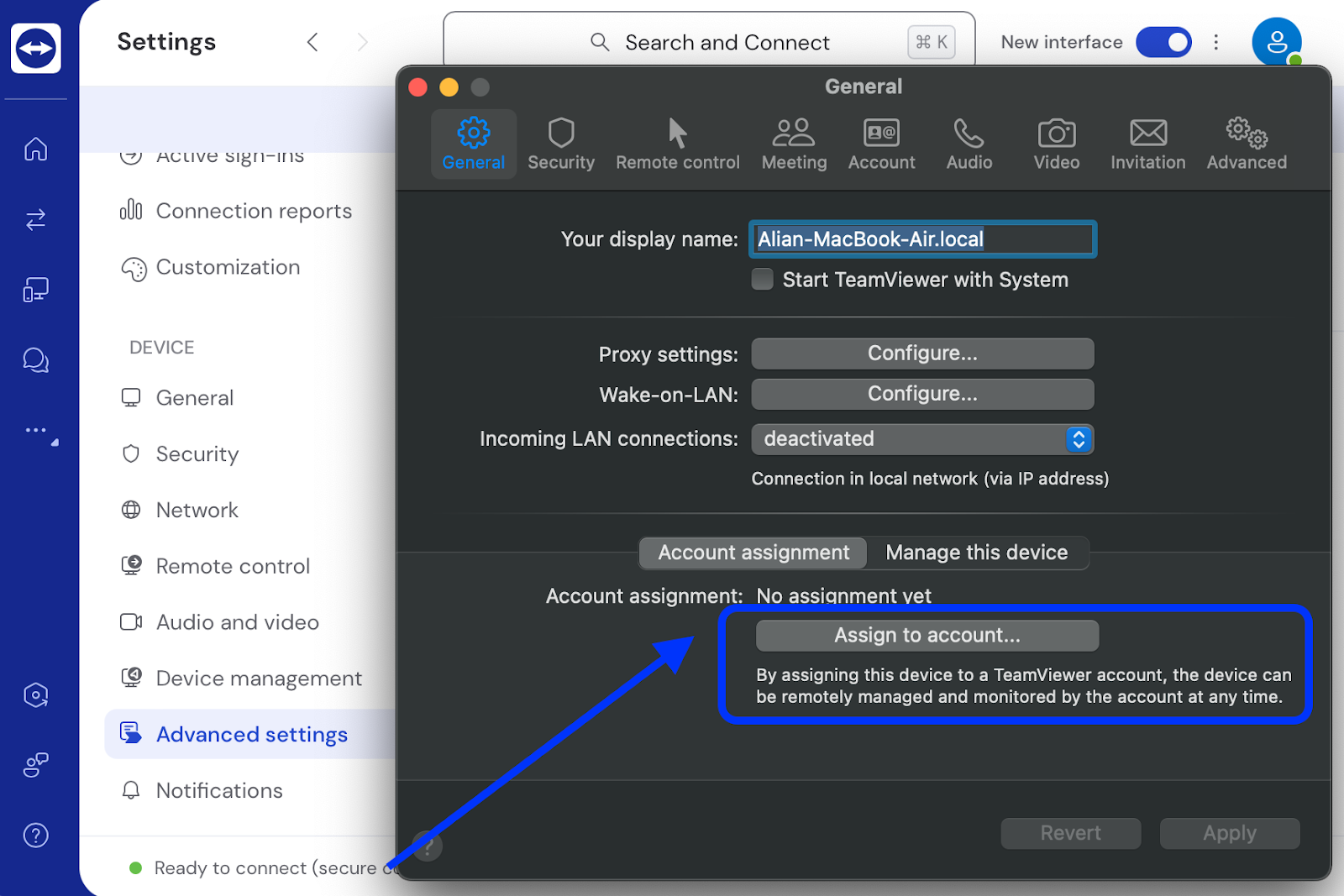
Go to: Settings (⚙️) > General > Account Assignment
-
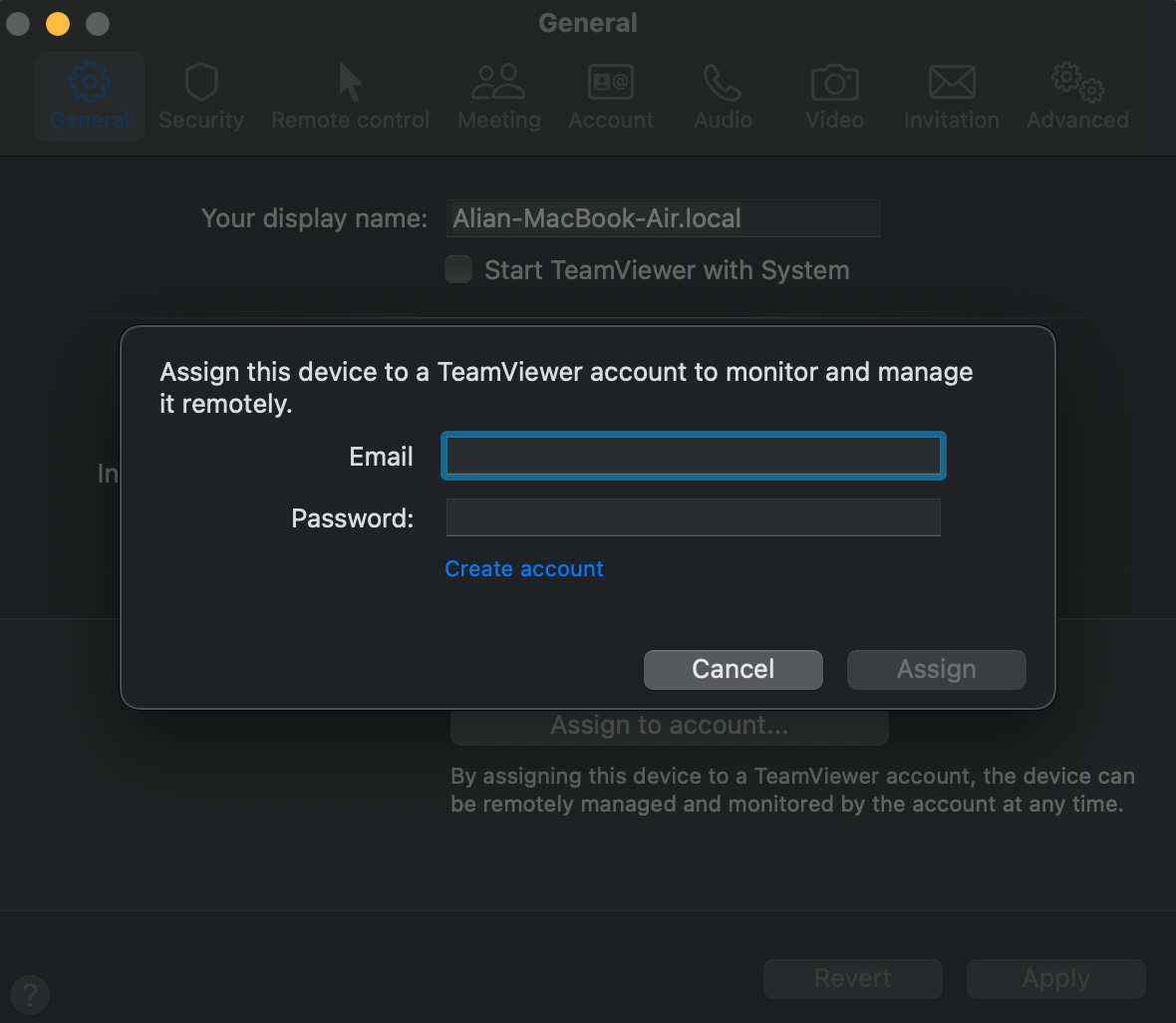
Choose Assign to Account. Check and make sure the device is linked to your TeamViewer account.
-
Look under Security. Enable Easy Access.
-
Try making the connection after making these configuration changes.
2. Wrong TeamViewer Module Installed
Not all TeamViewer modules support unattended access equally.
- • TeamViewer Host — recommended for dedicated unattended access; designed to run as a background service at all times.
- • TeamViewer Full Client — also supports unattended access, as long as the device is properly assigned to your account.
- • TeamViewer QuickSupport — does not support unattended access; it’s designed for attended, on-demand sessions only.
If the remote device is running QuickSupport, that alone will prevent unattended connections. Switch to Host or the full client and re-assign the device to your account. Insights into this common issue can be found in discussions on the TeamViewer Support Community, where users emphasize the importance of installing the correct version of the software.
How to Fix This
-
Download and install TeamViewer Host (or the full client) on the remote device.
-
During installation, sign in with your TeamViewer account credentials to assign the device to your account.
-
Enable Easy Access in Security settings to connect without password prompts.
3. Software Updates Interfering With the Interface
Long-time users of TeamViewer often find the new interface confusing, especially when setting up unattended access with the Easy Access feature. The design shift has raised concerns on forums like Spiceworks and Reddit. Many users have shared tips on reverting to the previous interface to reduce confusion.
How to Fix this Issue
Here are the steps to switch to the previous version or the classic TeamViewer interface:
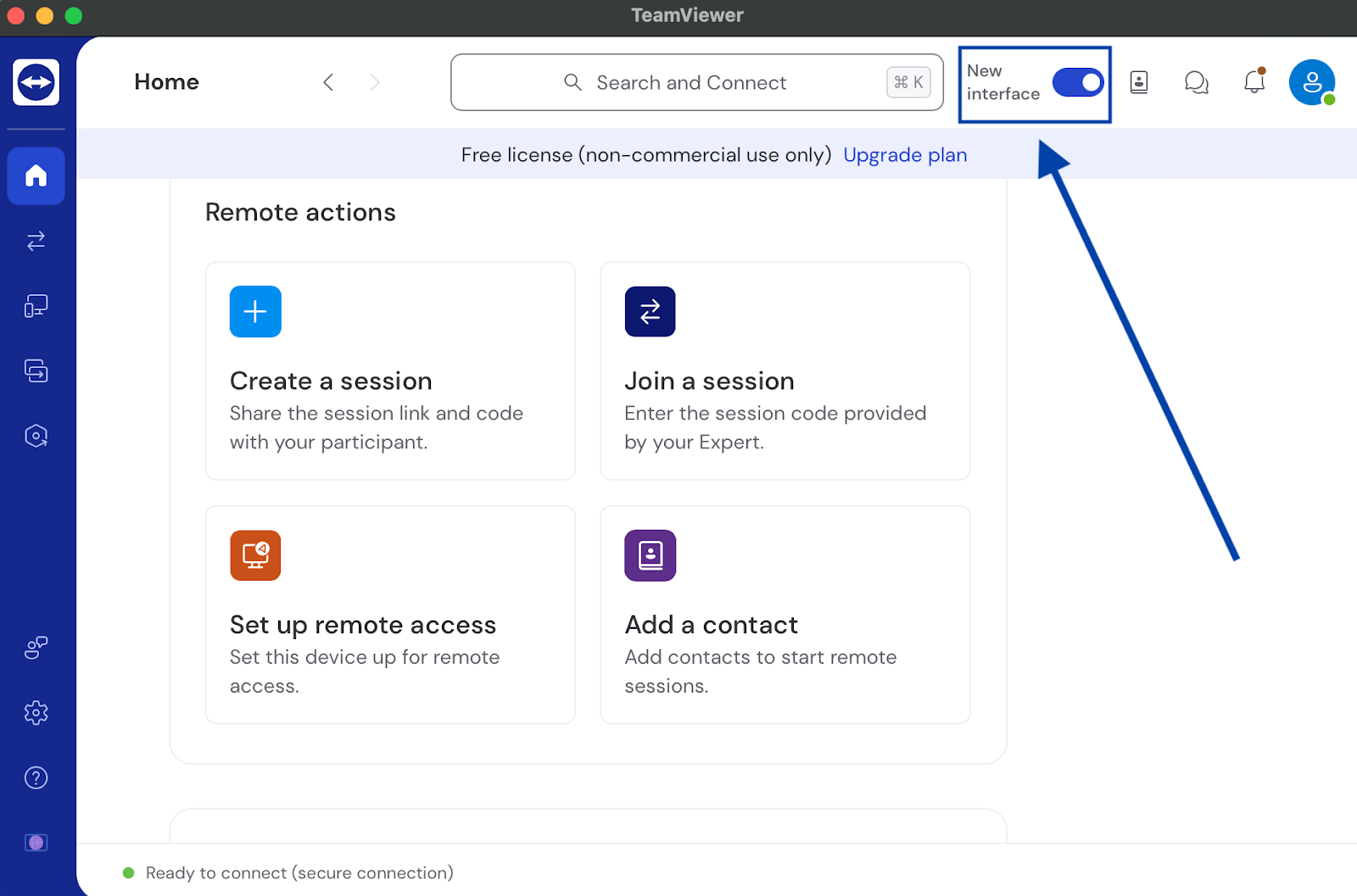
- • In the main menu, locate New Interface. Click on it to toggle it off or disable it. Once done, restart TeamViewer so that changes are reflected.
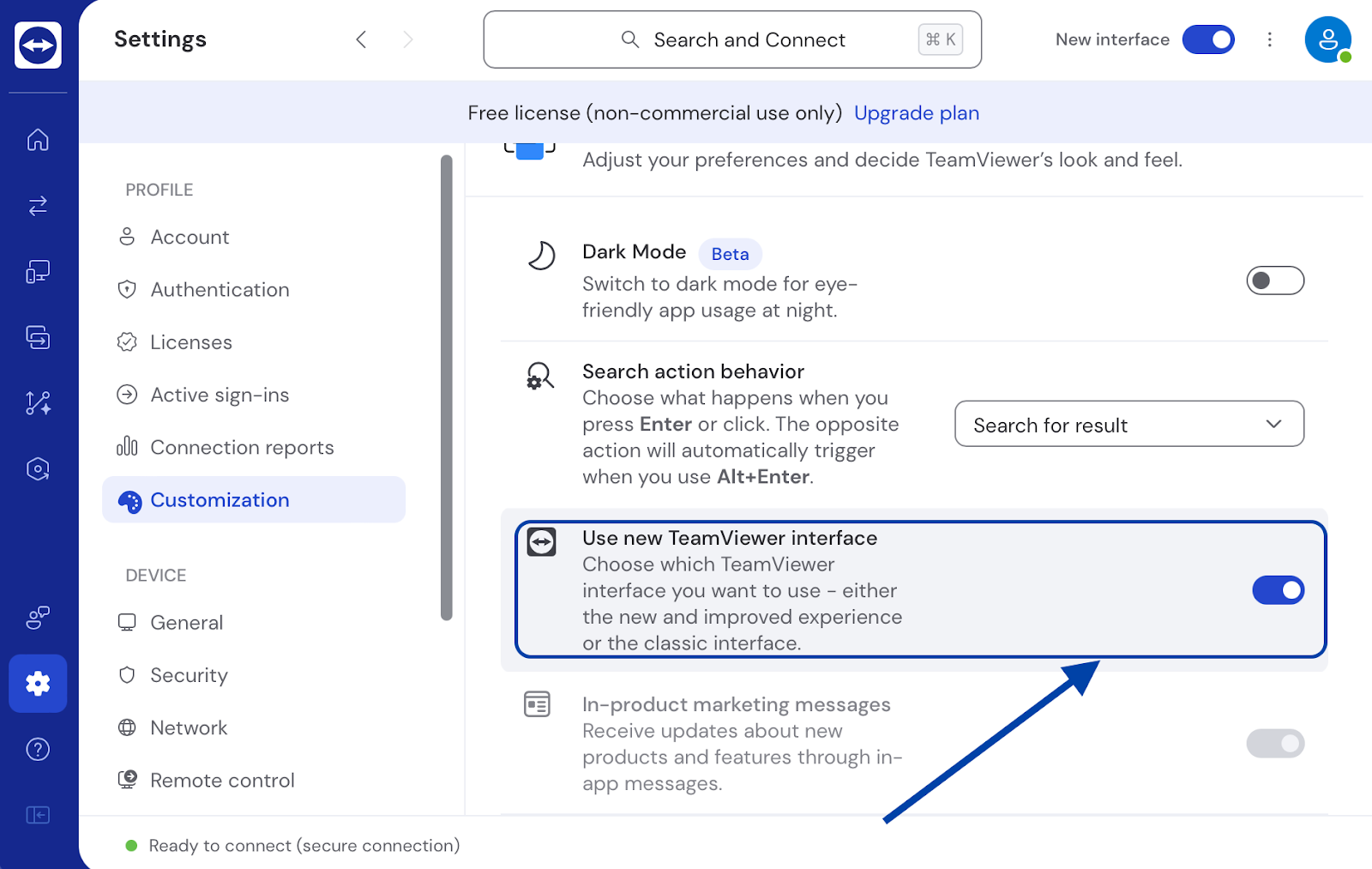
- • There’s an alternate way to switch to the interface if you can’t do it via the menu toggle.
- ❏ Open the settings by clicking the gear icon (⚙).
- ❏ Go to the General tab and toggle off the Use new TeamViewer interface.
- • In the main menu, locate New Interface. Click on it to toggle it off or disable it. Once done, restart TeamViewer so that changes are reflected.
4. Firewall or Network Restrictions
You may face issues connecting remotely to a device using TeamViewer in environments with strict firewall rules. The software can bypass many network restrictions. But some organizations or high-security networks may block its connections over security or data privacy concerns.
On TeamViewer’s community, you can find users discussing this in the network configurations context.
How to Fix This Issue
-
Check Firewall and Network Settings: Ensure TCP/UDP port 5938 is open, or fallback ports 443 and 80 are allowed.
-
Whitelist TeamViewer: Add *.teamviewer.com to your allowlist and ensure TLS 1.2 is enabled.
-
Verify Network Access: Work with your IT department to ensure TeamViewer is not blocked on corporate networks or VPNs.
5. TeamViewer Service or Session Issues
Sometimes TeamViewer appears to be running but won’t accept unattended connections. This is usually a service-level issue rather than a configuration one.
How to Fix This
- •Restart the TeamViewer service on the remote machine (via Windows Services or sudo systemctl restart teamviewerd on Linux).
- •If you can’t access the service remotely, have someone reboot the machine.
- •Check whether the device shows as Online in your TeamViewer account — if it shows as offline, the service isn’t connecting to TeamViewer’s servers.
- •Make sure the remote machine is not in sleep or hibernate mode, which will take it offline.
6. Device Not Reachable (Offline, Sleeping, or on a New Network)
This is one of the most overlooked causes. If the remote PC is off, asleep, or on a different network than expected, it simply won’t appear as available, no matter how correctly it’s configured.
How to Fix This
- •Confirm the device shows as Online in your device list before attempting to connect.
- •If it’s frequently going to sleep, adjust the power settings on the remote machine to prevent sleep.
- •If you need to reach machines that are powered off, configure Wake-on-LAN in your router and TeamViewer settings.
- • If the network has changed (e.g., a new ISP, router replacement, or IP change), the device will reconnect automatically once it’s powered on and online — no reconfiguration needed.
7. UAC and Administrative Privileges
If TeamViewer is not running with administrative privileges, UAC prompts may block your ability to fully control the remote system, even during unattended sessions. To avoid these interruptions, TeamViewer should always run with elevated permissions..
How to Fix This Issue
Set TeamViewer to run as Administrator on your Windows computer:
-
On the remote device, log in to your TeamViewer account.
-
Under the context menu, choose Properties.
-
Go to Compatibility.
-
Locate this option – Run this program as administrator and a box next to this option. Check the box.
-
Click on Apply and then OK.
Apply this setting during deployment for managed devices. It will require you to adjust the deployment configuration. In an enterprise environment where you need to manage multiple systems, use Group Policy settings.
HelpWire: Best Alternative to TeamViewer
TeamViewer is a popular tool for remote access and support, but users are facing many issues with this platform.
So, if you’re also encountering issues with TeamViewer unattended access frequently and your productivity has taken a hit, maybe it’s time to look for an alternative solution.
HelpWire is one of the best alternatives to TeamViewer that allows you to connect and access remote devices without hassles or interruptions. This platform is simple yet powerful that simplifies modern IT support. Unlike TeamViewer, it’s a completely free remote desktop solution for all users, whether you want to use it for personal or business purposes.
Why choose HelpWire?
HelpWire offers a number of useful features aimed at solving the problems users are facing with TeamViewer. Here are its key features: minimal setup, removing the need to navigate complicated settings.
-
On-demand + unattended access:
You have the option to initiate either on-demand or unattended remote access sessions with HelpWire. This lets you control your remote devices anytime, anywhere.
-
No complex setup:
HelpWire requires minimal setup with its user-friendly interface. So, you can get started and run in no time.
-
Client & team management:
Manage all your client and team workflows easily with HelpWire’s effortless interface.
-
Quick file transfer:
Transferring files in a remote session is faster and secure with HelpWire. You just need to drag the desired file(s) from one system and then drop them into another.
-
Multi-platform compatible:
HelpWire supports multiple platforms - Windows, macOS, and Linux.
Check out the detailed comparison between HelpWire and TeamViewer and learn the differences between two platforms more.