categories
Updated on in

Microsoft Remote Desktop vs RealVNC

Author: Oliver Rieder
Oliver Rieder Article author

One of the essential tools for modern remote work is remote support software. These programs enable IT professionals to connect to and control another computer from any location. Most businesses rely on such software to remain secure, productive, and market competitive. 

In this article, we compare two leading industry remote access software solutions: Microsoft RDP vs VNC. We’ll highlight their distinct features and use cases to help you decide which option is best for your needs.

✍️Note:  As of May 27, 2025, the Microsoft Remote Desktop application from the Microsoft Store has been decommissioned. Users must switch to the Windows app to continue using services like Azure Virtual Desktop and Microsoft 365.

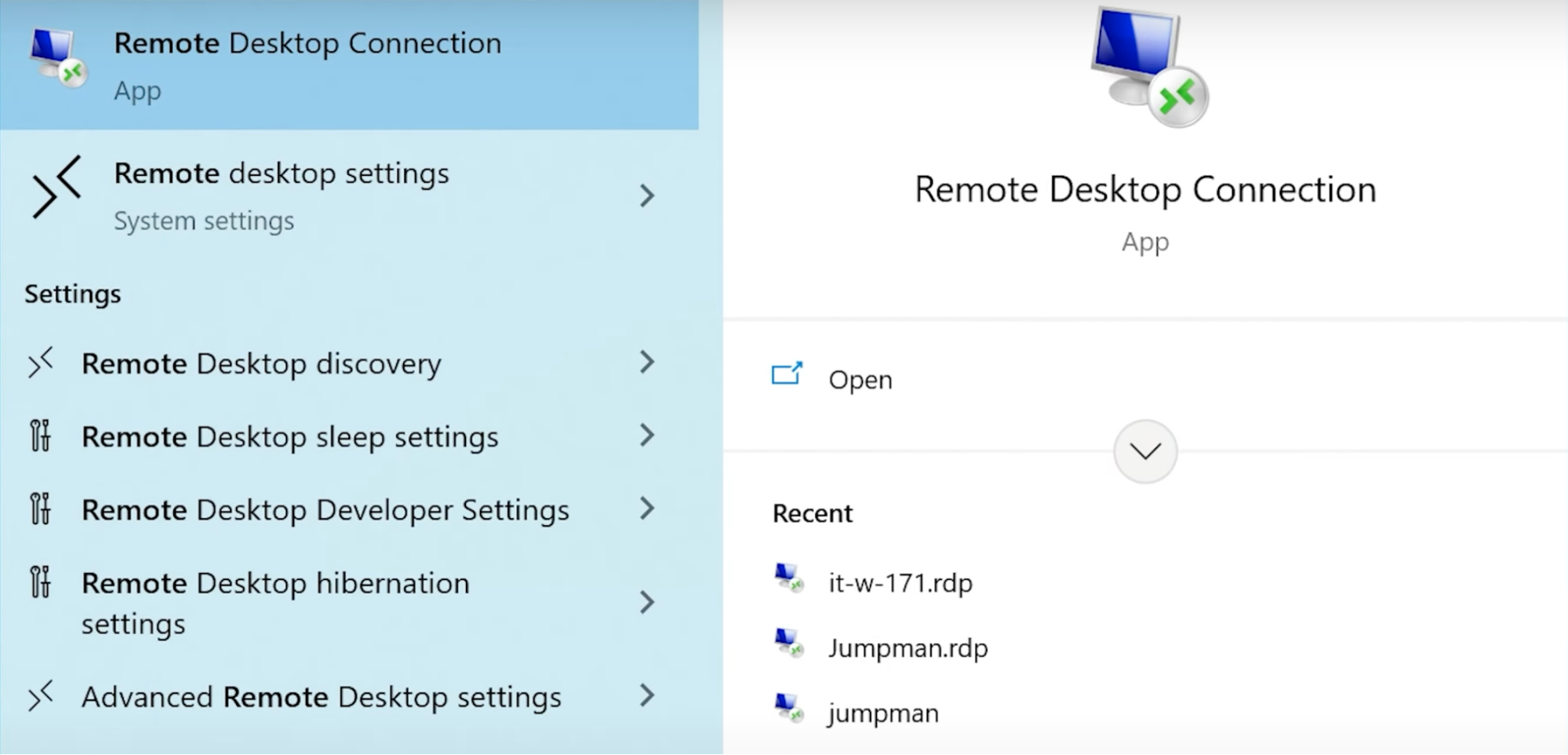
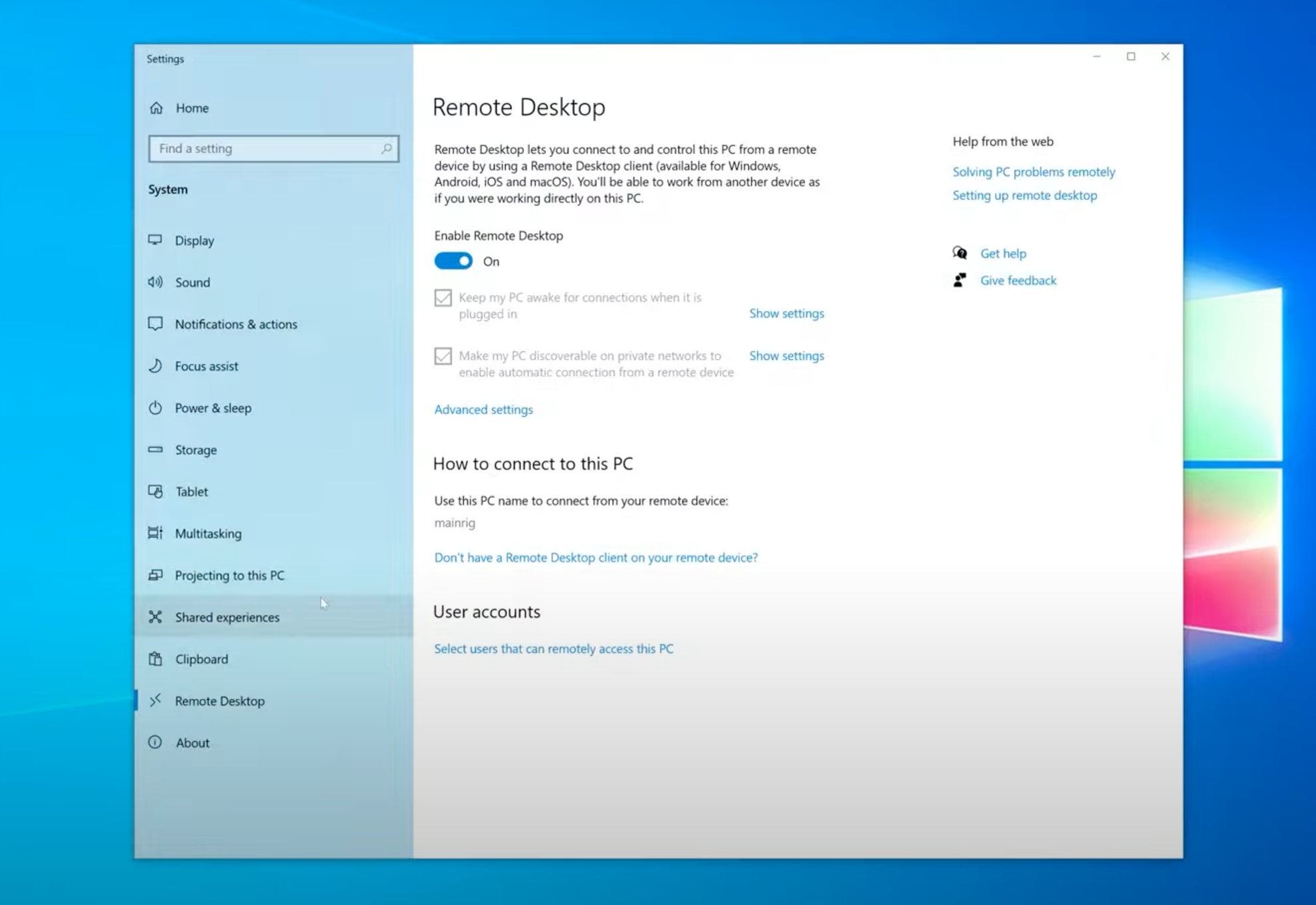
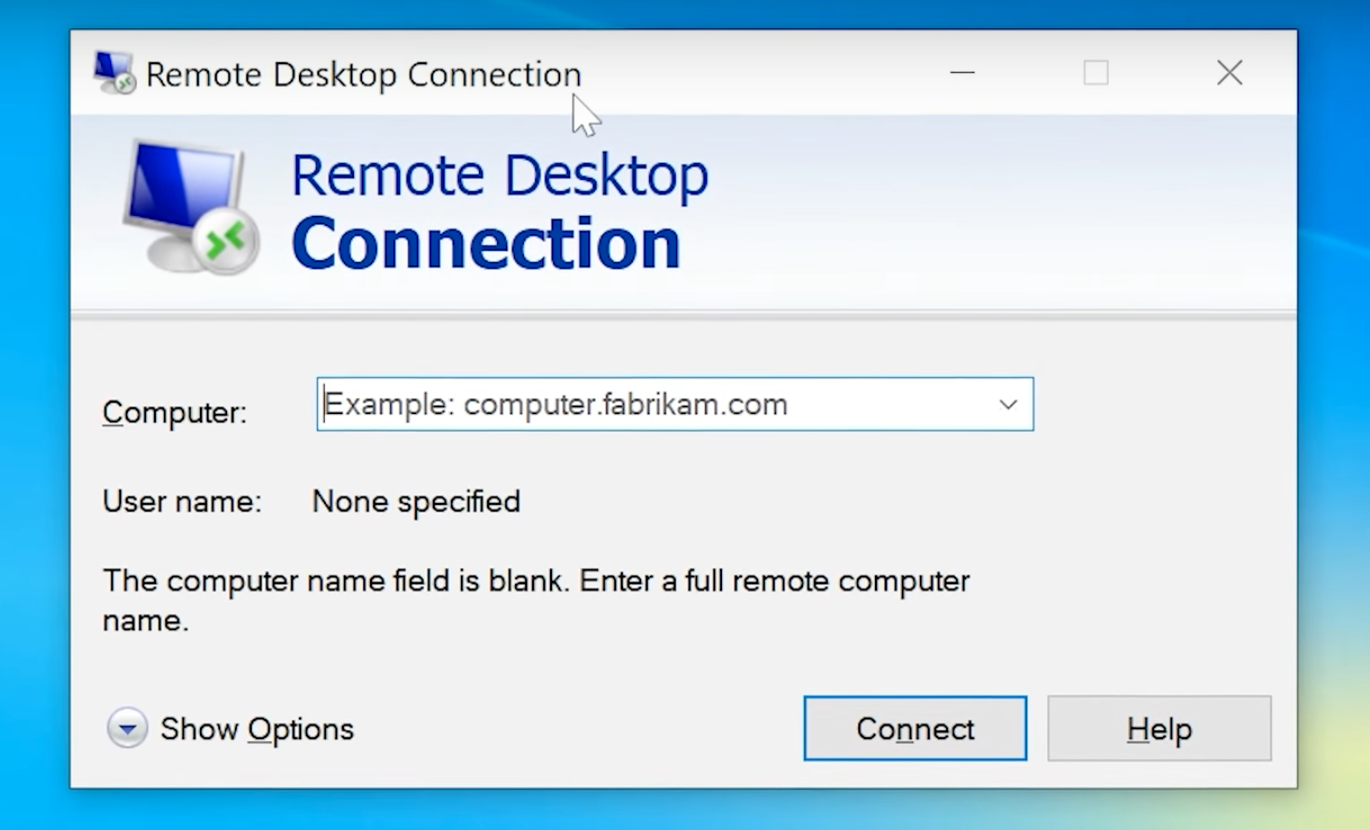
For Windows-to-Windows connections, Remote Desktop Connection (RDC) is available. But users are still encouraged to try other remote desktop options, as RDC lacks cross-platform support and requires more complex configuration.

For instance, HelpWire is a free and easy-to-set-up remote desktop application that supports multi-platform connections across Windows, macOS, and Linux devices.

Overview

Microsoft Remote Desktop and RealVNC are popular solutions for smooth and secure remote access. Both offer distinct features designed to meet various business requirements, particularly providing advanced solutions for large companies and cost-effective remote support platforms for smaller teams.

Microsoft Remote Desktop

Best for: Firms that rely on Windows and Azure for easy, secure, and seamless remote access integrated with other Microsoft tools.

Microsoft Remote Desktop
by Microsoft Corporation
4.5 (163)

Microsoft Remote Desktop or RDP is a widely used tool to gain access to servers or desktops remotely. It supports both Windows and macOS platforms and allows users to control and interact with remote machines through a graphical interface. To operate, the system links the RDP client software to a device that is running the RDP server software.

RealVNC

Best for: Teams working with multiple, mixed devices that prefer a simple yet secure remote access tool with single sign-on (SSO) and a straightforward dashboard with minimal setup required.

RealVNC
by RealVNC
4.7 (439)

RealVNC (also referred to as VNC) comes with VNC Connect, which allows users to remotely control computers and host virtual meetings. RealVNC’s free plan is recommended to individuals who want to access their home PCs while traveling. VNC also offers cheap premium subscription plans that make it an appealing option for small businesses.

However, VNC lacks some of the advanced features found in higher-priced remote desktop solutions. For instance, it does not support drag-and-drop file transfers between the remote and host machines, and it does not allow users to invite others to assist with technical issues.

Features

Each solution has an edge over the other. Microsoft Remote Desktop is highly recommended for larger organizations that need robust, scalable tools with strong security features and seamless integration into the Microsoft ecosystem. It generally performs well in handling complex remote management tasks. 

Meanwhile, RealVNC offers a more user-friendly and streamlined option designed for smaller teams or businesses that prefer a simple remote access setup and flexible collaboration features.

1. Remote Access & Session Management

Using a fast and reliable RDP protocol, Microsoft Remote Desktop enables safe and smooth access to remote machines. The tool performs well for both on-demand and always-available connections. Even if the user is not physically present at the remote computer, the connection remains active. This program can handle multiple sessions on one server, which makes it suitable for larger organizations. Advanced features, such as session balancing and automatic scaling through Azure Virtual Desktop, are also available for firms with dynamic project requirements.

Meanwhile, RealVNC simplifies remote access with cloud-based connections, so there is no need for complex firewall configurations. Thus, it is a wise choice for smaller teams or groups without dedicated tech support teams. It supports both on-demand and always-available access. RealVNC also includes session recording for training or compliance purposes. Unfortunately, it lacks the ability to manage multiple sessions on a single server, but this tool still stands out for its ease of use and simplicity for smaller teams.

2. Collaboration & File Sharing

To simplify team collaboration, Microsoft Remote Desktop introduces file and clipboard redirection, which enables seamless file sharing between local and remote devices. It also supports remote printing, which allows the remote to print documents from a remote machine to local printers. Furthermore, with high-quality audio and video redirection, Microsoft Remote Desktop enhances collaborative experiences, which is great for meetings and multimedia presentations.

RealVNC comes with a built-in file transfer feature for team collaboration. This helps users send and receive files during a session. The software also features a real-time chat for online communication and remote printing. However, Real VNC has no extensive file redirection options like Microsoft Remote Desktop.

3. Customization & Branding

If your business needs to uplevel its customization options, the Microsoft Remote Desktop is a perfect choice. It comes with several options for various project requirements. You can brand the RD Web and Azure Virtual Desktop portals, which also adjust the interface to reflect your company’s identity. And with its RemoteApp, you can deliver specific applications rather than an entire desktop, which streamlines access and alignment with your brand.

RealVNC’s branding options are available only in its enterprise subscription plan. This allows companies to customize login and help desk portals with logos and colors. It also comes with organization-wide policy features like mandatory session recording, combining security and branding.

4. Performance & Ease of Use

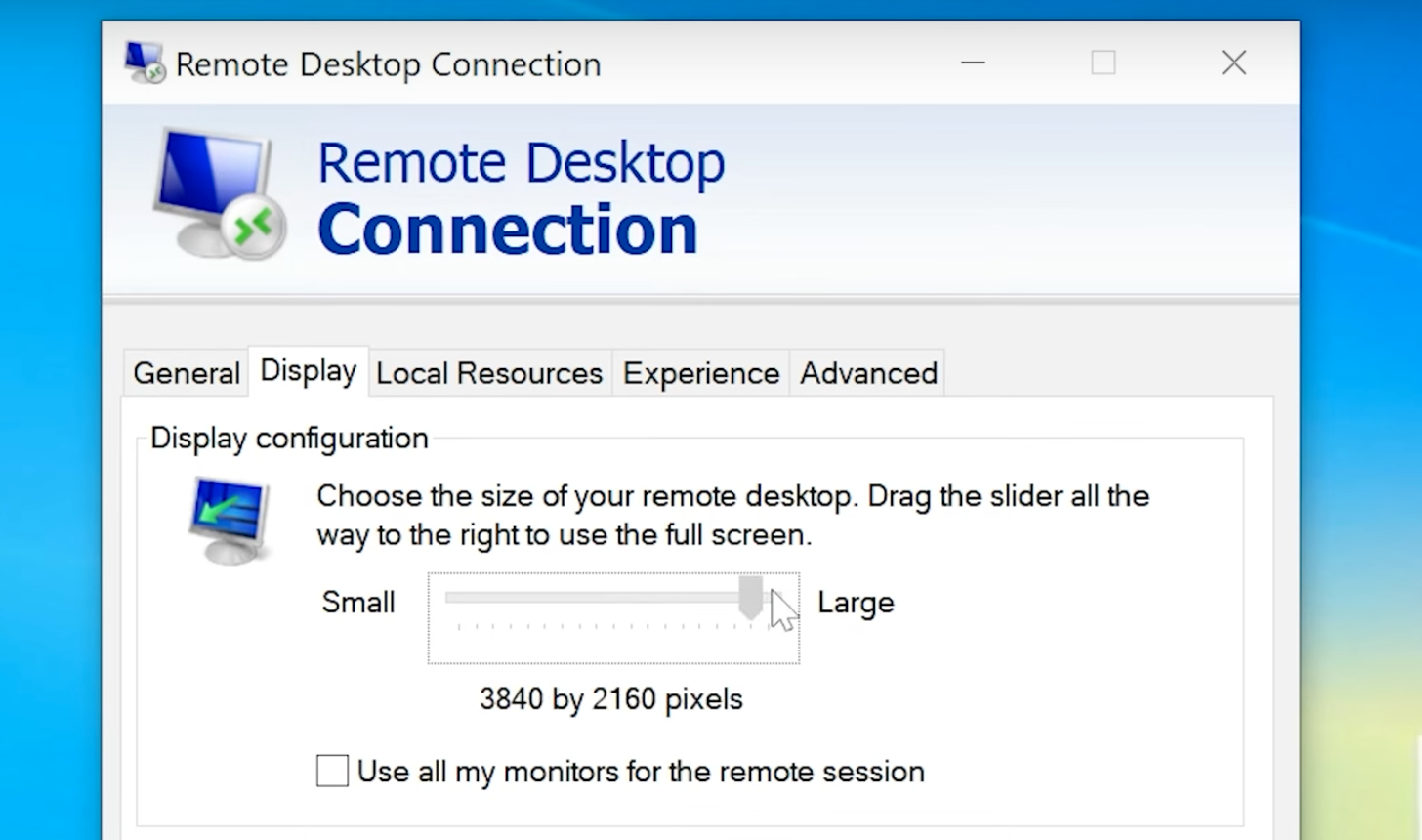
Microsoft Remote Desktop delivers reliable speed, which enables high-resolution displays and multi-screen setups to work smoothly, even on 4K or Retina monitors. Users typically notice quick response times and stable performance, especially in more complex setups. Azure Virtual Desktop also gives businesses extra power during busy hours by scaling resources when needed.

When it comes to direct use, RDP usually feels faster than VNC. Heavy tasks and detailed graphics commonly run better with Microsoft’s system.

On the other hand, RealVNC has simpler access. Setup stays light, and connections run well even on slower networks or older hardware. The experience feels clean and easy. While it lacks deeper tuning options, RealVNC works best for straightforward remote access without technical fuss.

5. Team & Device Management

Microsoft Remote Desktop supports full control over users and systems. Admins may manage host pools, apps, and security rules in a single, centralized place. Moreover, its Azure Active Directory adds secure sign-ins, conditional access, and multi-factor checks. Teams gain strong protection and tight control over who enters and what they can do.

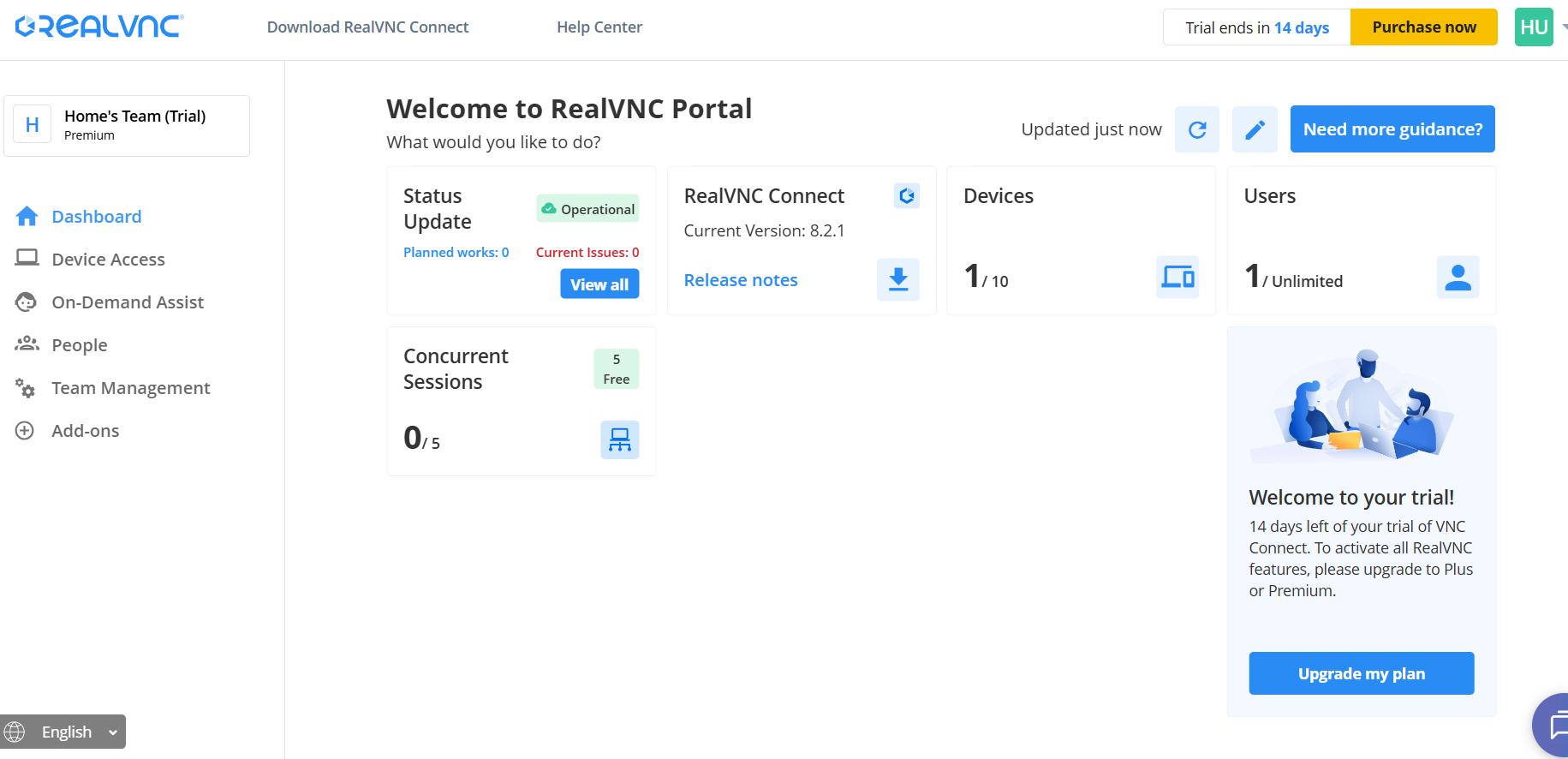
Meanwhile, RealVNC also offers team management through a web dashboard. Admins add users, assign roles, and set access limits with clear tools. SSO support makes sign-in fast, and role-based permissions help maintain order. RealVNC may not reach the same advanced level as Microsoft’s setup, yet small to mid-sized teams find it simple, steady, and friendly to manage.

FeatureMicrosoft RDPRealVNC
Mobile Access
File Transfer
Concurrent Sessions1 sessionmultiple connections
Session Transfer
Session Recording
Real-time Chat
Remote Printing
Audio Support
USB Sharing
(may not work for all device classes)

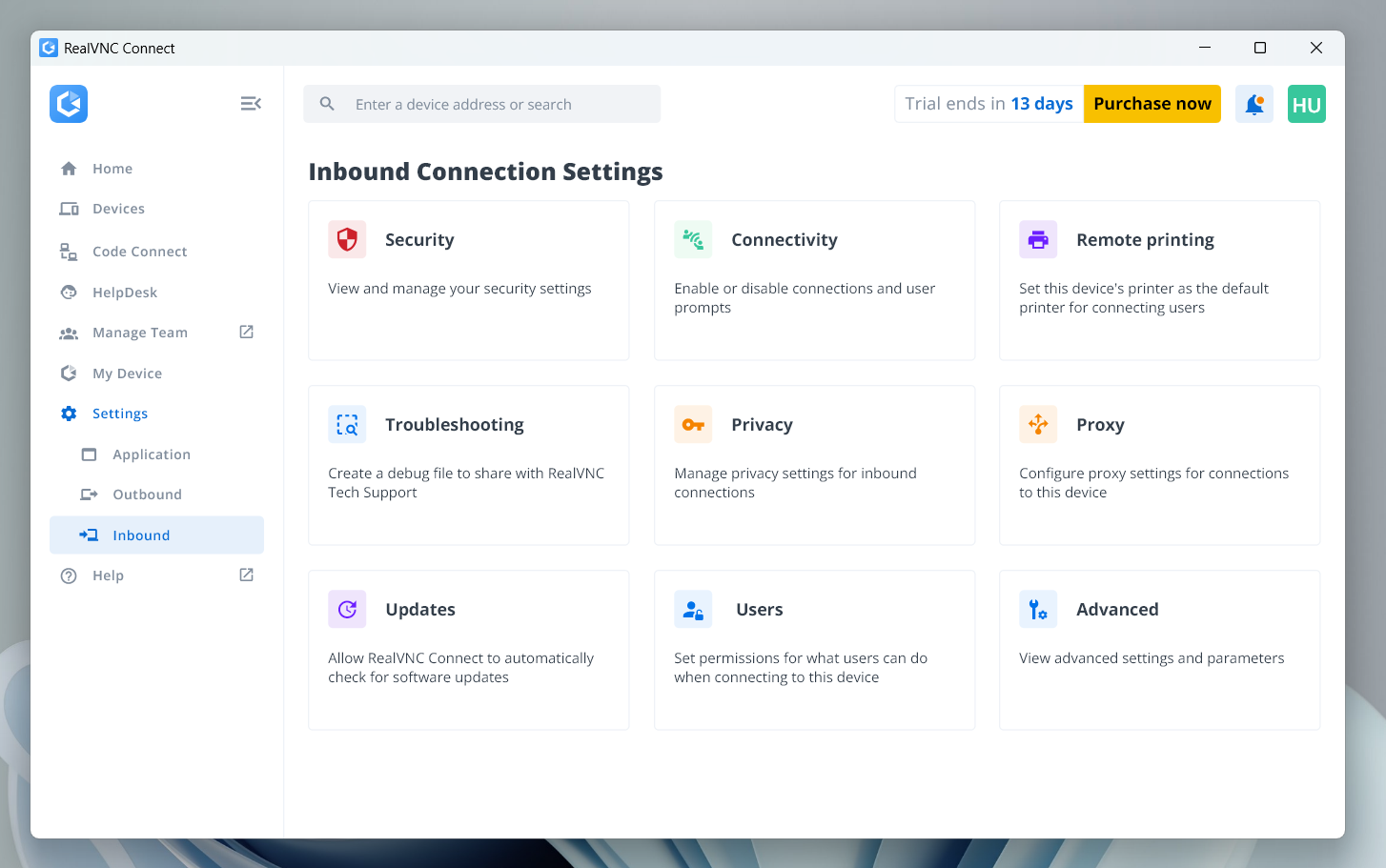
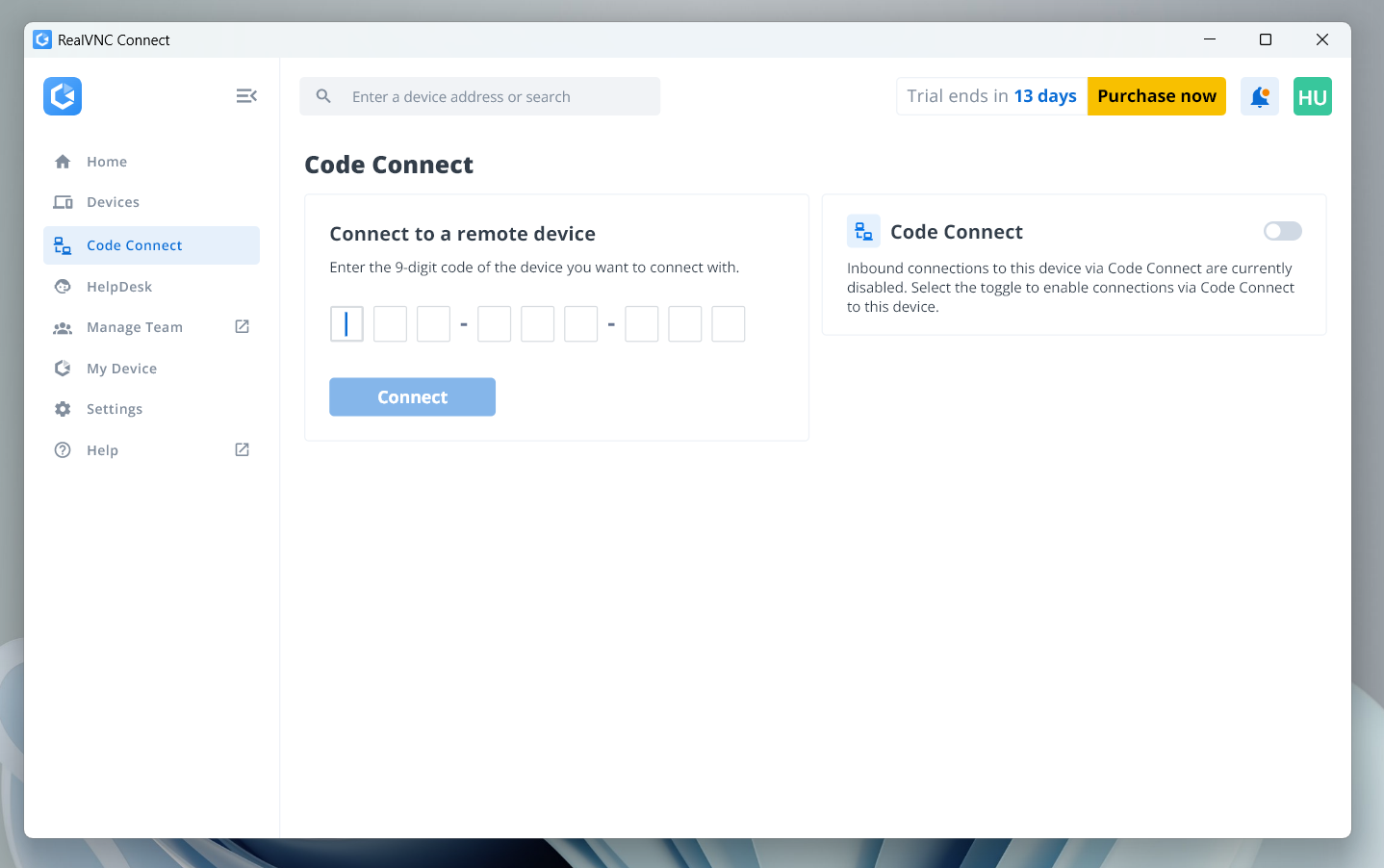
Interface Comparison

Both remote support tools offer intuitive and clear interfaces, so users can quickly find their respective key features. Each platform connects well to both desktop and mobile devices. Image quality appears sharp on both ends, and users can easily scale the display without trouble.

Microsoft Remote Desktop

RealVNC

Operating System Support

Both tools are compatible with a range of operating systems. The table below shows which systems work with RealVNC and Microsoft Remote Desktop. This will help you pick the one that best matches your setup and future needs.

Operating SystemMicrosoft RDPRealVNC
Windows
macOS
Linux
Android
iOS
Raspberry Pi

Security

Security is essential when using remote desktop tools to access devices and sensitive data. If you compare VNC vs RDP security, you will see that both tools implement strong and reliable measures to protect user connections, which ensure privacy and safety throughout remote sessions.

Microsoft Remote Desktop

Microsoft Remote Desktop has security protocols in place for a secure remote connection, such as:

  • TLS 1.2 Encryption: Encryption of all session data using industry-standard protocols for the safeguarding of your information.
  • RDP Security Layer: Creates an extra layer of security for RDP sessions, which boosts protection against unauthorized access.
  • Network Level Authentication (NLA): Authenticates users before the commencement of a remote session to reduce the risk of unauthorized access.
  • Two-Factor Authentication (2FA): Another layer of security that involves a second verification step for users logging in.
  • Granular Access Controls: With this feature, administrators may set user permissions and control what they can access or perform during sessions.
  • Security Standards Compliance: Microsoft Remote Desktop complies with tech industry standards such as GDPR for user data protection.

RealVNC

RealVNC also features robust security features for remote access, including:

  • AES 256-bit Encryption: A top-level encryption feature to protect data in transit during remote sessions
  • Two-Factor Authentication (2FA): This measure adds a second verification step when a user logs in to reduce the risk of unauthorized access.
  • Device Authentication: This feature ensures that only trusted devices may connect and unapproved devices stay blocked.
  • Role-Based Access Control: Admins may set or assign roles and limits to each user. Hence, every user only gets the access they need.
  • Session Logging: The system records each remote session. These records help with audits and security checks. So, no action goes unnoticed.
  • GDPR Compliance: RealVNC follows GDPR rules for data protection to keep user information private and secure.

Pros and Cons

In this section, we show the strengths and drawbacks of RDP and VNC. These lists can help you easily compare them with other remote access options, such as TeamViewer and RDP.

Microsoft Remote Desktop

Pros

  • RDP does not depend on a strong Internet connection. Apps run from the remote server, so the local device handles less work.
  • Users access files and folders on remote computers without trouble.
  • Admins and support teams can watch and control connected machines easily.
  • Support staff fix problems fast, even from a distance.
  • Users connect to Windows systems from almost any device.

Cons

  • Lacks remote reboot features
  • RDP can connect only to Windows machines that run Pro or Enterprise editions.
  • Setup in a large, multi-user environment may cost more and feel complex.
  • Some applications may require extra and complex configuration or third-party tools.
  • Heavy use can slow the connection if many users try to access one host machine at the same time.

RealVNC

"The software is intuitive, making it easy for both beginners and experienced users to navigate."
— Read full review

Pros

  • The interface is simple, clean, and easy to understand.
  • Users gain two-way access across different platforms, such as Windows, macOS, and Linux.
  • A free plan is perfect for personal use, and the paid plans are budget-friendly for small teams.

Cons

  • One-time access links cannot be sent from a remote machine.
  • Setup may feel confusing because the server and viewer operate as separate apps.
  • File transfer lacks drag-and-drop support between desktop and the viewer application.

Usage Scenarios

The right remote desktop software heavily depends on your needs. Oftentimes, home users and office workers look for software that handles daily simple tasks. Microsoft RDP and RealVNC both fit common situations. The guide below shows where Microsoft Remote Desktop works best.

Microsoft Remote Desktop Usage Scenario

  • Personal Remote Access (Windows Pro/Enterprise)
    Recommended for users who want safe and seamless control of a home or office PC. The host machine must run Windows Pro, Enterprise, or Server, as Windows Home cannot act as the host. RDP can offer full desktop access, support for more than one monitor, and strong performance over a LAN or VPN.
  • Small Business App Access (Remote Desktop Services)
    This is a smart pick for small and midsize businesses that need several users to open apps from one main server. Remote Desktop Session Host lets admins publish full desktops or single apps. Moreover, user sessions stay organized and easy to manage.
  • Enterprise Cloud and Virtual Desktops (Azure Virtual Desktop / Windows 365)
    A strong choice for large companies that give cloud PCs or hosted Windows apps to remote workers. Users access modern clients or a web portal from almost any device. Microsoft now focuses these services inside the new Windows app for a smoother setup.

RealVNC Usage Scenario

  • Essentials
    Best for people who need remote access to a few personal devices. The plan supports safe connections, file transfer, audio, and printing. Its unattended access feature also works well, so users can control devices without someone on the other end.
  • Plus
    A perfect fit for expanding teams, but with a small set of devices. Admins may set roles and limits, group users and machines, and keep clear records through session logs.
  • Premium
    Designed for larger teams that require stronger security and full remote support features. Access stays tight, and tech staff handle remote issues with confidence.
  • Enterprise
    Built for companies that operate at scale. This level supports on-premise deployment, SSO with services such as Entra ID and Okta, Group Policy rollout, priority support, and a central admin console for full control.

Integration

Presented below is a summary of how Microsoft RDP / RDS / AVD and RealVNC Connect stack up on integration. We focus on the platform’s ability to offer direct, native support for key integration areas (APIs, ITSM/CRM links, automation, branding, admin controls, and SDKs).

Integration AreaMicrosoft RDP / RDS / AVDRealVNC Connect
API Access (REST & PowerShell) (Admin/Device APIs)
ITSM Integration (Azure Monitor ITSM)
CRM Integration
Custom Workflow Automation (Logic Apps/Runbooks) (API automations)
Third-Party App Compatibility (RD Web Client) (SSO & APIs)
White-labeling & Branding (RD Web branding) (HelpDesk branding)
Admin Console / User Management (Azure portal/Intune) (RealVNC portal/SSO)
Integration with Ticketing Systems (ServiceNow connector)
SDKs or Developer Tools (RDP ActiveX/Web) (VNC SDK)

Price

Both software come with various pricing offers so users may pick one that fits their current budget and project needs. Once you are satisfied that these tools match your current financial budget, you can compare them with other solutions like TeamViewer and VNC.

Microsoft Remote Desktop

As of this writing, RDP is compatible with most present-day Windows versions, including Windows 8, 10, and 11, for remote device connection. However, only certain systems can act as the host. The remote computer must use Windows Pro or Enterprise to accept a remote connection (for instance, Windows Home cannot host an RDP session). A Windows Pro license usually costs at least about $200, so users should plan for that expense if an upgrade is needed.

RealVNC

VNC pricing can feel confusing at first, as it charges paid plans by concurrent sessions and bills annually. This means that you pay based on how many connections your team can use at the same time, and not per person. Device limits rise with each tier. The Essentials plan is for one user and three managed devices; Plus raises the limit to 50 devices with unlimited users, Premium goes to 150 devices with unlimited users, and Enterprise provides custom usage options for larger applications.

In the United States, the starting cost for Essentials is around $8.25 per month when billed yearly. Plus and Premium start at higher rates per concurrent session, since these plans have more security and admin tools. Prices and currency differ by region, so the RealVNC pricing page shows the final amount for each location.

You can try RealVNC free for 14 days with no credit card, and there’s also a Lite option for strictly non-commercial personal use (single user, three devices) if you just need basic access.

Top Free Alternative to Microsoft Remote Desktop or RealVNC

HelpWire is a secure, reliable, and innovative remote desktop solution made for professionals and small- to medium-sized firms. With its simple, intuitive, and easy-to-use interface and settings, it can establish seamless remote on-demand and unattended connections. The software comes with a variety of remote control features, which make it a perfect alternative to RealVNC.  With HelpWire, you may start streamlining your remote IT assistance service with zero intricate configuration and setup.

Features:

  • Multi-Platform Compatible Software:

    HelpWire currently operates well and is accessible on Windows, Mac, and Linux.

  • Instant Chat Support:

    For fast and efficient remote support, HelpWire comes with a live chat service that users can easily access.

  • Easy File Transfer

    Transfer files with ease during remote sessions through simple drag-and-drop mechanics.

  • Quick and Simple Session Start-up

    The platform enables quick start of remote sessions using unique client apps, even without the complexity of IDs or passwords.

  • Multi-Desktop Control:

    Users may navigate and control multiple desktops of a single client at the same time.

Pros

  • User-friendly interface with intuitive controls, which is perfect for beginners
  • Stable and rapid remote connectivity;
  • Supports management of numerous client sessions
  • Affordably priced, with a variety of options for users with different budget levels.

Cons

  • No support for mobile platforms at present;
  • Does not support session recording.

Conclusion

Microsoft Remote Desktop and RealVNC are highly popular tools because they offer strong remote access features. Each tool serves different objectives. RDP works best in a Windows setup where users need to control and share resources from a remote machine. Meanwhile, RealVNC is ideal for screen-sharing tasks, remote support, training, and small team use.