categories
Published on in Updated on

AnyDesk Not Connected to Server

Author: Emma Collins
Emma Collins Article author

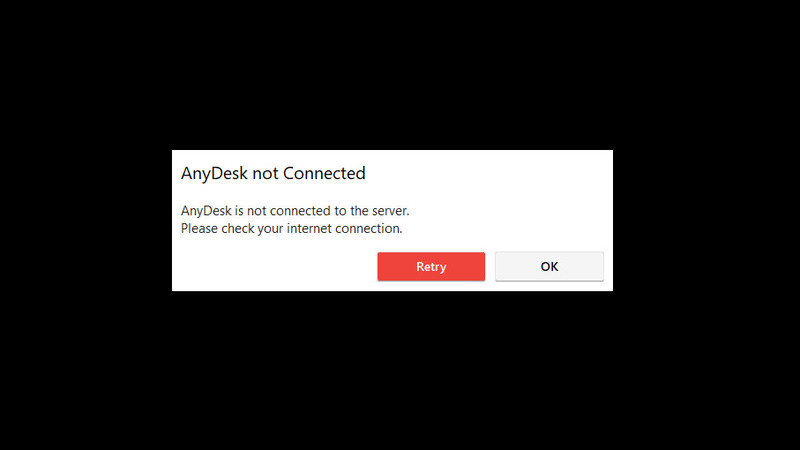
The “AnyDesk is not connected to the server” message (also shown as “Disconnected from the AnyDesk network”) usually means AnyDesk can’t reach its backend. If you’re fully offline, that’s expected. If everything else works online but AnyDesk doesn’t, it’s typically a local network setup issue, a security block (firewall/antivirus), outdated software, or a temporary outage.

AnyDesk not connected message

Do these basic checks first:

  • • Check your internet connection (Wi-Fi/Ethernet stability).
  • • Reboot your PC, router, and relaunch AnyDesk.
  • • Verify server status at the official AnyDesk Status page.
  • • Ensure AnyDesk is open and running on the device you’re trying to connect to.

If none of the above resolves the issue, try also the most common fixes listed below in this article.

Useful tip:  If the fixes below don’t resolve the “AnyDesk server not connected” issue, you may want to consider a similarly free alternative remote desktop solution, such HelpWire. It offers reliable on-demand and unattended remote access across Windows, macOS, and Linux. For more information, see the Alternative Solutions section.

1. Windows Firewall Settings

AnyDesk requires firewall access, especially if you’re using it on a public network. It could not connect if the access is denied. You’ve likely seen it request access when starting a session. If you declined the request or would like to review the settings and make sure that you granted AnyDesk full permissions, here’s how you do it. It’s a common way to fix AnyDesk errors.

  1. Type “Security” into the Search Bar and open Windows Security.
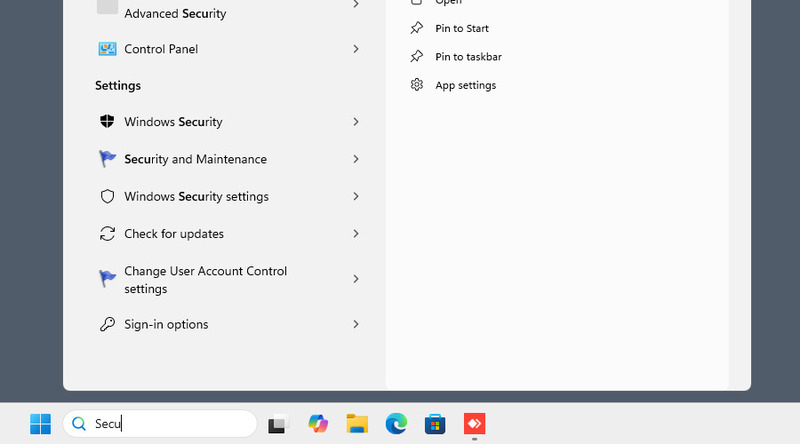
    Type Security in Windows Search Bar
  2. Select “Firewall & network protection”.
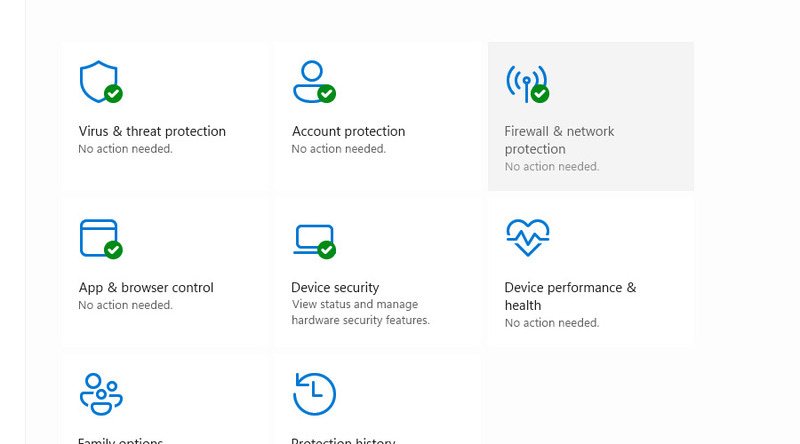
    Choose Firewall & Network Protection
  3. Select “Allow an app through the firewall”.
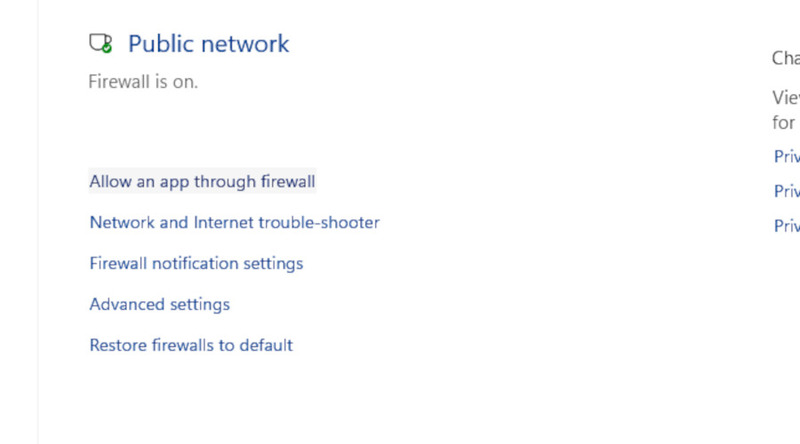
    Allow an app through the firewall
  4. Find AnyDesk. Enable the checkmark to the left of the app’s name and under “Public”, and confirm the choice.
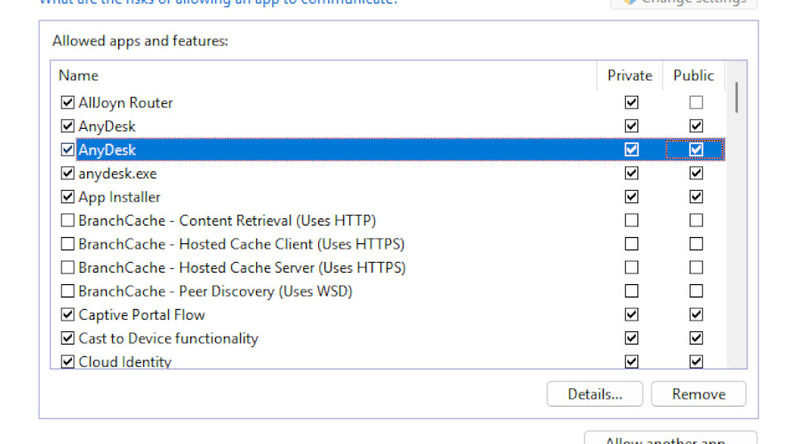
    Enabling AnyDesk in Firewall

2. Synchronize Time and Reinstall

By synchronizing your time with an online clock and reinstalling the application, you’ll be solving two problems: AnyDesk relies on global time, and you can also make sure that your version is the newest, since support for older versions is gradually being dropped and an older AnyDesk won’t connect to the main servers.

  1. Press the Windows button and select “Settings”.
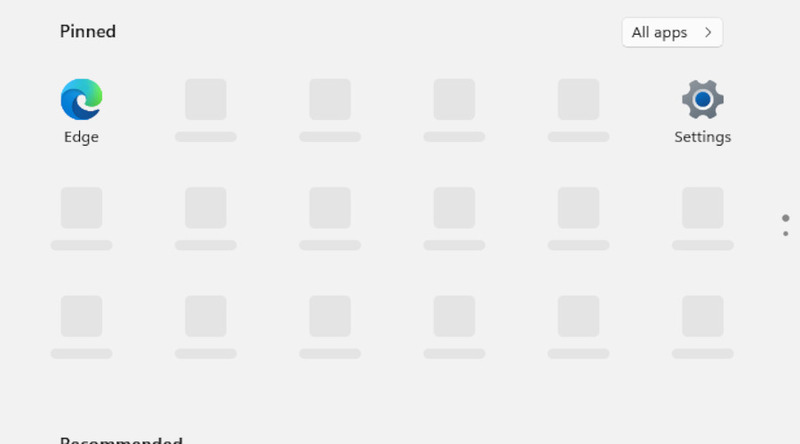
    Choosing Windows settings in Start menu
  2. Go to “Time & language”, then “Date & time”.
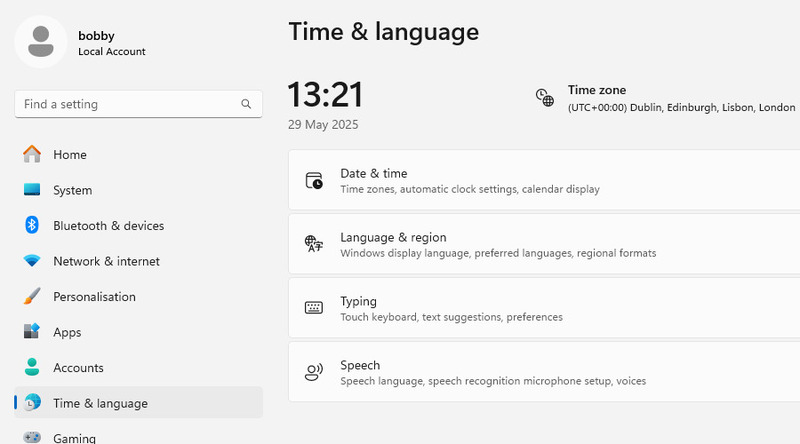
    Go to Time & Language menu
  3. Toggle “Set the time zone automatically” and “Set the time automatically”.
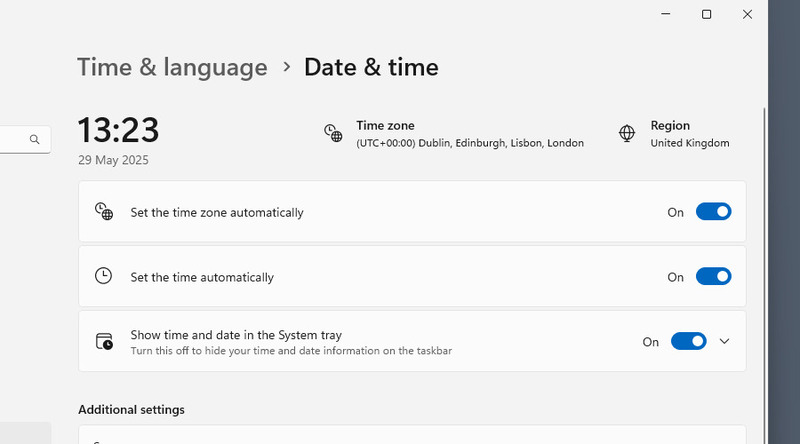
    Go to Date & Time menu
  4. Now it’s time to reinstall AnyDesk. Type “Installed” into the Search Bar and go to “Installed apps”.
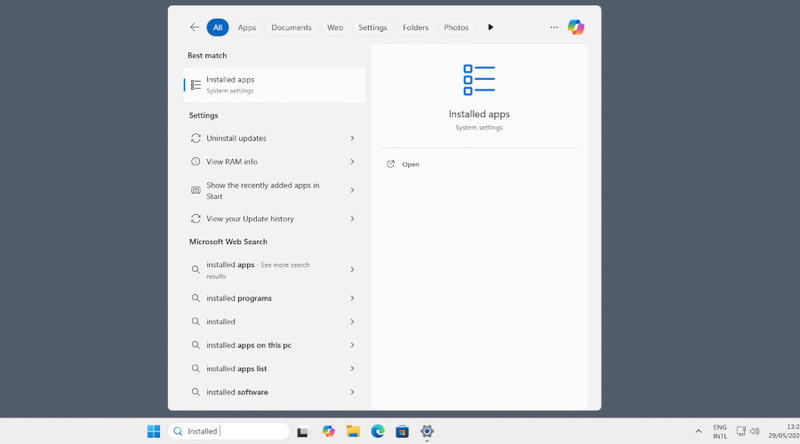
    Looking for installed apps in Serch Bar
  5. Find AnyDesk and click the “…” button next to the app. Press “Uninstall”.
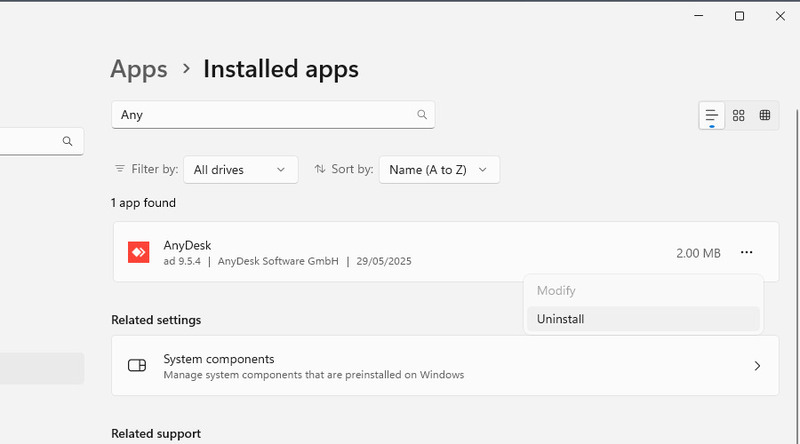
     Uninstalling AnyDesk form Windows
  6. Check if the app was uninstalled properly. Go to your installation location (by default, it’s C:/Program Files x86) and delete the AnyDesk folder.
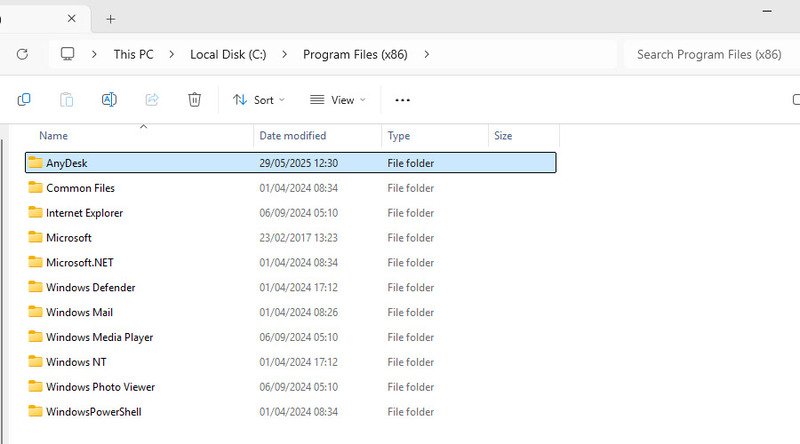
    Uninstalling AnyDesk completely
  7.  Re-download a new installer and install the app.

3. Antivirus Exception

An antivirus may be the reason for AnyDesk not working, by blocking AnyDesk’s access to its own files or the network. If you trust the application, you can add it to the exception list of your antivirus. We’ll show how to do it in Windows Defender, the antivirus that comes pre-installed on Windows 10 and 11, but the procedure varies between different antivirus software.

  1. Open Windows Security from the search bar.
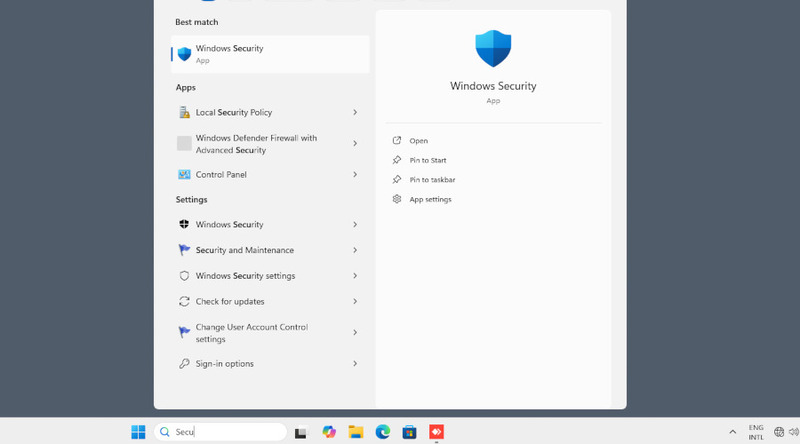
    Opening Windows Security in Search Bar
  2. Go to “Virus & threat protection”.

    Go to Virus & thread protection
  3. Scroll down until you find “Exclusions”.
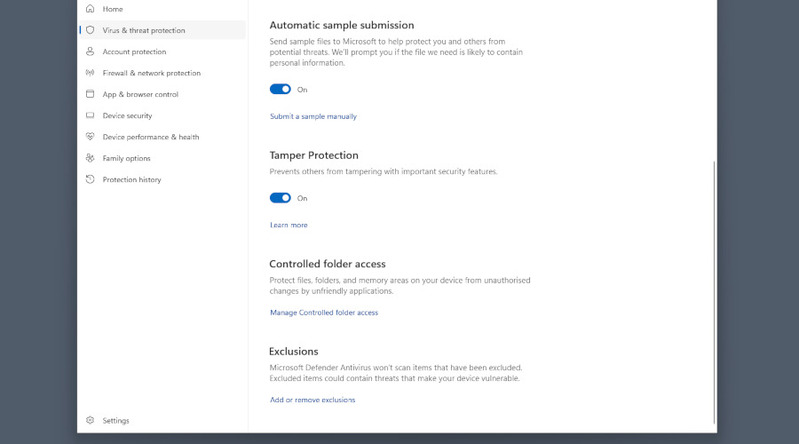
    Go to Virus & thread protection exclusions
  4. Select “Add an exclusion” > “Folder”, and locate the AnyDesk folder in Program Files (x86).
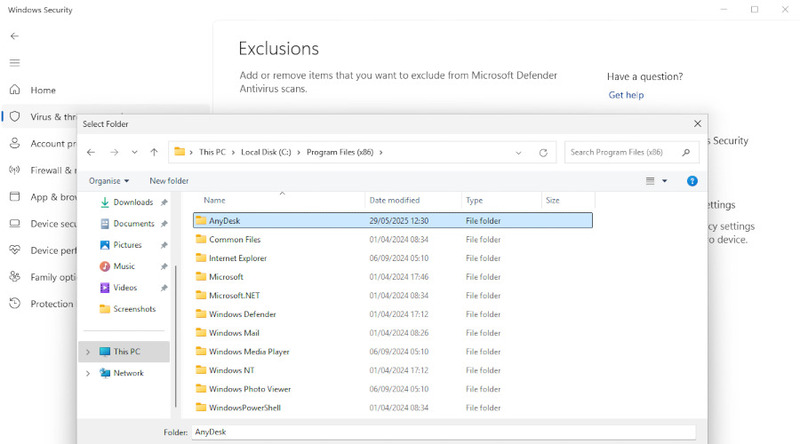
    Locating AnyDesk folder as an exclusion

If you need to, the exception can be removed from the same menu.

4. Keep AnyDesk Up to Date

Keeping AnyDesk up to date helps prevent “AnyDesk not connected to the server” issues caused by deprecated builds and compatibility changes on AnyDesk’s side. Enabling automatic updates ensures you stay on a supported release channel, while a clean reinstall (including removing the old configuration folder) can fix connection problems caused by corrupted settings or leftover files from previous installs.

Update Anydesk

Older versions of AnyDesk are gradually phased out and lose connection to the main servers.

  1. Open AnyDesk and go to “Settings”. Then, “Access” and choose “Automatic Update.”

     (Make sure AnyDesk is opened as an administrator, or click the “Unlock” button in the Access tab.)
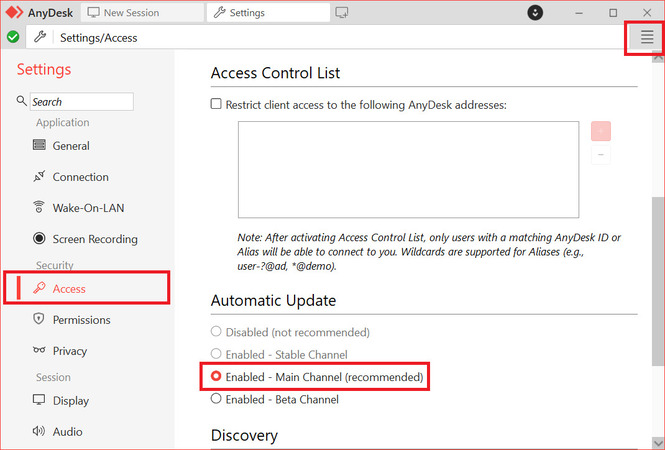
    Enabling auto-update in AnyDesk
  2. Set it to Enabled – Main Channel.

Reinstall AnyDesk

Uninstall AnyDesk first. Then, before installing the latest version from the AnyDesk website, manually delete the configuration folder located at:

C:\Users\[User]\AppData\Roaming\AnyDesk

5. Disable Direct Connections

Disabling direct connections forces AnyDesk to route sessions through its relay servers instead of attempting a peer-to-peer link. This can help when strict firewalls, NAT rules, or ISP/router filtering block inbound or negotiated direct traffic, since relay connections often work in environments where direct connectivity fails.

  1.  In AnyDesk, go to “Settings.” Then, “Connection” and “General.”
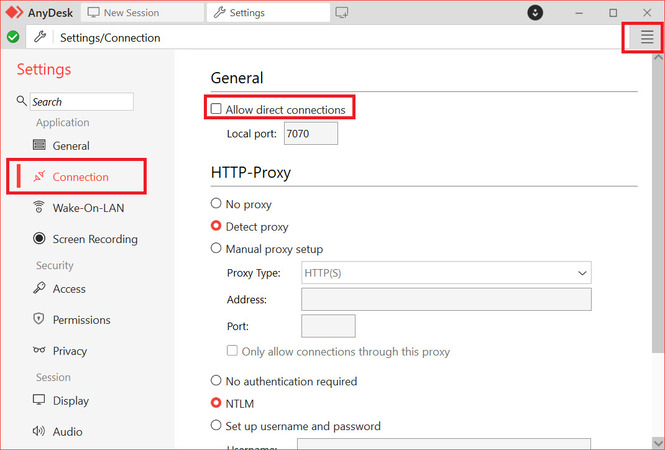
    Disabling direct connections in AnyDesk settings
  2. Uncheck Allow direct connections. This forces the app to use AnyDesk relay servers, which can bypass some firewall issues.

6. IPv6/IPv4 Compatibility Fix

Disabling IPv6 can help if your network or ISP has partial or unstable IPv6 support, which may cause AnyDesk to pick an IPv6 route that fails even though IPv4 works fine. Turning off IPv6 forces the system to use IPv4 for connectivity, which can eliminate timeouts, routing mismatches, or DNS-related issues that prevent AnyDesk from reaching its servers.

  1. Press the Start button and type “Control Panel”, then open it.
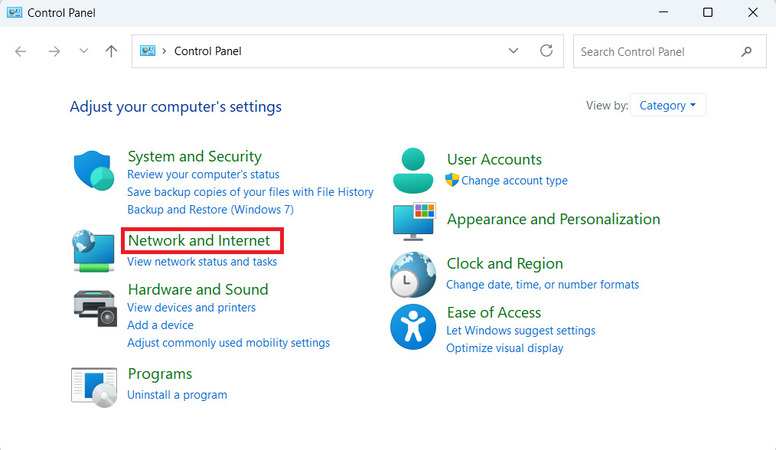
     Network & Internet in Windows Control Panel
  2. Click “Network and Internet” and choose “Network and Sharing Center”.
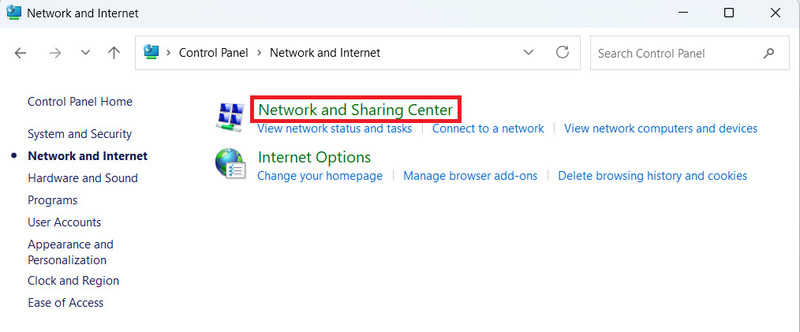
    Look for Network & Sharing Center in Windows
  3. Pick “Change Adapter Settings” on the left.
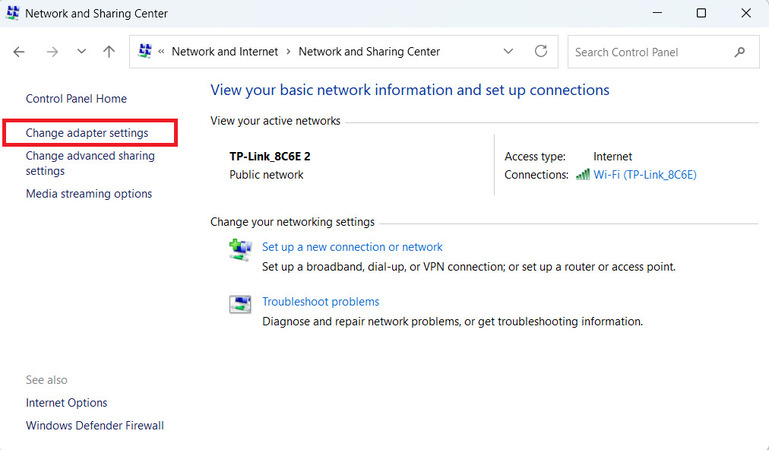
    Go to Adapter Settings menu
  4. Right-click your connection and select “Properties.”
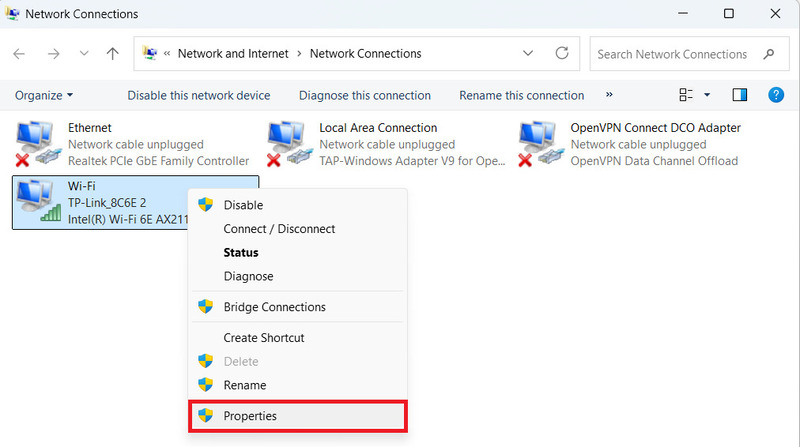
     Look for Internet connection properties
  5. Uncheck Internet Protocol Version 6 (TCP/IPv6) and click OK.
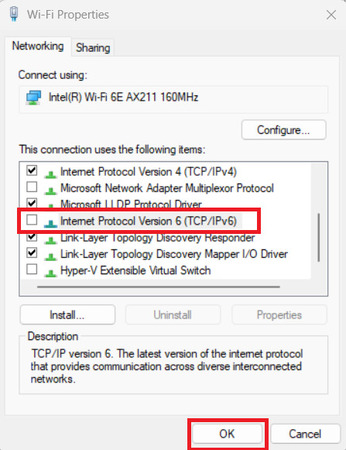
    Uncheck Internet Protocol Version 6 (TCP/IPv6)

7. Advanced Network Checks

These advanced steps are meant to rule out network-layer interference that can block AnyDesk from reaching its servers. Temporarily disabling a VPN or proxy removes rerouting, filtering, or authentication layers that may break the connection, while flushing DNS clears cached lookups so your system can resolve AnyDesk domains again if the cache is stale or corrupted.
  • • Disable VPN/Proxy: Temporarily turn off any VPN or proxy, as they can interfere. 
  • • Flush DNS: Open Command Prompt as Administrator and run: ipconfig

8. Bypass AnyDesk Issues with HelpWire

HelpWire is an easy-to-use, feature-rich alternative to AnyDesk. If you don’t want to bother troubleshooting AnyDesk, get HelpWire, and it can start working without any of the aforementioned fixes.

HelpWire Quick Connect supports multiple monitors and simple file transfers. It also provides image quality options, in case you’re on a slower network. HelpWire Quick Connect is completely free and does not require you to sign in – just download and start using it! 

How to Use HelpWire

  1. Download HelpWire Quick Connect on the computer that will connect to the remote host.
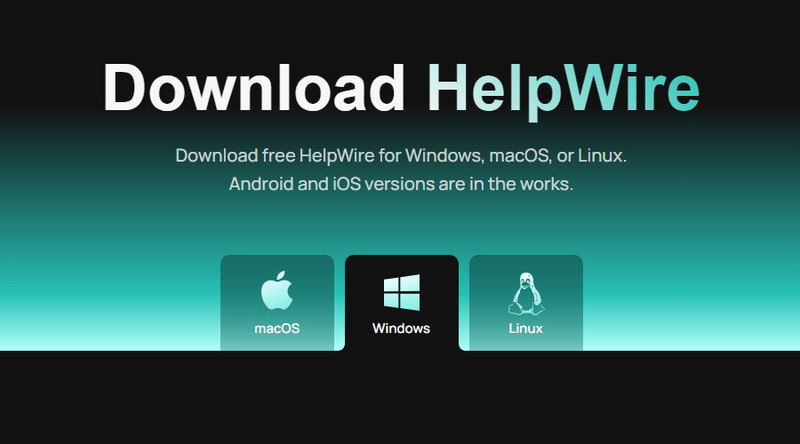
    Download HelpWire Quick connect
  2. Run the app and allow it through the Windows Firewall.
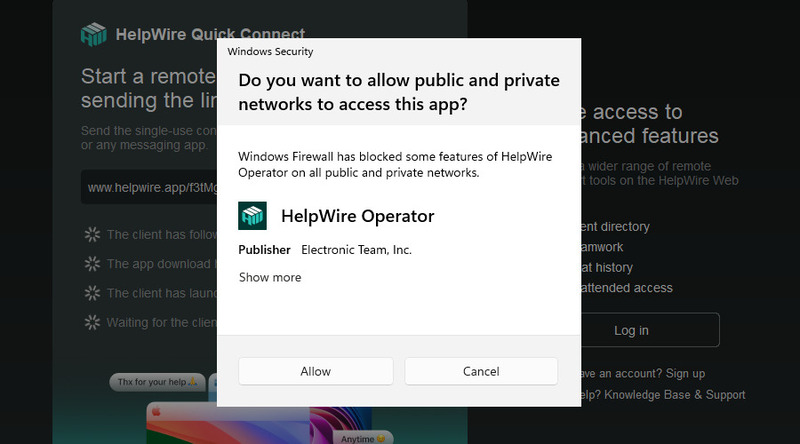
    Running HelpWire and allowing it through Firewall
  3. Copy the session link and send it to the host.
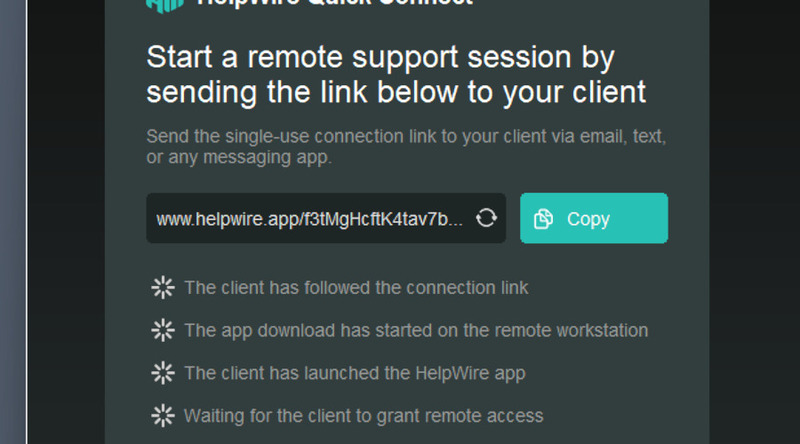
    Copy HelpWire session link
  4. On the host machine, open the link to download a temporary, single-use client.
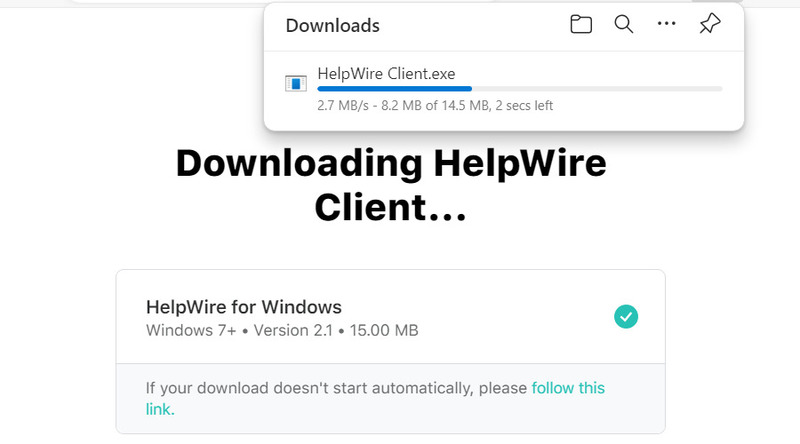
    Download single-use HelpWire app
  5. Run it and let it through the Firewall as well.
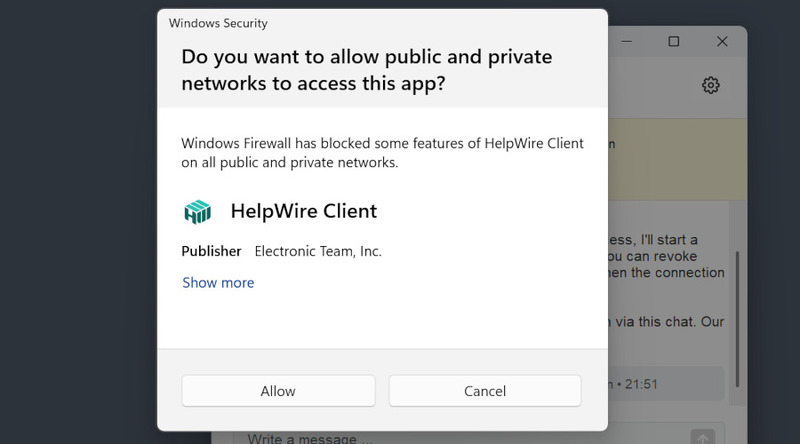
    Run single-use HelpWire app
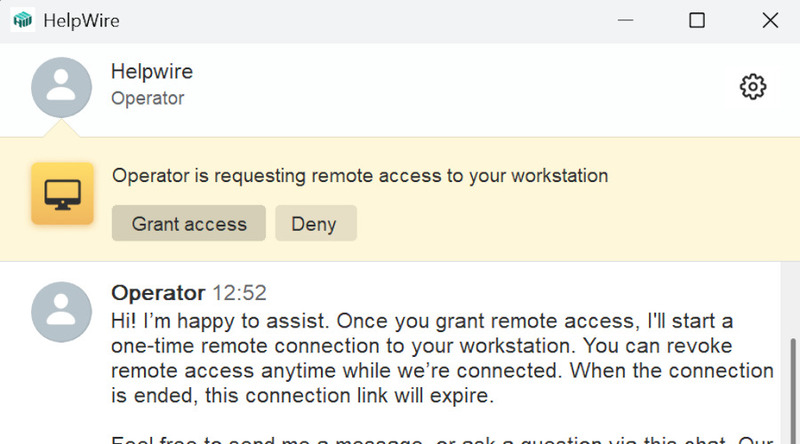
  6. Grant access to the remote operator.

    Granting HelpWire Access

Your HelpWire session has started, enjoy!