AnyDesk and Splashtop are both widely used commercial remote access tools, but they license and price access differently. AnyDesk licenses per connection, covers a wide range of platforms, and includes session recording and role-based permissions on its paid tiers, though its free tier is monitored and restricted to non-commercial use. Splashtop splits its product line into Remote Access, for connecting to your own devices, and SOS, for supporting client devices, holding features like session recording and multi-monitor view back until Pro tier and up, and its Remote Access plans require a full year paid upfront with no monthly option.
AnyDesk’s free tier isn’t usable for business, and Splashtop asks for a year paid upfront before you can try its fuller feature set. HelpWire offers a free alternative that covers Windows, macOS, and Linux, with no personal/commercial-use split and no forced session time limits during active work.
Why HelpWire Fits This Comparison:
- • Link-Based Session Start. Send a client a connection link instead of requiring a 9-digit ID and PIN exchange. AnyDesk needs that ID/alias handshake even for one-off sessions, and Splashtop requires the Streamer already installed and tied to a paid team account before a session can start.
- • Free Plan for Commercial Support. HelpWire’s free plan covers on-demand support with no personal/commercial-use split. AnyDesk’s free tier is non-commercial only, with active detection that can restrict sessions; Splashtop offers only a 7-day trial for commercial use, not an ongoing free option.
- • Attended and Unattended Access. Support one-time sessions and follow-up access to previously granted devices from the same interface, with no separate product line or licensing tier to buy into first. AnyDesk and Splashtop both support unattended access too, but each ties it to a specific paid plan upfront.
- • Cross-Platform Support. Windows, macOS, and Linux support from a single application, with Wayland support on modern distributions like Ubuntu 22.04+ and Fedora (login-screen access isn’t available on Wayland sessions due to OS-level security restrictions). AnyDesk requires an Xorg session for incoming Linux connections, and Splashtop’s Linux Streamer needs X11/Xorg as well.
AnyDesk was tested for attended support, unattended access, file transfer, multi-monitor handling, restart recovery, and basic device management. Splashtop was tested through Remote Access Pro for access to a user’s own work computer and Remote Support, SOS, for attended client support.
Software versions tested: AnyDesk 9.6.2 for Windows and 9.6.2 for macOS; Splashtop Business app 3.7.4.0, Splashtop Streamer 3.7.4.0, and Splashtop SOS 3.7.4.0. Testing was carried out in late June.
Quick Comparison Table: AnyDesk vs Splashtop vs HelpWire
|
|
Splashtop
|
HelpWire
|
|---|---|---|
|
Best for
|
||
|
|
||
|
IT teams and MSPs that need broad platform coverage and paid remote support features |
IT teams and MSPs ready for annual billing, mainly across Windows/macOS fleets |
IT support teams, solo IT providers, and internal SMB IT wanting a support-first workflow without an annual commitment |
|
Reader takeaway AnyDesk and Splashtop both fit teams ready for paid annual plans. HelpWire fits teams that want to start commercial support without that commitment. |
||
|
Free business use
|
||
|
|
||
|
Free tier is personal/non-commercial only; commercial-use detection may restrict free sessions |
No permanent free plan for commercial use; free trial available |
Free plan covers personal and business support, with no personal/commercial split, no nag screens, and no session cutoffs |
|
Reader takeaway AnyDesk and Splashtop both push business use toward paid plans. HelpWire is the only one of the three with an ongoing free plan suitable for business support. |
||
|
Platform support
|
||
|
|
||
|
Windows, macOS, Linux, FreeBSD, Raspberry Pi, Android, iOS/iPadOS; ChromeOS viewing only; Linux incoming sessions require Xorg |
Business app on Windows, macOS, Chromebook, iOS, Android; Streamer on Windows, macOS, Android, and Linux with Xorg required |
Windows, macOS, Linux; no mobile apps |
|
Reader takeaway AnyDesk covers the widest range of platforms, but ChromeOS and Linux have important caveats. HelpWire is focused on desktop support across Windows, macOS, and Linux. |
||
|
Connection setup
|
||
|
|
||
|
9-digit ID or alias; portable executable for one-off sessions |
Two installs: Business app plus Streamer, tied to the same account for unattended access |
Dedicated connection link, no ID, password, or account needed on the client side |
|
Reader takeaway AnyDesk is fast for one-off sessions, but still depends on ID or alias exchange. HelpWire’s link-based start removes that extra coordination step. |
||
|
Core support workflow
|
||
|
|
||
|
File transfer, chat, whiteboard, remote restart, and paid-plan collaboration tools; recording and privacy mode depend on plan |
Drag-and-drop transfer on all Remote Access tiers; chat, multi-monitor, and recording on Pro tier and up |
File transfer, multi-monitor, reboot-and-reconnect, admin elevation, and multi-operator hand-off at the product level |
|
Reader takeaway AnyDesk and Splashtop both offer richer paid toolkits. HelpWire covers the practical support workflow without putting the basic commercial use case behind a personal-use restriction. |
||
|
Security
|
||
|
|
||
|
TLS/AES-256, 2FA, access control lists; SSO on Ultimate |
TLS/AES-256, per-operator 2FA, SSO/SAML, SIEM logging, IP whitelisting on Enterprise, and public HIPAA compliance resources |
TLS/AES-256, Auth0 authentication, per-operator 2FA, DigiCert code-signed apps, consent-based access |
|
Reader takeaway Splashtop has the strongest public compliance positioning of the three. AnyDesk and HelpWire both cover standard encryption and 2FA, but HelpWire has fewer public compliance claims. |
||
|
Session continuity
|
||
|
|
||
|
Free sessions may be restricted if commercial use is detected; paid tiers have no documented forced cutoffs |
No documented forced cutoffs on Remote Access tiers |
No session cutoffs, no forced time limits, no software-imposed interruptions during active work |
|
Reader takeaway AnyDesk’s interruption risk is tied to unlicensed commercial use. Splashtop and HelpWire avoid forced active-session cutoffs, while HelpWire states this clearly even on its free plan. |
||
|
Pricing and billing model
|
||
|
|
||
|
Solo $28.90/mo, Standard $49.90/mo, Advanced $111.90/mo, all billed annually |
Remote Access billed annually: Solo $72/yr, Pro $99/yr, Performance $149/yr |
Free plan available; paid tiers add monthly or annual billing for larger teams |
|
Reader takeaway AnyDesk scales by users, connections, and managed devices. Splashtop is predictable but annual-only for Remote Access. HelpWire gives teams the lowest-friction starting point. |
||
Overview
AnyDesk and Splashtop are both remote desktop software solutions that let you control computers from anywhere. Let’s take a brief look at how these applications work and the usage scenarios for which they are best suited before comparing their features.
AnyDesk
Best for: IT teams and MSPs on paid annual plans that need wide platform coverage, including mobile.
Not ideal for: Free commercial use, monthly billing, or Wayland-based Linux targets.
AnyDesk provides fast and secure remote desktop access for work and IT support.
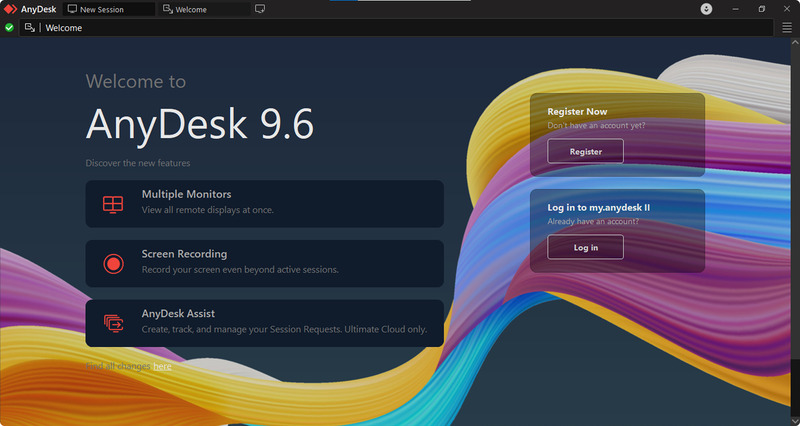
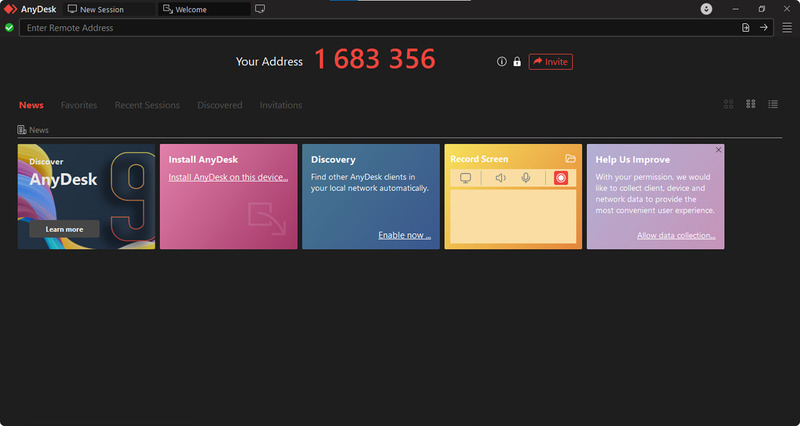
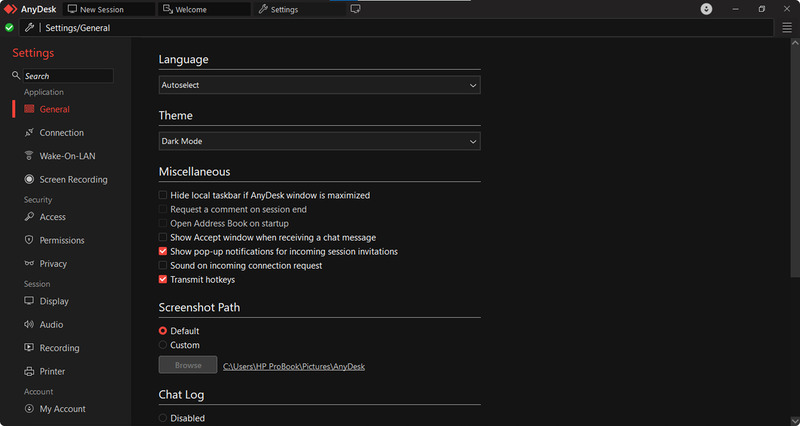
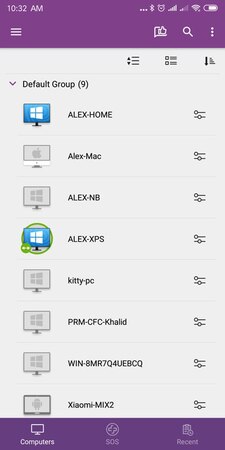
AnyDesk is a fast and secure remote access solution that delivers up to 60 FPS, depending on network capabilities and plan. It supports LAN and Internet connectivity, unattended access, easy file transfers, and screen-sharing with desktop computers or mobile devices. The software provides a user-friendly interface featuring hidden menus and tabbed browsing.
Splashtop
Best for: IT teams on paid annual plans working with Windows and macOS, including HIPAA-covered workflows.
Not ideal for: Free commercial use, monthly billing, or Wayland-based Linux targets.

Splashtop provides secure, high-performance remote access and remote support solutions for individuals, teams, and IT professionals.
Splashtop is a simple yet powerful remote access solution that delivers a stable platform with minimal lag. It features an easy setup, friendly interface, and up to 60 FPS with optimal network settings and a top-tier plan. Users can provide remote support and securely transfer files from any computer or mobile device.
Features
Now, let’s take a detailed look at the key features and pricing plans available from AnyDesk and Splashtop. We will highlight each tool’s strengths to help you select the right one for your remote access needs.
1. Remote access and session management
AnyDesk offers users attended and unattended access for versatile remote device management. Unattended access is easy to set up and lets you manage remote systems at any time when no one is present at the machine. AnyDesk enables you to record sessions for training purposes or to demonstrate compliance. Users can support multiple devices simultaneously with concurrent sessions.
Splashtop offers different session capabilities for each plan.
- • Remote Access Pro provides multi-monitor support, unattended access to 10 computers, session recording, online chat, and collaboration support for two users.
- • Remote Support (SOS) offers unlimited attended and unattended access for up to 300 machines, real-time monitoring, and endpoint management for IT fleet control.
2. Performance and Ease of Use
AnyDesk is lightweight and uses minimal system resources. The tool is easy to install and has an intuitive user interface. AnyDesk provides stable, smooth connectivity and low latency, even on slow networks. It is a simple and efficient remote access solution that doesn’t require any user training.
Splashtop is designed for high performance and stability. All versions provide a smooth, responsive user experience with streaming speeds up to 60 FPS and can handle resource-intensive activities. Splashtop’s quick setup and friendly interface make it a reliable tool for professional and personal remote access.
3. Collaboration and File Sharing
AnyDesk is designed to promote collaboration and data sharing. Teamwork is supported by features such as secure drag-and-drop file transfer between local and remote machines and remote printing capabilities. Communication is enhanced with real-time chat and messaging, with interactive annotations to streamline and personalize remote support.
Splashtop provides essential tools for collaboration and data management:
- • Remote Access Pro includes high-speed file transfer, remote printing support, real-time chat, and lets two users collaborate by accessing the same machine simultaneously.
- • Remote Support (SOS) features high-speed file transfer and session chat, but does not support remote printing. It is designed for endpoint management and fast problem resolution.
4. Device and Team Management
AnyDesk provides centralized control with powerful device management tools. Administration is streamlined with a unified dashboard, allowing admins to add, configure, and monitor devices for unattended support and control access to remote computers. The software uses role-based access controls (RBAC), allowing teams to assign roles and access levels to ensure only authorized personnel can perform tasks for remote clients.
Splashtop emphasizes centralized administration and security:
- • Remote Access Pro provides user role management, allowing access to up to 10 remote computers per user.
- • Remote Support (SOS) has tools for user and device grouping, and unattended access to facilitate fleet management and enterprise remote support.
5. Customization and Branding
AnyDesk offers a variety of customization options, allowing teams to personalize remote session connections. The connection window can display your name, company logo, and any text you want to improve the client and technician experience. You can create custom keyboard shortcuts that suit your style to streamline workflows and enhance productivity.
Splashtop’s branding features vary by plan:
- • Remote Access Pro provides limited branding options, focusing resources on user management and performance.
- • Remote Support (SOS) allows users to fully customize the interface to create a professional brand image with logos, colors, and text options.
Feature Comparison
| Features | AnyDesk Solo & Standard | Splashtop (Pro / SOS) |
|---|---|---|
| Mobile Access | Android to Android remote control (with control plugin); iOS supports screen sharing (no remote control) |
PC access from mobile/mobile device support in SOS
|
| File Transfer | Drag and Drop | Drag and Drop |
| Concurrent Sessions | Solo: 1, Standard: Multiple | Pro: 1 user, SOS: Multiple |
| Session Collaboration/Transfer | session transfer to another user | 2 users access one session in Pro |
| Remote Printing | in the Remote Access SOS+ | |
| Session Recording | ||
| Audio Support | ||
| Device & User Management | Standard and above | Pro (User Role Mgt), SOS (Device Fleet Mgt) |
| Real-time Chat | ||
| USB Sharing (USB Passthrough) | in Performance and Enterprise plans |
Interface Comparison
AnyDesk offers a user-friendly interface that enables fast, efficient access. Users appreciate its ease of use, minimal learning curve, and stable performance even under low bandwidth or slow network conditions.
Splashtop offers a detailed interface with many features supporting device control and collaboration for enterprise support teams. Users require significant training to use the tool effectively.
Operating System Support
You must choose a remote desktop solution that supports your devices. The table lists the operating systems supported by these two software tools. As you can see, both applications support cross-platform connectivity and support most OS options.
| Operating System | AnyDesk Solo & Standard | Splashtop (Pro / SOS) |
|---|---|---|
| Windows | ||
| macOS | ||
| Linux | ||
| Android | ||
| iOS / iPadOS | ||
| Chrome OS / Chromebook | (via web client) | (via Chrome web store) |
| FreeBSD | ||
| Raspberry Pi | (ARM version available) | (Embedded Linux) |
Security
Security is crucial for remote desktop tools that may work with sensitive data and devices. AnyDesk and Splashtop provide strong protection to ensure secure, private remote connections.
AnyDesk Solo and Standard Security
AnyDesk employs the following leading-edge security protocols to protect your connections.
- • RSA 2048 Asymmetric Key Exchange secures session startup and actively defends against attacks.
- • Industry-grade encryption and TLS 1.2/1.3 (deployment-dependent) + AES-256 transport encryption security protect all data transmission.
- • Two-factor authentication safeguards against account compromise.
- • Access permissions offer granular control over the activities specific users can perform.
- • Session logs track user activity and provide audit evidence.
- • Teams can whitelist devices that can establish sessions to stop unauthorized connectivity.
- • All GDPR user data privacy standards are supported.
Splashtop Pro and SOS Security
Splashtop focuses on security and regulatory compliance, especially in its support and professional plans.
- • Remote sessions and data transfer are protected with 256-bit AES and TLS 1.2 encryption.
- • Two-factor authentication enhances the security of user accounts.
- • New devices must be authenticated and verified before accessing a remote computer.
- • Administrators can assign granular access permissions to control user activities.
- • The software supports compliance with regulations such as HIPAA and GDPR and provides session logging for audit purposes.
- • Admins can whitelist devices and IP addresses to restrict access from unauthorized entities.
Usage Scenarios
You must choose the tool and plan that fits your unique use case. AnyDesk and Splashtop both offer multiple plans to address your different requirements.
AnyDesk
- • Solo License: Best for individuals and personal use, with basic remote control functionality to connect to home or work devices.
- • Standard Plan: Designed for small businesses and teams with support for concurrent sessions, admin controls, and enhanced device management.
- • Advanced and Ultimate Plans: These plans meet the midsize and large-business requirements, including custom branding, APIs for integration with other tools, and priority support.
- • Enterprise Support: This plan is for large organizations and provides stronger security, APIs, full remote access, and specialized support services.
Splashtop
- • Remote Access Pro: This plan supports remote productivity for individuals and small teams. Users can access their work computers from anywhere, enjoy multiple-monitor support, and collaborate with another user in a single session.
- • Remote Support (SOS): The SOS plan is designed to meet the needs of IT support teams, help desks, and MSPs. Customers have unlimited attended support and can provide unattended access to fleets of 10 to 300 devices, based on the plan tier. Teams can leverage optional endpoint management add-ons for improved productivity.
- • Enterprise: Large companies and enterprise support teams will find that this plan combines the remote access and support they need, including granular security controls, Single Sign-On (SSO), scheduled remote access, and advanced management functionality.
Integration
It is essential to integrate a remote desktop solution with your other tools to drive efficiency and productivity. AnyDesk and Splashtop offer varying integration capabilities in basic and mid-level plans.
AnyDesk Solo provides limited integration and is best used as a standalone remote access solution with no APIs or connectivity to other tools. AnyDesk’s Standard plan adds basic API access, allowing users to integrate with other systems and build simple automations. The software’s Advanced and Ultimate plans provide advanced integration functionality.
Splashtop Remote Access Pro does not provide deep integrations or API access. Its primary focus is performance as a reliable standalone remote access solution. Companies can integrate the Remote Support (SOS) plan with ticketing systems like Zendesk and Autotask, a crucial feature for professional support teams that automatically launches remote sessions from service tickets. Splashtop’s higher-tier Enterprise plans offer deeper integration possibilities, enabling teams to leverage SSOs and more extensive APIs to connect to the remote desktop software.
The following table summarizes the integration capabilities of AnyDesk and Splashtop.
| Integration Feature | AnyDesk Solo | AnyDesk Standard | Splashtop Remote Access Pro | Splashtop Remote Support (SOS) |
|---|---|---|---|---|
| API Access | Basic API access | API available in higher plans | ||
| ITSM Integration | Integration with PSA/Ticketing systems like ConnectWise, Autotask, Zendesk | |||
| CRM Integration | N/A | |||
| Custom Workflow Automation | Simple automations via Basic API | Workflow benefits from Ticketing Integration | ||
| Integration with Ticketing Systems | Direct session launch and note logging | |||
| Admin Console / User Management | ||||
| Third-Party App Compatibility | Minimal | Basic compatibility | Minimal | Integration with PSA/Ticketing systems |
| White-labeling & Branding | ||||
| SDKs or Developer Tools | Limited via Basic APIs | Extensive APIs in higher plans |
Pricing
Decision-makers must consider price when selecting a remote desktop solution. AnyDesk and Splashtop offer tiered pricing plans with feature sets and user limits for individuals, small teams, or enterprise-level support.
AnyDesk
AnyDesk offers the following subscription options, typically priced annually.
- • Free: No cost for personal use, but provides limited features.
- • Solo: Single-user access starts at $28.90 per month, with features such as mobile access, session recording, and unlimited devices.
- • Standard: This plan starts at $49.90 per month and offers advanced features such as multiple-session support, admin tools, iOS screen sharing, and Android-to-Android remote control.
- • Advanced: Starting at $111.90 per month, this plan is designed for growing companies and adds features such as priority support, custom branding, and more extensive admin capabilities.
- • Ultimate: This top-tier plan for large businesses requires custom pricing and adds the functionality enterprise support teams need.
Splashtop
Splashtop provides separate plans for remote access and remote IT support, with all pricing based on annual subscriptions.
Splashtop Work & Access (billed per user) plans are designed for individuals and teams that need remote access to their own computers.
- • Solo: Priced at $60 per year, this plan is intended for individual users and provides unattended access to their computers from anywhere.
- • Pro: Starting at $99 per year per user, this plan adds collaboration and productivity features such as multi-monitor support, session recording, chat, and user management.
- • Performance: Starting at $149 per year per user, this tier includes enhanced performance features such as up to 240 FPS support, high-fidelity audio, USB passthrough, and improved display quality.
Splashtop IT & Support (billed per concurrent technician) plans start at $259 per year per concurrent technician and include unlimited attended (on-demand) support sessions. Higher tiers, priced up to $399 per year, add unattended access to 10–300 managed Windows and macOS computers per technician, making them suitable for managing larger device fleets.
Splashtop Enterprise plans are custom-priced and offer advanced security and management features, including SSO, granular access controls, and large-scale remote access and support capabilities.
Pricing Comparison Table: AnyDesk vs Splashtop
| Pricing plans | AnyDesk | SplashTop |
|---|---|---|
| Free Trial | 14-day free trial | 7-day free trial |
| Free Personal Version | Splashtop Personal is free for non-commercial use; business features require paid plans | |
| Level 1 | Solo $28.90/month | Education $29.99/year |
| Level 2 | Standard at $49.90/month | Work & Access $60-$149/year |
| Level 3 | Advanced $111.90/month | IT & Support $259-$399/year |
| Level 4 | Ultimate (personal consultation is required) | Custom pricing (Enterprise) |
Possible Errors and Restrictions
Users may encounter technical issues with AnyDesk or Splashtop, depending on their plan, device type, or network performance. Your awareness of these potential issues and limitations should help you resolve them efficiently.
AnyDesk
- • Free Plan Limits: The free version is limited to personal use. The software may restrict session frequency or duration to prevent commercial use.
- • Feature Limits: Only higher-priced plans offer advanced features such as custom branding or multi-session support.
- • Session Limits: The number of concurrent sessions varies by plan; for example, the Solo plan limits you to one session. Learn about managing multiple sessions in Navigating AnyDesk Session Time Limits.
- • Compatibility: Users with older systems or using niche operating systems may not have access to certain features. If you have compatibility issues, try AnyDesk Display Server Not Supported.
- • Connection Issues: Unstable or low-bandwidth network connections can result in dropped sessions or degraded performance. If you are disconnected frequently, check out our guide on Easy Steps to Fix the Disconnected Issue.
- • Network Restrictions: AnyDesk connections can be blocked by corporate networks or firewall configurations. You can start troubleshooting with the AnyDesk Network Timeout Issue article.
Splashtop
- • No Free Tier: Splashtop Personal is only free on local networks for non-commercial use. Business features require a paid plan.
- • Feature Restrictions: Some features, such as USB passthrough and supports a 240 FPS capability streaming, are only available with the Performance or enterprise plans (depends on host GPU, client device, and network). The lack of features may affect the display. You can find display optimization tips in the How to Solve Splashtop Display Issues article.
- • License Model: Pricing models are strictly enforced; Remote Access is billed per user, and Remote Support is billed per concurrent technician. The inflexibility of these models limits your ability to easily shift between support and access.
- • Plan Segregation: Plans have strict limitations on the type of support (attended or unattended) and the number of machines that users can support.
- • Branding and integrations: Customized branding and deep integration with the ticketing system are only available in the SOS and Enterprise plans.
- • Network Performance: Splashtop depends on the speed and stability of local and remote network connections to deliver superior visual performance. You can investigate a wired connection solution with Splashtop Wired XDisplay.
Pros And Cons
Pros
- Compact installation file;
- Low latency and responsive navigation;
- Unlimited time limits for sessions;
- Intuitive user interface with keyboard shortcuts for improved productivity;
- Multiple operating system support.
Cons
- Copy paste feature doesn’t work well;
- Resolution is inconsistent;
- Mandatory installation is required.
"Reliable and easy to use remote access tool"— Read full review
Pros
- Simple intuitive user interface;
- Variable pricing options;
- Multi-monitor support (plan specific);
- Fast connection speeds;
- TLS and 256-bit AES Encryption;
- Two-factor verification.
Cons
- Tricky installation process;
- Limited features on lower-cost plans;
- Technical support availability is based on price plans.
Conclusion
AnyDesk suits IT teams and MSPs on paid annual plans that need broad desktop and mobile coverage. On the downside, its free plan is non-commercial only with active detection, Linux targets require X11, and prices have risen sharply at renewal.
Splashtop fits IT teams on paid annual plans working with Windows and macOS, and it publicly documents HIPAA compliance for regulated workflows. Remote Access is annual-only, multi-monitor, chat, and session recording sit behind the Pro tier, and the Linux Streamer runs on Xorg only.
For teams looking for a free AnyDesk alternative that also covers Splashtop’s use cases, HelpWire is worth testing before committing to a paid plan on either. HelpWire’s free plan covers on-demand support with no personal/commercial-use split, no nag screens, and no session cutoffs. HelpWire runs on Windows, macOS, and Linux with Wayland support on modern distributions, and its Link-Based Session Start and Quick Connect flow remove account signup on the client side, and on the operator side for Quick Connect.