categories
Updated on Published on in

AnyDesk Network Timeout: 7 Ways to Fix the Issue

Author: Emma Collins
Emma Collins Article author

It can be annoying when you are about to start remote work and suddenly lose your AnyDesk connection. Your tasks slow down, and it becomes hard to stay focused. There are several simple ways to resolve this issue, luckily. 

We’ll go over 7 practical methods to help you deal with the timeout error and reduce the chances of it happening again.

Alternative:  An alternative solution, such as HelpWire, can be an effective tool instead of constantly resolving the AnyDesk network timeouts. HelpWire can facilitate seamless and secure connections for on-demand and unattended remote access support. This software is compatible with Windows, macOS, and Linux machines.

Why Does AnyDesk Network Timeout Happen?

Knowing why the issue happens can make it much easier to do troubleshooting. Below are the reasons behind an AnyDesk network connection timeout that mostly happens:

  • • AnyDesk servers may be down because of maintenance work or software updates. Unplanned outages are also among the reasons
  • • Firewall or antivirus software may block AnyDesk traffic
  • • Weak internet signal or inconsistent connectivity
  • • Older AnyDesk versions may contain connection-related bugs
  • • Incorrect DNS setup or restrictive VPN/proxy settings
  • • An unsynced system clock that causes certificate verification problems
  • • Two-factor authentication (2FA) may be required by the administrator, and the session won’t go through if the 2FA request isn’t approved

How to Fix AnyDesk Network Timeout

Before trying the fixes, here’s a short idea of how they’re organized. They go from the easiest to the most advanced steps, so consider trying Solution 1 first. Then, proceed to the next ones in order until the issue is gone. 

A lot of users get AnyDesk working again within the first few steps, usually between 1 and 3, so there is a good chance you will not need to complete all seven solutions. Each method takes only a few minutes and doesn’t require you to know all the technical stuff.

Solution 1: Restart the Computer

You can easily solve the AnyDesk connection that timed out by restarting your computer. This approach refreshes the system after experiencing minor app conflicts or short-term problems. Exit all running apps before restarting so the system resets properly.

Solution 2: Check Internet Connection

A weak or unstable internet connection is a common cause of AnyDesk network connection timeout issues.

  1. Turn your router off, wait 30 seconds, and turn it on again.

  2. Move closer to the router or connect via Ethernet cable.

  3. Use an online speed test to confirm your internet speed (minimum recommended: 1 Mbps for AnyDesk).

  4. Close apps that use a lot of bandwidth while AnyDesk is running, such as streaming services or large downloads.

  5. Check your DNS settings. Switch to Google (8.8.8.8), Cloudflare (1.1.1.1), or other trusted resolvers, so AnyDesk links load properly.

Solution 3: Check if AnyDesk's Servers are Up and Running

It is common that the AnyDesk timeout happens due to some problems with AnyDesk’s servers. Sometimes the servers are under maintenance or offline due to an outage. A feature update from the servers might also disrupt the connection.

To rule out the possibility of a server-related issue, head over to AnyDesk’s official status page and verify whether the servers are working properly. To do this,

  1. Open AnyDesk. You’ll see the ≡ menu icon in the top-right corner. Click it. Then, choose Help.
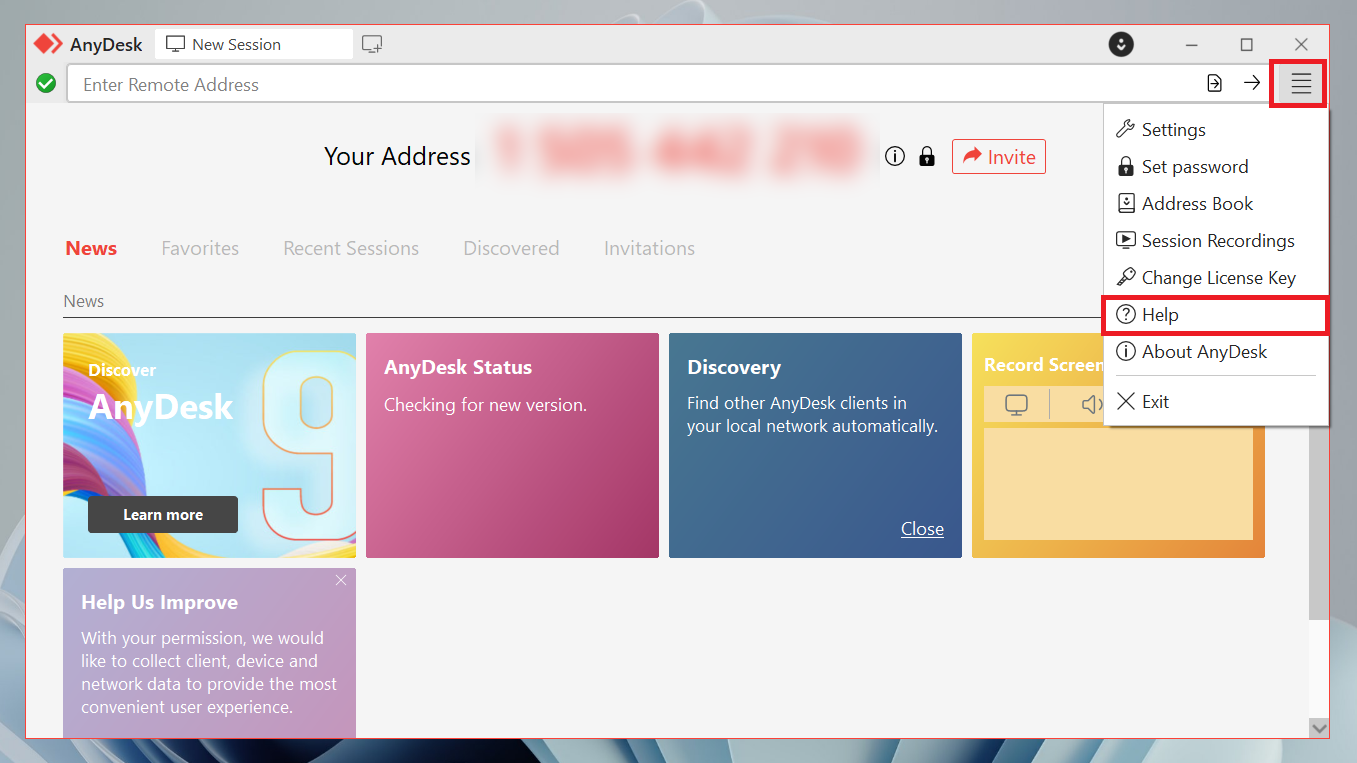
    AnyDesk main menu
  2. In the Help section, click the Status page link to view current server status.
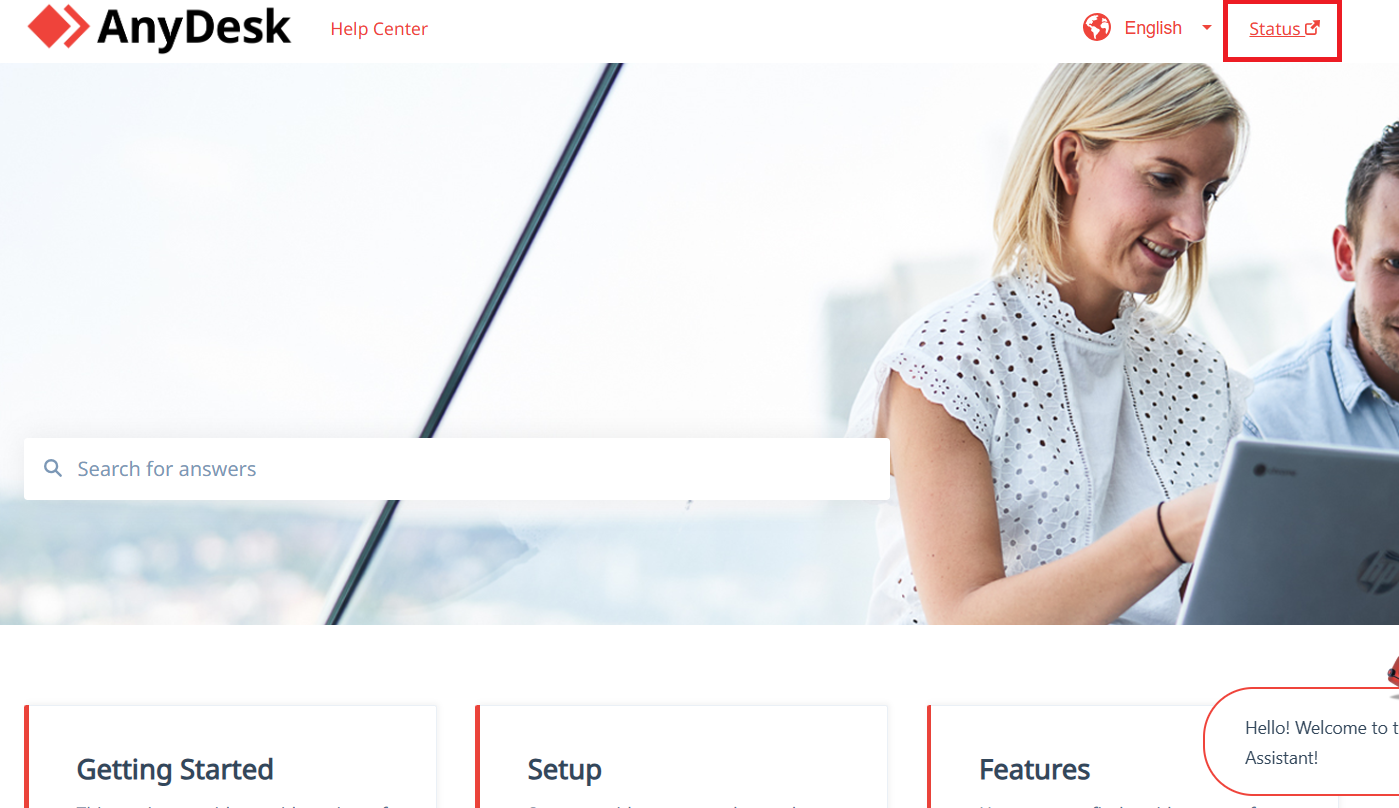
    AnyDesk help center
  3. Check if the server is in maintenance or scheduled for an update.

Solution 4: Check AnyDesk Updates

Using an older version of AnyDesk may not work well with newer systems and can cause connection problems.

  1. For AnyDesk 8 and newer, go to ≡ → Settings → Security → Access → Automatic Updates. For AnyDesk 7 and older: open Settings → Security → Updates

Note:   Click the 🔓 unlock icon at the top of the Access section if the settings are locked.
  1. Select Main Channel (recommended) for automatic updates to always have the latest stable version.

  2. Or download the latest version manually from anydesk.com if automatic updates are unavailable.

macOS users should be aware that AnyDesk 9.6.5 is the last version that still runs on macOS 10.13 to 10.15 (High Sierra, Mojave, Catalina). This means you may no longer receive updates on computers running these systems. That’s why you need to upgrade macOS to keep getting them.

Solution 5: Modify Firewall and Antivirus Settings

Your computer’s firewall or antivirus program might be interfering with AnyDesk’s connection. 

How to Allow AnyDesk through your Firewall on Windows?

  1. Press Win + I to open Windows Settings.

  2. Navigate to Privacy & security → Windows Security.

  3. Click Firewall & network protection.

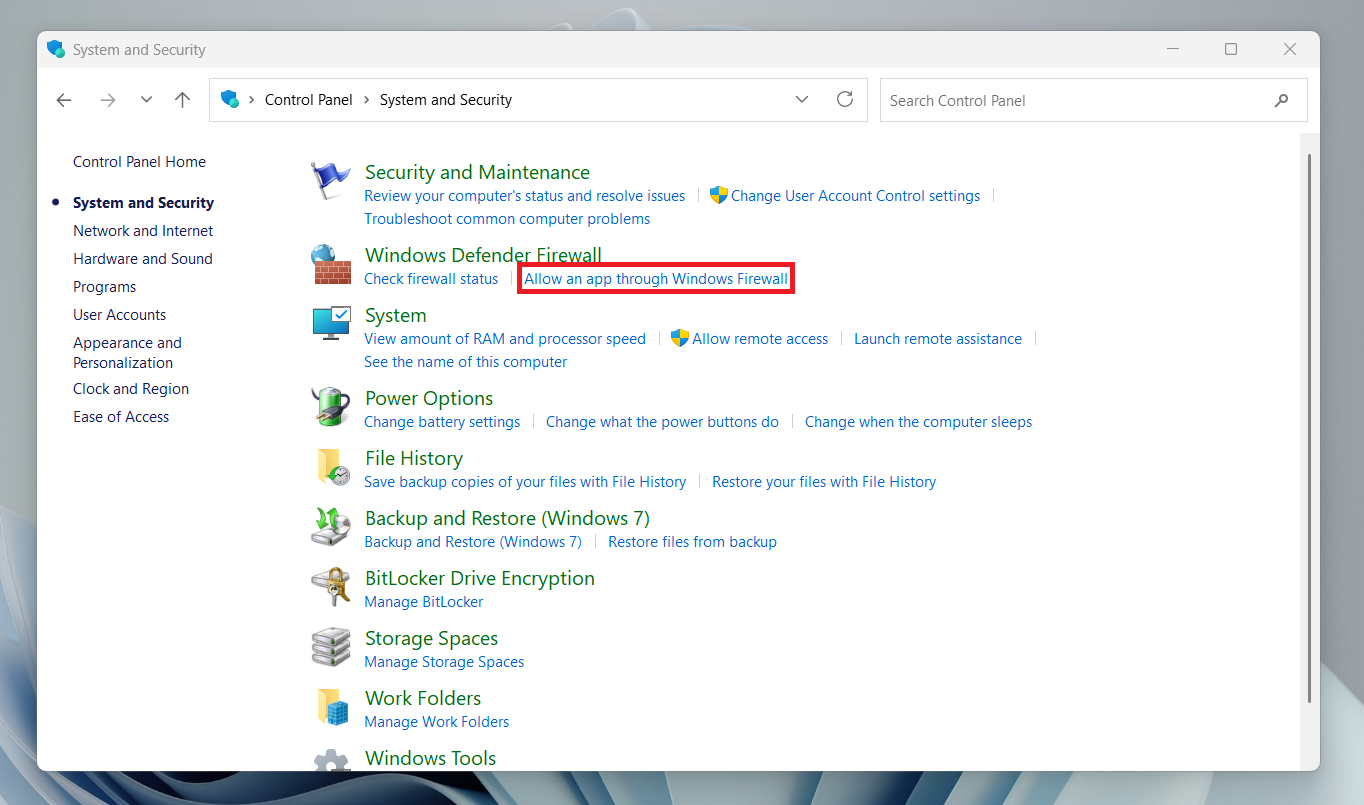
  4. Select Allow an app through firewall.

    Choose allow app through Windows
  5. Click Change settings, find AnyDesk in the list, and select both Private and Public checkboxes.
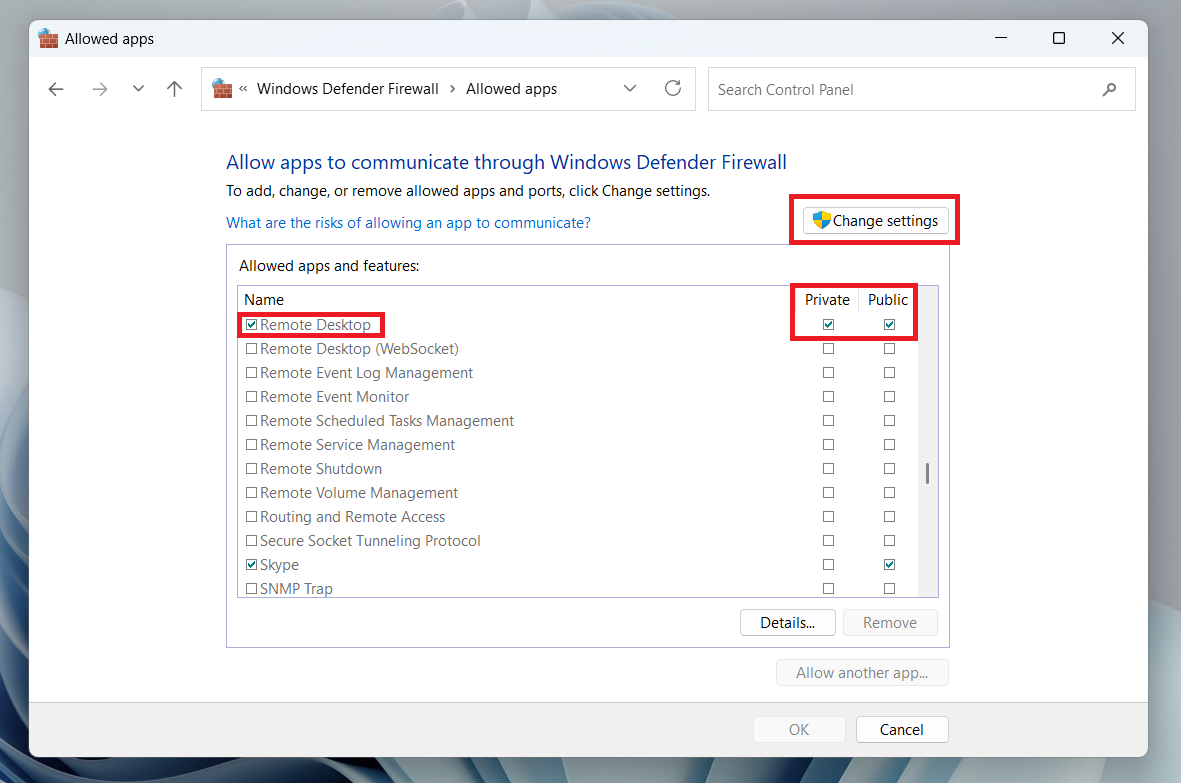
    Allow app in Windows Defender Firewall

How to Allow AnyDesk through your Firewall on macOS

  1. Open System Settings to go to Privacy & Security. Look for the firewall.

  2. Select the Options menu to add AnyDesk to the list of allowed apps.

Note for older macOS versions:  If you’re running macOS Monterey (12) or earlier, the path is slightly different: go to System Preferences → Security & Privacy → Firewall → Firewall Options, then click “+” and add AnyDesk to the list.
Note:  Situations involving ongoing firewall restrictions.

Some antivirus or endpoint security tools — like Kaspersky, ESET, or Bitdefender — can still stop AnyDesk session data from passing through, even when the app looks like it’s online.

Fix: Add AnyDesk as a trusted application in your security software. Create an exclusion rule if needed

If the problem continues, turn off direct connections (as recommended by AnyDesk): Go to Settings → Application → Connection → General, then uncheck Allow direct connections.

If nothing works, use the /np parameter (e.g., 000111222/np) to force the connection through relay mode.

Solution 6: Verify AnyDesk Network Configuration

If firewall settings look fine, but the AnyDesk network connection timeout keeps happening, the problem may be related to your network configuration.

  1. VPN or proxy: Check whether your VPN or proxy is blocking AnyDesk traffic. Temporarily disable it and test the connection again.

  2. Router settings: Make sure your router allows outbound connections through ports 80, 443, and 6568.

  3. System clock: Your system clock must be in sync with a time server. An incorrect system time can trigger certificate validation errors and disconnect the session.

7. Why HelpWire Is the Permanent Solution, Not a Short-Term Fix

Every fix in this article works until AnyDesk times out again. HelpWire is built to avoid forced interruptions during active work and deliver stable on-demand and unattended connections without session limits. It’s a completely free alternative to AnyDesk, no sign-up required.

HelpWire vs AnyDesk Free: What You Actually Get

FeatureHelpWireAnyDesk Free
Session time limits✅ None⚠️ Limits apply on free plan
Connection stability✅ Built for uninterrupted sessions⚠️ Prone to timeout errors
Session launch speed✅ Connects in seconds via secure link⚠️ Can stall or fail during handshake
Unattended access✅ Included⚠️ Available but requires manual password configuration
Troubleshooting required✅ Rarely⚠️ Frequent: firewall, timeout, server errors

Related Errors You Might See

You may experience an AnyDesk network connection timeout taking place alongside other errors that are linked to the same problem. Below are the different error messages you may see and what each one usually indicates:

AnyDesk “Connection Timed Out”

This issue usually pops up when the session takes too long to connect. Common causes include:

  • • Firewall or antivirus blocking the session
  • • Weak internet connection
  • • VPN or proxy interference

Solutions 2, 5, and 6 can take care of it.

AnyDesk “Could Not Connect to Server”

This error means your device cannot communicate with AnyDesk servers.

Possible causes:

  • • DNS problems
  • •Corporate firewall or proxy restrictions
  • •Short-term server outage

We suggest you check the DNS steps in Solution 2, as well as review the server status in Solution 3.

AnyDesk “Connected but Session Not Established”

This happens when AnyDesk connects to the service but cannot fully start the remote session. Common reasons:

  • • The connection starts successfully, but the session data gets blocked along the way
  • • Security software is filtering the connection
  • • Required ports (80, 443, 6568) are restricted

Solution 5 is an ideal AnyDesk network timeout fix for firewall-related errors.

AnyDesk “Disconnected from the Network”

This error occurs when the connection cuts out while a session is in progress. Potential causes:
  • • An unstable internet connection that drops or fluctuates
  • • Delayed or lost data during transmission
  • • Router or ISP outages
Apply Solution 2 and reboot your network equipment.

AnyDesk Timeout on Work or Office Network

If the problem only happens on a company network, strict security settings may be blocking the connection.

Common causes:

  • • deep packet inspection (DPI)
  • • HTTPS scanning
  • • blocked ports or domains

Solution 6 explains how to check these network restrictions.

Choose the Reliable AnyDesk Alternative

AnyDesk is a practical app, but some of its technical issues happen frequently. So, if AnyDesk’s connection timeout issues are starting to hamper your work productivity, consider switching to a reliable alternative like HelpWire, which offers a straightforward and free option without any hidden fees.

HelpWire is an innovative software that facilitates stable and uninterrupted remote connections for on-demand and unattended access.

Why Choose HelpWire?

With multiple remote support tools out there, HelpWire stands out with its top-level features for convenient and uninterrupted sessions.

  • Rapid Session Launch:

    No need for complex configurations, clients can use your secure links to connect in seconds.

  • Multi-Monitor Remote Support:

    Work with your clients faster by viewing and managing multiple remote screens.

  • With HelpWire, user intervention is not required to access or control remote devices.

  • Quick and Easy File Transfer:

    Share or move files with your client by a simple copy and paste procedure.

  • All-stop Team and Client Management:

    HelpWire is a centralized hub to organize sessions, assign roles, and track client interactions.

  • Live Collaborative Sessions:

    Communicate and work with team members or clients via real-time remote sessions.

Learn more about HelpWire features and find out why it is the leading alternative to AnyDesk.

Frequently Asked Questions

AnyDesk may still appear connected to its servers even when it cannot fully start the remote session. This typically happens when the session traffic itself is blocked. Firewall or antivirus software often blocks ports 80, 443, or 6568. See Solution 5 for an AnyDesk network timeout fix.

AnyDesk mainly uses TCP ports 80, 443, and 6568. It also uses UDP ports 50001–50003 for the local network Discovery feature. On corporate networks, IT administrators may need to whitelist *.net.anydesk.com.

AnyDesk supports 2FA for Unattended Access sessions. If enabled by the administrator, the session will time out if the 2FA prompt is not confirmed on the remote device.