
TeamViewer File Transfer Not Working

- HelpWire
- →
- Blog
- →
- TeamViewer Issues How to Solve Them
- →
- TeamViewer File Transfer Not Working
There are many potential reasons for TeamViewer file transfer not working. In order to address a specific cause, choose it from the list below, and the link will take you to the corresponding solution. These fixes are very simple, and may be faster than contacting support. If you’re having trouble finding the file transfer options, you should also consider visiting our guide on TeamViewer file transfers.
What Kind of File Transfer Issues Do You Have?
Drag-and-drop File Transfers Don’t Work
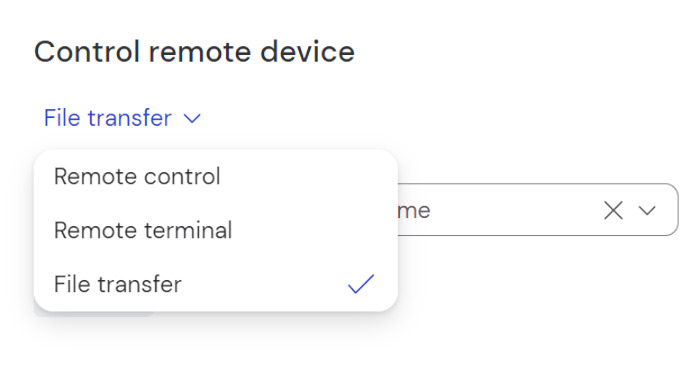
Drag-and-drop file transfers during remote sessions are a Windows-only feature in TeamViewer. However, you can still open the file transfer dialogue during a remote session. You can also open a file transfer session directly, without the need to start a remote session first.
On non-Windows systems where drag-and-drop isn’t available, you may also run into TeamViewer copy and paste not working issues, because clipboard sync depends on the same OS permissions used for file exchange.
How to Send Files During Remote Sessions Without Drag-and-drop
-
On the session toolbar, click “Files & Extras”.
-
Select “Open file transfer”.
-
Highlight the required files and click “Send” or “Receive”.
How to Open a File Transfer Session Directly
-
Open TeamViewer and go to the Remote Control tab.
-
Open the drop-down menu above the text box where you enter the Partner ID and choose “File transfer”.
-
Enter the ID and start the session as usual. Instead of starting a remote session, you will see the file transfer window.
File Transfer Issues After an Update
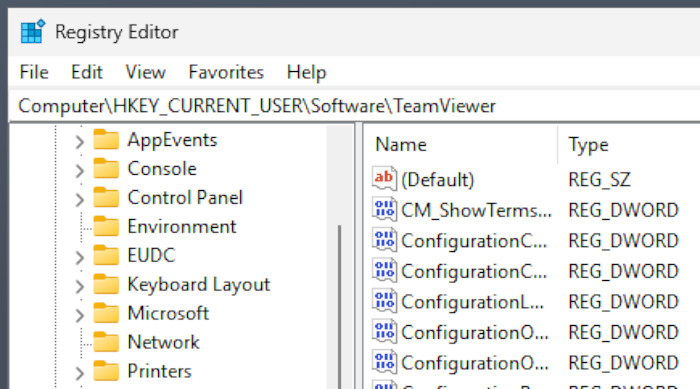
Sometimes, a TeamViewer update can conflict with the previous version, and leftover configuration files or registry entries may be causing the issue. In this case, you need to completely uninstall TeamViewer. This will ensure that the next installation will be completely clean.
On Windows, after properly uninstalling teamviewer from the Apps & Features menu, you need to open regedit and delete the “Software/TeamViewer” keys under HKEY_CURRENT_USER and HKEY_LOCAL_MACHINE.
On macOS, when you drag TeamViewer to Trash, make sure to check “Also delete configuration files”.
Afterwards, you can do a clean reinstall. If you install TeamViewer correctly, this can alleviate potential issues with your client.
File Transfers Don’t Work for Certain Folders
Avoiding system folders – such as the ones in C:\ on Windows, /System on macOS, or / on Linux – is generally a good practice. Even a user folder, such as C:\[username], can have limited permissions and thus be inaccessible to TeamViewer. Instead of changing the folder’s permissions, try using a different one, such as a folder you personally created in Downloads or Documents. We do not suggest altering system folder permissions due to TeamViewer security issues this can cause.
Can’t Send Files from An Android Device
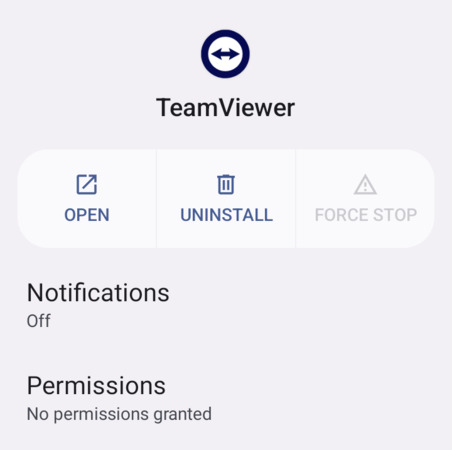
Android apps require explicit permissions to access files. The TeamViewer Android client should ask for file access, but the dialogue can be dismissed. In case it’s been dismissed, and is causing file transfer issues, you need to go to application settings and enable the permission manually. The following tutorial is for pure Android, but the procedure shouldn’t vary too much between versions.
How to Grant File Access to TeamViewer on Android
-
Drag the status bar down and use the panel to open your Settings menu.
-
In Settings, navigate to Apps.
-
Select “See all … apps”
-
Either find TeamViewer manually or use the magnifying glass icon to search for it.
TeamViewer File Transfer Slowdowns
A large part of TeamViewer’s file transfer performance depends on whether or not your network allows UDP. Depending on your ISP or the administrator of the local network, this can be entirely out of your control. TCP file transfer speeds in TeamViewer will always have a low bandwidth.
Often, the only thing you can do is contact your internet service provider and ask them if UDP is supported on the network. If it’s not, you simply need to find a different way to transfer files to other TeamViewer users.
How to Save Your Log Files
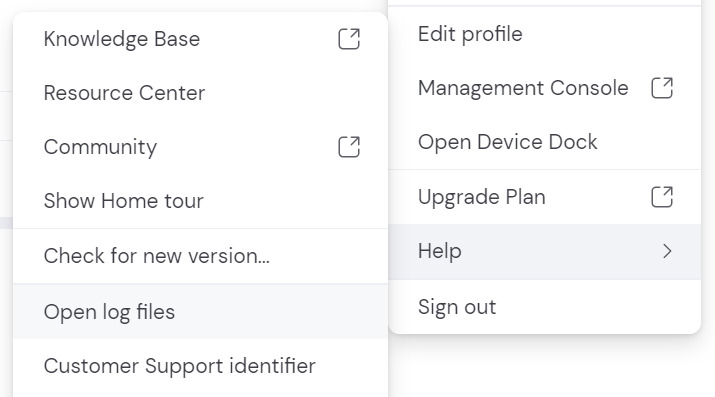
Saving your TeamViewer file transfer log files before contacting support will make your interaction quicker and easier. It’s likely that the support personnel will ask you for a log anyway, forcing you to go back to TeamViewer and delaying the resolution of the problem.
On Windows and macOS, you can open the log file by clicking your user picture, then Help > Open Log Files. Don’t move the file, you may need it later and lose it if it’s moved. Just copy the file or “Save As…” if opened in a text editor.
On Linux, the copying process is already handled for you, since you can use the “ziplog” argument when running TeamViewer from the command line.
HelpWire - Alternative Remote Access Software
Looking for best free TeamViewer alternatives with simple file transfers? HelpWire is available on Windows, Linux, and macOS, fully cross-platform, and with full drag-and-drop support between any pair of desktops. HelpWire is free to use, so download and try it – simply create an account and send the other user an invite. It also provides features for team management and integrated host-client chat.