
TeamViewer Easy Access Is Asking for a Password: How to Fix It
- HelpWire
- →
- Blog
- →
- TeamViewer Issues How to Solve Them
- →
- TeamViewer Easy Access Still Asking for Password
You turned on Easy Access in TeamViewer so that you don’t have to enter a password, but it still asks for one every time you connect. If you’re dealing with this, you’re not alone, and actually, there’s a clear reason behind it.
Password-free login depends on your TeamViewer account being properly connected to the remote computer. When that link is lost, not set up correctly, or reset after an update or reinstall, the app quietly switches back to using passwords, even if Easy Access still shows as active.
That’s why the issue of TeamViewer asking for password with easy access happens when the device and account are no longer in sync. There are ways to fix it so you can connect without entering your password.
We’ll walk through solutions to restore the connection and stop password prompts.
Fix 1: Redo the Account Assignment on the Remote Device
For most users, this step solves the problem and is the best place to start when the TeamViewer Easy Access is not working.
Turning on Easy Access in the settings only handles part of the setup. The remote device also has to be officially linked to your account through a separate step. That link can get broken quietly by updates, reinstalls, or when you switch to new hardware.
This issue comes up a lot in forums: Easy Access looks active, and you can see the device in Computers & Contacts. Still, there’s TeamViewer asking for password with Easy Access.
On the remote computer you’re using, just do this:
-
Launch TeamViewer.
-
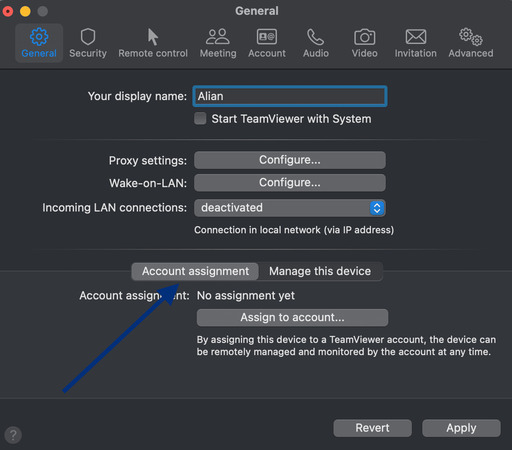
Go into Advanced Settings, and then select General. There, choose Account Assignment.
-
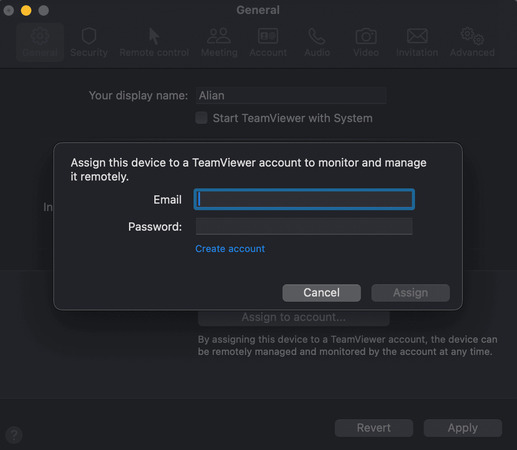
Click Assign to Account and sign in with your TeamViewer login.
-
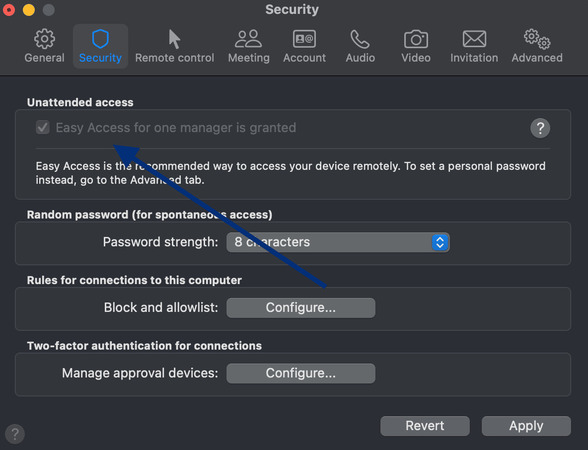
Next, open Settings, go to Security, and select Unattended Access.
-
Make sure Grant Easy Access is switched on.
-
Click OK.
Once set up, confirm you’re signed in on your local computer and try reconnecting. For most people, this is enough to stop TeamViewer Easy Access asking for password.
Fix 2: Confirm You're Connecting From the Right Account
If the first fix didn’t work, just double-check which TeamViewer account you’re logged into on your computer.
Easy Access won’t connect unless the account on your side matches the one assigned to the remote device. This is the first thing TeamViewer support staff ask about in most forum posts. Account mix-ups happen often, especially in homes or offices with multiple TeamViewer accounts.
Here’s how to see if the accounts match:
-
Take a look at the top-right corner of TeamViewer on your computer — you’ll see the email for the account you’re signed into.
-
On the remote device, open Settings, and then go to General. There, check Account Assignment to see which account it’s linked to.
-
If the accounts don’t match, either sign into the correct account on your computer before connecting, or reassign the remote device to the account you’re currently using by going through Fix 1 again.v
Fix 3: Make Sure You're Connecting From the Right Device Entry
The device you click in your list often causes confusion. Easy Access might work from one item in the list but not another, even if both seem to point to the same computer. If you’re seeing TeamViewer easy access still asking for password, this could be why.
TeamViewer makes a clear distinction between bookmarked devices and managed devices. Bookmarked devices are just shortcuts with a saved ID. They don’t support Easy Access and will always ask for a password. Managed devices, on the other hand, are properly assigned to your account and are the only ones that allow password-free unattended connections.
If a device has been added more than once, or reinstalled and added again, you can end up with an old bookmarked entry sitting next to the current managed device. Clicking the wrong one will trigger a password prompt every time, no matter what your settings say. Many people see this, one entry asks for a password, while the same computer connects instantly via My Managed Devices.
Steps to fix the problem:
-
Check Computers & Contacts for duplicate listings of the same computer.
-
Get rid of any old or outdated entries.
-
Make sure you’re connecting from My Managed Devices, and not from My Computers.
-
Remove the computer in case it only shows up as a bookmarked entry. Then, add it again through the account assignment on the remote device (see Fix 1).
How to fix it:
-
In Computers & Contacts, look for duplicate entries for the same machine.
-
Delete any old or stale entries.
-
Try connecting from My Managed Devices specifically, rather than from My Computers.
-
If the device only appears as a bookmarked entry, remove it and re-add it properly by completing the account assignment on the remote device (Fix 1).
Fix 4: For Multi-User Setups, Correct the Group Permissions
If one account can connect without a password, but other team members are still asked for one, it’s not a problem with the settings. This is also another common reason why you might see TeamViewer asking for password with Easy Access, and it can catch teams by surprise.
Easy Access is meant for a single account. According to a TeamViewer moderator, the device only gives password-free access to the account it’s assigned to. Everyone else — even if they’re in the same shared group — will still have to enter a password.
This often happens in offices, even with a full corporate license and proper group access.
How to share Easy Access with other accounts:
-
Open Computers & Contacts in TeamViewer.
-
Right-click the group that has the device and choose Share.
-
Include the account you want to give access to.
-
Set its permission to Full Control and save the changes.
If your team has several devices, it’s often easier to move to Managed Devices, as per TeamViewer moderators. You can assign more than one person to a device and give each of them Easy Access. You can also set permissions for the whole group, so they automatically apply to every device in it. It takes more setup at first but is more dependable than trying to use Easy Access for multiple accounts.
Fix 5: Clear Any Stored Passwords That Are Overriding Easy Access
Even with the correct account assignment, a saved password can override Easy Access and force a password prompt. TeamViewer moderators say this is one of the most common hidden causes of TeamViewer Easy Access asking for password. A password saved in Computers & Contacts or on the remote device can block Easy Access, even if nothing else seems wrong.
Take a look at your Computers & Contacts list:
-
Open TeamViewer on your computer and go to Computers & Contacts.
-
Right-click the remote device and choose Properties.
-
If you see that there’s a password saved there, delete it and click OK.
Look at the remote machine directly:
-
On the remote computer, launch TeamViewer and go to Settings. Then, go to Options and select Advanced.
-
Look at the Personal Password field. If there’s anything stored there, clear it and save.
Turn off the random password generator:
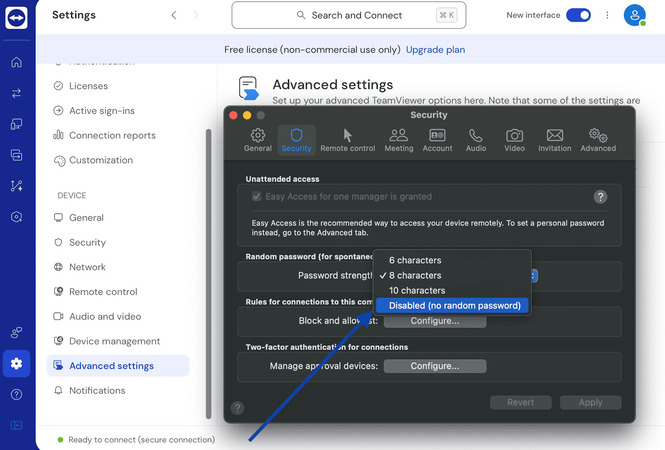
TeamViewer creates a rotating password for on-demand connections, and it can get in the way of Easy Access. If you’ve ever faced TeamViewer unattended access not working, this is one of the reasons why.
On the remote device, go to Settings → Advanced → Security, find Random password (for spontaneous access), and set it to Disabled.
If None of the Above Works
There’s a fallback that keeps connections smooth even when Easy Access refuses to cooperate. One TeamViewer forum user found success after turning off Easy Access completely, setting a fixed password on the remote device, and saving it on their computer so TeamViewer fills it automatically. This method is especially useful if TeamViewer Easy Access still asking for password despite trying all the standard fixes.
From your side, you click connect, and it logs in automatically, but now it’s using the saved password instead of relying on the account link.
-
On the remote device, open Settings and go to Advanced. There, choose Personal Password and create a fixed password.
-
On your computer, right-click the device in Computers & Contacts. Next, open Properties and enter the same password there.
It’s not perfect, but you can rely on it. If Easy Access keeps resetting after updates, this is more stable than redoing the account assignment repeatedly.
HelpWire: Best Alternative to TeamViewer
TeamViewer is a well-known tool for remote access and support, but many users run into problems with it.
If you keep encountering TeamViewer asking for password with Easy Access and it’s slowing you down, it might be time to try something different.
HelpWire is a strong alternative that lets you connect to and control remote devices without unexpected errors or obstacles. It’s easy to use, but it still does a lot to make remote support easier for modern IT needs. Unlike TeamViewer, HelpWire is free for everyone, whether it’s for personal use or work.
Fed up with TeamViewer acting up? Give HelpWire a try for a simple and reliable way to connect remotely.