
A Microsoft Teams remote control feature enables remote teams to collaborate via online meetings, such as audio or video calls. Below is a quick overview of how it works.
Requesting Control in Teams: Quick Steps
- Join a meeting.
- Wait for a participant to share their screen.
- Click Request Control in the toolbar.
- Select the Request option on the pop-up.
- Click Stop Control when finished.
Giving Control in Teams: Quick Steps
- Start sharing your screen.
- Click Give Control in the top menu.
- Select a participant.
- Click Take Back Control to regain access.
In the next sections, you’ll find step-by-step instructions with screenshots on how to give control in Teams, plus troubleshooting tips.
How to Request Control in Microsoft Teams
Here’s how to request Microsoft Teams remote control, including important factors and limitations to be aware of when using the remote control feature.
-
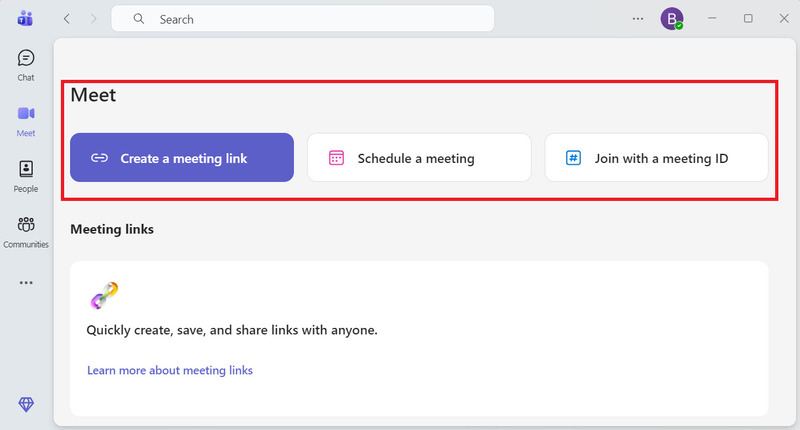
Launch the Microsoft Teams application and join a meeting. You can also sign in if you need to.
-
Patiently wait for one of the meeting participants to share their screen.
-
When a participant shares their screen, click Take control in the Teams meeting toolbar (inside the app window) to request control of their screen.

-
On the pop-up prompt, select the Request option to finalize the action.
-
Once you are done with the virtual system connect interaction, click the Stop Control button to revoke the presenter’s screen control from your end.
Important Things to Know About Remote Control in Teams
- • A user must be granted permission before taking control of another participant’s screen.
- • The user can revoke any previously granted control at any time.
- • Users cannot force others to grant them control over their shared screen.
- • Any meeting participant can request control of a shared screen in Teams.
- • A user can grant control to another participant, even if they did not make a request.
- • All meeting participants can see who currently has control of the shared screen.
- • When a user grants control in Teams, the recipient can only control the shared screen or window. For example, if a Word document is being shared, the participant with control cannot switch to other apps open on the host’s desktop.
How to Give Remote Control in Microsoft Teams
When you give control in Teams, another participant can virtually interact with your PC. For example, participants can type, edit, navigate the shared screen with their mouse, and make other modifications.
Here’s a short guide on how to give someone control in Microsoft Teams.
-
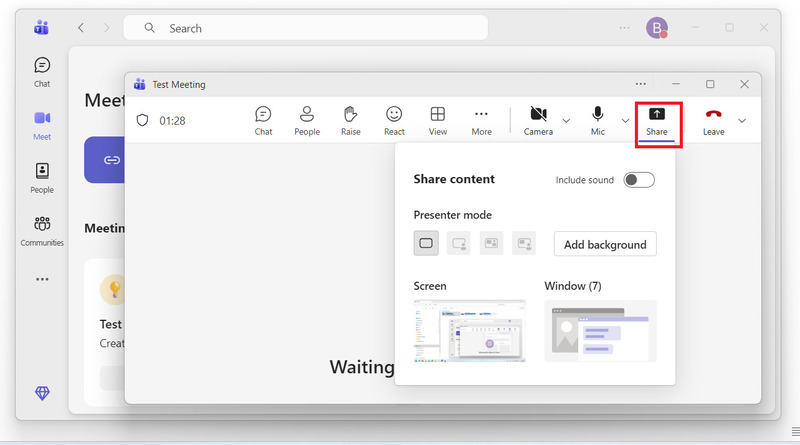
Before you can share your screen control in Microsoft Teams, you will first need to share your screen.
-
After you start screen sharing, use the Teams pop-up toolbar (at the top of your screen), select Give control, then choose who to give control to.

-
Select Take Back Control from the same menu bar to regain control over your shared screen.
Remote Control Is Not Working on Teams: How to Solve It?
Sometimes, you can experience control issues when using the MS Teams remote control feature. In this section, we highlight the top three reasons why the Teams remote control feature is not working and describe the various ways you can resolve the issue.
Remote control is not allowed on macOS by default.
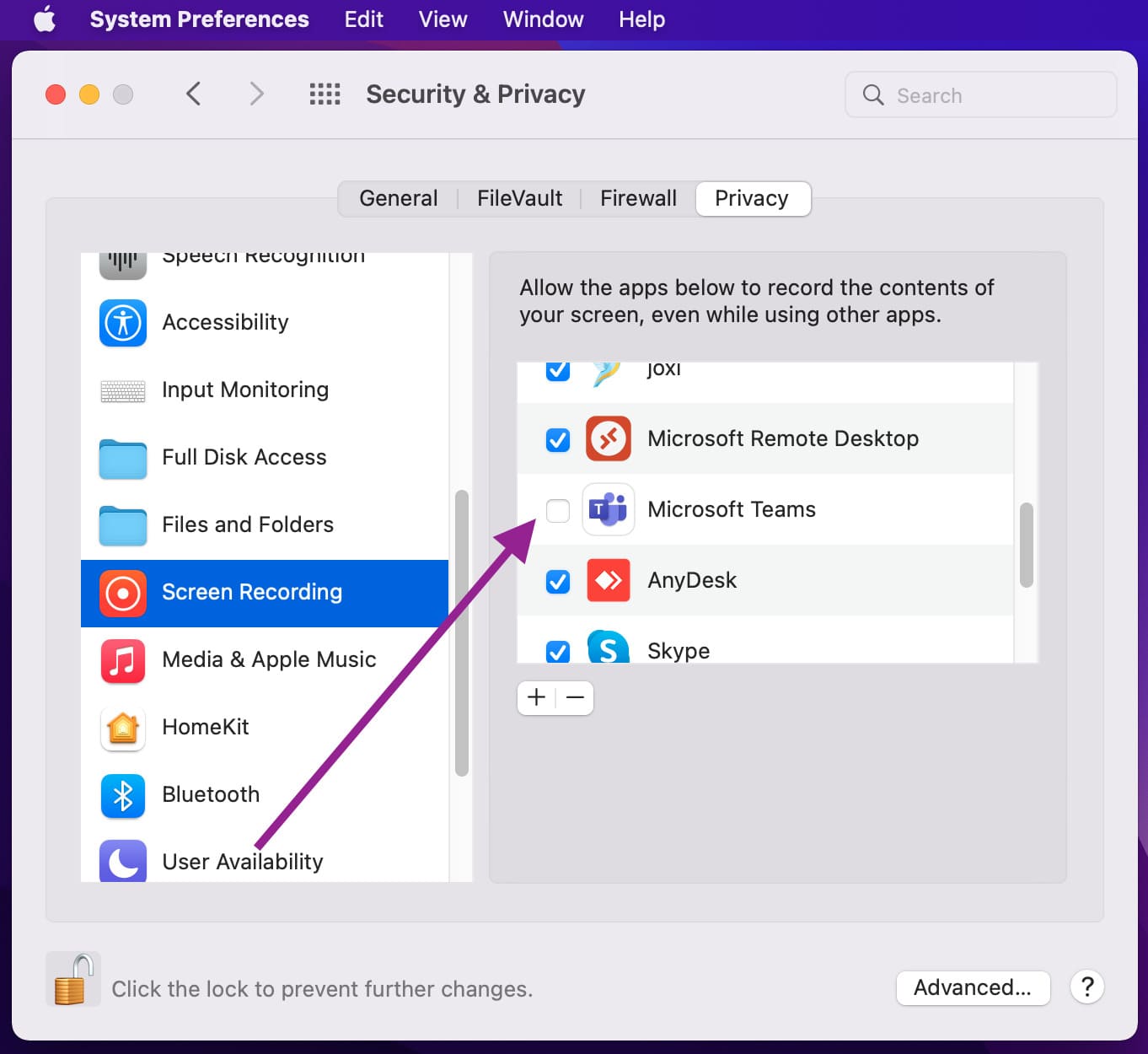
Before using the share feature on your Mac, you’ll need to grant Teams permission to record your screen. Once you grant Teams permission to share your screen, follow the steps outlined below:
-
Go to the Apple Menu > Click System Preferences > Select Security & Privacy.
-
Under Screen Recording, select Microsoft Teams.
-
Repeat the same steps to share your screen remotely.
Teams Request Control Not Working When Granting Permission
Sometimes, you cannot request or grant control from guest users who join from a web application. This issue may be because of a technical limitation, as the Teams request feature doesn’t work when either party runs Teams in a browser. To resolve this problem, both parties must use the Microsoft Teams desktop client.
Give Control Not Working Due to Disabled GPU or Hardware Acceleration
- • Your device doesn’t have a graphics processing unit (GPU) installed.
- • Your device’s GPU hardware acceleration isn’t enabled.
- • Enter the following into your browser: edge://gpu/ in Microsoft Edge or chrome://gpu/ in Google Chrome.
- •If you see “Software only” or “Hardware acceleration unavailable”, your device does not support hardware acceleration.
HelpWire for Advanced Remote Troubleshooting
If Teams remote control isn’t enough for effective teamwork or reliable troubleshooting, consider HelpWire, a free and accessible remote access solution. It adds several practical advantages for day-to-day remote support:
- • Quick Connect: Lets you start a session in seconds with minimal setup.
- • Cross-platform compatibility: Works across Windows, macOS, and Linux for consistent access in mixed-device environments.
- • Unattended and on-demand access: Supports both persistent connections and ad-hoc sessions for immediate help.
- •Fast, simple file transfers: Quickly transfer files between your device and the remote machine to keep work moving.
Frequently Asked Questions (FAQs)
Browsers that support the Microsoft Teams Application include Internet Explorer 11, Microsoft Edge, Mozilla Firefox, and the latest version of Chrome. Unfortunately, Safari does not support Microsoft Teams.
External participants can use Teams to give or request control. This control setting is a per-user policy. This means that even though a company sets this policy for a user, it does not affect what external partners can do.
Regardless of what control settings the sharer sets within their meeting policies, organizations can use Microsoft Teams to give control to guest users. This parameter determines whether an external user can request control or be given control over the sharer’s screen.
The “Give Control” option may be greyed out if screen sharing hasn’t started, meeting permissions are restricted, or you’re using an unsupported version, such as the web app. A remote control also requires presenter rights.
Make sure you’re using the desktop version of Teams and that meeting policies allow control sharing.
You can now take control during screen sharing in the Teams web app (Edge and Chrome), but only if the person sharing their screen is using the Desktop Client. The “Give Control” feature is still not supported in the web app when you are the one sharing your screen.
Additionally, taking control via the web is currently only available in scheduled meetings, not in one-on-one calls.