categories
Updated on in

How to Completely Uninstall AnyDesk: Remove AnyDesk from Registry

Author: Adetayo Sogbesan
Adetayo Sogbesan Article author

Over the years, remote work has introduced new tools, making collaboration and device access easier from anywhere in the world. Now, both personal and business users can troubleshoot their software-related issues much faster. 

However, for several reasons, such as safety precautions, performance issues, or privacy concerns, you, as a user, might have to temporarily or permanently uninstall your remote access tools. This article provides well-detailed step-by-step instructions on successfully uninstalling AnyDesk, a well-known remote access tool, from your devices.

Alternative:  If you’re uninstalling AnyDesk in search of a more reliable and cost-effective solution, give HelpWire a try. It provides stable, secure remote access across Windows, macOS, and Linux. Jump to the Alternative Solution section to explore this option, or continue reading tips.

How to Uninstall AnyDesk From Your Desktops

Below is a comprehensive process for uninstalling AnyDesk and its related files from your desktop:

How to Delete AnyDesk From Windows 11

Method 1. Uninstall AnyDesk via Installed Apps List

  1. Step 1: Click the Start Menu and Search for Installed Apps.
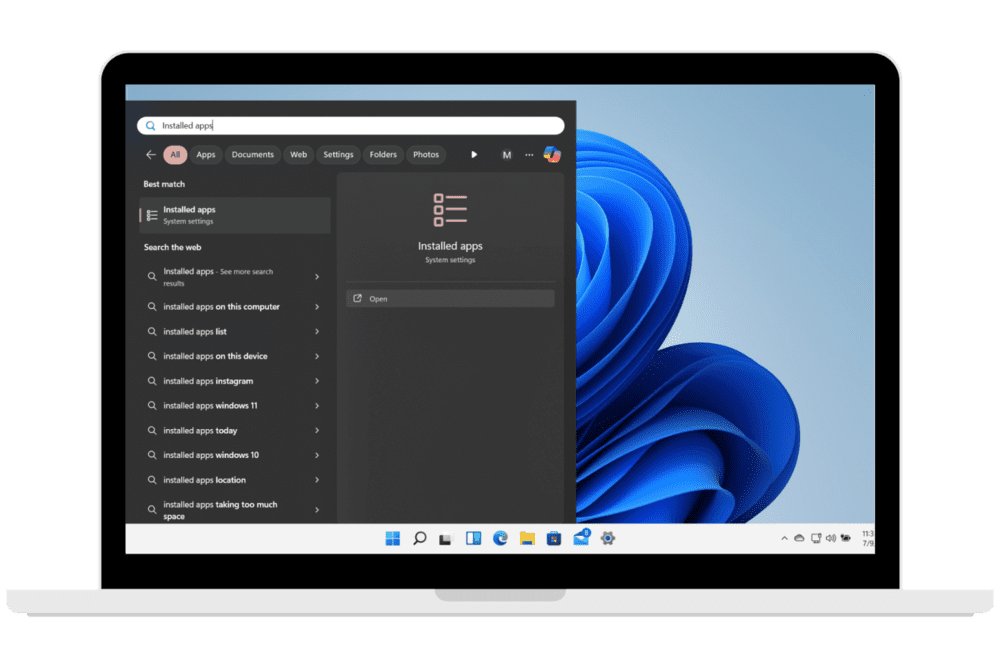
    Installed Apps in Windows Start Menu
  2. Step 2: Click the Open option and locate AnyDesk in the list of Installed apps.
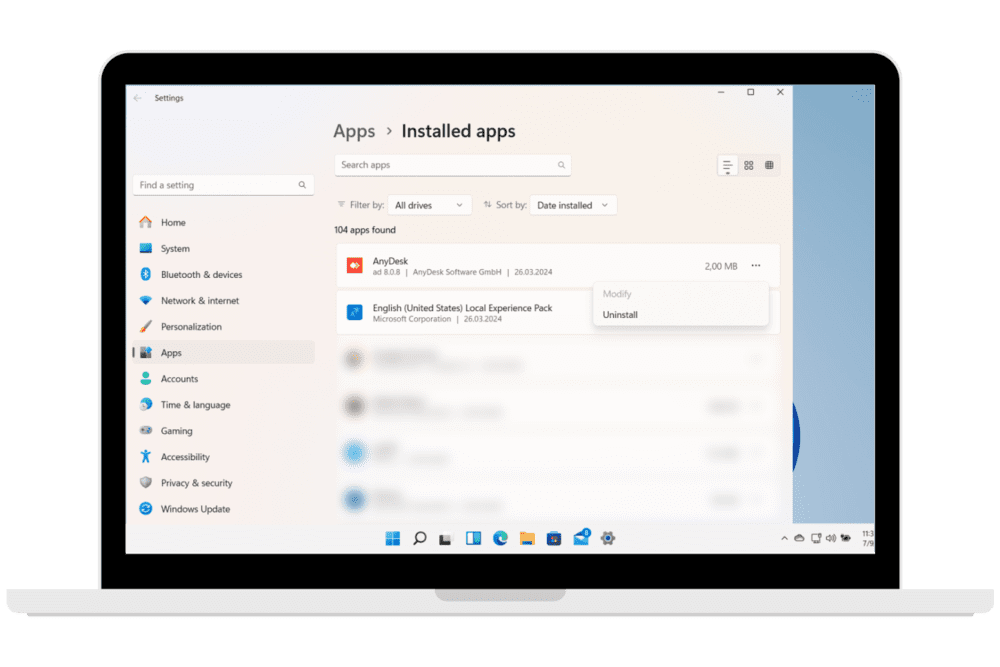
    AnyDesk in the list of Installed apps
  3. Step 3: Click on the three dots and choose the Uninstall option to commence the uninstallation process.

Method 2. Uninstall AnyDesk via UninstallString

  1. Step 1: Jointly press the Win+R keys to open the Run dialog box.
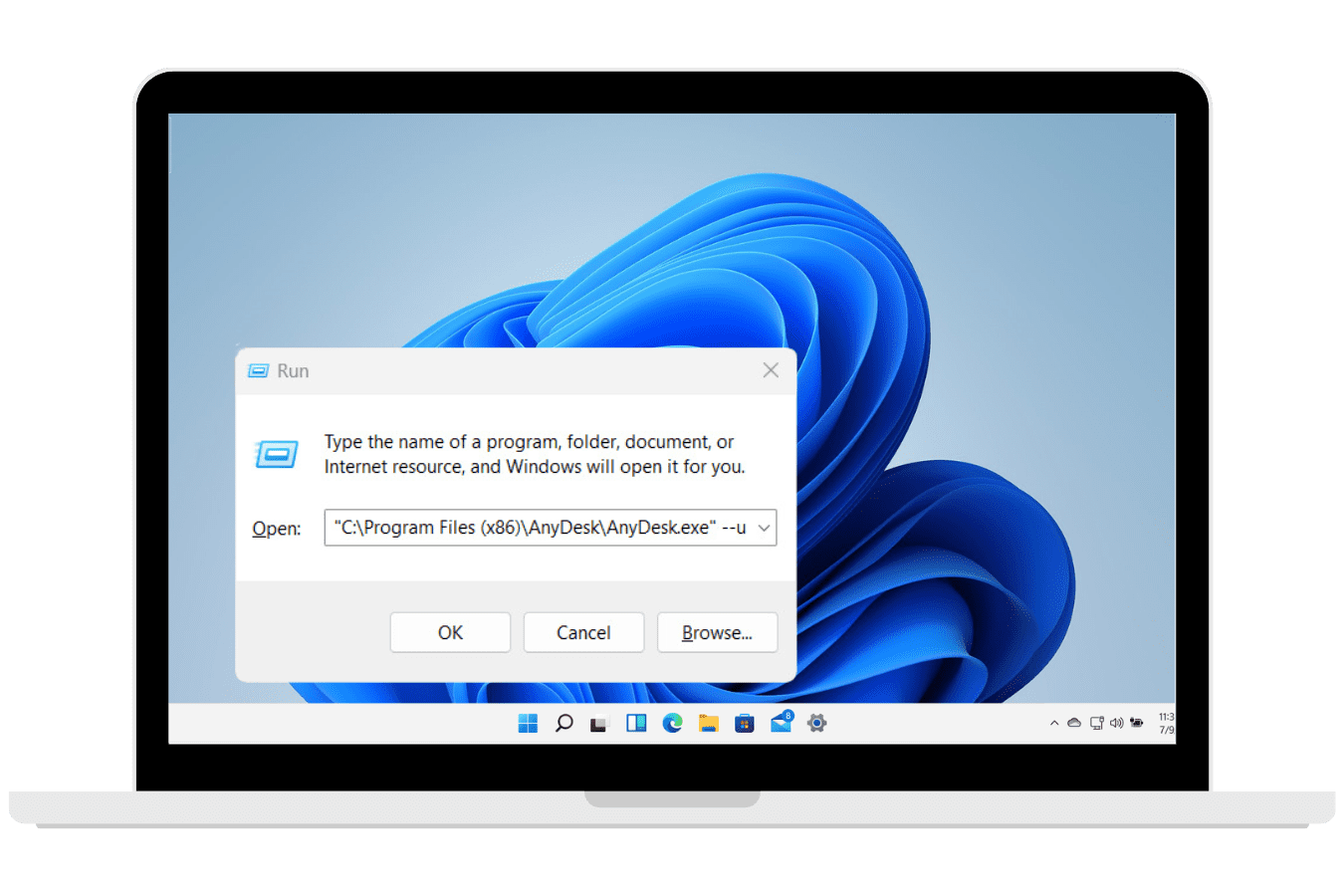
    Opening Windows Dialog Box
  2. Step 2: Copy the uninstallation string below, then paste it into the Run command window and click OK.

    "C:\Program Files (x86)\AnyDesk\AnyDesk.exe" --uninstall

  3. Step 3: Carefully follow the instructions mentioned above to uninstall AnyDesk from your Windows 11 successfully.
Remove AnyDesk from Registry and All Associated Shell Entries

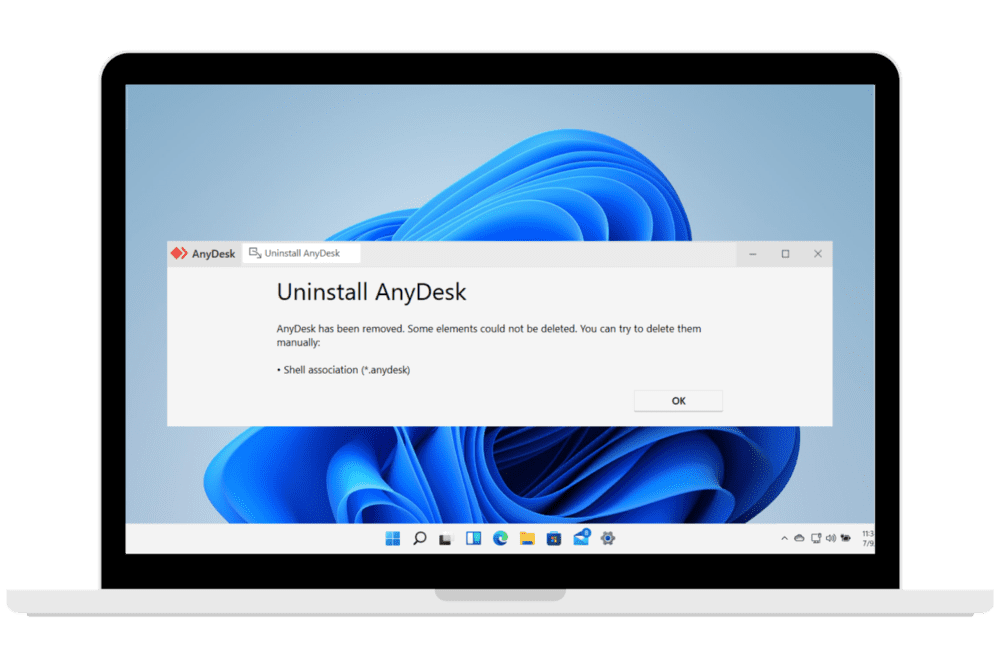
Often, when uninstalling AnyDesk, a prompt shows up saying, “AnyDesk has been removed. Some elements could not be deleted. You can try to delete them manually. Shell association (*.anydesk).” 

Below are steps to successfully delete these extra elements from your computer.

AnyDesk Uninstall Prompt

  1. Step 1: Uninstall AnyDesk Residual Directories

    Frequently, after deleting AnyDesk from your device, you may still have residual files that weren’t deleted. You can manually delete these directories:

    C:\ProgramData\AnyDesk

    C:\Users\%userprofile%\AppData\Roaming\AnyDesk

    Here,  %userprofile% is your username.

    C:\Users\%userprofile%\AppData\Local\Temp\ (search and remove any AnyDesk files)

  2. Step 2: Uninstall AnyDesk Residual Registry Entries.

It’s important to note that altering your Windows Registry should only be performed if you are familiar with the risk and also have a current working backup.

You might still have residual registry entries even after uninstalling AnyDesk from your computer, which can still be deleted by following these steps:

  1. Go to your computer’s Registry Editor by pressing the Win+R keys to open the Run dialog box and type regedit.
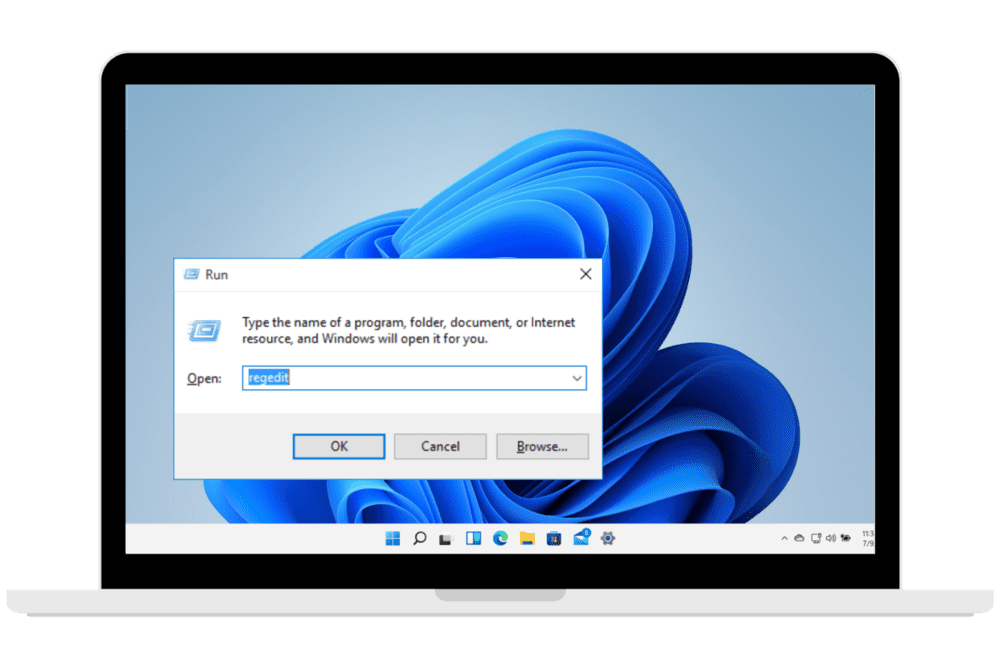
    Calling up a Windows dialog box
  2. From the Registry Editor running, manually delete the following registry entries:

    Computer\HKEY_CLASSES_ROOT\.anydesk
    Computer\HKEY_CLASSES_ROOT\AnyDesk
    Computer\HKEY_CLASSES_ROOT\Local Settings\Software\Microsoft\Windows\Shell\MuiCache\
    Search and delete AnyDesk entries there.
    Computer\HKEY_CURRENT_USER\Software\Microsoft\Windows\CurrentVersion\Explorer\FileExts\.anydesk
    Computer\HKEY_LOCAL_MACHINE\SOFTWARE\RegisteredApplications\
    Search and delete AnyDesk entries there.
    Computer\HKEY_LOCAL_MACHINE\SOFTWARE\Clients\Media\AnyDesk
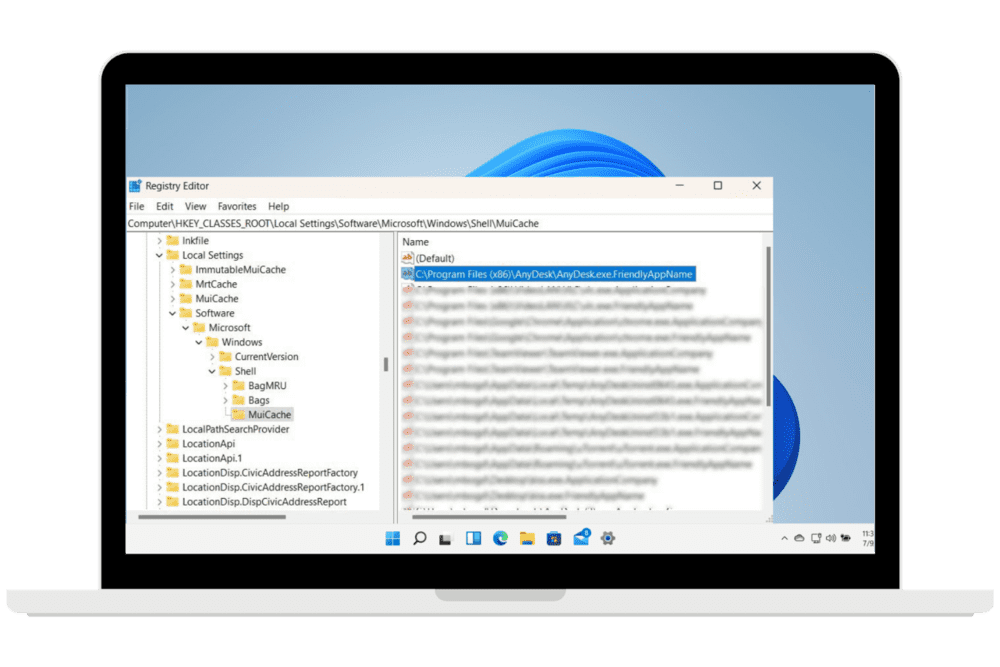
    Deleting AnyDesk registry entries

How to Uninstall AnyDesk Completely From Linux

  1. Step 1: Open the command terminal of your computer using the keyboard shortcut Ctrl+Alt+T.
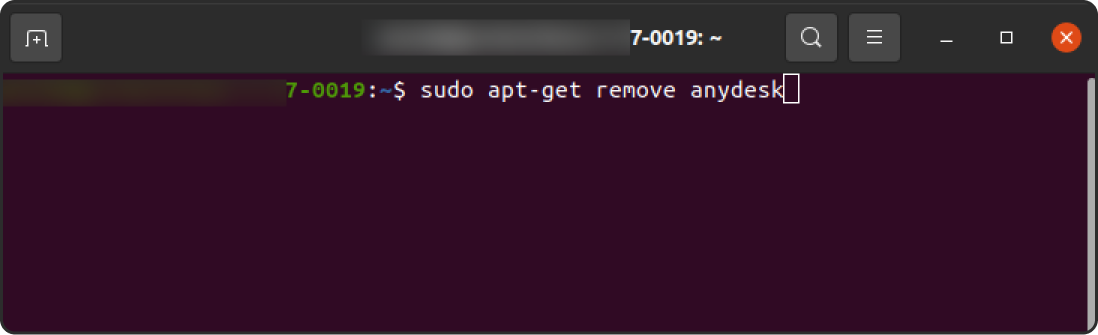
    Deleting AnyDesk in Linux command terminal
  2. Step 2: Enter the following command to uninstall and delete any AnyDesk repository found.

    sudo apt-get remove anydesk

How to Delete AnyDesk From Your Mac

Properly uninstalling AnyDesk on Mac can be overwhelming, not just for beginners on the platform but also due to possible complications during the uninstallation process.

With this comprehensive guide, we’ll give you all the things you need to know on how to uninstall AnyDesk on your Mac. We’ll also walk you through the step-by-step process, whether you no longer need the app or are facing any issues in uninstalling it.

Method 1: Uninstall AnyDesk on Mac Manually

Manually uninstalling the app is the straightforward way to remove AnyDesk from Mac without needing any additional tool to do so. Follow these steps to make sure that the app and its associated files are properly deleted from your computer:

  1. Exit AnyDesk: Before uninstalling AnyDesk, make sure that you have closed the app. You can do this by clicking the AnyDesk Menu bar > Quit. If the application doesn’t close this way, you can press Command + Option + Esc. Then, select AnyDesk and click Force Quit.
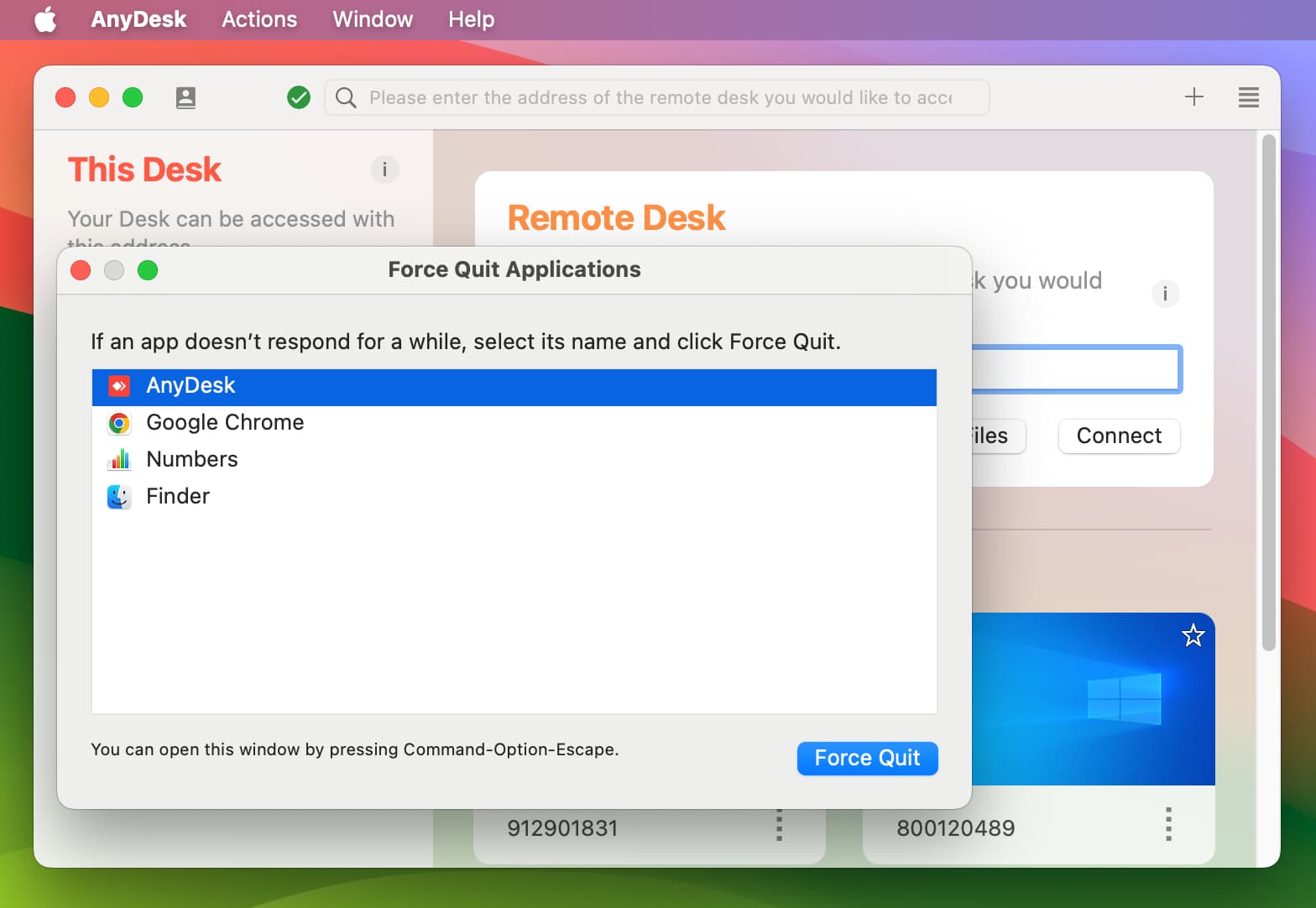
    how to delete AnyDesk from Mac
  2. Select AnyDesk from the Finder: Open the Finder. Then, go to the Applications folder.

  3. Move AnyDesk to Bin: Now, find the AnyDesk app, right-click on the app icon, and select Move to Bin. Alternatively, you can drag the AnyDesk app icon to the Trash.
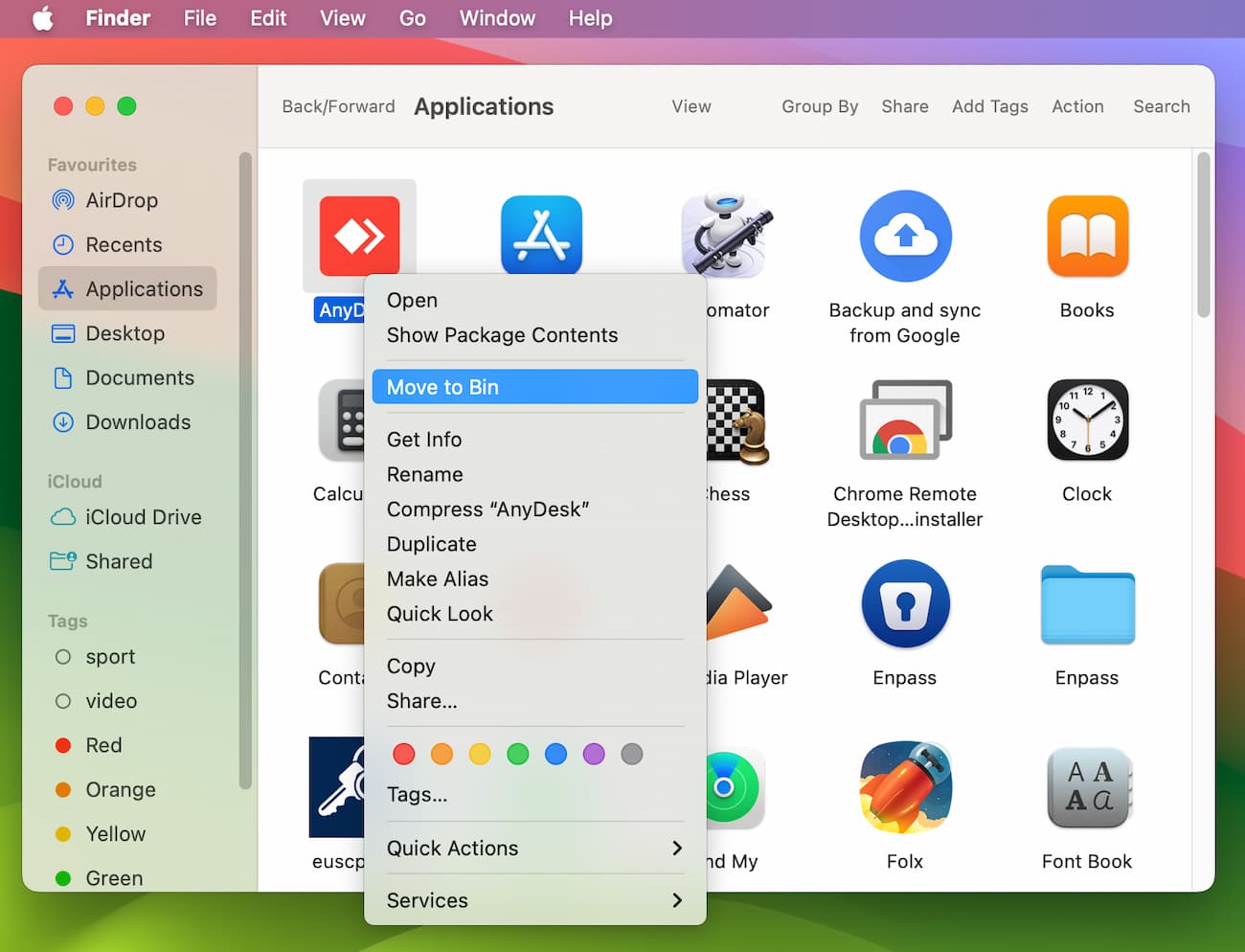
    Delete AnyDesk
  4. Remove Associated Files: To completely uninstall AnyDesk, you also have to remove the additional files related to it on your system. These files are located in the ~/Library folders, contain data about AnyDesk. This includes Preferences files, Application Support files, and cache files, among others.

    To locate and delete these files, do the following:

    a. Open Finder.

    b. In the menu bar, click Go > Go to Folder. Alternatively, you can press the keyboard shortcut Shift + Command + G.

    c. Enter the following ~/Library folders one by one and click Go. (e.g. ~/Library/Folder)

    • Preferences/
    • Caches/
    • LaunchAgents/
    • LaunchDaemons/
    • Application Support/
    • Logs/

    d. Move the files and folders related to AnyDesk to the Trash folder.
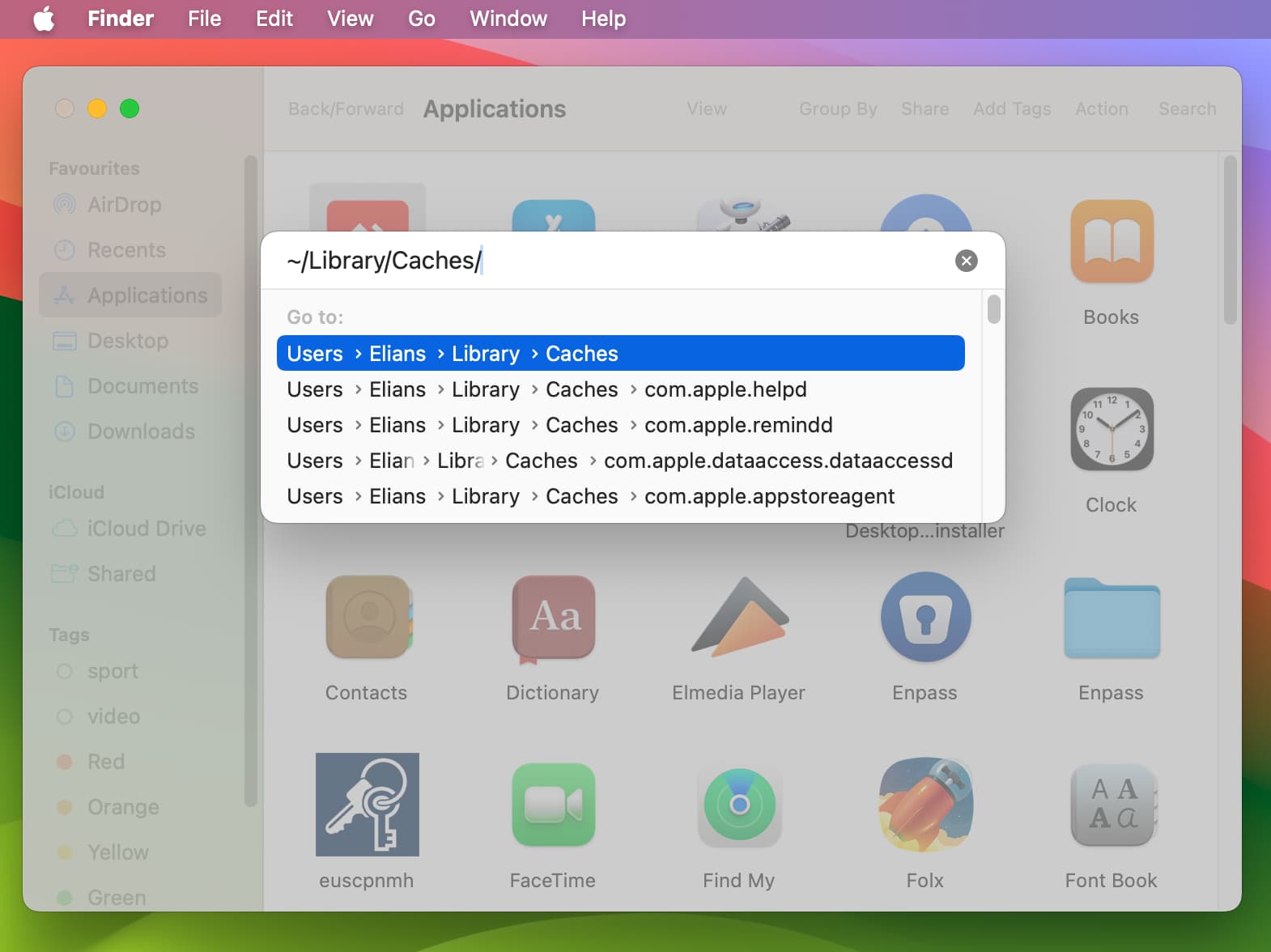
    Clear cash to uninstall AnyDesk from Mac
  5. Empty the Trash folder: After deleting all the files related to AnyDesk, make sure to also empty the Trash folder to permanently remove the deleted data.

  6. Reboot your Mac: Lastly, reboot your device to guarantee that all changes have taken effect and that AnyDesk is properly uninstalled.

Method 2: Delete AnyDesk with a Third-Party Uninstaller App

To avoid manually checking different folders for extra files related to AnyDesk, you can use trustworthy third-party uninstaller tools to do the job instead. These apps provide a simpler way on how to remove AnyDesk from Mac, deleting the app itself along with all the files related to it with just a few clicks.

Here’s how to delete AnyDesk from Mac using a third-party uninstaller tool:

  1. Choose a trustworthy uninstaller app: Many uninstaller tools for Mac, including CleanMyMac X, TrashMe, and App Cleaner & Uninstaller, are available online. As these tools cater to different needs, we recommend you read through each app’s features and choose the one that caters to your specific preferences.

  2. Scan your Mac for AnyDesk files: Allow your chosen uninstaller app to scan for AnyDesk and its associated files on your Mac. Follow the instructions in the tool, as this step may differ from one app to another.

  3. Uninstall AnyDesk: The app should present all the files associated with AnyDesk. Proceed to select and remove the AnyDesk app and its related files. Then, make sure that the changes are correctly applied by restarting your Mac.

How to Remove AnyDesk Completely From Mobile

Figuring out how to remove AnyDesk completely from mobile isn’t the toughest task out there. Regardless, we’ve made it even easier for you by compiling various methods below:

How to Remove AnyDesk Completely From Android Phone

Method 1. Uninstall AnyDesk From Google Play Store

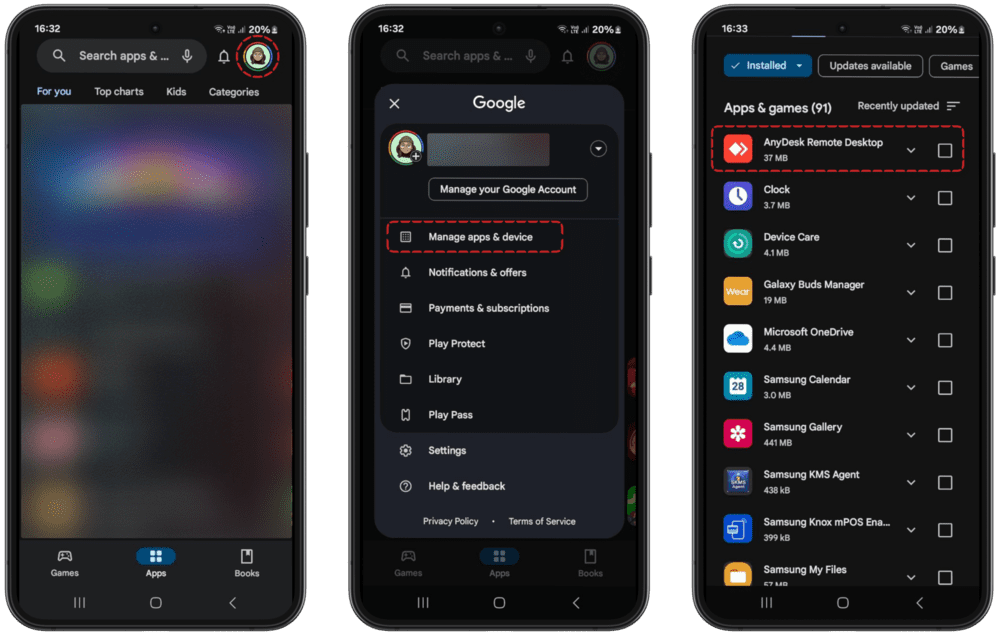
  1. Open the Google Play Store app on your mobile, and at the top right of your screen, tap the Profile icon.

  2. Tap on Manage apps & devices, then tap on Manage.

  3. Select AnyDesk and Tap Uninstall.

    Removing AnyDesk in Google Store

Method 2. Uninstall AnyDesk From Your Settings

  1. Open the Settings app on your mobile device and click the Apps option or Apps & notifications.

  2. Navigate to AnyDesk and select it.

  3. Tap on Uninstall from the app info menu to completely delete AnyDesk.
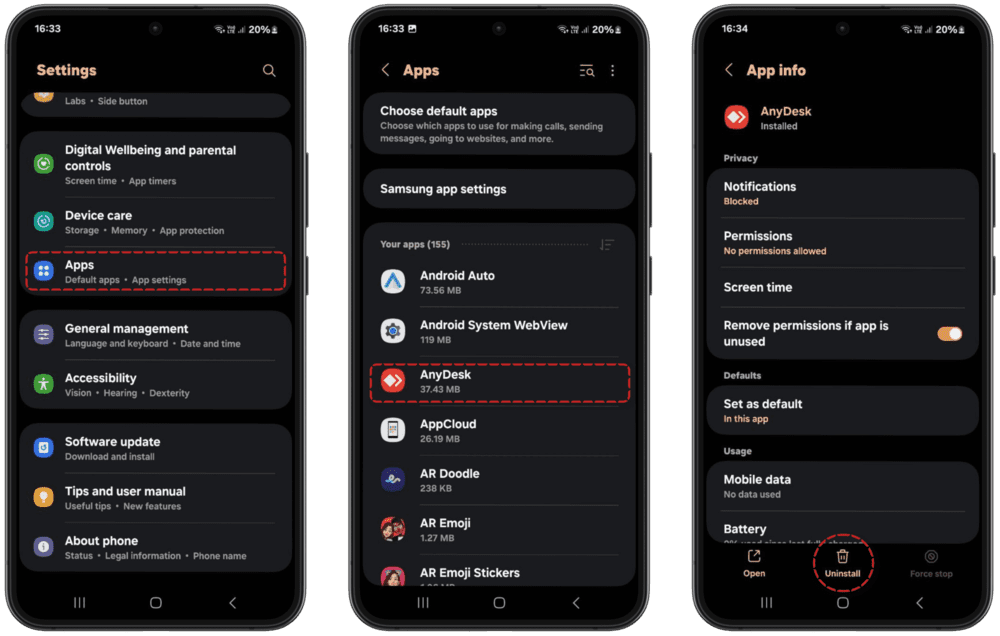
    Removing AnyDesk in Android settings

How to Remove AnyDesk Completely From iPhone

Method 1. Long-Press to Uninstall AnyDesk

  1. Tap and hold the AnyDesk app on your home screen until it starts shaking. 

  2. Once it begins to shake, you will see a mark at the top of the app icon. 

  3. Click the button and tap on Delete App to remove the AnyDesk app from your iPhone.
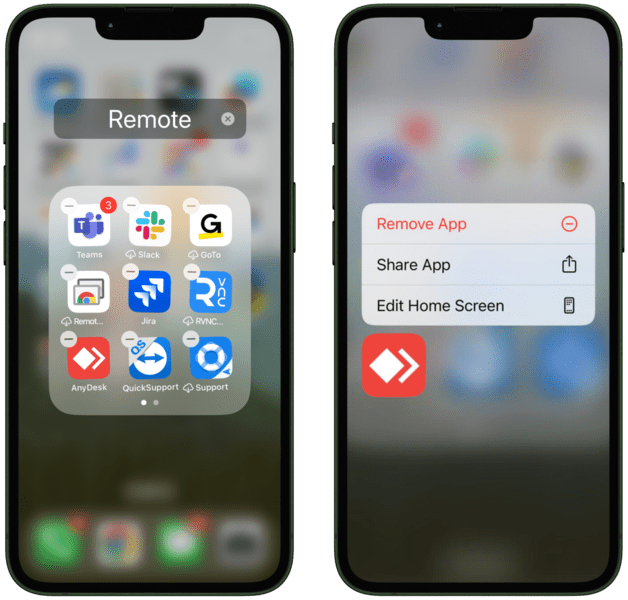
    Long Press icon on iPhone

Method 2. Uninstall in Phone Storage

  1. Go to Settings on your iPhone, click on General, and then click on the iPhone Storage option.

  2. As you scroll, a list of all your installed apps will appear.
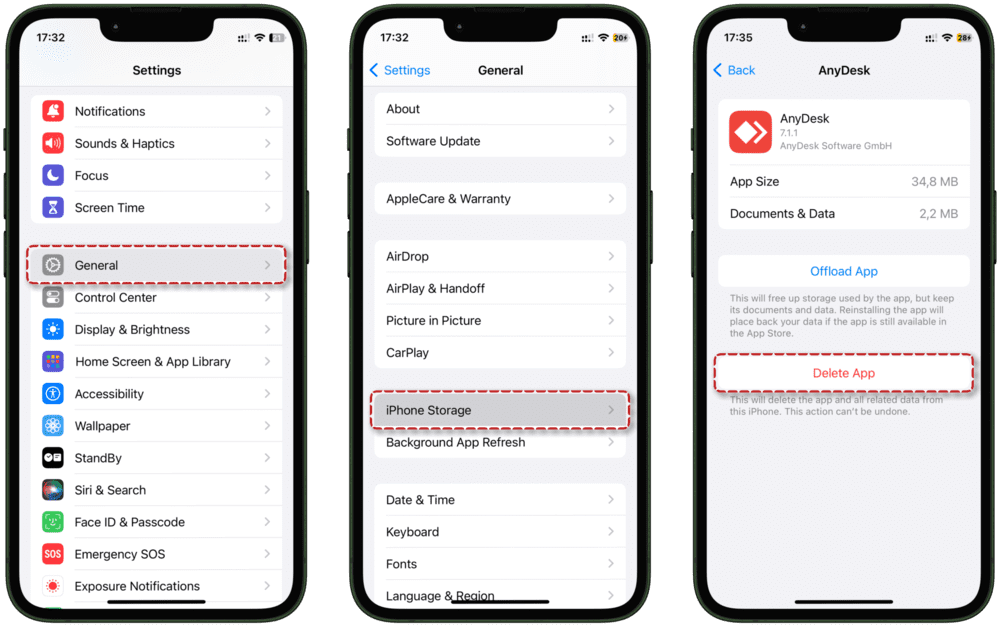
    Deleting AnyDesk completely in iPhone
  3. Tap on the AnyDesk app and choose Uninstall to delete it.

Try the Best AnyDesk Alternative

If you’re considering uninstalling AnyDesk due to ongoing issues, switching to HelpWire could be a smart and cost-effective solution. HelpWire offers fast, secure, and reliable remote access, whether you’re providing IT support or using it for personal purposes.

Why Choose HelpWire?
  • Quick & Easy Connection
    Instantly access remote devices.
  • Cross-Platform Support
    Seamlessly connect across Windows, macOS, and Linux.
  • Unattended Access
    Securely control devices at any time.
  • Effortless File Transfer
    Easily drag and drop files.
  • User-Friendly Interface
    Simple setup with an intuitive design.
And that’s just the beginning. HelpWire includes many other essential features to enhance your remote support experience. Discover why HelpWire is a top alternative to AnyDesk and compare both solutions today!

Conclusion

Uninstalling AnyDesk should be seamless using the above-mentioned procedures, either on your computer or mobile. Additionally, if you still need an alternative to AnyDesk, consider trying out HelpWire. It’s free, fast, intuitive, and the perfect fit for your remote access needs.

Frequently Asked Questions

No, after you uninstall AnyDesk from your device, the software will no longer be available on your device for use unless you reinstall the app again.

No, uninstalling the software prevents AnyDesk from working, except it gets reinstalled on both the host and client devices.