

TeamViewer issues can be divided into 2 categories: network-related problems and configuration problems. In most cases, the former is solved by restarting the router or reconnecting, and the latter is fixed by reinstalling TeamViewer. However, many issues have external causes, such as the settings of your home network, antivirus activity, or corrupted system files.
Before we start looking at certain problems and learn how to fix them, there are four simple things that can help you when TeamViewer is not connecting:
- • check the Internet connection on both computers
- • check if TeamViewer is running on the remote computer
- • the monitor must be enabled on the remote computer
- • Is TeamViewer down? Check it out.
The following guide includes an interactive troubleshooting spreadsheet covering common TeamViewer issues. Each entry highlights a specific problem and the solutions that apply to it, marked with an X. Click the problem name or any X to open a detailed description and step-by-step instructions.
Common TeamViewer Problems and How to Fix Them Quickly
TeamViewer Not Ready, Please Check Your Connection
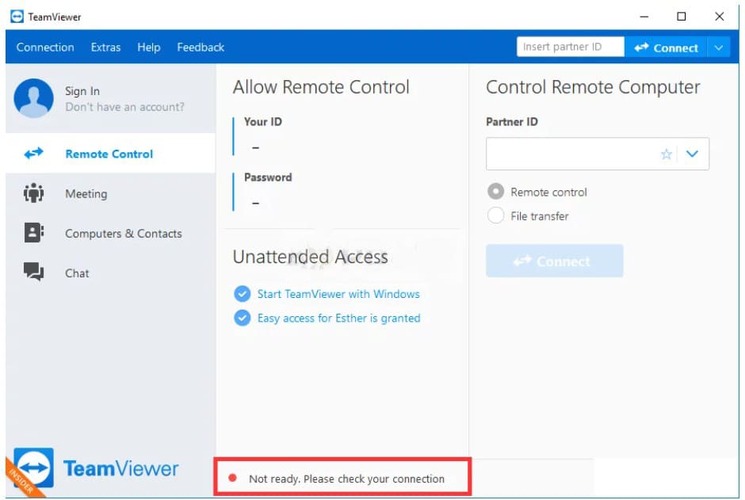
In case TeamViewer does not connect and you notice a red dot at the bottom of the TeamViewer window with an error message “Not ready. Please check your connection,” then read on for possible causes and solutions for this problem.
Quick Fix:
- • Hosts file setting: The hosts file contains important information about the apps that are connecting to the Internet. If this file becomes corrupted, it could result in a connection error. To eliminate this as a cause, you can simply delete this file, and Windows will recreate it.
- • Your Firewall or Antivirus security software can be restricting Internet access for TeamViewer. Make sure you add TeamViewer to your security software’s exclusion list.
- • Try changing your DNS address or resetting your Windows Socket API (Winsock) as this may be causing your connection issue.
- • TeamViewer may not work on IPv6, so disable it and try connecting TeamViewer again.
- • While it’s unlikely that the interface can cause a connection problem, some users found that reverting to the old interface helped to resolve the problem. If all else fails, it’s worth trying this.
- • Solution 1: Restart the Network Connection on both computers
- • Solution 2: Update TeamViewer
- • Solution 3: Allow TeamViewer in Windows Defender Firewall
- • Solution 4: Add an Exception for the TeamViewer_Service.exe File
- • Solution 5: Disable IPv6 on Both Computer
- • Solution 6: Change Your DNS Address
- • Solution 7: Remove TeamViewer from the Hosts File
- • Solution 8: Flush DNS your TCP/IP and Reset Winsock
- • Solution 9: TeamViewer new user interface issue
- • Solution 10: Restart the TeamViewer Service
- • Solution 11: Reinstall TeamViewer
Return to Issues Chart.
TeamViewer Partner Did Not Connect To Router
If your partner’s computer is not connected to the network, you may see this error message. If you have confirmed that both computers are connected, follow the steps below to try to resolve this issue.
Quick Fix:
Begin with the basic connection and app checks, then continue with the fixes below in order. These steps cover the most common causes of this error, from temporary network issues to TeamViewer configuration and system-level problems.
- • Solution 1: Restart the Network Connection on both computers
- • Solution 2: Update TeamViewer
- • Solution 3: Allow Full Access To TeamViewer
- • Solution 4: Flush DNS your TCP/IP and Reset Winsock
- • Solution 5: Reinstall TeamViewer
If these steps don’t work, more information can be found in our article on how to fix “Partner did not connect to router”.
Return to Issues Chart.
TeamViewer Issue: “The Screen Cannot Be Captured at the Moment”
“The screen cannot be captured at the moment” error will be experienced by the user who is trying to connect to the TeamViewer session. The reason for this is that TeamViewer has not been installed as a service.

Quick Fix:
- You can easily set up TeamViewer as a service without having to reinstall it. Select “Options” from the “Extras” menu. In the “General” tab, make sure “Start TeamViewer with Windows” is selected. Make sure you have a secure password set in the “Security” tab. Click “OK” to save your changes.
- If you don’t want to install TeamViewer as a service, make sure that you don’t launch TeamViewer from a RDP session. If you do, any time you minimize the RDP window, or it loses focus, users connecting to your computer will see the error message. Other considerations to bear in mind: do not allow your computer to sleep or timeout, and if you have no other options but to use RDP, do not minimize or allow the RDP session to lose focus while someone is connecting to your session.
- • Solution 1: Restart the remote PC
- • Solution 2: Update TeamViewer
- • Solution 3: Restart the TeamViewer Service
- • Solution 4: Disable Fast User Switching
In addition to service-related causes, this issue can also appear due to poor GPU compatibility, power-saving features, or RDP. For more info, visit our complete article on the TeamViewer “The Screen Cannot Be Captured at the Moment” error.
Return to Issues Chart.
How to Solve TeamViewer Connection Failed No Route
This error usually appears when the remote device is online and visible, but something is preventing the connection when you attempt it. The causes are numerous and not always related to network routing.
Quick Fix:
Start by checking whether both devices still have stable internet access, TeamViewer is updated on both sides, and the remote machine is set to allow full access. If the connection still fails, continue with the steps below to rule out common causes such as IPv6 conflicts, corrupted network settings, or a broken TeamViewer installation.
- • Solution 1: Restart the Network Connection on both computers
- • Solution 2: Update TeamViewer
- • Solution 3: Allow Full Access To TeamViewer
- • Solution 4: Disable IPv6 on Both Computer
- • Solution 5: Flush DNS your TCP/IP and Reset Winsock
- • Solution 6: Reinstall TeamViewer
The common troubleshooting steps should resolve the issue in most cases. However, if they don’t work, consult the full troubleshooting guide on the TeamViewer “Connection Failed: No Route” error.
Return to Issues Chart.
How to Fix TeamViewer Protocol Negotiation Failed
If you encounter this error when trying to connect to another TeamViewer user, consider the following:
- • Windows Firewall: Windows Firewall might be blocking the incoming or outgoing request sent by TeamViewer.
- • Third-party Antivirus: Your antivirus software may interrupt and restrict the connectivity process of TeamViewer, resulting in the error message.
- • Malware on the System: Malware on your computer may cause TeamViewer not to work as expected. Update your antivirus software, clean all malware from your system, and try again.
- • Different Versions of TeamViewer: Conflicting versions of TeamViewer can also create problems. Make sure both computers are running the same major version of TeamViewer to avoid unnecessary issues.
Quick Fix:
Start by checking whether both devices are using the same TeamViewer version and whether TeamViewer is allowed through the firewall and antivirus software. If the issue continues, work through the solutions below to rule out security blocks, software conflicts, and malware-related interference.
- • Solution 1: Update TeamViewer
- • Solution 2: Allow TeamViewer in Windows Defender Firewall
- • Solution 3: Select a Simple Alternative to TeamViewer
- • Solution 4: Add an Exception for the TeamViewer_Service.exe File
- • Solution 5: Scan your PC with Windows Defender or a third-party antivirus program to search for malware
For more detailed information on this error, visit our page on how to fix the TeamViewer “Protocol Negotiation Failed” error.
Return to Issues Chart.
TeamViewer: Unable To Connect, Reason Unknown
If you see the “Unable to connect – Reason unknown” error in TeamViewer, the issue is often caused by an outdated app version, a temporary network problem, or a damaged installation. Start by making sure both devices are running the latest stable version of TeamViewer, then continue with the fixes below.
Quick Fix:
Work through the following steps in order, beginning with the simplest checks. In most cases, restarting the connection, updating TeamViewer, or reinstalling the app is enough to resolve the issue.
- • Solution 1: Restart the Network Connection on both computers
- • Solution 2: Update TeamViewer
- • Solution 3: Reinstall TeamViewer
Return to Issues Chart.
TeamViewer Partner Could Not Be Contacted at the Given Network Address
This error usually appears when the remote computer is offline or not properly connected to the network. In some cases, it can also be caused by a faulty TeamViewer installation, incompatible app versions, or incorrect connection settings on one of the devices.
Quick Fix:
First, make sure the remote computer is online, TeamViewer is running on both devices, and both sides are using a compatible or up-to-date version of the app. If the error remains, go through the solutions below to rule out common causes such as IPv6 conflicts, damaged network settings, Fast User Switching issues, or insufficient TeamViewer access permissions.
-
Solution 1: Update TeamViewer
-
Solution 2: Disable IPv6 on Both Computers
-
Solution 3: Flush DNS your TCP/IP and Reset Winsock
-
Solution 4: Fix Fast User Switching
-
Solution 5: Allow Full Access To TeamViewer
Return to Issues Chart.
TeamViewer Is Not Running on Partner's Computer
This error usually appears when the remote device has lost its internet connection, TeamViewer is not active on the partner computer, or the access credentials entered are incorrect. In some cases, it may also be caused by a temporary app or service issue on either device.
Quick Fix:
First, confirm that the partner computer is online, TeamViewer is open, and the session ID or access code has been entered correctly. If everything looks correct but the connection still fails, follow the steps below to check for common causes such as network issues, a stopped TeamViewer service, or a faulty installation.
- • Solution 1: Restart the Network Connection on both computers
- • Solution 2: Update TeamViewer
- • Solution 3: Restart the TeamViewer Service
- • Solution 4: Reinstall TeamViewer
Return to Issues Chart.
TeamViewer Wake on LAN Not Working
Quick Fix:
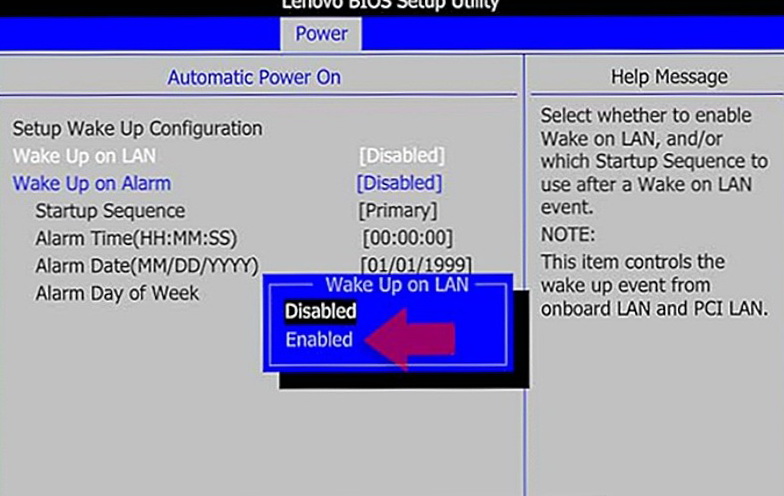
- First off, you need to check if it’s enabled in your PC’s BIOS. Enter the BIOS setup utility by pressing “Delete” or “F2” when the PC is booting up (try repeated presses). You will most likely find WOL in the power or security settings.
- Second, if you’re using a Windows PC, you also need to enable it from the Device Manager. Use Win+X to navigate to it faster. Find your Ethernet device, which may also be labelled as a LAN card, right-click it, open the option dialog, and go to Advanced. From there, enable Wake On Magic Packets. If there is no option, the card doesn’t support Wake on LAN.
Return to Issues Chart.
“The Application TeamViewer Is Not Open Anymore” Mac Error

Mac users may encounter an error message that says that an application is “not open anymore”. When you see this error, it means that the app that is mentioned is hanging and has become unresponsive. The app will still be open and show in the dock, but you will not be able to access it.
Quick Fix:
One quick fix is to use the force quit option. Access this from the Apple menu or press Option Cmd and Esc. Locate the problematic app from the list and click Force Quit.
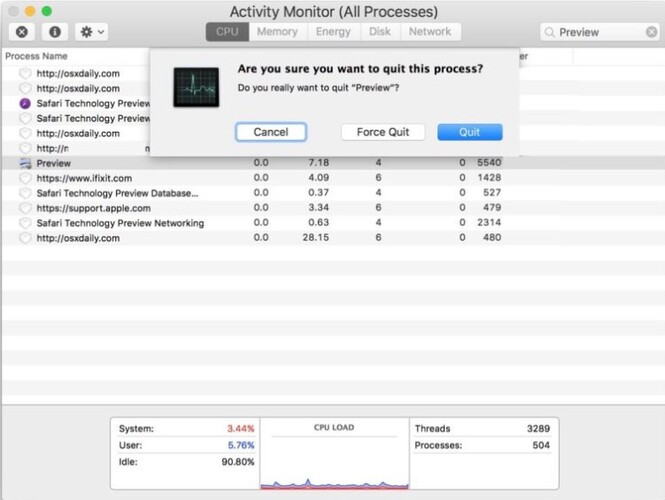
If you don’t see the app in the list, then use the Activity Monitor. You can find this in Applications/Utilities/. Once you find this, kill the process directly from there.
The above steps should resolve the problem without requiring any further intervention. However, if this is not the case, you may have to reboot your Mac. This will be the case if there are associated processes that have not been able to be terminated. Why this happens isn’t entirely clear, but it appears that the application that claims to no longer be open, yet appears to be open, is simply stuck in some sort of crash or unresponsive loop.
Return to Issues Chart.
“Connection Blocked After Timeout”
TeamViewer can produce the “Connection blocked after timeout” message if the free license is used to start an excessive number of sessions in a short span of time. This error can also result from an unintentional mistake on the user’s part, or wrongful detection by TeamViewer.
Quick Fix:
If that is the case, visit our article on the TeamViewer timeout issue to learn some potential ways to resolve it. These ways include:
- • Resetting your ID
- • Switching to a paid TeamViewer plan
- • Trying a free alternative
Return to Issues Chart.
The “Unknown Session” Error
This unclear TeamViewer error can happen for a few different reasons, most commonly because of interface issues or a client version mismatch. In many cases, switching to the Classic interface and confirming that your TeamViewer version is up to date can help resolve it.
Quick Fix:
Start by changing to the Classic interface and checking whether your TeamViewer client is running the correct and current version. If the error still appears, see our full troubleshooting article on the TeamViewer “Unknown session” error for more detailed guidance.
Return to Issues Chart.
TeamViewer Easy Access Not Working
Easy Access is heavily dependent on permissions, which include both admin rights on your computer, and settings that can be enabled in TeamViewer itself.
Quick Fix:
Visit our article on TeamViewer Easy Access not working to learn how to do the following:
- • Enable Easy Access both on the host and the client
- • Properly install TeamViewer to prepare it for Easy Access
- • Manage password-based access on the host machine
Return to Issues Chart.
The “WaitForConnectFailed” Error
The TeamViewer “WaitForConnectFailed” error points to a connection problem, but the exact cause is not always obvious. It can be related to firewall restrictions, protocol issues, router settings, or other network-related factors that prevent the session from being established.
Quick Fix:
Start with the basic connection checks, then review the most common causes such as firewall rules, protocol settings, and router configuration. For a full step-by-step breakdown, see our troubleshooting article on the TeamViewer “WaitForConnectFailed” error.
Return to Issues Chart.
Unattended Access Not Working
TeamViewer unattended access depends on Easy Access being set up correctly, along with several system and permission settings. On Windows, for example, User Account Control prompts can interfere with unattended sessions if they are not configured properly.
Quick Fix:
Make sure Easy Access is enabled and check that all required permissions and system settings are configured correctly on the remote device. For a complete breakdown of the common causes and fixes, see our troubleshooting article on TeamViewer unattended access not working.
Return to Issues Chart.
The “Only LAN connections are possible” Error
This error has a number of possible causes:
- • A LAN-only setting is enabled in your client
- • TeamViewer is unable to connect over a VPN
- • The DNS cache needs flushing
- • The TeamViewer version is outdated
Quick Fix:
First, check whether TeamViewer is set to allow LAN connections only and make sure both devices are running the latest version. If the issue continues, review the other common causes, such as VPN-related connection problems or DNS cache issues. For the full list of fixes, see our guide to the TeamViewer “Only LAN connections are possible” error.
Return to Issues Chart.
Keyboard Not Working
Keyboard issues in TeamViewer have simple solutions that work in up to 40% of known cases. The other 60% are just as easy to implement, and they include disabling the UDP mode and checking whether TeamViewer has the right permissions on your computer. Follow the link to our article on how to fix TeamViewer keyboard not working.
Return to Issues Chart.
Mouse Not Working
Mouse issues in TeamViewer are mostly solved by tweaking the in-session settings. Some of these are:
- • Speed optimization
- • Cursor settings
- • Restarting Windows Explorer
- • Changing the session scaling
To learn how to access these settings, and find more fixes for TeamViewer mouse not working, go to the appropriate article.
Return to Issues Chart.
Black Screen Issue
If your session starts with a black screen, the problem can be hard to diagnose – no error message is produced. However, there are multiple common causes for it – conflicts with RDP, background errors in the TeamViewer service, the absence of any displays on the host computer, and a few others. Visit the following guide to learn how to fix TeamViewer black screen after connection.
Return to Issues Chart.
File Transfer Not Working
Our article on TeamViewer file transfer not working includes tips on solving slow file transfers, failed transfers, and even errors when sending files from an Android device. This is a multifaceted issue that may require you to send a support request to TeamViewer staff – in this case, the guide will also help you out.
Return to Issues Chart.
Copy and Paste Not Working
There are many cases where you won’t be able to solve copy-paste issues in TeamViewer. Luckily, the article on TeamViewer copy and paste not working presents some workarounds, and an option you should check before resorting to them. And if all else fails, you can try a full reinstall, to replace your client with the newest version.
Return to Issues Chart.
Commercial Use Detected
Since 2024, TeamViewer has been increasingly strict in its detection of commercial use. You can easily get marked, even if your use has nothing to do with business. This can sometimes be solved by reinstalling TeamViewer. If reinstalling didn’t help with the commercial use notification, try our article on how to fix TeamViewer “Commercial Use Detected”.
Return to Issues Chart.
Why HelpWire Is the Connection That Holds, Not Another Fix That Doesn’t
HelpWire vs TeamViewer Free: What You Actually Get
| Feature | HelpWire | TeamViewer |
|---|---|---|
| Access to all features | ✅ Free | ⚠️ Advanced features paywalled |
| Commercial use detection/flags | ✅ None | ⚠️ Flagged without warning |
| Session timeouts | ✅ No limits | ⚠️ Enforced cutoffs |
| Firewall/antivirus conflicts | ✅ None required | ⚠️ Frequent whitelisting needed |
| Black screen/connection errors | ✅ Reliable sessions | ⚠️ Common and hard to diagnose |
| Time to the first connection | ✅ In a few minutes | ⚠️ Can require extended troubleshooting |
For more information, check out the dedicated page for a detailed comparison between HelpWire and TeamViewer.
How to Fix TeamViewer Issues
Restart Your Network
TeamViewer’s no connection to partner error can be caused by an unstable connection. You need to restart your network if this happens, as you and your partner’s computers may not be able to connect to the network for shared access.
- Turn off your device.
- Unplug both your modem and router and wait 30 seconds.
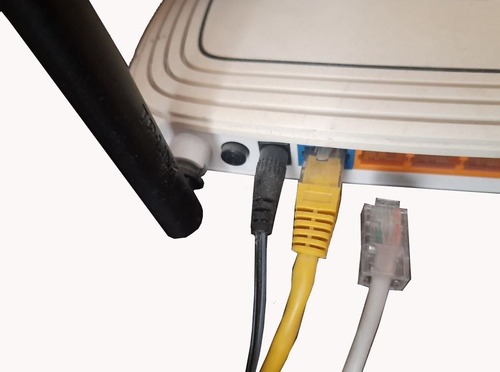
3. Now plug in your modem and router one by one, and wait for them to load up.
4. Log into your ISP terminal if there is an option for the same, and then turn on your device.
Return to Issues Chart.
Update TeamViewer and Windows
When you see a pop-up notifying you of update options, check the version of the TeamViewer software you are currently using, and immediately update to the latest version of TeamViewer.
Check TeamViewer version
- • Windows: TeamViewer –> Help –> About TeamViewer –> Version.
- • macOS: TeamViewer –> About TeamViewer –> Version.
- • Linux: TeamViewer –> Help –> About TeamViewer –> Version.
- • Android: TeamViewer –> Settings –> Version.
- • iOS: TeamViewer –> Settings –> Advanced Settings –> Version Information.
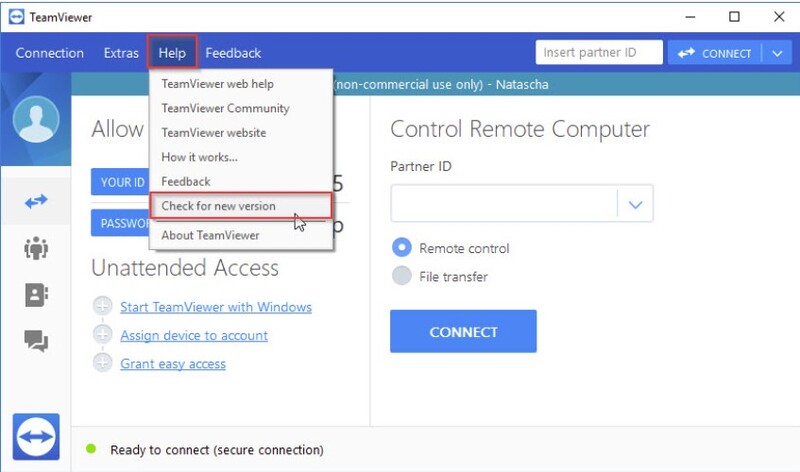
Also check Windows for any available updates. An outdated version of Windows 10 may lack the latest drivers that allow TeamViewer to detect other computers on the network.
Return to Issues Chart.
Allow Full Access to TeamViewer
Windows may impose restrictions on the TeamViewer client, making it impossible to connect to your machine from another machine. Make sure that TeamViewer has full access on both computers.
To give Full Access to TeamViewer, follow these steps:
- Open the TeamViewer client software on both your computers.
- Click on the Extras tab, and click on Options from the drop-down menu.
- In the TeamViewer Options window that opens next, go to the Advanced tab from the left pane menu.
- Locate the Advanced settings for connections to this computer.
- Click on the drop-down menu next to Access Control.
- Change the value to Full Access.
- Click on the OK button to save the settings.
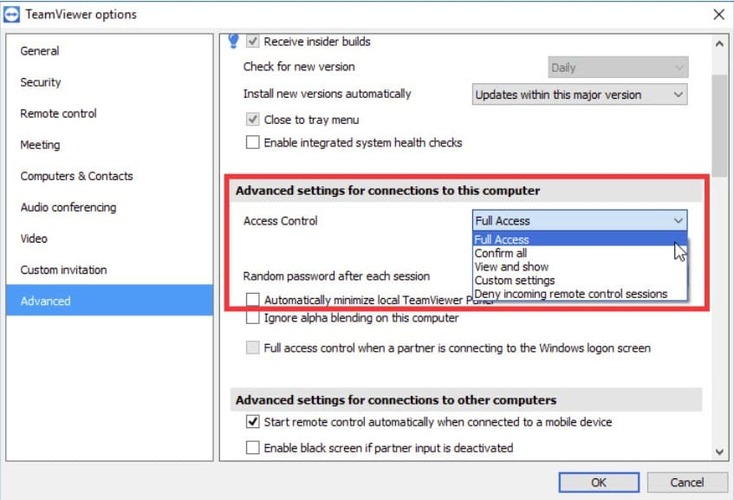
8. Restart the TeamViewer client software on both computers to check if the error is solved.
If the issues you were experiencing were a result of restricted permissions, you should now be able to connect without any issues. To configure TeamViewer security properly, find out the 10 Steps for Better TeamViewer Security.
Return to Issues Chart.
Allow TeamViewer in Windows Defender Firewall
TeamViewer and all its related features require full and uninterrupted access to the internet in order to work. Windows Defender Firewall often blocks TeamViewer. To overcome this, add TeamViewer_Service.exe. You can do this in a few easy steps:
- Open up the Control Panel by searching for the utility in the Start button or by clicking the Search button or the Cortana button on the left part of your taskbar (bottom left part of your screen).
- Change the view to Large or Small icons if necessary and navigate to the bottom to open the Windows Defender Firewall option.
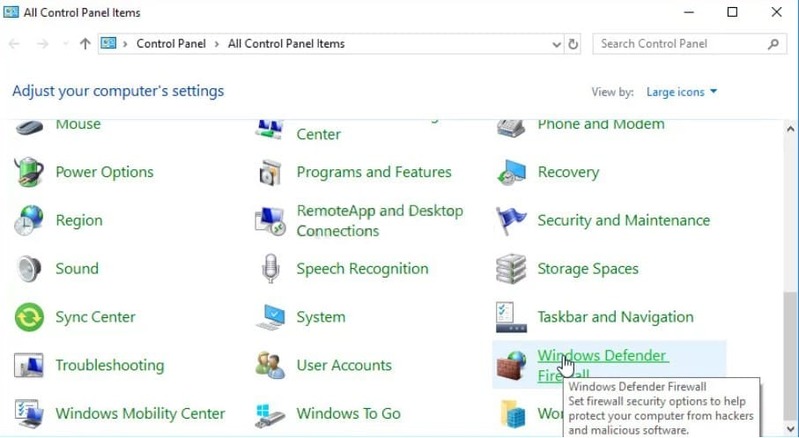
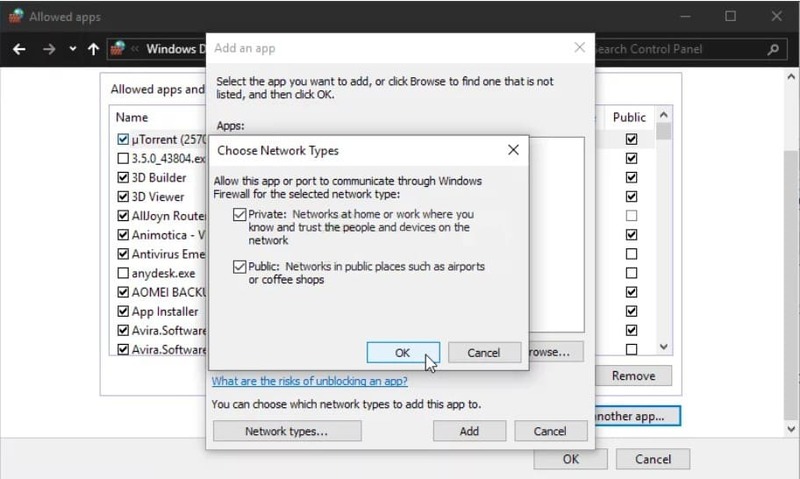
3. Click on Windows Defender Firewall and click on the Allow an app or feature through Windows Firewall option from the options on the left side list. A list of installed apps will be displayed. Click the Change settings button at the top of the screen and provide administrator permissions. Try locating the executable inside. If it’s not there, click the Allow another app button below.
4. Navigate to where you installed TeamViewer (C:\Program Files (x86)\TeamViewer by default) and choose the TeamViewer_Service.exe file.
5. Next, click the Network types button at the top and make sure you check the boxes next to both Private and Public entries before clicking OK >> Add.
6. Click OK and restart your computer before checking whether the TeamViewer is “Not ready. Check your connection” error message still appears on your computer.
When you make changes to your security settings, you put yourself at risk, so we strongly advise you to first learn how to reduce TeamViewer security risks.
Return to Issues Chart.
Add an Exception for the TeamViewer_Service.exe File
It is possible that your TeamViewer is not working if it has been blocked by the system’s antivirus software, thereby preventing it from connecting to the Internet. In order to overcome this, add TeamViewer_Service.exe to your antivirus’s exceptions / exclusion list.
- Open your antivirus software, either from the Start menu or by clicking on the icon in your taskbar (depending on your personal settings).
- The exclusion / exceptions list will be located at different places depending on your specific application – here are some locations for the most common antivirus software to help you.
Kaspersky Internet Security: Home >> Settings >> Additional >> Threats and Exclusions >> Exclusions >> Specify Trusted Applications >> Add.
AVG: Home >> Settings >> Components >> Web Shield >> Exceptions.
Avast: Home >> Settings >> General >> Exclusions.
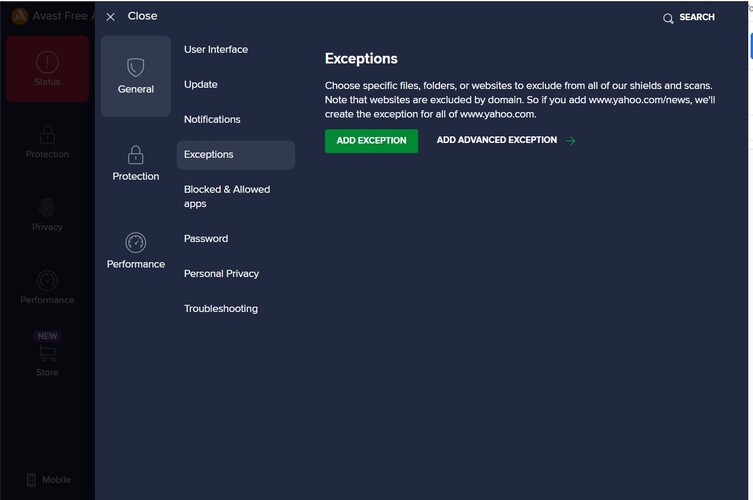
- Navigate to the TeamViewer_Service.exe executable when prompted to do so. It should be in the same folder where you installed TeamViewer. By default, it’s: C:\Program Files (x86)\TeamViewer.
- Check to see if you are now able to use TeamViewer without receiving the error message. If it still won’t work, try restarting your computer and try again. The last step would be to uninstall the antivirus and try a different one if the problem persists.
Return to Issues Chart.
Disable IPv6
Many users have found that disabling IPv6 can resolve the problems with TeamViewer connectivity. It’s worth trying this by following these steps:
- Press the Windows key + S and type “control” to locate the Control Panel.
- Click to open it.
- Go to Network and Internet > Network and Sharing Center.
- From the left pane, click on Change adapter settings.
- Right-click on your currently active network adapter.
- Select Properties.
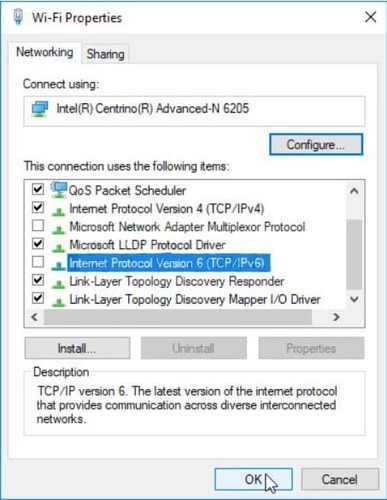
- In the Properties window, uncheck the Internet Protocol Version 6 (TCP/IPv6) option.
- Click OK to apply the changes.
Return to Issues Chart.
Change Your DNS Address
If you still experience issues, try changing your DNS. Your DNS is provided by your ISP, but many users report being able to simply use the Google DNS and this resolved their problem.
You can use the following steps:
- Press Windows + R to open the Run utility box. Type ncpa.cpl and click OK. This will open the Internet Connection Settings.
- Alternatively, open the Control Panel and switch to the Network and Internet settings. Go to the Change adapter settings button on the menu on the left.
- Double-click your active network adapter (the one you are using to connect to the Internet) and click on the Properties button below if you have admin permissions for the current user account.
- Locate the Internet Protocol Version 4 (TCP/IPv4) item on the list. Click on it to select it and click the Properties button below.
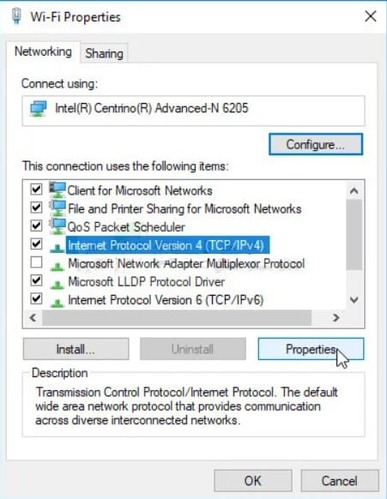
5. From the General tab, change the radio button in the Properties window to “Use the following DNS server addresses” if it was set to the other option.
6. Either way, set the Preferred DNS server to be 8.8.8.8 and the Alternate DNS server to be 8.8.4.4.
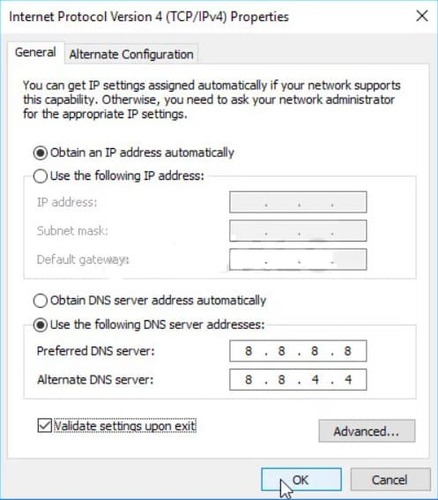
7. Keep the “Validate settings upon exit” option checked and click OK to apply the changes immediately.
How to Setup OpenDNS or Google Public DNS in Macos?
- Open System Preferences from your
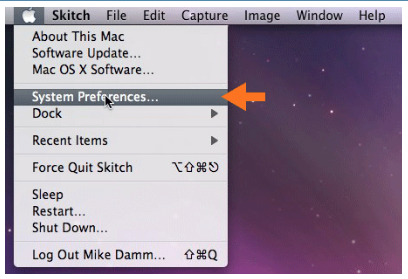
2. Click the Network option
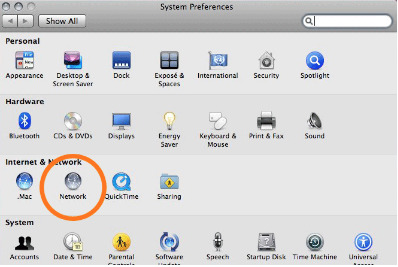
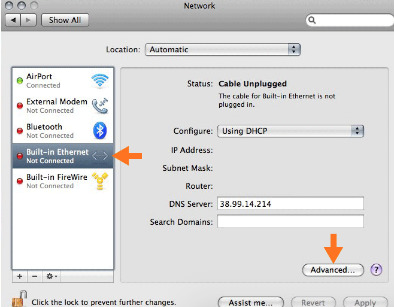
3. Select your active network connection and click the Advanced button
4. Click the DNS tab and enter 208.67.222.222 and 208.67.220.220 for OpenDNS or Enter 8.8.8.8 and 8.8.4.4 For Google Public DNS to the list of DNS servers.
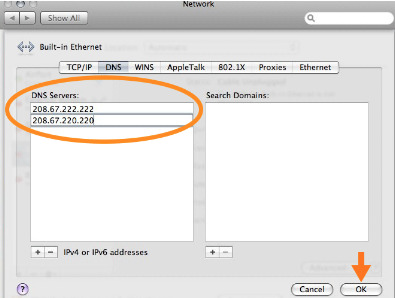
5. Click OK to continue.
Return to Issues Chart.
Remove TeamViewer From the Hosts File
A corrupted ‘hosts’ file may show incorrect addresses and data which could cause your TeamViewer can’t connect. Delete the entry. When you reopen it, the entry will be recreated. This should resolve the problem. To delete your hosts files, follow these steps:
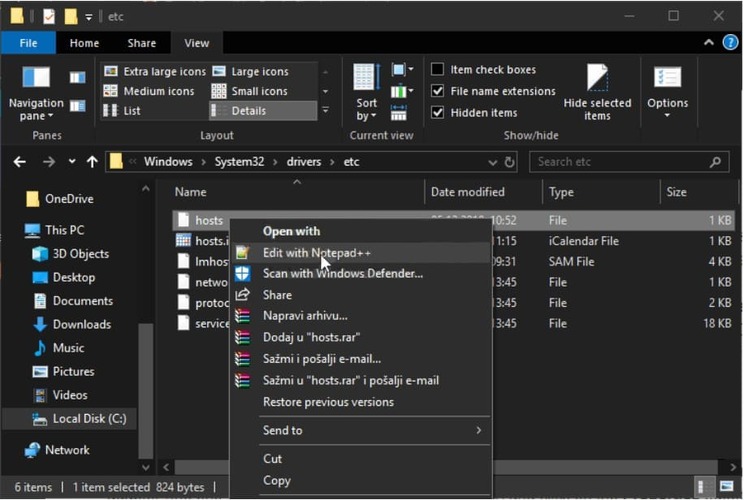
- Navigate to the location C:\ Windows\System32\Drivers\Etc
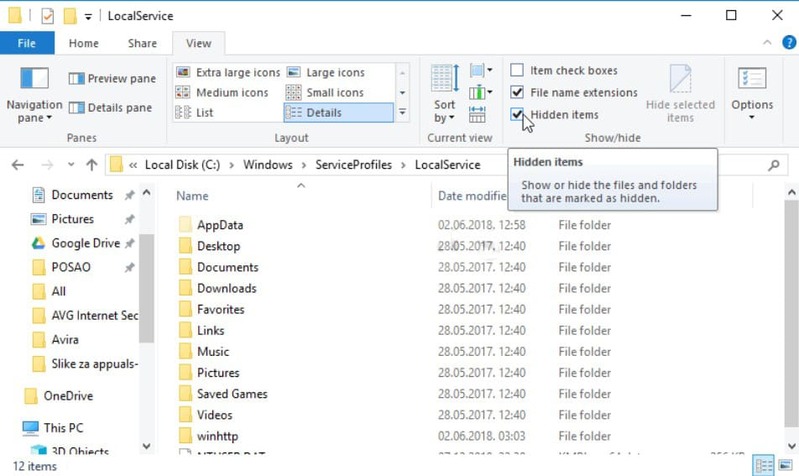
Alternatively, Click This PC or My Computer from the left side pane to locate and open your Local Disk C. If you are unable to see the Windows folder, you may need to turn on the option that enables you to see hidden files and folders. Click the “View” tab in File Explorer’s top menu and click the “Hidden items” checkbox in the Show/hide File Explorer will show the hidden files and will remember this setting until you change it again.
2. Locate the host file in the Etc folder, right-click on it, and choose to Open with Notepad. Use the Ctrl + F key to find any instances of ‘teamviewer’ in the file.
3. Locate the TeamViewer section in the file. It should start with “#TeamViewer” and make sure you select everything that belongs to it, right-click the selection, and choose the Delete button from the context menu.
4. Click File > Save to save the changes or use the Ctrl + S key combination. Exit Notepad and restart your computer.
Return to Issues Chart.
Flush Dns Cache (Windows, Linux, MAC)
Flush DNS, TCP/IP and Reset Winsock on Windows
On nearly every kind of network, there is a timeout period, after which the connectivity throttles upon continued usage. On Windows, you can try clearing the DNS cache as well. To do that:
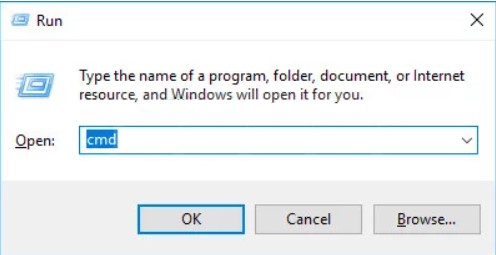
- Open an elevated Command Prompt. To do this, open a Run window by pressing Win + R. Type cmd and press Ctrl + Shift + Enter to launch Command Prompt with administrative privileges.
2. Type the following commands in order to flush your DNS cache and reset TCP/IP:
ipconfig /release
ipconfig /flushdns
ipconfig /renew
nbtstat –r
netsh int ip reset resetlog.txt
netsh winsock reset
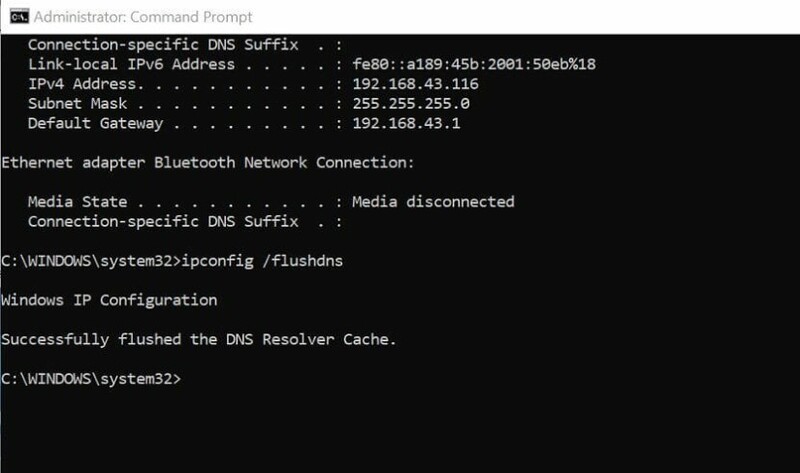
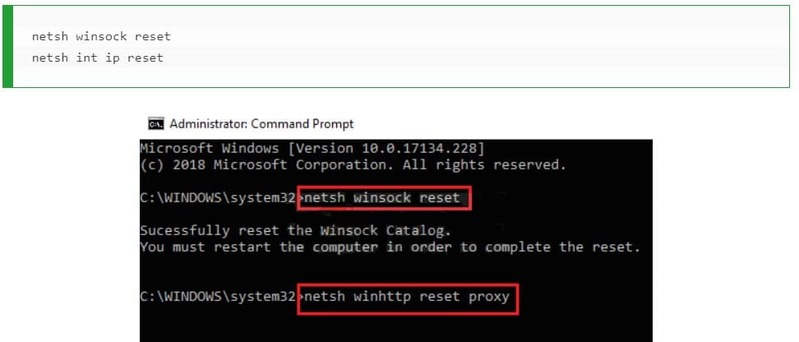
Wait for the confirmation message, and then reboot your device.
Flush DNS Cache In Linux
Linux uses the nscd daemon to manage the client DNS cache. In order to flush your DNS, you simply need to restart the nscd daemon.
Use the following command in your terminalsudo /etc/init.d/nscd restart and press enter
Alternatively, use the service nscd restart
The DNS will be flushed once the nscd restarts.
Flush DNS Cache In Mac
For OS X Lion (10.7) and OS X Mountain Lion (10.8)
Type the following command in your Terminalsudo killall -HUP mDNSResponder
For OS X 10.5 and OS X 10.6 use this command insteaddscacheutil -flushcache
In OS X 10.4 Tigerlookupd -flushcache
Return to Issues Chart.
TeamViewer New User Interface Issue
While it seems odd that an application’s interface would affect internet connectivity, some users have reported that by reverting to TeamViewer’s earlier user interface, they were able to resolve any connectivity issues experienced. To do that, follow the steps below:
- Open the TeamViewer application.
- Click on ‘Extras’ from the application menu bar. Select the ‘Options’ from the submenu.
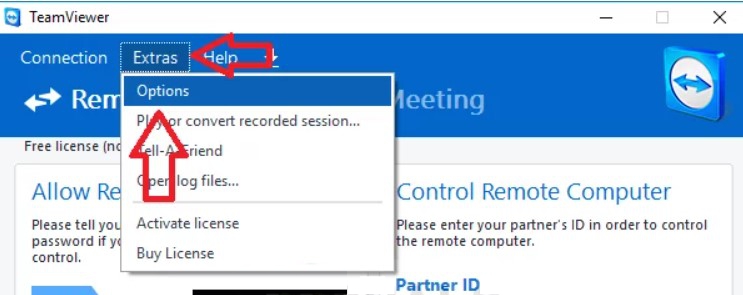
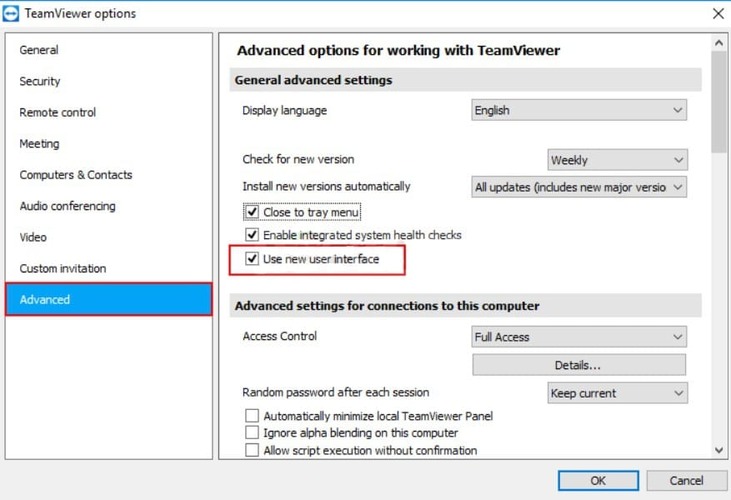
3. Select the Advanced option from the side menu. Locate the General Advanced Settings options in the right pane. Uncheck the “Use new user interface” option. Click ‘OK’ to save your changes and continue.
Return to Issues Chart.
Disable Fast User Switching
If faced with the “Screen cannot be captured at the moment due to fast user switching” error message, this can be resolved by installing TeamViewer as a service. This means that TeamViewer can be started on bootup, thus also allowing unattended access. As a service, TeamViewer can latch on to the depths of the operating system.
Common causes of this error message include:
- The remote computer has minimized the RDP session or closed it
- The user who opened TeamViewer has logged out
- The PC has gone into sleep mode or been turned off
Fast switching is a useful feature that allows users to sign into a computer while others are signed in. The downside of this is that you have to share resources with other logged in users, and you can’t restart or turn the computer off without all other users first logging off.
It is possible to disable Fast switching by editing the Windows Registry or Local Group Policy Editor. This simply hides any options to switch users while logged in.
To edit the Registry, press Win+R, type “regedit” in the search field. Once open, use the left menu to navigate to the following key:HKEY_LOCAL_MACHINE\SOFTWARE\Microsoft\Windows\CurrentVersion\Policies\System
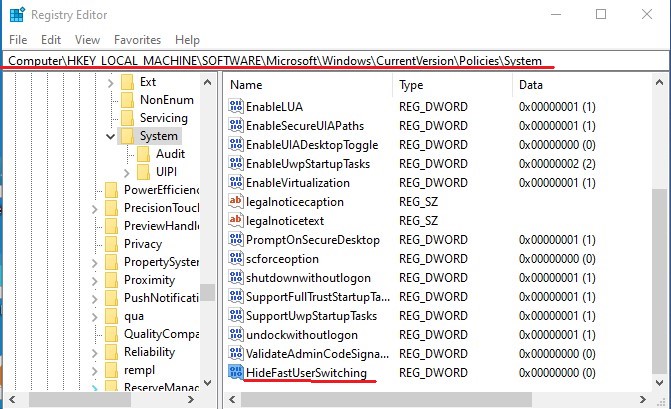
Create a new value inside the System key by right-clicking the System Key and choosing New > DWORD (32-bit) Value. Input ‘HideFastUserSwitching’.
Access the new value’s properties by double-clicking. Change the value of 0 to 1 in the ‘Value data’ field.
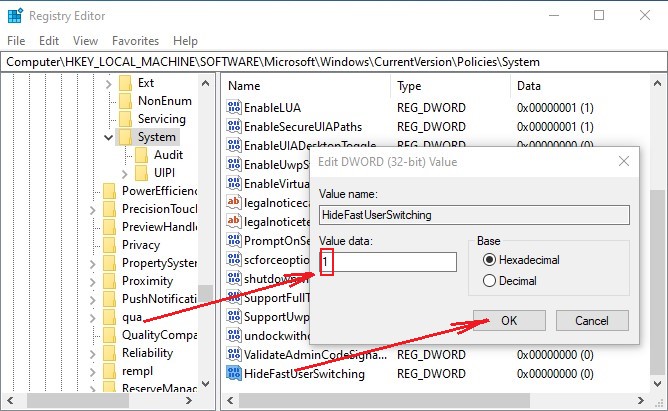
Click Ok to save your changes. You will need to log off or reboot your machine for the changes to take effect.
When using TeamViewer on Windows Server, make sure you enable Enhanced multi-user support. In versions of TeamViewer 11 and later, it is enabled by default. Multi-user support assigns a TeamViewer ID for every user connecting to the server via RDP, which means concurrent user sessions are possible. Do not make sure of the QuickSupport module when using multi-user mode. QuickSupport cannot run as part of an installed service, and it is geared towards customers who only require one-time support or who have no admin rights on their respective computers.
Return to Issues Chart.
Restart the TeamViewer Service
Before you stop the TeamViewer service, make sure TeamViewer is closed.
- Use Windows + R to open the Run window. Type ‘services.msc’ and click OK to open the Services utility.
- Locate the Administrative Tools in the window, and click on the Services shortcut.
- Right-click the TeamViewer Service on the list. Select Properties from the context menu that appears.
- You can now toggle the service On and Off by selecting Start or Stop. Leave it On stopped for now.
- From the Startup type options, select Automatic. Click to confirm changes when prompted.
- Now start the service. The service will now start automatically everytime the computer is turned on.
Return to Issues Chart.
Reinstall TeamViewer
If you’ve tried all the various solutions suggested in this article, but you still encounter problems with TeamViewer, you may need to reinstall TeamViewer. Follow these steps for a painless and effective way to uninstall TeamViewer completely. Also, make sure you download the latest TeamViewer to ensure you have all the latest patches and fixes.
Open the Control Panel from the Start menu. In Windows 10 you can also click on the cog icon in the Start menu.
- Using the View as: Category option, locate the Programs section and click on the Uninstall a Program option.
- If you’re using the Settings app instead, wait while a list of installed apps is generated.
- Locate TeamViewer and click on the Uninstall/Repair option. Follow the onscreen instructions to uninstall TeamViewer.
- Now download the latest TeamViewer. Double-click the downloaded install file and follow the installation wizard. Once installation is complete, restart TeamViewer and check if the problem still persists. Learn how to install and set up TeamViewer correctly to avoid many problems.
Return to Issues Chart.
FAQ
Sometimes when trying to connect with TeamViewer, you may encounter a black screen. This can be due to a number of things.
- • the connection is to a computer with no monitor
- • the TeamViewer service is not running correctly
- • the communication of TeamViewer has encountered an interference/block
- • an active RDP (Windows Remote Desktop) is running on the remote side
If there is an active RDP session on the remote computer, but that RDP window is minimized, you will see a black screen. This is because while the RDP window is minimized, so is the entire desktop. This makes it impossible for TeamViewer to grab the remote computer screen. To fix this, the remote desktop window on the remote computer needs to simply be maximized and made active or RDP needs to be desaibled before you start the session.
- Solution 1: Make sure the monitor on the remote PC is working
- Solution 2: Restart the remote PC
- Solution 3: Update TeamViewer
- Solution 4: Restart the TeamViewer Service
- Solution 5: Disable Fast User Switching
When there is no monitor connected, the graphics card will not output any video. This means TeamViewer can not capture and stream any video output. The graphics card needs the attached display to know what resolution is required. Without this, it outputs a black screen.